
chatwatch MCP server
Commit Nov 11, 2026Allows AI agents to read and respond to Microsoft Teams chats by driving a local Chrome session without requiring Azure app registration or admin consent.
Also known as xxxxDev/chatwatch
- Stars
- 1
- Tools
- 11
- Downloads, 30 days
- —
- Latest version
- —
- Last commit
- Nov 11, 2026
- License
- MIT
What is chatwatch MCP?
chatwatch allows AI agents to read and respond to Microsoft Teams chats by driving a local Chrome session without requiring Azure app registration or admin consent. It exposes 11 tools, such as teams_list_chats, teams_read_messages, teams_wait_for_messages.
Summary generated from the project's README
About chatwatch MCP server
Automating Microsoft Teams chat interactions from within an AI client is what chatwatch enables by driving a local Chrome session. Instead of requiring complex Azure app registrations or administrative consent, this tool uses your existing Teams web login to allow agents to read and respond to messages. It runs locally on your computer and works with MCP clients like Claude Code, Codex, or Cursor.
Users can interact with chats through two primary methods: pulling data via MCP tools or using push handlers that send new messages to a specific command or URL. To maintain control, the server includes a send mode system. You can set chats to draft mode, where the agent's replies are held on a local page for your manual approval, or auto mode for immediate sending. The system also provides a live view of the Chrome session, allowing you to manually click, scroll, or type to manage your sign-in status.
What you can do with it
- 1Drafting chat repliesAsk an AI agent to monitor your messages and prepare responses for your review.
- 2Automating message monitoringInstruct an agent to wait for specific incoming information over a set period.
- 3Integrating with external handlersRoute incoming Teams messages to a custom local command or a web URL for processing.
Written from the project's README. Every use case is checked against a quote from it.
chatwatch MCP tools 11
Detected from the READMEteams_list_chatsteams_read_messagesteams_wait_for_messagesteams_send_messageteams_get_attachmentsteams_list_draftssentdraftrefusednot_sentmaybe_sent
| teams_list_chats | — | |
| teams_read_messages | — | |
| teams_wait_for_messages | — | |
| teams_send_message | — | |
| teams_get_attachments | — | |
| teams_list_drafts | — | |
| sent | — | |
| draft | — | |
| refused | — | |
| not_sent | — | |
| maybe_sent | — |
Automated checks
Ran Nov 14, 2026Full report →Not verified yet. A server needs a score of 80, no serious finding, and enough data for us to check. How checks work · What to fix for more points

- Source repository linked and reachablexxxxdev/chatwatch is public and reachablegithub.com/xxxxdev/chatwatch ↗Pass
- Package names this repository as its sourceNot checked
- Build provenance (Sigstore attestation)Not checked
- Open source license (OSI)MITspdx.org/licenses/MIT.html ↗Pass
- Commit or release in the last yearLast commit or release 2026-11-11github.com/xxxxdev/chatwatch ↗Pass
- OpenSSF ScorecardNot checked
- Package name not close to a popular packageNot checked
- No critical advisory in the package or its dependenciesNot checked
- No hidden instructions to the model11 tool descriptions and the README read; no override phrases, credential paths or hidden charactersPass
- Destructive tools are labelledNo tool named like delete, drop or execPass
- Remote endpoint answers the MCP handshakeNot checked
README
View on GitHubWhat it is
chatwatch runs on your own computer, as your user, with your Teams sign-in. Your agents work with your chats through MCP tools or push handlers, and every send passes the chat's send mode before anything reaches Teams.
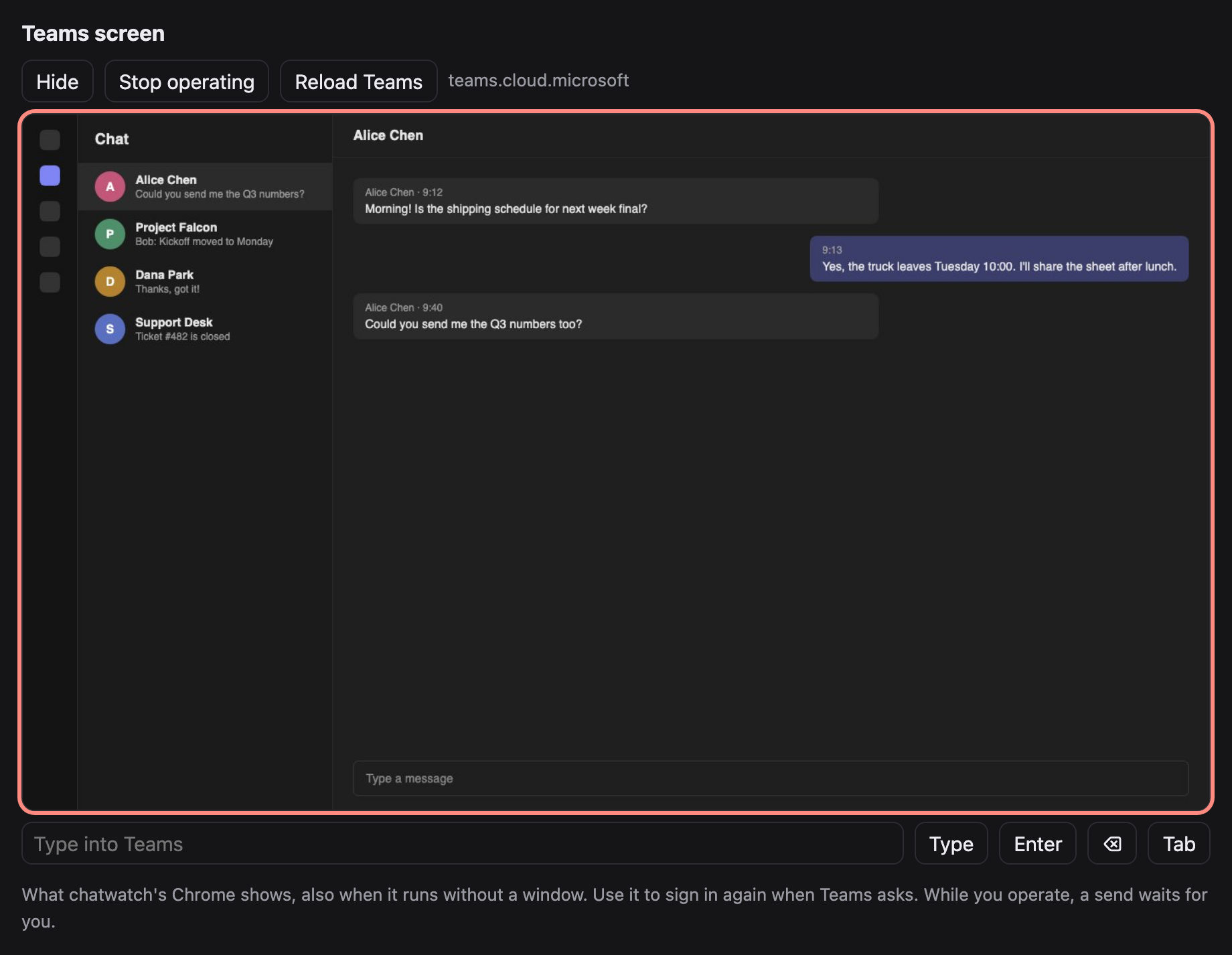
The Teams tab, seen on chatwatch's local page (made-up chats).
Features
- Pull (MCP): any MCP client (Claude Code, Codex, Cursor, …) gets tools to list chats, read messages, wait for new ones, fetch attachments and send.
- Push (handlers): each new batch of messages in a chat goes to a command or URL you choose; its answer is sent back to the chat.
- You stay in control: every chat has a send mode.
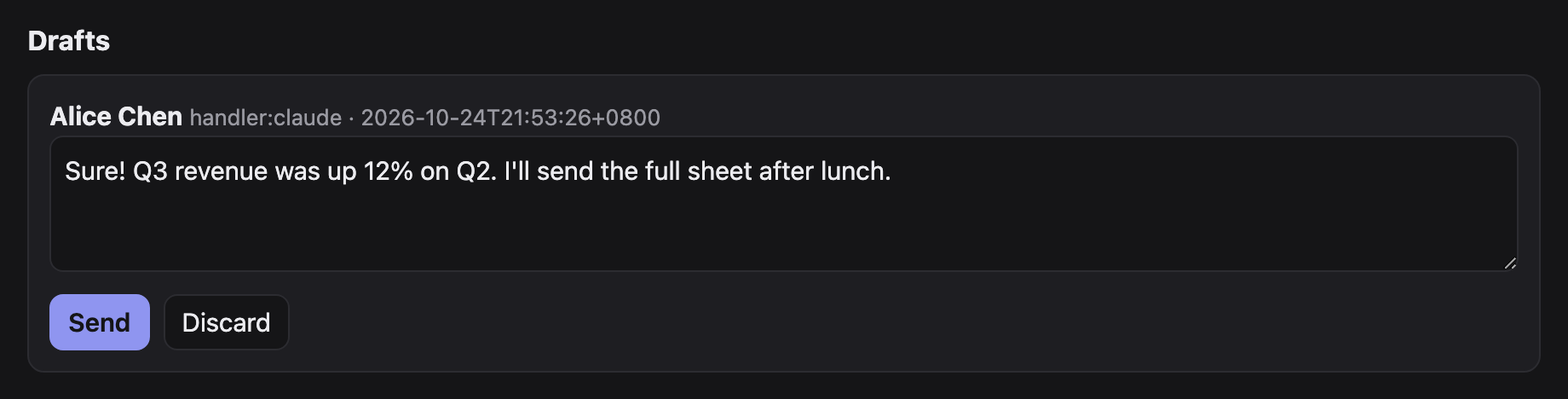
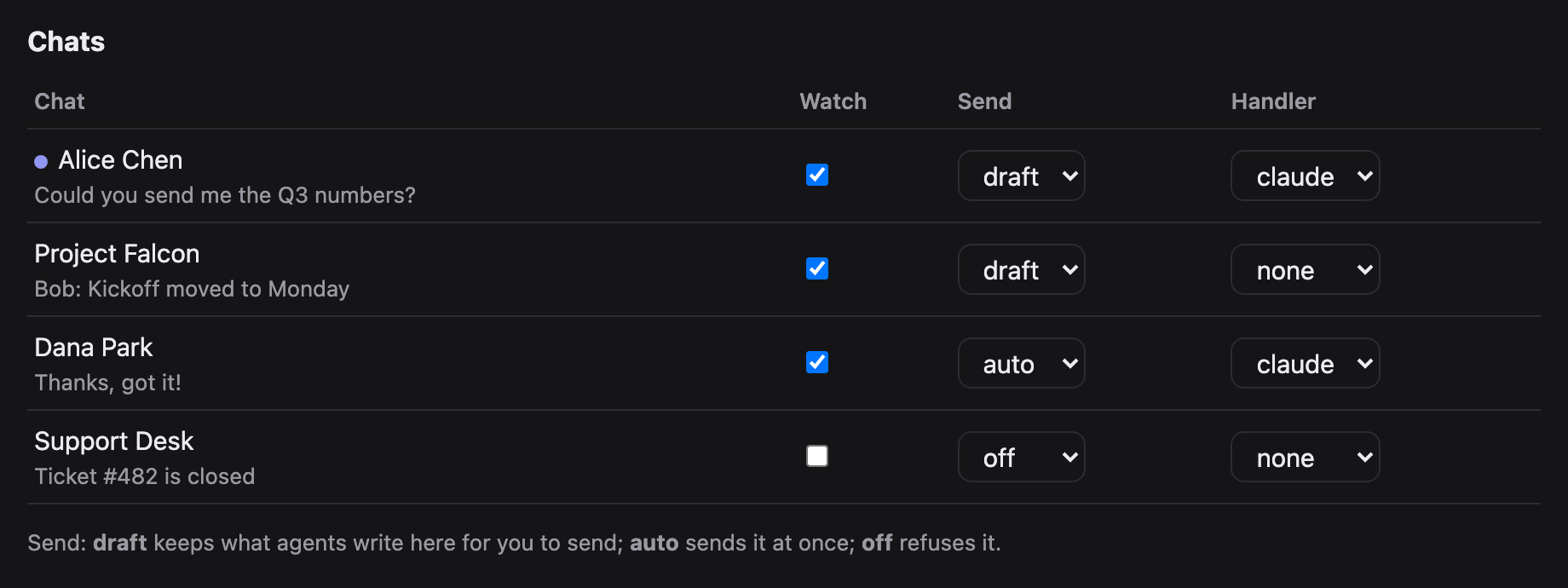
draft(the default) keeps what an agent writes on the local page until you send or discard it;autosends at once;offrefuses. - Nothing is marked read by watching. New messages are read through Teams' own chat service API from inside the tab, so chats stay unread. Sending opens the chat, which marks it read (Teams does that; it cannot be avoided).
- See Teams on the page. A live view of chatwatch's Chrome, also when it runs without a window: click, scroll and type in it to sign in again when Teams asks.
- The Teams token never leaves the tab. It is used inside the page and is never returned to Python, printed or saved.
Requirements
- Python 3.9 or later. chatwatch uses the standard library only, so there is nothing else to install.
- Chrome, Chromium or Edge. If chatwatch does not find it, set
CHATWATCH_CHROMEto its executable. - A Microsoft Teams account you can sign in to on the Teams web page.
- For the pull tools, an MCP client such as Claude Code, Codex or Cursor.
Quick start
git clone https://github.com/xxxxDev/chatwatch.git chatwatch && cd chatwatch
pip install .                    # or run python3 -m chatwatch from this folder

# 1. Sign in to Teams once, in chatwatch's own Chrome profile
chatwatch browser --show         # sign in, then close the window

# 2. Run the watcher (starts Chrome headless) and open the page
chatwatch serve
chatwatch open                   # prints http://127.0.0.1:8766/#key=...

# 3. Give your agent the tools
claude mcp add teams -- chatwatch mcp
How it fits together
flowchart LR
    agent["Your agent<br/>Claude Code, Codex,<br/>any MCP client"]
    handler["Your handler<br/>a command or URL"]
    mcp["chatwatch mcp"]
    serve["chatwatch serve"]
    mode{"Send mode<br/>of the chat"}
    page["Local page<br/>you send or discard"]
    tab["Teams tab in<br/>chatwatch's Chrome"]
    teams[("Microsoft Teams")]

    agent -- "MCP tools" --> mcp
    mcp -- "local API + key" --> serve
    serve -- "new messages" --> handler
    handler -- "reply" --> serve
    serve -- "read through the chat API,<br/>never marks read" --> tab
    serve -- "send" --> mode
    mode -- "auto" --> tab
    mode -- "draft" --> page
    page -- "you approve" --> tab
    mode -- "off" --> refused["refused"]
    page -. "live view" .- tab
    tab <--> teams
An agent works with chats in one of two ways. Through MCP it asks for chats and messages and sends when it decides to. Through a handler each new batch of messages is pushed to it, and its answer is sent back. Either way, every send passes the chat's send mode before anything reaches Teams.
The page
chatwatch open prints the page's address with its key; open it in your browser. It refreshes itself every few seconds.
- Pause / Resume (top): the emergency stop, see Push handlers.
- Teams screen: see below.
- Drafts: every reply waiting for you. Edit the text, then Send or Discard. A draft whose earlier send may have gone out asks you to tick I checked the chat first, so nothing is sent twice by mistake.
- Chats: each chat Teams lists, with a dot when unread. Per chat: Watch (record its new messages and pass them on), Send (
draft,autooroff;autoasks you to confirm) and Handler (where its new messages are pushed; handlers come fromconfig.json). - Recent: the last 30 events: new messages, sends, drafts, refusals and errors.
Teams screen
On the page, Show under Teams screen displays what the Teams tab shows. Start operating sends your clicks, scrolling and typing to it (on a phone, use the text box and the Enter, ⌫ and Tab buttons); Reload Teams reloads the tab. A send waits while you operate, and your input waits for a send in progress. Only the Teams tab (or the Microsoft sign-in page it goes to) is shown; there is no address bar.
MCP tools
| Tool | What it does |
|---|---|
teams_list_chats |
Chats with title, id, preview, unread flag and their settings |
teams_read_messages |
Last n messages of a chat, without marking it read |
teams_wait_for_messages |
New incoming messages after an event number, waiting up to 60 s |
teams_send_message |
Text and files to a chat, under its send mode |
teams_get_attachments |
Download the pictures and files of given messages |
teams_list_drafts |
Replies waiting for you on the page |
teams_send_message answers with a status:
sent: it is in the chat.draft: waiting for you on the page.refused: sending is off for this chat.not_sent: nothing went out; trying again is safe.maybe_sent: send was pressed but the message was not seen; do not resend before someone checks the chat.
A chat is named by its title, a part of the title that matches only one chat, or its id.
Push handlers
Define handlers in ~/.chatwatch/config.json and pick one per chat on the page:
{
  "handlers": {
    "claude": {"command": ["claude", "-p", "--output-format", "text",
                "Answer this Teams chat. The messages are JSON on stdin."]},
    "my-bot": {"url": "http://127.0.0.1:9000/teams", "timeout": 300}
  }
}
A command gets the batch as JSON on stdin; a URL gets it POSTed:
{"chat_id": "19:...", "chat": "Alice", "kind": "OneOnOneChat", "send": "draft",
 "messages": [{"mid": "...", "author": "Alice", "time": "...", "text": "Hi"}]}
It answers with plain text (the reply) or JSON {"text": "...", "files": ["/abs/path"]}. An empty answer sends nothing. The reply follows the chat's send mode. In auto, a send that certainly did not go is tried again after 20 s, 60 s and 180 s, then kept as a draft; one that may have gone is kept as a draft marked for checking, never resent by itself.
Two bots answering each other on auto never stop. Keep bot chats on draft. Pause on the page is the emergency stop: nothing is read, queued handler work is skipped, and while paused every auto chat behaves as draft. A reply that comes back after its chat was paused, unwatched or given another handler waits as a draft.
Using it with an agent
With the MCP tools added, ask your agent in plain words, for example:
Check my Teams chats for anything new from Alice and draft a reply.
Wait for new Teams messages for the next 10 minutes and answer the questions about the shipping schedule.
The agent lists chats, reads, waits and sends with the tools above. On a draft chat its replies wait on the page; switch a chat to auto only when you trust what it sends there.
Starting, stopping and signing in again
chatwatch serveruns in the foreground; stop it with Ctrl+C. Chrome keeps running;chatwatch browser stopcloses it.- When Teams signs you out, reading stops with
NO_TEAMS_TOKEN. Sign in again on the page's Teams screen, or close Chrome and runchatwatch browser --show. - Settings, drafts and the sign-in stay in
~/.chatwatchacross restarts. Messages that arrived while chatwatch was stopped are passed on when it starts again (up to the last 20 per chat); those that arrived while it was paused are not, so no late automatic reply goes out after a pause.
Troubleshooting
| Message | What to do |
|---|---|
chatwatch is not running at ... |
Start chatwatch serve. |
NO_TEAMS_TOKEN, CHAT_API_401 |
Teams signed out: sign in again (above). |
Chrome not found |
Set CHATWATCH_CHROME to Chrome's executable. |
no chat matches / several chats match |
Use the exact title or the chat id from teams_list_chats. |
DRAFT_NOT_EMPTY |
Someone left text in that chat's message box; clear it on the Teams screen. |
CHAT_NOT_FOUND, NO_COMPOSE_BOX, NO_SEND_BUTTON |
Teams is still loading or its page changed; look at the Teams screen, then try again. |
TYPED_TEXT_MISMATCH, SEND_NOT_TAKEN |
Nothing was sent; trying again is safe. |
maybe_sent |
Look at the chat before sending again. |
the Teams tab is busy sending |
Your input on the Teams screen waited for a send; try again. |
Command line
chatwatch chats
chatwatch read "Alice" 10
chatwatch send "Alice" "Hello" ./report.pdf     # sends now, whatever the mode: you are the person
chatwatch set "Alice" --watch on --send auto --handler claude
Settings
| Variable | Default | |
|---|---|---|
CHATWATCH_HOME |
~/.chatwatch |
config, state, events, drafts, API key, Chrome profile |
CHATWATCH_PORT |
8766 |
page and local API |
CHATWATCH_CDP_PORT |
9334 |
DevTools port of chatwatch's Chrome |
CHATWATCH_CDP |
use a Chrome you already run with --remote-debugging-port |
|
CHATWATCH_CHROME |
path to the Chrome executable | |
CHATWATCH_POLL |
4 |
seconds between checks |
CHATWATCH_URL |
http://127.0.0.1:8766 |
address of the running chatwatch serve that chatwatch mcp talks to; when unset, its port follows CHATWATCH_PORT |
How it works
teams.py reads through the chat service API inside the Teams tab and sends by pasting the whole text into the compose box (a synthetic paste keeps line breaks; typing key by key now and then lost a key), attaching files through the file chooser, pressing send, and waiting for the message to appear. service.py polls, records events, runs handlers and applies send modes. http_api.py serves the page and the local API; mcp.py is a stdio MCP server that talks to that API. cdp.py is a small DevTools client.
Teams changes its web page from time to time; the selectors in teams.py then need updating.
Limits
- Chats only, not channel posts.
- Chats are found among those Teams lists in its sidebar.
- Sending marks the chat read; watching does not.
- It depends on the Teams web page. When Teams changes it, reading or sending can stop until
teams.pyis updated; the error names the step that failed.
Security
The page and API listen on 127.0.0.1 only and need the key in ~/.chatwatch/api-key. Agents read what other people write to you, and in an auto chat what they write goes out at once. Read SECURITY.md before connecting an agent, and use it to report a problem.
Contributing
See CONTRIBUTING.md before you open an issue or a pull request. Changes are listed in CHANGELOG.md and ideas for later in docs/ROADMAP.md.
License
The code is under the MIT License.
chatwatch is an independent project. It is not made by, affiliated with or endorsed by Microsoft. Microsoft Teams is a trademark of Microsoft.
Made by V-AX.
chatwatch MCP questions
What tools does chatwatch MCP provide?
It exposes 11 tools, including teams_list_chats, teams_read_messages, teams_wait_for_messages, teams_send_message, teams_get_attachments.
Does chatwatch require Azure app registration or admin consent?
No, it drives a Chrome tab with your existing Teams session, meaning no Azure app registration, admin consent, or bot account is needed.
How can I control whether an AI agent sends messages automatically?
You can set a send mode for each chat: 'draft' keeps messages on a local page for your approval, 'auto' sends them immediately, and 'off' refuses them.
Will watching chats mark them as read in Microsoft Teams?
No, new messages are read through Teams' own chat service API from inside the tab, so chats stay unread until you actually send a message.
What are the system requirements for running chatwatch?
You need Python 3.9 or later and a browser like Chrome, Chromium, or Edge.