
Enables AI clients to send emails, perform public IP lookups, and convert local documents to Markdown.
Also known as sendsoon/ai, @sendsoon/ai
- Stars
- 6
- Tools
- —
- Downloads, 30 days
- —
- Latest version
- 0.1.2
- Last commit
- Oct 12, 2026
- License
- MIT
What is SendSoon MCP?
SendSoon enables AI clients to send emails, perform public IP lookups, and convert local documents to Markdown.
Summary generated from the project's README
About SendSoon MCP server
SendSoon MCP provides a bridge for AI clients like Claude Desktop, Codex, and WorkBuddy to interact with external services. It allows these agents to perform specific tasks such as sending emails, retrieving public IP information, and converting local files into Markdown format. Users can integrate this server into their existing workflows by configuring a JSON or TOML file with the necessary command and environment variables.
Setup requires an API key from SendSoon to bypass certain limitations. While an anonymous trial is available, it restricts users to sending three free test emails per day via a single public IP. For full functionality, developers must generate a key through the SendSoon website and add it to their configuration. The server uses npx to run the @sendsoon/mcp package, making it easy to deploy across different operating systems.
What you can do with it
- 1Automated Email DispatchAsk your AI agent to send a specific message to a recipient with a subject line.
- 2Network Information RetrievalRequest details about the location or service provider associated with a specific IP address.
- 3Document Format ConversionInstruct the AI to transform a local PDF file into Markdown for easier processing.
Written from the project's README. Every use case is checked against a quote from it.
How to install SendSoon MCP
Formats verified 10 Nov 2026Add to CursorAdd to GooseInstall SendSoon MCP in Claude Code
$ claude mcp add --env 'SENDSOON_EMAIL_RECIPIENT=<SENDSOON_EMAIL_RECIPIENT>' --env 'SENDSOON_API_KEY=<YOUR_SENDSOON_API_KEY>' ai -- npx -y @sendsoon/aiInstall SendSoon MCP in Cursor
~/.cursor/mcp.json
{
  "mcpServers": {
    "ai": {
      "command": "npx",
      "args": [
        "-y",
        "@sendsoon/ai"
      ],
      "env": {
        "SENDSOON_EMAIL_RECIPIENT": "<SENDSOON_EMAIL_RECIPIENT>",
        "SENDSOON_API_KEY": "<YOUR_SENDSOON_API_KEY>"
      }
    }
  }
}Install SendSoon MCP in VS Code
.vscode/mcp.json
{
  "servers": {
    "ai": {
      "type": "stdio",
      "command": "npx",
      "args": [
        "-y",
        "@sendsoon/ai"
      ],
      "env": {
        "SENDSOON_EMAIL_RECIPIENT": "<SENDSOON_EMAIL_RECIPIENT>",
        "SENDSOON_API_KEY": "<YOUR_SENDSOON_API_KEY>"
      }
    }
  }
}Install SendSoon MCP in VS Code CLI
$ code --add-mcp '{"name":"ai","type":"stdio","command":"npx","args":["-y","@sendsoon/ai"],"env":{"SENDSOON_EMAIL_RECIPIENT":"<SENDSOON_EMAIL_RECIPIENT>","SENDSOON_API_KEY":"<YOUR_SENDSOON_API_KEY>"}}'Install SendSoon MCP in Claude Desktop
claude_desktop_config.json
{
  "mcpServers": {
    "ai": {
      "command": "npx",
      "args": [
        "-y",
        "@sendsoon/ai"
      ],
      "env": {
        "SENDSOON_EMAIL_RECIPIENT": "<SENDSOON_EMAIL_RECIPIENT>",
        "SENDSOON_API_KEY": "<YOUR_SENDSOON_API_KEY>"
      }
    }
  }
}Install SendSoon MCP in Codex
$ codex mcp add ai --env 'SENDSOON_EMAIL_RECIPIENT=<SENDSOON_EMAIL_RECIPIENT>' --env 'SENDSOON_API_KEY=<YOUR_SENDSOON_API_KEY>' -- npx -y @sendsoon/aiInstall SendSoon MCP in Codex config.toml
~/.codex/config.toml
[mcp_servers.ai]
command = "npx"
args = ["-y", "@sendsoon/ai"]

[mcp_servers.ai.env]
SENDSOON_EMAIL_RECIPIENT = "<SENDSOON_EMAIL_RECIPIENT>"
SENDSOON_API_KEY = "<YOUR_SENDSOON_API_KEY>"
Install SendSoon MCP in Gemini CLI
$ gemini mcp add -s user -e 'SENDSOON_EMAIL_RECIPIENT=<SENDSOON_EMAIL_RECIPIENT>' -e 'SENDSOON_API_KEY=<YOUR_SENDSOON_API_KEY>' ai npx -- -y @sendsoon/aiInstall SendSoon MCP in Gemini settings.json
~/.gemini/settings.json
{
  "mcpServers": {
    "ai": {
      "command": "npx",
      "args": [
        "-y",
        "@sendsoon/ai"
      ],
      "env": {
        "SENDSOON_EMAIL_RECIPIENT": "<SENDSOON_EMAIL_RECIPIENT>",
        "SENDSOON_API_KEY": "<YOUR_SENDSOON_API_KEY>"
      }
    }
  }
}Configuration
SENDSOON_EMAIL_RECIPIENTRequiredRecipient address allowed for test sends.
SENDSOON_API_KEYSecretSendSoon API Key (ssk_live_...). Leave empty for the anonymous trial of three sends per public IP per day.
SENDSOON_API_BASE_URLOverride the SendSoon API base URL. Defaults to https://www.sendsoonai.com.
| Name | Description | |
|---|---|---|
| SENDSOON_EMAIL_RECIPIENT | Recipient address allowed for test sends. | Required |
| SENDSOON_API_KEY | SendSoon API Key (ssk_live_...). Leave empty for the anonymous trial of three sends per public IP per day. | Secret |
| SENDSOON_API_BASE_URL | Override the SendSoon API base URL. Defaults to https://www.sendsoonai.com. |
Automated checks
Ran Nov 14, 2026Full report →Passed our automated checks. That is not a security audit: read the code and give the server the narrowest access it needs. How checks work

- Source repository linked and reachablesendsoon/ai is public and reachablegithub.com/sendsoon/ai ↗Pass
- Package names this repository as its source@sendsoon/ai names sendsoon/ai as sourcenpmjs.com/package/@sendsoon/ai ↗Pass
- Build provenance (Sigstore attestation)No build attestation published for this releaseNot checked
- Open source license (OSI)MITspdx.org/licenses/MIT.html ↗Pass
- Commit or release in the last yearLast commit or release 2026-10-12github.com/sendsoon/ai ↗Pass
- OpenSSF ScorecardNot checked
- Package name not close to a popular packageNo popular package one edit away from @sendsoon/aiPass
- No critical advisory in the package or its dependencies99 resolved dependencies checked; no critical advisoryosv.dev ↗Pass
- No hidden instructions to the model0 tool descriptions and the README read; no override phrases, credential paths or hidden charactersPass
- Destructive tools are labelledNot checked
- Remote endpoint answers the MCP handshakeNot checked
README
View on GitHubSendSoon AI MCP
SendSoon MCP is a Model Context Protocol (MCP) server that lets Codex, Claude, and WorkBuddy use SendSoon capabilities: send email, look up public IPs, and convert local documents to Markdown.
Configure it once, then describe tasks in natural language. You usually do not need to mention SendSoon in every prompt.
What you can do
| Tool | Purpose | Example |
|---|---|---|
send_email |
Send a single email | “Send me a test email” |
ip_lookup |
Look up public IP information | “Look up the location of 8.8.8.8” |
markitdown_convert |
Convert a local document to Markdown | “Convert this PDF to Markdown” |
Everyday examples
Send an email to user@example.com with the subject “Meeting reminder” and the body “The meeting starts at 3 PM today.”
Look up the location and ISP for 8.8.8.8.
Convert /path/to/report.pdf to Markdown and summarize the key points.
If the agent does not select a tool automatically, say:
Use the sendsoon MCP to complete this task.
Install in your AI client
The instructions below cover Codex, Claude Desktop, and WorkBuddy.
Codex
Config file: user-level ~/.codex/config.toml (macOS / Linux) or %USERPROFILE%\.codex\config.toml (Windows).
[mcp_servers.sendsoon]
command = "npx"
args = ["-y", "@sendsoon/mcp"]

[mcp_servers.sendsoon.env]
SENDSOON_API_KEY = ""
Verify: Save the file, restart Codex, and run /mcp in a chat. You should see sendsoon connected. In the desktop app, also check Settings > MCP servers.
First use: Start a new conversation and ask for a simple task (e.g. “Look up 8.8.8.8”). Approve the tool if Codex asks for permission.
Claude Desktop
Config file:
| OS | Path |
|---|---|
| macOS | ~/Library/Application Support/Claude/claude_desktop_config.json |
| Windows | %APPDATA%\Claude\claude_desktop_config.json |
You can also open Settings > Developer > Edit Config inside Claude Desktop.
{
  "mcpServers": {
    "sendsoon": {
      "command": "npx",
      "args": ["-y", "@sendsoon/mcp"],
      "env": {
        "SENDSOON_API_KEY": ""
      }
    }
  }
}
Verify: Save the file, fully quit Claude Desktop (including the system tray), then relaunch. Start a new chat and confirm sendsoon tools appear in the tools menu or settings.
First use: Claude may ask to approve tool access on the first invocation; allow it to continue.
WorkBuddy
WorkBuddy can add SendSoon by pasting the connector JSON directly in MCP Server Management.
Config file: %USERPROFILE%\.workbuddy-ai\mcp.json (Windows) or ~/.workbuddy-ai/mcp.json (macOS / Linux).
- Open WorkBuddy and go to MCP Server Management.
- Click Add MCP.
- Paste the JSON below into the editor. Fill in
SENDSOON_API_KEYif you have a Key; leave it empty for the anonymous trial. - Click Save.
{
  "mcpServers": {
    "sendsoon": {
      "command": "npx",
      "args": [
        "-y",
        "@sendsoon/mcp"
      ],
      "env": {
        "SENDSOON_API_KEY": ""
      }
    }
  }
}
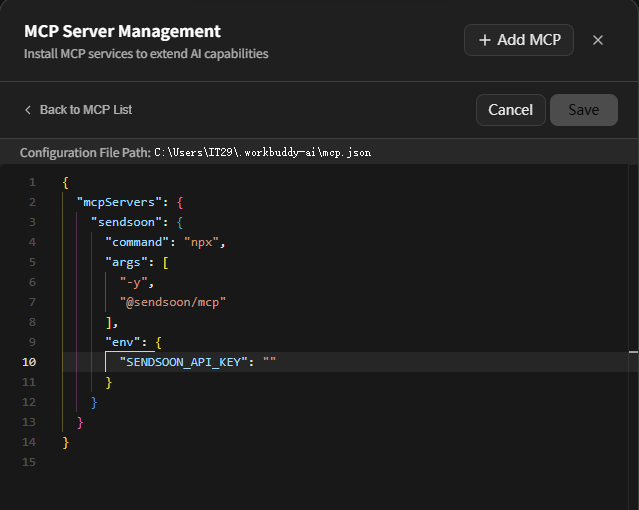
The screenshot shows the WorkBuddy connector editor: the configuration file path is at the top, and the sendsoon JSON is pasted into the editor. After saving, return to the MCP list and confirm sendsoon is connected.
Verify: Start a new conversation and ask for a simple task (e.g. “Look up 8.8.8.8”). Approve the tool if WorkBuddy asks for permission.
Prepare the configuration
Optional environment variable:
| Setting | Required | What to enter |
|---|---|---|
SENDSOON_API_KEY |
No | Leave empty for an unregistered trial. One public IP can send up to three free test emails per day. Enter your generated Key for continued use |
Never commit a real Key to Git or share it with anyone.
Get an API Key
- Sign up or sign in on the SendSoon registration page.
- Open Profile and generate a Key in the API Key section.
- Copy the one-time
ssk_live_...Key immediately and enter it asSENDSOON_API_KEYin your MCP configuration. - Save the configuration and restart your MCP client. Requests with a valid Key do not use the anonymous IP daily quota.
If the anonymous quota is exhausted, send_email will tell you to register and configure a Key. An invalid or revoked Key is rejected and does not fall back to the anonymous quota.
Try it in Google Colab
Skip local setup and try ip_lookup, markitdown_convert, and send_email in the browser.

The notebook calls the same SendSoon HTTP APIs used by these MCP tools.
Visual local testing (MCP Inspector)
To see all three tools in a browser and click through them manually before installing into an AI client, use the MCP Inspector.
Requires Node.js 20+. Run the command below in a terminal; Inspector opens a web UI automatically:
npx @modelcontextprotocol/inspector npx -y @sendsoon/mcp
How to test
- Wait for
MCP Inspector Web is up and runningin the terminal. If the browser does not open, paste thehttp://127.0.0.1:6274?...URL from the terminal. - Confirm the page header shows Connected.
- Open the Tools tab in the top-right area of the page.
- Select a tool from the list on the left, fill in the parameters, and click Execute Tool.
- Read the response in the Results panel on the right. On failure, inspect
error.codeanderror.message.
License
See LICENSE.
SendSoon MCP questions
How do I add SendSoon MCP to Claude Code?
Run claude mcp add --env 'SENDSOON_EMAIL_RECIPIENT=<SENDSOON_EMAIL_RECIPIENT>' --env 'SENDSOON_API_KEY=<YOUR_SENDSOON_API_KEY>' ai -- npx -y @sendsoon/ai in your terminal. Add --scope user to make it available in every project.
How do I add SendSoon MCP to Cursor?
Open ~/.cursor/mcp.json and add the server under mcpServers, using the Cursor config shown in the install section above.
Do I need an API key to use SendSoon?
No, an API key is optional for an unregistered trial. You can use an anonymous trial which allows one public IP to send up to three free test emails per day.
How can I test the tools in a browser before installing them?
You can use the MCP Inspector to see all three tools in a browser and execute them manually.