
Allows an AI client to manage Microsoft 365 tenants, including SharePoint, Teams, and Entra ID, using natural language commands.
Also known as pnp/cli-microsoft365-mcp-server, @pnp/cli-microsoft365-mcp-server
- Stars
- 136
- Tools
- 4
- Downloads, 30 days
- —
- Latest version
- 0.1.22
- Last commit
- Nov 13, 2026
- License
- MIT
What is CLI for Microsoft 365 MCP?
CLI for Microsoft 365 allows an AI client to manage Microsoft 365 tenants, including SharePoint, Teams, and Entra ID, using natural language commands. It exposes 4 tools, such as m365_search_commands, m365_get_command_docs, m365_run_command.
Summary generated from the project's README
About CLI for Microsoft 365 MCP server
Managing Microsoft 365 environments through natural language is possible with this MCP server, which translates conversational prompts into executable CLI for Microsoft 365 commands. It allows administrators and developers to interact with services like SharePoint Online, Microsoft Teams, Entra ID, OneDrive, and the Power Platform without manually typing complex command-line syntax. The server can handle intricate requests by chaining multiple commands together to fulfill a single user goal.
This is a local setup that requires Node.js 20.x or higher and a global installation of the CLI for Microsoft 365. Users must perform an initial authentication via the m365 login command before the server can act on their behalf. Once configured, it can be integrated into clients such as Claude Desktop, Cursor, VS Code, or GitHub Copilot CLI. The server utilizes specific tools like m365RunCommand to execute tasks and m365SearchCommands to find the correct syntax for various administrative actions.
What you can do with it
- 1Automate SharePoint list creationAn administrator can ask the AI to build a new SharePoint list with specific columns and sample data populated automatically.
- 2Provision Microsoft Teams environmentsYou can instruct the client to set up a new team and immediately post a welcome message to the general channel.
- 3Control Power Automate workflowsA developer can request to search for and disable specific flows within the Power Platform.
- 4Initialize Planner project structuresUsers can generate new Planner plans that come pre-configured with sample buckets and tasks to jumpstart work.
Written from the project's README. Every use case is checked against a quote from it.
How to install CLI for Microsoft 365 MCP
Formats verified 10 Nov 2026Add to CursorAdd to GooseInstall CLI for Microsoft 365 MCP in Claude Code
$ claude mcp add cli-microsoft365-mcp-server -- npx -y @pnp/cli-microsoft365-mcp-serverInstall CLI for Microsoft 365 MCP in Cursor
~/.cursor/mcp.json
{
  "mcpServers": {
    "cli-microsoft365-mcp-server": {
      "command": "npx",
      "args": [
        "-y",
        "@pnp/cli-microsoft365-mcp-server"
      ]
    }
  }
}Install CLI for Microsoft 365 MCP in VS Code
.vscode/mcp.json
{
  "servers": {
    "cli-microsoft365-mcp-server": {
      "type": "stdio",
      "command": "npx",
      "args": [
        "-y",
        "@pnp/cli-microsoft365-mcp-server"
      ]
    }
  }
}Install CLI for Microsoft 365 MCP in VS Code CLI
$ code --add-mcp '{"name":"cli-microsoft365-mcp-server","type":"stdio","command":"npx","args":["-y","@pnp/cli-microsoft365-mcp-server"]}'Install CLI for Microsoft 365 MCP in Claude Desktop
claude_desktop_config.json
{
  "mcpServers": {
    "cli-microsoft365-mcp-server": {
      "command": "npx",
      "args": [
        "-y",
        "@pnp/cli-microsoft365-mcp-server"
      ]
    }
  }
}Install CLI for Microsoft 365 MCP in Codex
$ codex mcp add cli-microsoft365-mcp-server -- npx -y @pnp/cli-microsoft365-mcp-serverInstall CLI for Microsoft 365 MCP in Codex config.toml
~/.codex/config.toml
[mcp_servers.cli-microsoft365-mcp-server]
command = "npx"
args = ["-y", "@pnp/cli-microsoft365-mcp-server"]
Install CLI for Microsoft 365 MCP in Gemini CLI
$ gemini mcp add -s user cli-microsoft365-mcp-server npx -- -y @pnp/cli-microsoft365-mcp-serverInstall CLI for Microsoft 365 MCP in Gemini settings.json
~/.gemini/settings.json
{
  "mcpServers": {
    "cli-microsoft365-mcp-server": {
      "command": "npx",
      "args": [
        "-y",
        "@pnp/cli-microsoft365-mcp-server"
      ]
    }
  }
}Started by HostedMCP on 16 Nov 2026
We ran this command for @pnp/cli-microsoft365-mcp-server 0.1.22 in an isolated container with no network and no keys. It answered and listed 4 tools.
CLI for Microsoft 365 MCP tools 4
Read from the server with tools/listm365_search_commandsSearches CLI for Microsoft 365 commands using fuzzy search based on a query string. Use this tool first to find relevant commands before getting full command documentation.
m365_get_command_docsGets documentation for a specified CLI for Microsoft 365 command to be used by the Model Context Protocol to provide detailed information about the command along with examples, use cases, and option descriptions
m365_run_commandRuns a specified CLI for Microsoft 365 command to be used by the Model Context Protocol to execute the command and return the result and reason over the response
m365_get_best_practicesGets best practices for using CLI for Microsoft 365 in scripts, including guidance on authentication checking, error handling, output handling, and configuration
Automated checks
Ran Nov 16, 2026Full report →Passed our automated checks. That is not a security audit: read the code and give the server the narrowest access it needs. How checks work

- Source repository linked and reachablepnp/cli-microsoft365-mcp-server is public and reachablegithub.com/pnp/cli-microsoft365-mcp-server ↗Pass
- Package names this repository as its source@pnp/cli-microsoft365-mcp-server names pnp/cli-microsoft365-mcp-server as sourcenpmjs.com/package/@pnp/cli-microsoft365-mcp-server ↗Pass
- Build provenance (Sigstore attestation)No build attestation published for this releaseNot checked
- Open source license (OSI)MITspdx.org/licenses/MIT.html ↗Pass
- Commit or release in the last yearLast commit or release 2026-11-13github.com/pnp/cli-microsoft365-mcp-server ↗Pass
- OpenSSF ScorecardNot checked
- Package name not close to a popular packageNo popular package one edit away from @pnp/cli-microsoft365-mcp-serverPass
- No critical advisory in the package or its dependencies100 resolved dependencies checked; no critical advisoryosv.dev ↗Pass
- No hidden instructions to the model4 tool descriptions and the README read; no override phrases, credential paths or hidden charactersPass
- Destructive tools are labelledNo tool named like delete, drop or execPass
- Remote endpoint answers the MCP handshakeNot checked
README
View on GitHub

💡 Description
This MCP server allows the use of natural language to execute any CLI for Microsoft 365 commands. It may handle complex prompts that will be executed as a chain of CLI for Microsoft 365 commands that will try to fulfill the user's request. Thanks to this, you may manage many different areas of Microsoft 365, for example: Entra ID, OneDrive, OneNote, Outlook, Planner, Power Apps, Power Automate, Power Platform, SharePoint Embedded, SharePoint Online, Teams, Viva Engage, and many more...
For best results, use it with Claude Sonnet 4 or Claude Sonnet 3.7.
📦 Prerequisites
- Node.js 20.x or higher
- CLI for Microsoft 365 installed globally (
npm i -g @pnp/cli-microsoft365)
🚀 Installation & Usage
This MCP server uses the globally installed CLI for Microsoft 365 that you need to install globally using npm i -g @pnp/cli-microsoft365.
After you install the CLI for Microsoft 365 perform the initial setup by running the:
m365 setup
For more information, please follow the Log in to Microsoft 365
After you set up the CLI for Microsoft 365, please update its configuration using the following commands:
m365 cli config set --key prompt --value false
m365 cli config set --key output --value text
m365 cli config set --key helpMode --value full
This will ensure that the MCP server will get as much information as possible from the CLI for Microsoft 365 when an error occurs or when a command is not executed properly.
The MCP server will not do any authentication for you. You will need to first authenticate using CLI for Microsoft 365 using m365 login command. Once you are authenticated, the MCP server will use the same authentication context when running any tool.
Lastly, install the MCP server on your preferred MCP client, referring to the instructions of the picked MCP host. Below, you may find guidance for VS Code.
Add to VS Code
There are multiple ways to add the MCP server to VS Code. The most common way is to:
-
Open the Command Palette (Ctrl+Shift+P or Cmd+Shift+P on macOS) and type
MCP: Add Server. -
Select
Command (stdio)as the server type. -
Enter the command to run the MCP server, which is:
npx -y @pnp/cli-microsoft365-mcp-server@latest -
Name the server (e.g.,
CLI for Microsoft 365 MCP Server).
As a result, you should have the following configuration in your .vscode/mcp.json file:
{
    "servers": {
        "CLI for Microsoft 365 MCP Server": {
            "type": "stdio",
            "command": "npx",
            "args": [
                "-y",
                "@pnp/cli-microsoft365-mcp-server@latest"
          ]
        }
    }
}
Now when you open the GitHub Copilot chat in VS Code, you should be able to select the CLI for Microsoft 365 MCP Server from the list of available MCP servers and start using it to manage Microsoft 365 using natural language. In the prompt specify that "Using CLI for Microsoft 365, I want you to..." and GitHub Copilot Agent will use the MCP server to execute your request.
Add to GitHub Copilot CLI
If you are using GitHub Copilot CLI, you may add the CLI for Microsoft 365 MCP server to Copilot by doing the following:
- First of all start the Copilot CLI by running:
copilot
- Use the copilot mcp command to add the MCP server:
/mcp add
- This will open up the MCP form where you need to fill in the following details:
- Server name: basically whatever you like, but do not use space bar characters, e.g
cli-microsoft365-mcp-server - Server type: select
Local - Command:
npx - Arguments:
"-y", "@pnp/cli-microsoft365-mcp-server@latest"Rest of the fields you may leave with default values.
After that click on Ctrl+S to save the MCP server and q to exit the MCP form.
Now you should be able to use the CLI for Microsoft 365 MCP server in GitHub Copilot CLI by specifying it in your prompt, e.g. "Using CLI for Microsoft 365, I want you to...".
Add to Claude
When using Claude Desktop you may add the MCP server by adding it manually to the Claude Desktop configuration.
Manually add to Claude Desktop configuration
- In Claude Desktop, open Settings by clicking on the hamburger icon in the top left corner.
- Select File > Settings (or press
Ctrl + ,) - In the Developer tab, click Edit Config Note: If you don't see the Developer tab, you need to enable it first from Help > Enable Developer Mode.
- This opens explorer, edit
claude_desktop_config.jsonin your favorite text editor. Add the following configuration to the file.
{
  "mcpServers": {
    "CLI-Microsoft365": {
      "command": "npx",
      "args": ["-y", "@pnp/cli-microsoft365-mcp-server@latest"]
    }
  }
}
- Exit Claude Desktop and restart it. Every time you make changes to the code or configuration, you need to restart Claude desktop for the changes to take effect.
Note: In Windows, Claude doesn't exit when you close the window, it runs in the background. You can find it in the system tray. Right-click on the icon and select Quit to exit the application completely.
All done! You should now be able to use the CLI-Microsoft365 MCP server in Claude Desktop.
Add to Cursor
When using Cursor you can add the MCP server by doing the following:
- From the chat option pick the
Agent settingsoption - Go to
Tools & MCPtab and click onNew MCP server - Modify the
mcp.jsonconfiguration as follows:
{
  "mcpServers": {
    "CLI for Microsoft 365 MCP Server": {
      "type": "stdio",
      "command": "npx",
      "args": [
        "-y",
        "@pnp/cli-microsoft365-mcp-server@latest"
      ]
    }
  }
}
- Save and enable the 'CLI for Microsoft 365 MCP Server' in the
Tools & MCPtab and wait for the tools to load.
📷 Use Cases
The below uses cases are only a few example how you may use this MCP server. It is capable of handling many different tasks, so feel free to experiment with it and basically manage all of Microsoft 365 using natural language.
Also you may check the CLI for Microsoft 365 wiki to find more scenarios how ClI for Microsoft 365 can be used to manage Microsoft 365.
Manage SharePoint Online
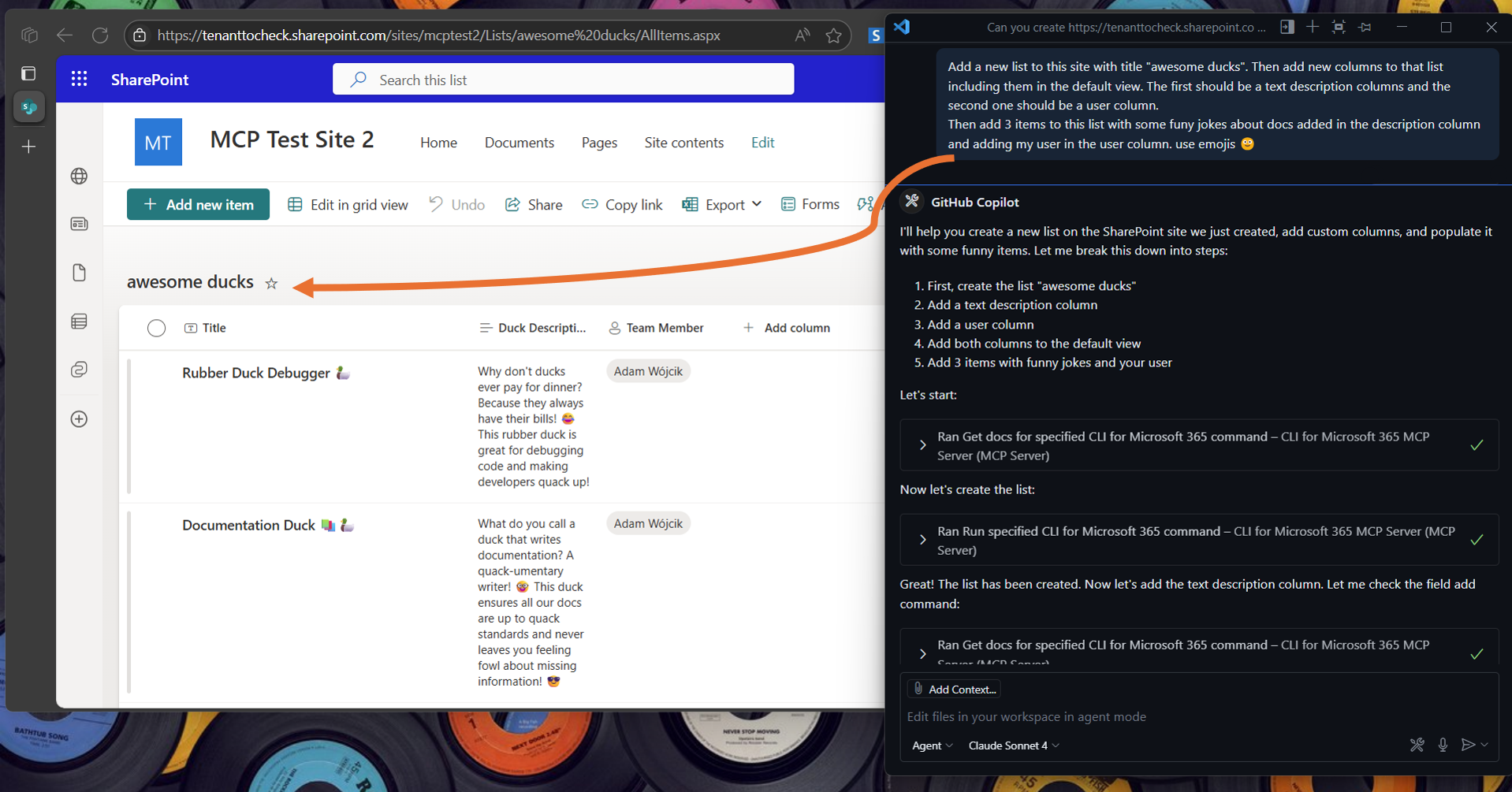
In the following example, the MCP server created a SharePoint list with new columns and populated it with a few test items.
prompt: "Add a new list to this site with title "awesome ducks". Then add new columns to that list including them in the default view. The first should be a text description columns and the second one should be a user column. Then add 3 items to this list with some funny jokes about docs added in the description column and adding my user in the user column. use emojis 🙂"
Manage Microsoft Teams
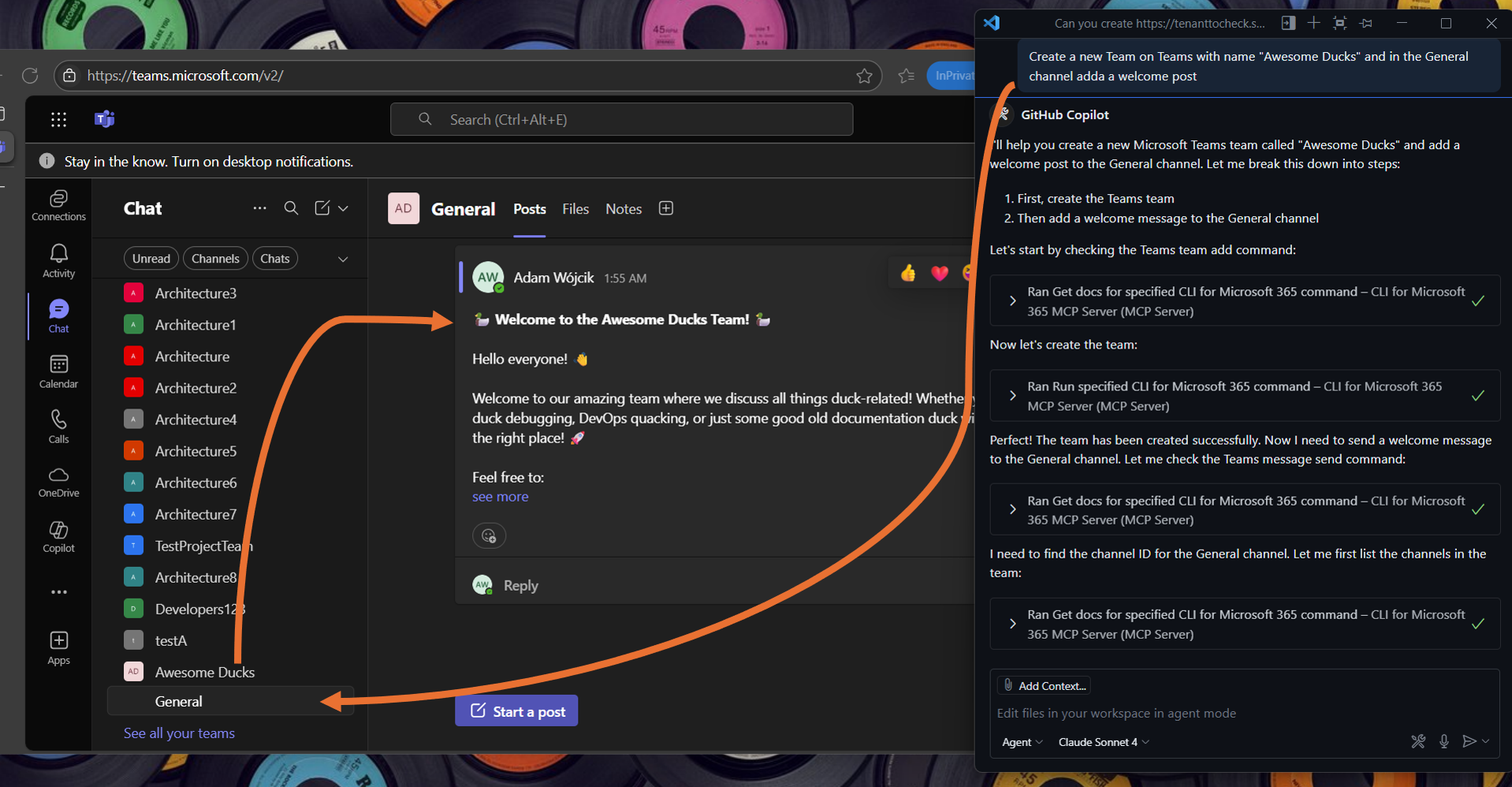
The following example shows how to create a new Microsoft Teams team and add a welcome post to the General channel.
prompt: "Create a new Team on Teams with name "Awesome Ducks" and in the General channel adda a welcome post"
Manage Power Platform solutions
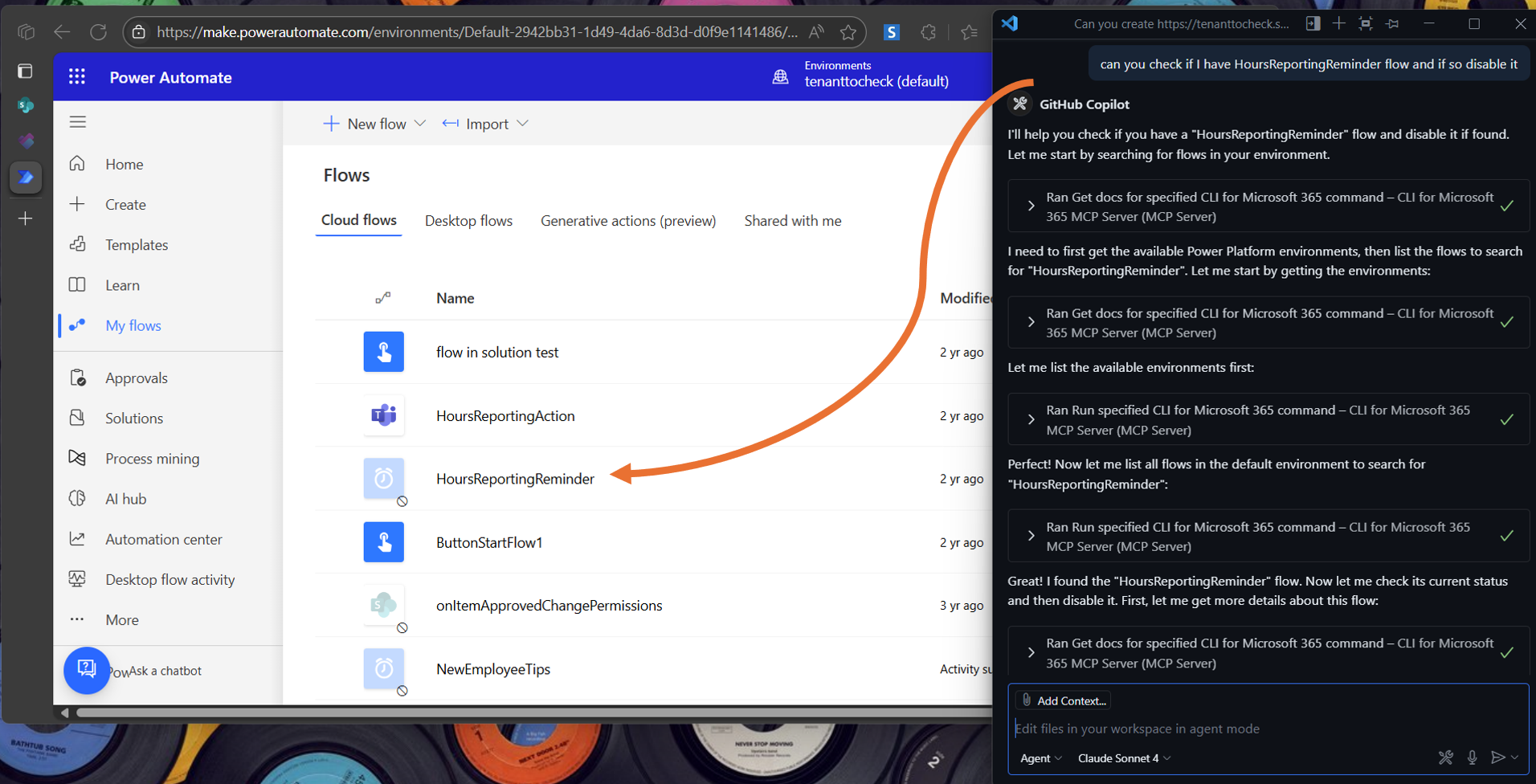
In the example, the MCP server disables a Power Automate flow.
prompt: "can you check if I have HoursReportingReminder flow and if so disable it"
Manage Planner
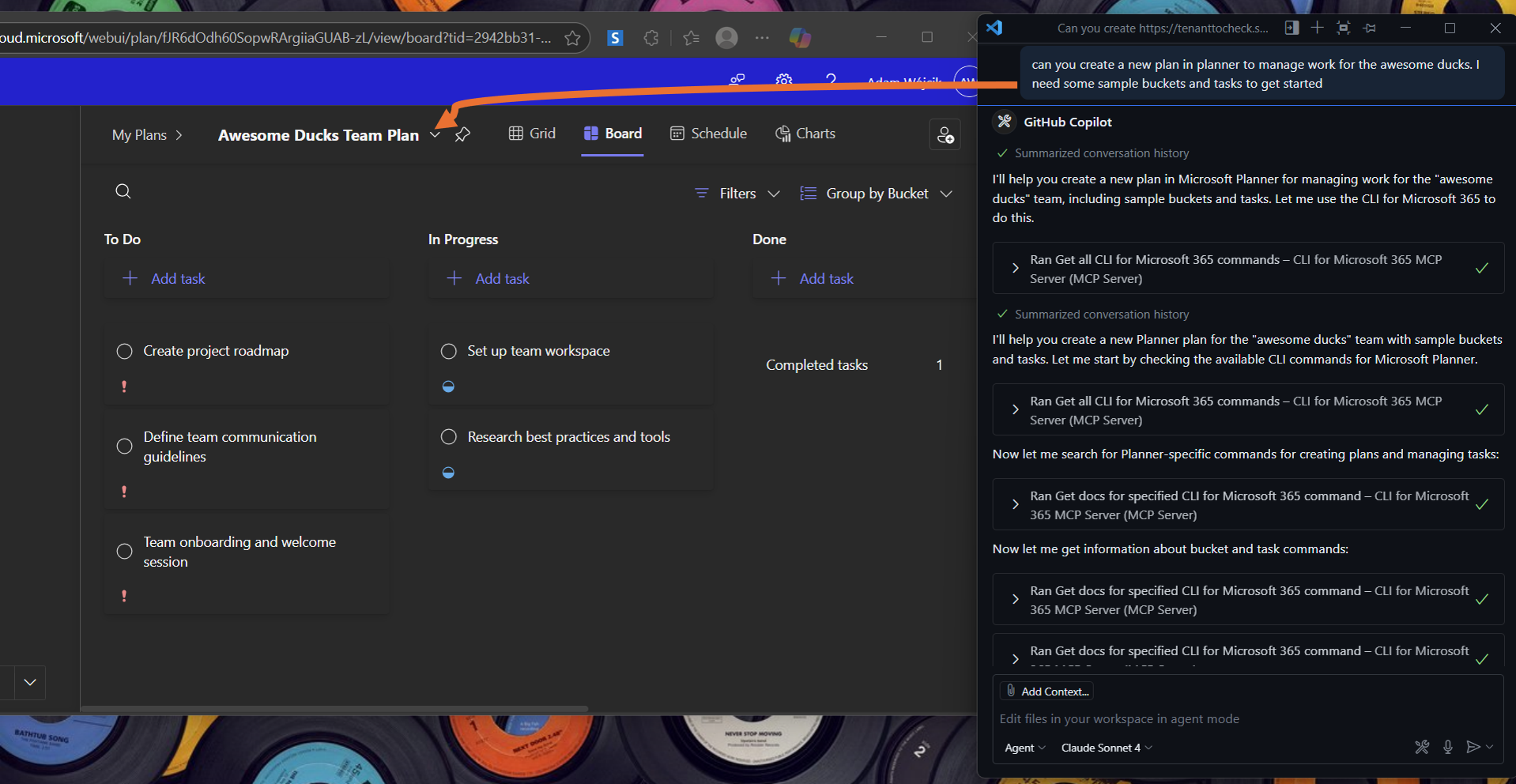
In the following example, the MCP server creates a new Planner plan with sample buckets and tasks.
prompt: "can you create a new plan in planner to manage work for the awesome ducks. I need some sample buckets and tasks to get started"
🛠️ Tools
| Tool | Description |
|---|---|
| m365SearchCommands | Searches CLI for Microsoft 365 commands using fuzzy search based on a query string. This is more efficient than getting all commands as it returns only relevant matches. Use this tool first to find relevant commands. |
| m365GetCommandDocs | Gets documentation for a specified CLI for Microsoft 365 command to be used by the Model Context Protocol to provide detailed information about the command along with examples, use cases, and option descriptions |
| m365RunCommand | Runs a specified CLI for Microsoft 365 command to be used by the Model Context Protocol to execute the command and return the result and reason over the response |
| m365GetBestPractices | Gets best practices for using CLI for Microsoft 365 in scripts, including guidance on authentication checking, error handling, output handling, and configuration |
🎓 Skills
This repo includes custom GitHub Copilot skills that teach the AI how to use CLI for Microsoft 365 effectively. Skills are automatically loaded by GitHub Copilot when relevant tasks are detected.
| Skill | Description |
|---|---|
cli-microsoft365 |
Guides Copilot on running m365 commands directly in the terminal. Covers command syntax, authentication methods, output formatting, JMESPath filtering, and common patterns for managing SharePoint Online, Entra ID, Teams, Power Platform, and more. Use when asking Copilot to run CLI for Microsoft 365 commands interactively. |
cli-microsoft365-script |
Guides Copilot on writing PowerShell scripts that automate Microsoft 365 management using m365 commands. Covers script setup, structured error handling with the Invoke-CLICommand helper, CI/CD authentication, batch operations, CSV processing, and security best practices. Use when asking Copilot to create automation scripts. |
🏗️ How to build and run it locally
Before anything, first run npm install to install all dependencies.
Then, in order to build the project run:
npm run build
Running MCP in VS Code from local build
It is also possible to run the MCP server in VS Code from your local build so that it may be used by GitHub Copilot Agent. First, start the CLI for Microsoft 365 MCP server using the command:
npm run start
Now go to VS Code GitHub Copilot Agent mode click on the tools icon, and select Add more tools. Then select Add MCP server and then Command (stdio) and enter the following command:
node FULL_PATH_TO_YOUR_PROJECT/dist/index.js
Click Enter and name it however you like. It is recommended to add it to workspace scope for testing. After that, open up your .vscode/mcp.json file and modify it so pass the environment variables needed for auth.
{
    "servers": {
        "m365-mcp-server": {
            "type": "stdio",
            "command": "node",
            "args": [
                "FULL_PATH_TO_YOUR_PROJECT/dist/index.js" // e.g. C:/workspace/repo/microsoft-365-mcp-server/dist/index.js
            ]
        }
    }
}
Running MCP from local build using the inspector (Debugging)
One of the ways to test the CLI for Microsoft 365 MCP server is by using the MCP Inspector. Mostly, this setup is used for debugging purposes and to test the MCP server locally. First, start the MCP server using the command:
npm run start
Now, in order to run the inspector for your MCP server, you need run the following command in the repo root folder location:
npx @modelcontextprotocol/inspector node dist/index.js
After that, wait for the inspector to start and open the inspector in your browser. You should see the MCP server running, and you should be able to query the tools and execute them locally.
🔗 Resources
CLI for Microsoft 365 MCP questions
How do I add CLI for Microsoft 365 MCP to Claude Code?
Run claude mcp add cli-microsoft365-mcp-server -- npx -y @pnp/cli-microsoft365-mcp-server in your terminal. Add --scope user to make it available in every project.
How do I add CLI for Microsoft 365 MCP to Cursor?
Open ~/.cursor/mcp.json and add the server under mcpServers, using the Cursor config shown in the install section above.
What tools does CLI for Microsoft 365 MCP provide?
It exposes 4 tools, including m365_search_commands, m365_get_command_docs, m365_run_command, m365_get_best_practices.
Does this server handle authentication?
No, the MCP server does not perform authentication itself. You must first authenticate using the CLI for Microsoft 365 via the 'm365 login' command.
What are the prerequisites for installation?
You need Node.js version 20.x or higher and the CLI for Microsoft 365 installed globally via npm.
Which Microsoft 365 services can I manage?
You can manage various services including Entra ID, OneDrive, OneNote, Outlook, Planner, Power Apps, Power Automate, SharePoint Online, and Teams.