
Allows AI clients to search, read, and re-copy your Mac clipboard history and screenshot text locally.
Also known as pastea-app/pastea-mcp, pastea-mcp, @pastea/mcp
- Stars
- 0
- Tools
- —
- Downloads, 30 days
- —
- Latest version
- 1.0.4
- Last commit
- Sep 3, 2026
- License
- MIT
What is Pastea MCP?
Pastea allows AI clients to search, read, and re-copy your Mac clipboard history and screenshot text locally.
Summary generated from the project's README
About Pastea MCP server
Pastea provides a local bridge that connects macOS clipboard history to AI assistants. This server allows tools like Claude Desktop, Cursor, VS Code, and Codex to interact with your copied items, including text recognized within screenshots. Because the server runs on 127.0.0.1, your data stays on your Mac and does not leave your machine for third-party servers.
Users can integrate the server using npx commands or dedicated installation files. Once connected, the assistant can use specific tools to search through clips, read full content with image thumbnails, list collections, and re-copy items back to the system clipboard. This setup requires macOS 15 or later and a Pastea Pro subscription to function.
Security is managed through a manual permission process. When an AI application first attempts to connect, a prompt appears in the Pastea app asking for authorization. You can revoke access for any specific tool at any time through the Pastea settings menu. The assistant is restricted from deleting clips or accessing items concealed by password managers.
What you can do with it
- 1Retrieve text from screenshotsAsk your AI assistant to find and read text that was captured inside a previously copied image.
- 2Search clipboard historyInstruct the AI to locate a specific link or file name from your recent clipboard activity.
- 3Restore clips to clipboardHave the AI assistant place a specific historical clip back onto your clipboard for immediate pasting.
- 4Manage clipboard collectionsAsk the AI to list the different collections and history counts you have organized in Pastea.
Written from the project's README. Every use case is checked against a quote from it.
How to install Pastea MCP
Formats verified 10 Nov 2026Add to CursorAdd to GooseInstall Pastea MCP in Claude Code
$ claude mcp add pastea-mcp -- npx -y @pastea/mcpInstall Pastea MCP in Cursor
~/.cursor/mcp.json
{
  "mcpServers": {
    "pastea-mcp": {
      "command": "npx",
      "args": [
        "-y",
        "@pastea/mcp"
      ]
    }
  }
}Install Pastea MCP in VS Code
.vscode/mcp.json
{
  "servers": {
    "pastea-mcp": {
      "type": "stdio",
      "command": "npx",
      "args": [
        "-y",
        "@pastea/mcp"
      ]
    }
  }
}Install Pastea MCP in VS Code CLI
$ code --add-mcp '{"name":"pastea-mcp","type":"stdio","command":"npx","args":["-y","@pastea/mcp"]}'Install Pastea MCP in Claude Desktop
claude_desktop_config.json
{
  "mcpServers": {
    "pastea-mcp": {
      "command": "npx",
      "args": [
        "-y",
        "@pastea/mcp"
      ]
    }
  }
}Install Pastea MCP in Codex
$ codex mcp add pastea-mcp -- npx -y @pastea/mcpInstall Pastea MCP in Codex config.toml
~/.codex/config.toml
[mcp_servers.pastea-mcp]
command = "npx"
args = ["-y", "@pastea/mcp"]
Install Pastea MCP in Gemini CLI
$ gemini mcp add -s user pastea-mcp npx -- -y @pastea/mcpInstall Pastea MCP in Gemini settings.json
~/.gemini/settings.json
{
  "mcpServers": {
    "pastea-mcp": {
      "command": "npx",
      "args": [
        "-y",
        "@pastea/mcp"
      ]
    }
  }
}Configuration
PASTEA_MCP_URL
| Name | Description | |
|---|---|---|
| PASTEA_MCP_URL | — |
Automated checks
Ran Nov 14, 2026Full report →Passed our automated checks. That is not a security audit: read the code and give the server the narrowest access it needs. How checks work

- Source repository linked and reachablepastea-app/pastea-mcp is public and reachablegithub.com/pastea-app/pastea-mcp ↗Pass
- Package names this repository as its source@pastea/mcp names pastea-app/pastea-mcp as sourcenpmjs.com/package/@pastea/mcp ↗Pass
- Build provenance (Sigstore attestation)Sigstore attestation for @pastea/mcpnpmjs.com/package/@pastea/mcp/v/1.0.4#provenance ↗Pass
- Open source license (OSI)MITspdx.org/licenses/MIT.html ↗Pass
- Commit or release in the last yearLast commit or release 2026-09-03github.com/pastea-app/pastea-mcp ↗Pass
- OpenSSF ScorecardNot checked
- Package name not close to a popular packageNo popular package one edit away from @pastea/mcpPass
- No critical advisory in the package or its dependencies1 resolved dependencies checked; no critical advisoryosv.dev ↗Pass
- No hidden instructions to the model0 tool descriptions and the README read; no override phrases, credential paths or hidden charactersPass
- Destructive tools are labelledNot checked
- Remote endpoint answers the MCP handshakeNot checked
README
View on GitHubPastea MCP


Local MCP server for Pastea. Give Claude, Cursor, Codex, VS Code and other AI tools access to your Mac's clipboard history — without anything leaving your Mac.
Your assistant can search what you copied, pull a clip into context (including the text Pastea reads inside your screenshots), and put a clip back on the clipboard for you to paste.
Pastea runs the MCP server itself, on 127.0.0.1 only. This package is the thin,
dependency-free bridge that AI apps launch: it finds Pastea, asks it for access once —
you click Allow in Pastea — and relays messages over stdio.
Install
Claude Desktop
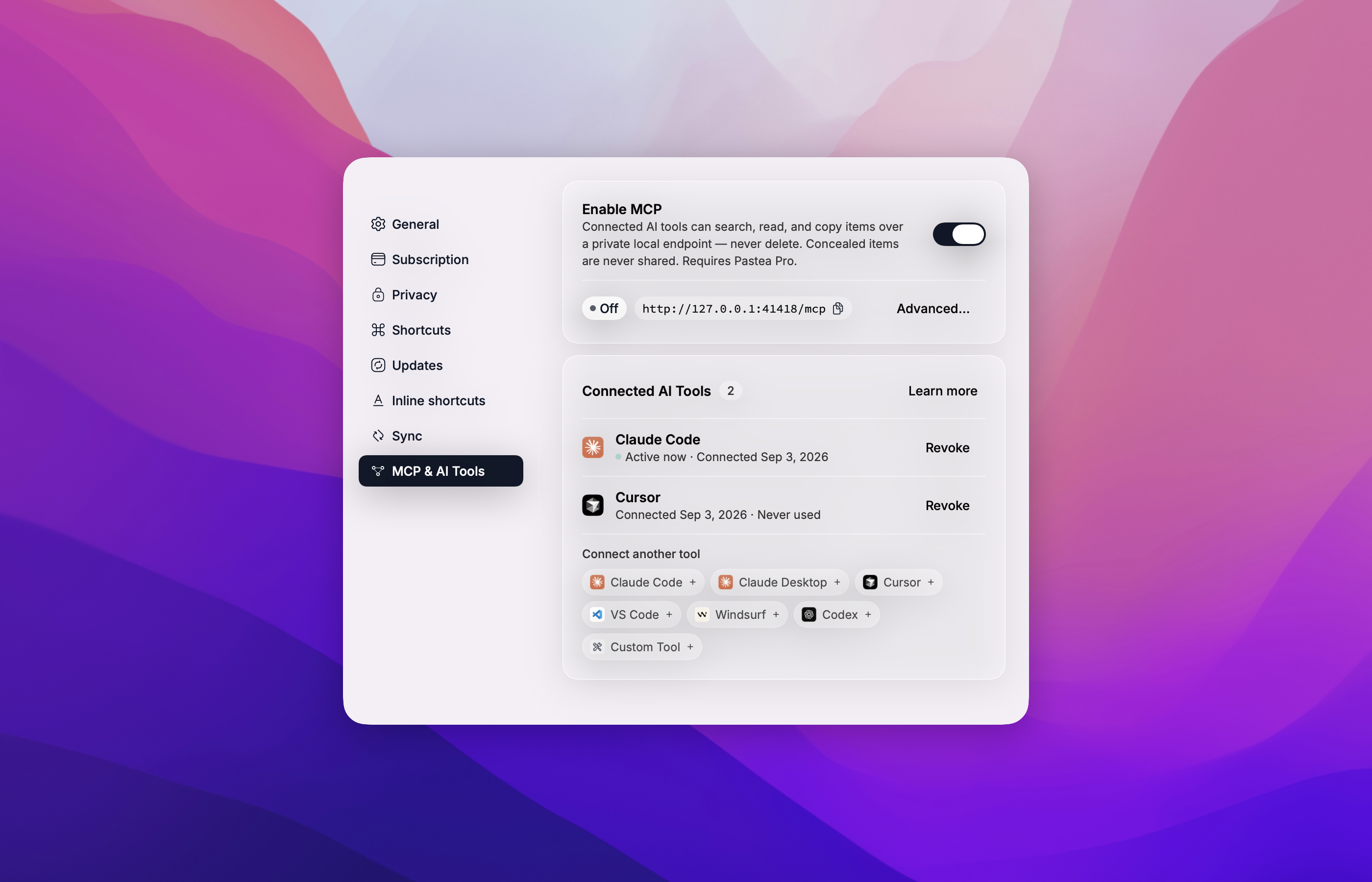
One click from Pastea: open Settings → MCP & AI Tools, turn on Enable MCP, and click Claude Desktop. Claude Desktop opens with the Pastea extension ready to install.
Or find Pastea in Claude Desktop under Settings → Extensions → Browse extensions, or
download pastea-mcp-<version>.mcpb from the
latest release and double-click it.
The first time Claude uses it, Pastea asks you to allow the connection.
Every other AI app
Use add-mcp to connect Pastea to all your installed
AI apps at once:
npx add-mcp @pastea/mcp
Or connect each app yourself:
Claude Code
claude mcp add pastea -- npx -y @pastea/mcp
Codex
codex mcp add pastea -- npx -y @pastea/mcp
Cursor

VS Code

Anything else that runs stdio MCP servers:
{ "mcpServers": { "pastea": { "command": "npx", "args": ["-y", "@pastea/mcp"] } } }
The first time an app uses Pastea, Pastea shows "Allow <app> to use your clipboard history?" — click Allow and the tools appear.
Connect from Pastea
Every app above can also be connected from inside Pastea — Settings → MCP & AI Tools, click the app's chip. Cursor and VS Code open an install prompt; Claude Code, Windsurf and Codex get the exact command or config to paste, already carrying an access token, so no pairing prompt is needed.
What your assistant can do
| Tool | What it does |
|---|---|
search_clips |
Search your clipboard history and lists — text, links, file names, and text recognized in screenshots. |
get_clip |
Read one clip in full, with a thumbnail for pictures. |
list_collections |
List your history and the lists you made, with counts. |
copy_clip |
Put a clip back on the system clipboard, exactly as copied. You paste it yourself with ⌘V. |
pastea_status |
Says whether Pastea is reachable and connected, and what to do if not. |
An AI tool can never delete a clip, never pastes into another app, and never sees items Pastea conceals (from password managers).
How pairing works
The bridge ships with no credentials. On first use it asks Pastea for access and Pastea shows
"Allow Claude Desktop to use your clipboard history?" (or Cursor, Codex, …). Click Allow
and the tools appear a moment later; click Don't Allow and nothing is granted — the assistant
gets a pastea_status tool that explains the situation.
Connections are listed in Pastea → Settings → MCP & AI Tools → Connected AI Tools, where you can Revoke each one. Pastea then asks again only if you ask the assistant to reconnect.
Requirements
- macOS 15 or later
- Pastea 1.3+ with Pastea Pro, and Enable MCP turned on in Settings → MCP & AI Tools
- For
npxinstalls: Node.js 20+ (Claude Desktop needs nothing — it ships its own)
Privacy Policy
Pastea MCP runs locally on your Mac.
- It connects only to Pastea on
127.0.0.1and to nothing else. It makes no network requests to Nexo Labs or any third party, and carries no analytics or telemetry. - It moves clipboard data only between Pastea and the AI app that runs it, and only after you clicked Allow in Pastea. What that AI app does with clips it reads is governed by that app's own privacy policy.
- It stores one thing: the access token Pastea issued when you clicked Allow, in
~/Library/Application Support/Pastea/MCP Bridge/tokens.json, readable by your user account only. Revoking the connection in Pastea invalidates it immediately; uninstalling Pastea removes the file. - Concealed clips are never available to it, and it cannot delete anything.
Full policy — what data Pastea processes, how it is stored, sharing, retention, and contact: https://pastea.app/privacy.
Troubleshooting
"Pastea isn't running, or its MCP endpoint is turned off."
Open Pastea and turn on Enable MCP in Settings → MCP & AI Tools, then ask the assistant to
call pastea_status.
"Pastea Pro is required."
MCP access is a Pro feature. Subscribe in Pastea's Settings, then call pastea_status.
"Pastea is asking the user to allow this connection." Look for the Pastea window — it may be behind the AI app — and click Allow.
The tools vanished.
The connection was revoked in Pastea, or Pastea was reset. Ask the assistant to call
pastea_status to pair again.
Tools don't show up after connecting. Fully quit and reopen the AI app so it relaunches the bridge.
Changed Pastea's port? The bridge reads it from Pastea's preferences on every launch; restart the AI app.
Logs for Claude Desktop: ~/Library/Logs/Claude/mcp-server-Pastea.log. The bridge never logs
the token.
Development
npm install
npm test            # node --test, no network
npm run build       # tsc → dist/
scripts/pack.sh     # validate + pack → build/pastea-mcp-<version>.mcpb + SHA256SUMS
Run it against a development Pastea by hand:
PASTEA_MCP_URL=http://127.0.0.1:41418/mcp node dist/index.js
then type JSON-RPC lines on stdin (initialize, notifications/initialized, tools/list).
Releases are cut by tagging v<version> (matching package.json, manifest.json,
server.json and src/version.ts); the workflow packs the bundle and publishes it.
Contributing
Issues and pull requests welcome — see the issue tracker.
License
Pastea MCP questions
How do I add Pastea MCP to Claude Code?
Run claude mcp add pastea-mcp -- npx -y @pastea/mcp in your terminal. Add --scope user to make it available in every project.
How do I add Pastea MCP to Cursor?
Open ~/.cursor/mcp.json and add the server under mcpServers, using the Cursor config shown in the install section above.
What can my AI assistant do with Pastea?
Your assistant can search clipboard history (including text in screenshots), read full clips with thumbnails, list collections, and put clips back onto your system clipboard.
Is my clipboard data sent to the cloud?
No, the server runs locally on your Mac and only connects to Pastea on 127.0.0.1, making no external network requests.
Does this work with free versions of Pastea?
No, MCP access requires a Pastea Pro subscription.
Can the AI delete my clipboard history?
No, the AI assistant is restricted from deleting clips or seeing items concealed by Pastea, such as those from password managers.