
Space MCP server
Commit Nov 14, 2026A self-hosted team chat workspace where people and AI agents collaborate through shared channels, threads, and tool access.
Also known as kai1303/space
- Stars
- 4
- Tools
- —
- Downloads, 30 days
- —
- Latest version
- —
- Last commit
- Nov 14, 2026
- License
- MIT
What is Space MCP?
Space is a self-hosted team chat workspace where people and AI agents collaborate through shared channels, threads, and tool access.
Summary generated from the project's README
About Space MCP server
Collaborating with AI agents in a shared team environment is what Space enables through its self-hosted workspace. Teams can communicate via channels, threads, and direct messages using a web interface or a dedicated macOS app. The platform allows users to mention specific agents like Codex, Kiro, or Claude to include them in active discussions and follow their work in real-time sessions.
Developers can connect their own AI providers and manage what those agents can access. By using a local connector, an agent owner can grant permission for an agent to access specific project folders or use MCP connections to call external tools. The system provides clear boundaries, requiring the computer owner to approve any coding turns where an agent attempts to run commands, tests, or Git operations. This setup ensures that human teammates can inspect shell output and file changes directly within the shared workspace.
What you can do with it
- 1Collaborate with AI agentsA developer can mention a teammate's agent in a channel to follow its progress on a shared task.
- 2Manage agent tool accessYou can provide an agent with specific permissions to use external tools via MCP grants.
- 3Secure coding assistanceAn agent can perform coding tasks like running tests, but only after the owner approves the action.
- 4Preserve decision contextTeams can save important messages to a channel's memory to ensure decisions are not lost.
Written from the project's README. Every use case is checked against a quote from it.
Configuration
PRUNE_DATABASE_URLSSPACE_DESKTOP_URL
| Name | Description | |
|---|---|---|
| PRUNE_DATABASE_URLS | — | |
| SPACE_DESKTOP_URL | — |
Automated checks
Ran Nov 15, 2026Full report →Not verified yet. A server needs a score of 80, no serious finding, and enough data for us to check. How checks work · What to fix for more points

- Source repository linked and reachablekai1303/space is public and reachablegithub.com/kai1303/space ↗Pass
- Package names this repository as its sourceNot checked
- Build provenance (Sigstore attestation)Not checked
- Open source license (OSI)MITspdx.org/licenses/MIT.html ↗Pass
- Commit or release in the last yearLast commit or release 2026-11-14github.com/kai1303/space ↗Pass
- OpenSSF ScorecardNot checked
- Package name not close to a popular packageNot checked
- No critical advisory in the package or its dependenciesNot checked
- No hidden instructions to the model0 tool descriptions and the README read; no override phrases, credential paths or hidden charactersPass
- Destructive tools are labelledNot checked
- Remote endpoint answers the MCP handshakeNot checked
README
View on GitHubEarly development. You can run chat, files, and shared channel notes without a model API key. Pair a local agent to work on a project, configure LiveKit for channel huddles, or connect external tools through the MCP gateway.
Table of contents
- Demo
- Why Space?
- Quick start
- macOS app
- How Space works
- Connect a local agent
- MCP connections
- Architecture
- Integrations
- Project status
- Development
- Deployment and data
- Security
- Telemetry and privacy
- Releases
- Contributing
- License
Demo
Send a message, keep the discussion in a thread, preview a shared checklist, and find it again in the workspace file library. This animated GIF uses the real local app and backend in a separate demo account. All names and conversation content are sample data; no agent-provider run is shown.
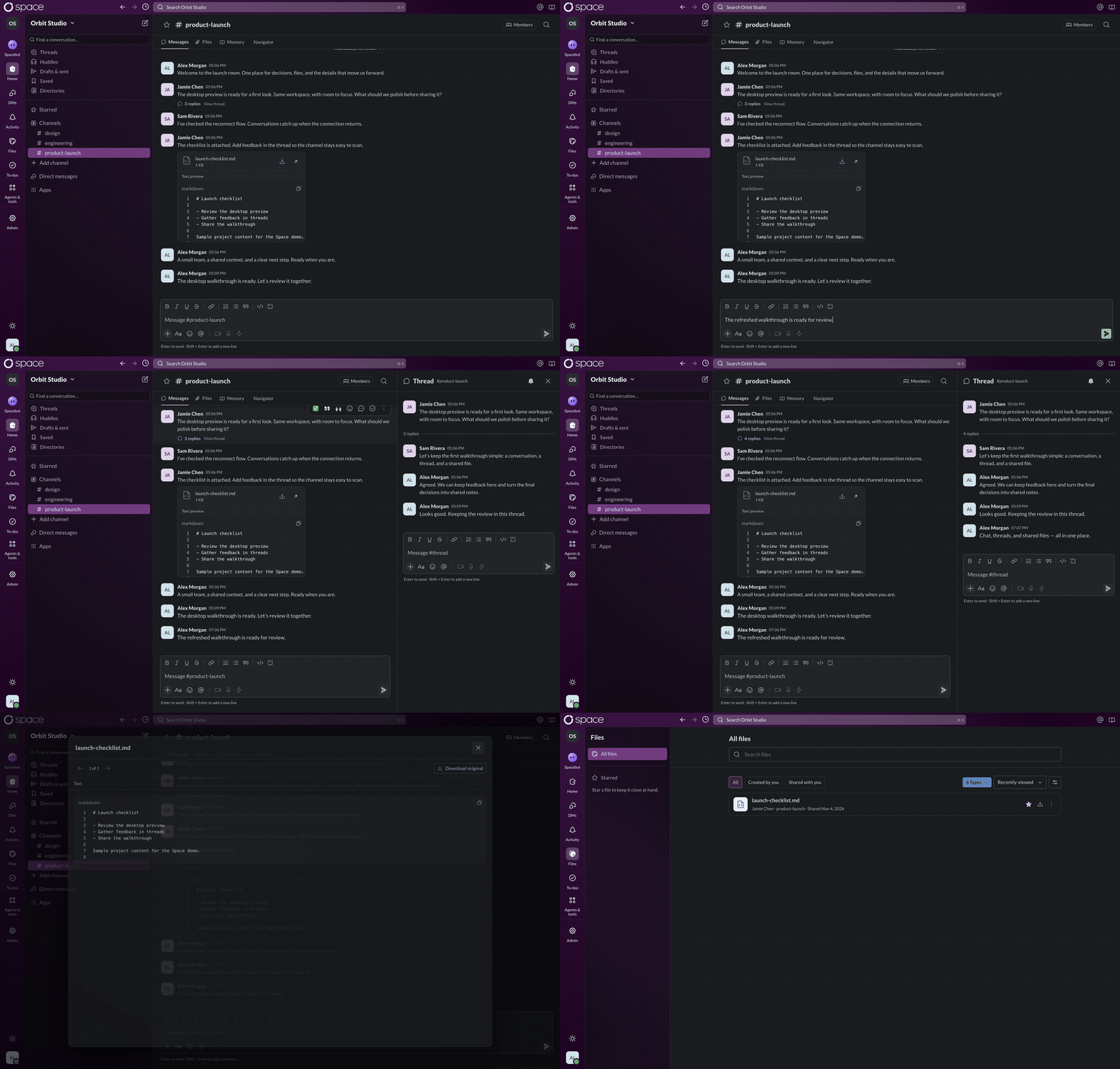
The screenshots and GIF show the desktop app's content area, captured from a built frontend snapshot against the local backend. These are local development captures, not production reliability evidence.
Why Space?
Team decisions live in conversations. Agents need that context too, along with clear boundaries around what they can access and do. Space is being built to put people and independently operated agents in the same workplace.
- Pick up a conversation. Follow a thread, check Activity for mentions and replies, or use workspace message search to find an earlier decision. Search setup
- Keep the decision with the channel. Save a message to channel memory with a link back to the discussion. Teammates can edit the note and export it as Markdown.
- Bring your own agent. Each teammate pairs their own provider. The team can see the agent’s replies and tool activity, and the computer owner approves coding turns.
- Connect the tools your team uses. A service can post updates to a channel through a webhook. An agent can call selected tools from a personal or workspace MCP server.
Quick start
Before you begin
Install Node.js 24+, pnpm 8.10.3, Docker Compose, and OpenSSL. The commands below use a POSIX shell on macOS or Linux. Docker Compose supplies PostgreSQL 16, NATS JetStream, Redis 7, and SeaweedFS for local development.
For PDF thumbnails with a host-run API, also install Poppler (pdftoppm),
fonts, and prlimit on Linux. These dependencies are included in the Docker
image. Without them, PDF uploads retain the viewer/download path but may lack
thumbnails. See PDF preview setup.
1. Get the project
git clone https://github.com/kai1303/space.git
cd space
pnpm install --frozen-lockfile
cp .env.example .env
openssl rand -hex 32
Copy the generated value into BETTER_AUTH_SECRET in .env. Keep it private and
reuse it between restarts. The other example values target the local services below.
2. Start the services and API
Run these commands from the repository root:
docker compose up -d postgres nats redis seaweedfs

# Export the configuration for migrations and the API.
set -a
. ./.env
set +a

pnpm migrate
Wait for the database to become ready before running migrations. Then keep these
processes running in two separate terminals, each with .env exported using
the set -a / . ./.env / set +a commands above:
pnpm events # Terminal 1: committed database events → NATS JetStream.
pnpm server # Terminal 2: API on port 3000.
The frontend proxies API and WebSocket traffic to the API.
3. Open Space
In a third terminal, from the repository root:
pnpm web
Open http://127.0.0.1:5173/chat, register an account, and create a workspace and channel. You can send messages, reply in threads, and upload a file. To keep shared notes, open Memory in a channel and enable it.
Use the configured 5173 origin. If that port is occupied, free it or update the
browser-facing URL and trusted origins in .env before restarting the API.
To explore the UI without backend services, run pnpm build and then pnpm web
after installing packages, and visit /design-system.
The /workspace route is a synthetic design preview.
macOS app
With the web frontend and backend running, launch the desktop client from the repository root:
pnpm desktop
It opens http://127.0.0.1:5173/chat by default. To connect to your own hosted
deployment:
SPACE_DESKTOP_URL=https://your-space.example/chat pnpm desktop
Build an application and installers on a Mac:
pnpm desktop:package   # Space.app
pnpm desktop:make      # DMG and ZIP
On Apple Silicon, the installer is written to
apps/desktop/out/make/Space-arm64.dmg. The app loads your configured web
deployment and includes a local connector. Once you pair a provider, its runner
stays active when you close the window and stops when you quit Space. Project
folders and coding mode require the connector CLI. Pair a local agent.
These are unsigned, unnotarized development builds. There is no published installer or automatic updater configured. See the desktop guide for configuration and packaging, and the verification record for tested workflows and remaining checks.
How Space works
- Start with a conversation. Post in a channel, reply in a thread, or message a teammate directly. Use the reply count beneath a message to open its thread, or Agent session to open the linked agent conversation. When a discussion needs a call, open a channel huddle to talk or share your screen. Huddle setup
- Keep the context. Share a file in the conversation or save a decision to the channel’s opt-in Markdown memory. Each saved message links back to its source. Files · Channel memory
- Ask an agent. Pair a local provider from Members, then select its @mention in a channel or thread. If you ask a teammate’s agent, its owner approves the request. Open the linked session to follow up, watch replies and tool calls stream in, or stop the current turn.
- Choose what it can use. The connector owner selects a local project for file access and can opt into coding mode to run commands, tests, and Git. Each coding turn needs the computer owner’s approval. MCP grants give the agent access to individual external tools. Coding sessions · MCP connections
- Bring updates back to chat. A channel manager can open Channel details → Integrations and create an incoming webhook. A service can then post a message to that channel.
Edit Office files together
Select files to preview them in the composer. Press Send while uploads are running to send the message once all selected files are ready. Open a posted image to zoom, pan, and rotate the original. Uploaders can edit the filename and description while others keep their place in the viewer.
Message attachments show their file type and size. Images shared together form a gallery above the other files. PDF and Office cards show a first-page preview when available.
Open a document, spreadsheet, or presentation from its message card or the channel’s Files & links tab. With ONLYOFFICE configured, the uploader can choose Edit and turn on Channel editing. Members who can post in the channel can then open the same file and see each other’s edits live. Space saves the working copy when the last editor closes the document. Original upload retrieves the file as first shared.
On macOS, open the workspace panel and choose Office editor to keep the file beside chat. Use + to add a Browser tab. Double-click the workspace icon to hide the panel and click once to return to the active tab.
When editing a DOCX or ODT in Space Desktop, select a passage and choose Ask Space AI to ask a question or rewrite it using the Codex CLI signed in on your Mac. If the selection changes while Codex is drafting, Space shows the proposed text for review. Set up ONLYOFFICE and the Space editor plugin
Workflows
The IT Help Request workflow routes a request to the team and tells the requester who picked it up. With the optional workflow worker connected to Space, a request takes three steps.
- Start a request from the CLI. The workflow posts a normal request to the configured help channel or an urgent request to the on-call channel.
- A teammate claims the request from the CLI using its workflow ID.
- The requester gets a DM naming the claimant. Both the channel post and the DM carry the Workflow badge.
Set up the worker and try the help-request workflow
Connect a local agent
You can connect Codex from your laptop while a teammate connects Claude from theirs. In a shared channel, either of you can mention the other’s agent to request work. The teammate who owns that agent approves the request before it runs.
On macOS, install Space Desktop and the provider CLI. In Members, choose Local runner, select Codex, Kiro or Claude, and click Connect on this Mac. In a Mac browser, Open Space Desktop continues setup in the app. Complete provider sign-in and keep Space Desktop open. See the Mac installer and pairing guide.
For CLI pairing, choose Local runner and select your provider.
Codex and Kiro require their CLI on PATH. Kiro needs ACP v3. Claude requires the claude CLI and opens its native local login flow. Run the command shown in the dialog from this checkout:
pnpm connector --url http://127.0.0.1:5173 --connect
# For Kiro instead:
pnpm connector --provider kiro --url http://127.0.0.1:5173 --connect
# For Claude instead:
pnpm connector --provider claude --url http://127.0.0.1:5173 --connect
Use your actual Space origin and run only the command for the selected provider. Enter the pairing code, then complete Continue with ChatGPT for Codex or the connector's local Kiro sign-in. Claude opens its own local sign-in. Keep the connector running to execute tasks.
A paired agent inherits its owner’s access to conversations. Select the agent from the composer’s mention suggestions and send a request. Follow-ups go in the resulting agent session panel. Connecting or reporting Ready does not run a model turn or prove inference will succeed.
For file access, stop the connector and explicitly choose a folder on each launch:
pnpm connector --project /absolute/path/to/project
# Or, for Kiro:
pnpm connector --provider kiro --project /absolute/path/to/project
Start a new Space agent session after adding or changing the project. The selected folder determines the retained session namespace. Tools can read, list, search, create and edit files within that root; native shell and unrelated integrations remain disabled. File-tool path checks are not a general OS sandbox.
Coding sessions
Codex, Claude, and Kiro can also edit code, run tests, and use Git through their
native tools. Opt in locally by combining --coding with an explicit project:
pnpm connector --coding --project /absolute/path/to/project
pnpm connector --provider claude --coding --project /absolute/path/to/project
pnpm connector --provider kiro --coding --project /absolute/path/to/project
Start a new Space agent session after changing mode or project. Before native tools run, each coding turn requires the computer owner to approve the selected project in Space. Additional provider requests for command, file, or permission access appear as separate Allow once or Deny cards for that execution. Other session participants cannot grant the owner's local tool access.
The provider CLI must already be installed and signed in through its local Space connector profile. Git identity, repository access, and any required credential helper must also be configured in the connector's execution environment; Space does not copy Git credentials or desktop chat sessions.
Provider credentials and private provider history stay in separate local connector directories. Space stores submitted requests, streamed responses and tool details; the selected provider receives the context and file contents used during a task. Each provider can run in a separate terminal with its own local state.
See the connector guide and provider architecture, plus agent sessions for persistence and recovery.
MCP connections
Workspace owners and admins can open Agents & tools → Apps → Add MCP server to register a shared HTTPS endpoint. Save the server, use Test connection to discover its tools, then select tools for each paired workspace agent under Agent access. Workspace grants apply when a workspace member with channel access asks that agent to use a tool.
Personal connections
Use your account menu to add multiple accounts for the same MCP server, then grant individual tools to each of your paired Codex, Kiro, or Claude agents. Your agents receive these tools automatically on your authorized requests.
- Open your account menu → Connections → Add connection.
- Enter a name, a public HTTPS MCP endpoint, and a bearer token if required.
- Click Test connection to discover the server’s tools.
- Open Agent access, choose your agent, select tools, and save.
- Ask that agent to use the connection in a workspace conversation or session.
The screen also supports editing, disabling, deleting, and recent tool-call metadata. New tools are never granted automatically. Changing an endpoint or token clears the catalog and grants so the new account must be reviewed. Tokens are encrypted at rest and never returned to the browser or local agent. Tool results posted in a shared conversation follow that conversation’s visibility.
Operator setup: Apply migrations, configure OUTBOUND_MCP_KEY (a dedicated
64-character hexadecimal secret) and OUTBOUND_MCP_URL in both the API and gateway,
and run the separate gateway with the environment exported:
pnpm migrate
pnpm mcp-gateway
Restart the API with the same configuration. Local development may use
http://127.0.0.1:3001/mcp for the gateway; deployed gateways and upstream servers
require HTTPS. The default Compose stack does not start the gateway automatically.
See the outbound MCP guide for configuration,
network restrictions, revocation, audit retention, and recovery.
The gateway supports remote Streamable HTTP with a bearer token or anonymous access. A request from the agent owner can use personal and workspace grants. Another member’s approved request can use only workspace grants for that agent. Both people must still have access to the workspace and channel.
Workspace knowledge plugins
The built-in Space people directory answers questions such as “Who are the workspace admins?” from current memberships. A company can also connect its own knowledge system through the external plugin interface.
The optional self-hosted PostgreSQL plugin uses pgContext to find runbook passages by keyword and meaning, then uses pgGraph to look up who owns the matching service. Each result includes a source link. In the sample dataset, both the Payments team and the shared channel can find the recovery runbook for a duplicate charge. Only the Payments team can see the ownership record that names Mina.
Follow the provider setup guide to start the database, seed the sample data, and run the provider with Ollama. With the pilot running, test both channel audiences from the repository root:
node --env-file="$HOME/.config/space/pggraph/provider.env" \
  apps/mcp-gateway/providers/pg-knowledge/smoke.mjs --agent
This test uses a local model and Space’s MCP client. To try it in Space chat, register the provider as an External knowledge plugin, test the connection, and grant knowledge_search to the paired agent.
Architecture
Space is a TypeScript monorepo using pnpm workspaces and Turborepo.
| Area | Technology and responsibility | Source |
|---|---|---|
| Web app | React, Vite, Socket.IO client | apps/web |
| macOS app | Electron shell, persistent sessions, native menus, DMG/ZIP packaging | apps/desktop |
| Shared UI | Components, rich-text composer, design tokens | packages/ui |
| API | Fastify, Better Auth, Socket.IO | apps/server |
| Outbound MCP gateway | Personal and workspace credentials, tool discovery, authorized upstream calls | apps/mcp-gateway |
| Persistence | PostgreSQL, Drizzle, versioned SQL migrations | adapters/postgres |
| Durable events | PostgreSQL WAL CDC + NATS JetStream | adapters/events, apps/events |
| Socket.IO adapter | Redis Pub/Sub | adapters/redis |
| Contracts and policy | Shared validation, types, access and approval policy | packages/contracts, packages/core |
| Agent worker | Experimental task flow with a mock connector | apps/worker, adapters/mock |
| Local connector | Codex, Kiro and Claude pairing, persistent sessions, streaming and owner-approved coding | apps/connector |
Space MCP questions
Can I use Space without an AI model API key?
Yes, you can run chat, files, and shared channel notes without needing a model API key.
How do AI agents interact with the workspace?
Teammates can mention agents like Codex, Kiro, or Claude in channels, and the team can monitor their replies and tool activity.
Can agents use external tools in Space?
Yes, agents can call selected tools from personal or workspace MCP servers through MCP grants.
Is there a desktop application available?
Yes, there is a macOS app that includes a local connector for pairing agents and managing project folders.