
Syft Notes MCP server
Commit Nov 10, 2026An AI lecture recorder and note-taker that transcribes lectures locally and generates study notes, diagrams, and flashcards.
Also known as Joseph-Rus/syftnotes
- Stars
- 7
- Tools
- —
- Downloads, 30 days
- —
- Latest version
- —
- Last commit
- Nov 10, 2026
- License
- MIT
What is Syft Notes MCP?
Syft Notes is an AI lecture recorder and note-taker that transcribes lectures locally and generates study notes, diagrams, and flashcards.
Summary generated from the project's README
About Syft Notes MCP server
Students who need to transform spoken lectures into organized study materials can use Syft Notes to record, transcribe, and summarize academic content. The application runs on Mac, Windows, and Linux, performing transcriptions locally using Whisper or NVIDIA Parakeet to ensure recordings stay on your own computer. It integrates with various AI models including Claude, ChatGPT, Gemini, or free local AI options to generate comprehensive study notes, review questions, and definitions.
Beyond simple text, the tool automatically generates visual aids such as flowcharts, labeled drawings, and mathematical plots derived from formulas mentioned during class. Users can interact with their lecture history through an Ask bar to query specific details or use recipes to quickly generate study guides and exam predictions. The system also manages study workflows by creating flashcards with spaced repetition and providing an audio feature that converts lectures into five-minute conversations for mobile listening.
What you can do with it
- 1Prepare for upcoming examsCreate a practice test and study guide based on the specific lectures covered since the last assessment.
- 2Review material via audioTurn a recorded lecture into a short conversational summary to listen to while walking.
Written from the project's README. Every use case is checked against a quote from it.
Automated checks
Ran Nov 15, 2026Full report →Not verified yet. A server needs a score of 80, no serious finding, and enough data for us to check. How checks work · What to fix for more points

- Source repository linked and reachablejoseph-rus/syftnotes is public and reachablegithub.com/joseph-rus/syftnotes ↗Pass
- Package names this repository as its sourceNot checked
- Build provenance (Sigstore attestation)Not checked
- Open source license (OSI)MITspdx.org/licenses/MIT.html ↗Pass
- Commit or release in the last yearLast commit or release 2026-11-10github.com/joseph-rus/syftnotes ↗Pass
- OpenSSF ScorecardNot checked
- Package name not close to a popular packageNot checked
- No critical advisory in the package or its dependenciesNot checked
- No hidden instructions to the model0 tool descriptions and the README read; no override phrases, credential paths or hidden charactersPass
- Destructive tools are labelledNot checked
- Remote endpoint answers the MCP handshakeNot checked
README
View on GitHubPress Record when the lecture starts. It's written down as it goes, on your computer, and when you stop, the notes are written, filed under the right class next to your Canvas assignments, and ready to ask about. Two students build it, with Claude.
Syft Notes is an open-source alternative to Otter.ai, Granola and Notability for recording lectures: it's free, transcribes on your own computer, and writes notes with whichever AI you choose, including a free one that runs on your machine.
What it does
- Records lectures from the menu bar (Mac) or the tray (Windows and Linux), with one click or one shortcut.
- Transcribes them on your computer with Whisper or NVIDIA Parakeet, live as the lecturer speaks.
- Writes AI study notes (summary, key points, definitions, review questions) with Claude, ChatGPT, Gemini or a free local AI.
- Draws the diagrams: flowcharts, labelled drawings, typeset formulas, and graphs worked out from the lecturer's formula.
- Keeps your own notes: type while it records, in Markdown if you like, and every line of yours stays in the write-up.
- Answers questions about your lectures from your notes and transcripts, with the moment it was said. Your chats are kept.
- Recipes: the questions you ask of every lecture (a study guide, what's likely on the exam, key terms) are one
/away. - Hears what's on the exam: "this will be on the midterm", "make sure you know", flagged on the lecture's page with the moment.
- Helps you study: flashcards from your lectures in Review, brought back just before you'd forget them, and exam prep with a study guide and a practice test.
- Reads a lecture to you: Listen turns it into a five-minute conversation for a walk, read by Kokoro's natural open-source voices (a one-time 149 MB download) or your computer's own.
- Never loses a version of your notes: Undo after any change, and History to put back any earlier one.
- Files every lecture by class, next to your Canvas assignments, due dates, rubrics, files and announcements.
- Works without a paid AI: a free AI on your computer, a free Gemini key, the free Claude app, or copy and paste with any chat.
- Lets you select and copy almost anything: notes, transcripts, chats, assignments, even error messages.
- Finds anything in a second from a quick panel, and shows what's due on a calendar.
- Comes with you on your phone, and lets Claude, ChatGPT and other AI apps read your library over MCP.
Take notes while it records
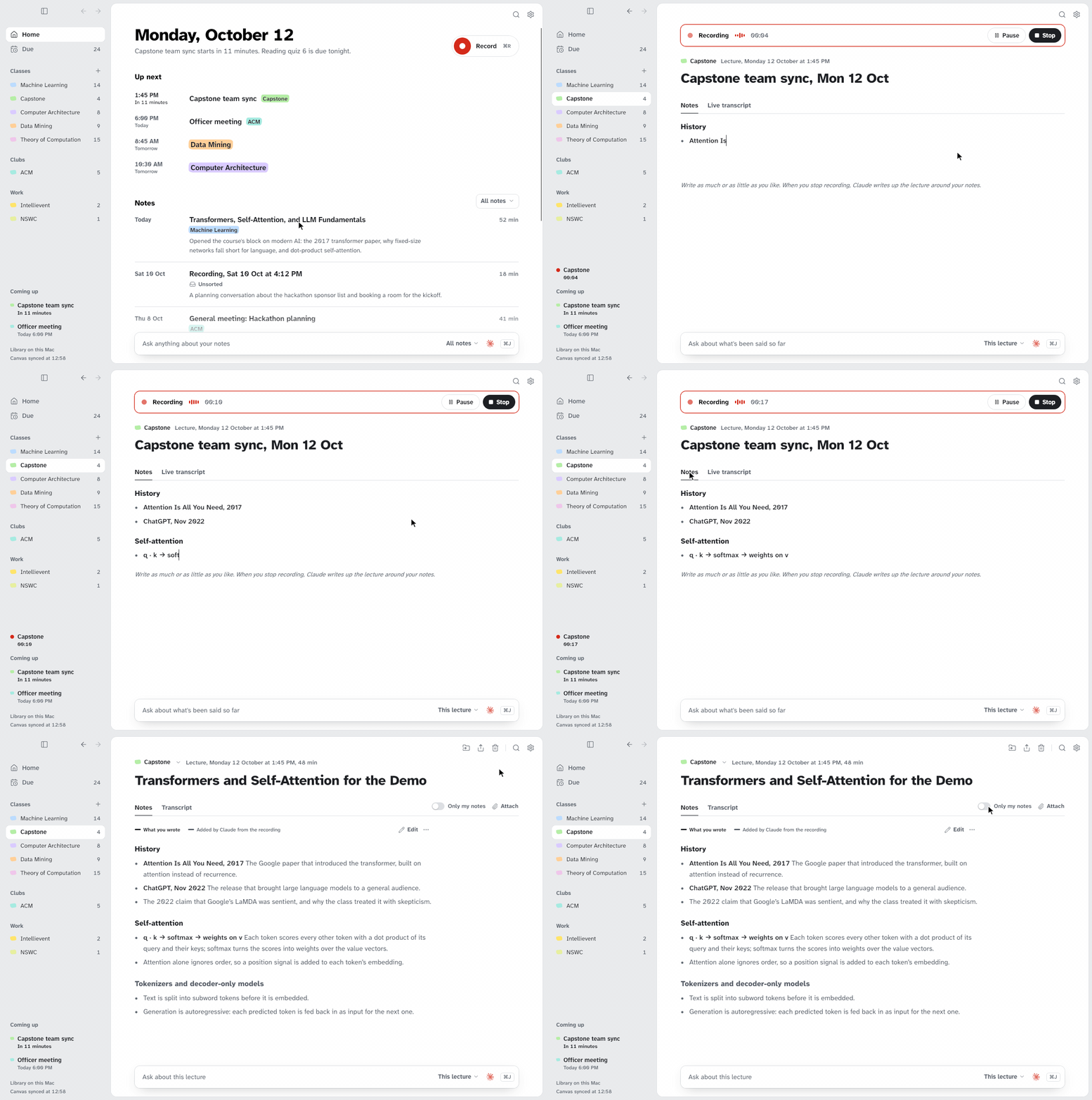
Recording opens the lecture's page at once, and you can type your own notes there while it records,
as much or as little as you like. Markdown works as you type: # makes a heading, - a bullet,
1. a numbered list, [ ] a checkbox and > a quote, and bold, italic, code, links and
maths show formatted (⌘B and ⌘I, or Ctrl+B and Ctrl+I on Windows). When you stop, the write-up is
built round what you typed: every line of yours is kept, in ink and with its formatting, and what
the lecture said about it is added in grey. Only my notes hides what was added.
AI study notes with diagrams
Once a lecture's notes are written, a second pass reads the transcript and decides whether anything in it is clearer as a picture. If something is, it's drawn into the notes under the section it belongs to, with the moment of the lecture it came from.
Drawings you can point at. A lecture that spends time on a physical thing (the heart cut open, the bones of the hand, a drone, a circuit board) gets a labelled drawing of it, like a figure in a textbook. That's the heart above. Most are put together in seconds from about 300 professionally drawn, openly licensed parts. Point at a part and it lights up. Click it for the line where the lecturer named it, or hide every label and test yourself.
Graphs worked out from the formula. When the shape of a formula is the point (a sigmoid, a loss curve, a distribution), the notes plot it. The AI only writes down the formula the lecturer gave and the app does the maths, so a curve is never sketched freehand. Drag a slider and it redraws. Read any value under the pointer, or hide the curve with Predict and sketch it yourself first.
Formulas and diagrams, typeset. Formulas look the way you'd write them on paper. A process or a cycle comes back as a diagram you can walk through a box at a time, and every box has Explain this, Quiz me and Where was this said?, which opens the transcript at the line that says it.
Ask questions about your lectures
The Ask bar under a lecture's notes answers from your notes and transcripts, with the AI you pick for that question. Ask about one lecture, a whole class, or all of them. The times under an answer open the transcript at the line where it was said, and a question asked while a lecture is still recording is answered from that recording.
Your chats are kept. A lecture's page opens on its latest chat, so you can pick up where you left off, even after closing Syft Notes, and follow-ups like "and the second one?" or "explain that more simply" know what was just said. Chats, at the top of the Ask card and in the ask bar, lists your past conversations; New chat starts a fresh one, and a chat can be renamed, or deleted with Undo. A folder's page lists its own chats and its lectures', and Home lists them all. Chats are kept on your library, so your laptop sees them too.
The quick panel (⌥Space on a Mac, Alt+Shift+Space on Windows) opens over any app. It searches lectures, passages in your notes and classes, and asks your notes a question.
Recipes keep the questions you ask of every lecture one / away. Type / in the Ask bar and the
recipes show over it (Tab takes the first), or press the bookmark beside the bar for the list: a study
guide, what's likely on the exam, explain it simply, key terms, practice questions, five bullets, how
it connects, what's tricky. Anything typed after one (/study-guide just chapter 3) goes with it. A
question in the bar can be kept as a recipe of your own, and every device that asks your library has
them.
Study: Review, exam prep and Listen
What's on the exam. A lecture's page lists what the lecturer said would be on the exam ("this will be on the midterm", "make sure you know this", "write this down"), each with its moment, and what they said won't be. It's found in the transcript on your computer, with no AI.
Review. Make review cards on a lecture's page has your AI write a dozen flashcards from its notes and what was flagged for the exam. Study, in the sidebar with how many are due, goes through them a card at a time: the question, then the answer (Space), then Again, Hard, Good or Easy (1 to 4). Each comes back just before you'd forget it, the way Anki spaces them: Again in ten minutes, Good tomorrow, then further apart each time you remember it.
Exam prep. Study lists the exams coming up, from Canvas and your calendar. Prep for it writes a study guide and a practice test from the class's lectures since the exam before it, starting with what the lecturer said would be on it. The test marks each answer, keeps your score, and puts what you missed into Review.
Listen. Listen on a lecture's page turns it into a five-minute conversation, a tutor and a
classmate going over what was taught. It plays on the page, so you can go over a lecture on a walk.
Download Kokoro's voices once (Settings → Notes → Listen, or the line under Listen: 149 MB,
open source under Apache-2.0) and it's read by two natural voices made on the library's computer;
until then your computer's own voices read it (on Linux, install espeak-ng).
See docs/study-tools.md for how each works and its API.
Edit, undo and copy your notes
Edit turns a lecture's notes into their Markdown, with each diagram, plot and drawing folded to one line of its own, and Save (⌘S, or Ctrl+S on Windows) keeps your changes. Rewrite notes with has another AI write them again, and you keep whichever you like.
Every change to a lecture's notes is kept: notes your AI wrote, a rewrite, your own edits, notes pasted in. Right after a change, Undo appears over the notes (⌘Z, or Ctrl+Z on Windows). History, in the notes' header, lists every version ("Written by Claude", "Your edit"), shows what each would change, and puts any of them back.
Drag across the notes to select them, as on a web page: from one paragraph into the next, through bullets, tables and formulas. Copy with ⌘C (Ctrl+C) or right-click and choose Copy. What you copy keeps its shape: each bullet keeps its "• ", a table's cells paste into a spreadsheet, and a formula comes out as LaTeX. Transcripts (each line keeps its time), chats, the recorder's live words, assignments, Canvas pages and announcements select the same way, and so do error messages, addresses and codes, so you can paste them when you need help.
Filed by class, with what's coming up
Every lecture is filed under its class, worked out from what was said, or the class you picked. One it can't place stays on Home as Unsorted, where the folder under its title moves it in a click (with Undo), and a lecture you don't need can be deleted (with Undo).
The library opens on Home: the date, a sentence on what's pressing, Up next (click an event to record it) and every note, newest first. Each folder, a class, a club or work, has one page: its notes by week, and beside them what's due, its lists on Canvas and when it next meets.
Paste your calendar's link (Google's secret iCal address, iCloud, Outlook or your school's) in Settings → Calendars and pick which calendars to share. Upcoming classes show in the menu bar, the quick panel and the library, and a lecture recorded during one is named after it and filed under its class. When a recurring event looks like one of your classes, Syft Notes offers to file every one of them there.
Attach iPad handwriting, slides, PDFs or photos to a lecture or class (drag them in). Their words, handwriting included, are read on your computer and go into the lecture's notes, Ask and Claude.
Not just for school: setup asks what you'll use Syft Notes for (school, work, research, creative work or personal). Without school there's no Canvas step, classes are called folders, and notes are written for meetings and talks: a summary, decisions, action items with who and when, and open questions. Change it any time in Settings → General.
Easy to read: black, grey and white, in a typeface made to be legible (Atkinson Hyperlegible Next), with each class's highlighter the one colour. Light and dark, on a Mac and on Windows.
FAQ
Is Syft Notes free?
Yes. It's free and open source under the MIT licence, with no account to make and nothing to subscribe to. If you already pay for Claude or ChatGPT it can use that plan, but it doesn't need one.
Does it work offline? Are my recordings private?
Recording and transcribing work offline once the speech model is downloaded, and the audio never leaves your computer. Notes from the free AI on your computer stay there too; with Claude, ChatGPT or Gemini, a lecture's transcript goes to that AI under your own account (see Privacy).
Which AI does it use?
The one you pick: Claude, ChatGPT or Gemini, with the plan or API key you have, or a free AI that runs on your own computer (Ollama). You can use one for notes and another for questions, and change it any time in Settings → Your AI.
Do I need a paid ChatGPT or Claude plan?
No. Without any AI it still records, transcribes and files your lectures, and for notes you can use the free AI on your computer, a free Gemini API key, or the free Claude app, which saves the notes you ask it for straight into Syft Notes. Any free chat works too: press Copy for your AI on a lecture, paste it into ChatGPT, Claude or Gemini, and bring back what it writes with Paste notes.
Does it work with Canvas?
Yes. A browser extension for Chrome, Edge, Brave, Firefox and the browsers built on them reads Canvas with your own sign-in (read-only) and brings in what's due, assignments with rubrics, your feedback, files, pages and announcements. See Canvas.
Is there an iPhone app?
Your library serves a phone app you can use today on an iPhone, iPad or Android phone over Tailscale: read your notes, see what's due, search and add photos. A native iPhone and iPad app that also records is coming soon to the App Store. See On your phone.
One computer or two
Syft Notes is one app with two jobs, so you can use it the way that suits you:
- One computer. Your laptop records, keeps the library and writes the notes itself. Nothing else to set up. Notes are written while it's on.
- A laptop and a library. Your laptop records; a computer that stays on at home (a Mac mini, an old laptop, any Mac or PC) keeps the library, writes the notes and syncs Canvas, even while your laptop is asleep. The laptop reaches it at home or, anywhere, over Tailscale.
your laptop                                  your library (this laptop, or a computer at home)
┌────────────────────────────┐   lectures   ┌──────────────────────────────────────────────┐
│ record → Whisper (local)   │ ───────────▶ │ study notes (your AI) → filed under its class │
│ ask, search, Canvas, notes │ ◀─────────── │ Canvas mirror · Claude/MCP · search           │
└────────────────────────────┘              └──────────────────────────────────────────────┘
Install
One download for every computer, on the latest release:
| Mac | Windows | Linux |
|---|---|---|
| Syft-Notes.dmg | Syft-Notes-Setup.exe | x64 · ARM64 |
It's the same app every way; what a computer is for is chosen when you first open it, not when you download it. The Mac app needs macOS 15 (Sequoia) or later, on Apple silicon or Intel; the Windows one, Windows 10 or 11; the Linux one, a desktop with PipeWire or PulseAudio (Ubuntu 22.04 or later, Fedora, Debian 12, Mint, and the like), on x64 or ARM64.
- Mac: open the DMG and drag Syft Notes into Applications. It's signed with a Developer ID and notarized by Apple, so it opens like any app from the internet (macOS asks once whether to open it). Allow the microphone when it asks.
- Windows: run the Setup.exe. It installs for your account only, no admin rights needed. If Windows says "Windows protected your PC", click More info, then Run anyway.
- Linux: the download is an AppImage, the app in one file. Put it where you keep apps (
~/Applicationsis usual), allow it to run (in your file manager's Properties, orchmod +x SyftNotes-linux-x64.AppImage), and open it: Syft Notes puts itself in your applications menu, withsyft-noteson your PATH, and updates that file in place. No root needed. If it doesn't open, your system needs FUSE, which AppImages run through: on Ubuntu 22.04 and Debian,sudo apt install libfuse2; on Ubuntu 24.04,sudo apt install libfuse2t64; most other desktops have it. (Each release still has the older tarball with itsinstall.sh; a copy installed that way moves itself over to the AppImage on its next update.) It looks like the Windows app and lives in your desktop's tray (on GNOME, the AppIndicator extension shows it; Ubuntu has it already). The shortcuts work on X11; Wayland doesn't let an app have keys of its own, so there you record and search from the tray, or give the keys to Syft Notes in your desktop's keyboard settings.
Or install from a terminal:
# Mac or Linux (Terminal)
curl -fsSL https://raw.githubusercontent.com/Joseph-Rus/syftnotes/main/install.sh | sh
# Windows (PowerShell)
irm https://raw.githubusercontent.com/Joseph-Rus/syftnotes/main/install.ps1 | iex
Then open Syft Notes. See Setting up.
Setting up
The first time Syft Notes opens, setup is one screen at a time, with Back on every one:
- Get started. One button. It makes your library on this computer, asks for the microphone and starts downloading a speech model that keeps up on your computer (there's nothing to choose). A tick box opens Syft Notes when you log in, so your library runs whenever you're logged in.
- Are you a student? Yes brings your classes in from Canvas. No (lectures, talks or meetings) goes straight to your AI, and you add your folders on Home. If your school doesn't use Canvas, say so there and add your classes on Home too.
- Connect your classes. Add Syft Notes to your browser and sign in to Canvas the way you usually do: there's nothing to type (the steps).
- Bringing in your classes. The first sync, a line for each part: your classes, assignments and due dates, files and pages. It takes a few minutes, and the files keep coming in while your browser is open. Skip for now carries on without waiting.
- Connect your AI. An AI writes your notes and answers your questions. Pick the one you pay for: Claude, ChatGPT or Gemini. With no plan, Continue with Google uses Gemini, free with your Google account. If an AI is already signed in on your computer, the screen offers Continue with it first. Otherwise, if the maker's own helper for the AI isn't on your computer yet, press Download and set up (Syft Notes runs the maker's own installer, for your account only, no admin password; nothing is downloaded until you press it), then Open sign-in page to sign in on the maker's own page. Syft Notes never sees your password or your sign-in. Gemini's page ends on a code: copy it and paste it into the box Syft Notes shows. A tiny test message then checks your plan includes it (if not, setup says so), and you're on Home.
Skip on the last screen asks once more, and Later goes to Home, which keeps a Continue with Google button until you connect an AI. Without one, Syft Notes still records your lectures and writes down what's said. The AI uses a little of your plan to write your notes and answer your questions (you can switch to a free local model in Settings → Your AI any time).
Settings → General → Run setup runs setup again with what's set up already kept: your AI walks you through the rest in a chat with a checklist beside it. Set up by hand (there too, and on a laptop already connected to a library on another computer) is a few plain steps instead: where your lectures are kept (Just this Mac or Just this PC, which is what most students want; under Advanced, My computer at home for a library that stays on, or My laptop for class to connect to one), the microphone, who writes the notes, what you'll use Syft Notes for, Canvas, your classes, and starting at login.
Changed your mind, or your plans changed? Switch any time in Settings → Connection → This computer: a laptop can also become your library (bringing over whatever it was connected to before), and a library can become a laptop, sending its own lectures to the new one first so nothing is left behind. Nothing to reinstall or redownload.
Syft Notes MCP questions
What AI models can I use with Syft Notes?
You can use Claude, ChatGPT, Gemini, or a free local AI like Ollama running on your own computer.
How does the transcription work?
It transcribes lectures locally on your computer using Whisper or NVIDIA Parakeet.