
Lets AI assistants manage and search your local library of AI-generated images, videos, prompts, and version histories.
Also known as fengseekling-coder/gravityport, gravityport-mcp
- Stars
- 14
- Tools
- —
- Downloads, 30 days
- —
- Latest version
- 0.3.12
- Last commit
- Nov 15, 2026
- License
- —
What is GravityPort MCP?
GravityPort lets AI assistants manage and search your local library of AI-generated images, videos, prompts, and version histories.
Summary generated from the project's README
About GravityPort MCP server
GravityPort acts as a local asset manager designed to organize AI-generated images and videos alongside their original context. It automatically collects creations from platforms like ChatGPT, Gemini, Grok, and Google AI Studio, preserving the associated prompts, reference images, and version histories. By keeping all data on your own computer, it ensures that your creative trail remains private and under your direct control.
Developers can use the GravityPort MCP server to connect AI assistants like Claude Desktop, Claude Code, or Codex to their local library. This setup allows an AI client to interact with your assets through a local stdio connection without requiring Node.js or manual source management. The server provides 25 specialized tools for tasks such as searching through assets with specific time ranges, managing smart stacks, and tracking the lineage of different image generations.
This tool is ideal for creators who need to maintain a searchable history of their iterative AI workflows. It bridges the gap between generating media in a chat interface and managing those files as a structured, versioned collection on a local machine.
What you can do with it
- 1Search local AI assetsAn AI assistant can find specific images by combining text queries with a defined time range.
- 2Track image evolutionA developer can ask an AI to examine how an image changed through multiple rounds of conversation.
- 3Organize media into groupsYou can instruct an AI client to create and manage collections of related assets.
- 4Recover lost creationsIf an asset is accidentally removed, it can be retrieved from a temporary storage area.
Written from the project's README. Every use case is checked against a quote from it.
How to install GravityPort MCP
Formats verified 10 Nov 2026Add to CursorAdd to GooseInstall GravityPort MCP in Claude Code
$ claude mcp add gravityport -- npx -y gravityport-mcpInstall GravityPort MCP in Cursor
~/.cursor/mcp.json
{
  "mcpServers": {
    "gravityport": {
      "command": "npx",
      "args": [
        "-y",
        "gravityport-mcp"
      ]
    }
  }
}Install GravityPort MCP in VS Code
.vscode/mcp.json
{
  "servers": {
    "gravityport": {
      "type": "stdio",
      "command": "npx",
      "args": [
        "-y",
        "gravityport-mcp"
      ]
    }
  }
}Install GravityPort MCP in VS Code CLI
$ code --add-mcp '{"name":"gravityport","type":"stdio","command":"npx","args":["-y","gravityport-mcp"]}'Install GravityPort MCP in Claude Desktop
claude_desktop_config.json
{
  "mcpServers": {
    "gravityport": {
      "command": "npx",
      "args": [
        "-y",
        "gravityport-mcp"
      ]
    }
  }
}Install GravityPort MCP in Codex
$ codex mcp add gravityport -- npx -y gravityport-mcpInstall GravityPort MCP in Codex config.toml
~/.codex/config.toml
[mcp_servers.gravityport]
command = "npx"
args = ["-y", "gravityport-mcp"]
Install GravityPort MCP in Gemini CLI
$ gemini mcp add -s user gravityport npx -- -y gravityport-mcpInstall GravityPort MCP in Gemini settings.json
~/.gemini/settings.json
{
  "mcpServers": {
    "gravityport": {
      "command": "npx",
      "args": [
        "-y",
        "gravityport-mcp"
      ]
    }
  }
}Configuration
ELECTRON_RUN_AS_NODE
| Name | Description | |
|---|---|---|
| ELECTRON_RUN_AS_NODE | — |
Automated checks
Ran Nov 14, 2026Full report →Passed our automated checks. That is not a security audit: read the code and give the server the narrowest access it needs. How checks work · What to fix for more points

- Source repository linked and reachablefengseekling-coder/gravityport is public and reachablegithub.com/fengseekling-coder/gravityport ↗Pass
- Package names this repository as its sourcegravityport-mcp names fengseekling-coder/gravityport as sourcenpmjs.com/package/gravityport-mcp ↗Pass
- Build provenance (Sigstore attestation)No build attestation published for this releaseNot checked
- Open source license (OSI)No licenseFinding
- Commit or release in the last yearLast commit or release 2026-11-13github.com/fengseekling-coder/gravityport ↗Pass
- OpenSSF ScorecardNot checked
- Package name not close to a popular packageNo popular package one edit away from gravityport-mcpPass
- No critical advisory in the package or its dependenciesthe package checked; no critical advisoryosv.dev ↗Pass
- No hidden instructions to the model0 tool descriptions and the README read; no override phrases, credential paths or hidden charactersPass
- Destructive tools are labelledNot checked
- Remote endpoint answers the MCP handshakeNot checked
README
View on GitHubGravityPort
English | 简体中文



Every AI creation leaves a trail 把 AI 生成的每一张图,连同 Prompt、来源和版本,留在自己的电脑上。
GravityPort is an AI asset manager. It automatically collects the images and videos generated by ChatGPT, Gemini, Flow, Google AI Studio, Codex, Grok, and Jimeng — together with their Prompts, reference images, and provenance — into one library on your own computer.
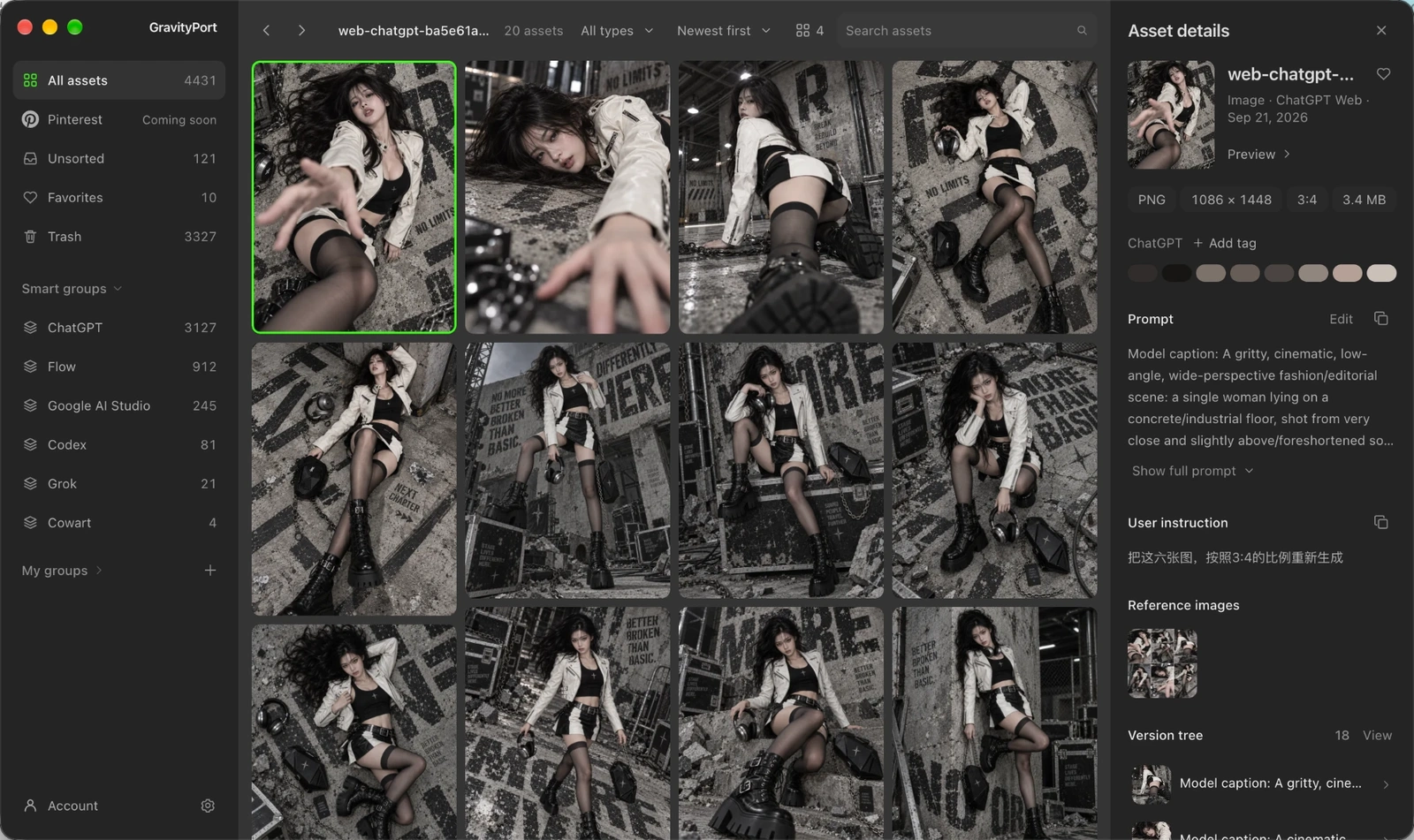
- Auto-Capture: Saves generated images and videos straight to your library.
- Prompts & Context: Keeps prompts, reference images, and sources with every asset.
- Version Tree: Records every round of edits in a conversation.
- Smart Stacks: Groups related assets by source and conversation.
- 100% Local: Stores all assets and records locally on your computer.
- GravityPort MCP: Lets AI assistants manage your library assets directly.
- Free Download: macOS · Windows · gravityport.azhuilab.com
Downloads · First launch · 中文使用指南 · Privacy · Documentation
Downloads
Get GravityPort from the official download page. It always lists the current packages with their sizes; the Windows package also shows its SHA-256 value.
- GravityPort Desktop for macOS (Apple Silicon): a DMG. Drag
GravityPort.appinto Applications. - GravityPort Desktop for Windows 10/11 (x64): an installer. Double-click it; it installs GravityPort for your Windows account without asking for an administrator, adds it to the Start menu and the desktop, and opens it. Remove it in Settings → Apps; your library stays. (0.3.3 and earlier came as a portable ZIP: extract it and run
GravityPort.exe.) - GravityPort Web Capture (Chrome / Chromium, optional): a ZIP; load it after the desktop app is running and the two pair automatically. See the install guide.
Installed desktop apps check for updates themselves in Settings → About. The release manifest is the machine-readable source for the newest version.
First launch
- macOS: the first time you open GravityPort, macOS asks whether to open an app downloaded from the internet. Click Open. Only once.
- Windows: the installer is not code-signed yet, so SmartScreen may say "Windows protected your PC". Click More info → Run anyway. Only once, when you install.
Why GravityPort
An image alone rarely tells you how to use it again. The Prompt may be in another conversation, the source tool may be forgotten, and the version you actually want may be buried among near-duplicates.
GravityPort reconnects each asset with the context that makes it reusable: its available Prompt, generation source, provenance, and version history. The library remains under your control on your machine.
What you can do
Keep the context with the asset
Archive generated images and videos together with their available Prompt, source, model or tool context, timestamps, and provenance. GravityPort records when a Prompt is unavailable instead of inventing one.
Organize by drag and drop
Browse and search one gallery with adjustable column counts, marquee selection, and multi-select. Drag cards onto a sidebar group to file them, onto another card to build or join a stack, inside a stack to reorder it, or out of the window to hand the files to another app. A stack built or joined by drag can be undone for a few seconds.
Iterate on the version tree
The Inspector shows each asset's version tree, with generations from a ChatGPT conversation grouped by conversation round so you can see how the image evolved turn by turn. Any two versions in a family can be compared side by side.
Let AI agents search your library
GravityPort MCP lets Claude, Codex, and other MCP clients list, search, and record assets, Prompts, versions, and generation history in the same local library. asset_search combines text and a time range. The desktop app ships the server: copy a ready-made config for Claude Desktop, Claude Code, or Codex from Settings → Connect, with no Node.js or source checkout needed. From source, run npm run mcp. See MCP 与接口 for setup and the tool list.
Recover deleted work
Removed assets move to Trash, where they are kept for 90 days with a per-asset countdown. Right after a deletion an undo button offers to reverse it; Trash has its own menu for restoring, deleting permanently, and emptying.
Settings → Feedback sends bug reports and ideas, optionally with a redacted diagnostic log that you can read in full before sending. The Pinterest entry is already shown in the app; connecting opens up once Pinterest approves production API access.
MCP setup
GravityPort MCP is a local stdio server built into the desktop app. It opens no port and needs no Node.js or npm package.
- Install GravityPort and open it once.
- Go to Settings → Connect → AI assistants (MCP), pick Claude Desktop, Claude Code or Codex, and click Copy.
- Paste the config into that client and restart it.
On macOS the config looks like this. On Windows the paths depend on where the app is installed, so use the Copy button in Settings.
{
  "mcpServers": {
    "gravityport": {
      "command": "/Applications/GravityPort.app/Contents/MacOS/GravityPort",
      "args": ["/Applications/GravityPort.app/Contents/Resources/app.asar/mcp/server.mjs"],
      "env": { "ELECTRON_RUN_AS_NODE": "1" }
    }
  }
}
Tools
GravityPort MCP provides 25 tools:
- Search:
asset_search(text and time range),asset_list,asset_get - Add:
asset_create,asset_import_folder - Edit:
asset_update_metadata,asset_attach_prompt,asset_duplicate - Trash:
asset_trash(move to Trash),asset_restore(restore from Trash) - Stacks:
stack_list,stack_get,stack_create,stack_rename,stack_add_assets,stack_remove_assets,stack_dissolve - Versions:
asset_version_create,asset_version_history,asset_recipe_history - Generation history:
generation_record,generation_list,generation_relation_record,generation_lineage - Export:
asset_provenance_export(provenance without file paths or user names)
Fits into your workflow
| You create in | GravityPort keeps |
|---|---|
| Codex Desktop | Generated images and the matching local generation context when available |
| ChatGPT, Gemini, Flow, Google AI Studio, or Jimeng in Chrome | Optional visible web-generated images/videos and conservative page-scoped context through the local extension |
| ChatGPT desktop app | Images from desktop chats, picked up by the same extension (auto capture on) through your browser's ChatGPT session |
| Grok (Grok Build CLI) | Images and videos from local sessions, with matched tool context when available |
Cowart canvas archiving and other integrations are also supported; see the Chinese guide for setup.
Whatever the source, everything lands in the same local gallery with groups, stacks, Trash with undo, and the version tree. GravityPort does not generate media or replace any of these tools.
Platform status
| Target | Status |
|---|---|
| macOS arm64 | Main desktop target. DMG for first install, in-app updates afterwards. |
| Windows 10/11 x64 | Installer for first install, in-app updates afterwards. Not code-signed yet. |
Run from source
For development, or to run GravityPort as a local web app without the desktop shell. Requires Node.js 22 or newer and npm.
git clone https://github.com/fengseekling-coder/gravityport.git
cd gravityport
npm ci      # installs dependencies and builds the UI
npm start   # starts the local service on 127.0.0.1:43517
Open http://127.0.0.1:43517. Run npm test to check your checkout. Codex Desktop and the Cowart plugin are optional integrations; the Chinese guide covers their setup and the complete source-by-source behavior.
The Electron desktop shell uses the same Web UI and local runtime:
npm run desktop:start

# macOS arm64 DMG
npm run desktop:make

# Windows 10/11 x64 package directory
npm run desktop:package:windows
Desktop packaging needs Node.js 22.x; the repository pins 22.23.1 in .nvmrc and .node-version, and packaging commands stop with a clear message on any other major. Release tracks, signing, notarization, and manifest publishing are described in the release guide.
Local by design
- GravityPort is a local Web UI bound to loopback; it is not a cloud service and must not be exposed through a public port or reverse proxy.
- It reads only its configured Codex, Grok, and approved Cowart locations. It does not scan Downloads, Desktop, or arbitrary image folders.
- Web Capture is optional. Packaged Desktop provisions its local ingest Token and fixed approved extension origins automatically; a standalone
npm startruntime keeps capture disabled until those values are configured explicitly. The extension sends captured image bytes and page provenance only to the configured local GravityPort address. ChatGPT retains message-scoped context when available; the other supported sites retain only narrowly associated visible user Prompt text when it can be safely matched and mark it unverified — the extension's full site list is documented in PRIVACY.md. With auto capture on, the extension also captures images from conversations you just used in the ChatGPT desktop app by opening them briefly in a minimized browser window; see PRIVACY.md. - Eligible reference images are stored as private, content-hash-deduplicated generation-record attachments, not ordinary gallery assets.
- The desktop app ships and downloads no AI model. GravityPort adds no remote sync or automatic upload of your library.
- Packaged desktop builds send minimal install/activity metadata, keyed by a random installation ID, through a separate bodyless request to the same first-party release endpoint used for update metadata. This contains only the installation ID, version, platform, architecture, and first-launch/daily-active event, and never includes assets, Prompts, or local paths. See PRIVACY.md, which also explains how to turn it off.
See PRIVACY.md for the full data boundary and SECURITY.md for private vulnerability reporting.
Community
- Discord: chat, ask questions, and share what you make.
- GitHub Discussions: ask questions and share ideas.
Documentation
User guides:
- 中文使用指南 (中文): setup, sources, local library, search, versions, MCP, and maintenance.
- Context menu (中文): sidebar, card, and empty-grid actions.
- Web Capture extension guide (中文): local setup, permissions, capture behavior, and limitations.
Running and developing GravityPort:
- Operations guide (English): operating modes, migration, backup, verification, bridge health, and recovery boundaries.
- Release guide (English): distribution tracks, signing, update manifests, release notes, and optional pack publishing.
- Architecture (中文): current runtime, storage, and integration layout.
- Design system (中文): colors, type, spacing, components, and copy rules for the desktop interface.
- Contributing guide: development workflow, checks, and privacy requirements.
Policies and history:
- Privacy policy: data sources, local storage, extension permissions, and network boundaries.
- Security policy: supported versions and private vulnerability reporting.
- Support guide: questions, bug reports, and feature requests.
- Changelog and Web Capture changelog: user-visible changes and release status.
- Third-party notices: upstream projects and models that GravityPort builds on or redistributes.
License
GravityPort is source-available under the PolyForm Shield License 1.0.0.
- Anyone can use GravityPort for free, including at work and for client projects.
- You can modify it and share copies, as long as you keep the license terms and the required copyright notice.
- You may not use GravityPort's code to provide a product that competes with GravityPort, including renamed or lightly modified copies, even when offered for free. If you are unsure whether your use competes, see COMMERCIAL-LICENSE.md.
GravityPort is source-available software, not OSI-approved open-source software. v0.1.0 is the final release published under the MIT License; versions 0.2.0 through 0.3.5 were published under the PolyForm Noncommercial License 1.0.0, and copies obtained under those terms keep them.
Third-party attribution is documented separately in THIRD_PARTY_NOTICES.md and does not change GravityPort's own license terms.
GravityPort MCP questions
How do I add GravityPort MCP to Claude Code?
Run claude mcp add gravityport -- npx -y gravityport-mcp in your terminal. Add --scope user to make it available in every project.
How do I add GravityPort MCP to Cursor?
Open ~/.cursor/mcp.json and add the server under mcpServers, using the Cursor config shown in the install section above.
What can the GravityPort MCP do?
It allows AI assistants like Claude and Codex to list, search, and record assets, prompts, versions, and generation history within your local library.
How do I set up GravityPort MCP?
Install the desktop app, go to Settings → Connect → AI assistants (MCP), select your client, copy the config, and paste it into your client's configuration.
Is my data stored in the cloud?
No, GravityPort is 100% local and stores all assets and records on your own computer.
Does the MCP server require Node.js to be installed separately?
No, the desktop app includes the server, so no Node.js or source checkout is required for standard use.