
Records macOS Dock changes and renders them into Apple-style timelapse videos with animations and labels.
Also known as bcldvd/dock-timelapse, dock-timelapse
- Stars
- 0
- Tools
- —
- Downloads, 30 days
- 227
- Latest version
- 0.2.0
- Last commit
- Sep 26, 2026
- License
- MIT
What is Dock Timelapse MCP?
Dock Timelapse records macOS Dock changes and renders them into Apple-style timelapse videos with animations and labels.
Summary generated from the project's README
How to install Dock Timelapse MCP
Formats verified 10 Nov 2026Add to CursorAdd to GooseInstall Dock Timelapse MCP in Claude Code
$ claude mcp add dock-timelapse -- uvx dock-timelapseInstall Dock Timelapse MCP in Cursor
~/.cursor/mcp.json
{
  "mcpServers": {
    "dock-timelapse": {
      "command": "uvx",
      "args": [
        "dock-timelapse"
      ]
    }
  }
}Install Dock Timelapse MCP in VS Code
.vscode/mcp.json
{
  "servers": {
    "dock-timelapse": {
      "type": "stdio",
      "command": "uvx",
      "args": [
        "dock-timelapse"
      ]
    }
  }
}Install Dock Timelapse MCP in VS Code CLI
$ code --add-mcp '{"name":"dock-timelapse","type":"stdio","command":"uvx","args":["dock-timelapse"]}'Install Dock Timelapse MCP in Claude Desktop
claude_desktop_config.json
{
  "mcpServers": {
    "dock-timelapse": {
      "command": "uvx",
      "args": [
        "dock-timelapse"
      ]
    }
  }
}Install Dock Timelapse MCP in Codex
$ codex mcp add dock-timelapse -- uvx dock-timelapseInstall Dock Timelapse MCP in Codex config.toml
~/.codex/config.toml
[mcp_servers.dock-timelapse]
command = "uvx"
args = ["dock-timelapse"]
Install Dock Timelapse MCP in Gemini CLI
$ gemini mcp add -s user dock-timelapse uvx -- dock-timelapseInstall Dock Timelapse MCP in Gemini settings.json
~/.gemini/settings.json
{
  "mcpServers": {
    "dock-timelapse": {
      "command": "uvx",
      "args": [
        "dock-timelapse"
      ]
    }
  }
}Automated checks
Ran Nov 14, 2026Full report →Passed our automated checks. That is not a security audit: read the code and give the server the narrowest access it needs. How checks work

- Source repository linked and reachablebcldvd/dock-timelapse is public and reachablegithub.com/bcldvd/dock-timelapse ↗Pass
- Package names this repository as its sourcedock-timelapse names bcldvd/dock-timelapse as sourcepypi.org/project/dock-timelapse/ ↗Pass
- Build provenance (Sigstore attestation)No build attestation published for this releaseNot checked
- Open source license (OSI)MITspdx.org/licenses/MIT.html ↗Pass
- Commit or release in the last yearLast commit or release 2026-09-26github.com/bcldvd/dock-timelapse ↗Pass
- OpenSSF ScorecardNot checked
- Package name not close to a popular packageNo popular package one edit away from dock-timelapsePass
- No critical advisory in the package or its dependencies35 resolved dependencies checked; no critical advisoryosv.dev ↗Pass
- No hidden instructions to the model0 tool descriptions and the README read; no override phrases, credential paths or hidden charactersPass
- Destructive tools are labelledNot checked
- Remote endpoint answers the MCP handshakeNot checked
README
View on GitHubDock Timelapse
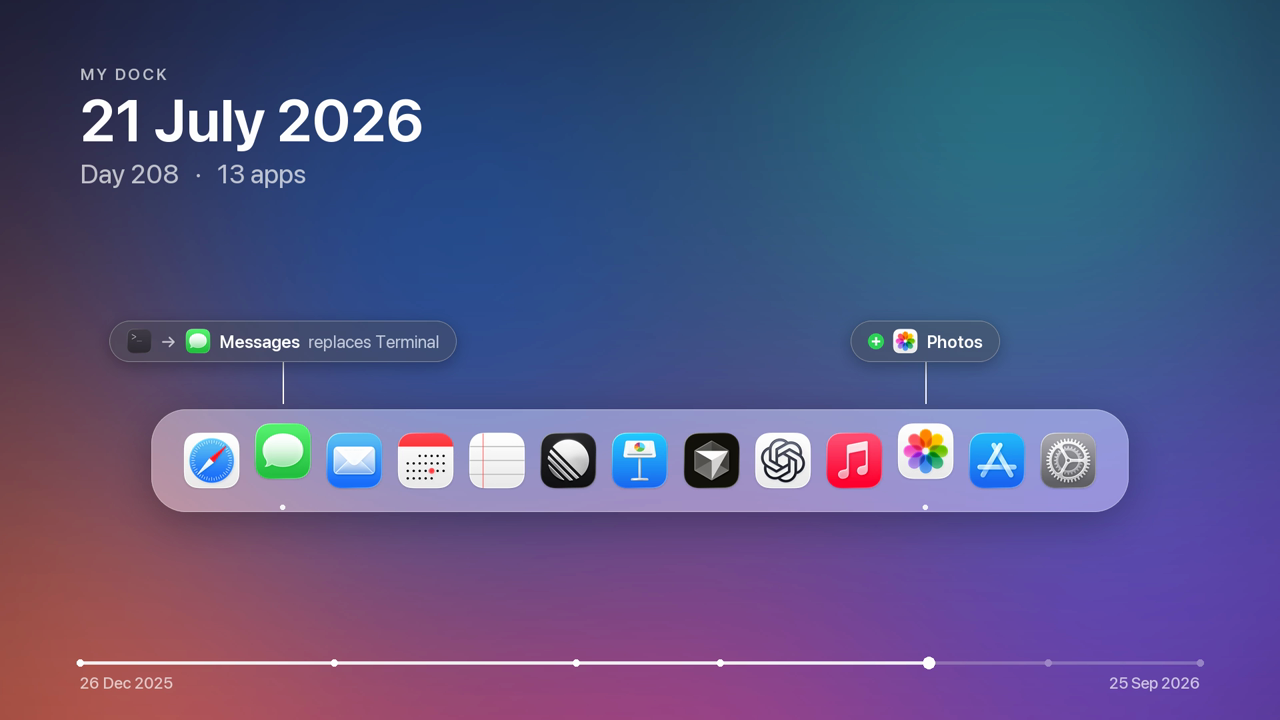
Your Dock tells the story of the tools you live in. Dock Timelapse records it quietly every day and turns its evolution into an Apple-style timelapse: apps springing in, others handing over their spot, a day counter ticking, all drawn over your own wallpaper.
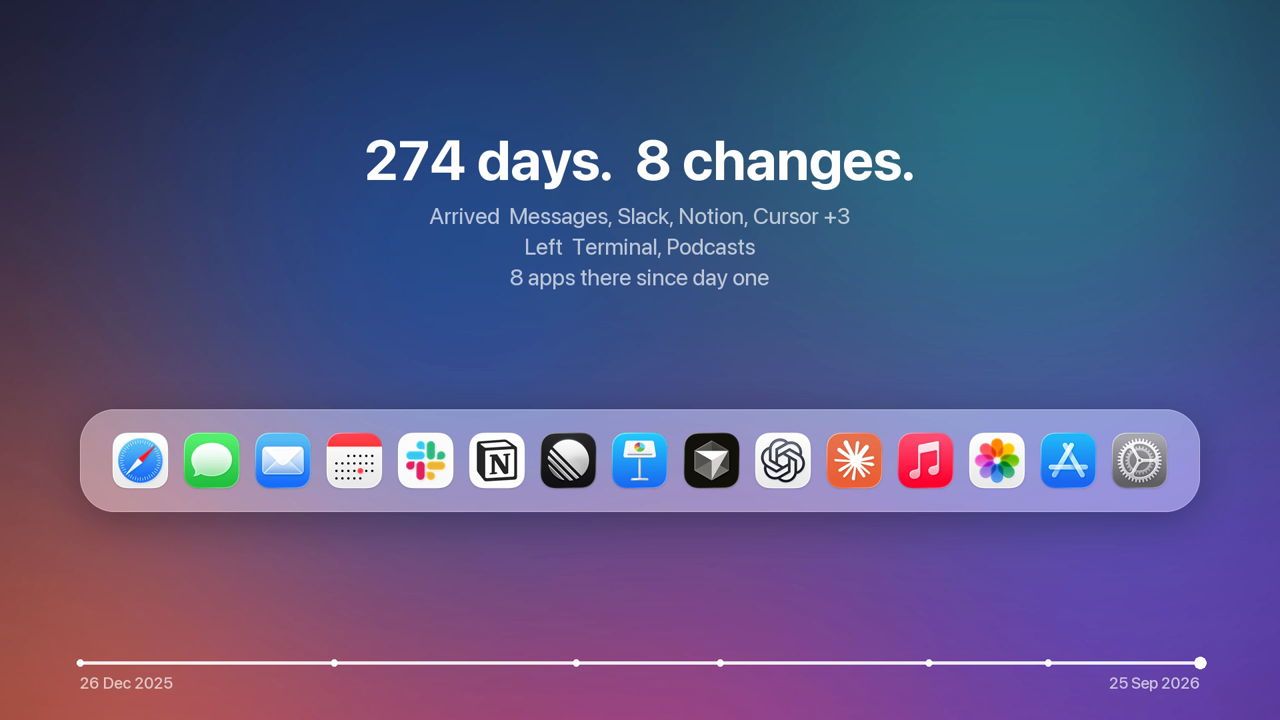
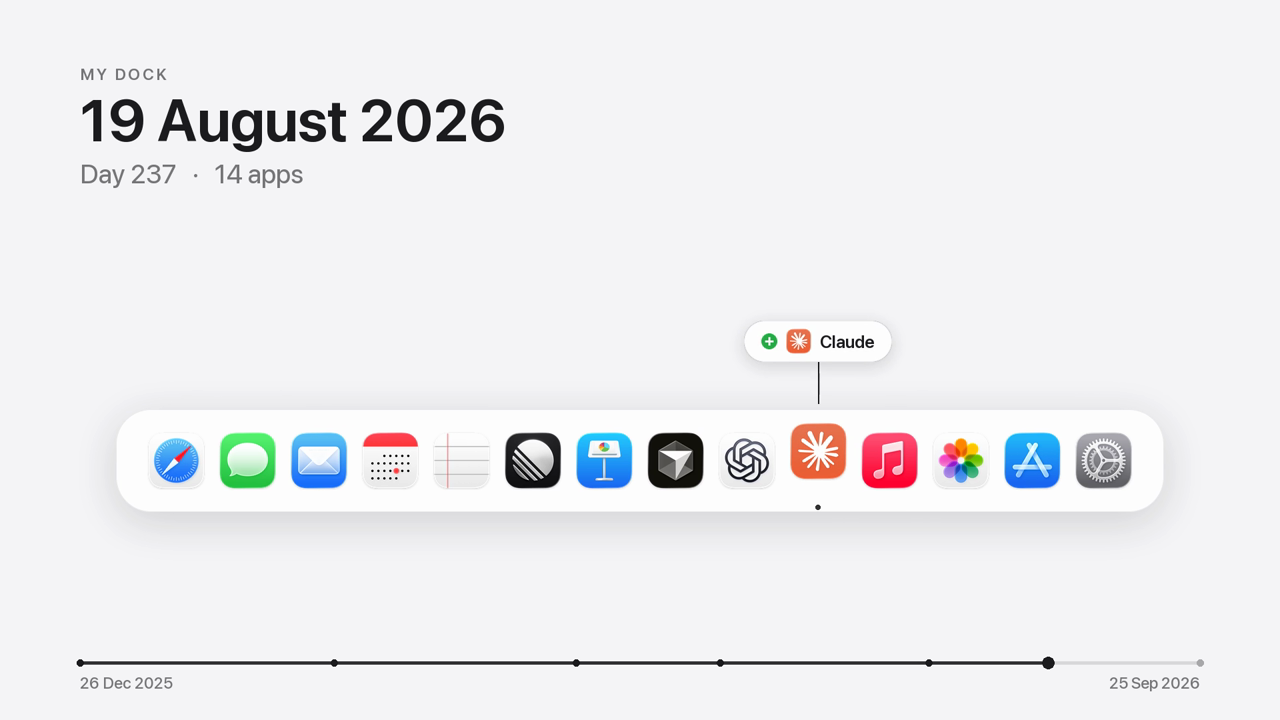
Demo render with an invented nine-month history. The real output is 1920×1080 and 1080×1920 H.264 at 60 fps.
| Replacements and arrivals, labelled next to the icon | End card with the story in numbers |
|---|---|
 |
 |
White background (--background white) |
Portrait — a vertical Dock with labels alongside |
 |
How it works
- Records — an hourly background agent reads the Dock's own preferences (the pinned apps, up to and including System Settings). On each day the Dock changes it saves a snapshot: the app list, every icon in high resolution, and the current wallpaper. Optionally it keeps a cropped Dock screenshot too.
- Renders — the videos are redrawn from that data: a glass Dock over your blurred wallpaper, spring
animations, change labels (
+ Linear,Cursor replaces Xcode), the date and day counter, and a progress bar scaled to real calendar time. - Previews on day one —
previewinvents a plausible past that ends with your real Dock, so you can see your video right away.
Requirements: macOS and uv. ffmpeg comes bundled.
Install
Command line
uv tool install dock-timelapse

dock-timelapse install        # start recording (hourly agent, one snapshot per day of change)
dock-timelapse preview        # see your video now, with an invented past
dock-timelapse render         # later: the real timelapse → ~/Movies/Dock Timelapse/
Claude Code
/plugin marketplace add bcldvd/dock-timelapse
/plugin install dock-timelapse@dock-timelapse
The plugin brings the skill and the MCP server. Then just ask: "start recording my Dock", "make a timelapse of my Dock", "which apps did I add since June?"
Codex, Cursor, Gemini CLI, Copilot and other agents
The skill follows the open Agent Skills format:
npx skills add bcldvd/dock-timelapse -y
MCP server (Claude Desktop, Codex, Cursor, VS Code, …)
{
  "mcpServers": {
    "dock-timelapse": {
      "command": "uvx",
      "args": ["dock-timelapse", "mcp"]
    }
  }
}
Codex (~/.codex/config.toml):
[mcp_servers.dock-timelapse]
command = "uvx"
args = ["dock-timelapse", "mcp"]
Tools: dock_status, current_dock, dock_history, install_recording, uninstall_recording,
capture_now, render_timelapse, render_preview, render_frame.
Usage
dock-timelapse status                                     # recording state + every snapshot and its changes
dock-timelapse render --format portrait                   # landscape | portrait | both (default)
dock-timelapse render --background white                  # wallpaper (default) | desktop (sharp) | white
dock-timelapse preview --demo                             # a generic demo Dock
dock-timelapse still --t 2 5.5                            # single PNG frames
dock-timelapse install --screenshots                      # also keep Dock screenshots
dock-timelapse uninstall                                  # stop recording, history stays
Screenshots use the Screen Recording permission: install --screenshots prints the Python path to add in
System Settings → Privacy & Security → Screen & System Audio Recording. The videos only need the Dock data,
so this step is optional.
Data lives in ~/Library/Application Support/dock-timelapse/ (snapshots.json, icons, wallpapers, and
capture.log).
Development
uv sync
uv run pytest
| module | role |
|---|---|
dockdata.py |
parse Dock prefs → ordered apps, up to System Settings |
diff.py |
added / removed / replaced / moved between two Docks |
store.py |
snapshots on disk, one per day of change |
capture.py · visibility.py · macos.py |
one capture attempt; Dock visibility; the macOS calls |
agent.py |
the launchd agent |
timeline.py · layout.py |
pure animation model and geometry |
render.py · video.py |
Pillow frames → ffmpeg H.264 |
poc.py |
invented histories for previews |
mcp_server.py |
MCP tools |
License
MIT
Dock Timelapse MCP questions
How do I add Dock Timelapse MCP to Claude Code?
Run claude mcp add dock-timelapse -- uvx dock-timelapse in your terminal. Add --scope user to make it available in every project.
How do I add Dock Timelapse MCP to Cursor?
Open ~/.cursor/mcp.json and add the server under mcpServers, using the Cursor config shown in the install section above.
How does the recording process work?
An hourly background agent reads the Dock's preferences and saves a snapshot of the app list, high-resolution icons, and the current wallpaper whenever the Dock changes.
Can I see a video immediately without waiting for days of data?
Yes, the preview command generates a plausible invented past that ends with your current Dock so you can see a video right away.
What are the video output specifications?
The real output is rendered in 1920×1080 or 1080×1920 H.264 at 60 fps.