
Enables AI agents to automate desktop applications using incremental perception to reduce token usage by up to 7x.
Also known as Ask-812/oswright
- Stars
- 4
- Tools
- 43
- Downloads, 30 days
- 149
- Latest version
- 0.8.2
- Last commit
- Oct 16, 2026
- License
- MIT
What is oswright MCP?
oswright enables AI agents to automate desktop applications using incremental perception to reduce token usage by up to 7x. It exposes 43 tools, such as screenshot, get_screen_info, find_text_on_screen.
Summary generated from the project's README
About oswright MCP server
Automating desktop applications through an AI agent is made more efficient with oswright, which uses incremental perception to minimize token consumption. Instead of capturing and processing a full screenshot for every single action, this server tracks changes to the screen and only rescans the specific regions that have moved or updated. This approach allows developers to run long-running automation tasks while reducing token usage by up to 7x compared to traditional methods.
Designed for use with MCP clients like Claude Desktop, Cursor, or VS Code, the server works across Windows, Linux, and macOS. It utilizes a resolution cascade to find elements, starting with the cheapest methods like screen memory or accessibility trees before falling back to OCR or image matching. This ensures that looking up known elements is significantly faster and cheaper than re-reading the entire interface. Users can manage windows, access the system clipboard, and launch applications directly through the agent.
What you can do with it
- 1Automate data entry tasksAn agent can read information from an invoice and type it into a desktop expense form.
- 2Reduce automation token costsDevelopers can run complex GUI tasks using significantly fewer tokens by enabling incremental perception.
- 3Navigate complex software interfacesThe server uses a combination of accessibility trees and OCR to interact with diverse applications like Chrome or VS Code.
- 4Monitor screen changesAn AI can wait for a specific visual change to occur on the desktop before proceeding with the next step.
Written from the project's README. Every use case is checked against a quote from it.
How to install oswright MCP
Formats verified 10 Nov 2026Add to CursorAdd to GooseInstall oswright MCP in Claude Code
$ claude mcp add oswright -- uvx oswrightInstall oswright MCP in Cursor
~/.cursor/mcp.json
{
  "mcpServers": {
    "oswright": {
      "command": "uvx",
      "args": [
        "oswright"
      ]
    }
  }
}Install oswright MCP in VS Code
.vscode/mcp.json
{
  "servers": {
    "oswright": {
      "type": "stdio",
      "command": "uvx",
      "args": [
        "oswright"
      ]
    }
  }
}Install oswright MCP in VS Code CLI
$ code --add-mcp '{"name":"oswright","type":"stdio","command":"uvx","args":["oswright"]}'Install oswright MCP in Claude Desktop
claude_desktop_config.json
{
  "mcpServers": {
    "oswright": {
      "command": "uvx",
      "args": [
        "oswright"
      ]
    }
  }
}Install oswright MCP in Codex
$ codex mcp add oswright -- uvx oswrightInstall oswright MCP in Codex config.toml
~/.codex/config.toml
[mcp_servers.oswright]
command = "uvx"
args = ["oswright"]
Install oswright MCP in Gemini CLI
$ gemini mcp add -s user oswright uvx -- oswrightInstall oswright MCP in Gemini settings.json
~/.gemini/settings.json
{
  "mcpServers": {
    "oswright": {
      "command": "uvx",
      "args": [
        "oswright"
      ]
    }
  }
}oswright MCP tools 43
Detected from the READMEscreenshotget_screen_infofind_text_on_screenread_screen_textfind_image_on_screenmouse_clickmouse_double_clickmouse_movemouse_scrollmouse_dragget_mouse_positiontype_text
Show all 43 toolsShow fewer tools
press_keyclick_textdouble_click_textright_click_texthover_textfill_fieldfill_formwait_for_textwait_for_text_gonewait_for_timelist_windowsfocus_windowclose_windowminimize_windowscreenshot_windowget_clipboardset_clipboardlaunch_appget_ocr_infoobservefind_elementclick_elementread_model_textperception_statsremember_screenatlas_statsget_ui_treeclick_ui_elementfill_ui_elementget_active_windowwait_for_change
Automated checks
Ran Nov 13, 2026Full report →Passed our automated checks. That is not a security audit: read the code and give the server the narrowest access it needs. How checks work

- Source repository linked and reachablePass
- Open source license (OSI)Pass
- Commit or release in the last yearPass
- Package name not close to a popular packagePass
- Remote endpoint uses HTTPSNot checked
- Destructive tools are labelledPass
- No hidden instructions to the modelPass
- No critical advisory in the package or its dependenciesPass
README
View on GitHubOSWright




Desktop automation for AI agents, without paying for a screenshot every step.
mcp-name: io.github.Ask-812/oswright
An MCP server that lets an LLM drive real desktop applications — the desktop equivalent of Playwright MCP. It keeps a model of the screen between actions and re-reads only the parts that changed, so the same work costs an order of magnitude fewer tokens.
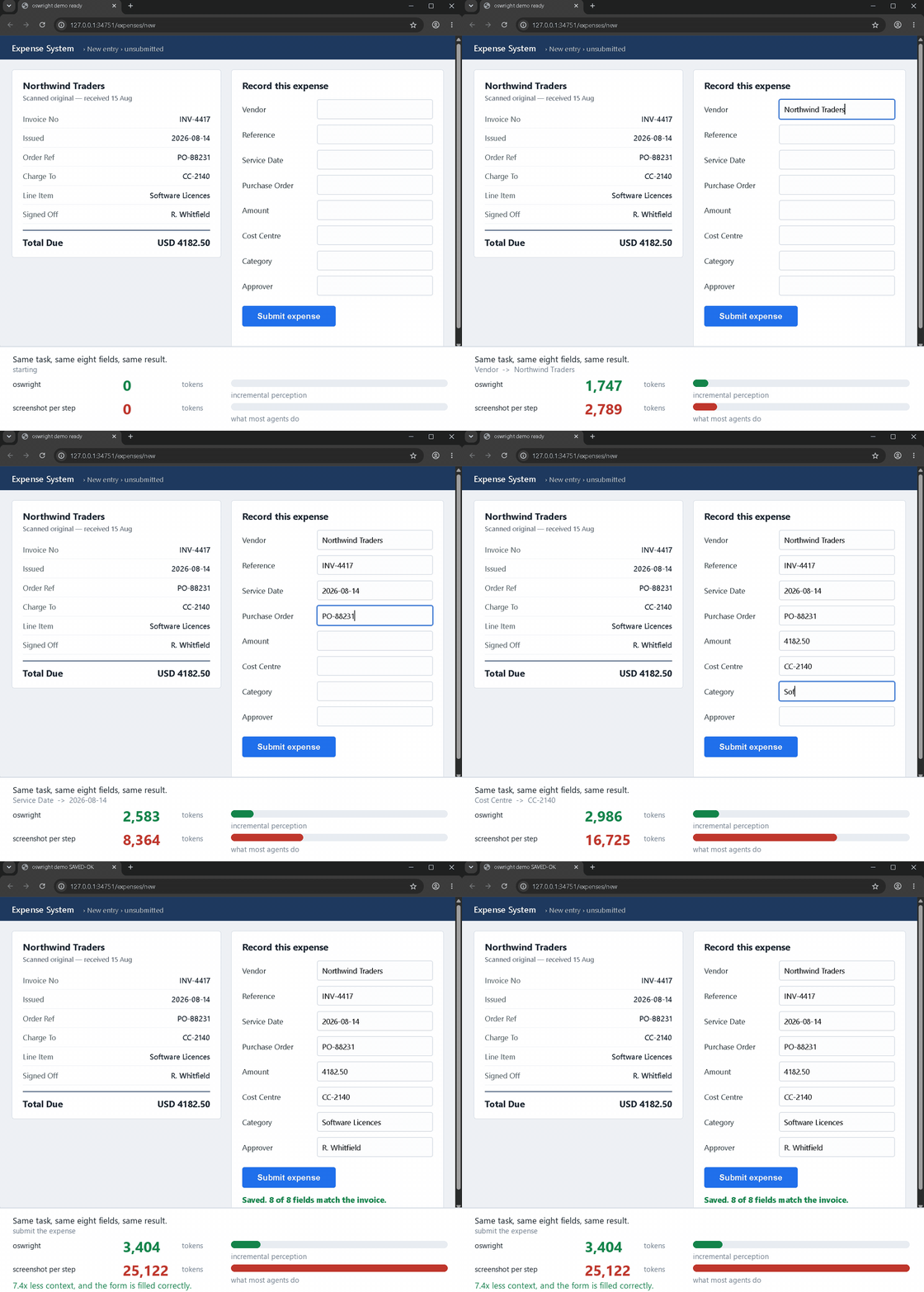
Eight fields read off an invoice and typed into an expense form, verified by the
application itself. Same task, same result, 7.4× less context than returning
a screenshot after every action. Every number on screen is measured during the
run — regenerate the whole thing with python benchmarks/record_demo.py.
Why this exists
Most GUI agents re-perceive the entire screen on every step: screenshot, OCR, hand the model an image, repeat. Measured on a live desktop, the median observation changes 0.012% of the screen's pixels. Re-reading everything does far more work than the change warrants, and charges ~2,800 image tokens whether anything happened or not.
OSWright asks the compositor what changed, rescans only that, and answers
element lookups from the cheapest source that can. The claims below are measured
on this machine and reproducible from benchmarks/ — including
the ones that did not come out in its favour.
Key Features
- Cross-platform. Windows (Win32 API), Linux (pynput/X11), macOS (pynput/Quartz).
- Accessibility tree. Find elements deterministically by role and name via Windows UI Automation — 100% accurate, instant, no model needed.
- Fast OCR. Windows OCR (built-in, instant) with EasyOCR fallback for Linux/macOS. Results are cached automatically.
- Lightweight on Windows. No PyTorch download — Windows uses the built-in OCR engine, so a full install is a few MB rather than a few GB.
- Image matching. Locates elements by template image via OpenCV.
- Window management. List, focus, minimize, close, and screenshot specific windows.
- Screenshot diffing. Detect when the screen changes with
wait_for_change. - Clipboard access. Read and write system clipboard for data transfer.
- App launcher. Launch applications and wait for them to load.
- Auto-snapshot. Every action returns a screenshot so the agent always sees current state.
- 43 MCP tools. Screen, OCR, UIA, mouse, keyboard, windows, clipboard, and compound actions.
- Incremental perception. Rescans only the parts of the screen that changed, and can return what changed instead of a full screenshot — ~21× fewer tokens per step.
- Screen memory. Recognises screens it has read before and reuses them, verified by pixels — 89× cheaper than reading again.
- Speculative perception. Learns what actions do and confirms the expected result instead of re-reading — 19–23× cheaper, with a
surprisereport when the interface does something unexpected. - Adaptive waiting. Waits for the screen to actually settle rather than sleeping a fixed 300 ms — 11.9 s saved over a 50-step task.
- Resolution cascade. Element lookups stop at the cheapest method that works; repeat lookups cost ~0.05 ms.
- DPI-correct. Coordinates are physical pixels everywhere, so clicks land correctly on scaled displays.
- Test suite. 259 automated tests; the desktop-driving ones skip themselves when no display is available.
Requirements
- Python 3.10 or newer
- VS Code, Cursor, Windsurf, Claude Desktop, or any other MCP client
Getting started
First, install the OSWright MCP server with your client.
Standard config works in most tools:
{
  "mcpServers": {
    "oswright": {
      "command": "uvx",
      "args": ["oswright"]
    }
  }
}
Note: If you don't have
uvx, you can usepip install oswrightand then set"command": "oswright"directly.
Follow the MCP install guide, use the standard config above.
claude mcp add oswright uvx oswright
Add to your user or workspace settings.json under mcp.servers:
{
  "mcp": {
    "servers": {
      "oswright": {
        "command": "uvx",
        "args": ["oswright"]
      }
    }
  }
}
Or use the VS Code CLI:
code --add-mcp '{"name":"oswright","command":"uvx","args":["oswright"]}'
Go to Cursor Settings -> MCP -> Add new MCP Server. Name it oswright, use command type with the command uvx oswright.
Follow Windsurf MCP documentation. Use the standard config above.
Add to your cline_mcp_settings.json:
{
  "mcpServers": {
    "oswright": {
      "type": "stdio",
      "command": "uvx",
      "args": ["oswright"],
      "disabled": false
    }
  }
}
Go to Advanced settings -> Extensions -> Add custom extension. Name it oswright, use type STDIO, and set the command to uvx oswright.
If you prefer a standard pip install:
pip install oswright
Then use this config:
{
  "mcpServers": {
    "oswright": {
      "command": "oswright"
    }
  }
}
Or run directly:
python -m oswright
Agent skill
skills/oswright/SKILL.md tells an agent when to
reach for OSWright and which tools are the cheap ones. It follows the open
Agent Skills format. Copy the skills/oswright folder
into your agent's skills directory — ~/.claude/skills/ for Claude Code, or the
equivalent for your client.
The skill sets --observation-mode delta. Without it, every action returns a
full screenshot, which is the cost OSWright exists to avoid.
Incremental perception
Most GUI agents re-perceive the entire screen on every step: full screenshot, full OCR, then hand the model a fresh image. Measured on a live desktop, the median observation changes 0.012% of pixels — so a full rescan does roughly 240× more work than the change warrants, and the screenshot it returns costs ~2,800 image tokens whether anything happened or not.
OSWright keeps a model of the screen between observations and rescans only the regions that actually moved.
observe()  ->  {"changed": true,
                "added":   [{"text": "Saved", "x": 812, "y": 447}],
                "removed": ["Unsaved changes"],
                "screen_fraction_scanned": 0.015}
Measured on this machine over a 14-step agent loop:
| v0.4.0 (full OCR + screenshot) | incremental | |
|---|---|---|
| Median latency per step | 212 ms | 33 ms |
| Tokens per observation | ~2,764 | ~49 |
| Tokens over 14 steps | 38,696 | 1,025 |
| Screen re-read | 100% | 16% |
The busier the screen, the larger the gap: full OCR scales with how much text is
on screen, whereas the incremental path scales with how much changed. The same
comparison measures 6.5× on a quiet desktop and 14.3× with a dense web page
open. Re-measure with benchmarks/ rather than trusting these.
Cost is a proxy, though, and a cheaper perception path that quietly degraded accuracy would be worse than none. So it is checked against task completion: scripted tasks driving the real tool surface across four applications, graded against each application's own state — UI Automation for Calculator and Explorer, the window title for Chrome and VS Code — never against OCR.
| configuration | Calculator | File Explorer | Chrome | tokens |
|---|---|---|---|---|
| v0.4-style (full screenshot) | 9/9 | 3/3 | 3/3 | 118,858 |
| delta only | 9/9 | 3/3 | 3/3 | 5,252 |
| delta + memory | 9/9 | 3/3 | 3/3 | 5,099 |
| delta + memory + prediction | 9/9 | 3/3 | 3/3 | 7,981 |
Accuracy is identical across every configuration while token cost falls 23×.
Run it with python benchmarks/bench_tasks.py.
Why both pixels and accessibility
The design bets that neither perception path wins everywhere. Turning each half off measures that rather than asserting it:
| configuration | Calculator | File Explorer | Chrome |
|---|---|---|---|
| full cascade | 9/9 | 3/3 | 3/3 |
| accessibility only | 9/9 | 0/3 | 0/3 |
| pixels only | 6/9 | 3/3 | 3/3 |
Accessibility-only — the posture most Windows GUI agents take — is perfect on
XAML and blind on a Win32 list view and on web content. Probed against VS Code
it sees 18 elements, the entire IDE being a single node named Chrome Legacy Window, while OCR reads 94 including every filename.
Pixels-only fails Calculator's buttons, because the button a human reads as 7
is named Seven, and Windows OCR returns no digits from Calculator at all.
The cascade is the only configuration that passes everywhere.
The resolution cascade
find_element and click_element stop at the first method that can answer,
so cost tracks how novel the request is rather than how large the screen is:
| Rung | Method | Typical cost |
|---|---|---|
| 0 | Already in the screen model | ~0.05 ms |
| 1 | Rescan only what changed | ~70 ms |
| 2 | Accessibility tree (knows a Button is a button) | ~40 ms |
| 3 | App's own text buffer via UIA TextPattern — exact characters | ~400 ms |
| 4 | Full-screen OCR | ~250 ms |
Looking up text the model already knows is ~5,000× cheaper than the v0.4.0 path (0.05 ms versus 244 ms). The response reports which rung answered, so you can see what a task is actually costing.
Rung 3 is worth understanding: UIA's TextRange.FindText searches the
application's own text buffer and returns exact bounding rectangles. It is
immune to font, DPI, antialiasing and OCR error. It sits below the pixel rungs
only because scanning a window's controls for it costs a few hundred
milliseconds of cross-process COM — it is the accurate rung, not the fast one.
Note on ordering. These rungs are ordered by measurement, not by theory. The common advice is to make the accessibility tree primary, but on real applications it is not always cheaper: walking Chrome's tree took 537 ms here, slower than a full-screen OCR pass, and VS Code exposed only 18 elements to it. Neither pixels nor accessibility wins everywhere, which is why this is a cascade rather than a choice.
Asking the compositor instead of looking
On Windows, the desktop compositor already knows which pixels changed and exposes them through DXGI Desktop Duplication. Asking it costs 0.14 ms and transfers no pixels, against tens of milliseconds to capture a frame and discover it was identical — so an idle observation skips the capture entirely.
When something has changed, the compositor is left holding that frame, so its
pixels are read directly from the GPU rather than grabbed a second time through
a different API — 1.5–2.3× faster than mss in measurements here.
The compositor is used only as a fast negative for change detection. When it reports a change, the dirty regions still come from hashing the captured frame: the two are measured over slightly different intervals, so compositor rectangles can under-report relative to the pixels actually captured, and an under-reported region is text that never gets re-read. It degrades silently to tile hashing and normal capture wherever Desktop Duplication is unavailable.
Enable delta observations for action tools with --observation-mode delta.
The default remains screenshot for compatibility with existing clients.
Reproduce all of this yourself: see benchmarks/.
The reasoning behind each decision, including the dead ends, is in
docs/ENGINEERING_LOG.md.
Configuration
OSWright MCP server supports the following arguments. They can be provided in the JSON configuration as part of the "args" list:
| Option | Description | Env Variable |
|---|---|---|
--port <port> |
Port for SSE transport. If omitted, uses stdio (default). | FASTMCP_PORT |
--host <host> |
Host to bind the HTTP/SSE server to. Default: 127.0.0.1. |
FASTMCP_HOST |
--transport <mode> |
Transport protocol: stdio, sse, streamable-http. Auto-detected from --port. |
|
--ocr-languages <langs> |
OCR languages (default: en). Example: --ocr-languages en es fr |
OSWRIGHT_OCR_LANGUAGES |
--timeout <seconds> |
Default timeout for auto-wait operations (default: 10). |
OSWRIGHT_TIMEOUT |
--snapshot-max-width <px> |
Downscale the auto-snapshot returned after each action. 0 (default) keeps full resolution. Lower values cut token cost significantly. |
OSWRIGHT_SNAPSHOT_MAX_WIDTH |
--observation-mode <mode> |
What action tools return: screenshot (default), delta (only what changed, ~30× fewer tokens), or both. |
OSWRIGHT_OBSERVATION_MODE |
--no-atlas |
Do not remember screens across visits. | OSWRIGHT_NO_ATLAS |
--no-speculate |
Do not predict the outcome of actions. | OSWRIGHT_NO_SPECULATE |
--allow-remote |
Required to bind a non-loopback address. See Security. | |
--log-level <level> |
Logging level: DEBUG, INFO, WARNING, ERROR. Default: INFO. |
OSWRIGHT_LOG_LEVEL |
An explicit command-line flag always wins over the corresponding environment variable.
Example: Multi-language OCR
{
  "mcpServers": {
    "oswright": {
      "command": "uvx",
      "args": ["oswright", "--ocr-languages", "en", "es", "fr"]
    }
  }
}
Standalone MCP server (SSE)
When running from a worker process or another machine, use SSE transport:
uvx oswright --port 8931
Then in your MCP client config:
{
  "mcpServers": {
    "oswright": {
      "url": "http://127.0.0.1:8931/sse"
    }
  }
}
Security
OSWright has no authentication. Anyone who can reach the port gets full keyboard, mouse, screen and clipboard control of the machine — it is remote desktop takeover, not a sandboxed API.
The server therefore binds to 127.0.0.1 by default and refuses to start on
a non-loopback address unless you pass --allow-remote. To reach it from
another machine, prefer an SSH tunnel over exposing the port:
ssh -L 8931:127.0.0.1:8931 user@desktop-host
Stdio transport (the default, used by every MCP client config above) is not network-exposed at all and is the recommended way to run OSWright.
Tools that can destroy work are annotated accordingly: close_window is marked
destructive, and launch_app starts arbitrary programs. Screenshot tools refuse
to overwrite an existing save_path.
Platform Notes
| Platform | Input Backend | OCR Backend | Extra downloads |
|---|---|---|---|
| Windows | Win32 API (SendInput) | Windows OCR (instant, built-in) | None. No PyTorch. UI Automation included. |
| Linux | pynput (X11) | EasyOCR | PyTorch (~2.5 GB). Requires X11; Wayland has limited support. |
| macOS | pynput (Quartz) | EasyOCR | PyTorch (~2.5 GB). Grant Accessibility permissions in System Settings > Privacy > Accessibility. |
On Windows, EasyOCR is not installed, because the built-in Windows OCR engine is faster and needs no model download. Install it only if you need a language Windows OCR does not support:
pip install "oswright[easyocr]"
Coordinates
All coordinates returned by OCR, image matching and UI Automation are absolute
physical screen pixels, ready to pass straight to mouse_click. This holds for
sub-regions and for multi-monitor setups where the virtual desktop starts at a
negative origin. screenshot also reports origin_x/origin_y, the absolute
position of the image's top-left pixel, for when you read a coordinate off the
image yourself.
Tools
-
screenshot -- Take a screenshot of the screen or a region. Returns the image as native MCP image content. Optionally saves to a file path.
- Read-only: true
-
get_screen_info -- Get screen dimensions and monitor count.
- Read-only: true
-
find_text_on_screen -- Find all occurrences of text on screen using OCR. Returns matches with coordinates and confidence.
- Parameters:
text,exact, region bounds,monitor - Read-only: true
- Parameters:
-
read_screen_text -- Read ALL visible text on the screen using OCR. Returns every detected text element with position.
- Parameters: region bounds,
monitor - Read-only: true
- Parameters: region bounds,
- find_image_on_screen -- Find all occurrences of a template image on screen using OpenCV template matching.
- Parameters:
template_path,threshold,monitor - Read-only: true
- Parameters:
-
mouse_click -- Click the mouse at coordinates or current position. Returns screenshot.
- Parameters:
x,y,button,clicks
- Parameters:
-
mouse_double_click -- Double-click at coordinates or current position. Returns screenshot.
-
mouse_move -- Move the mouse cursor to screen coordinates.
-
mouse_scroll -- Scroll the mouse wheel. Returns screenshot.
- Parameters:
amount,x,y
- Parameters:
-
mouse_drag -- Drag from one point to another. Returns screenshot.
- Parameters:
start_x,start_y,end_x,end_y,button,duration
- Parameters:
-
get_mouse_position -- Get the current mouse cursor position.
- Read-only: true
-
type_text -- Type text character by character. Returns screenshot.
- Parameters:
text,delay
- Parameters:
-
press_key -- Press a key or combo like
Enter,Ctrl+C,Alt+Tab. Returns screenshot.- Parameters:
key
- Parameters:
-
click_text -- Find text via OCR and click on it. Auto-retries until found or timeout. Returns screenshot.
- Parameters:
text,exact,button,timeout,poll_interval,monitor
- Parameters:
-
double_click_text -- Find text via OCR and double-click on it. Returns screenshot.
-
right_click_text -- Find text via OCR and right-click on it. Returns screenshot.
-
hover_text -- Find text via OCR and hover over it. Returns screenshot.
-
fill_field -- Find a label, click it, clear, and type a value. Returns screenshot.
- Parameters:
target_text,value,exact,timeout,monitor
- Parameters:
-
fill_form -- Fill multiple fields in one call. Reduces round-trips.
- Parameters:
fields(list of{label, value}),timeout,monitor
- Parameters:
-
wait_for_text -- Wait for text to appear on screen. Polls via OCR.
- Parameters:
text,exact,timeout,poll_interval,monitor - Read-only: true
- Parameters:
-
wait_for_text_gone -- Wait for text to disappear from screen.
- Parameters:
text,exact,timeout,poll_interval,monitor - Read-only: true
- Parameters:
-
wait_for_time -- Wait for a specified duration (capped at 30s), then screenshot.
-
list_windows -- List all visible windows. Optionally filter by title substring.
- Parameters:
title_filter - Read-only: true
- Parameters:
-
focus_window -- Bring a window to the foreground by title. Returns screenshot.
- Parameters:
title
- Parameters:
-
close_window -- Close a window by title (sends WM_CLOSE). Returns screenshot.
- Parameters:
title
- Parameters:
-
minimize_window -- Minimize a window by title. Returns screenshot.
- Parameters:
title
- Parameters:
-
screenshot_window -- Capture a screenshot of just one window.
- Parameters:
title,save_path - Read-only: true
- Parameters:
-
get_clipboard -- Get the current text content of the system clipboard.
- Read-only: true
-
set_clipboard -- Copy text to the system clipboard.
- Parameters:
text
- Parameters:
-
launch_app -- Launch an application and optionally wait for it to load. Runs the program directly, never through a shell.
- Parameters:
command,args,wait_text,timeout - Reports
wait_text_foundso you can tell whether the app actually loaded.
- Parameters:
-
get_ocr_info -- Get info about the active OCR backend and available backends.
- Read-only: true
-
observe -- Report what changed on screen since the last observation. Rescans only the regions that moved. Prefer this over
screenshotfor tracking state.- Parameters:
force_full - Read-only: true
- Parameters:
-
find_element -- Find on-screen text using the cheapest method that can answer. Reports which cascade rung responded.
- Parameters:
text,exact,window_title - Read-only: true
- Parameters:
-
click_element -- Find text via the cascade and click it. The cheap alternative to
click_text.- Parameters:
text,exact,button,window_title
- Parameters:
-
read_model_text -- Read on-screen text from the incremental model without re-OCRing the display.
- Parameters:
query,limit - Read-only: true
- Parameters:
-
perception_stats -- Report how much perception work the model has avoided.
- Read-only: true
-
remember_screen -- Remember the current screen so future visits skip reading it. Persists across sessions.
- Read-only: true
-
atlas_stats -- Report what the screen atlas has remembered and how often it helped.
- Read-only: true
-
get_ui_tree -- Get the accessibility tree of the focused window. Returns all interactive elements with names, types, positions. Deterministic and instant.
- Parameters:
window_title,max_depth - Read-only: true
- Parameters:
-
click_ui_element -- Click a UI element using the accessibility tree. More reliable than OCR.
- Parameters:
name,control_type,automation_id,window_title
- Parameters:
-
fill_ui_element -- Set the value of a UI element (e.g., text box). More reliable than OCR-based fill.
- Parameters:
value,name,automation_id,window_title
- Parameters:
-
get_active_window -- Get info about the currently focused window.
- Read-only: true
-
wait_for_change -- Wait for the screen to visually change. Takes a baseline screenshot, polls until different.
- Parameters:
timeout,poll_interval
- Parameters:
Python Library
OSWright also works as a standalone Python library with a Playwright-style API:
from oswright import OSWright

with OSWright() as ow:
    screen = ow.screen()
    screen.click(text="Start")
    screen.type_text("Hello World")
    screen.press("Ctrl+S")
    screen.screenshot("desktop.png")
See the examples/ directory for more.
oswright MCP questions
How do I add oswright MCP to Claude Code?
Run claude mcp add oswright -- uvx oswright in your terminal. Add --scope user to make it available in every project.
How do I add oswright MCP to Cursor?
Open ~/.cursor/mcp.json and add the server under mcpServers, using the Cursor config shown in the install section above.
What tools does oswright MCP provide?
It exposes 43 tools, including screenshot, get_screen_info, find_text_on_screen, read_screen_text, find_image_on_screen.
How does OSWright reduce token costs?
It uses incremental perception to rescan only the parts of the screen that changed and maintains a screen model to reuse previous observations.
Which operating systems are supported?
OSWright is cross-platform, supporting Windows (via Win32 API), Linux (via pynput/X11), and macOS (via pynput/Quartz).
Does it require a large installation on Windows?
No, on Windows it uses the built-in OCR engine, making the installation only a few MB instead of several GB.