
Bear Notes MCP server
✓ VerifiedSearch, read, create, and edit Bear notes with relevance-ranked search, tag management, and file attachments, all locally on a Mac.
Also known as vasylenko/bear-notes-mcp
- Stars
- 206
- Tools
- 13
- Downloads, 30 days
- —
- Latest version
- —
- Last commit
- Jul 9, 2026
- License
- Apache-2.0
What is Bear Notes MCP?
Bear Notes is an MCP server. Search, read, create, and edit Bear notes with relevance-ranked search, tag management, and file attachments, all locally on a Mac. It exposes 13 tools, such as bear-open-note, bear-create-note, bear-search-notes.
Summary generated from the project's README
About Bear Notes MCP server
Managing a large personal knowledge base from within an AI assistant is what this tool enables for macOS users. It allows you to search, read, create, and edit Bear notes using relevance-ranked search that looks across titles, bodies, and hierarchical tags. Because it reads directly from the Bear SQLite database, you can perform queries even when the Bear application is not running.
Users can interact with their notes through various MCP clients like Claude Desktop, Claude Code, Cursor, or Gemini. The server operates locally on your Mac with no network calls or telemetry, ensuring privacy. It features a read-only default state to prevent accidental changes, requiring you to manually enable Edit Mode to access write tools like bear-create-note, bear-add-text, or bear-archive-note.
Beyond simple text editing, the server supports attaching files such as PDFs and images up to 25 MB. It also provides advanced tag management, allowing you to rename or delete tags across your entire library. This makes it a specialized choice for developers and researchers who need to organize complex information through natural language commands.
What you can do with it
- 1Finding specific information via relevanceAsk your AI to find a specific deep-dive note using descriptive phrases rather than exact keyword matches.
- 2Updating existing documentationInstruct the assistant to append new decisions or information to a specific section of an existing note.
- 3Organizing research collectionsRequest the AI to gather all notes under a specific hierarchical tag to create a new outline.
- 4Bulk tag managementUse the assistant to rename or delete a tag across your entire note library at once.
Written from the project's README. Every use case is checked against a quote from it.
How to install Bear Notes MCP
Formats verified 10 Nov 2026Add to CursorAdd to GooseInstall Bear Notes MCP in Claude Code
$ claude mcp add bear-notes-mcp -- npx -y bear-notes-mcpInstall Bear Notes MCP in Cursor
~/.cursor/mcp.json
{
  "mcpServers": {
    "bear-notes-mcp": {
      "command": "npx",
      "args": [
        "-y",
        "bear-notes-mcp"
      ]
    }
  }
}Install Bear Notes MCP in VS Code
.vscode/mcp.json
{
  "servers": {
    "bear-notes-mcp": {
      "type": "stdio",
      "command": "npx",
      "args": [
        "-y",
        "bear-notes-mcp"
      ]
    }
  }
}Install Bear Notes MCP in VS Code CLI
$ code --add-mcp '{"name":"bear-notes-mcp","type":"stdio","command":"npx","args":["-y","bear-notes-mcp"]}'Install Bear Notes MCP in Claude Desktop
claude_desktop_config.json
{
  "mcpServers": {
    "bear-notes-mcp": {
      "command": "npx",
      "args": [
        "-y",
        "bear-notes-mcp"
      ]
    }
  }
}Install Bear Notes MCP in Codex
$ codex mcp add bear-notes-mcp -- npx -y bear-notes-mcpInstall Bear Notes MCP in Codex config.toml
~/.codex/config.toml
[mcp_servers.bear-notes-mcp]
command = "npx"
args = ["-y", "bear-notes-mcp"]
Install Bear Notes MCP in Gemini CLI
$ gemini mcp add -s user bear-notes-mcp npx -- -y bear-notes-mcpInstall Bear Notes MCP in Gemini settings.json
~/.gemini/settings.json
{
  "mcpServers": {
    "bear-notes-mcp": {
      "command": "npx",
      "args": [
        "-y",
        "bear-notes-mcp"
      ]
    }
  }
}Bear Notes MCP tools 13
Detected from the READMEbear-open-notebear-create-notebear-search-notesbear-add-textbear-replace-textbear-add-filebear-list-tagsbear-find-untagged-notesbear-add-tagbear-archive-notebear-rename-tagbear-delete-tag
| bear-open-note | — | |
| bear-create-note | — | |
| bear-search-notes | — | |
| bear-add-text | — | |
| bear-replace-text | — | |
| bear-add-file | — | |
| bear-list-tags | — | |
| bear-find-untagged-notes | — | |
| bear-add-tag | — | |
| bear-archive-note | — | |
| bear-rename-tag | — | |
| bear-delete-tag | — |
Show all 13 toolsShow fewer tools
bear-capabilities
| bear-capabilities | — |
Configuration
UI_ENABLE_CONTENT_REPLACEMENTUI_ENABLE_NEW_NOTE_CONVENTION
| Name | Description | |
|---|---|---|
| UI_ENABLE_CONTENT_REPLACEMENT | — | |
| UI_ENABLE_NEW_NOTE_CONVENTION | — |
Automated checks
Ran Nov 13, 2026Full report →Passed our automated checks. That is not a security audit: read the code and give the server the narrowest access it needs. How checks work

- Source repository linked and reachablePass
- Open source license (OSI)Pass
- Commit or release in the last yearPass
- Package name not close to a popular packagePass
- Remote endpoint uses HTTPSNot checked
- Destructive tools are labelledPass
- No hidden instructions to the modelPass
- No critical advisory in the package or its dependenciesNot checked
README
View on GitHub



Bear Notes MCP Server
An unofficial, opinionated MCP server for Bear Notes — built around relevance-ranked search instead of substring matching. Results come ranked across titles, bodies, and hierarchical tags, with snippets and combinable filters (tag, date, pinned). Reads run direct against Bear's SQLite database — no Bear app required for queries.
Writes route through Bear's own URL handler — atomic and validated by Bear. Offline-first: no network calls, no telemetry, all processing on your Mac. Works with any MCP client — Claude Desktop, Claude Code, Codex, Gemini, Cursor. Ships as a one-click .mcpb extension or a standalone npm package.
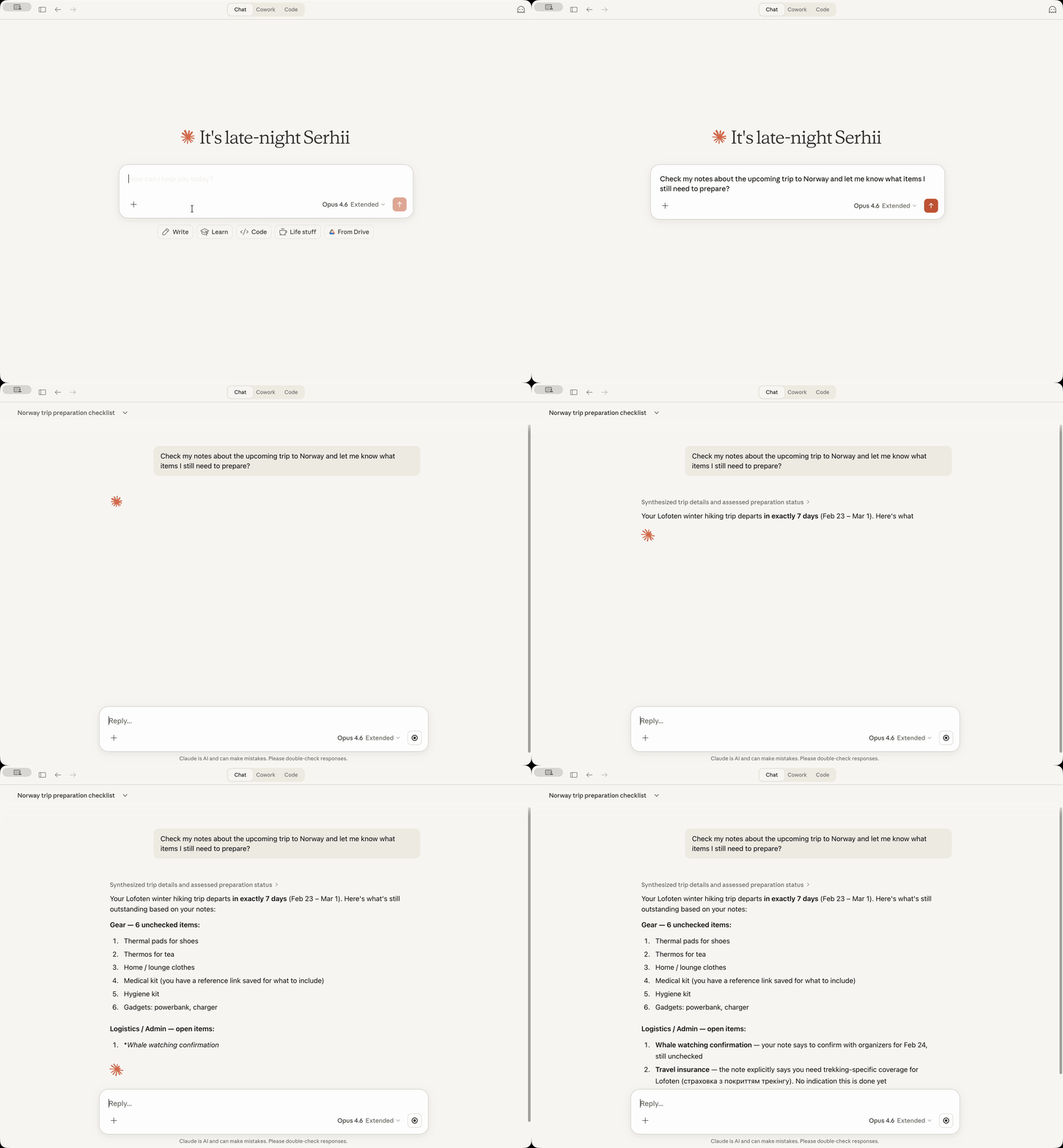
Example prompts:
Find the deep-dive I wrote on export pipelines, somewhere under #engineering/
Append today's decisions to the 'Decisions' section of my Weekly Ops note
Pull every note under #research/llm-evals into a survey outline
Find my notes tagged #blog/drafts and draft this week's post outline
✨ Key Features
- Read-only by default — flip Edit Mode for writes. 4 tools always on (search, open, find untagged, list tags); 8 more in Edit Mode for create, edit, attach, tag, archive
- Relevance-ranked search across titles, bodies, and tags — finds the right note, not just the ones that contained your literal words
- Date-based search with relative dates ("yesterday", "last week", "start of last month")
- Hierarchical tag management — view tags as a tree with note counts; rename or delete a tag across the whole library
- Surgical writes — append at a specific heading or replace a section without rewriting the whole note
- File attachments — attach images, PDFs, and documents up to 25 MB; symlinks rejected for safety
- New note convention (opt-in) — place tags right after the title instead of at the bottom
- Local-first — direct read-only SQLite reads, native
node:sqlite, no network calls, no telemetry
[!NOTE] Complete privacy (except the data you send to your AI provider when using an AI assistant, of course): this server makes no external connections. All processing happens locally on your Mac using Bear's own database and API. There is no extra telemetry, usage statistics or anything like that.
👤 Who is this for
This is an unofficial, opinionated alternative to the native Bear MCP. It fits when:
-
You have years of notes and substring search isn't enough. Search ranks results by relevance — titles, bodies, and tag matches across the whole library — so the right note rises to the top, even when your phrasing has drifted.
-
You bounce between MCP clients. Stdio transport works with Claude Desktop, Claude Code, Codex CLI, Gemini, Cursor, Windsurf — anything that speaks MCP. No per-client glue code, no lock-in.
-
You want to query without pulling Bear forward. Reads run straight against Bear's SQLite database. No need to keep Bear open — or even running — for a quick lookup mid-conversation. (Writes still route through Bear, atomically.)
-
You manage tags across the whole library. Rename or delete a tag everywhere it appears, atomically. Hierarchical tag matching in search rolls up subtags automatically — work that's tedious through Bear's UI alone.
-
You care about supply-chain hygiene. Native
node:sqlite— no unsigned third-party binaries, no Gatekeeper hassles. Network-free server: no remote-fetch tools, no prompt-injection surface.
If you have a small library and just want a quick notes integration, you may not need this yet.
📦 Installation
Claude Desktop Extension
Prerequisites: Bear app must be installed and Claude Desktop must be installed.
-
Download the latest
bear-notes-mcpb-*.mcpbextension file from Releases -
Make sure your Claude Desktop is running (start if not)
-
Doubleclick on the extension file – Claude Desktop should show you the installation prompt
If doubleclick does not work for some reason, then open Claude -> Settings -> Extensions -> Advanced Settings -> click "Install Extension".
-
DONE!
Ask Claude to search your Bear notes with a query like "Search my Bear notes for 'meeting'" - you should see your notes appear in the response!
Standalone MCP Server
Want to use this Bear Notes MCP server with Claude Code, Cursor, Codex, or other AI assistants?
Requirements: Node.js 24.13.0+
Claude Code (one command)
claude mcp add -s user bear-notes -- npx -y bear-notes-mcp@latest
Other AI Assistants
Add to your MCP configuration file:
{
  "mcpServers": {
    "bear-notes": {
      "command": "npx",
      "args": ["-y", "bear-notes-mcp@latest"]
    }
  }
}
More installation options and local development setup — NPM.md
🛠️ Tools
bear-open-note- Read the full text content of a Bear note by its ID or title, including OCR'd text from attached images and PDFsbear-create-note- Create a new note in your Bear library with optional title, content, and tagsbear-search-notes- Find notes by relevance across titles, body, and OCR-extracted text from attached images and PDFs. Use a phrase or a few keywords describing what you're looking for; results are ranked by relevance and each includes a context snippet. Also supports tag, date-range, and pinned-only filters — combine with a search term or use them on their own to browse.bear-add-text- Insert text at the beginning or end of a Bear note, or within a specific section identified by its header. Requires the note's current revision token (theRevision: Nline from your last response that referenced it); writes against a stale revision are rejected with an instruction to re-read with bear-open-note before retrying.bear-replace-text- Replace content in an existing Bear note — either the full body or a specific section. Requires the note's current revision token (theRevision: Nline from your last response that referenced it); writes against a stale revision are rejected with an instruction to re-read with bear-open-note before retrying.bear-add-file- Attach a local file (image, PDF, document) to an existing Bear note by its ID or title. Bear extracts text from images and PDFs via OCR, making attachment content searchable. Requires the note's current revision token (theRevision: Nline from your last response that referenced it); writes against a stale revision are rejected with an instruction to re-read with bear-open-note before retrying.bear-list-tags- List all tags in your Bear library as a hierarchical tree with note countsbear-find-untagged-notes- Find notes in your Bear library that have no tags assignedbear-add-tag- Add one or more tags to an existing Bear note. Requires the note's current revision token (theRevision: Nline from your last response that referenced it); writes against a stale revision are rejected with an instruction to re-read with bear-open-note before retrying.bear-archive-note- Archive a Bear note to remove it from active lists without deleting itbear-rename-tag- Rename a tag across all notes in your Bear librarybear-delete-tag- Delete a tag from all notes in your Bear library without affecting the notesbear-capabilities- Report the current server mode (read-only or Edit Mode) and how to unlock additional capabilities
⚙️ Configuration
Debug Logging
Enable verbose logging for troubleshooting.
- Claude Desktop: Settings → Extensions → Configure (next to Bear Notes) → toggle "Debug Logging" → Save → Restart Claude
- Standalone MCP server: set environment variable
UI_DEBUG_TOGGLE=true
New Note Convention
By default, Bear places tags at the bottom of a note when created via API. Enable this option to place tags right after the title instead, separated by a horizontal rule.
┌──────────────────────────────┐
│ # Meeting Notes              │  ← Note title
│ #work #meetings              │  ← Tags right after title
│                              │
│ ---                          │  ← Separator
│                              │
│ Lorem Ipsum...               │  ← Note body
└──────────────────────────────┘
[!TIP] This convention is disabled by default — it's opt-in so existing behavior is preserved.
- Claude Desktop: Settings → Extensions → Configure (next to Bear Notes) → toggle "New Note Convention" → Save → Restart Claude
- Standalone MCP server: set environment variable
UI_ENABLE_NEW_NOTE_CONVENTION=true
Example standalone configuration with the convention enabled:
{
  "mcpServers": {
    "bear-notes": {
      "command": "npx",
      "args": ["-y", "bear-notes-mcp@latest"],
      "env": {
        "UI_ENABLE_NEW_NOTE_CONVENTION": "true"
      }
    }
  }
}
Edit Mode
Edit Mode unlocks all 8 write tools: create notes, add or replace text (full body or by section header), attach files, manage tags, archive. When off, the server is fully read-only — tools/list returns the 4 read tools (bear-open-note, bear-search-notes, bear-find-untagged-notes, bear-list-tags) plus bear-capabilities (a discovery tool that surfaces this unlock guidance for clients that drop the MCP instructions field). The LLM cannot mutate your library by mistake.
[!TIP] Edit Mode is off by default so the server is provably read-only out of the box. Turn it on when you're ready for writes — and only when.
- Claude Desktop: Settings → Extensions → Configure (next to Bear Notes) → toggle "Edit Mode" → Save → Restart Claude
- Standalone MCP server: set environment variable
UI_ENABLE_CONTENT_REPLACEMENT=true
Example standalone configuration with Edit Mode enabled:
{
  "mcpServers": {
    "bear-notes": {
      "command": "npx",
      "args": ["-y", "bear-notes-mcp@latest"],
      "env": {
        "UI_ENABLE_CONTENT_REPLACEMENT": "true"
      }
    }
  }
}
Technical Details
This server reads your Bear Notes SQLite database directly for search/read operations and uses Bear's X-callback-URL API for write operations. All data processing happens locally on your machine with no external network calls.
Platforms Supported
macOS only because Bear desktop works only on macOS.
Logs
Claude Desktop:
- MCP server logs go into
~/Library/Logs/Claude/main.log, look forbear-notes-mcp - MCP transport logs go to
~/Library/Logs/Claude/mcp-server-Bear\ Notes.log
Standalone MCP server:
- Logs are written to stderr; enable debug logging with
UI_DEBUG_TOGGLE=true
FAQ
Could this steal my data?
No. The server only reads Bear's local database (same data Bear app shows you) and uses Bear's native API to add text to the notes. No network transmission, no external servers.
Why SQLite and not just a native Bear app's x-callback-url API?
For read operations (search/open), the x-callback-url API returns the note data in x-success response: that would require a server or custom binary to handle x-success responses - both risky and fragile. Direct SQLite read-only access is simpler and more reliable for searching and reading notes.
Why native Node.js SQLite instead of third-party packages?
This avoids shipping an SQLite binary from third-party node packages, which poses supply chain risks and blocks the Claude Desktop extension from running on macOS.
Anthropic does not sign third-party SQLite binaries (obviously), causing macOS security systems to flag that the Claude process from a binary signed by Anthropic is trying to run another binary signed by a third party. As a result, Claude Desktop cannot run the extension.
When I install the extension, I see a red warning: "Installing will grant access to everything on your computer." - what does this mean?
This is how Claude for Desktop reacts to the fact that this extension needs access to the Bear SQLite database on your Mac.
Claude warning system does not distinguish between the need to access only one file (what the extension does) versus the need to access all files (this is NOT what the extension does).
One of the ways to validate this is asking your Claude to analyze the codebase (it is pretty small) before installing the extension and tell you.
How can I report a bug or contribute?
Use issues or discussions! I'd be glad to see your feedback or suggestions, or your help to make this project better! ❤️
Staying Up To Date
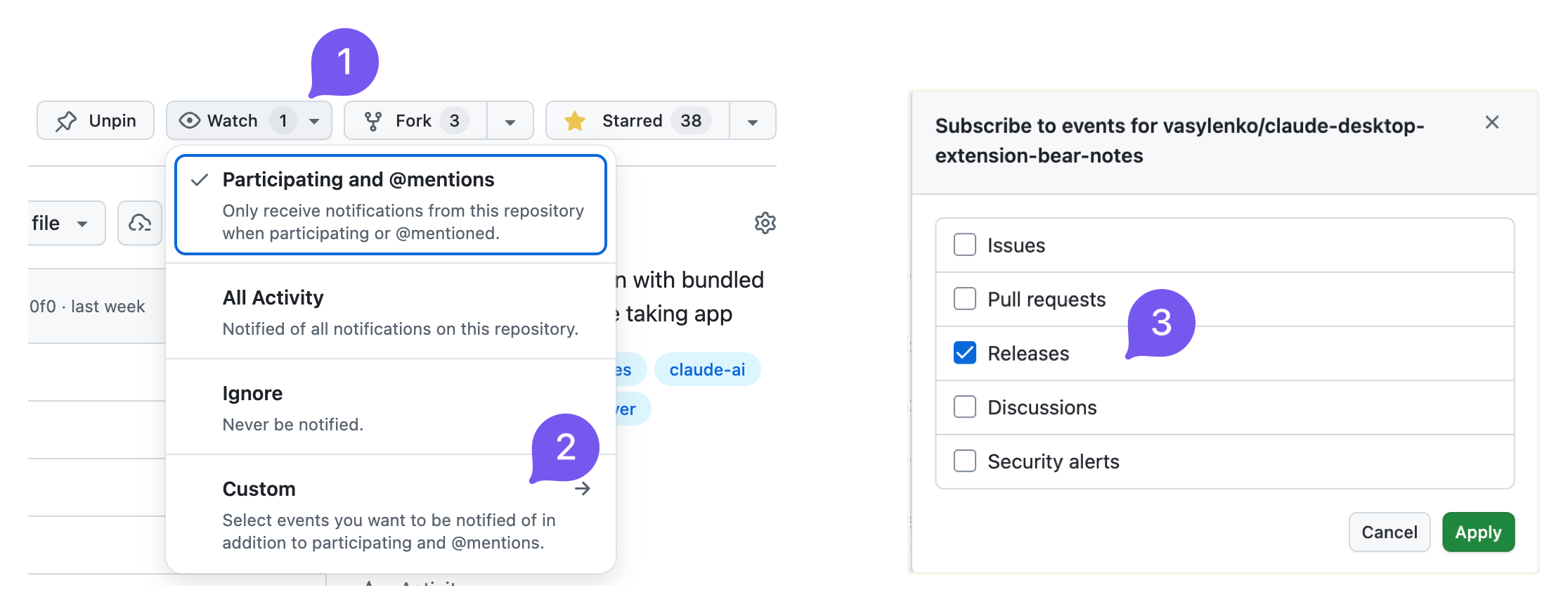
Consider subscribing to release announcements to know when a new version is released:
I also post to reddit.com/r/bearapp/ when there's a new release.
Bear Notes MCP questions
How do I add Bear Notes MCP to Claude Code?
Run claude mcp add bear-notes-mcp -- npx -y bear-notes-mcp in your terminal. Add --scope user to make it available in every project.
How do I add Bear Notes MCP to Cursor?
Open ~/.cursor/mcp.json and add the server under mcpServers, using the Cursor config shown in the install section above.
What tools does Bear Notes MCP provide?
It exposes 13 tools, including bear-open-note, bear-create-note, bear-search-notes, bear-add-text, bear-replace-text.
Does Bear Notes MCP require the Bear app to be running?
No for queries: reads go directly against Bear's SQLite database, so Bear doesn't need to be open. Writes still route through Bear's URL handler and require the app.
Can an AI client accidentally modify my Bear notes?
Not by default. The server starts in read-only mode with four read tools; the write tools only appear when Edit Mode is enabled.
Does the Bear Notes MCP server send my data anywhere?
No. It reads the local Bear database and uses Bear's native API, with no network calls or telemetry.
Which platforms support the Bear Notes MCP server?
macOS only, because the Bear desktop app is macOS-only.
Can I attach files to a Bear note through the server?
Yes, in Edit Mode you can attach images, PDFs, and documents up to 25 MB, and Bear OCRs them so the text becomes searchable.