
Lets AI assistants build and edit goal, process and organisation maps on a self-hosted instance via a built-in MCP server.
Also known as tengolabs/killbottleneck, killbottleneck-mcp
- Stars
- 14
- Tools
- 35
- Downloads, 30 days
- 527
- Latest version
- 1.0.0
- Last commit
- Nov 15, 2026
- License
- MIT
What is killBottleneck MCP?
killBottleneck lets AI assistants build and edit goal, process and organisation maps on a self-hosted instance via a built-in MCP server. It exposes 35 tools, such as list_maps, get_map, create_map.
Summary generated from the project's README
About killBottleneck MCP server
Building and editing goal, process, and organization maps through conversational AI is what killbottleneck enables. This tool allows developers and teams to manage complex projects by connecting an AI assistant to a self-hosted instance via a built-in MCP server. By using the killbottleneck-mcp package with npx, you can instruct an assistant to create maps from meeting notes, perform bulk edits, or mark tasks as complete.
Because the system is designed for privacy, it is ideal for organizations that require data to remain on their own servers. You can connect the server to various AI providers, including local models via Ollama or OpenAI-compatible endpoints, by configuring environment variables like KB_AI_PROVIDER. The setup is managed through Docker, and users can control outbound requests to ensure no telemetry or analytics leave the network. This makes it a flexible solution for those needing a visual project overview combined with automated planning and time tracking.
What you can do with it
- 1Generate maps from notesYou can ask an AI assistant to transform meeting notes into a structured goal map.
- 2Automate task managementAn AI client can perform bulk edits or tick off completed items within your project maps.
- 3Maintain data sovereigntyTeams can run the entire application locally to ensure sensitive project data never leaves the company network.
Written from the project's README. Every use case is checked against a quote from it.
How to install killBottleneck MCP
Formats verified 10 Nov 2026Add to CursorAdd to GooseInstall killBottleneck MCP in Claude Code
$ claude mcp add --env 'KB_API_KEY=<YOUR_KB_API_KEY>' --env 'KB_URL=<KB_URL>' killbottleneck -- npx -y killbottleneck-mcpInstall killBottleneck MCP in Cursor
~/.cursor/mcp.json
{
  "mcpServers": {
    "killbottleneck": {
      "command": "npx",
      "args": [
        "-y",
        "killbottleneck-mcp"
      ],
      "env": {
        "KB_API_KEY": "<YOUR_KB_API_KEY>",
        "KB_URL": "<KB_URL>"
      }
    }
  }
}Install killBottleneck MCP in VS Code
.vscode/mcp.json
{
  "servers": {
    "killbottleneck": {
      "type": "stdio",
      "command": "npx",
      "args": [
        "-y",
        "killbottleneck-mcp"
      ],
      "env": {
        "KB_API_KEY": "<YOUR_KB_API_KEY>",
        "KB_URL": "<KB_URL>"
      }
    }
  }
}Install killBottleneck MCP in VS Code CLI
$ code --add-mcp '{"name":"killbottleneck","type":"stdio","command":"npx","args":["-y","killbottleneck-mcp"],"env":{"KB_API_KEY":"<YOUR_KB_API_KEY>","KB_URL":"<KB_URL>"}}'Install killBottleneck MCP in Claude Desktop
claude_desktop_config.json
{
  "mcpServers": {
    "killbottleneck": {
      "command": "npx",
      "args": [
        "-y",
        "killbottleneck-mcp"
      ],
      "env": {
        "KB_API_KEY": "<YOUR_KB_API_KEY>",
        "KB_URL": "<KB_URL>"
      }
    }
  }
}Install killBottleneck MCP in Codex
$ codex mcp add killbottleneck --env 'KB_API_KEY=<YOUR_KB_API_KEY>' --env 'KB_URL=<KB_URL>' -- npx -y killbottleneck-mcpInstall killBottleneck MCP in Codex config.toml
~/.codex/config.toml
[mcp_servers.killbottleneck]
command = "npx"
args = ["-y", "killbottleneck-mcp"]

[mcp_servers.killbottleneck.env]
KB_API_KEY = "<YOUR_KB_API_KEY>"
KB_URL = "<KB_URL>"
Install killBottleneck MCP in Gemini CLI
$ gemini mcp add -s user -e 'KB_API_KEY=<YOUR_KB_API_KEY>' -e 'KB_URL=<KB_URL>' killbottleneck npx -- -y killbottleneck-mcpInstall killBottleneck MCP in Gemini settings.json
~/.gemini/settings.json
{
  "mcpServers": {
    "killbottleneck": {
      "command": "npx",
      "args": [
        "-y",
        "killbottleneck-mcp"
      ],
      "env": {
        "KB_API_KEY": "<YOUR_KB_API_KEY>",
        "KB_URL": "<KB_URL>"
      }
    }
  }
}Started by HostedMCP on 16 Nov 2026
We ran this command for killbottleneck-mcp 1.0.0 in an isolated container with no network and no keys. It answered and listed 35 tools.
killBottleneck MCP tools 35
Read from the server with tools/listlist_mapsList goal maps the key owner can see — own, team and shared maps (id, title, node count, last update, access: owner/edit/work/read). Use archived=true to list archived maps instead.
get_mapRead one map as an indented tree with node ids, statuses ([✓] done, [~] in progress, [ ] todo), deadlines and owners. The header shows the key's access level (owner/edit = full write; work and read = only the status of the key owner's own nodes, like ticking off in the app). Always call this before modifying a map you have not read yet.
create_mapCreate a new goal map from an outline. The map gets an apex (root goal) from `title`/`apex_text`; `outline` items become nested nodes. Layout is computed automatically. Max 200 nodes per call. Returns the created tree with node ids.
update_mapRename a map or change its description (the project as a whole — not the apex node; the list of maps and the database show this title). Only `title` and `description`; archiving or the map style stay with people in the app. Requires full write access to the map.
add_nodesAdd a subtree of nodes to an existing map under parent_id (or under the apex when parent_id is omitted). A node is a goal; a node with an assignee (owner) OR a deadline IS a task — that is the only kind of task in killBottleneck (there is no separate task record; new work = new node). NOTE: this re-computes the layout of the whole map. Max 200 nodes per call. Returns the updated tree.
update_nodeUpdate fields of one node: title, status (todo/in_progress/done), description, deadline (YYYY-MM-DD, empty string clears), planned_on (YYYY-MM-DD, today to +7 days, empty string clears — WHEN the key owner plans to work on it; this is how killBottleneck expresses priority, never by moving the deadline), owner (e-mail, empty string clears), wait_for_children, colour, icon (one emoji), who performs it (executor_kind / executor_name) and the automation wish (automation_wanted / automation_note). Unknown fields are rejected with the list of allowed ones. Marking status done may unblock waiting nodes, notify their owners and trigger automations on them.
delete_nodeDelete a node INCLUDING its whole subtree. The apex (root) cannot be deleted and whole maps cannot be deleted via the API. Irreversible — read the map first and double-check the node id.
create_ruleCreate an automation rule on a map: WHEN trigger fires (and optional AND conditions match) DO the actions in order. Rules run for changes made in the UI, via API and by agents alike. Structural limits: 50 rules per map, 10 actions, 20 conditions — there is NO monthly run quota. A rule applies only to future events, never retroactively. node_id scopes the rule to one node (required for schedule rules whose actions target a node).
list_rulesList automation rules of a map: id, name, enabled, scope node, trigger, conditions, actions, last_fired and last_error (a non-empty last_error means the rule is misconfigured and its owner was notified).
update_ruleUpdate an automation rule. Pass only `enabled` to toggle it on/off; otherwise pass the FULL new shape (name, trigger, actions, optional conditions/node_id) — partial field edits are not merged. Edits apply to future events only and clear the rule's error state.
delete_ruleDelete an automation rule. Its run log stays (with the rule name snapshot). Irreversible.
list_rule_runsRead the run log of a map's automation rules (newest first, max 100): what fired, on which node, ok/failed/skipped and what the actions did. skipped = a safety stop (rule chain depth or per-save cap), detail says which.
Show all 35 toolsShow fewer tools
list_rule_templatesList the instance-wide library of rule templates (shape of a rule without a map or node scope). To use one, read it and call create_rule on the target map with its trigger/conditions/actions — the created rule is an independent copy.
save_rule_templateSave a rule shape into the instance-wide template library (create, or update with template_id — only the author or an admin may update). Templates carry no map and no node scope; create_subnodes may only use parent=trigger_node. Template names are unique.
delete_rule_templateDelete a rule template from the library (author or admin only). Rules already created from it are independent copies and stay untouched.
get_org_structureRead the organization structure (the org map): positions and functions with node ids, holders and deputies. Use the node ids as dynamic rule targets "position:<nodeId>" / "deputy_of_position:<nodeId>". Read-only — holders and deputies are appointed by an admin in the app.
list_peopleList the people work can be assigned to: instance members (e-mail, display name, role) and external contacts visible to the key owner (their owner_email is a pseudo e-mail usable as owner). Use these e-mails as `owner` in create_map/add_nodes/update_node and in set_owner rules — an unknown e-mail is rejected. Read-only.
get_portfolioRead the portfolio overview across all team and shared maps the key owner can read (private maps are excluded, exactly like the Organization page): per-project completion, overdue and stuck items, people with overdue work and a 7-day change summary. Optional today=YYYY-MM-DD. Read-only.
create_eventCreate a calendar EVENT with a time (meeting, call, dentist…) — NOT a task and not part of any map. Personal by default; `calendar` (a name from list_calendars) puts it into a SHARED calendar: company events (kind shared), a room/car booking (kind resource — needs time; end_time defaults to +60 min; an overlapping booking is refused and the error names the next free slot) or time off (kind absence — all-day, end_day for a range, participants = who is away, default the key owner). Optional participants (e-mails of instance members from list_people; each sees the event in their calendar) and a reminder N minutes before (in-app + e-mail). Times are the instance's local time.
create_eventsCreate SEVERAL calendar events at once — e.g. every date of a lecture schedule, a seminar invitation or a training plan ("every Tuesday until January" = list each date). All or nothing: when one item is invalid nothing is written and the error names the item. An event that is already in the calendar (same title, day and time) is skipped and reported. calendar, participants and remind_before_min apply to all items. Max 30 items; time off goes one by one via create_event.
update_eventChange an existing event by id: your own, one in a shared calendar as admin/manager, or your own time off. Only the given fields change; an empty string clears time, end_day, end_time or calendar (calendar "" = make it personal). Moving `day` of a multi-day event keeps its length. participants replaces the whole list; remind false cancels the reminder.
delete_eventDelete an event by id (your own, or one in a shared calendar as admin/manager). If you were only invited, you leave the event instead and it stays for the others.
list_eventsList the calendar events the key owner sees — own, invited, and every event of the shared calendars — in a day range; default today−365 … +730. A multi-day event counts when it overlaps the range. Optional calendar = only that shared calendar. Read-only.
list_calendarsList the shared calendars of the instance — company events (shared), rooms and other bookable things (resource), vacations and time off (absence) — with kind, color, who may add entries (write_access) and whether time off needs approval. Read-only.
create_calendarCreate a shared calendar (admin or manager only): kind shared = company events, resource = a room, car or other bookable thing (overlapping bookings are refused), absence = vacations and time off (needs_approval makes new entries wait for an admin/manager decision). visibility all = the whole team sees it (default); members = only the listed members (e-mails from list_people), and the creator — like a project shared with chosen people (an admin who is not listed does not see it either). write_access admins limits new entries to admins and managers. Archive a calendar to keep its history; delete_calendar removes it with all its events.
delete_calendarDelete a shared calendar by id or name together with ALL its events (admin or manager only). Cannot be undone — prefer archiving (not offered here) when the history should stay.
who_is_awayWho is away — time off from absence calendars that is approved or not subject to approval (pending and rejected requests are excluded) — in a day range; default today … +14. One line per person and absence. Read-only.
create_reminderSet a timed REMINDER for a map node relative to its deadline: offset_days before the deadline (0 = on the deadline day, 1 = the day before) at time HH:MM, instance local time. One reminder per person and node (calling again replaces it). Does NOT change the deadline; the node must already have one (set it with update_node first). Private to the key owner.
list_pagesList the key owner's pages — single-file HTML artifacts (presentations, overviews, small apps) created by the assistant or an agent: id, title, status (ceka = queued, pise = being written, hotovo = ready, chyba = failed), size, public link, team visibility.
get_pageRead one page (page_id from list_pages): its metadata and the full HTML. Read it before changing a page with update_page.
generate_imageDraw a picture (illustration, banner, header image, poster) with the instance's image model and return a public link to the JPEG. Write `prompt` in English as a detailed visual description and add "no text". Only when readable words must be in the picture, put the exact short text into `text` (only if the instance allows pictures with text; letters may come out wrong). format: square 1024×1024 (default), banner 1200×400, header 1536×640, portrait 512×896, landscape 1792×1024. Costs AI credits like an assistant message.
create_pageCreate a page from a COMPLETE single-file HTML document you wrote yourself (inline CSS/JS; external libraries only from https CDNs; no fetch to other servers; size limit per instance, typically 300 kB). The page appears in the user's Pages panel in the app and runs sandboxed (no access to the app's session). team_visible=true shows it to all members of the organization. Returns the id and the public link if one is on.
update_pageReplace the HTML and/or the title of an existing page (page_id from list_pages). Send the WHOLE new document, not a diff; the previous version is kept and the user can restore it.
share_pageChange sharing of a page: link_on = public link for anyone with the link (no account needed), link_off = turn it off, link_new = replace the link (the old one stops working), team_on / team_off = show or hide the page for all members of the organization, user_on / user_off = share with / unshare from one named member (pass `email`; members come from list_people). Returns the current public link and the people it is shared with.
delete_pageDelete a page for good (page_id from list_pages). Cannot be undone.
Configuration
KB_API_KEYRequiredSecretAPI key issued in the app (user menu -> API keys). Use a read-write scope for editing.
KB_URLRequiredAddress of your killBottleneck instance, e.g. https://company.killbottleneck.com or http://192.168.1.10:8090
KB_AGENT_TIMEOUT_MINKB_ALLOW_PRIVATE_WEBHOOKSKB_AUTO_HOURKB_GOOGLE_CLIENT_IDKB_GOOGLE_CLIENT_SECRETKB_PUBLIC_URL
Automated checks
Ran Nov 16, 2026Full report →Passed our automated checks. That is not a security audit: read the code and give the server the narrowest access it needs. How checks work · What to fix for more points

- Source repository linked and reachabletengolabs/killbottleneck is public and reachablegithub.com/tengolabs/killbottleneck ↗Pass
- Package names this repository as its sourcekillbottleneck-mcp names tengolabs/killbottleneck as sourcenpmjs.com/package/killbottleneck-mcp ↗Pass
- Build provenance (Sigstore attestation)No build attestation published for this releaseNot checked
- Open source license (OSI)MITspdx.org/licenses/MIT.html ↗Pass
- Commit or release in the last yearLast commit or release 2026-11-15github.com/tengolabs/killbottleneck ↗Pass
- OpenSSF ScorecardNot checked
- Package name not close to a popular packageNo popular package one edit away from killbottleneck-mcpPass
- No critical advisory in the package or its dependencies99 resolved dependencies checked; no critical advisoryosv.dev ↗Pass
- No hidden instructions to the model35 tool descriptions and the README read; no override phrases, credential paths or hidden charactersPass
- Destructive tools are labelleddelete_calendar has no destructiveHintFinding
- Remote endpoint answers the MCP handshakeNot checked
README
View on GitHub✅ v1.0 — stable, open source. The beta is over. The cloud and the self-hosted version are one and the same app, released under the MIT license since v1.0.0. Bugs → Issues, ideas → Discussions.
A visual picture of your projects, your company and its processes — goal maps that people and AI agents work on together, entirely on your own server: your data never leaves the company. An AI assistant in a side panel plans your day, sorts your notes, drafts projects, writes documents and pictures, and runs the team meeting — with any model you choose, including a local one. Plus a team calendar, process maps with a rhythm, a simplified view on the phone, REST API and MCP server included. Free to self-host, open source under the MIT license — see License.
Nothing here phones home. On a default install the server sends no request anywhere, and the app loads nothing from a third-party CDN — fonts included, they are served from your own instance. Everything that could leave your network is something you switch on:
| Outbound request | When it happens | Turn it off |
|---|---|---|
| GitHub Releases API | Version check, from the user's browser — not the server | KB_UPDATE_CHECK=0 |
| The AI endpoint you configured | Only with KB_AI_PROVIDER ≠ none; your own Ollama or any endpoint you choose |
KB_AI_PROVIDER=none (default) |
| Google (sign-in, Drive picker) | Only when you configure KB_GOOGLE_* |
leave those empty (default) |
There is no telemetry, no analytics and no licence check.
- A tour in pictures
- Quick start
- What it does without AI · On a phone
- AI features (optional)
- AI assistant over MCP
- Who performs a step: a person, or an automation — includes the webhook contract for your own agents
- Moving a project elsewhere (JSON export/import)
- Appearance (skins) · Notifications · Time zone and recurring templates
- Data and backup · Team · Registration and the registration key
- Sign in with Google · Attachments · E-mail (SMTP)
- HTTPS (access from outside) · Updating
- License — MIT · Contact
A tour in pictures
Quick start
All you need is Docker. Then:
cp .env.example .env    # optional — the defaults are fine
docker compose up -d
killBottleneck runs at http://SERVER-IP:8090. Colleagues on the local network just open it in a browser.
The first user to register automatically becomes the administrator. Everyone else can register themselves, or the administrator invites them from Administration (this creates an account with a temporary password to hand over).
What it does without AI
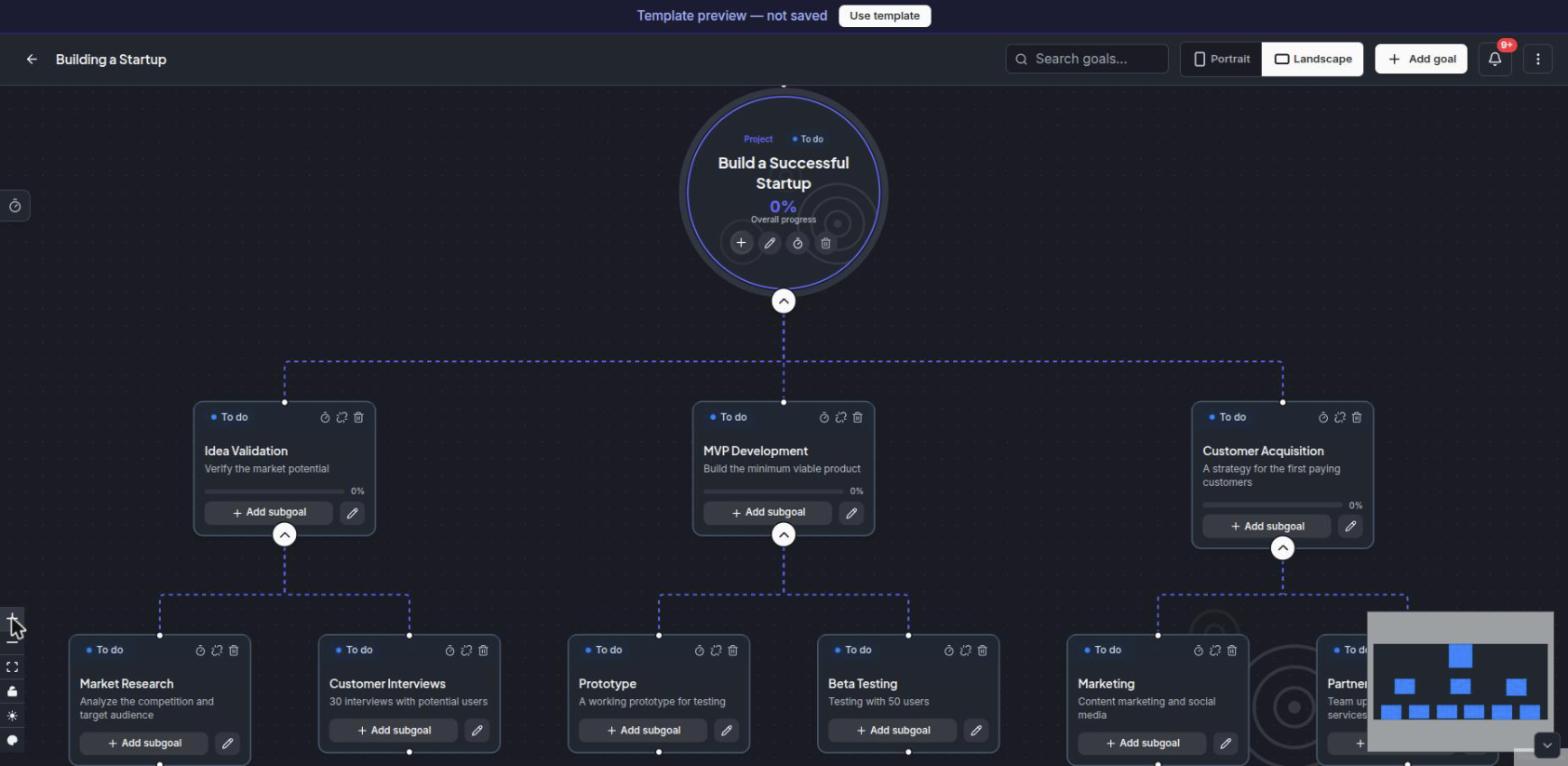
A full goal map editor (nodes, edges, statuses, notes), multiple maps per user, comments on goals, sharing maps with colleagues (read / edit), public maps, export to image/PDF. A team calendar (deadlines, events, shared calendars, reminders), the Process map style with recurring steps, an organisation map with roles, templates, time tracking, invoices, and a simplified view on the phone.
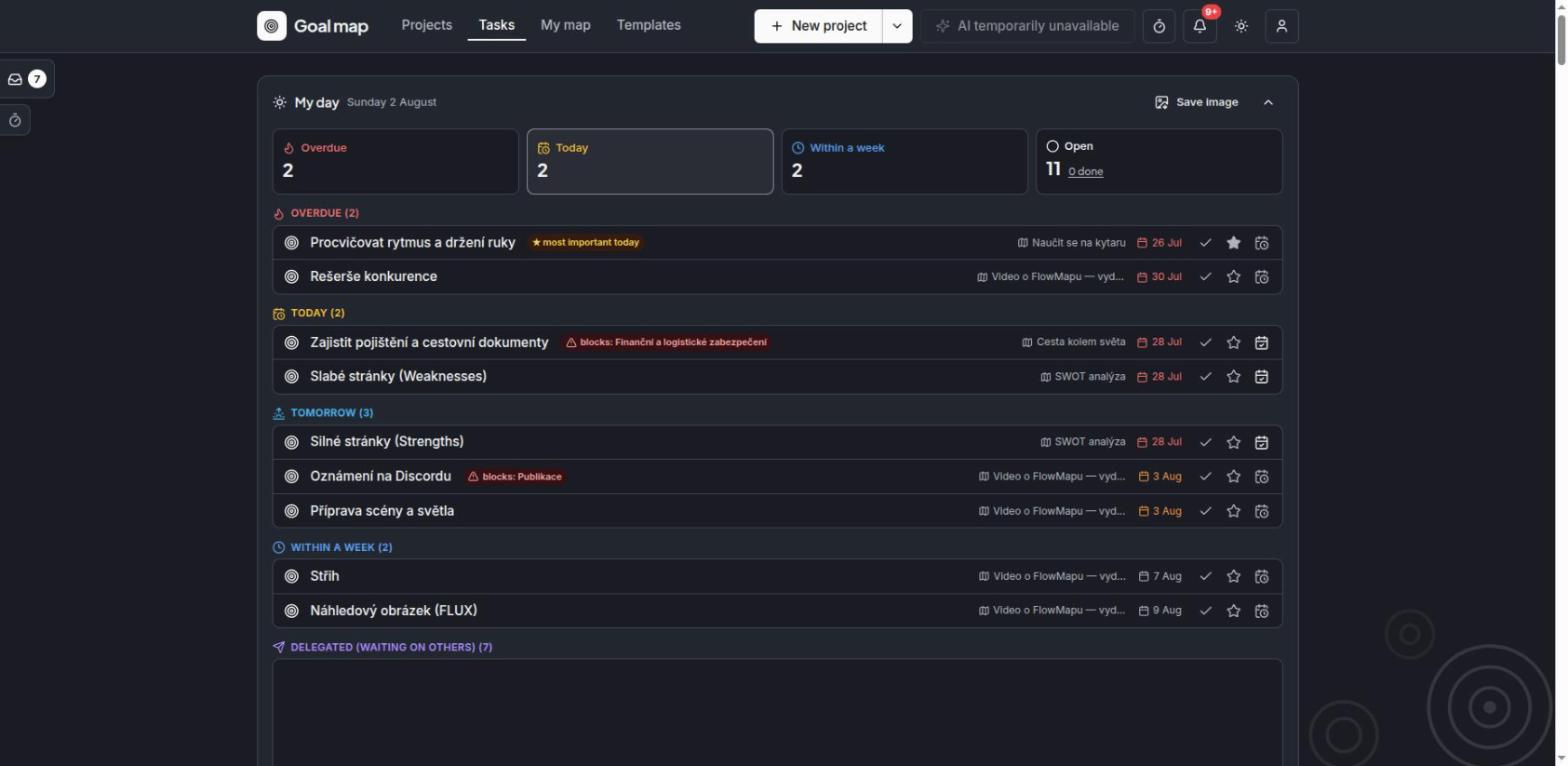
The “My day” panel (both the home page and the Tasks page): a clickable overview of overdue / today / within a week / blocking others, computed live from your data; name days next to the date; a portrait PNG export for mobile — both full (with task names) and anonymous (names redacted, for social media). Over HTTPS you also get Share… (your phone's native Web Share dialog, no third-party service involved).
Time tracking: a ⏱ timer in the top bar (one click starts an “empty” measurement — the project/client/goal is assigned while it runs or afterwards), a timer on every task and every goal in a map (measuring never changes a status — it is purely supplementary), a left-hand “Time tracking” panel with the records (from–to, retroactive assignment), a “Time worked” dialog in the user menu (today/this week, broken down by project and client), a client registry (project→client, so time adds up per client too), and auto-stop for forgotten timers after 12 h. Inbox behaviour: an unassigned measurement stopped with a note (e.g. “call with the client”) also saves itself as an idea in your stash.
On a phone
The same instance, opened on a phone, switches to a simplified view: today's tasks, tick them off, add one, and read messages — no map canvas to fight with on a small screen. You can switch back to the full view at any time, and the app can be added to the home screen (over HTTPS) so it behaves like a native one.
More in the Simplified view guide.
AI features (optional)
The assistant lives in a side panel next to your maps. It plans your day with you (morning briefing, evening planning), sorts notes from a photo, a PDF or a voice note, drafts a whole project after a few questions, prepares a meeting, reviews your week and, for managers, runs a team meeting. It reads your maps itself; every change it proposes is a card you confirm — nothing is written behind your back. E-mails, notes and summaries it writes are kept as documents next to the chat. Besides the assistant there is the wand on a node (sub-steps, milestones, KPIs, risks), an AI project summary and the daily encouragement in My day.
AI is switched on in .env via KB_AI_PROVIDER:
openai— any OpenAI-compatible API: OpenAI, OpenRouter, Groq, Mistral, Together, or your own vLLM / LM Studio / llama.cpp / liteLLM proxy. SetKB_AI_URL=https://openrouter.ai/api/v1(the base address, usually ending in/v1),KB_AI_TOKEN=<your API key>andKB_AI_MODEL=<exact model name>. Voice notes are transcribed by the same service when it offers a Whisper / transcribe model; your provider bills you for the requests.api— a remote AI service compatible with the killBottleneck API contract: enter the address and token you got from your provider. No GPU of your own and no maintenance. (Runs the wand, the summary and the encouragement; the assistant needsollamaoropenai.)ollama— your own local model: install Ollama, pull a model (ollama pull gpt-oss:20b) and setKB_AI_URL=http://IP:11434+KB_AI_MODEL=gpt-oss:20b. Everything runs on your side, no data leaves your network. (Voice notes need a speech-to-text service of your own — see below.)custom— your own endpoint honouring the same API contract (the contract is written down here).
The assistant uses the same model unless you give it its own
(KB_CHAT_PROVIDER/URL/MODEL/TOKEN). Reading photos needs a vision model (KB_VISION_*, or
tick The assistant reads images in Administration → AI). Voice notes work with any
speech-to-text in the OpenAI shape (KB_TRANSCRIBE_PROVIDER=openai + KB_TRANSCRIBE_URL —
speaches, whisper.cpp, OpenAI…); the recording itself is never stored. Browsers allow the
microphone only over HTTPS (or localhost), and a reverse proxy in front must let request
bodies of about 5 MB through (a voice note or a photo travels inside the request).
More in the assistant guide.
When AI is used, map data is sent to the endpoint you chose; with none (the default) nothing
ever leaves your server.
Daily AI encouragement (a line in the My day panel): 1–2 sentences prioritising “what
blocks others → overdue → today”, with the occasional proverb. It is generated in the morning
by a cron job (KB_SUMMARY_HOUR, default 6) only for accounts that signed in within the last
KB_SUMMARY_ACTIVE_DAYS days (default 14, 0 = everyone); for the rest it is generated when
they open the app. Optionally a separate (smaller/faster) model just for the summaries:
KB_SUMMARY_PROVIDER/URL/MODEL/TOKEN — without them the general AI configuration above is
used. The panel works in full without AI, just without this one line. The AI never enumerates
task lists (those are computed from your data and clickable) and task names are sanitised
before they go into the prompt.
AI assistant over MCP (Claude Desktop, Claude Code, …)
killBottleneck ships with a built-in MCP server (mcp/): connect your AI assistant to your
own instance and maps get built conversationally — “make a map out of these meeting notes”,
bulk edits, ticking off what's done. It works the same for self-hosted and hosted instances,
only the address differs.
-
In the app: user menu → API keys → a new key with the Read and write scope (Read only is enough for read access). The token is shown only once. Recommended: give the key an expiry and revoke it once you stop using it.
-
Nothing to install — the server is on npm as
killbottleneck-mcp, sonpxfetches it on first use. (Prefer running it from this repository?cd mcp && npm installand usenode /absolute/path/mcp/index.jsinstead of thenpxcommand below.) -
Register it with your assistant:
Claude Code:
claude mcp add killbottleneck \
  -e KB_URL=http://SERVER-IP:8090 \
  -e KB_API_KEY=kb_user_... \
  -- npx -y killbottleneck-mcp
Claude Desktop (
claude_desktop_config.json→mcpServers):{ "mcpServers": { "killbottleneck": { "command": "npx", "args": ["-y", "killbottleneck-mcp"], "env": { "KB_URL": "http://SERVER-IP:8090", "KB_API_KEY": "kb_user_..." } } } }
Tools (20): list_maps, get_map, create_map, add_nodes, update_node, delete_node,
list_people, get_portfolio, get_org_structure, calendar events and timed reminders (create_event,
list_events, create_reminder) and the rule tools (create_rule, list_rules,
update_rule, delete_rule, list_rule_runs, list_rule_templates, save_rule_template,
delete_rule_template). A goal with an assignee or a deadline IS a task — there are no
separate task records. Assigning an owner through the API shares the map with that person as a
collaborator, so the work shows up in their My Day (the response lists who was shared with).
Remote, without anything local: every instance also serves MCP directly at /mcp
(Streamable HTTP, same keys, same tools) — claude mcp add --transport http killbottleneck https://your-instance/mcp --header "Authorization: Bearer kb_user_..."; the claude.ai connector
signs in through OAuth. Details: MCP server.
Security: a key acts as its owner — it sees and edits exactly what the owner can in the app,
shared and team maps included (edit/own = full write; work and read = only the status of
the owner's own nodes, exactly like ticking off in the app); it never reads the account's role, so an admin's key cannot see
anyone's private map, and someone else's public map is not reachable either (404). Administration,
AI settings and users are never reachable. Writes can add/edit/delete goals and tasks; a whole map cannot be deleted through the API, and neither can the apex of
a map. Limits: 120 reads + 30 writes per minute per key, at most 200 nodes per call, at most 20
keys per account. Working alongside an open editor is handled by conflict detection (the editor
offers to reload, the assistant reloads the map itself). Note: add_nodes re-runs the layout
of the whole map. MCP tool output is in English (assistants always understand it); server error
messages arrive in the language of your account.
Who performs a step: a person, or an automation
For every goal in a map you can say whether a person or an automation does it. Whether there is an AI agent or a scheduled cron job behind that automation is not your problem — whoever builds it knows.
Important: the responsible person for a goal is always a human. Even for an automated step there is someone accountable, who gets the notifications and whose “My day” the goal counts towards. The automation does the work; a person is answerable for it.
For an automated step you also record which automation does it — this is a record of how things are today (“n8n already does this step for us”), not a command. That is what makes it visible at a glance which parts of the map are done by people and which by machines.
“I would like this automated”
On any goal you can tick a request to have the step automated, and optionally add a sentence explaining why. The request goes to the AI agent manager — a separate flag on a user (User management → AI manager), independent of their role; both an administrator and an ordinary member can hold it alongside their role.
Once the manager builds the automation and records it on the goal, the request tidies itself away and the requester gets a message that their goal is now automated. The full cycle:
person: ☑ I would like this automated  ("I upload subtitles by hand, 20 minutes")
   ↓
the AI manager gets a notification → decides → builds an n8n workflow
   ↓
the manager records it on the goal: "n8n — subtitle translation"
   ↓
the requester gets a notification: "your goal is now automated by n8n — subtitle translation"
Attachments on a goal
You can upload files to any goal. On a goal with an automation, uploading a file starts it right away — instead of filling in a form somewhere else you simply attach whatever needs processing (typically subtitles, source material, an export).
Attachments are visible only to people with access to the project. The files are protected: the link alone gives nothing away.
AI agent registry
The AI agent manager (or an administrator) maintains a directory of automations under AI agent registry: name, webhook address, signing secret, enabled/disabled. On a goal the automation is picked by name — team members never see the address or the secret. When the name on a goal matches an agent in the registry, killBottleneck can start it itself.
Who may start it. Each agent can carry a list of allowed e-mail addresses. An empty list means the automation can be started by anyone who can edit any map — inside a company that is usually fine, but restrict it on an instance you let contractors into: whoever may edit a map can otherwise start any of your n8n workflows and feed their own text into it (the goal's title and description go to the agent in the payload).
Attachments are capped at 200 files per project, plus an optional space limit for the WHOLE
instance (KB_FILES_MB in MB; 0 = uploads disabled entirely, empty = no limit — set one on a
shared disk so a hosted instance cannot fill it up). ⚠️ The former FLOWMAP_MAP_FILES_MB was a
PER-PROJECT quota defaulting to 200 MB — if you have it set it still applies to you, but
without it there is now NO space limit at all.
An automated run: killBottleneck → n8n → back
An automation starts when:
- an attachment is uploaded to the goal, or
- the goal's turn comes — it was waiting for its sub-goals and they have all just been completed, or
- somebody manually switches the goal to “in progress” (this is also how you retry a failed run)
A running automation will not be started a second time until it reports back or expires.
The outgoing request (POST to the agent's address, with an X-Signature header =
HMAC-SHA256 of the entire body using the agent's secret):
{
  "run_id": "…", "run_token": "kbr_…",
  "callback_url": "https://your-instance/api/kb/agent-callback",
  "files_url": "https://your-instance/api/kb/agent-files?run_token=kbr_…",
  "files": [{ "id": "…", "name": "subtitles.sbv", "size": 1234, "url": "https://…?run_token=kbr_…" }],
  "map_id": "…", "map_title": "…",
  "node_id": "…", "node_title": "…",
  "description": "…", "deadline": "2026-08-01",
  "owner": "responsible@company.com", "triggered_by": "who@company.com"
}
The agent downloads files using its run token; files_url is a live listing, so it also
sees attachments added while it is running. The token expires once the result is reported.
Reporting back (POST to callback_url, no login — the run token authenticates it):
{ "run_id": "…", "run_token": "kbr_…", "status": "done", "result": "Translated into 3 languages" }
status is done or failed. A token is valid for one goal and one report — a second
call with the same token will not go through.
After done the goal is completed, and that sets the rest of the process in motion: the
following goal is unblocked and the person responsible for it is notified that they can start.
If that following goal is automated as well, it starts straight away — so the steps chain
themselves.
Set the address the agent should call back on. callback_url is assembled by the server,
not the browser — without configuration it uses PocketBase's “Application URL”, which after
installation is http://localhost:8090. An agent running on another machine would therefore
call itself, and the run would hang until it timed out. In .env:
KB_PUBLIC_URL=https://killbottleneck.yourcompany.com
KB_AGENT_TIMEOUT_MIN=90
Any address the agent can reach will do — on a self-hosted setup http://192.168.1.10:8090 on
the LAN is perfectly fine. Hosted instances (killBottleneck Cloud) have this set automatically.
Is your n8n on the same network? The webhook address is called by the server, which makes
it a classic internal-network scanning vector — so by default killBottleneck refuses to call
private addresses (10.x, 192.168.x, 172.16–31.x, localhost, cloud metadata). On a
self-hosted setup where n8n runs next to killBottleneck, allow it:
KB_ALLOW_PRIVATE_WEBHOOKS=1
Without this the run is marked failed and the AI agent manager gets a message explaining why. An agent must have its secret filled in — without one the request would be signed with an empty key and the recipient would have no protection whatsoever, so killBottleneck rejects such a run outright. The currently effective address is always shown at the bottom of the AI agent registry, which warns you when it points at localhost. This only concerns automations — if you do not use them, you do not need to set this variable.
When an automation does not finish
The state of a run is visible right in the goal's dialog — pending / running / done / failed, with the reason on failure. A run is restarted by switching the goal back to “In progress”.
What each state means:
| State | What is happening |
|---|---|
| pending | the run is queued and goes out within a minute (a single map save sends at most a handful of webhooks, so nobody is left waiting) |
| running | the agent has picked up the work and has not reported back yet |
| done / failed | the agent reported a result, or the run expired |
A run that does not report back within KB_AGENT_TIMEOUT_MIN (default 90) minutes is marked
failed by a watchdog, which notifies both the responsible person and the AI agent managers — so
a goal never hangs silently.
The most common causes of failure: the agent is not in the registry or is disabled; it has no
secret; its address points into a private network and KB_ALLOW_PRIVATE_WEBHOOKS=1 is missing;
or the webhook is unreachable. The details (including connection errors) are in the server log —
docker compose logs killbottleneck — they are deliberately not surfaced in the app.
killBottleneck MCP questions
How do I add killBottleneck MCP to Claude Code?
Run claude mcp add --env 'KB_API_KEY=<YOUR_KB_API_KEY>' --env 'KB_URL=<KB_URL>' killbottleneck -- npx -y killbottleneck-mcp in your terminal. Add --scope user to make it available in every project.
How do I add killBottleneck MCP to Cursor?
Open ~/.cursor/mcp.json and add the server under mcpServers, using the Cursor config shown in the install section above.
What tools does killBottleneck MCP provide?
It exposes 35 tools, including list_maps, get_map, create_map, update_map, add_nodes.
How do I connect killBottleneck to Claude Desktop or Claude Code?
Create an API key with read (or read and write) scope in the app under user menu → API keys, then register the killbottleneck-mcp package with your assistant; npx fetches it on first use.
Do I need to install anything for the killBottleneck MCP server?
No. The server is published on npm as killbottleneck-mcp and npx downloads it on first use, though you can also run it from the repository with node.
How is killBottleneck authenticated for MCP access?
Access uses API keys created in the app, with a read-only or read-and-write scope; the token is shown only once and can be given an expiry.
Can the MCP server work with a self-hosted instance?
Yes, it behaves the same for self-hosted and hosted instances; only the server address differs.
What can an AI assistant do through the killBottleneck MCP server?
It can build maps from meeting notes conversationally, make bulk edits and tick off completed items.