
Archive Agent MCP server
Commit Oct 7, 2026Indexes local files and lets an AI client search and answer questions about them via semantic retrieval and OCR.
Also known as shredEngineer/Archive-Agent
- Stars
- 63
- Tools
- 7
- Downloads, 30 days
- —
- Latest version
- —
- Last commit
- Oct 7, 2026
- License
- GPL-3.0
What is Archive Agent MCP?
Archive Agent indexes local files and lets an AI client search and answer questions about them via semantic retrieval and OCR. It exposes 7 tools, such as get_patterns, get_files_tracked, get_files_changed.
Summary generated from the project's README
About Archive Agent MCP server
Indexing local documents to enable natural language questioning is what Archive Agent does for users with large file collections. It functions as a local RAG engine that uses semantic chunking and a Qdrant vector database to organize information. By connecting via an MCP interface, it allows AI clients to search through PDFs, images, Markdown, and plaintext files using semantic retrieval and automatic OCR for image transcription.
Developers can choose between remote providers like OpenAI and OpenRouter or local options like Ollama and LM Studio for maximum privacy. The system handles file tracking through specific patterns and uses multi-threading to process multiple files in parallel. Setup requires a local environment with Python and Docker to run the Qdrant server, and users must set a LOCAL_AUTH_PASSWORD environment variable to access the GUI and MCP server features.
What you can do with it
- 1Search document collectionsAsk an AI client to find specific information across a large set of local PDF or Markdown files using natural language.
Written from the project's README. Every use case is checked against a quote from it.
Archive Agent MCP tools 7
Detected from the READMEget_patternsget_files_trackedget_files_changedget_collectionsget_chunk_headersget_search_resultget_answer_rag
| get_patterns | — | |
| get_files_tracked | — | |
| get_files_changed | — | |
| get_collections | — | |
| get_chunk_headers | — | |
| get_search_result | — | |
| get_answer_rag | — |
Configuration
ARCHIVE_AGENT_QDRANT_IN_MEMORYLOCAL_AUTH_PASSWORD
| Name | Description | |
|---|---|---|
| ARCHIVE_AGENT_QDRANT_IN_MEMORY | — | |
| LOCAL_AUTH_PASSWORD | — |
Automated checks
Ran Nov 14, 2026Full report →Not verified yet. A server needs a score of 80, no serious finding, and enough data for us to check. How checks work · What to fix for more points

- Source repository linked and reachableshredengineer/archive-agent is public and reachablegithub.com/shredengineer/archive-agent ↗Pass
- Package names this repository as its sourceNot checked
- Build provenance (Sigstore attestation)Not checked
- Open source license (OSI)GPL-3.0spdx.org/licenses/GPL-3.0.html ↗Pass
- Commit or release in the last yearLast commit or release 2026-10-07github.com/shredengineer/archive-agent ↗Pass
- OpenSSF ScorecardNot checked
- Package name not close to a popular packageNot checked
- No critical advisory in the package or its dependenciesNot checked
- No hidden instructions to the model7 tool descriptions and the README read; no override phrases, credential paths or hidden charactersPass
- Destructive tools are labelledNo tool named like delete, drop or execPass
- Remote endpoint answers the MCP handshakeNot checked
README
View on GitHub
Archive Agent
An intelligent file indexer with powerful AI search (RAG engine), automatic OCR, and a seamless MCP interface.






Archive Agent brings RAG to your command line and connects to your tools via MCP — it's not a chatbot.
Find what you need with natural language
- Unlock your documents with semantic AI search & query
- Files are split using semantic chunking with context headers and committed to a local database.
- RAG engine¹ uses reranking and expanding of retrieved chunks
¹ Retrieval Augmented Generation is the method of matching pre-made snippets of information to a query.
Natively index your documents on-device
- Includes local AI file system indexer
- Natively ingests PDFs, images, Markdown, plaintext, and more…
- Selects and tracks files using patterns like
~/Documents/*.pdf - Transcribes images using automatic OCR (experimental) and entity extraction
- Changes are automatically synced to a local Qdrant vector database.
Your AI, Your Choice
- Supports many AI providers and MCP
- OpenAI or compatible API ¹ for best performance
- OpenRouter for access to 400+ models from all providers
- Ollama and LM Studio for best privacy (local LLM)
- Integrates with your workflow** via a built-in MCP server.
¹ Includes xAI / Grok and Claude OpenAI compatible APIs.
Simply adjust the URL settings and overwrite OPENAI_API_KEY.
Scalable Performance
- Fully resumable parallel processing
- Processes multiple files at once using optimized multi-threading.
- Uses AI cache and generous request retry logic for all network requests.
- Leverages AI structured output with high-quality prompts and schemas.
Architecture
(If you can't see the diagram below, view it on Mermaid.live)
graph LR

  %% Ingestion Pipeline
  subgraph Ingestion
    A[<b>Track and Commit Files</b><br>Supports Profiles] --> B[<b>Ingest Files</b><br>Automatic OCR Strategy<br>Image Entity Extraction]
    B --> C[<b>Semantic Chunking</b><br>with Context Headers<br>Lines per Block: 100<br>Words per Chunk: 200]
    C --> D[<b>Embed Chunks</b><br>Model: text-embedding-3-large<br>Vector Size: 3072]
    D --> E[<b>Store Chunks</b><br>Local Qdrant database]
  end

  %% Query Pipeline
  subgraph Query
    F[<b>Ask Question</b>] --> G[<b>Embed Question</b><br>Model: text-embedding-3-large]
    G --> H[<b>Retrieve Nearest Chunks</b><br>Score Min: 0.1<br>Chunks Max: 30]
    E --> H
    H --> I[<b>Rerank by Relevance</b><br>Chunks Max: 8]
    I --> J[<b>Expand Context</b><br>Chunks Radius: 1]
    J --> K[<b>Generate Answer</b>]
    K --> L[<b>Get Answer</b><br>in CLI, GUI, MCP]
  end
Just getting started?
Documentation
- Archive Agent
- Find what you need with natural language
- Natively index your documents on-device
- Your AI, Your Choice
- Scalable Performance
- Architecture
- Just getting started?
- Documentation
- Supported OS
- Install Archive Agent
- AI provider setup
- Which files are processed
- How files are processed
- OCR strategies
- How smart chunking works
- How chunk references work
- How chunks are retrieved
- How chunks are reranked and expanded
- How answers are generated
- How files are selected for tracking
- Run Archive Agent
- Quickstart on the command line (CLI)
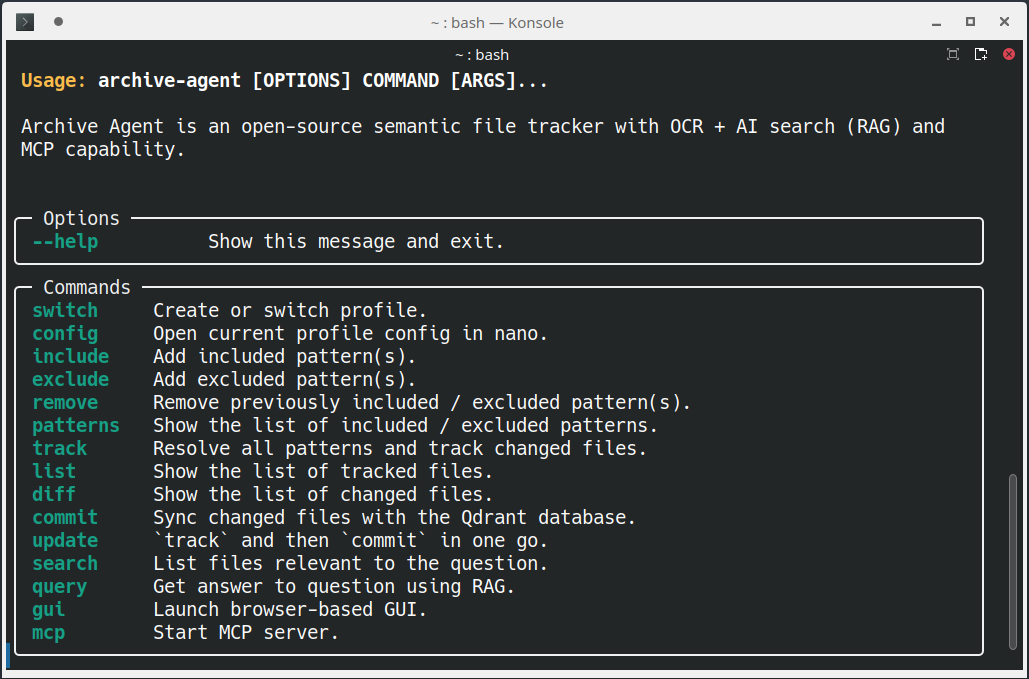
- CLI command reference
- See list of commands
- Create or switch profile
- Open current profile config in nano
- Add included patterns
- Add excluded patterns
- Remove included / excluded patterns
- List included / excluded patterns
- Resolve patterns and track files
- List tracked files
- List changed files
- Commit changed files to database
- Combined track and commit
- Search your files
- Query your files
- Launch Archive Agent GUI
- Start MCP Server
- MCP Tools
- Update Archive Agent
- Qdrant database
- Developer's guide
- Tools
- Known issues
- Licensed under GNU GPL v3.0
- Collaborators welcome
Supported OS
Archive Agent has been tested with these configurations:
- Ubuntu 24.04 (PC x64)
- Ubuntu 22.04 (PC x64)
If you've successfully installed and tested Archive Agent with a different setup, please let me know and I'll add it here!
Install Archive Agent
Please install these requirements before proceeding:
Ubuntu / Linux Mint
This installation method should work on any Linux distribution derived from Ubuntu (e.g. Linux Mint).
📌 Note: The GUI, the MCP server and the Qdrant server are protected by one password,
read from the environment variable LOCAL_AUTH_PASSWORD.
Export it (e.g. in your shell profile) before installing or running Archive Agent —
without it, archive-agent gui, archive-agent mcp and manage-qdrant.sh refuse to start:
export LOCAL_AUTH_PASSWORD='your-password'
To install Archive Agent in the current directory of your choice, run this once:
git clone https://github.com/shredEngineer/Archive-Agent
cd Archive-Agent
chmod +x install.sh
./install.sh
The install.sh script will execute the following steps:
- Download and install
uv(used for Python environment management) - Install the custom Python environment
- Install the
spaCymodel for natural language processing (pre-chunking) - Install
pandoc(used for document parsing) - Download and install the Qdrant docker image with persistent storage, auto-restart and
LOCAL_AUTH_PASSWORDas its API key - Install a global
archive-agentcommand for the current user
Archive Agent is now installed!
👉 Please complete the AI provider setup next.
(Afterward, you'll be ready to Run Archive Agent!)
AI provider setup
Archive Agent lets you choose between different AI providers:
-
Remote APIs (higher performance and cost, less privacy):
- OpenAI: Requires an OpenAI API key.
- OpenRouter: Requires an OpenRouter API key. Access to 400+ models.
-
Local APIs (lower performance and cost, best privacy):
- Ollama: Requires Ollama running locally.
- LM Studio: Requires LM Studio running locally.
💡 Good to know: You will be prompted to choose an AI provider at startup; see: Run Archive Agent.
📌 Note: You can customize the specific models used by the AI provider in the Archive Agent settings. However, you cannot change the AI provider of an existing profile, as the embeddings will be incompatible; to choose a different AI provider, create a new profile instead.
OpenAI provider setup
If the OpenAI provider is selected, Archive Agent requires the OpenAI API key.
To export your OpenAI API key, replace sk-... with your actual key and run this once:
echo "export OPENAI_API_KEY='sk-...'" >> ~/.bashrc && source ~/.bashrc
This will persist the export for the current user.
💡 Good to know: OpenAI won't use your data for training.
OpenRouter provider setup
If the OpenRouter provider is selected, Archive Agent requires an OpenRouter API key.
OpenRouter provides a unified API to access 400+ models from many providers (OpenAI, Google, Anthropic, Meta, and more) through a single endpoint.
To export your OpenRouter API key, replace sk-or-... with your actual key and run this once:
echo "export OPENROUTER_API_KEY='sk-or-...'" >> ~/.bashrc && source ~/.bashrc
This will persist the export for the current user.
With the default Archive Agent Settings, these OpenRouter models are used:
| Task | Default Model | Input/Output Cost |
|---|---|---|
| Chunk | google/gemini-2.5-flash-lite |
$0.10 / $0.40 per M tokens |
| Rerank | google/gemini-2.5-flash-lite |
$0.10 / $0.40 per M tokens |
| Query | google/gemini-2.5-flash |
$0.30 / $2.50 per M tokens |
| Vision | google/gemini-2.5-flash |
$0.30 / $2.50 per M tokens |
| Embed | openai/text-embedding-3-large |
$0.13 per M tokens |
💡 Good to know: You can customize the models in the Archive Agent settings. OpenRouter supports structured outputs, embeddings, and vision across many models. Browse all available models at openrouter.ai/models.
Ollama provider setup
If the Ollama provider is selected, Archive Agent requires Ollama running at http://localhost:11434.
With the default Archive Agent Settings, these Ollama models are expected to be installed:
ollama pull llama3.1:8b             # for chunk/rerank/query
ollama pull llava:7b-v1.6           # for vision
ollama pull nomic-embed-text:v1.5   # for embed
💡 Good to know: Ollama also works without a GPU. At least 32 GiB RAM is recommended for smooth performance.
LM Studio provider setup
If the LM Studio provider is selected, Archive Agent requires LM Studio running at http://localhost:1234.
With the default Archive Agent Settings, these LM Studio models are expected to be installed:
meta-llama-3.1-8b-instruct              # for chunk/rerank/query
llava-v1.5-7b                           # for vision
text-embedding-nomic-embed-text-v1.5    # for embed
💡 Good to know: LM Studio also works without a GPU. At least 32 GiB RAM is recommended for smooth performance.
Which files are processed
Archive Agent currently supports these file types:
- Text:
- Plaintext:
.txt,.md,.markdown - Documents:
- ASCII documents:
.html,.htm(images not supported) - Binary documents:
.odt,.docx(including images)
- ASCII documents:
- PDF documents:
.pdf(including images; see OCR strategies)
- Plaintext:
- Images:
.jpg,.jpeg,.png,.gif,.webp,.bmp
📌 Note: Images in HTML documents are currently not supported.
📌 Note: Legacy .doc files are currently not supported.
📌 Note: Unsupported files are tracked but not processed.
How files are processed
Ultimately, Archive Agent decodes everything to text like this:
- Plaintext files are decoded to UTF-8.
- Documents are converted to plaintext, images are extracted.
- PDF documents are decoded according to the OCR strategy.
- Images are decoded to text using AI vision.
- Uses OCR, entity extraction, or both combined (default).
- The vision model will reject unintelligible images.
- Entity extraction extracts structured information from images.
- Structured information is formatted as image description.
See Archive Agent settings: image_ocr, image_entity_extract
Archive Agent processes files with optimized performance:
- Surgical Synchronization:
- PDF analyzing phase is serialized (due to PyMuPDF threading limitations).
- All other phases (vision, chunking, embedding) run in parallel for maximum performance.
- Vision operations are parallelized across images and pages within and across files.
- Embedding operations are parallelized across text chunks and files.
- Smart chunking uses sequential processing due to carry mechanism dependencies.
See Archive Agent settings: max_workers_ingest, max_workers_vision, max_workers_embed
OCR strategies
For PDF documents, there are different OCR strategies supported by Archive Agent:
-
strictOCR strategy (recommended):- PDF OCR text layer is ignored.
- PDF pages are treated as images and processed with OCR only.
- Expensive and slow, but more accurate.
-
relaxedOCR strategy:- PDF OCR text layer is extracted.
- PDF foreground images are decoded with OCR, but background images are ignored.
- Cheap and fast, but less accurate.
-
autoOCR strategy:- Attempts to select the best OCR strategy for each page, based on the number of characters extracted from the PDF OCR text layer, if any.
- Decides based on
ocr_auto_threshold, the minimum number of characters forautoOCR strategy to resolve torelaxedinstead ofstrict. - Trade-off between cost, speed, and accuracy.
⚠️ Warning: The auto OCR strategy is still experimental.
PDF documents often contain small/scattered images related to page style/layout which cause overhead while contributing little information or even cluttering the result.
💡 Good to know: You will be prompted to choose an OCR strategy at startup (see Run Archive Agent).
How smart chunking works
Archive Agent processes decoded text like this:
- Decoded text is sanitized and split into sentences.
- Sentences are grouped into reasonably-sized blocks.
- Each block is split into smaller chunks using an AI model.
- Block boundaries are handled gracefully (last chunk carries over).
- Each chunk is prefixed with a context header (improves search).
- Each chunk is turned into a vector using AI embeddings.
- Each vector is turned into a point with file metadata.
- Each point is stored in the Qdrant database.
See Archive Agent settings: chunk_lines_block, chunk_words_target
💡 Good to know: This smart chunking improves the accuracy and effectiveness of the retrieval.
📌 Note: In rare cases where a chunk exceeds the embedding model's token limit (typically 8192 tokens), Archive Agent automatically truncates it as a last resort with progressive 10% reductions (up to 10 attempts) until it fits.
📌 Note: Splitting into sentences may take some time for huge documents. There is currently no possibility to show the progress of this step.
How chunk references work
To ensure that every chunk can be traced back to its origin, Archive Agent maps the text contents of each chunk to the corresponding line numbers or page numbers of the source file.
- Line-based files (e.g.,
.txt) use the range of line numbers as reference. - Page-based files (e.g.,
.pdf) use the range of page numbers as reference.
📌 Note: References are only approximate due to paragraph/sentence splitting/joining in the chunking process.
How chunks are retrieved
Archive Agent retrieves chunks related to your question like this:
- The question is turned into a vector using AI embeddings.
- Points with similar vectors are retrieved from the Qdrant database.
- Only chunks of points with sufficient score are kept.
- If
retrieve_knee_enableis enabled, an adaptive cutoff trims low-relevance chunks when there is a clear score drop-off.
See Archive Agent settings: retrieve_score_min, retrieve_chunks_max, retrieve_knee_enable, retrieve_knee_sensitivity, retrieve_knee_min_chunks
📌 Note: Adaptive cutoff uses the Kneedle algorithm on the sorted similarity scores. Set a higher
retrieve_knee_sensitivity to make the cutoff more conservative, and use retrieve_knee_min_chunks
to enforce a minimum floor.
💡 Tuning tips:
- If retrieval feels too short or misses context, increase
retrieve_knee_min_chunks(e.g.,3–5) or raiseretrieve_knee_sensitivity. - If retrieval feels too long or noisy, lower
retrieve_knee_sensitivityslightly (e.g.,0.8–1.0) or reduceretrieve_knee_min_chunks. - If you want to disable the adaptive cutoff entirely, set
retrieve_knee_enabletofalse.
How chunks are reranked and expanded
Archive Agent filters the retrieved chunks .
- Retrieved chunks are reranked by relevance to your question.
- Only the top relevant chunks are kept (the other chunks are discarded).
- Each selected chunk is expanded to get a larger context from the relevant documents.
See Archive Agent settings: rerank_chunks_max, expand_chunks_radius
How answers are generated
Archive Agent answers your question using the reranked and expanded chunks like this:
- The LLM receives the chunks as context to the question.
- LLM's answer is returned as structured output and formatted.
💡 Good to know: Archive Agent uses an answer template that aims to be universally helpful.
How files are selected for tracking
Archive Agent uses patterns to select your files:
-
Patterns can be actual file paths.
-
Patterns can be paths containing wildcards that resolve to actual file paths.
-
💡 Patterns must be specified as (or resolve to) absolute paths, e.g.
/home/user/Documents/*.txt(or~/Documents/*.txt). -
💡 Use the wildcard
*to match any file in the given directory. -
💡 Use the wildcard
**to match any files and zero or more directories, subdirectories, and symbolic links to directories.
There are included patterns and excluded patterns:
- The set of resolved excluded files is removed from the set of resolved included files.
- Only the remaining set of files (included but not excluded) is tracked by Archive Agent.
- Hidden files are always ignored!
This approach gives you the best control over the specific files or file types to track.
Run Archive Agent
💡 Good to know: At startup, you will be prompted to choose the following:
- Profile name
- AI provider (see AI Provider Setup)
- OCR strategy (see OCR strategies)
Screenshot of command-line interface (CLI):
Quickstart on the command line (CLI)
For example, to track your documents and images, run this:
archive-agent include "~/Documents/**" "~/Images/**"
archive-agent update
To start the GUI, run this:
archive-agent
Or, to ask questions from the command line:
archive-agent query "Which files mention donuts?"
CLI command reference
See list of commands
To see the list of supported commands, run this:
archive-agent
Create or switch profile
To switch to a new or existing profile, run this:
archive-agent switch "My Other Profile"
📌 Note: Always use quotes for the profile name argument, or skip it to get an interactive prompt.
💡 Good to know: Profiles are useful to manage independent Qdrant collections (see Qdrant database) and Archive Agent settings.
Archive Agent MCP questions
What tools does Archive Agent MCP provide?
It exposes 7 tools, including get_patterns, get_files_tracked, get_files_changed, get_collections, get_chunk_headers.
What file types can Archive Agent index?
It natively ingests PDFs, images, Markdown, plaintext and more.
Which AI providers does Archive Agent support?
It works with OpenAI or compatible APIs, OpenRouter, Ollama and LM Studio for local use.
Where are the indexed chunks stored?
Chunks are embedded and stored in a local Qdrant vector database.
How do I start the MCP server?
Use the archive-agent mcp command after exporting the LOCAL_AUTH_PASSWORD variable, which the server requires.
Can I search files by pattern?
Yes, you select and track files using patterns such as ~/Documents/*.pdf.