
An AI-driven browser video editor that allows agents to manipulate a JSON-based timeline for non-linear editing and ffmpeg export.
Also known as ronak-create/FableCut
- Stars
- 794
- Tools
- —
- Downloads, 30 days
- —
- Latest version
- 1.18.0
- Last commit
- Oct 30, 2026
- License
- MIT
What is FableCut MCP?
FableCut is an AI-driven browser video editor that allows agents to manipulate a JSON-based timeline for non-linear editing and ffmpeg export.
Summary generated from the project's README
About FableCut MCP server
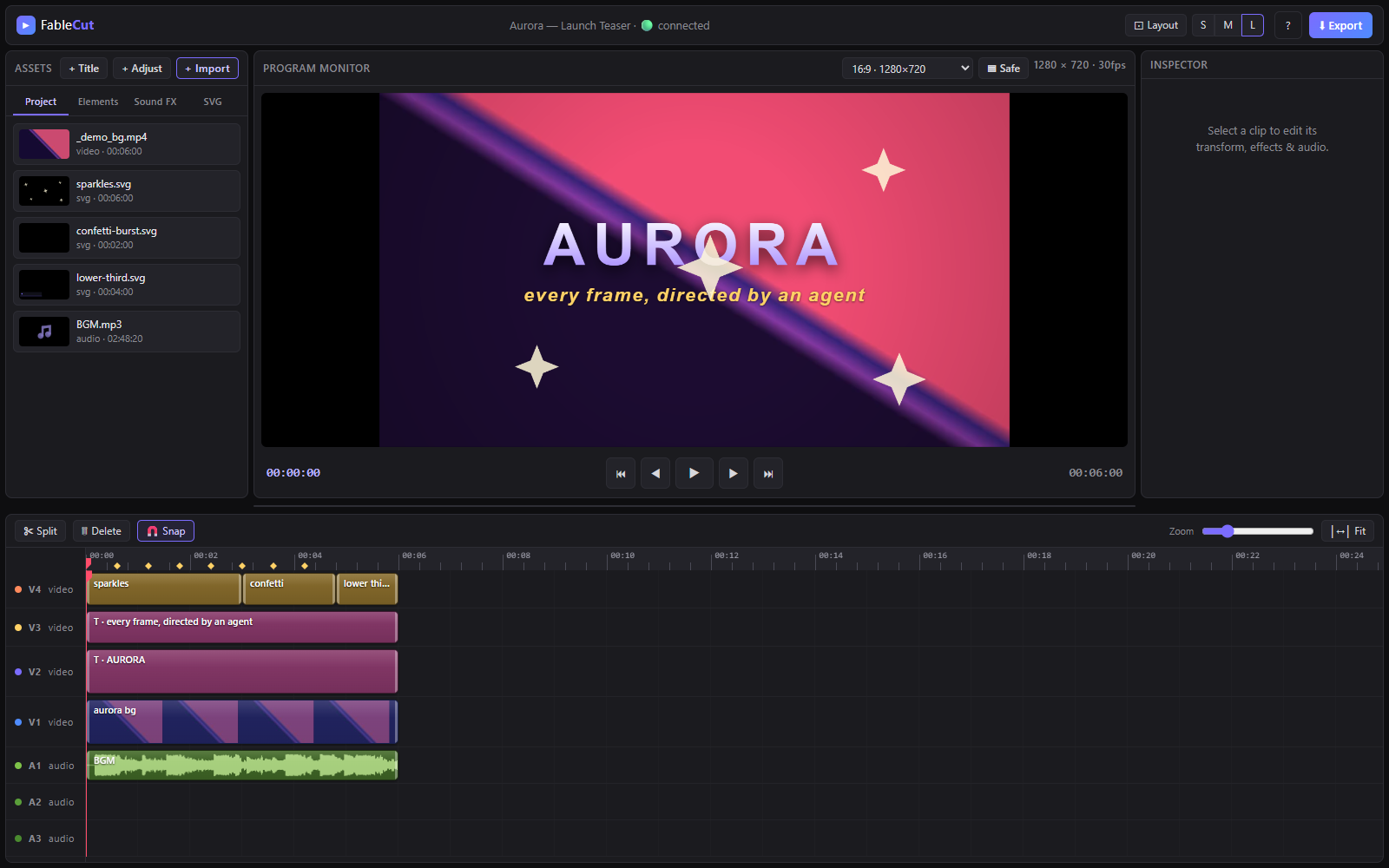
Editing video through a JSON-based timeline is what FableCut enables for developers and AI agents. This browser-based non-linear editor functions as a Premiere-style workspace where the project file serves as the primary interface. Because the entire timeline is exposed as a single document, any process capable of writing JSON can manipulate media, tracks, effects, and transitions.
Users can run the server locally with a single command and interact with the editor via a browser UI that hot-reloads within 150 ms. AI clients like Claude Desktop or Claude Code can drive the editing process by sending commands to modify the project. The system supports complex tasks such as cutting silences, reframing footage, and generating captions.
Agents can perform advanced operations like using the fablecut_auto_duck tool for audio leveling or the fablecut_denoise tool for noise reduction. The editor also provides version control, allowing users to roll back agent changes or restore previous states from the Versions panel. Final video renders are handled via ffmpeg export.
What you can do with it
- 1Automated silence removalAn agent can identify and remove pauses in a recording to create a tighter edit.
- 2Text-based video editingA developer can instruct an AI to find specific spoken phrases and cut them from the timeline.
- 3Social media reframingAn AI can convert a standard video into a vertical format by following the subject.
Written from the project's README. Every use case is checked against a quote from it.
How to install FableCut MCP
Formats verified 10 Nov 2026Install FableCut MCP in Claude Code
$ claude mcp add fablecut -- npx -y fablecutInstall FableCut MCP in Cursor
~/.cursor/mcp.json
{
  "mcpServers": {
    "fablecut": {
      "command": "npx",
      "args": [
        "-y",
        "fablecut"
      ]
    }
  }
}Install FableCut MCP in VS Code
.vscode/mcp.json
{
  "servers": {
    "fablecut": {
      "type": "stdio",
      "command": "npx",
      "args": [
        "-y",
        "fablecut"
      ]
    }
  }
}Install FableCut MCP in Claude Desktop
claude_desktop_config.json
{
  "mcpServers": {
    "fablecut": {
      "command": "npx",
      "args": [
        "-y",
        "fablecut"
      ]
    }
  }
}Install FableCut MCP in Codex
~/.codex/config.toml
[mcp_servers.fablecut]
command = "npx"
args = ["-y", "fablecut"]
Install FableCut MCP in Gemini CLI
~/.gemini/settings.json
{
  "mcpServers": {
    "fablecut": {
      "command": "npx",
      "args": [
        "-y",
        "fablecut"
      ]
    }
  }
}Automated checks
Ran Nov 12, 2026Full report →Passed our automated checks. That is not a security audit: read the code and give the server the narrowest access it needs. How checks work

- Source repository linked and reachablePass
- Open source license (OSI)Pass
- Commit or release in the last yearPass
- Package name not close to a popular packagePass
- Remote endpoint uses HTTPSNot checked
- Destructive tools are labelledNot checked
- No hidden instructions to the modelPass
- No critical advisory in the package or its dependenciesPass
README
View on GitHubA browser video editor that AI agents can drive.








English · 简体中文 · 日本語 · Español · Português (BR)
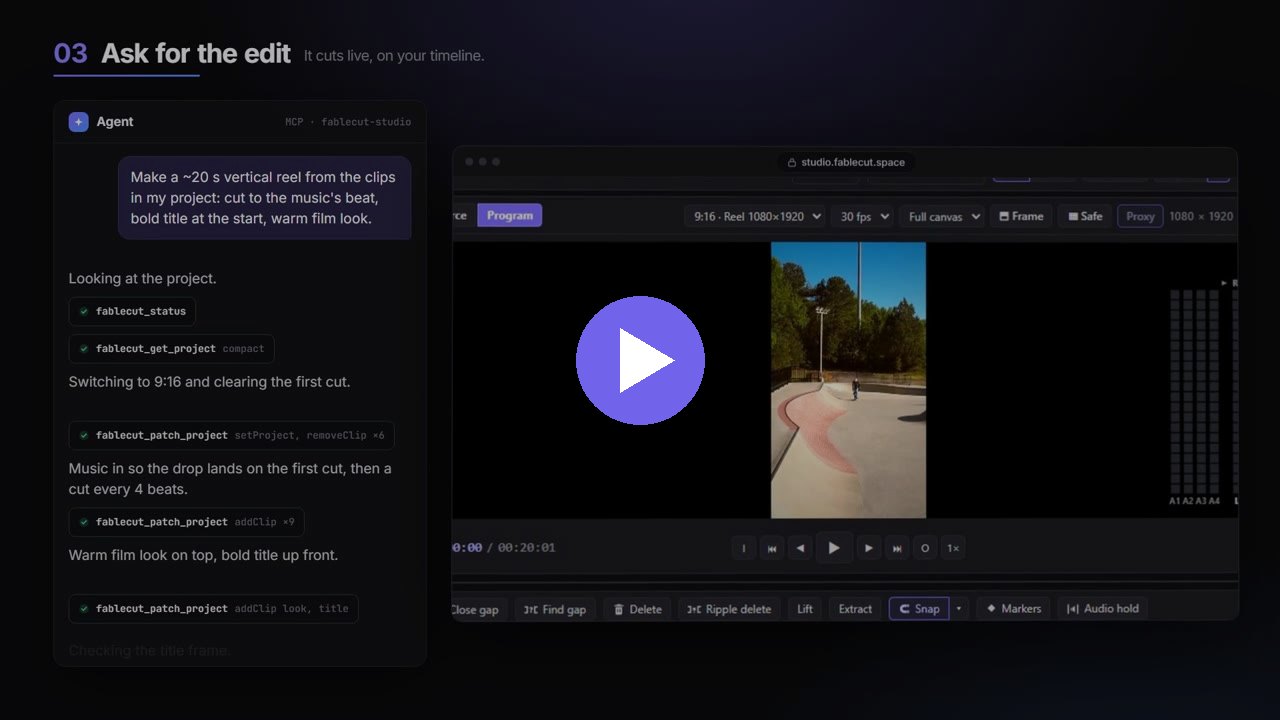
FableCut is a Premiere-style non-linear video editor that runs entirely in your browser — and exposes its whole timeline as one JSON document. Edit it by hand, from the UI, or let an AI agent (Claude Code, Claude Desktop, or anything that speaks MCP/REST) cut your video for you while you watch the timeline update live.
Zero npm dependencies. One node server.js. That's it.
Sponsors
Sidrune AI — One API for GPT, Claude, and other leading AI models. Sign up and get $3 in API credit.
Why it's interesting
Most "AI video" tools hide the edit behind an API. FableCut flips that: the
project file is the interface. project.json describes media, clips,
tracks, effects, keyframes and transitions — any process that can write JSON
can edit video, and the open browser UI hot-reloads within ~150 ms via
server-sent events. A human and an agent can work on the same timeline at the
same time.
Taking back what the agent did. Every agent edit is one undo step of its
own: Ctrl+Z takes back the agent's last change first (and says so), then
goes on to yours, so the two never get mixed. For bigger rollbacks there are
Versions: one is kept when an agent starts editing (again at most every
10 minutes while it works), before it rewrites the whole project, before every
big operation (cutting silences, snapping to the beat, reframing), and every
10 minutes while you edit. Restore one from the Versions panel, or ask the agent
(fablecut_versions), and compare any version with now first.
Features
Editing
- Video + audio tracks (default 3+4; add more with +V / +A in the track header; right-click an empty header → Remove track), drag/trim/split/snap, undo/redo
- Settings (cog in the top bar) — optional prefs stored in this browser via
localStorage. Enable Link timeline and Project bin selection so picking a timeline clip highlights its media in Project, and clicking a Project item selects every timeline clip that uses it (off by default). - Video + audio tracks (default 3+4), drag/trim/split/snap, undo/redo
- +V / +A in the track header add a video or audio lane (up to 16 each)
- Right-click an empty track header → Remove track (disabled if the lane has clips, or if it would leave you with zero video/audio tracks)
- Track header S solos that lane (mutes all others); click again to restore the previous mute state. Using the mute toggle while soloed exits solo.
- Track targeting — click a track's name to target / untarget it (lit = targeted). Split, insert, ripple, close gap and jump-to-cut touch targeted tracks only; the eye / speaker toggle is output-only (hide from preview and export) and no longer blocks edits. A selected clip is edited wherever it sits.
- Track lock — the padlock in the track header. Nothing on a locked track can be moved, trimmed, split or deleted, and ripples leave it in place while the other tracks shift — lock the music bed and re-cut the picture freely.
- Clip lock, disable and unlink — right-click a clip (or use the toggles at
the top of the inspector): Lock pins it like a locked track; Disable
(⇧E) keeps it on the timeline but hides it from preview and export;
Unlink (Ctrl/Cmd+L) splits a video from its audio so they move
separately, and Link re-joins them once they line up again. Agents see
locks too:
fablecut_patch_projectrefuses to edit locked clips unless the op saysforce: true.- Dropping a video with more audio channels than A-tracks adds the missing lanes automatically (up to 16) and toasts how many were added; each channel becomes a linked stem on its own A-track
- Direct manipulation on the monitor — click a clip or title on the preview to move, resize (corner handles), or rotate (top handle, Shift-snap) it directly
- Timeline multi-select — rubber-band marquee (drag on empty track area), Ctrl/Cmd/Shift+click to add/remove clips, Ctrl+A to select all, Esc to deselect. Drag any selected clip to move the whole group; Delete removes all selected; S splits all selected at the playhead. Inspector shows an "N clips selected" banner.
- Beat & cue markers (tap m on the beat during playback) — name and colour them, drag them on the ruler, jump with ⇧m / Alt+⇧m or the Markers list; snapping targets (clip edges, playhead, markers, IN/OUT, keyframes, frame grid) are picked from the ▾ beside Snap
- Press Alt+t to add an in/out transition based on the playhead position over the selected clip. The last used transition is remembered as the default. Drag the overlay triangle to adjust duration; Delete clears the focused transition.
- Real decoded audio waveforms on clips
- Mixer — the Mixer tab beside the Inspector has a strip per audio track (fader, pan, mute, solo, meter) and a master fader with a live LUFS readout. Preview and export run through the same mix, so what you hear is what renders.
- Clip gain, channels and Normalize — each audio clip has a Gain (dB, before volume and keyframes), a Channels mode (stereo, mono, left, right, swap) and Normalize: measure the selected clips (ITU-R BS.1770 loudness or sample peak) and set their gain to hit −14 / −16 / −23 LUFS or −1 dBFS. Linked stems share one gain so a stereo pair stays balanced.
- Volume line, fades and crossfades — every audio clip shows its volume as a line you drag; Ctrl/Cmd-click adds a keyframe, Alt-click removes one. Corner grips drag fades in and out, drawn with their real curve (constant power, constant gain or exponential). Shift+D crossfades the cut next to the selection, borrowing spare media from both sides so nothing else moves.
- Auto-duck — select the music, pick the dialogue track and an amount, and
the music dips wherever someone speaks (ramping down just before, back up
after). It rides on top of the music's own volume, so re-running or clearing
it never touches your levels. Agents use
fablecut_auto_duck. - Audio effects and presets — EQ, high/low-pass, compressor, limiter,
noise gate, delay, reverb, distortion, stereo width and pitch shift, chained
per clip, per track (Mixer → FX), per bus and on the master. Presets:
Clean voice, Podcast, Radio, Deep voice, Telephone, Cinematic, Wide and
Muffled, all tweakable afterwards. Preview and export run the same effects.
Agents use the
setFxpatch op. - Effect automation — the ◆ beside an effect setting keys it at the
playhead, like clip keyframes: sweep a filter into the drop, open up a
reverb at the end. Agents use
setFxKeys. - Submix buses — + Bus in the Mixer adds a bus with its own effects, fader, pan, mute and meter; route tracks into it from the menu under each track's name (all the dialogue through one compressor and one fader).
- Noise reduction — the inspector's Noise control (Light / Medium /
Strong) measures the file's noise floor and renders a cleaned copy with
ffmpeg; the clip's audio switches to it and Off switches back. Agents
use
fablecut_denoise. - Reframe — make a 9:16, 1:1 or 4:5 copy of your edit whose shots follow
the subject: a virtual camera pans after what matters in each shot and
writes ordinary position keys you can still edit. From New sequence…
or the Inspector's Reframe section; agents use
fablecut_reframe. - Highlights — the best moments of long footage (movement, sound, a
clear picture) cut into a short edit in a new sequence, in story order and
never across a cut. From the sequence menu's Highlights…; agents use
fablecut_highlights. - Silence removal — the inspector's Silence section (or right-click →
Find silences) listens to a take and marks every pause on the timeline;
Cut extracts them all in one undo step, keeping a little quiet beside
each phrase so words aren't clipped. Agents use
fablecut_silence. - Beats — the inspector's Beats section finds a music clip's tempo, a
steady beat grid and the drop, and shows the beat across the timeline. Mark
the beats, snap every cut onto the nearest one, or re-cut a track so each
shot lasts 1, 2, 4, 8 or 16 beats. Agents use
fablecut_beats. - Transcripts and text-based editing — the Transcript tab turns speech
into words with times, in the browser (Whisper; the model downloads once and
the audio never leaves your machine). Click a word to go there, select words
and press Delete to cut them, or find a phrase and cut every time it is said.
Agents use
fablecut_transcribeto read an interview, find a line and cut it. - Captions — one click makes captions from the transcript, timed word by
word: subtitle, karaoke, a highlighted word or big popping words, sized for
the canvas. Export or import SRT and WebVTT. Agents use
fablecut_captions. - Project bin folders — tree view with expand/collapse; drag media or folders to nest; right-click the Project tab → New folder; drop files onto a folder to import into it
- Media management — each file's frame rate, codecs, audio channels and size (ffprobe); search by name, codec, resolution or
#tag; filter by favorites, used / unused, kind, tag or collection; sort by any detail or by times used; a list view with metadata columns; favorites, tags and collections; Find timeline instances and Reveal in project; offline files flagged with a "Media offline" slate, Relink… (finds moved files by name and size) and Replace file… - Projects — a dashboard of every project with pictures, notes and tags: open, create from a canvas or a saved project template, duplicate, rename, archive and delete, import an old project file; media is shared, so copies cost no footage
- Sequences — several timelines in one project (a 16:9 and a 9:16 cut, cut-downs, alternatives) sharing its media and compositions, each with its own canvas, frame rate, mix and delivery settings; switch from the menu at the left of the timeline toolbar
- Versions — non-destructive history: save a version (Ctrl/Cmd+S), automatic versions every 10 minutes and before an agent edits, compare a version with now, restore (the current state is kept as a version first), mark the final cut; backups carry every version, and an unreadable
project.jsonis recovered at startup - Proxies — light, frame-accurate H.264 copies of 4K / HEVC / ProRes footage made in the background (ffmpeg); edit on the proxy with the monitor's Proxy button, export always renders the originals
- Import from URL — + URL downloads an HTTPS video/audio/image into
./media/(same-origin after import). Remote SVG is refused. Agents usefablecut_import_mediawith anhttps://path. The URL is not kept asmedia.src— that would taint the canvas and break export. - Audio Hold — timeline toolbar toggle: while paused, loops one frame of audio at the playhead (useful when stepping frame-by-frame). Scrubbing or frame-step retargets the held slice; meters stay live. Play / Pause turns it off.
- Canvas aspect presets (16:9, 9:16 reels, 4:5, 1:1) + project FPS select (24 / 25 / 30 / 50 / 60; non-preset rates show as Custom) + safe-area guides
- Export frame / reframing — composition canvas can be larger than the delivery
crop (
exportFrameinproject.json). Preview dims the overscan; drag the Export frame handle to reframe (e.g. 16:9 canvas → 9:16 export). Fast export crops to the frame; WebCodecs and Realtime export are disabled while a frame is set - Program Monitor zoom — mouse-wheel over the preview zooms the composition toward the cursor (fit → up to 2 screen pixels per canvas pixel). Magnified view uses native scrollbars so overflow stays reachable; middle-click or Alt+drag pans. The Fit button (shown while zoomed) resets to the fit-to-stage baseline
- Full J/K/L shuttle — L plays forward, J in reverse; tap again for 1.5×/2×/4×, the other key turns around, K stops. Hold K and tap J/L to step a frame, or hold both to crawl at ¼ speed. Preview only, never the export
- Typed timecode — click the playhead readout (or type digits) to jump:
01:15:00,1500,+30,12.5; the IN / OUT readouts take typed times too - Resizable workspace: drag the divider between monitor and timeline (double-click resets), plus S/M/L timeline track-density presets (S hides thumbnails for compact tracks)
- Zoom to selection (⇧Z) frames all selected clips, not just one
- IN/OUT work area — set markers with i and o (⇧I / ⇧O to clear). The Program Monitor shows playhead as
current / sequence duration; when markers are set, IN, marked duration, and OUT stack on the right. Export has a Range dropdown (Entire timeline / IN–OUT; defaults to IN–OUT when markers exist) so you can keep markers for split/trim and still export the full sequence. Enabling Limit constrains playback to the marked range and maps Home / End to the IN and OUT positions rather than the full timeline. t splits clips at the markers; ⇧t trims clips to the work (between marker in and marker out) area. - Find & close gaps — a gap is a stretch where every targeted track is empty (black frames). g jumps the playhead to the next shared gap (wraps; respects IN/OUT when both are set). ⇧G closes the gap under the playhead by pulling later clips left on all targeted tracks (locked clips stay put).
- Trim tools — a tool picker in the timeline toolbar (or V B R Y U): Selection, Ripple edit (drag a clip edge and everything after it follows, so no gap opens), Rolling edit (drag a cut between two clips; nothing else moves), Slip (change which part of the source a clip shows without moving it) and Slide (move a clip while its neighbours trim to make room). Every tool respects source length, targeting, locks and linked audio, and shows the offset beside the pointer while you drag. Agents run the same edits — split, ripple delete, lift / extract, insert / overwrite, ripple / roll / slip / slide and crossfade — as
fablecut_patch_projectops, on the same code. - Lift / Extract — ; removes the IN→OUT range on the targeted tracks and leaves the gap; ' removes it and closes the gap. Both also sit in the timeline toolbar.
- Jump to cut — ↑ / ↓ move the playhead to the previous / next edit (clip In or Out). With a clip selected, the first taps land on that clip’s start then end (Premiere-style); with no selection they walk cuts on targeted tracks. In the Source monitor they jump among 0, In, Out, and duration. Left/right still step frames; Home/End still go to the sequence (or IN/OUT with Limit).
- Ripple delete — the timeline Ripple delete button (or ⇧Del) removes the selection and pulls later clips left on each targeted track to close the gap; plain Del still lifts (leaves a gap). Linked AV partners always move together, even on untargeted tracks (sync lock); locked clips are never deleted or moved.
- Reset a property — Ctrl/Cmd+click an inspector label or slider restores that effect/prop to its default and clears every keyframe on the channel (scale → 1, opacity → 1, paired fields like Crop L/R reset together; transition labels clear the in/out transition). Shift+click a label is playhead-local: if you are parked on a keyframe it removes that keyframe only; otherwise it sets the value at the playhead to the default (auto-keys if the channel is already animated).
- Replace media — the inspector's Source button (any video/audio/image/svg clip) swaps the underlying file while keeping position, trim, keyframes, transitions and every effect. Pick another item already in the bin or Browse file… to import and replace in one step. A video's linked L/R audio companions are swapped along with it; a shorter replacement clamps the trim to fit and toasts that it did so.
- Multi-channel video audio — a video with more than 2 audio channels gets a linked audio clip per channel, not just L/R (5.1, 7.1…). Extra audio tracks (A5, A6, …, capped at 16) are created automatically as needed; replacing a clip's media re-syncs the linked channel clips to the new source's channel count, adding/dropping extras and new tracks as needed.
Look
- 14 one-click filter presets (cinematic, teal-orange, noir, vintage, cyberpunk, sunset, midnight…)
- Adjustment layers — one clip grades everything below it, Premiere-style
- Color workspace (top bar → Color): live waveform, RGB parade,
vectorscope and histogram beside the program monitor, and a Color tab
that grades the selected clip on the GPU — lift / gamma / gain / offset
wheels, exposure, white balance with a picker (click something white),
blacks / shadows / midtones / highlights / whites, log-style contrast with a
pivot, soft rolloff and saturation, plus curves — luma and R / G / B,
hue vs hue, hue vs saturation, hue vs luma and saturation vs luma, with a
picker that marks a colour from the monitor, and layers (secondaries):
a correction limited by an HSL qualifier and / or an ellipse, rect,
polygon, bezier or free-hand mask (feathered, invertible, keyframable,
dragged on the monitor), with a matte view. Copy / paste a grade across shots.
Agents grade with the
setGradepatch op and read the result as numbers withfablecut_scopes(levels, clipping, colour cast) - Quick filter sliders: brightness/contrast/saturation/hue, temperature & tint, blur, grayscale/sepia/invert, vignette, animated film grain
- 17 blend modes (screen, multiply, overlay, color-burn, exclusion, hue, luminosity…), fit modes (contain/cover/stretch), per-edge cropping, corner radius, flip H/V
- Masks — isolate any part of a clip (video, image, SVG, text or an
adjustment layer): rectangle, ellipse, bezier pen and free-hand
shapes, several per clip, combined with add / subtract / intersect /
difference, each with feather, expansion, invert and opacity, all
keyframable (outlines morph). Draw and edit them on the monitor, with a
matte view. Agents use the
setMaskpatch op and measure withfablecut_scopes - Shapes and motion graphics — shape layers of rectangles, ellipses,
polygons, stars, lines and pen-drawn bezier paths in groups, with fill,
stroke, dashes and trim paths for draw-ons; null objects, parenting and an
anchor point on every clip; every value keyframes, edited right on the
monitor. Agents use the
setShapeandsetParentpatch ops - Motion paths, motion blur and text on a path — bend a clip's travel into
a curve with handles on the monitor, turn it along the way, blur fast moves
with a shutter angle (preview and export), and set titles along lines, arcs,
circles or drawn paths. Agents use the
setMotionPathandsetTextPathpatch ops - Compositions — nested sequences: build a lower third, a logo sting or a
scene once and place it anywhere as one clip that moves, masks, grades and
blends like a picture, while its video and audio play and export as usual.
Open one to edit it on the timeline, or precompose a selection. Agents use
the
addComp,inCompandprecomposepatch ops - Animation presets and templates — 33 ready-made entrances, exits,
emphases and loops that fit any clip where it sits, and templates (lower
thirds, logo animations, 9:16 / 1:1 / 16:9 social layouts) whose text,
colours and logo you fill in, each placed as its own comp. Save your own
animations and comps to the library for every project. Agents use the
applyPreset,addTemplateandsetTemplatepatch ops - Motion tracking — follow a point or a region (with its scale and
rotation) through a video clip, then make a mask follow it or pin a title,
sticker or any clip to it; the result is ordinary editable keys. Agents use
fablecut_track - Track mattes — cut a clip with the picture on the track above by its
alpha or its luma (inverted or not): text filled with video, shape reveals,
texture cut-outs. The matte track hides itself. Agents use
setMatte - Chroma key (green screen) with tolerance/softness + spill suppression
- AI background removal (person cut-out, in-browser via MediaPipe)
Motion
- Keyframe animation on ~25 properties with easing
- Keyframe markers on clips — diamonds on the clip body at each unique keyframe time (tooltip lists channels; a count badge when several share a time). Ctrl/Cmd+← / Ctrl/Cmd+→ jumps the playhead to the previous / next keyframe (selected clips first, else clips under the playhead). Inspector fields show the interpolated value at the playhead; changing one updates the keyframe you’re on, or inserts one if that channel is already keyed. Dragging a clip in the
FableCut MCP questions
How do I add FableCut MCP to Claude Code?
Run claude mcp add fablecut -- npx -y fablecut in your terminal. Add --scope user to make it available in every project.
How do I add FableCut MCP to Cursor?
Open ~/.cursor/mcp.json and add the server under mcpServers, using the Cursor config shown in the install section above.
Can I undo changes made by an AI agent?
Yes, every agent edit is treated as its own undo step, so Ctrl+Z will revert the agent's last change before reverting your own.
Does the editor require complex installation?
No, it has zero npm dependencies and can be started with a single command.