
MakerSim MCP server
Commit Oct 17, 2026Lets an AI client perform experimental load-path analysis on 3D-printed STL parts and manage iterative CAD design sessions.
Also known as RawLabs/MakerSim
- Stars
- 0
- Tools
- —
- Downloads, 30 days
- —
- Latest version
- —
- Last commit
- Oct 17, 2026
- License
- MIT
What is MakerSim MCP?
MakerSim lets an AI client perform experimental load-path analysis on 3D-printed STL parts and manage iterative CAD design sessions.
Summary generated from the project's README
About MakerSim MCP server
MakerSim enables engineers and makers to perform experimental load-path analysis on 3D-printed STL parts through an AI-driven design workflow. By uploading an STL file and specifying print settings like filament type, infill, and wall thickness, users can simulate how forces travel through a part. The system uses an elasticity solver to generate relative stress heatmaps and movement previews, helping users visualize potential deformation under specific loads.
Designed for local use via a stdio MCP server or CLI, the tool integrates with AI agents to manage iterative CAD design sessions. It provides a structured workflow where agents can save revisions, run tests, and present design candidates for human review. The server includes specialized tools such as run_test for solving load cases, compare_runs for analyzing stiffness changes between versions, and capture_result for generating visual previews of stress and movement. This setup allows for a continuous loop of design, simulation, and evaluation without requiring an external HTTP listener or browser session for the core logic.
What you can do with it
- 1Analyze stress on 3D printsAn AI agent can simulate how a specific weight affects a printed part to identify high-stress areas.
- 2Iterate CAD designs automaticallyDevelopers can use the server to manage a sequence of design revisions and test results for review.
Written from the project's README. Every use case is checked against a quote from it.
Configuration
MAKERSIM_CHROMIUMMAKERSIM_SESSION_DIR
| Name | Description | |
|---|---|---|
| MAKERSIM_CHROMIUM | — | |
| MAKERSIM_SESSION_DIR | — |
README
View on GitHub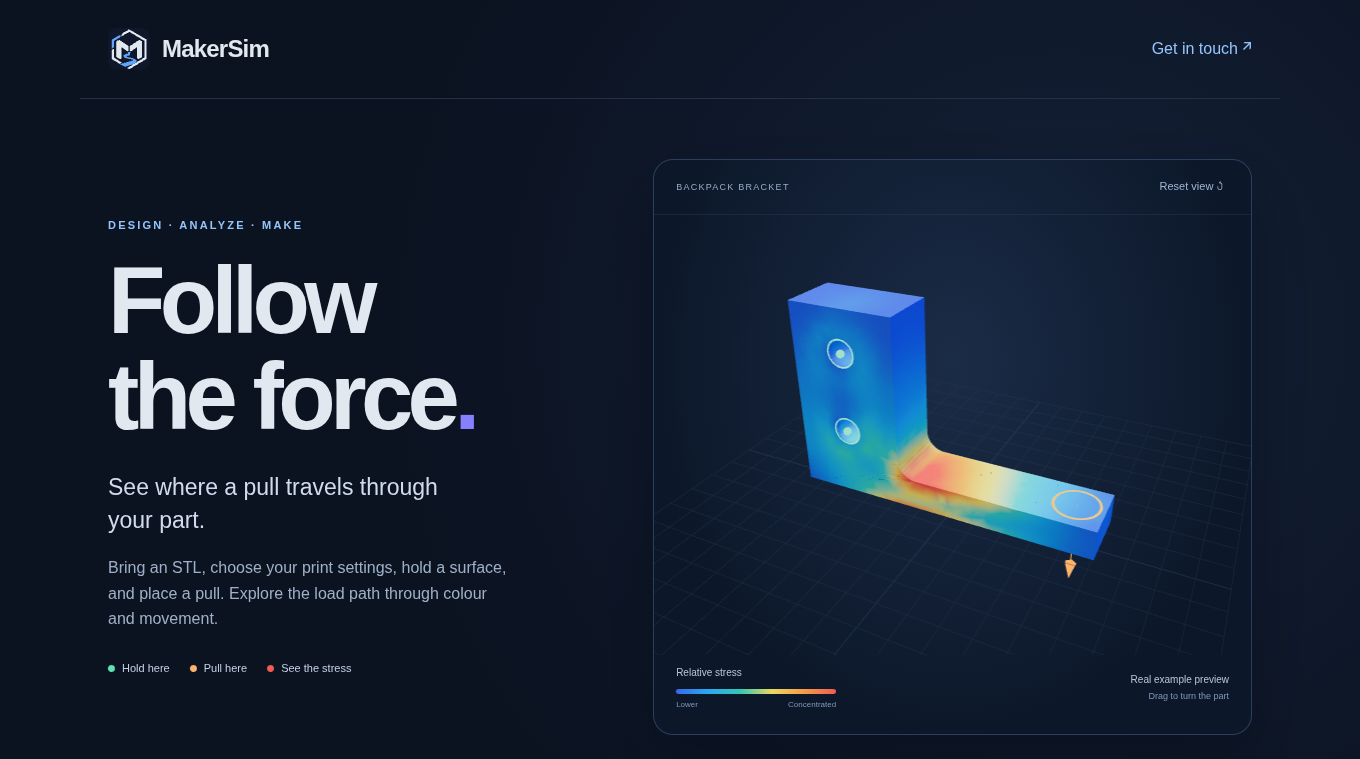
MakerSim helps makers explore how a force travels through a 3D-printed part. Upload an STL, choose your filament and print settings, paint the surfaces held still, and place a pull. An elasticity solver returns a relative stress heatmap and an optional movement preview with an adjustable display scale.
The landing page stays available when the testing server is offline. Its 3D hero uses a precomputed result from the included bracket; the playground runs your own simulation when the server is online. You can also run MakerSim locally.
Version 0.1.0 is an early playground checkpoint. STL viewing, painted holds, distributed loads, print-property assumptions, simulation, and local MCP/CLI engineering sessions are implemented. Local sessions preserve part revisions, agent explanations, test results, and human feedback for review and replay. Results support design exploration; they do not predict failure or establish safe working loads. See physics and limits.
Quick start
From an installed checkout:
./scripts/start.sh
Open the local URL printed by the launcher. It tries http://127.0.0.1:8000,
then ports 8001–8010 if occupied, and finally an available system-assigned port.
To choose a port, run ./scripts/start.sh 8001. Keep the terminal open while
working; press Ctrl+C to stop the app.
- Choose Try a backpack bracket for a ready-to-run example, or Upload your STL in the center of the 3D workspace. After upload, file details, units, and replacement controls appear under Your part on the left.
- Set your filament, walls, top/bottom layers, infill, and print orientation.
- Choose Hold here and click or paint mounted surfaces. Choose Pull here and click a load surface, then drag the arrow or select a direction preset.
- Set the weight or force and choose Simulate. Explore the heatmap, switch back to the original part, or enable Show movement. Movement starts at 1× actual scale; select a larger or smaller display scale when needed. The chosen scale stays fixed between runs so different loads can be compared.
The included bracket starts with two mounting-hole patches held still and a 25 lb downward pull. Clear its selections to try your own setup. Use Orbit to reach another side. Direction presets use the STL's axes, with Z up; the contact-size slider applies to new clicks.
Local AI agent interface
An agent can use MakerSim directly through the local CLI or stdio MCP server.
Both call the same solver as the app. Python 3.11+ and uv are sufficient for
this workflow; Node.js and a browser are only needed for the viewer.
On MCP connection, MakerSim supplies the design/test/review workflow in its
initialization instructions. get_workflow exposes the same guidance as a tool;
CLI agents can read it with .venv/bin/makersim workflow. It tells the agent to
save CAD revisions, reports and captures, present alternatives for user review,
and continue from the exact revision the user selects. The default first review
checkpoint is a baseline plus up to three useful candidates unless the user
sets another budget. User instructions take precedence. This is agent guidance,
not an enforced autonomous CAD controller; the client must pass it to the agent
and provide access to its CAD tool.
uv sync
.venv/bin/makersim schema
.venv/bin/makersim workflow
.venv/bin/makersim materials
.venv/bin/makersim inspect backend/data/backpack-bracket.stl
.venv/bin/makersim validate backend/data/bracket-test.json
.venv/bin/makersim run backend/data/backpack-bracket.stl \
  --test backend/data/bracket-test.json \
  --output .makersim/runs/bracket-r1.json --revision cad-r1
.venv/bin/makersim result .makersim/runs/bracket-r1.json --view metrics
backend/data/bracket-test.json is a working
example with fixtures, print settings, 5 lb and 50 lb load cases, a tip probe,
and a 1 mm movement limit. Solver 0.3.0 calculates approximately 0.803 mm and 8.026 mm
maximum movement respectively; the heavy case exceeds that numerical limit and the small-displacement range.
Use a new output filename for each run. Reports are never overwritten.
CLI operations return JSON on stdout. Successful analysis exits 0 even when
displacement criteria are not_met; file, validation and solver errors exit 2
with an error.code, message and optional details. Argument usage errors appear
on stderr. Without displacement limits the criteria are not_assessed.
--fields adds full surface positions, displacement vectors and stress values;
compact reports contain measurements, probe results, equilibrium checks,
sampled patch coverage, material provenance and validity notes.
Connect a local MCP client
For container startup, protocol inspection, and Glama publication, see MCP directory publication. The root Dockerfile starts the same local stdio server and includes its example and material data.
Use the installed makersim-mcp executable as a stdio server. For clients that
accept a mcpServers configuration:
{
  "mcpServers": {
    "makersim": {
      "command": "/absolute/path/to/MakerSim/.venv/bin/makersim-mcp",
      "args": []
    }
  }
}
On this checkout the command is
/home/legion/Projects/python-playground/MakerSim/.venv/bin/makersim-mcp.
Replace the path for other machines. The server requires no HTTP listener,
browser session or AI model download. Use absolute paths in tool arguments so
the client's working directory does not affect file selection. MCP operations
return structured JSON; operation errors also set isError: true.
The viewer, CLI, and MCP server must use the same checkout or the same absolute
MAKERSIM_SESSION_DIR to share live sessions. The default is this checkout's
.makersim/sessions/, independent of the client's working directory. If you
override it, set the same value in the viewer's environment and the MCP client's
server configuration, for example:
"env": {
  "MAKERSIM_SESSION_DIR": "/absolute/path/to/project/.makersim/sessions"
}
Add env alongside command and args in the makersim server entry above.
| Tool | Purpose |
|---|---|
get_workflow |
Read the automatic iteration, capture, human review and branching procedure. |
get_test_schema |
Discover the versioned test-file format. |
get_goal_schema |
Discover structured relative goals against a baseline. |
list_materials |
List material IDs or inspect one material's properties and sources. |
inspect_model |
Check STL units, original bounds and coarse-mesh readiness. |
validate_test |
Validate a saved specification without solving. |
run_test |
Solve all load cases, measure probes and optionally save a new report. |
get_result |
Read a saved report; view="metrics" omits large field arrays. |
query_field |
Retrieve bounded pages or spatial regions of saved surface samples. |
compare_runs |
Compare compatible reports, sampling fingerprints and effective stiffness changes. |
evaluate_goals |
Assess relative movement/stress/volume targets; optionally save an evaluation. |
check_convergence |
Run a bounded refinement study and report observed numerical stability. |
capture_result |
Render a saved full-field result into geometry, stress and movement images; return previews to the agent. |
create_review |
Assemble a portable visual history of revision reports with captures. |
Live engineering sessions
In the local workspace, choose Agent to open a small, resizable floating card. Drag its title bar to move it. The − button collapses it to a movable Engineering agent title pill; click the pill to reopen the card. ⤢ expands to full screen and restores the floating card when selected again. Floating placement and size persist in this browser. With the title focused, arrow keys also move the card or pill. Collapsing keeps the session and live events active. Drag any edge or corner to resize the floating card. The visible bottom-right grip works with a mouse or touch; focus it and use arrow keys to resize from the keyboard (Shift makes larger adjustments). The card stays within the viewport, and its size is restored after collapse, full screen, or a page refresh. Create a session using the selected part, a copy, or a new design. Choose Work together, Work on its own, or Show and explain, then pass the displayed session ID to your chosen MakerSim-compatible MCP/CLI agent. Tell that agent app when to begin. Saving a session and connecting an agent are separate from starting a run.
The session orchestrator connects the existing CAD/test workflow to live explanations, saved geometry snapshots, simulation previews, and a replayable timeline. CAD edits and model inference still run in the connected client. The window does not launch an AI provider or supply a CAD engine. Selected/copy records the intended CAD workflow; the CAD client must preserve the original editable revision and create a copy when requested. Frequent STL exports after individual edits make the viewport update as the design develops.
The window defaults to viewing and feedback. Questions are saved with the part, including when no agent is connected, so a later connected agent can read them. It names the connected agent app; no particular provider or coding client is required. An integration must implement the shared protocol; compatibility is not implied for every AI app. Optional execution controls appear only when a live client explicitly declares that it honors MakerSim design-step pause/continue gates.
The activity strip stays visible above the controls: Thinking through the
design, Explaining the design, Sketching your part, Simulating a load,
Waiting for the agent, Paused, or Ready for your review. CAD and simulation
labels come from active steps. Text activity must be explicitly reported by the
agent using report_design_activity; silence never becomes a thinking indicator.
Agents refresh long activities every 30 seconds. After 60 seconds without a progress
update, the window states that progress is unconfirmed, without assuming failure or
resuming paused work. Elapsed step time and connection/reconnection state remain visible.
Agent presence is distinct from browser streaming connectivity. A named connection
refreshes every 30 seconds; after 60 seconds without evidence, execution controls hide.
Each service restart changes a viewing epoch, requiring fresh agent evidence.
Historical pause/operation records remain intact but are not presented as a live agent.
Reopening restores Saved work, or Saved work · ready for review, until a client
proves its presence. A still-running background client can reconnect by heartbeating,
without changing an existing pause or discarding its operation.
The title pill keeps a status dot and an accessible tooltip with the current activity.
History previews describe the version being viewed separately from current activity.
When optional controls are enabled, Send and pause and Pause work hold design steps until the human explicitly resumes, either through Continue or their agent app. An operation already in progress can finish and preserve its result; new operations are blocked. Wait for me after each step additionally holds after each operation or an explicit teaching checkpoint. Mode changes and agent answers never resume a pause. If a client disconnects during an operation, Reset a stuck step invalidates that operation and leaves the session paused for review. The client must stop its abandoned work; recovery cannot cancel an external CAD process. Viewing-only connections save feedback without claiming to pause the external agent. Connecting alone does not start a run. A fresh human start instruction authorizes a new run and supersedes unfinished old leases; late results cannot overwrite its work. Integrations relay the actual human start/resume instruction. This is a trusted-client attestation of intent, not an independently verified human identity or approval.
The agent window stays hidden until you select Agent at the top. − collapses it to a title pill, × closes it completely, and Agent reopens the floating card with its saved size, position and session. Close is also available on the pill. The card fits smaller browser windows temporarily and restores its chosen layout when space returns; automatic fitting does not overwrite a manual resize. The session keeps running when its window is closed, provided the connected client continues working. Notify when ready for review produces an in-app notification and updates the page title when the tab is in the background. It does not deliver a desktop notification after the browser is closed. Completion means Ready for your review; acceptance, actual fit, manufacturing, ergonomics and physical testing remain separate.
Session state, immutable exports, test inputs and full-field reports persist in
.makersim/sessions/ (override with MAKERSIM_SESSION_DIR). The local browser's
workspace cookie lasts one year, so reopening in the same browser restores
access. Clearing browser cookies removes that access; the trusted local CLI
can still read the saved session. Back up the complete directory for continuity.
Persistent sessions are disabled on the hosted public preview.
Saving a new session or selecting a saved one resets the viewport before loading that session's own part and results. From scratch starts with an empty viewport; Copy selected part and Selected part display their preserved starting part. Previous holds, pulls and results are cleared, and late preview responses from another session cannot restore its geometry. Earlier work stays in its saved history.
Memory stays within a project's part and branch. Matching project names never merge context. Try a copy from here copies the exact timeline prefix and its artifacts into an independent workspace, so later parent or sibling decisions cannot bleed into it. The What we learned view exposes scoped memory; corrections are additional intervention records, preserving the earlier evidence. Lessons label their evidence as a hypothesis, simulation, human observation, or physical test, with conditions and evidence supplied by the agent. These labels record provenance, not independently verified truth or weight updates.
| Session MCP tool | CLI (makersim session …) |
Purpose |
|---|---|---|
create_design_session |
create |
Save isolated design context; saving never starts an agent. CLI --stl also preserves a starting part. |
connect_design_agent |
agent |
Announce an agent app by name; opt into window controls only when supported. |
update_design_connection |
signal |
Refresh presence or disconnect; preserve all design history. |
authorize_design_run |
authorize |
Relay the human's explicit start/resume instruction from their chosen agent app. |
get_design_session |
events |
Read current state and paginated events, including interventions. |
recall_design_context |
context |
Retrieve lessons and decisions from this branch's history only. |
publish_design_event |
event |
Publish Plan/Do/Check/Act explanations, predictions, decisions and lessons. |
report_design_activity |
activity |
Report thinking, explaining or waiting; refresh progress using the active operation ID. Never resumes work. |
begin_design_step |
begin |
Acquire a checkpoint lease before one external CAD operation. |
finish_design_step |
finish |
Save its outcome, editable CAD reference and exported STL preview. |
run_session_test |
test |
Use the existing solver with session checkpoints and immutable artifacts. |
branch_design_session |
fork |
Fork from a selected event into an isolated paused branch. |
complete_design_session |
complete |
Stop and report a candidate for human review. |
The CLI also provides get SESSION_ID for a state-only read,
list for sessions not yet attached to a browser workspace, and
control SESSION_ID ACTION for human feedback, pause, resume, settings, or recovery.
After a browser attaches a CLI-created session, it appears in that browser's saved
sessions; trusted local agents can still access it by ID. Run
makersim session --help or makersim session COMMAND --help for arguments.
Session simulations preserve every load case; the viewport previews the first
case, identified in its notes. Saved fields and contact selections are converted
from the exported CAD coordinates to the centered viewport coordinates.
Use the existing compare_runs, evaluate_goals, check_convergence and review
tools on the saved report paths for comparison and numerical confidence.
Limits bound simulation attempts, elapsed operation time, and reported token usage between operations. Failed simulation attempts count toward the iteration budget. Token accounting depends on the connected agent reporting incremental usage; it is not a hard provider spending cap. Time limits do not kill an in-flight CAD edit or solve. Text planning time is separate. Separate paused branches can run concurrently with separate connected clients; this milestone does not launch or schedule multiple agent processes. Each active branch serializes its edits. Stop when the saved test goals are met stops after a report assesses all its absolute displacement criteria as met. Unassessed criteria do not stop the session. Relative goals use the existing evaluation tools and an agent completion decision; a free-text objective alone is not a numerical criterion.
The CLI exposes the same session operations:
.venv/bin/makersim session create --project Backpack --part Bracket \
  --objective "Show and explain a rib, then compare its movement" \
  --source copy --mode teaching --stl backend/data/backpack-bracket.stl
# Connect the returned ID in the Agent window to view this saved work.
.venv/bin/makersim session get SESSION_ID
.venv/bin/makersim session agent SESSION_ID --name "My engineering agent"
# Use its returned RUN_ID. Add --controls only for clients honoring window design-step controls.
.venv/bin/makersim session authorize SESSION_ID RUN_ID start \
  --human-instruction "Start explaining a rib on this bracket."
.venv/bin/makersim session signal SESSION_ID RUN_ID heartbeat
.venv/bin/makersim session activity SESSION_ID thinking \
  --message "Considering rib placement and room for the mounting bolts." --run-id RUN_ID
.venv/bin/makersim session event SESSION_ID prediction \
  --phase plan --message "A rib may reduce bending at this junction." --run-id RUN_ID
.venv/bin/makersim session begin SESSION_ID --description "Add one rib in CAD" --run-id RUN_ID
# For a long edit, refresh every 30 seconds with its returned operation ID:
.venv/bin/makersim session activity SESSION_ID working --operation-id OPERATION_ID \
  --message "Adding the rib; the mounting holes are unchanged." --run-id RUN_ID
# Perform the edit in the connected CAD client; preserve the editable revision.
.venv/bin/makersim session finish SESSION_ID OPERATION_ID \
  --explanation "The rib supports the loaded junction; test this hypothesis." \
  --stl /absolute/path/to/r1.stl --revision R1 --cad-reference SAVED_CAD_REVISION
.venv/bin/makersim session test SESSION_ID --test backend/data/bracket-test.json --run-id RUN_ID
.venv/bin/makersim session context SESSION_ID --query rib
.venv/bin/makersim session fork SESSION_ID --sequence SELECTED_EVENT_SEQUENCE \
  --objective "Try another rib from this saved revision"
# The new branch is paused; connect and obtain a human start instruction separately.
.venv/bin/makersim session complete SESSION_ID --run-id RUN_ID \
  --summary "Candidate ready for review; compare movement and check bolt clearance."
.venv/bin/makersim session events SESSION_ID --after 0
# Read and handle every event page; use the last returned next_after cursor.
.venv/bin/makersim session signal SESSION_ID RUN_ID disconnect --seen-sequence LAST_HANDLED_SEQUENCE
Local CLI session controls are for human operation. An agent must not use the CLI to bypass a human pause. The MCP authorization relay requires an actual explicit human instruction; agents must never generate their own approval or infer it from silence. Clients with window controls must supply their last handled event cursor when disconnecting. MakerSim checks for newer human inputs in the same transaction that closes the connection, and refuses to disconnect if a direction, Continue, or settings change arrived after that cursor. The client must handle those inputs before retrying. This check preserves live instructions; it does not launch an external agent app after its process has stopped.
While the human is interacting in MakerSim, clients keep polling
get_design_session(after=LAST_HANDLED_SEQUENCE) or
makersim session events SESSION_ID --after LAST_HANDLED_SEQUENCE, and heartbeat
every 30 seconds, including while paused. Read every page until no events remain;
advance with next_after, which can lag behind session.sequence. Acknowledge
and handle new questions and directions before completing or disconnecting.
Quiet agent-app chat does not mean the MakerSim conversation has ended.
Session operation errors use the same JSON error contract as other CLI/MCP tools:
error.code |
Client response |
|---|---|
session_paused |
Stop new operations; wait for the human's explicit start or resume. |
operation_active |
Finish the current operation before starting another. |
budget_reached |
Present saved work for review; the human can adjust limits or choose a separate copy. |
stale_agent / stale_operation |
Stop using the replaced connection or abandoned operation; read current state. |
input_check_required |
Read and handle session events, then provide seen_sequence when disconnecting. |
pending_input |
Handle newer human input before retrying disconnection. |
To resume from the agent app, relay its actual human instruction with
makersim session authorize SESSION_ID RUN_ID resume --human-instruction "…".
When Wait for me after each step is enabled, do this after each held step,
or wait for the human to select Continue in the connected window.
MakerSim MCP questions
What can MakerSim simulate?
It simulates how force travels through a 3D-printed part using an elasticity solver to return relative stress heatmaps and movement previews.
Does MakerSim predict part failure?
No, the results are intended for design exploration and do not predict failure or establish safe working loads.
How do I connect an MCP client to MakerSim?
You can use the makersim-mcp executable as a stdio server by adding it to your mcpServers configuration with the absolute path to the executable.
What programming languages are required for the workflow?
Python 3.11+ and uv are sufficient for the CLI/MCP workflow, while Node.js and a browser are needed for the viewer.