
Pagecast MCP server
✓ VerifiedRecords and interacts with browser pages, then exports polished GIF or MP4 demos with automatic zoom effects.
Also known as mcpware/pagecast, @mcpware/pagecast
- Stars
- 54
- Tools
- 9
- Downloads, 30 days
- —
- Latest version
- 0.2.1
- Last commit
- Mar 27, 2026
- License
- MIT
What is Pagecast MCP?
Pagecast records and interacts with browser pages, then exports polished GIF or MP4 demos with automatic zoom effects. It exposes 9 tools, such as record_page, interact_page, stop_recording.
Summary generated from the project's README
How to install Pagecast MCP
Formats verified 10 Nov 2026Add to CursorAdd to GooseInstall Pagecast MCP in Claude Code
$ claude mcp add pagecast -- npx -y @mcpware/pagecastInstall Pagecast MCP in Cursor
~/.cursor/mcp.json
{
  "mcpServers": {
    "pagecast": {
      "command": "npx",
      "args": [
        "-y",
        "@mcpware/pagecast"
      ]
    }
  }
}Install Pagecast MCP in VS Code
.vscode/mcp.json
{
  "servers": {
    "pagecast": {
      "type": "stdio",
      "command": "npx",
      "args": [
        "-y",
        "@mcpware/pagecast"
      ]
    }
  }
}Install Pagecast MCP in VS Code CLI
$ code --add-mcp '{"name":"pagecast","type":"stdio","command":"npx","args":["-y","@mcpware/pagecast"]}'Install Pagecast MCP in Claude Desktop
claude_desktop_config.json
{
  "mcpServers": {
    "pagecast": {
      "command": "npx",
      "args": [
        "-y",
        "@mcpware/pagecast"
      ]
    }
  }
}Install Pagecast MCP in Codex
$ codex mcp add pagecast -- npx -y @mcpware/pagecastInstall Pagecast MCP in Codex config.toml
~/.codex/config.toml
[mcp_servers.pagecast]
command = "npx"
args = ["-y", "@mcpware/pagecast"]
Install Pagecast MCP in Gemini CLI
$ gemini mcp add -s user pagecast npx -- -y @mcpware/pagecastInstall Pagecast MCP in Gemini settings.json
~/.gemini/settings.json
{
  "mcpServers": {
    "pagecast": {
      "command": "npx",
      "args": [
        "-y",
        "@mcpware/pagecast"
      ]
    }
  }
}Pagecast MCP tools 9
Detected from the READMErecord_pageinteract_pagestop_recordingsmart_exportcinematic_exportconvert_to_gifconvert_to_mp4record_and_exportlist_recordings
| record_page | — | |
| interact_page | — | |
| stop_recording | — | |
| smart_export | — | |
| cinematic_export | — | |
| convert_to_gif | — | |
| convert_to_mp4 | — | |
| record_and_export | — | |
| list_recordings | — |
Automated checks
Ran Nov 15, 2026Full report →Passed our automated checks. That is not a security audit: read the code and give the server the narrowest access it needs. How checks work

- Source repository linked and reachablemcpware/pagecast is public and reachablegithub.com/mcpware/pagecast ↗Pass
- Package names this repository as its source@mcpware/pagecast names mcpware/pagecast as sourcenpmjs.com/package/@mcpware/pagecast ↗Pass
- Build provenance (Sigstore attestation)No build attestation published for this releaseNot checked
- Open source license (OSI)MITspdx.org/licenses/MIT.html ↗Pass
- Commit or release in the last yearLast commit or release 2026-03-27github.com/mcpware/pagecast ↗Pass
- OpenSSF ScorecardNot checked
- Package name not close to a popular packageNo popular package one edit away from @mcpware/pagecastPass
- No critical advisory in the package or its dependencies101 resolved dependencies checked; no critical advisoryosv.dev ↗Pass
- No hidden instructions to the model9 tool descriptions and the README read; no override phrases, credential paths or hidden charactersPass
- Destructive tools are labelledNo tool named like delete, drop or execPass
- Remote endpoint answers the MCP handshakeNot checked
README
View on GitHubPagecast




English | 廣東話
Turn AI browser interactions into polished product demos.
Tell your AI to demo your app. Pagecast records the browser, tracks every click and keystroke, and exports a shipping-ready GIF or MP4 — with tooltip zoom overlays and cinematic pan effects. No screen recorder. No video editor. No post-production. Make a demo gif automatically after every PR if you want.
Without Pagecast — plain screen recording, you do the demonstration yourself and record yourself and you need to repead every time you changed the UI. You can see the cursor moving, but the actual interactions are too small to follow:
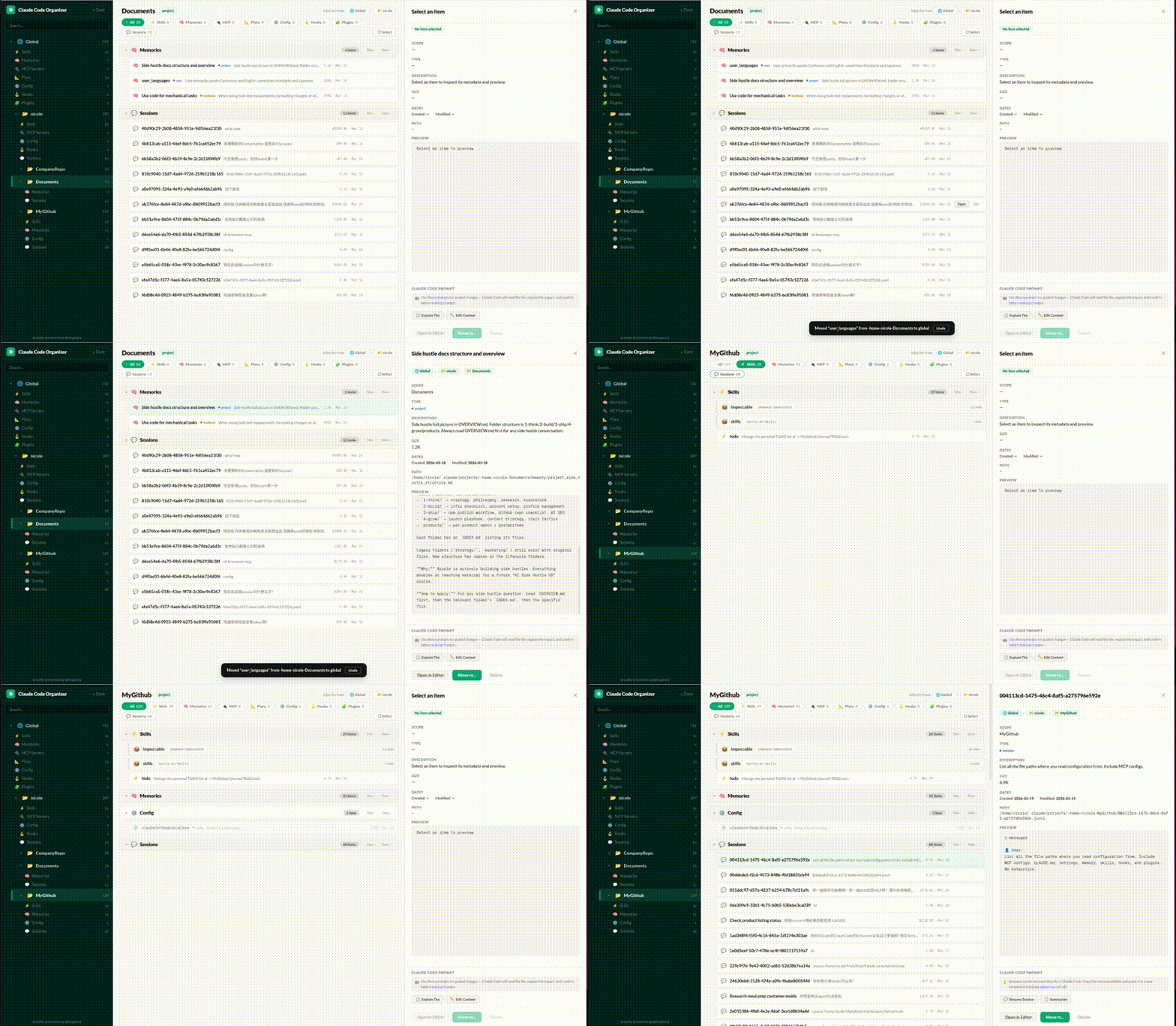
With Pagecast (tooltip mode) — a magnified close-up appears on every interaction so viewers can actually see what's happening, and it design what to demo and make a new demo gif automatically:

With Pagecast (cinematic mode) — the camera crops and pans to follow each action, and it design what to demo and make a new demo gif automatically:

Two ways to use Pagecast
1. Product demo tool (the main use case)
You built a web app. You need a demo GIF for the README. Normally you'd:
- Open a screen recorder, manually click through the demo
- Open a video editor, zoom into the important parts
- Export, figure out ffmpeg, optimize the file size
- UI changes → repeat everything
With Pagecast, you tell your AI:
"Record a demo of localhost:3000 for my GitHub README"
The AI opens a real browser, interacts with your app, and exports a polished GIF with auto-zoom on every interaction. UI changes? Just re-run. The demo rebuilds itself.
2. Screen recording tool (also works)
Don't need zoom effects? Pagecast works as a plain screen recorder too:
"Record my app for 10 seconds and export as MP4"
The AI records, you get a .webm → optimized .gif or .mp4. Two-pass ffmpeg palette optimization, platform-aware sizing, one tool call.
Export Modes
| Mode | Tool | What it does | Best for |
|---|---|---|---|
| Tooltip | smart_export |
Full viewport visible + magnified tooltip inset near each interaction | README demos, product pages |
| Cinematic | cinematic_export |
Camera crops and pans to follow each interaction | Social media, dramatic reveals |
| Plain | convert_to_gif / convert_to_mp4 |
Standard screen recording, no zoom effects | Bug reports, QA captures |
Just Say Where It's Going
You don't need to know viewport sizes or formats. Just tell your AI the destination:
"Record a demo for GitHub README"           → 1280×720 GIF
"Record my app for Instagram Reels"         → 1080×1920 MP4
"Make a TikTok demo of my dashboard"        → 1080×1920 MP4
"Record for YouTube"                        → 1280×720 MP4
| Platform | Size | Format | Aspect |
|---|---|---|---|
github / readme |
1280×720 | GIF | 16:9 |
youtube / twitter |
1280×720 | MP4 | 16:9 |
reels / tiktok / shorts |
1080×1920 | MP4 | 9:16 |
instagram / linkedin |
1080×1080 | MP4 | 1:1 |
| Custom | Any size | Your choice | Any |
Quick Start
Node.js ≥ 20 and ffmpeg required.
# Add to Claude Code
claude mcp add pagecast -- npx -y @mcpware/pagecast

# Or run directly
npx @mcpware/pagecast

# Headless mode (no visible browser)
claude mcp add pagecast -- npx -y @mcpware/pagecast --headless

# First time: install browser
npx playwright install chromium
How It Works
You: "Record a demo of my app"
            ↓
AI → record_page(url, platform: "github")
    Opens Chromium (visible) at 1280×720
    Injects cursor highlight + click ripple
            ↓
AI → interact_page(click, type, hover...)
    Each action records bounding box + timestamp
            ↓
AI → stop_recording
    Saves .webm + timeline.json
            ↓
AI → smart_export (tooltip mode)
        or cinematic_export (crop-pan mode)
        or convert_to_gif (plain mode)
            ↓
    Shipping-ready .gif or .mp4
What makes the demo look professional:
- Cursor highlight — red dot tracks the mouse so viewers can follow the action
- Click ripple — visual feedback on every click
- Tooltip overlay — magnified close-up appears near each interaction, with a small arrow pointing toward it
- Cinematic pan — smooth crop transitions between interaction targets with easeInOut curves
MCP Tools
| Tool | What it does |
|---|---|
record_page |
Open a URL, start recording. Auto-injects cursor highlight + click ripple |
interact_page |
scroll, click, hover, type, press keys, select, navigate, waitForSelector — all captured with bounding boxes |
stop_recording |
Stop and save .webm + -timeline.json (event timeline with interaction positions) |
smart_export |
Tooltip overlay — magnified tooltip close-up on each interaction |
cinematic_export |
Cinematic crop-pan — camera follows the action between interaction targets |
convert_to_gif |
WebM → optimized GIF (ffmpeg two-pass palette, configurable FPS/width/trim) |
convert_to_mp4 |
WebM → MP4 (H.264, ready for social/sharing/embedding) |
record_and_export |
All-in-one: record → auto-export to GIF or MP4 based on platform |
list_recordings |
List all .webm, .gif, and .mp4 files in output directory |
Comparison
| Automated | Interactions | Demo zoom | Output | AI-driven | Platform presets | |
|---|---|---|---|---|---|---|
| Pagecast | ✅ | ✅ click/type/scroll/hover | ✅ tooltip + cinematic | GIF + WebM + MP4 | ✅ | ✅ |
| Screen Studio | ❌ manual | ❌ | ✅ cursor-based | MP4 | ❌ | ❌ |
| AutoZoom | ❌ manual | ❌ | ✅ click-based | MP4 | ❌ | ❌ |
| Playwright MCP | ✅ | ✅ | ❌ | Raw .webm |
Partial | ❌ |
| gifcap.dev / Peek / Kap | ❌ manual | ❌ | ❌ | GIF | ❌ | ❌ |
| VHS (Charmbracelet) | ✅ scripted | Terminal only | ❌ | GIF | ❌ | ❌ |
Screen Studio and AutoZoom have great zoom — but require manual recording. Pagecast is the only tool where the AI records AND the demo effects are automatic.
Configuration
| Setting | Default | Notes |
|---|---|---|
| Browser | Headed (visible) | --headless for background |
| GIF FPS | 12 | Higher = smoother, larger |
| GIF width | 800px | Height auto-scaled |
| Tooltip magnify | 1.6x | How much the tooltip zooms in |
| Tooltip size | 380px | Size of the tooltip inset |
| Cinematic zoom | 2.5x | How much the camera zooms in |
| Zoom transition | 0.35s | Smoothstep ease-in/out duration |
| Cursor overlay | On | Red dot + click ripple effect |
| Video viewport | 1280×720 | Or use platform parameter |
| Output dir | ./recordings |
Override: RECORDING_OUTPUT_DIR |
Architecture
src/
├── index.js        # MCP server — 9 tools, platform presets, stdio transport
├── recorder.js     # Playwright browser lifecycle + sessions + event timeline
├── converter.js    # ffmpeg GIF/MP4 + tooltip overlay + cinematic zoom conversion
├── zoom.js         # Zoom engine — chains, panning, tooltip events, FFmpeg expressions
├── tooltip.js      # Tooltip PNG generator (rounded rect + arrow, pure Node.js)
└── remotion/
    ├── ZoomComposition.jsx  # React composition for cinematic zoom
    ├── Root.jsx             # Remotion entry point
    └── render.js            # Remotion CLI wrapper
- Event timeline — every interaction records bounding box + timestamp
- Cursor overlay — red dot + click ripple injected into the page
- Tooltip overlay — magnified close-up in a clean tooltip frame with directional arrow
- Cinematic zoom chains — nearby interactions form chains that zoom in, pan, zoom out
- Thread-safe FFmpeg expressions — crop filters work correctly with multi-threaded encoding
- Headed by default — watch what the AI does
execFilenotexec— safe against shell injection
More from @mcpware
| Project | What it does | Install |
|---|---|---|
| Instagram MCP | 23 Instagram Graph API tools — posts, comments, DMs, stories, analytics | npx @mcpware/instagram-mcp |
| Claude Code Organizer | Visual dashboard for Claude Code memories, skills, MCP servers, hooks | npx @mcpware/claude-code-organizer |
| UI Annotator | Hover labels on any web page — AI references elements by name | npx @mcpware/ui-annotator |
| LogoLoom | AI logo design → SVG → full brand kit export | npx @mcpware/logoloom |
License
MIT
Pagecast MCP questions
How do I add Pagecast MCP to Claude Code?
Run claude mcp add pagecast -- npx -y @mcpware/pagecast in your terminal. Add --scope user to make it available in every project.
How do I add Pagecast MCP to Cursor?
Open ~/.cursor/mcp.json and add the server under mcpServers, using the Cursor config shown in the install section above.
What tools does Pagecast MCP provide?
It exposes 9 tools, including record_page, interact_page, stop_recording, smart_export, cinematic_export.
What does Pagecast do?
Pagecast records a browser page with Playwright, captures every click, scroll and keystroke, and exports a GIF or MP4 with tooltip zoom or cinematic pan effects.
What do I need to install to run Pagecast?
You need Node.js 20 or newer and ffmpeg, plus the Playwright Chromium browser, which you install with npx playwright install chromium.
Can I record demos sized for Instagram Reels or TikTok?
Yes. Give the AI a platform name like reels or tiktok and Pagecast records at 1080×1920 MP4; it also has presets for GitHub, YouTube, Instagram and LinkedIn.
What export modes does Pagecast offer?
There are three: tooltip mode shows a magnified close-up inset per interaction, cinematic mode crops and pans to follow actions, and plain mode gives a standard screen recording.
Does Pagecast run headless?
It opens a visible browser by default so you can watch, but you can add the --headless flag to run it in the background.