
Exposes your live Chrome or Brave browser tabs to MCP clients to automate navigation, clicking, typing, and data extraction.
Also known as KazKozDev/WebOperator, weboperator-mcp
- Stars
- 4
- Tools
- 10
- Downloads, 30 days
- —
- Latest version
- 1.5.1
- Last commit
- Oct 26, 2026
- License
- MIT
What is WebOperator MCP?
WebOperator exposes your live Chrome or Brave browser tabs to MCP clients to automate navigation, clicking, typing, and data extraction. It exposes 10 tools, such as browser_snapshot, browser_navigate, browser_click.
Summary generated from the project's README
About WebOperator MCP server
WebOperator allows you to turn your active Chrome or Brave browser tabs into tools for AI agents. Unlike other browser agents that use isolated profiles, this server works directly within your existing browser sessions, meaning your logins and cookies remain intact. It functions as a local bridge that exposes your live tabs to MCP clients like Hermes or OpenClaw via stdio.
Users can interact with the browser through a side panel or by connecting an external agent client. The system supports a wide range of model providers, including local setups via Ollama or MLX, as well as remote APIs like Anthropic, OpenAI, and Gemini. It operates using a plan, act, and verify loop to ensure actions are executed correctly against the current page state.
The MCP implementation provides ten specific tools, including browser_navigate, browser_click, browser_type, and browser_extract. It also features a scheduling system that can run recurring tasks on a daily, weekly, hourly, or once-off cadence using Chrome alarms.
What you can do with it
- 1Automate multi-tab data comparisonAn AI client can navigate through several open tabs to find and compare specific information.
- 2Execute complex browser workflowsThe agent can perform a sequence of actions including clicking, typing, and scrolling to complete a goal.
- 3Connect external agents to live tabsDevelopers can use the MCP bridge to let external agent clients control their active browser session.
Written from the project's README. Every use case is checked against a quote from it.
How to install WebOperator MCP
Formats verified 10 Nov 2026Add to CursorAdd to GooseInstall WebOperator MCP in Claude Code
$ claude mcp add --env 'WEBOPERATOR_API_TOKEN=<YOUR_WEBOPERATOR_API_TOKEN>' weboperator -- npx -y weboperator-mcpInstall WebOperator MCP in Cursor
~/.cursor/mcp.json
{
  "mcpServers": {
    "weboperator": {
      "command": "npx",
      "args": [
        "-y",
        "weboperator-mcp"
      ],
      "env": {
        "WEBOPERATOR_API_TOKEN": "<YOUR_WEBOPERATOR_API_TOKEN>"
      }
    }
  }
}Install WebOperator MCP in VS Code
.vscode/mcp.json
{
  "servers": {
    "weboperator": {
      "type": "stdio",
      "command": "npx",
      "args": [
        "-y",
        "weboperator-mcp"
      ],
      "env": {
        "WEBOPERATOR_API_TOKEN": "<YOUR_WEBOPERATOR_API_TOKEN>"
      }
    }
  }
}Install WebOperator MCP in VS Code CLI
$ code --add-mcp '{"name":"weboperator","type":"stdio","command":"npx","args":["-y","weboperator-mcp"],"env":{"WEBOPERATOR_API_TOKEN":"<YOUR_WEBOPERATOR_API_TOKEN>"}}'Install WebOperator MCP in Claude Desktop
claude_desktop_config.json
{
  "mcpServers": {
    "weboperator": {
      "command": "npx",
      "args": [
        "-y",
        "weboperator-mcp"
      ],
      "env": {
        "WEBOPERATOR_API_TOKEN": "<YOUR_WEBOPERATOR_API_TOKEN>"
      }
    }
  }
}Install WebOperator MCP in Codex
$ codex mcp add weboperator --env 'WEBOPERATOR_API_TOKEN=<YOUR_WEBOPERATOR_API_TOKEN>' -- npx -y weboperator-mcpInstall WebOperator MCP in Codex config.toml
~/.codex/config.toml
[mcp_servers.weboperator]
command = "npx"
args = ["-y", "weboperator-mcp"]

[mcp_servers.weboperator.env]
WEBOPERATOR_API_TOKEN = "<YOUR_WEBOPERATOR_API_TOKEN>"
Install WebOperator MCP in Gemini CLI
$ gemini mcp add -s user -e 'WEBOPERATOR_API_TOKEN=<YOUR_WEBOPERATOR_API_TOKEN>' weboperator npx -- -y weboperator-mcpInstall WebOperator MCP in Gemini settings.json
~/.gemini/settings.json
{
  "mcpServers": {
    "weboperator": {
      "command": "npx",
      "args": [
        "-y",
        "weboperator-mcp"
      ],
      "env": {
        "WEBOPERATOR_API_TOKEN": "<YOUR_WEBOPERATOR_API_TOKEN>"
      }
    }
  }
}Started by HostedMCP on 16 Nov 2026
We ran this command for weboperator-mcp 1.5.1 in an isolated container with no network and no keys. It answered and listed 10 tools.
WebOperator MCP tools 10
Read from the server with tools/listbrowser_snapshotCapture the structured accessibility tree and numbered interactive elements (buttons, inputs, links) from the current active browser tab.
browser_navigateNavigate the active browser tab to a specified URL.
browser_clickClick an element on the webpage by its numeric index (from browser_snapshot) or CSS selector.
browser_typeType text into an input field by element index or selector.
browser_pressPress a keyboard key on the active webpage (e.g. "Enter", "Tab", "Escape", "ArrowDown", "Backspace").
browser_scrollScroll the active webpage up or down.
browser_screenshotCapture a visual PNG screenshot of the current active browser tab.
browser_extractExtract text or structured data from the webpage according to an extraction instruction.
browser_solve_captchaAttempt to detect and automatically solve or click Cloudflare Turnstile, reCAPTCHA, or hCaptcha verification challenges in the active tab.
weboperator_execute_goalExecute an autonomous browser goal end-to-end using WebOperator multi-step planner.
Configuration
WEBOPERATOR_API_TOKENSecretShared token required by the bridge when unauthenticated access is disabled.
WEBOPERATOR_AGENT_SOCKETUnix socket path the bridge listens on.
WEBOPERATOR_BRIDGE_PORTPort of the local WebOperator bridge HTTP API.
Automated checks
Ran Nov 13, 2026Full report →Passed our automated checks. That is not a security audit: read the code and give the server the narrowest access it needs. How checks work

- Source repository linked and reachablePass
- Open source license (OSI)Pass
- Commit or release in the last yearPass
- Package name not close to a popular packagePass
- Remote endpoint uses HTTPSNot checked
- Destructive tools are labelledNot checked
- No hidden instructions to the modelPass
- No critical advisory in the package or its dependenciesPass
README
View on GitHubWebOperator — AI browser agent and MCP server for Chrome automation
Tell Chrome what you want done, in plain English, and let the agent do it.
Most browser agents bring their own browser. WebOperator works the one you are already in: the tab in front of you, with your sessions and logins intact — no separate profile, no re-login, no copying cookies around. The model behind it can be local, served by Ollama or MLX, so the pages you look at never have to leave the machine. And it works in both directions: the local bridge exposes that same live tab over MCP, so Hermes, OpenClaw, or any other agent client can borrow your browser as a tool.
git clone https://github.com/KazKozDev/WebOperator.git
npm --prefix WebOperator/core ci
npm --prefix WebOperator/core run build
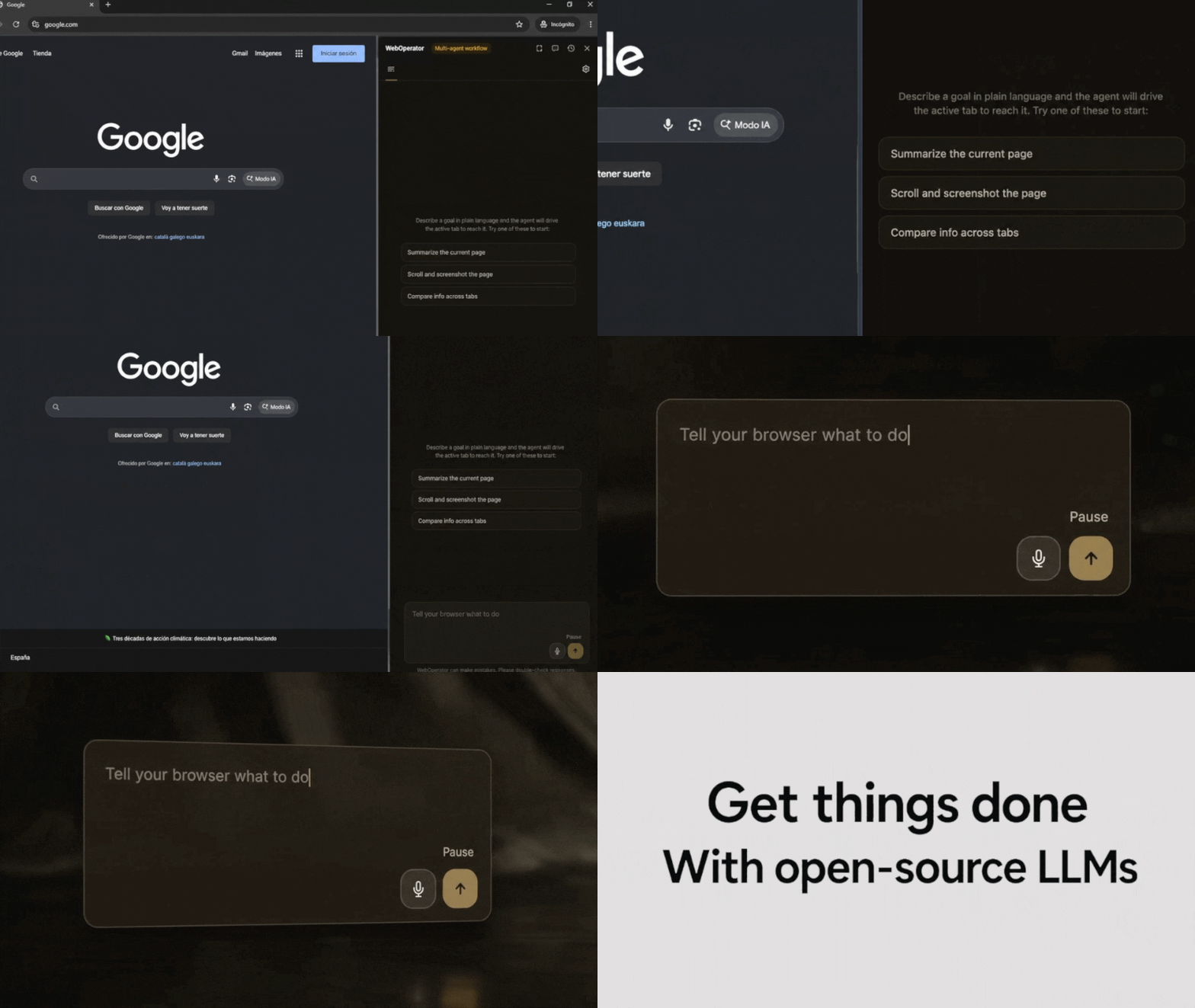
Your goal, typed once · The agent plans, acts, verifies · Every step visible
Quick start
Two ways in. If you would rather not touch Node, grab the
weboperator-1.5.0-chrome.zip archive from the
latest release and unzip it —
that folder is the built extension.
If you ran the commands above instead, the build lands in core/dist and finishes in
well under a second:
vite v8.0.11 building client environment for production...
✓ 101 modules transformed.
✓ built in 189ms
Either way, open chrome://extensions, enable Developer mode, click Load unpacked, and point it at the folder you just got. Press Cmd+Shift+K (Ctrl+Shift+K on Linux) to open the side panel, pick a provider under Settings, and type a goal.
Out of the box the agent talks to Ollama at http://127.0.0.1:11434, so have a tool-capable local model running before your first task — or paste an API key and use a remote provider instead.
Automate a multi-step task across your open Chrome tabs
WebOperator works the tab you are looking at in a plan → act → verify loop: it writes out a plan you can read, calls one browser tool at a time, and checks each result against a fresh snapshot of the page before moving on.
Summarize the current page
It can navigate, click, type, press keys, scroll, switch tabs, screenshot, and pull out structured text — so the same loop still works when the answer is scattered across half a dozen open tabs.
Compare info across tabs
The side panel streams the plan, every action, and the final answer, and keeps the full trace; history, checkpoints, and scheduled runs each get their own tab. The flip side: the agent only knows what it can actually see in the browser, so anything hidden, paywalled, or geo-blocked simply will not show up in the answer.
- Agent engineering — a plan, act and verify loop, 29 browser tools, 6 loop guards
- LLM security — the prompt-injection attack rate down from 44.4% to 0.0% across 9 adversarial fixtures
- LLM evaluation — AssistantBench and 24 fixtures in a deterministic harness, see docs/evals.md
- MCP — the browser exposed as an MCP server with 10 tools for any agent client
Schedule recurring browser automation in Chrome
Some tasks you want done whether or not you are at the keyboard. Give a schedule a start URL, a goal, and a cadence — once, hourly, daily, or weekly — and Chrome alarms wake the agent on time, even with the side panel closed.
Task name:  Morning release check
Start URL:  https://github.com/KazKozDev/WebOperator/releases
Repeat:     daily
Goal:       Tell me if a new version was published since yesterday
Every run lands in History with its trace, so you can go back afterwards and see exactly what it did. If a run hits something only you can clear — a login wall, a verification challenge — it stops and marks itself needs_user rather than failing quietly.
Connect Hermes, OpenClaw, or another MCP agent
Your live browser can be somebody else's tool. The local bridge speaks MCP over stdio and exposes ten of them: browser_snapshot, browser_navigate, browser_click, browser_type, browser_press, browser_scroll, browser_screenshot, browser_extract, browser_solve_captcha, and weboperator_execute_goal.
cd weboperator-bridge
./install.sh
node mcp-server.js
install.sh registers the Native Messaging host that wires those calls to your active Chrome or Brave tab. Drop-in configs for Hermes and OpenClaw are already in weboperator-bridge/.
How it works
A goal arrives from the side panel or from an external MCP agent. From there the service worker runs the show — model calls, task state, retries, verification, schedules, storage. The content script does the hands-on part: it turns the page into an accessibility snapshot with stable element refs, then performs DOM actions against those refs. Whatever the page says is treated as data, never as instructions to follow. Twelve built-in skills sit on top as domain playbooks and kick in when the agent recognizes a matching site or task.
goal → page snapshot → model tool call → verified action → trace
To read and act on the page you point it at, the extension asks for <all_urls> plus activeTab/tabs/scripting, and for debugger to reach the DevTools Protocol actions the plain DOM API cannot do. The rest are housekeeping: sidePanel for the UI, storage for settings and history, alarms for scheduled runs, downloads for the file-downloader skill, and nativeMessaging for the MCP bridge. bookmarks and tabGroups are optional and only requested when something actually needs them.
The debugger permission is why Chrome shows a yellow "WebOperator started debugging this browser" bar while an action runs. That bar belongs to Chrome, not to the extension, and it goes away as soon as the agent detaches.
Configuration
| Option | Default | What it does |
|---|---|---|
| Provider | ollama |
Selects Ollama, Anthropic, DeepSeek, Gemini, MLX, OpenAI, an OpenAI-compatible endpoint of your own, OpenRouter, SiliconFlow, or xAI |
| Base URL (OpenAI-compatible) | http://127.0.0.1:8080/v1 |
Points the OpenAI-compatible provider at llama.cpp, LM Studio, vLLM, LiteLLM, or any gateway |
| Ollama URL | http://127.0.0.1:11434 |
Sets the local Ollama endpoint |
| Screenshot policy | auto |
Controls automatic, always-on, or disabled vision |
| Action timeout | 10000 ms |
Limits a single browser action attempt |
| Domain allowlist / blocklist | empty | Restricts or rejects tasks by domain when populated |
Bridge authentication
The bridge listens on 127.0.0.1:8765 and will accept unauthenticated calls until you set
WEBOPERATOR_API_TOKEN. Set it. Every bridge variable — bind host, port, socket and log
paths — is documented in docs/api.md.
Requirements
- Chrome 120 or newer, or a Chromium browser of the same generation
- Node.js and npm, if you build the extension yourself
- A model that can call tools, served locally by Ollama or MLX or reached through one of the remote providers in the table above. Tool calling is the one hard requirement, because tool calls are the only way the agent acts. Reasoning and vision are nice to have — without them the agent still runs, and the step trace tells you which one it went without
- The extension is not on the Chrome Web Store, so you load it unpacked
- macOS or Linux, for the MCP bridge installer
shellcheck, only if you run the full local check gate
- Dynamic, canvas-heavy, or infinite-scroll pages can invalidate element refs between the moment the agent looks and the moment it acts.
- Sites with bot detection or unusual focus handling can fail outright.
- Long tasks drift. Checkpoints and context compression hold it back, but do not cure it.
- Point it at a remote provider and that provider sees your page observations — text and screenshots included.
- Chrome and Brave are the browsers we test. Other Chromium builds and Windows are untested, and the bridge installer flatly refuses to run outside macOS and Linux.
Ollama 403— Ollama is refusing the extension's origin. Restart it withOLLAMA_ORIGINS="chrome-extension://phbohkmfojcjbmgfnaikenmgemgckdpg,http://localhost:*" ollama serve. The origin has to be spelled out: Ollama acceptschrome-extension://*into the list and then still answers 403. The id above is fixed by the manifest key, and the side panel's own error message repeats it.- "Model stopped issuing tool calls" — the model cannot call tools, or is too small to do it reliably. Swap it; tool calling is the one hard requirement.
- Chrome rejects the folder on Load unpacked — point it at
core/distor at the unzipped release folder, not at the repository root. - The bridge answers
401— you setWEBOPERATOR_API_TOKENon the bridge but the client is not sending it. AddAuthorization: Bearer $WEBOPERATOR_API_TOKENto the request. - A task fails on a page that looks fine — check the step trace in the side panel first; a stale element ref or a bot-detection wall shows up there as the failing action.
Contributing
Bug reports, feature requests and pull requests are all welcome. CONTRIBUTING.md walks through the setup, the eight-step check gate every change has to clear, and the commit conventions. Released versions are listed in CHANGELOG.md.
Found a security problem? Please don't open a public issue — report it privately, the way SECURITY.md describes.
From a release
Each archive on the releases page ships
with a .sha256 beside it, and is built and published by the release workflow from the
tagged commit once the full check gate passes.
From source
npm --prefix core ci && npm --prefix core run build, then load the result as an unpacked extension.
Docker
There is no Dockerfile or Compose configuration.
Development
npm --prefix core run dev gives you watch builds. ./scripts/check.sh runs the whole gate: fixture evals, bridge smoke test, typecheck, lint, unit tests, dead-code scan, shellcheck, and build.




Issues · LICENSE · API · ARCHITECTURE · Agent protocol · LinkedIn
WebOperator MCP questions
How do I add WebOperator MCP to Claude Code?
Run claude mcp add --env 'WEBOPERATOR_API_TOKEN=<YOUR_WEBOPERATOR_API_TOKEN>' weboperator -- npx -y weboperator-mcp in your terminal. Add --scope user to make it available in every project.
How do I add WebOperator MCP to Cursor?
Open ~/.cursor/mcp.json and add the server under mcpServers, using the Cursor config shown in the install section above.
What tools does WebOperator MCP provide?
It exposes 10 tools, including browser_snapshot, browser_navigate, browser_click, browser_type, browser_press.
Does WebOperator use my existing browser sessions?
Yes, it works with the tabs you already have open, meaning your sessions and logins remain intact without needing to copy cookies or re-login.
What tools are exposed via the MCP server?
The MCP bridge exposes ten tools including browser snapshot, navigate, click, type, press, scroll, screenshot, extract, solve captcha, and execute goal.
Can I schedule recurring browser tasks?
Yes, you can schedule tasks with a start URL, a goal, and a cadence of once, hourly, daily, or weekly.