
FS-SC MCP server
Commit Nov 4, 2026Turns an AI coding client into an autonomous software company with 12 specialized agent roles, sprint planning, and automated verification.
Also known as ferhatbas/fssc-mcp
- Stars
- 0
- Tools
- —
- Downloads, 30 days
- —
- Latest version
- —
- Last commit
- Nov 4, 2026
- License
- MIT
What is FS-SC MCP?
FS-SC turns an AI coding client into an autonomous software company with 12 specialized agent roles, sprint planning, and automated verification.
Summary generated from the project's README
About FS-SC MCP server
Transforming an AI coding client into a disciplined software organization is the primary function of fssc-mcp. It coordinates twelve specialized agent roles, including a Project Manager, Architect, Backend Developer, and QA Tester, to plan, build, and verify entire applications. Instead of a single chat session, the server manages work through structured sprints, epics, and tasks using a built-in Jira-style board.
Developers use this by connecting an MCP-compatible client like Claude Desktop, Claude Code, Meta Muse Code, or Google Antigravity. In the default mode, the server acts as a coordinator and referee, using the user's existing AI subscription to drive the process without requiring additional API keys. For those who prefer an autonomous setup, an optional Meta Model API mode is available, though it is metered and can consume significant tokens. The system can be deployed via Docker for a clean environment or installed locally using Python and Node.js. A live React dashboard provides visibility into agent thinking, sprint progress, and verification results.
What you can do with it
- 1Automated software project managementA developer can hand over a project brief to have the system organize requirements into epics, stories, and sprints.
- 2Continuous code verificationThe system can automatically run syntax checks, linting, and builds to ensure every code delivery is functional.
- 3End-to-end application testingAn AI client can be tasked with driving a real browser to verify that the application works as intended.
- 4Autonomous version controlThe server can manage git commits automatically once the code passes all verification steps.
Written from the project's README. Every use case is checked against a quote from it.
Automated checks
Ran Nov 16, 2026Full report →Not verified yet. A server needs a score of 80, no serious finding, and enough data for us to check. How checks work · What to fix for more points

- Source repository linked and reachableferhatbas/fssc-mcp is public and reachablegithub.com/ferhatbas/fssc-mcp ↗Pass
- Package names this repository as its sourceNot checked
- Build provenance (Sigstore attestation)Not checked
- Open source license (OSI)MITspdx.org/licenses/MIT.html ↗Pass
- Commit or release in the last yearLast commit or release 2026-11-04github.com/ferhatbas/fssc-mcp ↗Pass
- OpenSSF ScorecardNot checked
- Package name not close to a popular packageNot checked
- No critical advisory in the package or its dependenciesNot checked
- No hidden instructions to the model0 tool descriptions and the README read; no override phrases, credential paths or hidden charactersPass
- Destructive tools are labelledNot checked
- Remote endpoint answers the MCP handshakeNot checked
README
View on GitHubFS-SC — Full System-Software Company
An autonomous software company you drive from your own AI subscription — or, optionally, from the Meta Model API.
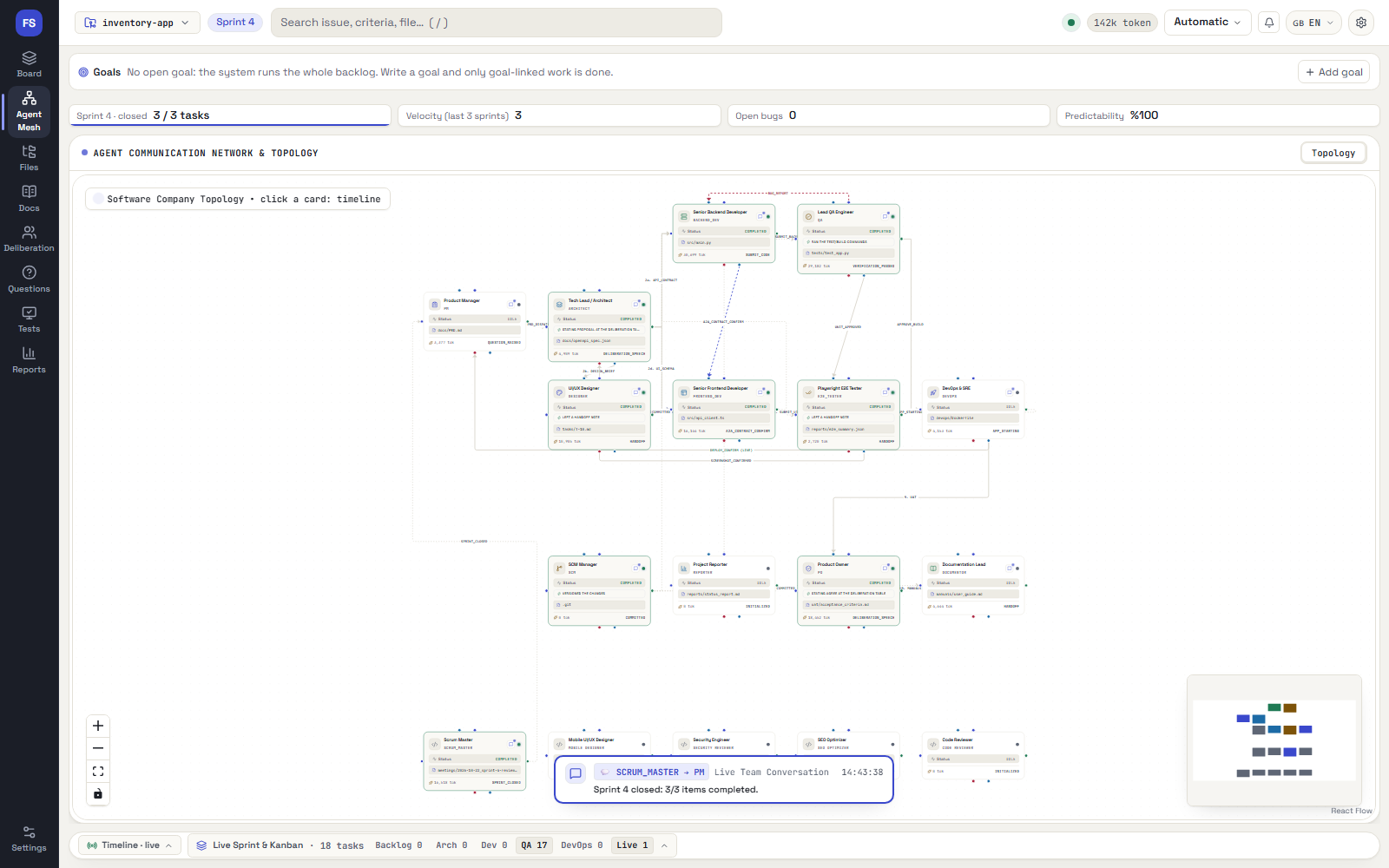
FS-SC (Full System-Software Company) turns an AI coding client (Claude Desktop / Claude Code, Meta Muse Code or Google Antigravity) into a small, disciplined software company. Twelve role-playing agents — PM, PO, Architect, Backend, Frontend, QA, E2E Tester, DevOps, Reporter, Documentor, SCM and Scrum Master — plan, build, verify and ship an application, while a local server keeps the books and a live dashboard shows everything that happens.
No API key is needed by default. In the default MCP client mode the server never calls a model: your connected client (with your own subscription) produces every step, and FS-SC is the coordinator, the state machine and the referee that checks the work. An optional Meta Model API mode lets the server drive the run itself (see Meta Model API mode). ⚠ API mode is metered: an autonomous run can use millions of tokens. Read the cost warning before you start one.
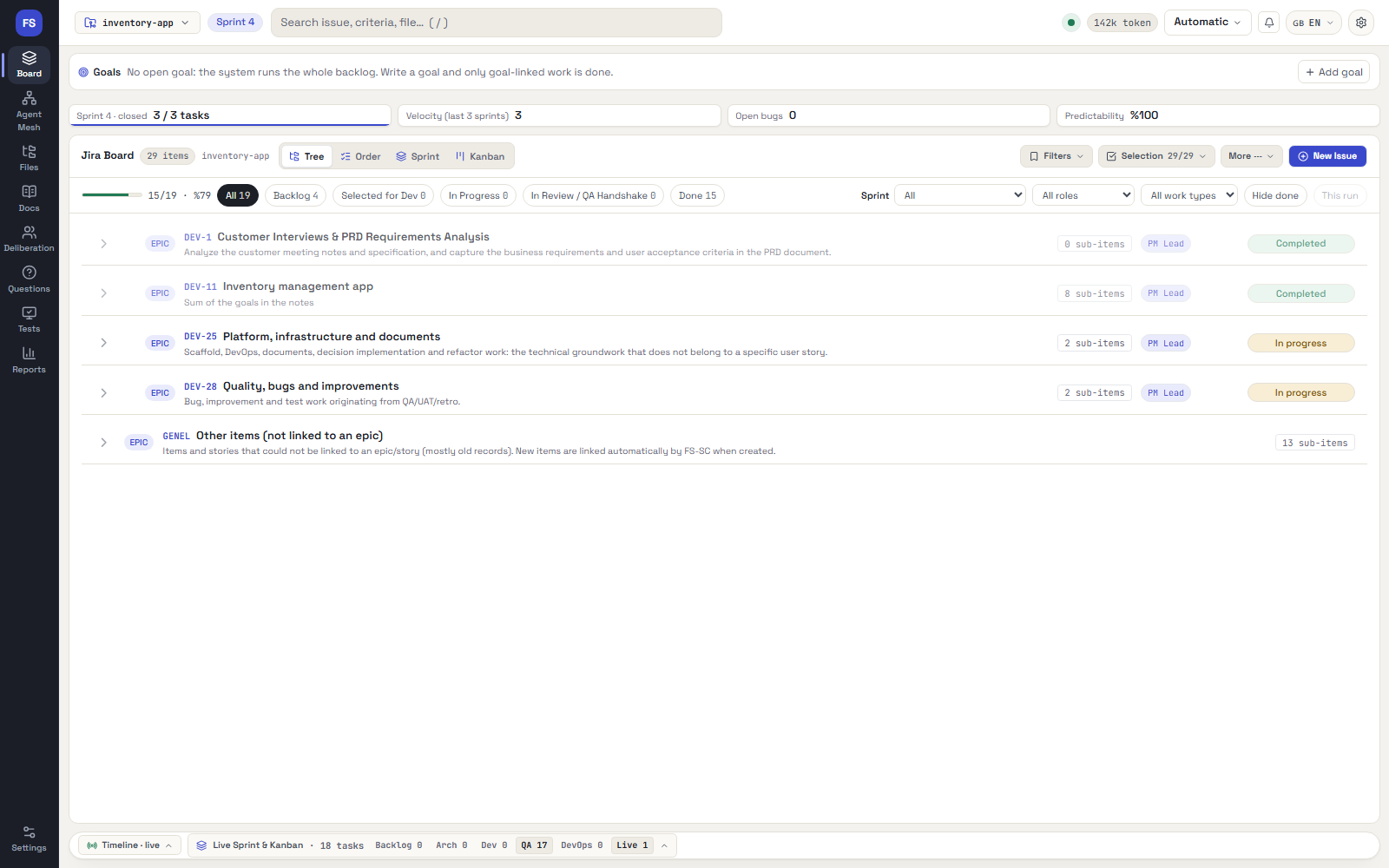



Who it is for: developers who already pay for an AI coding client and want it to run a whole project (planning, sprints, tests, commits) with checks and a live board, instead of one long chat.
Quick start — two ways to run it (details in Installation and running)
git clone https://github.com/ferhatbas/fssc-mcp.git && cd fssc-mcp

# A) Docker: nothing to install except Docker (one container, dashboard + toolchain inside)
docker compose -f devops/compose.yaml up -d --build      # http://127.0.0.1:8099

# B) Local: Python + Node on your machine
pip install -r requirements.txt && cd dashboard && npm install && npm run build && cd ..
python -m server.main --mode web                         # http://127.0.0.1:8099
Then connect your client (how) and try the sample brief in examples/.
New here? Read the User Manual — a screen-by-screen guide to the whole dashboard, with screenshots.
Table of contents
- Why FS-SC
- How it works
- What you get
- Requirements
- Installation and running
- Connect your AI client
- Using FS-SC — a worked example
- Meta Model API mode (optional)
- Languages
- Configuration
- Safety model
- Troubleshooting
- Project layout
- Roadmap
- Contributing and development
- License
A complete screen-by-screen guide is in the User Manual.
Why FS-SC
Asking one chat assistant to "build me an app" tends to produce a pile of plausible-looking files and a confident summary. FS-SC adds the missing management layer:
- Work is planned like a real team plans it. Requirements become epics, stories and tasks in a built-in Jira-style board, grouped into sprints with a goal, capacity, carry-over rules and retrospectives.
- Agents are checked, not trusted. After every delivery the server runs syntax checks, install, lint, build and tests on your machine. A failing delivery opens a fix round; a passing one is committed to git by the SCM agent.
- "Done" has to be proven. A task is closed by evidence (tests that ran, files that exist, acceptance criteria that map to tests), not by an agent saying so. Design screens are compared with the running app in a real browser.
- You stay in control. Technology choices (language, database, hosting, new libraries) are decisions you approve on the dashboard. You can pause, add manager notes, revise a step or approve each step manually.
- Everything is visible. A live dashboard shows the board, the agents' thinking, every step's files, verification output and commits.
How it works
 ┌────────────────────────┐   MCP tools: get_next_step / submit_step_result    ┌───────────────────────────┐
 │ Claude Desktop / Code  │ ─────────────────────────────────────────────────▶ │  FS-SC server             │
 │ or Antigravity (Gemini)│   "here is the next step — produce it"             │  (FastAPI + MCP, port 8099)│
 │  produces each step    │ ◀───────────────────────────────────────────────── │  writes files, runs tests, │
 │  with its own model    │                                                     │  commits, updates Jira     │
 └────────────────────────┘                                                     └─────────────┬─────────────┘
                                                                                              │ WebSocket
                                                                                  ┌───────────▼───────────┐
                                                                                  │  React dashboard       │
                                                                                  │  http://127.0.0.1:8099 │
                                                                                  └───────────────────────┘
FS-SC uses a pull model. The client asks for the next step (get_next_step), receives a role prompt plus the context it needs,
produces a single JSON envelope containing the files to write, and sends it back (submit_step_result). The server validates the
envelope, writes the files into the target project, verifies them, commits, and decides the next step. The client never writes files
or runs commands itself.
The run is dynamic. The backbone is ten phases, and the server inserts more steps as the project requires:
1 PM (PRD + open questions) → [technology decisions gate] → 2 Architect (architecture, OpenAPI, backlog, verify commands)
→ 3 backend skeleton → 4 client skeleton → backlog tasks (each: delivery → server verification → fix rounds → SCM commit)
→ 5 backend/frontend handshake → 6 QA (tests the server actually runs) → 7 E2E (app is started, Playwright drives real Chromium)
→ 8 DevOps → 9 PO UAT (rejection creates improvement tasks) → 10 Documentor / Reporter
In sprint mode (recommended) the work is run sprint by sprint: planning, a commitment, daily steps, an architect review, a review/retro and re-scoping, with carry-over limits and a definition of done that requires tests.
What you get
| Area | Highlights |
|---|---|
| Planning | Epics → stories → tasks with acceptance criteria (AC-n), priorities, dependencies, estimates, sprints, expedite lane, saved filters, bulk edit, Kanban and tree views |
| Verification | Syntax → install → lint → build → tests after every delivery; automatic fix rounds; secret scan blocks commits; commands come from the architect/DevOps or from your manifests and pass a deny-list |
| Definition of done | Strict DoD: code must come with tests, acceptance criteria must map to test evidence, regression set required at sprint close |
| Design | A designer step produces HTML mockups, a design system and screen-flow maps; a completeness gate checks mobile responsiveness, states and endpoint coverage; each approved screen becomes an implementation task |
| Testing team | QA derives test cases (TC-n) from acceptance criteria, runs them, files bugs automatically, quarantines flaky tests; Playwright E2E drives the real app |
| Git | SCM agent commits feat(JIRA-x) / fix(JIRA-x) after verification; agent scratch files are kept out of git |
| Control | Technology decisions gate, manager notes, per-step approval modes, revise/skip steps, pause/cancel, deliberation room for architect trade-offs |
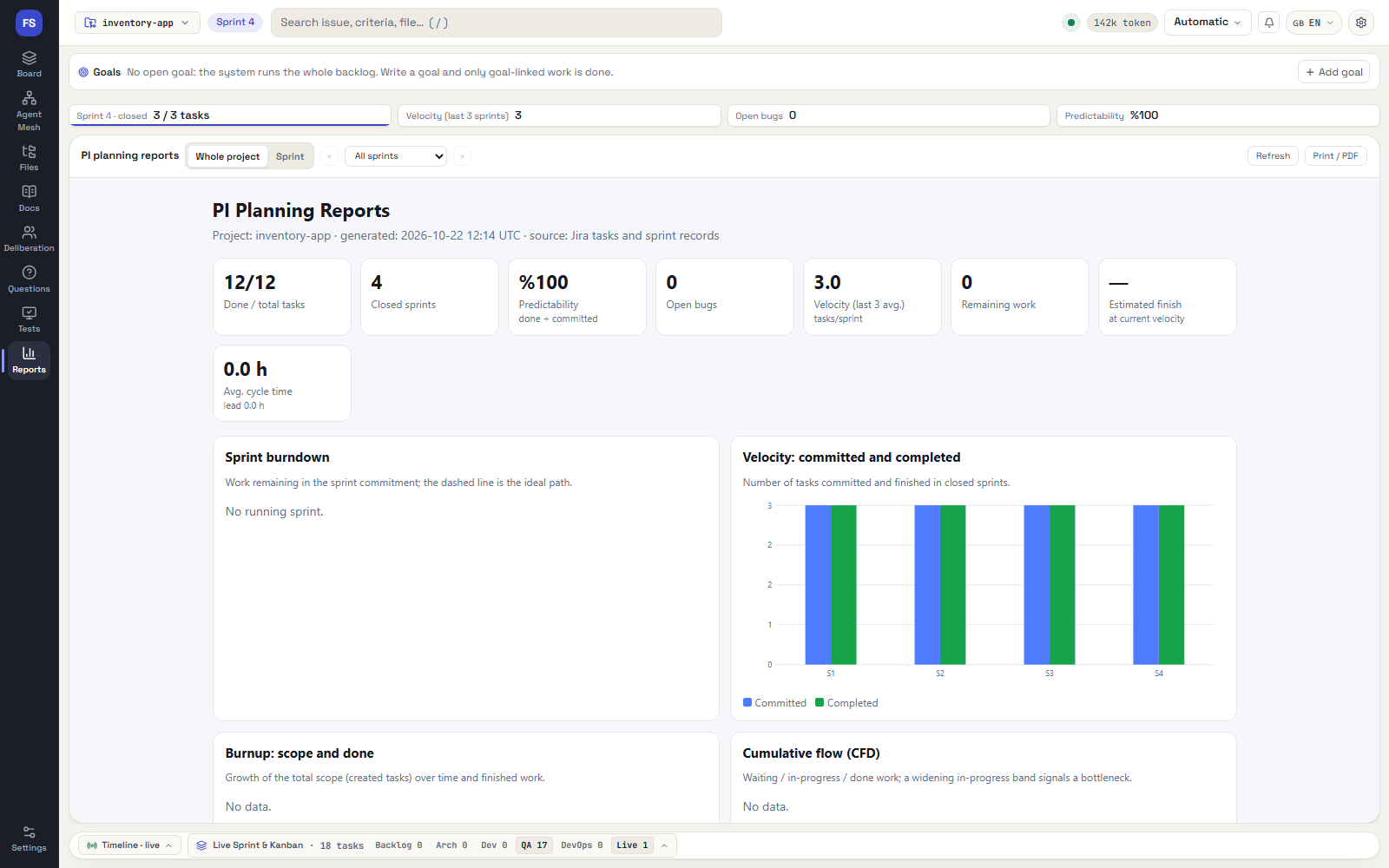
| Observability | Live board, agent topology, thinking stream, audit trail per task, files and evidence per task, token usage, reports |
| Multi-project & multi-client | Switch projects from the top bar; the same project can be driven from Claude or Antigravity |
| Languages | Dashboard in English, Turkish, Spanish and German; every project has its own output language |
Requirements
Pick one way to run FS-SC. You do not need both.
| Docker | Local | |
|---|---|---|
| You need | Docker Desktop (Windows, macOS) or Docker Engine with Compose v2 (Linux) | Python 3.10+ (tested on 3.12), Node.js 18+ and npm, Git |
| Playwright / Chromium | included in the image | installed by the setup script |
| Disk | about 2.5 GB for the image | a few hundred MB |
| Good for | a clean, repeatable setup; demos; keeping the toolchain off your machine | day-to-day work: fastest file access, direct use of your AI client |
An MCP-capable AI client is needed unless you use the built-in API mode (Meta Model API mode): Claude Desktop or Claude Code
(npm install -g @anthropic-ai/claude-code), Meta Muse Code, or Google Antigravity.
The helper script scripts/fssc.ps1 targets Windows PowerShell 5.1+. Everything it does can also be done with plain python / npm commands
(shown below), so macOS and Linux work too; the Claude Desktop registration helper is Windows-only.
Installation and running
git clone https://github.com/ferhatbas/fssc-mcp.git
cd fssc-mcp
Option A — Docker (one container)
One container runs the whole server: API, dashboard, Git, Node, Python and Playwright Chromium. The dashboard is published on
127.0.0.1:8099 only (it has no login).
1. Build and start (from the repository root; the first build takes several minutes):
docker compose -f devops/compose.yaml up -d --build
2. Open http://127.0.0.1:8099. docker compose -f devops/compose.yaml ps shows the container as healthy after about 20 seconds.
3. Where things live
| In the container | Backed by | Holds |
|---|---|---|
/app |
the image | server code, built dashboard, agent prompts |
/app/history |
named volume fssc-data |
project registry, server log, state (survives down and rebuilds) |
/workspaces |
folder on your computer (FSSC_WORKSPACES, default devops/workspaces) |
the projects FS-SC generates; you can open them on the host |
Finding your projects on your computer: open the FSSC_WORKSPACES folder (default devops/workspaces) in Explorer or Finder. Do not use Docker Desktop's Open folder link, it points into Docker's internal WSL machine and cannot be opened.
Projects are created inside the container, so use the container path. In the dashboard open the project switcher, choose Add New and enter
/workspaces/my-app (a new, empty folder). On your computer the same folder appears under your FSSC_WORKSPACES folder.
The Windows registry is not shared: the container starts with its own, empty registry.
4. Everyday commands
docker compose -f devops/compose.yaml logs -f fssc      # follow the server log
docker compose -f devops/compose.yaml down              # stop and remove the container (volume and projects are kept)
docker compose -f devops/compose.yaml up -d             # start it again
docker compose -f devops/compose.yaml up -d --build     # rebuild after pulling new code
docker compose -f devops/compose.yaml down -v           # also delete the registry volume (projects in FSSC_WORKSPACES stay)
5. Settings — put them in devops/.env (a plain KEY=value file next to the compose file; it is ignored by git and by the Docker build, so it is safe for a key)
or export them in your shell before up:
| Variable | Default | Meaning |
|---|---|---|
FSSC_PORT |
8099 |
Host port of the dashboard (the container always listens on 8099) |
FSSC_WORKSPACES |
./workspaces (inside devops/) |
Host folder mounted as /workspaces; use a full path such as D:/work/fssc-workspaces |
MODEL_API_KEY |
empty | Meta Model API key for the built-in API driver (see below) |
6. Drive it with an AI client
-
Without a client on your computer (built-in API driver). Set
MODEL_API_KEY, restart the container, then in the dashboard open Model, choose the API driver and the model, and start a run from the board. The server produces the steps itself; see Meta Model API mode for budgets and guard rails. -
With a client on your computer. Register this command as the MCP server of your client; the forwarder inside the container reaches the server over localhost:
{ "command": "docker", "args": ["exec", "-i", "fssc", "python", "-m", "server.main", "--mode", "stdio"], "env": {} }The same entry shape works in
claude_desktop_config.json, a project's.mcp.jsonand Antigravity'smcp_config.json. Verified: a host-side MCP client initialised over this command and listed the tools. Not verified: Claude Desktop and Antigravity with this command. The helper scripts (register_claude_desktop.py, the.mcp.jsonFS-SC writes into new projects) assume a local checkout, so register the Docker command by hand.
Limits of the Docker version
- The container has no Docker engine, so it never runs a generated project's app itself. The preview is the project's own Docker environment
(
devops/docker-compose.yml, written by the DevOps agent) and it runs on your computer, as separate containers you can see in Docker Desktop. The Preview panel shows the commands (build, start, logs, stop) with your computer's folder path and step-by-step instructions, then watches the published ports throughhost.docker.internal. With the Client (MCP) driver the command is handed to the connected Claude session, which runs it in its own shell (you approve it there) and reports the result; with the API driver nobody has a shell, so you run the commands yourself. E2E and Playwright tests target that preview, and a stopped preview fails the E2E step with the start command. - Projects live on a bind mount; on Docker Desktop for Windows file-heavy steps (
npm install) are slower than on a local disk (measured about 6 times slower than the container's own file system). PointFSSC_WORKSPACESat the WSL2 file system if this hurts. - The server-side
claudeCLI bridge is not used in the container; a client on your computer pulls work instead. - Only one server can listen on port 8099: stop the local server (
scripts\fssc.ps1 stop) before starting the container, or changeFSSC_PORT(or the localOBSERVER_PORT). They never share state.
Option B — Local
Windows (one script):
powershell -ExecutionPolicy Bypass -File scripts\fssc.ps1 install            # pip + Playwright Chromium + npm
powershell -ExecutionPolicy Bypass -File scripts\fssc.ps1 build              # build the dashboard
powershell -ExecutionPolicy Bypass -File scripts\fssc.ps1 start -Background  # start the server
Any platform (manual):
pip install -r requirements.txt                 # development: -r requirements-dev.txt
python -m playwright install chromium           # E2E tests
cd dashboard && npm install && npm run build && cd ..
python -m server.main --mode web                # http://127.0.0.1:8099
Open http://127.0.0.1:8099. The built dashboard is served by the server itself. For dashboard development use npm run dev
(http://127.0.0.1:5173, /api and /ws are proxied).
Day-to-day on Windows
| Task | Command |
|---|---|
| Start in the background (survives closing your AI client) | scripts\fssc.ps1 start -Background -NoBrowser |
| Stop | scripts\fssc.ps1 stop |
| Restart after the code changed (the top bar shows a ! badge) | stop, then start -Background -NoBrowser |
| Status | scripts\fssc.ps1 status |
| Another port | scripts\fssc.ps1 set-port -Port <n>, then reconnect your clients |
| Server log | history/server.log |
Other script commands: test, dry-run (a full, model-free rehearsal), register-desktop, app-test, app-run, compose, e2e. Run scripts\fssc.ps1 help for details.
On macOS and Linux run python -m server.main --mode web yourself (for example in tmux).
Keep the server running in its own process (
start -Background). If the server lives inside a client session, closing that session drops the run.
Connect your AI client
Running the Docker version? The client entry is different: see step 6 of Option A — Docker.
Claude Code (simplest)
Open this repository (or any FS-SC target project) in Claude Code. The committed .mcp.json registers the fssc-visual-observer
server; approve it on first use. Target projects get their own .mcp.json and a CLAUDE.md block automatically when you add them.
Claude Desktop
python scripts\register_claude_desktop.py --restart
This closes Claude Desktop, writes a backup, adds the server to %APPDATA%\Claude\claude_desktop_config.json and restarts the app.
(Editing that file while the app is open gets overwritten by the app.)
Meta Muse Code
Run python scripts/register_muse.py to add the fssc-visual-observer entry to Muse Code's user settings
(~/.config/muse/settings.json; other entries are kept and a backup is made). --print shows the entry without writing, --remove deletes it.
Antigravity (Gemini)
Every target project gets .agents/mcp_config.json and a GEMINI.md rules file when you add it, so Antigravity picks the server up by
opening the project folder. For a global setup, add the same fssc-visual-observer entry (copy it from the repository .mcp.json) to
C:\Users\<you>\.gemini\config\mcp_config.json.
You can switch between Claude and Antigravity on the same project; the run is held by the server, not by the client.
Using FS-SC — a worked example
This walkthrough builds a small app from a specification.
1. Add a project. In the top bar open the project switcher, choose Add New and pick (or create) an empty folder. Choose the project language (English is
the default) — it controls the language of the documents, Jira texts and meeting notes the agents write. FS-SC bootstraps the folder: git, .fs-workspace/,
.mcp.json, .agents/mcp_config.json, CLAUDE.md and GEMINI.md blocks.
2. Give it a specification. Open the spec vault and upload (or paste) your notes: a product brief, meeting notes, an existing PRD. Everything the agents need to know lives here.
3. Start the run. Press the run button on the board; the run waits in the queue. In Claude (or Antigravity), with the project folder open, type:
Run the pipeline for the <project-id> project
The client calls start_pipeline_run, then loops on get_next_step / submit_step_result. If a run was interrupted (client closed, server
restarted) the same prompt resumes it from the step where it stopped.
4. Answer the decisions. Before the architect designs anything, the Decisions dialog asks for language/framework, database, client type and hosting. The agents obey your answers; a library that is not on the approved list opens a new decision instead of being used silently.
5. Watch the work. The board fills with epics, stories and tasks. Each task shows its steps, verification result, commit and the files it produced.
Click a task's #id to open its drawer: the Work tab lists what each step did and links straight to the files.
6. Steer when needed. Add a manager note (it becomes the agents' top-priority instruction on the next step), pause, revise a step, skip a step, or answer questions raised in the Questions dialog. Approval can be Automatic or Every step.
7. Review the design. Start a design task (with a brief) and the designer produces an HTML design system, mockups for every screen and screen-flow maps. After you approve, every screen becomes a frontend task.
8. Ship. At sprint close the architect reviews the diff, the retro and the next plan are written, and the project is committed. The Documentor writes the user guide, the Reporter writes the status report and changelog.
A model-free rehearsal of the whole loop is available at any time: choose the Template engine (or scripts\fssc.ps1 dry-run) and the server
simulates the roles itself.
Meta Model API mode (optional)
Besides the pull model, FS-SC can run a pipeline by itself with Meta's OpenAI-compatible Model API (default model muse-spark-1.3).
Choose Execution driver → API in the model window of the dashboard (setting execution_driver: "api").
⚠ Cost warning — read before you start an autonomous run
In API mode every step is a paid model call, and an autonomous run makes hundreds of them. A single project (PM → Architect → backlog tasks → fix rounds → QA → E2E → UAT → docs, repeated per sprint) can consume millions of tokens. Hidden reasoning tokens are billed too and are not visible in the answer. FS-SC cannot know your price per token, your free quota or your account limits.
- Set a spending limit on your Meta account first, then use the limits below as a second line of defence.
- Start small. Try a short brief and one sprint, watch the API usage strip on the dashboard, then scale up.
- Do not leave a run unattended until you have seen how it behaves on your project. Pause or cancel from the dashboard at any time.
- Token counts on the dashboard are estimates from the API's usage report, not an invoice. Check the real figures in your provider's console.
- Failing work is the expensive case: repeated fix rounds, rescopes and re-asks multiply the cost. Treat a run that keeps failing as a signal to stop and read the questions, not to raise the limits.
Using your API key
-
The key never touches the repository, the settings, the logs or the dashboard. It is read only from an environment variable of the server process,
MODEL_API_KEY(fallbackMETA_API_KEY). The dashboard only shows whether a key is present. -
Set it in the shell that starts the server, then start the server from that shell:
$env:MODEL_API_KEY = "<your key>" # PowerShell; use `export MODEL_API_KEY=...` on macOS / Linux scripts\fssc.ps1 start -Background -NoBrowser -
Never paste the key into the dashboard, a project file, a chat, a screenshot, a commit or an issue. Do not add it to
.mcp.jsonor any file that is committed. If a key leaks, revoke it in the provider's console immediately. -
A key changed after the server started is not picked up: restart the server.
-
Only
https://base URLs are accepted (defaulthttps://api.meta.ai/v1), so a key is never sent in clear text. -
Without a key, API mode stops with a clear error and makes no call.
FS-SC MCP questions
Do I need an API key to use FS-SC?
No, by default in MCP client mode, the server uses your connected client's subscription and does not require an API key.
What kind of agents does FS-SC provide?
It provides twelve role-playing agents including PM, Architect, Backend, Frontend, QA, E2E Tester, DevOps, and Scrum Master.
How does the server verify the code produced by the AI?
The server runs syntax checks, installation, linting, builds, and tests on your machine after every delivery.
Can I run FS-SC using Docker?
Yes, you can run it in a single container that includes the API, dashboard, Git, Node, Python, and Playwright Chromium.