
Scumble MCP server
Commit Nov 15, 2026Enables AI clients to control a layered image editor for inpainting, masking, and generating images using ComfyUI or various API providers.
Also known as DenRakEiw/scumble
- Stars
- 178
- Tools
- —
- Downloads, 30 days
- —
- Latest version
- 0.1.56
- Last commit
- Nov 15, 2026
- License
- GPL-3.0
What is Scumble MCP?
Scumble enables AI clients to control a layered image editor for inpainting, masking, and generating images using ComfyUI or various API providers.
Summary generated from the project's README
About Scumble MCP server
Controlling a layered image editor through an AI client is what Scumble enables for developers and creators. This desktop application functions as an AI-native editor that allows users to inpaint, mask, upscale, and generate images where every modification is preserved as an individual layer. It is designed to work with your existing workflows by connecting to a local or remote ComfyUI instance, Comfy Cloud, or directly via API keys from providers like Black Forest Labs, OpenAI, Google, fal.ai, and Replicate.
Users can drive the editor using 119 specific tools through MCP clients such as Claude Desktop or Claude Code. The software handles complex tasks like color-matching new layers to existing backgrounds and managing massive files up to 65,535 pixels. While it runs on Windows today, it provides a professional-grade environment for manipulating images with GPU-based filters, text layers, and advanced blending modes without requiring a separate account.
What you can do with it
- 1Automated layered image generationAn AI agent can draw boxes on a canvas and describe contents to generate a new image with specific elements in designated areas.
- 2Remote model executionA developer can instruct an AI client to run heavy image generation tasks on a remote ComfyUI server or via cloud APIs.
- 3Complex image editing via commandsUsers can use an MCP client to perform precise editing tasks like selecting, masking, or exporting files using a wide array of tools.
- 4Non-destructive AI inpaintingAn AI can modify specific parts of an image and return the result as a new, color-matched layer that does not overwrite the original.
Written from the project's README. Every use case is checked against a quote from it.
Automated checks
Ran Nov 12, 2026Full report →Not verified yet. A server needs a score of 80, no serious finding, and enough data for us to check. How checks work · What to fix for more points

- Source repository linked and reachablePass
- Open source license (OSI)Pass
- Commit or release in the last yearPass
- Package name not close to a popular packageNot checked
- Remote endpoint uses HTTPSNot checked
- Destructive tools are labelledNot checked
- No hidden instructions to the modelPass
- No critical advisory in the package or its dependenciesNot checked
README
View on GitHubGet Scumble
| Platform | Get it | Notes |
|---|---|---|
| Windows | Microsoft Store, or winget install scumble |
Signed by Microsoft, no SmartScreen warning, updated by the Store |
| Windows | Installer: Scumble-Setup-<version>.exe |
Updates itself; not code-signed yet, so SmartScreen asks once |
| Windows, portable | Zip: Scumble-<version>-portable-win-x64.zip |
No install; keeps its data in a folder beside it |
| Linux (x64) | AppImage or .deb | Early builds made by CI, not run by the author yet; reports welcome |
| macOS | not yet | Planned, not started |
Scumble is free and needs no account of its own. The details, and what it needs to render, are under Installation.
What can it do?
Scumble is a desktop image editor built around AI models. Select part of a picture, or draw boxes on an empty canvas, say what should be there, and the answer comes back as a layer of its own, colour-matched to what surrounds it, that you can mask, blend, filter and export like any other. It renders on your own ComfyUI (on your machine or a remote one), on Comfy Cloud, or through the API keys you may already have for FLUX, GPT Image, Nano Banana, Seedream and more: a key alone is enough, no ComfyUI needed. It is free software (GPL-3.0), runs on Windows today, and is young (0.1.x), so expect rough edges and keep backups of your pictures.
Five things it does well
Every result is its own layer
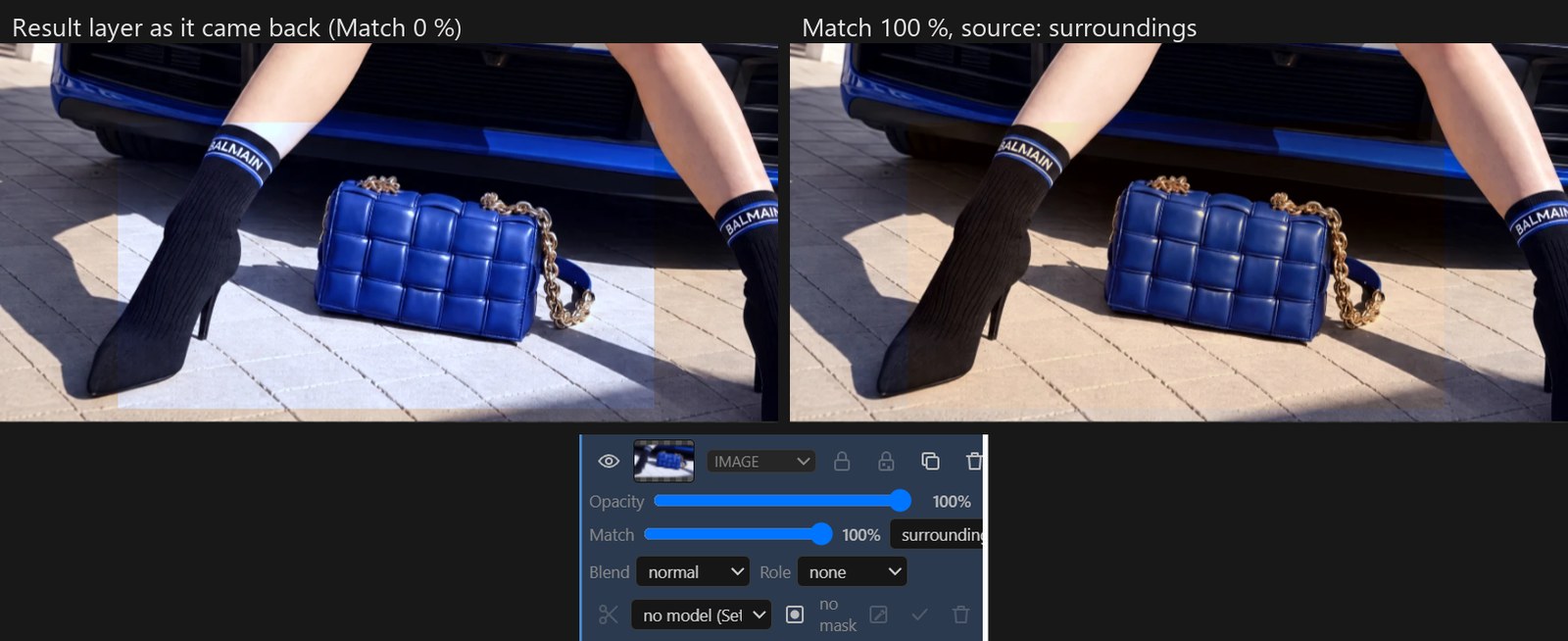
A result lands over your selection as a new layer, faded in at the edge and colour-matched to the picture around it. The Match slider in the layer's row changes that match at any time, and nothing else is baked in either: mask the layer, erase parts, change its blend mode, put filters and text on top. The picture only becomes one when you flatten. The status line and the result's row in the history say where it ran ("FLUX 3 Image via Comfy Router, 23 s", or "via your ComfyUI"). An answer that comes back slightly shifted or scaled is lined up with the picture's edges, and Match edges to the layer below in a layer's menu does the same afterwards.
Say where things go: boxes and @img1
Draw boxes on the picture and describe each one: something new, something kept, moved or removed, a reference picture
placed, words rendered. FLUX 3 Image from Black Forest Labs (on every provider Scumble runs it on, and its open Klein
model on your own ComfyUI) gets the boxes with the prompt and is told where each thing goes; Ideogram 4 on fal takes
the new, kept and text boxes, and MOSS-Image on your own ComfyUI lays out a new picture from the new and text boxes. Reference layers are named in the prompt as @img1, @img2, and each one goes out
under the name the chosen model knows that picture by.
Your ComfyUI, Comfy Cloud, or just your keys
Recipes instead of node graphs: you pick a model and where it runs. On your own ComfyUI, local or on a rented box such as RunPod, any workflow with the Inpaint Canvas node becomes a recipe, and the ComfyUI button opens your ComfyUI's own page beside the editor to change a recipe's graph and save it back; up to five LoRAs from your ComfyUI's own list (or Comfy Cloud's) go into a recipe's runs without touching its graph. Comfy Cloud runs on your Comfy key through Comfy's official SDK, with 15 recipes from Comfy's own templates, and the same key reaches the partner models on Comfy Router. Or paste a key into Settings › API providers: Black Forest Labs, OpenAI, Google, fal.ai, Replicate, OpenRouter and more. Keys go into the system's credential store, never into a settings file.
Agents can drive it
Every feature is a command, and the commands are an MCP server: Help › Copy MCP registration (or, for Claude
Desktop, the .mcpb file of every release, installed with one click), and Claude Code, Claude Desktop or any other
MCP client gets 119 tools to open, select, generate, match and export, in the same window and with the same undo. (A built-in chat assistant on your own key is there too; see The assistant.)
Made for real files
PSD export with layers and masks, OpenRaster with layers, and both open again with their layers. A tile engine with compiled Rust kernels keeps a 15,000 × 10,000 pixel document painting, selecting and exporting without freezing the window, and PNGs up to 65,535 pixels a side open and save in strips. Filters are layers too, on the GPU: 46 film looks, grain, curves, LUTs and more.
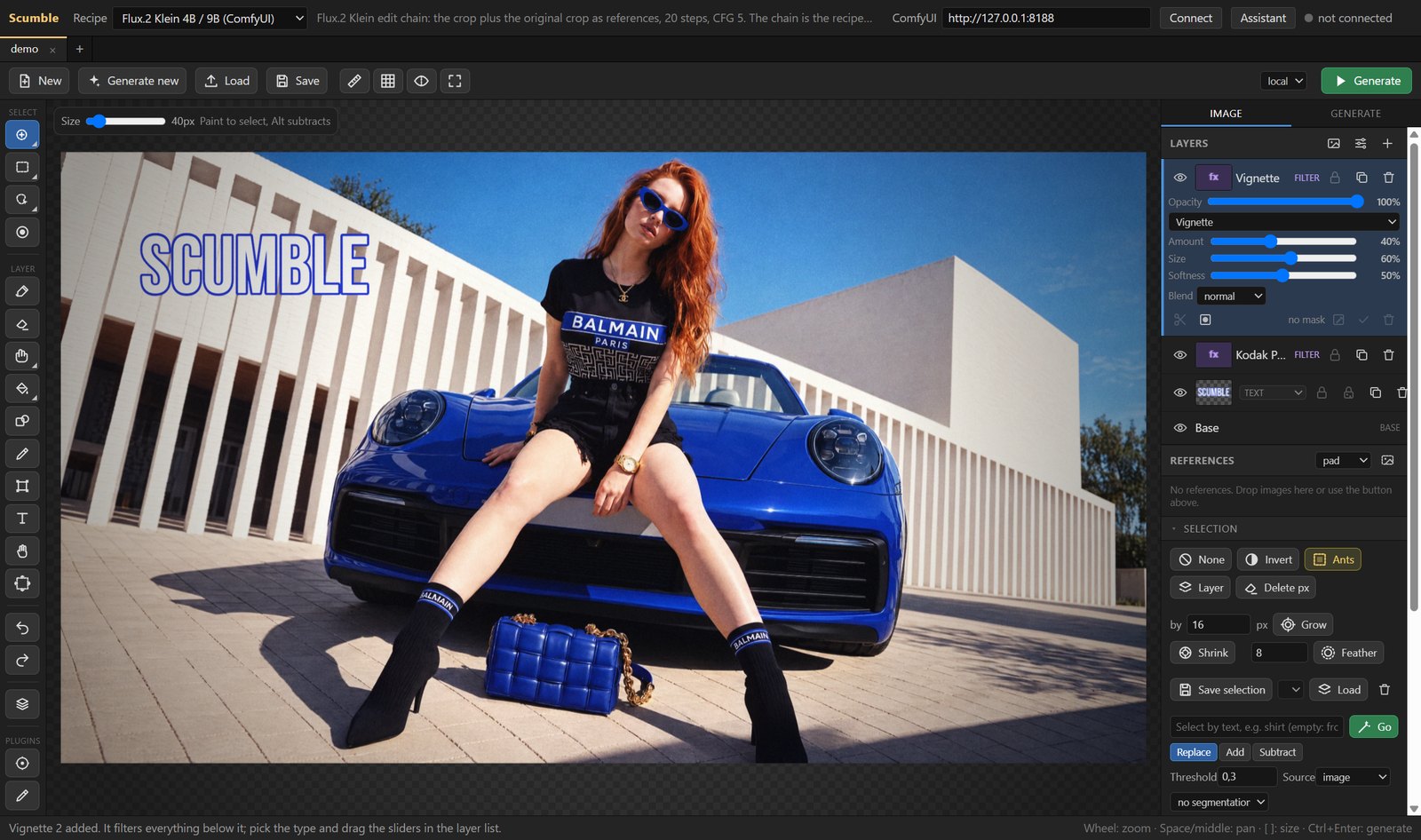
The photo in the editor screenshots (the woman on the blue car) is a sample picture used to show the features; nothing in it was generated with Scumble. The café picture at the top and below was made in Scumble with FLUX 3 Image.
Before / After
Three boxes drawn and described on an empty canvas (left), and the picture FLUX 3 Image made from them with Generate new (right).
Installation
Windows (10 and 11, 64-bit)
-
Microsoft Store: Scumble in the Microsoft Store, or in a terminal:
winget install scumble(winget installs the same Store copy and may ask you to accept the Store's terms first.) Microsoft signs the Store copy, so it installs without a SmartScreen warning, and the Store keeps it up to date. A new version arrives there after Microsoft has certified it, so sometimes a little after the GitHub release. The Store copy keeps its own settings, keys and files (
%APPDATA%\Scumble Store), so it can sit beside the GitHub one. -
Installer from GitHub:
Scumble-Setup-<version>.exefrom the latest release. It is not code-signed yet, so SmartScreen shows "Windows protected your PC" once: click More info, then Run anyway. After that the app downloads its own updates and asks before it restarts into a new version. -
Portable zip:
Scumble-<version>-portable-win-x64.zipfrom the same release. Unpack it into a folder you can write to, such asC:\Tools(not Program Files, not a folder OneDrive syncs), and start theScumble.exein itsScumblefolder (SmartScreen asks once, as for the installer). Everything it stores stays in adatafolder beside it, so it runs beside an installed Scumble. It does not update itself: it tells you when a new version is out, and you unpack the new zip over the old one (thedatafolder stays). API keys are encrypted for the Windows account, so on another PC they have to be typed again (and after that possibly on the first PC too).
Linux
The same release carries scumble-<version>.AppImage and scumble-<version>.deb (x64). They are built by CI and
have not been run by the author yet; reports are welcome in the
issues. Details are under Linux notes below.
macOS
Planned, not started yet.
What you need to render
-
Only an API key: Settings › API providers (Ctrl+,), paste the key, Save. No ComfyUI and no server; you pay the provider directly. The same keys serve the assistant and prompt upsampling.
-
Your own ComfyUI: the node pack ComfyUI-InpaintCanvas installed there, and the models of the recipe you pick. Install the pack with git into ComfyUI's
custom_nodesfolder, then restart ComfyUI (the pack needs no extra Python packages):cd ComfyUI/custom_nodes git clone https://github.com/DenRakEiw/ComfyUI-InpaintCanvasThe ComfyUI Manager does not list the pack at the moment; once it does, you can install it from there too. Then type the server's address in Scumble's top bar and press Connect. Scumble checks for the pack when it connects and says so when it is missing; it does not install it for you. Boxes for FLUX 3 Image Klein and MOSS-Image need the node at 0.4.1 or newer (on the Comfy Registry since 2026-10-23; 0.3.4 and older have none): update a copy installed from the Registry there, a clone with
git pullin its folder, then restart ComfyUI. -
Comfy Cloud: your Comfy key in Settings › API providers; the same key runs Comfy Router.
Without any of these Scumble still opens, paints, selects, layers, filters, saves and exports, and its in-app models (object selection, background removal, Remove, the depth map) run on your own machine once downloaded.
Demo: videos and the manual
- Videos: four parts, two voices, one of them a sceptic, each recorded in the app: "Scumble, explained by someone who did not ask" (4:40) and "Scumble, part two: he has more questions" (4:03) at version 0.1.28, "Scumble, part three: the client has notes" (5:34, 0.1.42: boxes for FLUX 3 Image, a reference photo in the prompt) and "Scumble, part four: the show is on Friday" (5:18, 0.1.46: a depth map, lens blur and haze, 27 blend modes).
- Manual: from the first picture to the export. The same text ships with the app: F1 opens it beside the picture, searchable and offline, and with any API key a chat answers questions from it. Its source is docs/MANUAL.md.
⭐ If you like it
If Scumble is useful to you, a star on GitHub helps other people find it. Something broken? Open an issue with what you did and what happened; Ctrl+Shift+L opens the console, which shows the path of the log file. What is being built, what was measured and what did not work is on the dev blog, and CHANGELOG.md lists every version.
What has been tried live
Scumble is at 0.1.x and not every feature has been tested end to end. Run against the real thing so far: local rendering through ComfyUI (FLUX 3 Image Klein with boxes among it), the in-app helper models, the film pack, the command core, the MCP server, the tile engine on large documents and auto-update; among the API providers FLUX 3 Image on Black Forest Labs (with boxes), OpenRouter and Comfy Router (on Comfy Router also through Comfy's SDK since 0.1.49), GPT Image 2.5 through OpenRouter, GPT Image 2 and Nano Banana 2 on Comfy Router, HY Image 3.5 through Comfy's Partner API, Ideogram 4 on fal (with boxes), Qwen Image 2.1 Edit on Comfy Cloud, Z-Image Turbo, Flux.2 Klein 9B and a Nano Banana 2 edit on Comfy Cloud through Comfy's SDK and its API v2 (a Cancel there stopped the job on Comfy's side), and the upscalers Topaz Precision on fal and Magnific Precision and Creative on Magnific; on a local ComfyUI the Realism Pass (Windows only, RTX only) and RTX Video Super Resolution, the latter on Comfy Cloud too. The other API routes were built from the providers' documentation and have not run against the live services yet, nor have relight's model routes, the assistant's model calls, the portable zip on a second PC, or the Linux builds.
Features in detail
Select, prompt, generate
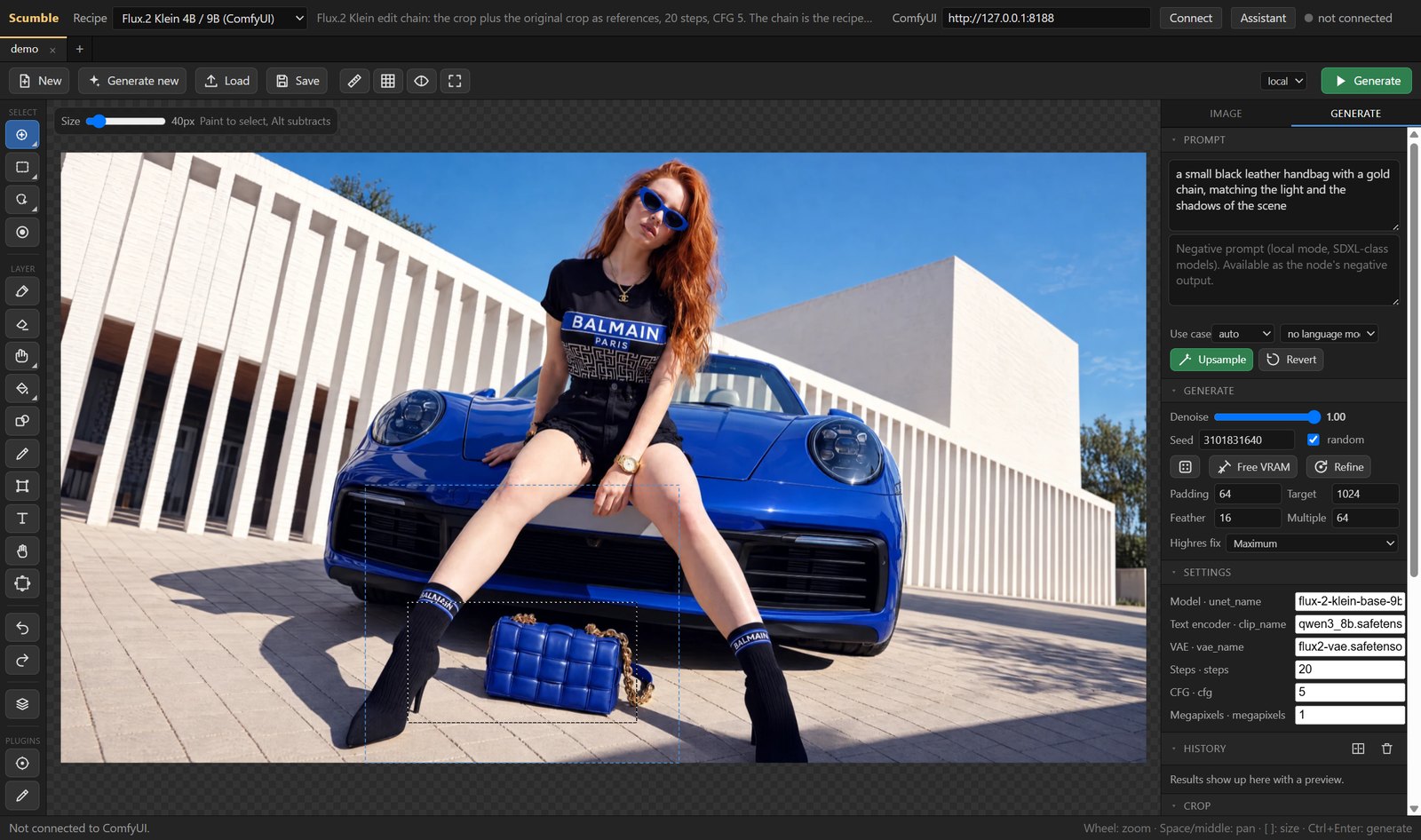
- Selection by brush, rectangle, ellipse, lasso, magic wand, object hover or box (SAM2, in the app), by depth, brightness or colour range, or by text (SAM3 on your ComfyUI); grow, shrink, feather, invert, from layer, saved selections.
- A depth map of the picture, computed in the app (Depth Anything V2 Small, Selection › Depth) and saved with the document: it selects, limits filter layers, and drives lens blur, haze and Relight.
- Models: FLUX 3 Image, FLUX.2 (max, pro, flex, klein) and FLUX.1 Fill from Black Forest Labs; GPT Image 2.6 and 2.5 Flare / Sunburst and GPT Image 2; Nano Banana 2.1, 2, 2 Lite and Pro; Seedream 5.5 (on BytePlus ModelArk, in early access), 5 and 4.5; Qwen Image Edit and Qwen Image 2.1; Ideogram 4 and 4.5; Grok Imagine, Krea 3 Edit and Krea 2, Recraft V4, Reve, Z-Image, HY Image 3.5, P-H3-Image and MiniMax-H3-Image (on MiniMax's own API, not run live yet); Magnific's Mystic, Ideogram inpainting and Image Expand outpainting. Each runs on the model's own API where Scumble has one, or through ToAPIs, fal.ai, Replicate, WaveSpeedAI, Comfy Cloud, Comfy Router, OpenRouter, Oxen.ai and Magnific. API runs go out at the size the provider really takes, with your reference layers.
- On your own ComfyUI: FLUX 3 Image Klein, Black Forest Labs' open model (ComfyUI 0.41 or newer; it edits the selection with up to three more pictures, makes new ones with Generate new and takes boxes; Black Forest Labs' prompt upsampler writes your prompt out first when its file is on your ComfyUI; its weights come under Black Forest Labs' own licence), Flux.2 Klein 4B / 9B, Qwen Image Edit 2.1 and its Turbo, MOSS-Image (ComfyUI 0.42 or newer; new pictures with Generate new, its JSON layout from your boxes; Apache-2.0), MOSS-Image Edit (ComfyUI 0.43 or newer, also on Comfy Cloud; it edits by instruction with up to three more pictures, through the edit LoRA of Comfy's own template), MiniMax-H3-Image (ComfyUI 0.45 or newer, not run yet), and P-H3-Image (ComfyUI 0.44 or newer, also on Comfy Cloud and WaveSpeedAI; edits with up to seven more pictures and new pictures, Pruna AI's prompt upsampler in front; powered by MiniMax H3, whose licence does not cover the EU, the UK, South Korea or the US without a separate licence from MiniMax), Fibo 2.0 Edit Turbo (edits by instruction with up to three more pictures, Comfy's Prompt Enhancer in front; not run yet; Bria's weights are CC BY-NC 4.0, non-commercial, commercial use needs an agreement with Bria); the upscale, Realism Pass and relight recipes are below.
- LoRAs for every recipe on your own ComfyUI with one model loader: up to five per recipe in the LoRAs section of the Generate tab, each picked from your ComfyUI's list with a strength and an on / off tick, kept per recipe and loaded into the copy of the graph a run queues. A line under each says which base model the file looks made for (amber when it does not fit the recipe's, since ComfyUI loads such a LoRA silently and changes nothing), its trigger words go into the prompt with a click, and a file your ComfyUI lacks stops the run before anything is uploaded. The Comfy Cloud recipes take LoRA rows too, from Comfy Cloud's catalog and the LoRAs you imported there.
- Your own workflow becomes a recipe when it holds an Inpaint Canvas node. The ComfyUI window (Ctrl+Shift+K) shows your ComfyUI's page or Comfy Cloud; Edit in ComfyUI opens a recipe's graph there, and Save to recipe or Save as new recipe brings it back.
- Comfy Cloud has a mode of its own beside local and api. Fifteen recipes from Comfy's templates come with
Scumble (image edits, and new images for Generate new); Cloud copy turns one of your ComfyUI recipes into one that
runs there, and a workflow made on Comfy Cloud imports as it is. Comfy Cloud and Comfy Router run through Comfy's
official TypeScript SDK (
@comfyorg/sdk). Cancel stops a Comfy Cloud or Comfy Router job on Comfy's side, the status row's bar follows a Cloud run node by node, and a Cloud job still running when Scumble closes or crashes is asked for at the next start, its picture opening as a document of its own. - Each area beside Generate, shown while the selection holds two or more separate areas (people selected by text, say): each area goes as its own crop and run with the same prompt, one after another, each result its own layer, instead of one crop of all of them scaled down to the model's size. Up to 8 areas; before an API run Scumble asks.
- Generate new makes the base picture from the prompt alone, locally or through a provider, and you edit it from there. New in the top bar can make the empty canvas for a model, in one of its own aspects and size classes (1k, 2k, 4k), so boxes are drawn in the shape the picture will have; Generate new then opens on that choice.
- Boxes in the prompt for FLUX 3 Image, for FLUX 3 Image Klein and MOSS-Image on your own ComfyUI (with the Inpaint Canvas node's current version, see What you need to render) and for Ideogram 4 (on fal): the Boxes tool (X) draws them, a double-click describes one right on the picture, one switch under the prompt turns them on and off, and they are saved with the document. With the switch on and no boxes drawn, the selection goes as one box. Ideogram 4 takes the new, kept and text boxes (it has no move, remove or reference boxes).
- Prompt upsampling through a stored API key or a local OpenAI-compatible server, with your own prompt-writing rules as Markdown templates.
Retouch, upscale, refine
- Clone, heal, smudge, dodge and burn, liquify, and Patch for a whole area. Remove and Content-aware move fill with LaMa, a model that runs inside Scumble: no prompt, no key, no ComfyUI (download it once in Settings › Helpers (in-app models)).
- Object masks (SAM2), background removal (BiRefNet, RMBG) and the depth map (Depth Anything V2 Small) run in the app through ONNX Runtime.
- Upscale takes the selection (it comes back as a layer) or the whole picture (it becomes the new base, every layer
and mask scaled along, in one undo step). Topaz, Clarity, SeedVR2, Recraft and Magnific through their providers; the
upscale models of your own ComfyUI; RTX Video Super Resolution on your ComfyUI or on Comfy Cloud, 1 to 4 times (on
your ComfyUI with an RTX card and the node pack Nvidia_RTX_Nodes_ComfyUI, whose current version needs
nvidia-vfx0.2 or newer; docs/RECIPES.md has the install line). - Realism Pass (Windows only, RTX only), a refiner for generated pictures: it sends the picture through your own ComfyUI and adds the answer as a new layer, so generated skin, hair and fabric look more natural; at 1.5× to 3× it makes the picture larger in the same step. It needs a ComfyUI on Windows with an RTX 30, 40 or 50 card and a community node pack with its runtime, which you install there; Scumble ships none of it, and there is no Comfy Cloud version. The manual's chapter of the same name has the steps.
- Image › Split into Layers... takes one picture apart into a base and separate layers with Seedream's layer decomposition on BytePlus ModelArk (up to 100 layers on Seedream 5.5): they land above your layers in one group, one undo step.
- Image › Key Green / Blue Screen... keys a subject shot on a green or blue screen (or generated on a flat green) with CorridorKey 2.0 by Corridor Digital, on your own ComfyUI through the community node pack ComfyUI-CorridorKey2.0. It needs an NVIDIA card of the RTX 30 generation or newer on that machine; the pack and its models, about 5.1 GB, are installed there, never by Scumble, and there is no Comfy Cloud version. The answer is one new layer Key: the subject's own colour with the screen's spill taken out, and the soft matte (hair, motion blur) as its layer mask; the selection is the hint, and a key of the picture gets a mid-grey layer under it. CorridorKey 2.0 is under the Corridor Key Licence 2.0 (CC BY-NC-SA 4.0 with their terms), used with Corridor Digital's permission in this free app; your keyed pictures are yours, also commercially, and organisations with more than US $20M yearly revenue need one CorridorKey seat per user (corridorkey.com). The manual's chapter Key green / blue screen has the steps.
Scumble MCP questions
Can I use Scumble with my own ComfyUI?
Yes, you can use your own local or remote ComfyUI by installing the ComfyUI-InpaintCanvas node pack and connecting via the server address.
What file formats can I export?
Scumble supports PSD export with layers and masks, as well as OpenRaster format.