
agent-browser-use MCP server
Commit Nov 15, 2026Allows AI coding agents to drive a real Chrome browser with live visual monitoring and manual takeover capabilities.
Also known as cavaldos/agent-browser-use
- Stars
- 7
- Tools
- 5
- Downloads, 30 days
- —
- Latest version
- —
- Last commit
- Nov 15, 2026
- License
- AGPL-3.0
What is agent-browser-use MCP?
agent-browser-use allows AI coding agents to drive a real Chrome browser with live visual monitoring and manual takeover capabilities. It exposes 5 tools, such as browser_snapshot, browser_snapshot_diff, browser_emulate.
Summary generated from the project's README
About agent-browser-use MCP server
Giving AI coding agents the ability to drive a real Chrome browser is what agent-browser-use enables. This tool allows agents like Claude Code, Cursor, or VS Code to navigate websites, click elements, type text, and manage logins through a set of Playwright-style MCP tools. It runs as a single Go binary on your local machine or via Docker, providing a live web viewer where you can monitor the agent's cursor and actions in real time.
Developers can interact with the browser through a shared room, allowing for manual takeover or blocking the agent at any moment. The server includes specialized features like recording browser flows to be replayed by the agent, picking specific elements to share with the AI, and managing persistent login sessions via cookies. It also supports network privacy through a built-in Cloudflare WARP toggle and a SOCKS5 proxy option to protect the agent's public IP address.
What you can do with it
- 1Automate repetitive web tasksRecord a manual sequence of actions in the browser and tell the agent to replay it with different inputs.
- 2Monitor agent web navigationWatch a live stream of the agent's activity including its cursor movements and a log of every step taken.
- 3Maintain authenticated sessionsSign into websites manually once so the agent can reuse those cookies for future automated tasks.
Written from the project's README. Every use case is checked against a quote from it.
agent-browser-use MCP tools 5
Detected from the READMEbrowser_snapshotbrowser_snapshot_diffbrowser_emulatebrowser_get_flowbrowser_run_flow
Configuration
AGENT_BROWSER_USE_PASSWORD
Automated checks
Ran Nov 14, 2026Full report →Not verified yet. A server needs a score of 80, no serious finding, and enough data for us to check. How checks work · What to fix for more points

- Source repository linked and reachablecavaldos/agent-browser-use is public and reachablegithub.com/cavaldos/agent-browser-use ↗Pass
- Package names this repository as its sourceNot checked
- Build provenance (Sigstore attestation)Not checked
- Open source license (OSI)AGPL-3.0spdx.org/licenses/AGPL-3.0.html ↗Pass
- Commit or release in the last yearLast commit or release 2026-11-11github.com/cavaldos/agent-browser-use ↗Pass
- OpenSSF ScorecardNot checked
- Package name not close to a popular packageNot checked
- No critical advisory in the package or its dependenciesNot checked
- No hidden instructions to the model5 tool descriptions and the README read; no override phrases, credential paths or hidden charactersPass
- Destructive tools are labelledNo tool named like delete, drop or execPass
- Remote endpoint answers the MCP handshakeNot checked
README
View on GitHubAgent Browser Use
Let AI coding agents drive a real browser over MCP, while you watch every step live in a web page and can take over at any time.
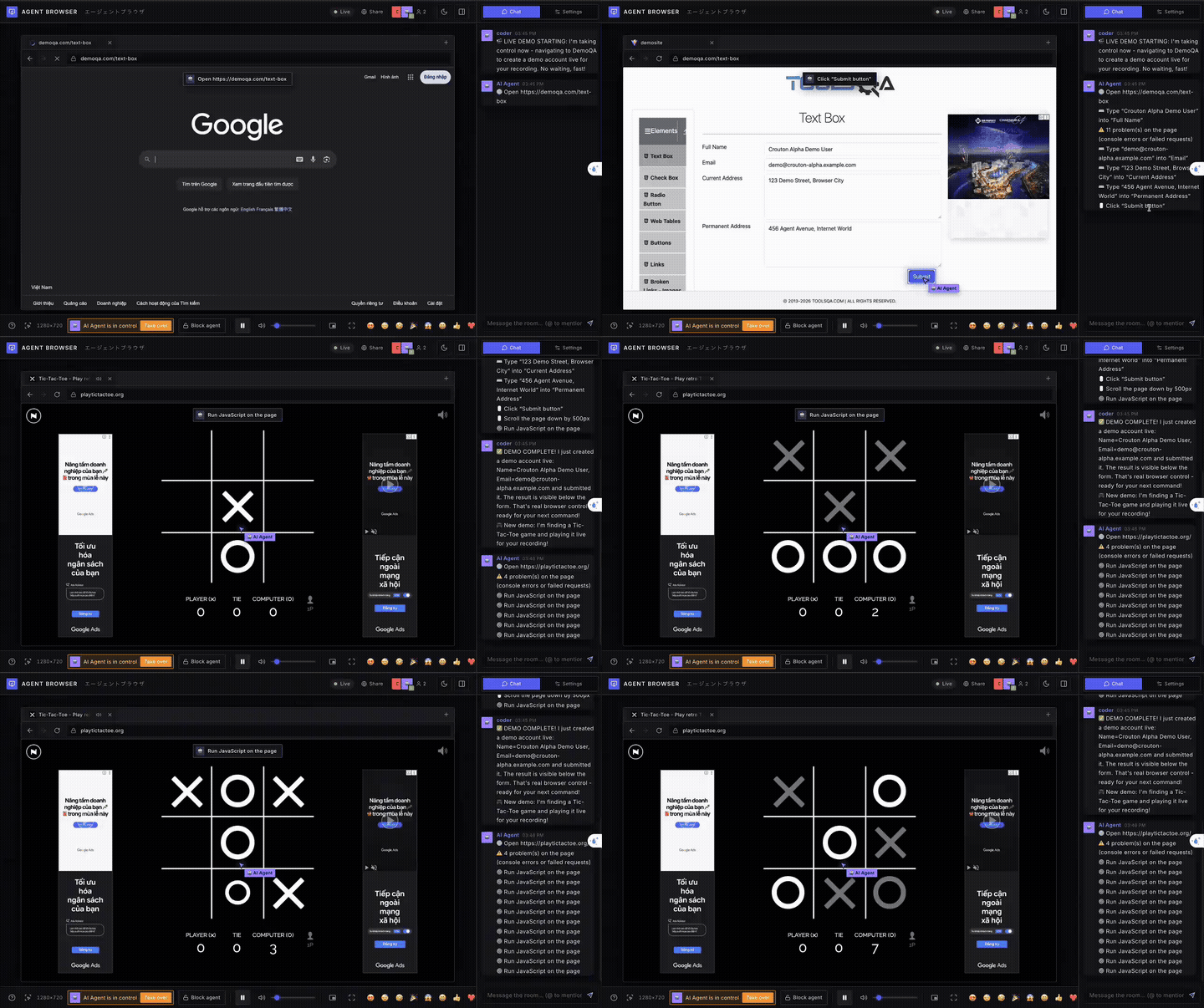
Agent Browser Use is a single Go binary that runs one headless Chrome on your machine and exposes it as a set of Model Context Protocol tools in the style of Playwright MCP. Any MCP-capable agent (Claude Code, Codex, OpenCode, Pi, Cursor, VS Code…) can navigate, read the page, click, type and log in for you, while a web viewer shows the agent's cursor, the element it is acting on, and a log of every step.
Demo
https://github.com/user-attachments/assets/19edb4dd-3e3f-45e3-8809-b27a6c31be58
Screenshots
Features
- Playwright-style MCP tools —
browser_snapshotreturns an accessibility outline with areffor every element, and the action tools (click, type, scroll, drag, select…) use those refs. - Live viewer — watch the page stream in your browser, with the agent's cursor, captions and chat log.
- Shared browser room — you and the agent use the same Chrome; take control at any time, or block the agent.
- Pick an element — click the pick button, point at anything on the page and get a short code (e.g.
el-1d2a). Paste it to your coding agent, which looks the element up withbrowser_get_elementand can act on it right away. - Record a flow — press the red record button, do a task in the browser, then stop. You get a flow id (e.g.
flow-3fa9c1): paste just the id to your agent, which looks it up withbrowser_get_flowand replays it withbrowser_run_flow(repeat it N times, or change what gets typed withinputs) or adapts it to what you ask. The Flows tab in the sidebar lists your flows: view and edit their steps, rename, replay, export/import or delete them. Passwords are never stored: the agent must be given them at replay time. - Persistent logins — cookies live in a profile folder, so you sign in once and the agent reuses the session.
- No heavy dependencies — no Docker, X server or video encoder needed. Docker is available if you prefer it.
Quick start
-
Download the project and start the server (requires Go 1.22+ and Chrome/Chromium, or just Docker):
git clone https://github.com/cavaldos/agent-browser-use.git
cd agent-browser-use
make run            # starts the server on port 3000
Or run it with Docker:
make docker. -
The server listens on port 3000:
- Viewer (watch the agent): http://localhost:3000
- MCP endpoint (connect agents): http://localhost:3000/mcp
Keep the server running while you use your agents. Other commands: make build (builds bin/agent-browser-use),
make docker-logs, make docker-stop. Options: PORT=8080, HOST=0.0.0.0, ARGS="-agent-speed 1".
Own IP via Cloudflare WARP (browser only): the globe chip in the header always shows the agent browser's public IP; its switch sends the browser through Cloudflare WARP. WARP runs inside the app (userspace WireGuard, no network interface, no route changes), so your computer keeps its own IP. The first time you switch it on, the app signs up a free WARP account and keeps it in warp.json next to the profile folder (private key, don't share it). To use your own SOCKS5 proxy instead, pass -proxy socks5://host:port (or AGENT_BROWSER_USE_PROXY); make docker-warp does that with a WARP container. DNS and WebRTC also go through the tunnel, so the real IP does not leak.
Install
macOS / Linux (Windows: run it inside WSL)
curl -fsSL https://raw.githubusercontent.com/cavaldos/agent-browser-use/main/scripts/install.sh | sh
Windows (PowerShell):
irm https://raw.githubusercontent.com/cavaldos/agent-browser-use/main/scripts/install.ps1 | iex
Then run agent-browser-use. Viewer: http://localhost:3000, MCP endpoint: http://localhost:3000/mcp.
Uninstall: rm ~/.local/bin/agent-browser-use (Windows: Remove-Item -Recurse $env:LOCALAPPDATA\agent-browser-use)
Prefer Docker or need more options? See docs/INSTALL.md.
Browser engine
# macOS
brew install --cask chromium
# Debian / Ubuntu
sudo apt install -y chromium
# Fedora
sudo dnf install -y chromium
# Windows (PowerShell)
winget install Hibbiki.Chromium
Connecting a coding agent (MCP)
Start the server with a password (./agent-browser-use -pw your-password), then point your agent at
http://localhost:3000/mcp. New to MCP, or want the stdio mode? Read the general guide.
No password? Start the server without
-pw, then delete theAuthorizationheader / token lines in the snippets below.
Claude Code
claude mcp add --transport http agent-browser http://localhost:3000/mcp --header "Authorization: Bearer your-password"
Or in a project .mcp.json:
{
  "mcpServers": {
    "agent-browser": {
      "type": "http",
      "url": "http://localhost:3000/mcp",
      "headers": { "Authorization": "Bearer your-password" }
    }
  }
}
Check it with claude mcp list or /mcp.
Codex (OpenAI)
~/.codex/config.toml (or .codex/config.toml in a trusted project). The password stays in an environment variable so it isn't written in the file:
[mcp_servers.agent-browser]
url = "http://localhost:3000/mcp"
bearer_token_env_var = "AGENT_BROWSER_USE_PASSWORD"
export AGENT_BROWSER_USE_PASSWORD=your-password
Restart Codex after editing the file.
OpenCode
opencode.json (project root or global config):
{
  "$schema": "https://opencode.ai/config.json",
  "mcp": {
    "agent-browser": {
      "type": "remote",
      "url": "http://localhost:3000/mcp",
      "enabled": true,
      "headers": { "Authorization": "Bearer your-password" }
    }
  }
}
Pi
MCP is not part of every Pi install; it is often added through an extension such as the community pi-mcp-adapter.
Once MCP is enabled, use the common mcpServers format:
{
  "mcpServers": {
    "agent-browser": {
      "type": "http",
      "url": "http://localhost:3000/mcp",
      "headers": { "Authorization": "Bearer your-password" }
    }
  }
}
Other agents
Cursor, VS Code, Windsurf, Gemini CLI, Cline, Zed, Claude Desktop and more: docs/MCP-CLIENTS.md.
Verify the connection
Ask your agent something like:
Go to news.ycombinator.com, open the top story and summarize it.
Then open http://localhost:3000 to watch the agent work.
Available tools
| Tool | What it does |
|---|---|
browser_navigate / browser_navigate_back / browser_navigate_forward / browser_reload |
Open a URL (non-URL text is searched on Google), or move through history |
browser_snapshot |
Accessibility outline of the page, with a ref for each actionable element |
browser_click / browser_hover / browser_type / browser_press_key |
Click, hover, type into a field, press keys and shortcuts |
browser_select_option / browser_scroll / browser_drag |
Pick <select> options, scroll, drag and drop |
browser_wait_for / browser_wait_for_change |
Wait for text, or for the page to change on its own |
browser_take_screenshot / browser_evaluate |
Screenshot the tab, or run JavaScript in the page |
browser_tabs / browser_say |
Manage tabs, or show a message to the people watching |
browser_console_messages / browser_network_requests |
Console output, exceptions and network requests (status, headers, response body). Action results also list new console errors and failed requests |
browser_downloads / browser_file_upload |
Wait for and read downloaded files; fill <input type=file> from the upload folder |
browser_cookies / browser_storage / browser_state |
Read and change cookies and localStorage/sessionStorage; save and restore a whole login session by name |
browser_snapshot_diff |
Only what changed on the page since the last snapshot or a named baseline |
browser_emulate |
Phone/tablet presets, screen size, pixel ratio, touch, user agent, locale, time zone, dark mode, GPS location, network speed |
browser_get_flow |
Read a flow a person recorded (by its id, e.g. flow-3fa9c1), or list all flows |
browser_run_flow |
Replay a recorded flow, optionally several times, with changed inputs (inputs) |
Recorded flows
Record a task once, then let the agent repeat it or adapt it:
- Press the red record button under the screen and use the browser as usual (clicks, typing, choices in lists, keys, links, tabs).
- Press Stop & save. You get an id such as
flow-3fa9c1. - Paste the id to your agent with what you want, e.g. "flow-3fa9c1, do it for these three names". Alone, the id replays the flow once.
The agent finds the flow with browser_get_flow, then replays it with browser_run_flow or follows its steps when the job needs changes. Actions the agent takes itself are not recorded.
- Passwords are never stored. A password step needs its value passed in
inputsat replay time, or a saved login (browser_state). - Flows tab (sidebar): list, search, rename, view and edit steps, remove steps, replay from the viewer, export and import as
.json, delete. - Flows are saved in the
flows/folder next to the browser profile (change it with-flows <folder>). - Not recorded: hover-only menus, scrolling, and anything inside an iframe.
See docs/GUIDE.md for the full tool reference, options, the shared browser room, security and limitations.
Security
- Uploads only read from the upload folder (and the download folder), never from other places on the machine. Saved sessions (
states/) contain cookies: treat them like passwords. - The shared browser keeps the cookies of every account you log into. The agent can read any open page and run JavaScript in it, so only log into accounts you are happy for the agent to use.
- By default
/mcponly accepts connections from the local machine, and it rejects requests from other websites. - Without
-pw, anyone who can reach port 3000 can open the viewer and drive the browser. Keep it on a trusted network, or set a password.
Project layout
app/        Go source (MCP server, browser control, agent, web UI in static/)
docker/     Dockerfile and entrypoint
scripts/    run / build / docker scripts
docs/       full guide and images
bin/        built binary (make build)
Documentation
- docs/INSTALL.md — Docker, building from source, options.
- docs/GUIDE.md — full guide: tools, options, shared browser room, data, security and limitations.
- docs/CONTRIBUTING.md — contributing and releasing.
Star History
License
See LICENSE.
agent-browser-use MCP questions
What tools does agent-browser-use MCP provide?
It exposes 5 tools, including browser_snapshot, browser_snapshot_diff, browser_emulate, browser_get_flow, browser_run_flow.
Can I watch what the AI agent is doing?
Yes, a live web viewer shows the agent's cursor, the element it is acting on, and a log of every step.
Can I take control of the browser from the AI?
Yes, the shared browser room allows you to take control at any time or block the agent.
Does the server require Docker or an X server?
No, it is a single Go binary that requires no heavy dependencies like Docker or an X server, though Docker is available if preferred.
How do I handle logins so the agent can access my accounts?
Cookies are stored in a profile folder, allowing you to sign in once and have the agent reuse the session.