
TransformPipe MCP server
Commit Nov 4, 2026Converts various document formats to Markdown and back, allowing users to save, manage, and share documents via single links.
Also known as raudarlabs/transformpipe
- Stars
- 2
- Tools
- —
- Downloads, 30 days
- —
- Latest version
- 2.2.0
- Last commit
- Nov 4, 2026
- License
- MIT
What is TransformPipe MCP?
TransformPipe converts various document formats to Markdown and back, allowing users to save, manage, and share documents via single links.
Summary generated from the project's README
About TransformPipe MCP server
Converting diverse document formats like Word, PowerPoint, or Notion exports into clean Markdown is what TransformPipe enables. It serves developers and writers who need to normalize content from various sources into a single, manageable format. Users can transform files directly in their browser, where conversions run locally on their machine without uploading data unless they choose to save them to an account.
By connecting this server to an AI client like Claude or ChatGPT, you can manage documents through natural language commands. You can ask an assistant to save a specification, publish a plan, or retrieve a document from a previous chat session. The service provides a centralized library where all converted files are searchable and versioned. For sharing, instead of sending large attachments, you can generate a single link that can be password-protected or set with an expiration date.
What you can do with it
- 1Preserve chat specificationsSave a technical specification written by an AI assistant so it is not lost when the chat history scrolls away.
- 2Share documents via secure linksSend a document to a collaborator using a single link instead of an email attachment.
- 3Publish Markdown to professional formatsTransform a Markdown file into a Jira ticket, a Slack message, or a Word document.
Written from the project's README. Every use case is checked against a quote from it.
How to install TransformPipe MCP
Formats verified 10 Nov 2026Install TransformPipe MCP in Claude Code
$ claude mcp add --transport http transformpipe https://transformpipe.com/api/mcpInstall TransformPipe MCP in Cursor
~/.cursor/mcp.json
{
  "mcpServers": {
    "transformpipe": {
      "url": "https://transformpipe.com/api/mcp"
    }
  }
}Install TransformPipe MCP in VS Code
.vscode/mcp.json
{
  "servers": {
    "transformpipe": {
      "type": "http",
      "url": "https://transformpipe.com/api/mcp"
    }
  }
}Install TransformPipe MCP in Codex
~/.codex/config.toml
[mcp_servers.transformpipe]
url = "https://transformpipe.com/api/mcp"
Install TransformPipe MCP in Gemini CLI
~/.gemini/settings.json
{
  "mcpServers": {
    "transformpipe": {
      "httpUrl": "https://transformpipe.com/api/mcp"
    }
  }
}Configuration
TP_SHARE_PASSWORD
| Name | Description | |
|---|---|---|
| TP_SHARE_PASSWORD | — |
README
View on GitHubTransformPipe
Turn a Word file, a web page or a whole Notion export into a clean document, keep it, and send it as a page with one link.





Open it · Documentation · Browser extension · What has shipped · Support
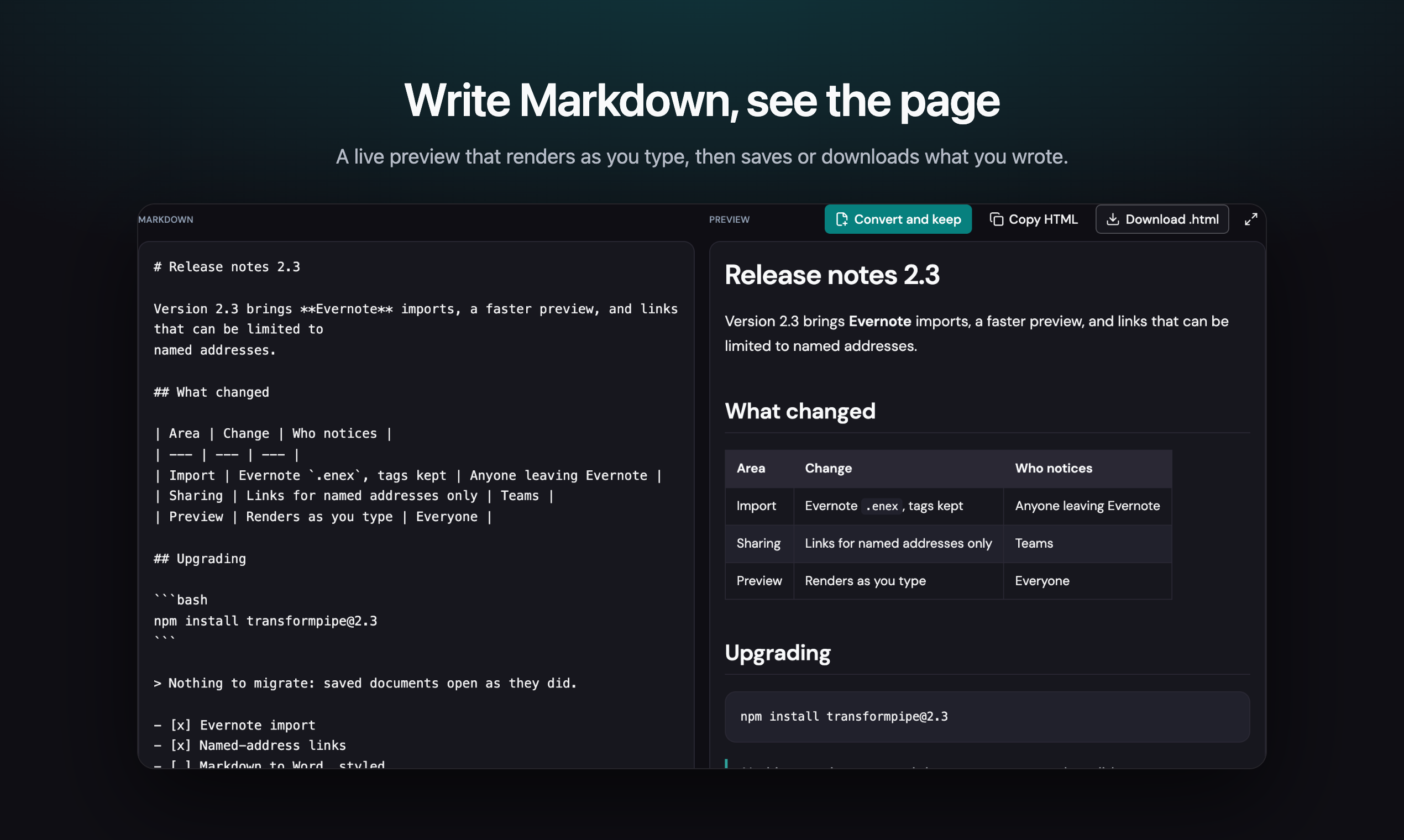
Documents arrive in the wrong shape. A Word file you need as Markdown. A Notion export that is forty pages in a zip. A spec your assistant wrote, gone once the chat scrolls away. Markdown pasted into an email, landing as a wall of asterisks.
TransformPipe turns all of them into one thing: a clean Markdown document. See it as a finished page, take it away as Markdown, HTML, Word, PDF, Confluence, Jira, Slack or EPUB, or keep it and send a link instead of an attachment. Open transformpipe.com and drop a file. No account is needed to convert.
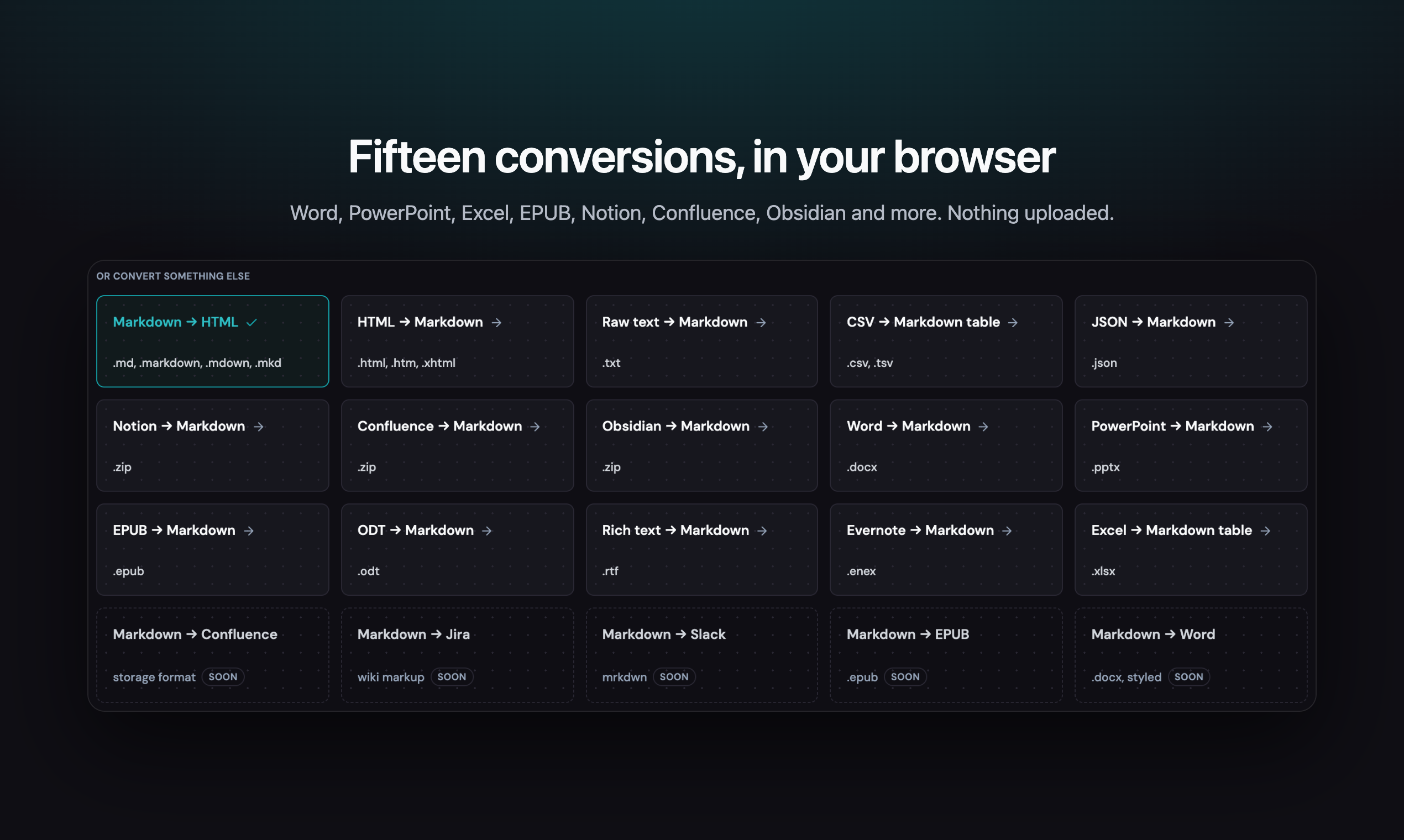
Twenty conversions, in your browser
Word, PowerPoint, Excel, EPUB, OpenDocument, rich text, HTML, CSV, JSON, plain text, Evernote, or a whole Notion, Confluence or Obsidian export. Each comes back as Markdown with its headings, lists, links and tables intact, and Markdown goes the other way: into a finished page, a Word document, a Confluence page, a Jira ticket, a Slack message or an EPUB book.
The conversion runs on your machine. Signed out, nothing is uploaded and nothing needs a network. Drop several files and they become one document, in the order you picked them.
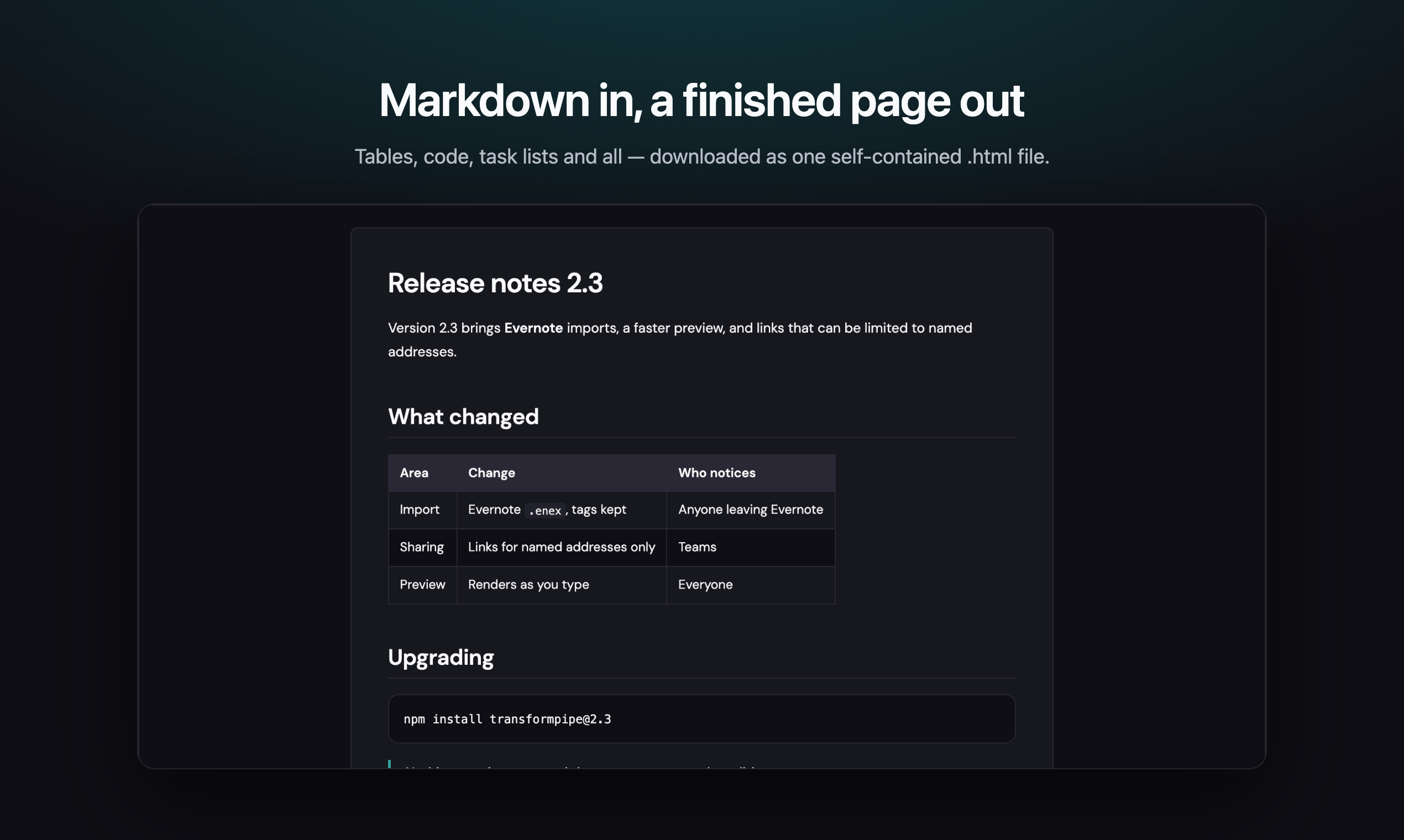
Markdown in, a finished page out
Tables, code, task lists, maths and Mermaid diagrams come out the way they were meant to look. The
download is one self-contained .html file that fetches nothing when it opens: no scripts and no
webfonts. A saved document also downloads as Word, and any document
prints to PDF.
Send a link, not an attachment
Share a saved document with anyone who has the link, or only with the addresses you name. Give the link a password or an end date if it needs one, and see how often it was opened. Make private stops it in one step, and the old link stops working for good.
Publish new text from the API, the command line, an assistant or Obsidian, and the link people already have shows it. The text it replaced is kept as a revision.
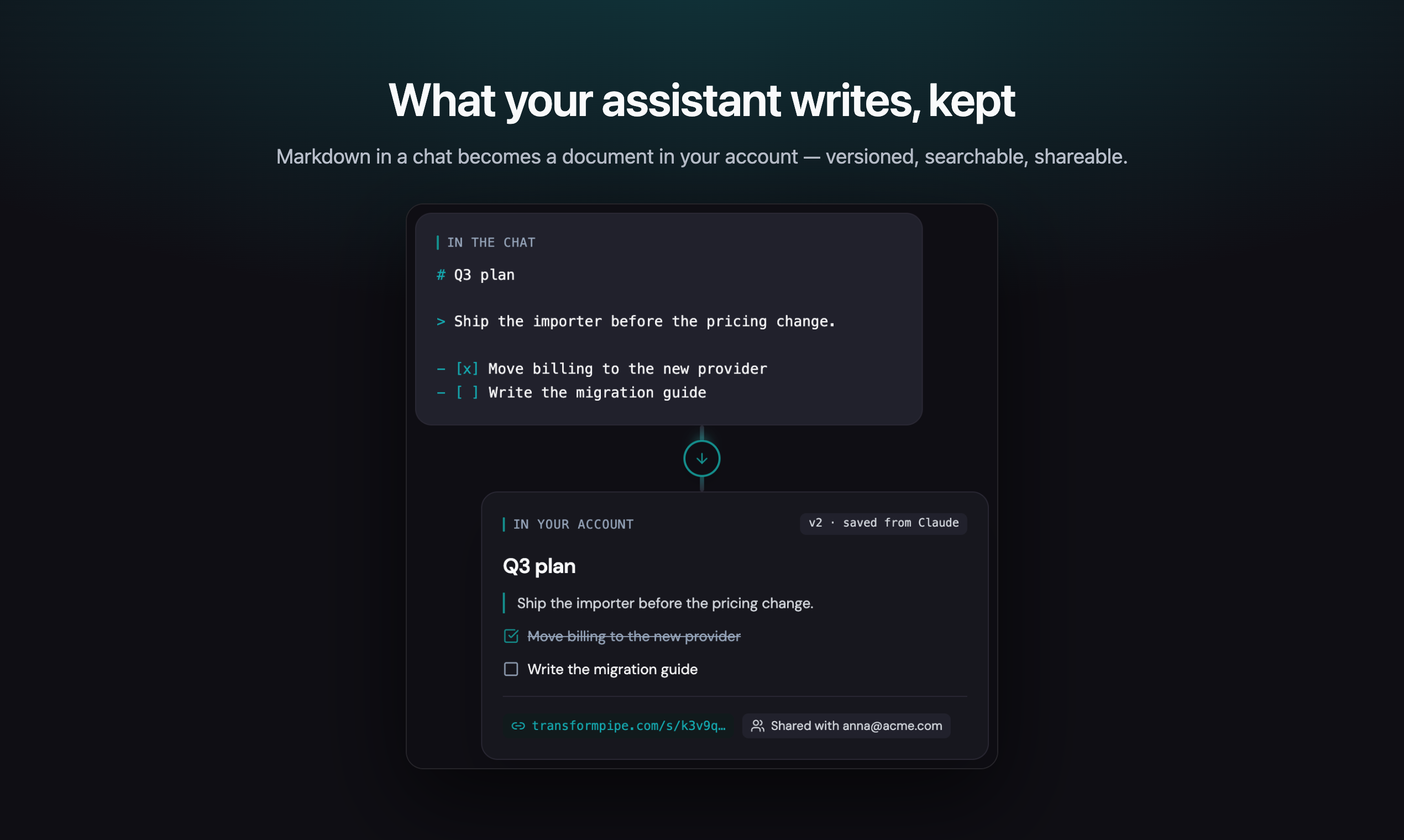
What your assistant writes, kept
TransformPipe is in Claude's connector directory: press Connect, sign in, and ask in plain words. "Save this as the Q3 plan." "Publish it and give me the link." "Find the migration spec from last week." The document goes into your account, with a title you can search for, long after the chat has scrolled away.
ChatGPT connects too, by address, as an MCP app, and Obsidian has a community plugin. All three see the same documents.
One library, not forty chats
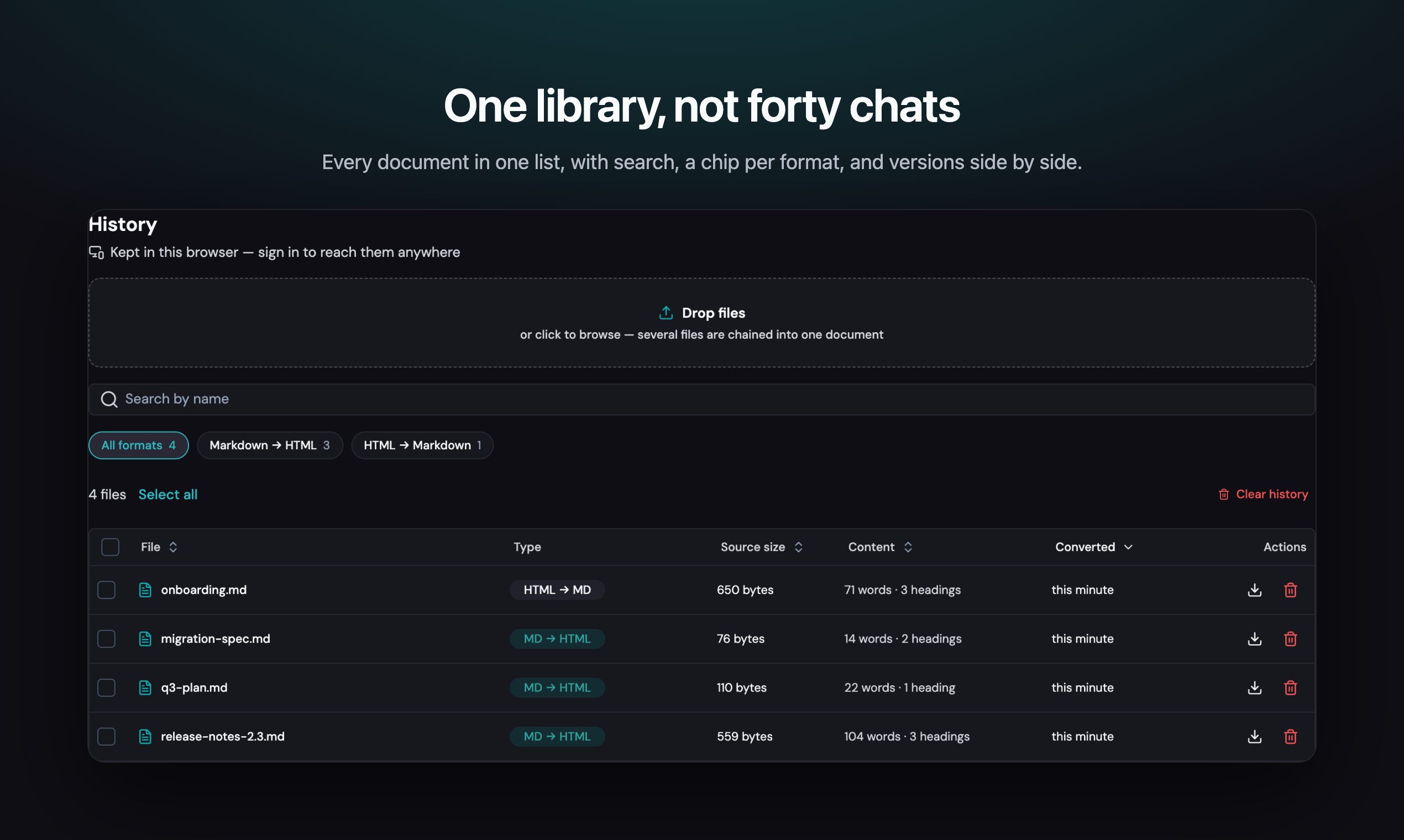
Everything you convert, save or have an assistant save lands in one list: searchable, filtered by format, with versions side by side and a line-level diff between them. Signed in, it is the same list on every device.
Any web page, as Markdown
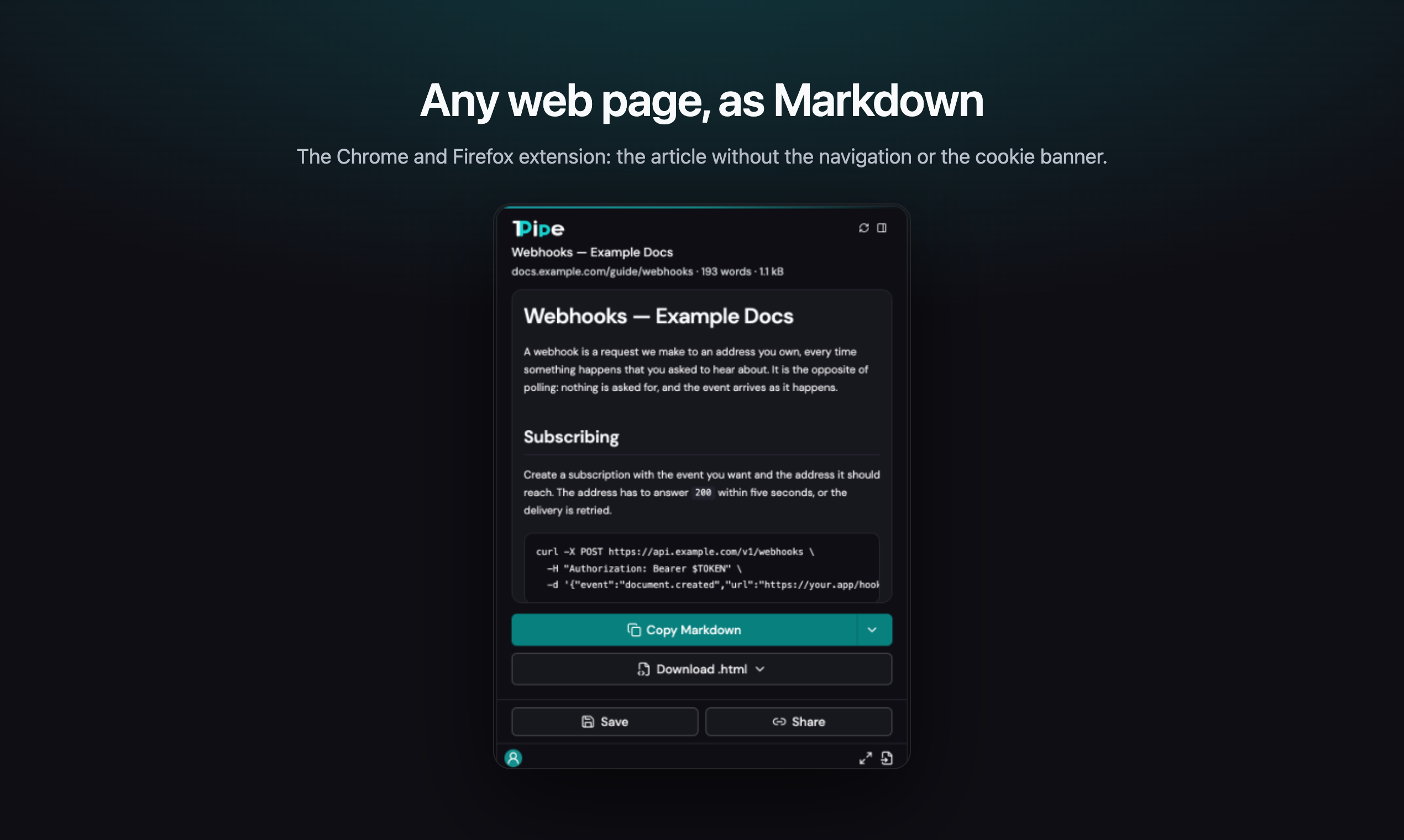
The browser extension, for Chrome and Firefox, takes the page
you are on and hands back the article without the navigation or the cookie notice. Copy it, download
it, or save the page as a self-contained .html file. Signed out, it never talks to us.
Your documents, your account
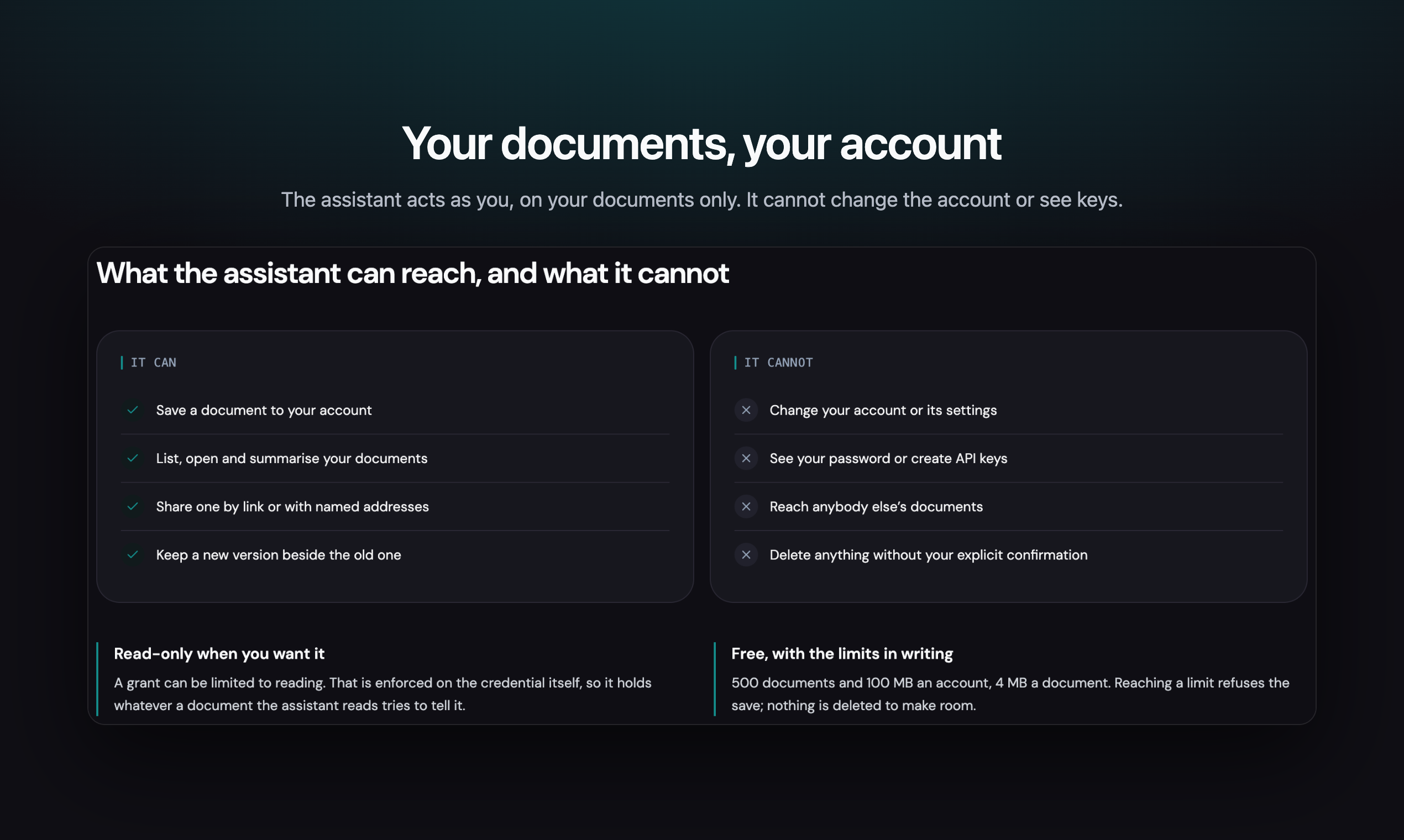
An assistant acts as you, on your documents only. It cannot change the account, see your password or create API keys, and it deletes nothing without an explicit confirmation. A grant can be read-only. The service is free, and the limits are written down: 5,000 documents and 250 MB an account, 4 MB a document. Reaching one refuses the save; nothing is deleted to make room.
Every way in
- The web app at transformpipe.com: convert, preview, keep and share.
- Claude, from the connector directory on claude.ai and in Claude Desktop, or by address in Claude Code.
- ChatGPT, as an MCP app: the three steps.
- The browser extension, for Chrome and the browsers built on Chromium, and for Firefox on the desktop and on Android.
- TransformPipe for Obsidian: publish a note as a page, and keep the same link after every edit.
- A script: the API, the command line and a GitHub Action.
Conversions
Live at transformpipe.com. The old md-2-html.vercel.app still
answers, so links already shared keep working; the canonical URLs, the sitemap and every default in
the CLI and the Action name the new domain. Nothing in server/ carries a domain at all — origins
come from the request through selfOrigin, which is what made the move a matter of one trusted
origin and a rebuild.
Upload a file, see exactly what it became, and download it. Twenty conversions, each with its own page and address:
| Conversion | Takes | Produces |
|---|---|---|
| Markdown → HTML | .md .markdown .mdown .mkd |
a self-contained .html |
| Markdown → Confluence | .md |
Confluence storage format (code macros, panels, task lists) |
| Markdown → Jira | .md |
Jira wiki markup |
| Markdown → Slack | .md |
Slack mrkdwn (tables as aligned code blocks) |
| Markdown → EPUB | .md |
an .epub book, a chapter per top heading |
| Markdown → Word | .md |
a .docx in Word's own styles (Heading 1–6, lists, footnotes) |
| HTML → Markdown | .html .htm .xhtml |
.md |
| Raw text → Markdown | .txt |
.md |
| CSV → Markdown table | .csv .tsv |
.md |
| JSON → Markdown | .json |
.md |
| Notion export → Markdown | .zip (Export as Markdown & CSV) |
.md |
| Confluence export → Markdown | .zip (Export → HTML) |
.md |
| Obsidian vault → Markdown | .zip (the vault folder, zipped) |
.md |
| Word → Markdown | .docx |
.md |
| Excel → Markdown table | .xlsx |
.md |
| PowerPoint → Markdown | .pptx |
.md (a section per slide, speaker notes kept) |
| EPUB → Markdown | .epub |
.md (a section per chapter, in reading order) |
| OpenDocument → Markdown | .odt |
.md |
| Rich text → Markdown | .rtf |
.md |
| Evernote → Markdown | .enex |
.md (a section per note, tags kept) |
They all normalise to Markdown, which is what a document is stored, previewed, shared and reached
by a script as — one shape rather than fourteen. Any document can then be handed over as Markdown,
HTML, plain text, Word, Confluence, Jira, Slack, EPUB, or printed to PDF. shared/conversions.ts is the single list; the header menu, the
screens, the history chips, the badges and the prerendered pages all read it, so a new conversion is
an entry there plus a converter.
.txt used to be accepted on the Markdown → HTML page as if it already were Markdown; it has its
own conversion now instead, because a plain-text file is not Markdown even when it looks like it —
an asterisk typed as a literal asterisk and one meant as emphasis are the same character, and only
one of the two conversions is supposed to treat them alike.
Notion, Confluence and Obsidian are the three that do not produce one document from one file: each
export is several pages (or notes) in a .zip, and each comes back as a single Markdown document —
a table of contents, then every page in order, each a heading of its own (shared/from-notion.ts,
shared/from-confluence.ts, shared/from-obsidian.ts, sharing the zip-reading and merge convention
in shared/zip-import.ts). A link from one page to another inside the export keeps its words and
drops its address — Obsidian's own [[wikilinks]] included: once every page is a section of one
document, there is nowhere left for it to point.
Conversion happens in the browser — the .docx reader and the HTML parser load only when their
page is used, so the front page's bundle does not carry them. Sign in — with Google, or an email
and a password — to keep your documents in the account and reach them from any device.
Run locally
npm install
cp .env.example .env.local   # then fill in the values (see Configuration)
npm run db:init              # creates the table in Neon
npm run dev
The app starts on http://127.0.0.1:5180 — /api/* is served by the same Hono
app that runs as a Vercel function in production, so no extra process is needed.
Other scripts: npm run build, npm run preview, npm run check-types,
npm run db:init.
Without NEON_AUTH_BASE_URL the app still converts files: sign-in answers 503 and the history
falls back to this browser's localStorage.
Configuration
| Variable | Notes |
|---|---|
DATABASE_URL |
Neon pooled connection string |
NEON_AUTH_BASE_URL |
the project's Neon Auth endpoint |
Both are server-side only; the browser talks to /api/* and never to Neon directly.
Sign-in is Neon Auth (Better Auth behind a Neon endpoint), which already carries Google — no
separate Google OAuth client and no client secret here. /api/auth/* forwards to the auth service
and rewrites Set-Cookie so the session cookie is first-party for this site; /api/auth/finish
exchanges the one-time verifier for that cookie. See server/auth.ts.
Neon Auth only starts a sign-in for an origin it trusts, so each origin has to be added once — and this is the whole of what breaks when the site moves to a new domain: everything else derives its URLs from the request, and sign-in is the one thing that has to be told:
npm run auth:origin                                # list what is trusted
npm run auth:origin -- https://transformpipe.com   # the live site
npm run auth:origin -- http://127.0.0.1:5180       # for local work
Neon — TransformPipe has its own Neon project (tp): its own database and its own Neon Auth, with
no accounts or tables shared with any other app. It was provisioned through the Vercel Marketplace,
which also connects it and writes DATABASE_URL / NEON_AUTH_BASE_URL into the project:
vercel integration add neon --name m2h
vercel env pull .env.local --environment=production
npm run env:setup          # prunes .env.local down to this app's two keys
npm run db:init            # creates m2h_document
Vercel — the variables above are set for production, preview and development by that connect
step; a deployment made before them needs a redeploy to see them. The build is auto-detected
(Vite → dist) and /api/* is routed to the Hono function by vercel.json.
What it does
-
Upload — drag & drop or file picker,
.md / .markdown / .mdown / .mkd / .txt, up to 10 MB. -
Chain several files — drop more than one and they become a single document, in the order they arrive, separated by a rule; the same works on any selection in the history.
-
Preview — GitHub Flavored Markdown (tables, task lists, strikethrough, autolinks), sanitized with DOMPurify, styled with the design-system tokens.
-
Share — a document in your account can be opened by anyone with the link, or only by the addresses you list (they sign in with that address).
/s/<token>is a read-only page: the document and a download, nothing else. Revoking drops the token, so a link already sent stops working. Each address you list is emailed the link once. -
Shared with me — a chip in the history lists documents other people addressed to you, with who shared each one. They are read-only: open and download, no delete, no re-share. Only addressed shares appear; a link share belongs to whoever holds the link, not to a list.
-
Fullscreen reading — the preview takes the whole screen, the sheet keeps a readable measure and scrolls; Escape comes back. A long document gets a back-to-top button, in both the normal and the fullscreen view.
-
HTML source tab — the exact standalone document that gets downloaded.
-
Download / Copy — self-contained
.htmlwith inline styles, print-ready. Nothing is fetched when it opens: no scripts, and no webfont either. It used to link DM Sans from Google, which made "self-contained" false in the one file that is actually handed to someone else, so the export falls back throughui-sans-serifto the system face and asks for nothing. -
Download as Word — a saved document's download menu gets a
.docx, built server-side from the same HTML the preview renders (@turbodocx/html-to-docx— pure JavaScript, no headless browser). Needs a save first: the endpoint reads the account's copy, not the browser's. -
A .pdf from the API —
GET /api/v1/documents/:id.pdf, laid out bypdfmakefrom the same HTML rather than a headless Chrome — no button for it in the app, deliberately: "Print or save as PDF" already gives a signed-in person the browser's own, pixel-exact PDF, and this is for the case that button cannot reach — a script, a CI job, a GitHub Action step with no browser at all. -
History — signed in: stored in the account (up to 5,000 documents, 4 MB of source each), available on every device; signed out: the last 25 conversions in
localStorage. Whatever was collected locally is moved into the account on first sign-in. The page has its own dropzone, a search box over file names, Markdown/HTML chips and sortable headers; a row opens the document, and rows can be selected in bulk to merge, download or delete them (the selection bar and the chips come from the design system).The chips choose which face of a document the list shows: the Markdown source it was made from, or the HTML it converts to — the row's name, its type badge and what a download hands over all follow. Only the source is stored; the HTML is built on the spot, which is why the size column names what it measures.
-
Versions — pushing with
?replaces=<id>(API),--replaces(CLI) orreplaces(Action) links a document to an earlier one as a new version of it — opt-in and explicit, never inferred, so a new push stays the unrelated document it has always been unless told otherwise. Linked documents get a chain icon in the history and a line-level diff against the version before them. -
Sign-in — Google, or an email and a password, through Neon Auth.
-
Summary — a saved document gets a third tab: a paragraph on what it is and where it lands, then its specifics as a short list, from Gemini, streamed into the tab as it is written and called directly with a Google AI Studio key (
GOOGLE_GENERATIVE_AI_API_KEY— free tier, no card needed). Generated once and cached on the row, so opening the tab again is free; "Regenerate" asks again. Metered separately from the ordinary API limits — 20 a day per account — because unlike the rest of this app, it costs money per call. Without a key the tab says so rather than failing the save.
UI
The interface is built on our internal design system: design tokens (light and
dark), DM Sans, and the React component library are vendored under src/ui,
extended by tailwind.ui.config.ts / tailwind.config.ts and loaded through
src/index.css. The app defaults to the dark theme (<html class="dark">);
switching to light is a matter of dropping that class.
Markdown document styling (src/lib/md-doc-css.ts) is written once against
--md-* variables and used both in the preview and in the exported file, so the two always match,
down to the sheet's own background — the document follows whichever theme the app is in, and the
downloaded file carries that palette with it. Printing always flips to the light values, because a
dark page on paper is a wall of ink.
The theme (dark by default) lives behind the account menu, remembered per browser in
localStorage; signed out, a sun/moon button in the header does the same job.
API
Everything the app does, a script can do with a key: account menu → API keys. The key is shown once, stored only as a hash, and can be revoked at any time. It reaches documents and shares — never the account or the keys themselves, so a leaked key cannot mint its replacement or lock you out.
# publish a file in one request
curl -H "Authorization: Bearer tp_live_…"      --data-binary @README.md      "https://transformpipe.com/api/v1/documents?name=README.md&share=link"
# → { "document": { "id": "…", "share": { "mode": "link", "url": "https://…/s/…" } } }
POST /api/v1/documents |
Markdown as the body (?name=) or JSON {name, markdown}; ?share=link|people publishes it in the same call, and ?expires_at= gives that link an end; ?kind=html-to-markdown|csv-to-markdown|json-to-markdown|word-to-markdown|notion-to-markdown|confluence-to-markdown|obsidian-to-markdown|text-to-markdown|excel-to-markdown|powerpoint-to-markdown|epub-to-markdown|odt-to-markdown|rtf-to-markdown|evernote-to-markdown converts the body first — for every format that is not plain text, post the file itself (.docx, .zip, .xlsx, .pptx, .epub, .odt or .rtf) as the body; ?replaces=<id> links it to an earlier document as a new version, opt-in |
GET /api/v1/documents |
the newest 500; ?q= searches content as well as name, ranked by relevance |
GET /api/v1/documents/:id |
metadata and the source |
GET /api/v1/documents/:id.html |
the standalone document, ?theme=dark optional |
GET /api/v1/documents/:id.docx |
a Word document, built from the same HTML on the way out |
GET /api/v1/documents/:id.pdf |
a PDF, laid out from the same HTML by pdfmake — no headless browser |
GET /api/v1/documents/:id/versions |
every document in the same version chain, oldest first |
PUT /api/v1/documents/:id |
new text for the same document — Markdown as the body, or JSON {markdown, name}. The id, the link and everything set on it stay; the text it replaces is kept as a revision (the newest ten, counted as bytes, not as documents). The same text again answers changed: false |
GET /api/v1/documents/:id/revisions |
those revisions, newest first; /revisions/:revision reads one with its Markdown |
DELETE /api/v1/documents/:id |
removes the row, its source and its revisions |
GET | PUT /api/v1/documents/:id/share |
{mode, emails[], expires_at}; private drops the token, so a link already sent stops working. expires_at is an ISO 8601 date-time the link stops working at (410 after it), null for no end, and left out to keep the one it has. The answer also carries views and last_viewed_at: opens of the link, counted by the shared page's own one-pixel picture. password sets one on a link, or ahead of one while the document is private (8 to 200 characters, in the body only), and null removes it; a share with specific people takes none; the answer says has_password, never the hash |
GET /api/v1/documents/:id/views |
The link's recent opens, newest first: {views, last_viewed_at, events: [{at, via}]} — via is page or app. A link keeps nothing about who opened it; a share addressed to people adds who to each open and a people list — each named address, its opens and its last one |
POST /api/v1/documents/:id/summary |
a cached summary, generating it first if there is none; ?force=1 regenerates. Limited to 20 a day per account |
A cookie works too, so the same endpoints can be tried from a signed-in browser. GET /api/v1/usage says what an account is using. Errors are { "error": "…" } with a status that means
what it says: 401 unknown key, 404 not yours, 413 the document is over 4 MB, 403 the account is out
of room, 429 too fast, 410 the source is gone.
Webhooks
account menu → Webhooks registers a URL that gets a signed POST when a document is created
or shared with named people. Session-only, deliberately — unlike API keys, a webhook is not
exposed under /api/v1: an API key that could also register one would turn a leaked key into a
standing feed of every future document, rather than the point-in-time access it is today.
{
  "event": "document.created",
  "created_at": "2026-09-11T12:00:00.000Z",
  "data": { "id": "…", "name": "notes.md", "kind": "markdown-to-html", "size": 512 }
}
The body is signed with HMAC-SHA256 over {timestamp}.{body}, in the
x-transformpipe-signature: t=<unix-seconds>,v1=<hex> header — the same shape Stripe and GitHub
use, so existing verification code usually needs only the secret changed:
const expected = crypto
  .createHmac('sha256', secret)
  .update(`${timestamp}.${rawBody}`)
  .digest('hex');
The secret is shown when the webhook is created and can be shown again from the dialog — unlike an API key, a webhook secret is presented by this app rather than to it, so the account owner may legitimately need it again to configure or debug a receiver. Delivery is best effort: one request, a five-second timeout, no retry and no queue — a receiver that is down misses that delivery, and the dialog shows when the last one failed.
TransformPipe MCP questions
How do I add TransformPipe MCP to Claude Code?
Run claude mcp add --transport http transformpipe https://transformpipe.com/api/mcp in your terminal. Add --scope user to make it available in every project.
How do I add TransformPipe MCP to Cursor?
Open ~/.cursor/mcp.json and add the server under mcpServers, using the Cursor config shown in the install section above.
What formats can I convert?
You can convert Word, PowerPoint, Excel, EPUB, OpenDocument, rich text, HTML, CSV, JSON, plain text, Evernote, Notion, Confluence, and Obsidian exports.
Does the conversion happen on a server or in my browser?
The conversion runs locally on your machine within your browser.