
Appwrite MCP server
Commit Nov 9, 2026Manages Appwrite projects and resources directly within the Zed editor using the Agent Panel.
Also known as appwrite/zed-extension
- Stars
- 0
- Tools
- —
- Downloads, 30 days
- —
- Latest version
- —
- Last commit
- Nov 9, 2026
- License
- MIT
What is Appwrite MCP?
Appwrite manages Appwrite projects and resources directly within the Zed editor using the Agent Panel.
Summary generated from the project's README
About Appwrite MCP server
Managing Appwrite projects and resources directly from within the Zed editor is the primary function of this extension. Developers can interact with their backend infrastructure using the Zed Agent Panel, allowing for a more integrated development workflow. Instead of switching between a browser and an IDE, you can use natural language commands to inspect your workspace context or list existing projects.
Setup involves installing the extension through the Zed Extension Gallery and enabling it in the AI MCP Servers settings. Authentication is handled via a browser-based OAuth flow, which means you do not need to manage or manually enter API keys or secrets. Once connected, you can enable specific Appwrite tools for your active Agent profile. The system is designed with safety in mind, as Zed asks for confirmation before executing tool calls, allowing you to review and approve any write operations before they are finalized.
What you can do with it
- 1List existing Appwrite projectsAsk the AI agent to display all your current Appwrite projects to get an overview of your workspace.
- 2Manage backend resources via Agent PanelDirectly interact with your Appwrite resources using the integrated Zed Agent Panel.
- 3Perform controlled write operationsExecute changes to your Appwrite setup while maintaining oversight through manual approval steps.
Written from the project's README. Every use case is checked against a quote from it.
README
View on GitHubAppwrite MCP Server for Zed
Use Appwrite's hosted MCP server from Zed to manage projects and resources with the Agent Panel. Authentication uses Appwrite's browser-based OAuth flow, so the extension does not require API keys or manually entered secrets.
Installation
- Open the Zed Extension Gallery with
zed: extensionsor from Zed > Extensions. - Search for Appwrite MCP Server and select Install.
- Open Settings > AI > MCP Servers and enable Appwrite MCP Server.
- Complete the Appwrite authentication flow in your browser.
Enable Appwrite tools
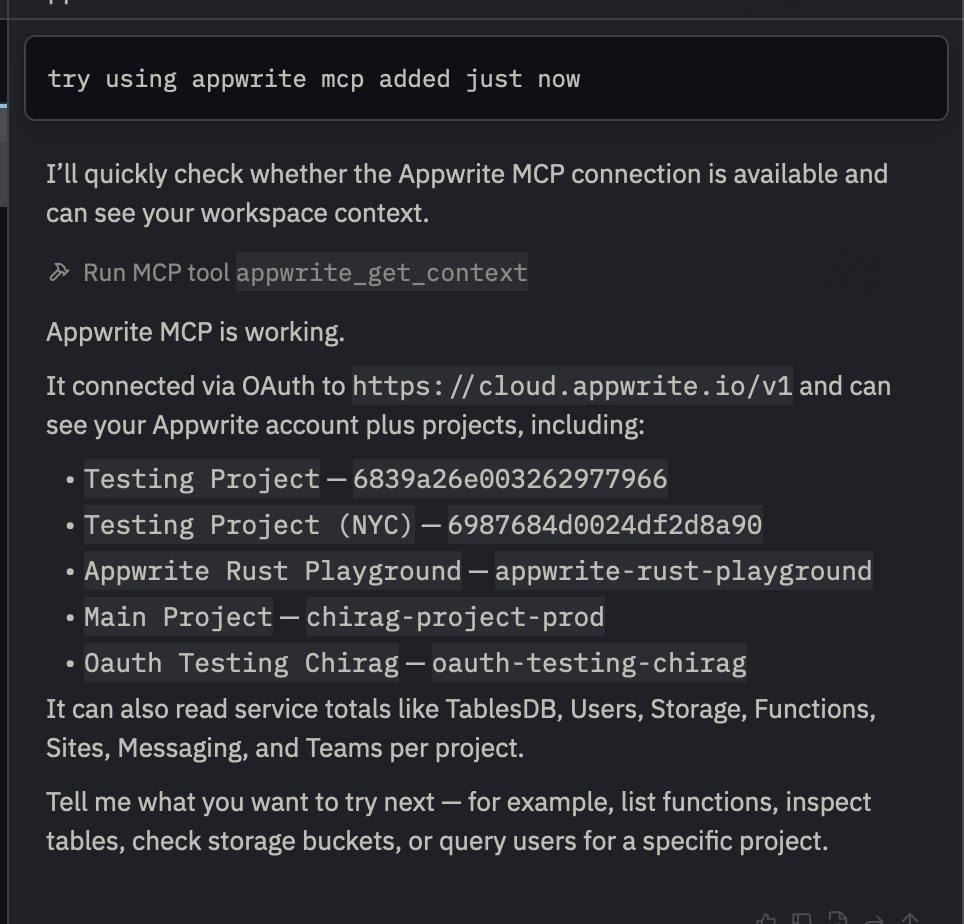
Open the Agent Panel, select the active Agent profile, and enable the Appwrite MCP tools for that profile. You can then test the connection with:
Use Appwrite to show my workspace context and list my projects.
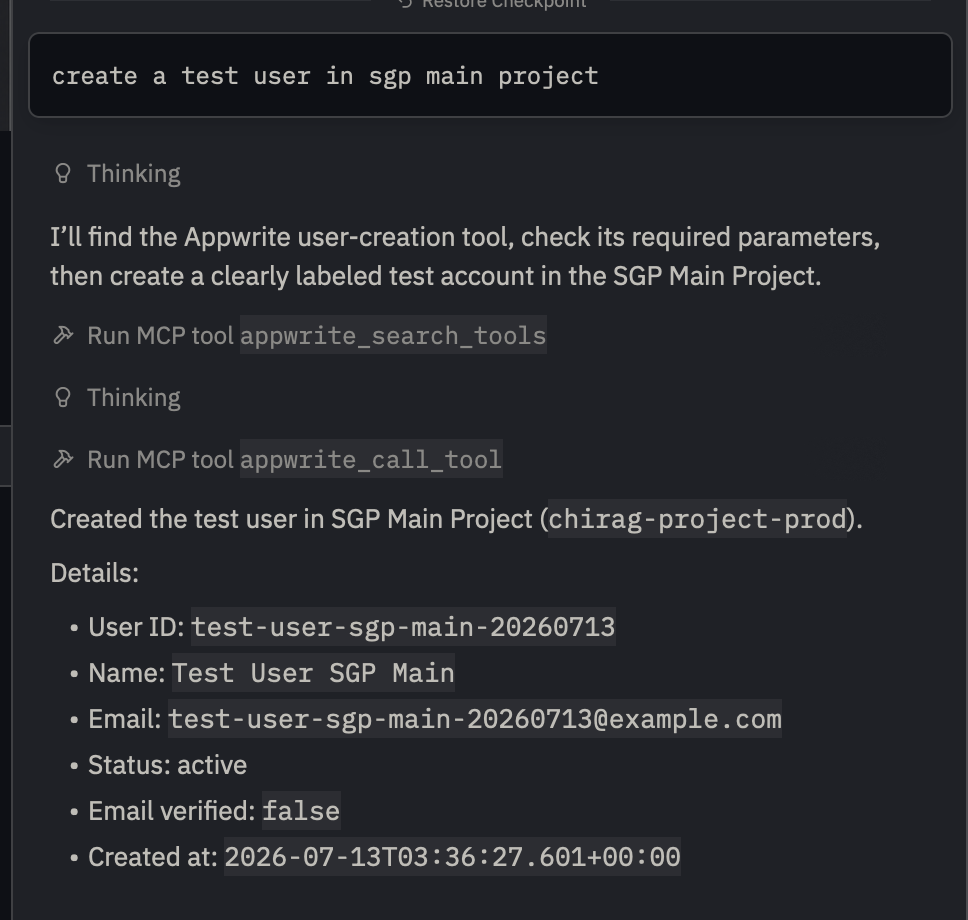
Zed asks for confirmation before tool calls by default. Review and approve write operations before they run.
Troubleshooting
The browser did not open
Restart Appwrite MCP Server from Settings > AI > MCP Servers. If the browser still does not open, copy the authentication URL from the server output and open it manually.
The server status is not green
Open Settings > AI > MCP Servers and check the status next to Appwrite MCP Server. Restart the server and confirm that the extension is allowed to install the mcp-remote npm package.
The OAuth session needs to be refreshed
Sign out or clear the saved Appwrite MCP authorization from the server controls, restart the server, and complete the browser authentication flow again.
Inspect logs
Run zed: open log from the Command Palette and search for appwrite-mcp or mcp-remote.
Appwrite MCP questions
How do I authenticate with the Appwrite MCP server?
Authentication uses a browser-based OAuth flow, meaning no manual API keys or secrets are required.
How can I view the logs for the server?
Use the Command Palette to run 'zed: open log' and search for 'appwrite-mcp' or 'mcp-remote'.