
Screen Browser MCPサーバー
コミット 2026年11月13日生成されたウォークスルーガイドに従うことで、コーディングエージェントがWebアプリケーションのナレーション付きデモおよびチュートリアル動画を記録できるようにします。
別名 screenbrowser/skill, skill
- スター
- 3
- ツール
- —
- ダウンロード数(30日間)
- —
- 最新バージョン
- 1.3.18
- 最終コミット
- 2026年11月13日
- ライセンス
- MIT
Screen Browser MCPとは
Screen BrowserはMCPサーバーです。 生成されたウォークスルーガイドに従うことで、コーディングエージェントがWebアプリケーションのナレーション付きデモおよびチュートリアル動画を記録できるようにします。.
プロジェクトのREADMEから生成された概要
Screen Browser MCP server について
Screen Browserは、コーディングエージェントがWebアプリケーションのナレーション付きビデオチュートリアルやデモンストレーションを生成することを可能にします。エージェントはローカルのコードベースを読み取ることで、ボタンや入力フィールドの実際のテキストを使用したウォークスルーガイドを作成できます。その後、サーバーがデプロイ済みのURLに対してこれらの指示に従った実際のブラウザセッションを記録し、字幕、チャプター、画面エフェクトを備えたMP4ファイルを生成します。
このサービスは、Claude Code、Cursor、Codex、GitHub Copilotを含むさまざまなMCPクライアントに対応しています。ユーザーは、ブラウザベースのOAuthフロー、またはベアラートークンとしてAPIキーを提供することで認証できます。サーバーはmcp.screenbrowser.comでホストされており、プロジェクトの作成、ガイドのアップロード、実行の開始、完成したビデオの取得などのタスクを管理します。iPhone、Android、iPadなどのさまざまなデバイス向けに、多様なアスペクト比での録画をサポートしています。
これを使用するには、デプロイ済みのURLと、メールアドレスおよびパスワード認証を使用するデモ用ユーザーアカウントを提供する必要があります。エージェントはUIを理解するためにローカルでリポジトリを読み取りますが、サーバーに送信するのは生成されたガイドのテキストのみです。ビデオの長さは最大5分までに制限されています。
できること
- 1機能チュートリアルの生成アプリケーションの特定の新しい機能について、ビデオウォークスルーを作成するようコーディングエージェントに依頼できます。
- 2ドキュメント更新の自動化アプリケーションのコードが変更された際、1行を編集するだけでビデオガイドを迅速に更新できます。
- 3ウォークスルー手順の検証本格的なビデオ録画を開始する前に、ガイドの記述内容を無料で確認できます。
プロジェクトの README から作成されています。すべてのユースケースは、その引用と照らし合わせて確認されています。
Screen Browser MCPのインストール方法
フォーマット検証日 2026年11月10日Cursor に追加Gooseに追加Claude CodeにScreen Browser MCPをインストール
$ claude mcp add --transport http skill https://mcp.screenbrowser.com/CursorにScreen Browser MCPをインストール
~/.cursor/mcp.json
{
  "mcpServers": {
    "skill": {
      "url": "https://mcp.screenbrowser.com/"
    }
  }
}VS CodeにScreen Browser MCPをインストール
.vscode/mcp.json
{
  "servers": {
    "skill": {
      "type": "http",
      "url": "https://mcp.screenbrowser.com/"
    }
  }
}VS Code CLIにScreen Browser MCPをインストール
$ code --add-mcp '{"name":"skill","type":"http","url":"https://mcp.screenbrowser.com/"}'CodexにScreen Browser MCPをインストール
$ codex mcp add skill --url https://mcp.screenbrowser.com/Codex config.tomlにScreen Browser MCPをインストール
~/.codex/config.toml
[mcp_servers.skill]
url = "https://mcp.screenbrowser.com/"
Gemini CLIにScreen Browser MCPをインストール
$ gemini mcp add -s user --transport http skill https://mcp.screenbrowser.com/Gemini settings.jsonにScreen Browser MCPをインストール
~/.gemini/settings.json
{
  "mcpServers": {
    "skill": {
      "url": "https://mcp.screenbrowser.com/",
      "type": "http"
    }
  }
}自動チェック
実行日 2026年11月14日完全なレポート →まだ検証されていません。サーバーには80点のスコア、重大な問題がないこと、および検証に必要な十分なデータが必要です。 チェックの仕組み · 点数を上げるための改善点

- ソースリポジトリがリンクされており、アクセス可能screenbrowser/skill is public and reachablegithub.com/screenbrowser/skill ↗合格
- パッケージがこのリポジトリをソースとして指定未チェック
- ビルドの来歴 (Sigstore 証明)未チェック
- オープンソースライセンス (OSI)MITspdx.org/licenses/MIT.html ↗合格
- 過去1年以内にコミットまたはリリースありLast commit or release 2026-11-13github.com/screenbrowser/skill ↗合格
- OpenSSF Scorecard未チェック
- パッケージ名が有名なパッケージに酷似していない未チェック
- パッケージおよびその依存関係に重大な勧告なし未チェック
- モデルへの隠れた指示がない0 tool descriptions and the README read; no override phrases, credential paths or hidden characters合格
- 破壊的なツールがラベル付けされている未チェック
- リモートエンドポイントが MCP ハンドシェイクに応答HTTPS endpoint answered 401 (sign-in required)合格
README
GitHubで見るScreen Browser skill
Narrated demo and tutorial videos of your web app, from a guide or your coding agent.
Ask the agent that knows your codebase for a tutorial video of a feature. It writes the walkthrough in the words your buttons and fields use, Screen Browser records a real browser following it against your deployed app, narrates it, adds the on-screen effects, and the agent hands you the MP4 with a GIF, subtitles and chapters. When the app changes, edit a line and ask again.
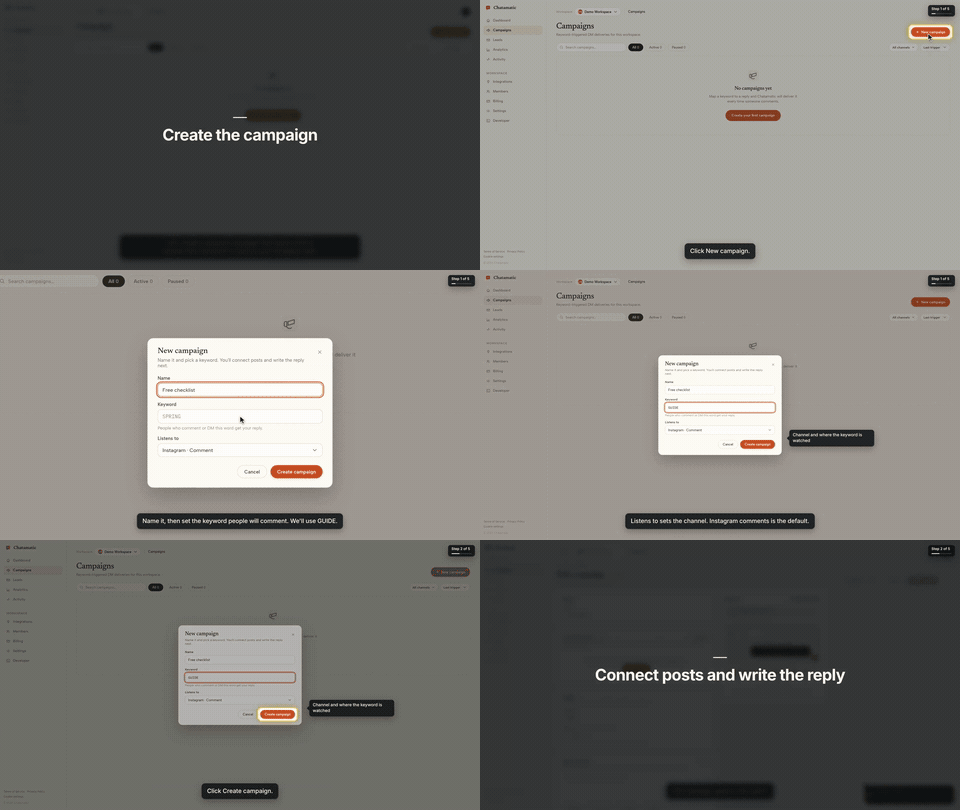
That is the first chapter of a 66-second video made from the request "make a tutorial video of creating a campaign". The whole session, from that sentence to the finished video with the exact prompt and every screen along the way, is in the Claude Code guide.
This repository gives your agent two things:
- The
screenbrowserskill — how to read your codebase and write the two guides Screen Browser needs (the login flow and the walkthrough), which effect fits which moment, how to check a guide for free before recording, and how to review the video before handing it over. - The MCP server configuration — the tools the agent calls: create the project, upload guides,
check them, start the run, poll it, fetch the video. The server itself is part of your Screen
Browser account at
https://mcp.screenbrowser.com.
Claude Code, Codex, Cursor or any MCP client can use it. Sign-in happens in the browser; there is no key to paste.
Install (Claude Code)
Add this repository as a plugin marketplace and install the plugin:
claude plugin marketplace add screenbrowser/skill
claude plugin install screenbrowser@screenbrowser
The first time the agent reaches for a Screen Browser tool, Claude Code opens your browser: sign in
to Screen Browser, approve the connection, and you are done. Nothing to copy. (If it does not
prompt, run /mcp and pick screenbrowser → Authenticate.)
Without the plugin system, register the server yourself and copy the skill:
claude mcp add --transport http screenbrowser https://mcp.screenbrowser.com
cp -r skills/screenbrowser ~/.claude/skills/
With an API key instead
If your agent cannot open a browser to sign in, create a key under Settings → API keys in Screen Browser and pass it as a bearer token:
claude mcp add --transport http screenbrowser https://mcp.screenbrowser.com \
  --header "Authorization: Bearer <your API key>"
Any MCP client works the same way: Streamable HTTP at https://mcp.screenbrowser.com, OAuth 2.1 with
dynamic client registration for interactive sign-in, or Authorization: Bearer <key>.
Other agents
The skill is a plain SKILL.md in the open Agent Skills format, and the server is standard MCP over
HTTP, so the same two pieces work outside Claude Code.
Cursor, VS Code, GitHub Copilot and other Agent Plugins clients — this repository is also an
Agent Plugins package (plugin.json, mcp.json, skills/), so
install it as a plugin from the repository URL and sign in when the client offers. Cursor without
the plugin: add the server to .cursor/mcp.json (or the global one in Cursor settings), click
Sign in next to it, and copy the skill into .cursor/skills/:
{
  "mcpServers": {
    "screenbrowser": { "url": "https://mcp.screenbrowser.com" }
  }
}
mkdir -p .cursor/skills && cp -r skills/screenbrowser .cursor/skills/
OpenAI Codex CLI — add the server to ~/.codex/config.toml, sign in once, and copy the skill
into Codex's skills folder:
[mcp_servers.screenbrowser]
url = "https://mcp.screenbrowser.com"
codex mcp login screenbrowser
mkdir -p ~/.codex/skills && cp -r skills/screenbrowser ~/.codex/skills/
Anything else (Gemini CLI, Windsurf, a custom agent) — register an HTTP MCP server with the URL
the way that tool documents it; a client that supports OAuth will sign you in, one that does not
takes the API key as an Authorization: Bearer header. Give the agent skills/screenbrowser/SKILL.md
as instructions (paste it, or point the tool's rules file at it). The MCP server itself also carries
the guide syntax as a resource and a write-tutorial-guide prompt, so a client with MCP prompts can
work without the skill file at all.
Use
Videos can be recorded on the desktop or as a phone or tablet (device: iphone, android, ipad,
…), in a phone frame on a vertical 9:16 or widescreen 16:9 canvas or as the bare screen; one run is
one device.
Open your app's repository in Claude Code and ask:
Make a tutorial video of creating a campaign.
The agent will check credits, create the project (it will ask you for the deployed URL, a demo user, and the legal attestation), write the guides from your routes and templates, validate them, show them to you, start the run, and give you the video link a few minutes later.
The MCP server also ships a get_guide_instructions tool with the same writing rules, for clients
without this skill, a write-tutorial-guide prompt that walks any client through the same flow, and
two resources: screenbrowser://guide-syntax and screenbrowser://example-guides.
What your app needs
- A demo user that signs in with email and password: no OAuth, no 2FA, no captcha. Seed it with realistic data.
- The deployed URL to record (staging is fine) and every host the app talks to (API subdomain, auth provider, CDN). An app that only runs on your computer works through a tunnel: ngrok or Cloudflare Tunnel (how).
- Confirmation that you are allowed to record the app (yours, a client's with permission, or an internal tool).
What it sends, and where
Everything the plugin does goes to one place: the Screen Browser MCP server at
https://mcp.screenbrowser.com, over HTTPS, signed in with your Screen Browser account. The
skill itself is instructions for the agent; it runs nothing on your machine and fetches nothing.
What the agent sends to Screen Browser when you ask for a video:
- the project's settings: your app's URL, the hosts it talks to, the sign-in check, narration language and voice;
- the guides it writes from your code: plain sentences naming buttons and fields as they appear on screen. Read them before they are saved; the agent shows them to you;
- the demo user's credentials, as project variables. Screen Browser stores them encrypted, uses them only to sign in during a recording, and never returns them through any tool. Values you give the agent pass through its conversation; to keep them out of chat, set them on the project's page in the Screen Browser dashboard instead;
- run commands: start, poll, cancel, and, only if you agree, a failure report with the recorder's screenshot and logs of a run that failed on Screen Browser's side.
It never sends your source code. The agent reads your repository locally to learn the labels; only the guide text leaves the machine. Nothing is sent to any other service. What Screen Browser keeps, and for how long, is in the privacy policy.
What it costs
Plans start at $49 a month, sized in minutes of finished video. Checking a guide before recording is free, and a run that fails is not charged. Videos are capped at five minutes. There is no free plan, but the first 100 accounts get 10 free minutes with no card. Current prices are on the pricing page.
Layout
plugin.json                        Agent Plugins manifest (Cursor, VS Code, Copilot, …)
mcp.json                           Agent Plugins MCP config (the URL; sign-in is OAuth)
.claude-plugin/plugin.json         Claude Code plugin manifest
.claude-plugin/marketplace.json    lets this repo act as its own Claude Code marketplace
.mcp.json                          Claude Code MCP server config
skills/screenbrowser/SKILL.md      the skill
skills/screenbrowser/references/   guide syntax reference, worked example
examples/chatamatic/               a real auth guide + main guide pair
What a guide looks like
Plain language, one step per line, naming things as they appear on screen. Screen Browser turns it into the script — the narration, the highlights, the pacing — and resolves each step against the live page:
Go to https://app.acme.test/campaigns
"Let's create a spring promotion."
Click "New campaign"
Type "Spring promo" into the Name field
Click "Save"
Confirm text "Campaign created" is visible
Ids and name= attributes are allowed when a step needs precision; class names generated by a build
tool are refused. The full reference, including the optional effect directives, is in
skills/screenbrowser/references/guide-syntax.md.
Documentation index for AI agents
The skill carries everything an agent needs to write a guide and run a recording. For anything else — prerequisites, costs, limitations, the API — https://screenbrowser.com/llms.txt is a Markdown index of the public documentation, and https://screenbrowser.com/docs/agents/ is the reference for this integration.
Support
Issues and ideas about the skill are welcome in this repository. Anything about your account or a particular recording: use the contact form at https://screenbrowser.com/contact/.
License
MIT. Screen Browser itself is a hosted service; this repository contains only the agent-facing skill, configuration and examples.
Screen Browser MCPのよくある質問
Screen Browser MCPをClaude Codeに追加するには
ターミナルでclaude mcp add --transport http skill https://mcp.screenbrowser.com/を実行します。すべてのプロジェクトで利用するには--scope userを追加します。
Screen Browser MCPをCursorに追加するには
~/.cursor/mcp.jsonを開き、上記のインストールセクションに示すCursor設定を使ってmcpServersの下にサーバーを追加します。
サーバーはソースコードをScreen Browserに送信しますか?
いいえ。エージェントはラベルを学習するためにローカルのリポジトリを読み取りますが、ソースコードをサービスに送信することはありません。
Webアプリケーションに必要な要件は何ですか?
メールアドレスとパスワードによるログインが可能なデモ用ユーザー(2FAやCAPTCHAは不可)、デプロイ済みのURL、および関連するすべてのホスト(API、認証、CDN)にアクセスできる必要があります。
無料プランはありますか?
永続的な無料プランはありませんが、最初の100アカウントには10分間の無料枠が付与されます。また、録画前にガイドを確認する作業は無料です。