
MagicInterview MCPサーバー
コミット 2026年11月12日AIクライアントが履歴書、求人票、Notionのノートにアクセスし、文脈に基づいた提案を行うことで、面接や会議の準備をサポートします。
別名 samihalawa/magicinterview-plugin, magicinterview-plugin
- スター
- 0
- ツール
- —
- ダウンロード数(30日間)
- —
- 最新バージョン
- 1.4.5
- 最終コミット
- 2026年11月12日
- ライセンス
- MIT
MagicInterview MCPとは
AIクライアントが履歴書、求人票、Notionのノートにアクセスし、文脈に基づいた提案を行うことで、面接や会議の準備をサポートします。
プロジェクトのREADMEから生成された概要
MagicInterview MCP server について
MagicInterviewは、AIの回答を個人の専門的な文脈に基づかせることで、重要な面接やクライアントとの会議の準備を可能にします。ユーザーは、履歴書、求人票、クライアントの概要、Notionのノートを含む専用のワークスペースにAIアシスタントを接続できます。この設定により、AIクライアントはアップロードされた特定のドキュメントに基づいて、文脈に応じた回答の提案や会話のブリーフィングの作成を行うことができます。
このサーバーを使用するには、プラグインをインストールし、アシスタントのブラウザ経由でOAuthを使用してMagicInterviewアカウントにサインインします。ワークスペース、アカウント、接続は無料ですが、高度なクラウドコーチングや特定のAIツールにはProサブスクリプションが必要です。サーバーは、プロジェクトを管理するための magicinterview-get-started や magicinterview-prepare-meeting といった特定のアクションを提供します。通話中のライブ音声アシスタンスを利用するには、コンピュータまたはスマートフォンのMagicInterviewフルアプリで会話を開く必要があります。MCP接続自体は、ライブの会議音声をキャプチャするのではなく、テキストと文脈を処理するためです。
できること
- 1クライアントの反論へのリアルタイムな対応既存の会議ブリーフィングを使用して、クライアントの反論に対してどのように回答すべきか提案を求めます。
- 2Notionからの専門的なノートの同期共有済みのNotionページをインポートして、会議準備のための再利用可能なソースとして使用します。
- 3会議履歴とフォローアップの管理保存された会話の文脈に基づいて、要約やフォローアップメッセージのドラフト作成にアシスタントを活用します。
プロジェクトの README から作成されています。すべてのユースケースは、その引用と照らし合わせて確認されています。
MagicInterview MCPのインストール方法
フォーマット検証日 2026年11月10日Cursor に追加Gooseに追加Claude CodeにMagicInterview MCPをインストール
$ claude mcp add --transport http magicinterview-plugin https://magicinterview.ai/mcpCursorにMagicInterview MCPをインストール
~/.cursor/mcp.json
{
  "mcpServers": {
    "magicinterview-plugin": {
      "url": "https://magicinterview.ai/mcp"
    }
  }
}VS CodeにMagicInterview MCPをインストール
.vscode/mcp.json
{
  "servers": {
    "magicinterview-plugin": {
      "type": "http",
      "url": "https://magicinterview.ai/mcp"
    }
  }
}VS Code CLIにMagicInterview MCPをインストール
$ code --add-mcp '{"name":"magicinterview-plugin","type":"http","url":"https://magicinterview.ai/mcp"}'CodexにMagicInterview MCPをインストール
$ codex mcp add magicinterview-plugin --url https://magicinterview.ai/mcpCodex config.tomlにMagicInterview MCPをインストール
~/.codex/config.toml
[mcp_servers.magicinterview-plugin]
url = "https://magicinterview.ai/mcp"
Gemini CLIにMagicInterview MCPをインストール
$ gemini mcp add -s user --transport http magicinterview-plugin https://magicinterview.ai/mcpGemini settings.jsonにMagicInterview MCPをインストール
~/.gemini/settings.json
{
  "mcpServers": {
    "magicinterview-plugin": {
      "url": "https://magicinterview.ai/mcp",
      "type": "http"
    }
  }
}自動チェック
実行日 2026年11月15日完全なレポート →まだ検証されていません。サーバーには80点のスコア、重大な問題がないこと、および検証に必要な十分なデータが必要です。 チェックの仕組み · 点数を上げるための改善点

- ソースリポジトリがリンクされており、アクセス可能samihalawa/magicinterview-plugin is public and reachablegithub.com/samihalawa/magicinterview-plugin ↗合格
- パッケージがこのリポジトリをソースとして指定未チェック
- ビルドの来歴 (Sigstore 証明)未チェック
- オープンソースライセンス (OSI)MITspdx.org/licenses/MIT.html ↗合格
- 過去1年以内にコミットまたはリリースありLast commit or release 2026-11-12github.com/samihalawa/magicinterview-plugin ↗合格
- OpenSSF Scorecard未チェック
- パッケージ名が有名なパッケージに酷似していない未チェック
- パッケージおよびその依存関係に重大な勧告なし未チェック
- モデルへの隠れた指示がない0 tool descriptions and the README read; no override phrases, credential paths or hidden characters合格
- 破壊的なツールがラベル付けされている未チェック
- リモートエンドポイントが MCP ハンドシェイクに応答HTTPS endpoint answered 401 (sign-in required)合格
README
GitHubで見るMagicInterview — know what to say next, live

MagicInterview helps you know what to say next in interviews and meetings. In the full MagicInterview app, start live listening to receive suggested responses as the conversation happens. Through the connected AI workspace, add your CV, job description, client brief and notes, then get context-grounded answers and prepare the conversation.
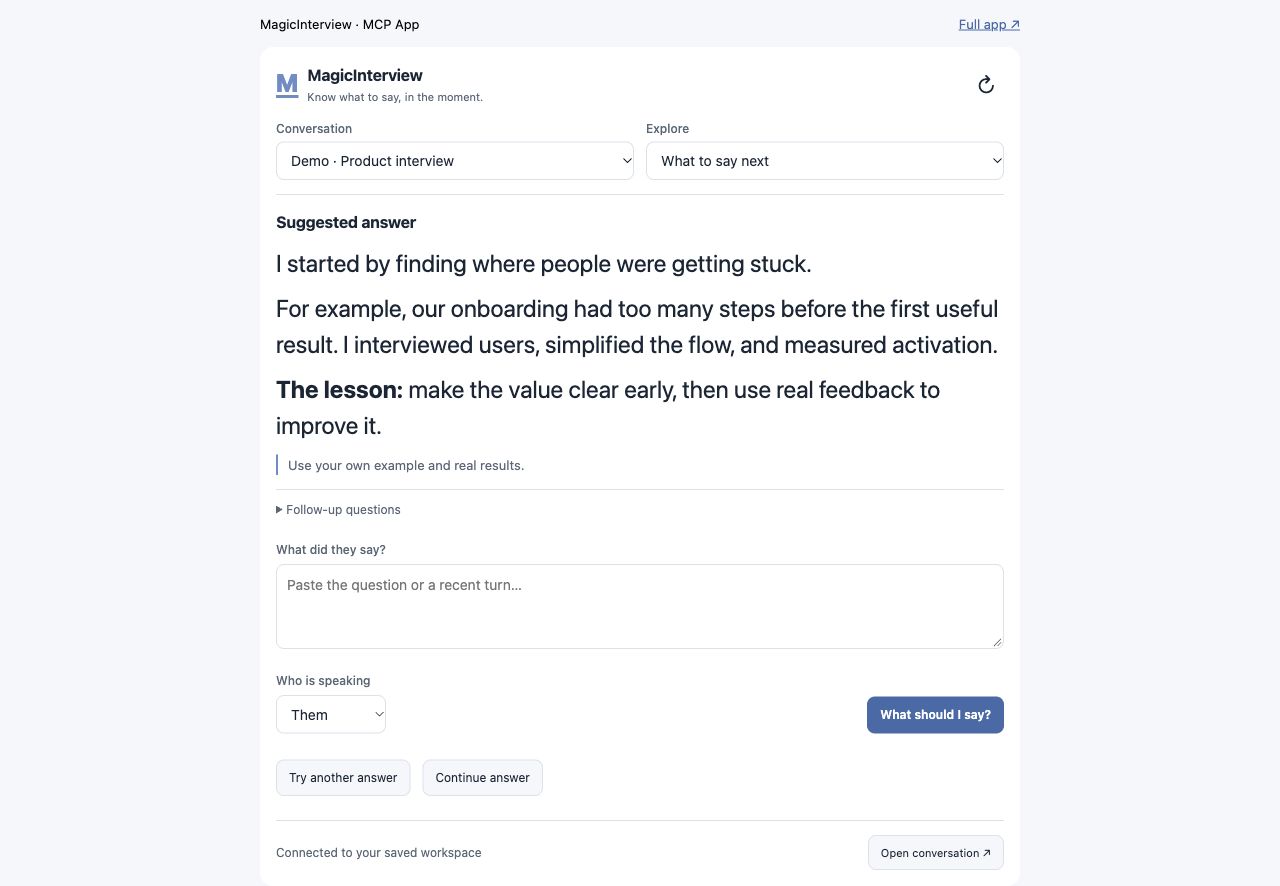
Espacio del asistente · contenido ficticio de demostración. El audio en directo se abre en la app completa. / Assistant workspace · fictional demo content. Live audio opens in the full app.
Empieza aquí · Start here
¿Es tu primera vez? MagicInterview te ayuda a saber qué decir en una entrevista o reunión. Puedes probar una preparación antes de crear una cuenta. La cuenta, la conexión con tu asistente y el espacio donde guardas tu CV, ofertas y notas son gratuitos. El coaching en la nube y las herramientas de IA requieren Pro.
flowchart TD
    A["1 · Prueba una preparación (opcional)<br/>Sin cuenta"] --> B["2 · Crea tu cuenta gratis<br/>Guarda CV, oferta y notas"]
    B --> C["3 · Conecta tu asistente<br/>Autoriza y vuelve al chat"]
    C --> D["4 · Prepara tu conversación<br/>Reutiliza tu contexto"]
    D --> E["¿Quieres coaching de IA?<br/>Consulta Pro y vuelve a tu pregunta"]
    D --> F["¿Quieres ayuda con audio en directo?<br/>Abre la misma conversación en la app"]
| Tu siguiente paso | Qué hacer | Qué obtienes |
|---|---|---|
| 1. Pruébalo (opcional) | Prueba gratuita sin cuenta | Una muestra de preparación antes de registrarte. |
| 2. Guarda tu contexto | Crea una cuenta gratis | Un espacio propio para CV, ofertas, notas y conversaciones. Sin tarjeta. |
| 3. Conecta tu asistente | Instala este plugin o añade el servidor; pulsa conectar e inicia sesión en el navegador. | Autoriza el acceso a tu cuenta y vuelve al mismo asistente. Los clientes compatibles usan OAuth, sin copiar tokens. |
| 4. Prepara y continúa | Pide: «Es mi primera vez. Ayúdame a preparar una entrevista con mi CV y la oferta, sin solicitar coaching de IA todavía». | Tu conversación y su contexto guardados. Cuando quieras coaching, consulta Pro y vuelve a tu pregunta. |
Para escuchar una llamada: abre la conversación en la app de MagicInterview y activa la escucha allí. El plugin usa texto y contexto guardado; no captura el audio de tu reunión desde el chat. Cómo funciona.
New to MagicInterview? You can try a preparation preview without an account, then create a free account to save your CV, job details and notes. Install this plugin, connect through your assistant's browser sign-in, approve access and return to the assistant. Ask it to prepare your first conversation using that context. Your account, connection and saved workspace are free; cloud coaching and AI tools require Pro. No card is required for a free account. Open the same conversation in the full app for live audio capture.
Branded skills and actions
The plugin provides magicinterview-get-started for first use and magicinterview-prepare-meeting for interview or meeting preparation. In supported assistants, ask MagicInterview to prepare the conversation using your CV, meeting brief or Notion notes. The magicinterview_prepare_meeting action saves a meeting or interview conversation and returns its direct link; live audio opens in the full app.
Live help when the conversation matters
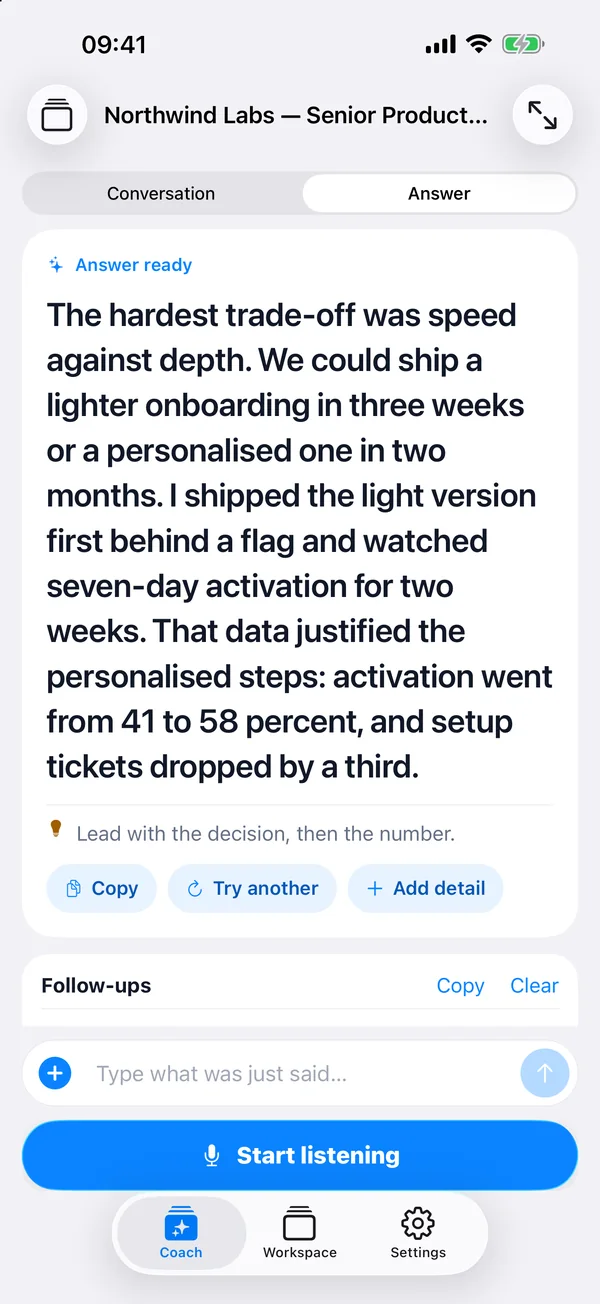
Interviewing for your next job? Add your CV and the job description. Get live suggestions that connect your experience to the role when the interviewer asks a question.
Finally meeting that potential client? Bring your client brief, offer, and past notes. Get help answering questions, responding to objections, and explaining the value of your offer as the call unfolds.
Keep your next answer in view. Open MagicInterview on your phone beside your computer, or use it on the same computer as your call. Start listening in MagicInterview and follow the suggestions as the conversation happens.
What the plugin connects
This plugin connects your AI assistant to your MagicInterview workspace so it can:
- Find, create, and update projects and conversations, then open the exact meeting in MagicInterview.
- Add relevant CVs, job descriptions, client briefs, and documents to your conversations.
- Keep shared project sources consistent across related meetings while preserving individual notes and history.
- Help set up today's professional meetings in time order. When your assistant has calendar or CRM access, it can use that context too.
- Request coaching and review saved guidance for a conversation.
Your assistant sets up the context and opens the right conversation. Start listening in the MagicInterview app when you are ready for live suggestions.
Notion notes and meeting sync: Connect Notion from Workspace → Notion on the web to import shared pages as reusable sources, or enable optional meeting sync. With meeting sync enabled, keep your brief in Notion and bring transcripts and saved coaching back to your notes. Set up Notion. Setup and sync management use the web app; saved sources stay available across signed-in devices.
A compact workspace inside your assistant
In compatible MCP App hosts, ask to open MagicInterview. The interactive workspace uses your connected account's real projects, conversations, sources, preferences, and saved history—not a separate copy.
One compact feature menu covers:
- What to say next and coding help: submit a question, get a context-aware answer, and read formatted prose or code.
- Transcript & speakers: inspect saved turns, add transcript text, and correct speaker labels.
- Context & files and projects & conversations: preview Markdown and original files, attach relevant sources, and manage shared project context and individual conversation notes.
- Research & CRM and recap & follow-up: ask your assistant to use its connected services and current sources, refresh relevant context, or draft a recap and follow-up without sending it.
- Languages & models and account settings: manage preferences and inspect connection status.
- Audio/text/screenshots, focus/reading, and voice practice: paste text in the workspace or open the same conversation in the full app for device-based audio, screenshots, focus controls, and voice practice.
Live listening does not start remotely through MCP. Use the web app on your computer or phone, or the Mac and Android apps. On iPhone, add MagicInterview to your Home Screen for quick access. Links preserve the selected conversation.
Source
The canonical plugin source lives in the MagicInterview monorepo under plugins/magicinterview (Claude and Codex marketplaces at the repository root). The public repository samihalawa/magicinterview-plugin is an automatic read-only mirror of that folder, and its releases stay downloadable. Every published listing is indexed in listings/README.md.
Install in Claude Code:
/plugin install magicinterview --marketplace samihalawa/2026-CODEX-MagicInterview
Release downloads
| Use | Download or connect |
|---|---|
| ChatGPT / OpenAI release archive | OpenAI package 1.4.5 — archived release package. For a new directory upload, run python3 scripts/package_openai.py /path/to/magicinterview-openai.zip from this directory. |
| Standard plugin files for local installation or development | Plugin source 1.4.5 — extract the archive, then use your client's supported local-plugin installation flow. Includes Claude and Codex manifests, skills and the standard MCP configuration. |
| Remote MCP clients, including Cursor and VS Code | Connect to https://magicinterview.ai/mcp using your client's remote MCP setup. No ZIP is required. Connection guides. |
Choose the package for your client. Marketplace installations follow that marketplace's update process; downloading a release does not publish or update a marketplace listing. Release source is pinned by the versioned release tag.
Connect through your assistant
Install the plugin and choose Connect in your AI assistant. When the browser opens, create a free MagicInterview account or sign in, approve the connection, and return to your assistant. OAuth-capable clients handle authorization without copying an API key. If your client only supports a bearer token, use the optional manual setup in connection settings; keep that token private.
Technical MCP endpoint
For clients configured manually, the remote Streamable HTTP endpoint is:
https://magicinterview.ai/mcp
For the public ChatGPT directory, use https://magicinterview.ai/mcp?toolset=directory to expose each supported operation directly. The default endpoint uses a compact operation catalog for other clients.
Suggested prompts
-
I am new to MagicInterview. Help me save my CV and job details and prepare my first conversation before requesting AI coaching.
-
Help me answer this interview question now. Use my CV and job description to suggest a clear response I can say aloud.
-
A client just raised an objection. Use my meeting brief to suggest what to say next and one useful follow-up question.
-
Open my MagicInterview workspace and prepare my next meeting with a concise brief and context for live answers.
If you get stuck
| What you see | What to do next |
|---|---|
| No account or a sign-in request | Create a free account in the connection window, approve access and return to your assistant. An installed plugin still needs an authorized connection. |
| An empty workspace | Ask your assistant to create your first conversation using the CV, job details or brief you supply. No prior projects are required. |
| “Pro required” | Follow the upgrade link returned by MagicInterview if you want cloud coaching. Keep the question and retry after upgrading; workspace preparation remains free. |
| A pending payment | Check the order status in Settings. Opening or returning from checkout does not confirm payment or Pro access. |
| A connection or conversation error | Ask your assistant to check the affected conversation and relevant saved debug information. Never paste tokens or passwords into the chat. |
Links
License
MIT
MagicInterview MCPのよくある質問
MagicInterview MCPをClaude Codeに追加するには
ターミナルでclaude mcp add --transport http magicinterview-plugin https://magicinterview.ai/mcpを実行します。すべてのプロジェクトで利用するには--scope userを追加します。
MagicInterview MCPをCursorに追加するには
~/.cursor/mcp.jsonを開き、上記のインストールセクションに示すCursor設定を使ってmcpServersの下にサーバーを追加します。
面接の準備に有料サブスクリプションは必要ですか?
いいえ、アカウントの作成や、履歴書、求人情報、ノートを保存するためのワークスペースの利用は無料です。クラウドコーチングおよびAIツールのみ、Proサブスクリプションが必要になります。
NotionのノートをMagicInterviewに接続するにはどうすればよいですか?
ウェブ版のWorkspaceセクションからNotionを接続することで、共有ページを再利用可能なソースとしてインポートできます。
このプラグインの認証はどのように機能しますか?
対応しているクライアントはOAuthを使用します。ブラウザ経由でサインインすることで、APIトークンをコピーすることなくアクセス権限を承認できます。