
AIクライアントがMacのクリップボード履歴やスクリーンショット内のテキストを、ローカル環境で検索、読み取り、再コピーできるようにします。
別名 pastea-app/pastea-mcp, pastea-mcp, @pastea/mcp
- スター
- 0
- ツール
- —
- ダウンロード数(30日間)
- —
- 最新バージョン
- 1.0.4
- 最終コミット
- 2026年9月3日
- ライセンス
- MIT
Pastea MCPとは
PasteaはMCPサーバーです。 AIクライアントがMacのクリップボード履歴やスクリーンショット内のテキストを、ローカル環境で検索、読み取り、再コピーできるようにします。.
プロジェクトのREADMEから生成された概要
Pastea MCP server について
Pasteaは、macOSのクリップボード履歴とAIアシスタントを接続するローカルブリッジを提供します。このMCP serverを使用すると、Claude Desktop、Cursor、VS Code、Codexなどのツールが、スクリーンショット内で認識されたテキストを含むコピー済みのアイテムとやり取りできるようになります。サーバーは127.0.0.1で動作するため、データはMac内に保持され、サードパーティのサーバーへ送信されることはありません。
ユーザーはnpxコマンドまたは専用のインストールファイルを使用してサーバーを統合できます。接続が完了すると、アシスタントは特定のツールを使用して、クリップの検索、画像サムネイル付きの全文読み取り、コレクションのリスト表示、およびアイテムのシステムクリップボードへの再コピーを行うことができます。このセットアップには、macOS 15以降とPastea Proのサブスクリプションが必要です。
セキュリティは手動の許可プロセスによって管理されます。AIアプリケーションが初めて接続を試みると、Pasteaアプリに承認を求めるプロンプトが表示されます。特定のツールへのアクセス権は、Pasteaの設定メニューからいつでも取り消すことができます。AIアシスタントは、クリップの削除や、パスワードマネージャーによって保護されているアイテムへのアクセスはできないよう制限されています。
できること
- 1スクリーンショットからテキストを抽出以前にコピーした画像内に含まれるテキストを、AIアシスタントに検索・読み取りさせます。
- 2クリップボード履歴の検索最近のクリップボードの履歴から、特定のリンクやファイル名をAIに探させます。
- 3クリップをクリップボードに復元過去の特定のクリップを、すぐに貼り付けられるようAIアシスタントにシステムのクリップボードへ戻させます。
- 4クリップボードコレクションの管理Pasteaで整理した各種コレクションや履歴の件数をAIにリストアップさせます。
プロジェクトの README から作成されています。すべてのユースケースは、その引用と照らし合わせて確認されています。
Pastea MCPのインストール方法
フォーマット検証日 2026年11月10日Cursor に追加Gooseに追加Claude CodeにPastea MCPをインストール
$ claude mcp add pastea-mcp -- npx -y @pastea/mcpCursorにPastea MCPをインストール
~/.cursor/mcp.json
{
  "mcpServers": {
    "pastea-mcp": {
      "command": "npx",
      "args": [
        "-y",
        "@pastea/mcp"
      ]
    }
  }
}VS CodeにPastea MCPをインストール
.vscode/mcp.json
{
  "servers": {
    "pastea-mcp": {
      "type": "stdio",
      "command": "npx",
      "args": [
        "-y",
        "@pastea/mcp"
      ]
    }
  }
}VS Code CLIにPastea MCPをインストール
$ code --add-mcp '{"name":"pastea-mcp","type":"stdio","command":"npx","args":["-y","@pastea/mcp"]}'Claude DesktopにPastea MCPをインストール
claude_desktop_config.json
{
  "mcpServers": {
    "pastea-mcp": {
      "command": "npx",
      "args": [
        "-y",
        "@pastea/mcp"
      ]
    }
  }
}CodexにPastea MCPをインストール
$ codex mcp add pastea-mcp -- npx -y @pastea/mcpCodex config.tomlにPastea MCPをインストール
~/.codex/config.toml
[mcp_servers.pastea-mcp]
command = "npx"
args = ["-y", "@pastea/mcp"]
Gemini CLIにPastea MCPをインストール
$ gemini mcp add -s user pastea-mcp npx -- -y @pastea/mcpGemini settings.jsonにPastea MCPをインストール
~/.gemini/settings.json
{
  "mcpServers": {
    "pastea-mcp": {
      "command": "npx",
      "args": [
        "-y",
        "@pastea/mcp"
      ]
    }
  }
}設定
PASTEA_MCP_URL
| 名前 | 説明 | 種類 |
|---|---|---|
| PASTEA_MCP_URL | — |
自動チェック
実行日 2026年11月14日完全なレポート →自動チェックに合格しました。これはセキュリティ監査ではありません。コードを読み、サーバーに必要最小限のアクセス権を与えてください。 チェックの仕組み

- ソースリポジトリがリンクされており、アクセス可能pastea-app/pastea-mcp is public and reachablegithub.com/pastea-app/pastea-mcp ↗合格
- パッケージがこのリポジトリをソースとして指定@pastea/mcp names pastea-app/pastea-mcp as sourcenpmjs.com/package/@pastea/mcp ↗合格
- ビルドの来歴 (Sigstore 証明)Sigstore attestation for @pastea/mcpnpmjs.com/package/@pastea/mcp/v/1.0.4#provenance ↗合格
- オープンソースライセンス (OSI)MITspdx.org/licenses/MIT.html ↗合格
- 過去1年以内にコミットまたはリリースありLast commit or release 2026-09-03github.com/pastea-app/pastea-mcp ↗合格
- OpenSSF Scorecard未チェック
- パッケージ名が有名なパッケージに酷似していないNo popular package one edit away from @pastea/mcp合格
- パッケージおよびその依存関係に重大な勧告なし1 resolved dependencies checked; no critical advisoryosv.dev ↗合格
- モデルへの隠れた指示がない0 tool descriptions and the README read; no override phrases, credential paths or hidden characters合格
- 破壊的なツールがラベル付けされている未チェック
- リモートエンドポイントが MCP ハンドシェイクに応答未チェック
README
GitHubで見るPastea MCP


Local MCP server for Pastea. Give Claude, Cursor, Codex, VS Code and other AI tools access to your Mac's clipboard history — without anything leaving your Mac.
Your assistant can search what you copied, pull a clip into context (including the text Pastea reads inside your screenshots), and put a clip back on the clipboard for you to paste.
Pastea runs the MCP server itself, on 127.0.0.1 only. This package is the thin,
dependency-free bridge that AI apps launch: it finds Pastea, asks it for access once —
you click Allow in Pastea — and relays messages over stdio.
Install
Claude Desktop
One click from Pastea: open Settings → MCP & AI Tools, turn on Enable MCP, and click Claude Desktop. Claude Desktop opens with the Pastea extension ready to install.
Or find Pastea in Claude Desktop under Settings → Extensions → Browse extensions, or
download pastea-mcp-<version>.mcpb from the
latest release and double-click it.
The first time Claude uses it, Pastea asks you to allow the connection.
Every other AI app
Use add-mcp to connect Pastea to all your installed
AI apps at once:
npx add-mcp @pastea/mcp
Or connect each app yourself:
Claude Code
claude mcp add pastea -- npx -y @pastea/mcp
Codex
codex mcp add pastea -- npx -y @pastea/mcp
Cursor

VS Code

Anything else that runs stdio MCP servers:
{ "mcpServers": { "pastea": { "command": "npx", "args": ["-y", "@pastea/mcp"] } } }
The first time an app uses Pastea, Pastea shows "Allow <app> to use your clipboard history?" — click Allow and the tools appear.
Connect from Pastea
Every app above can also be connected from inside Pastea — Settings → MCP & AI Tools, click the app's chip. Cursor and VS Code open an install prompt; Claude Code, Windsurf and Codex get the exact command or config to paste, already carrying an access token, so no pairing prompt is needed.
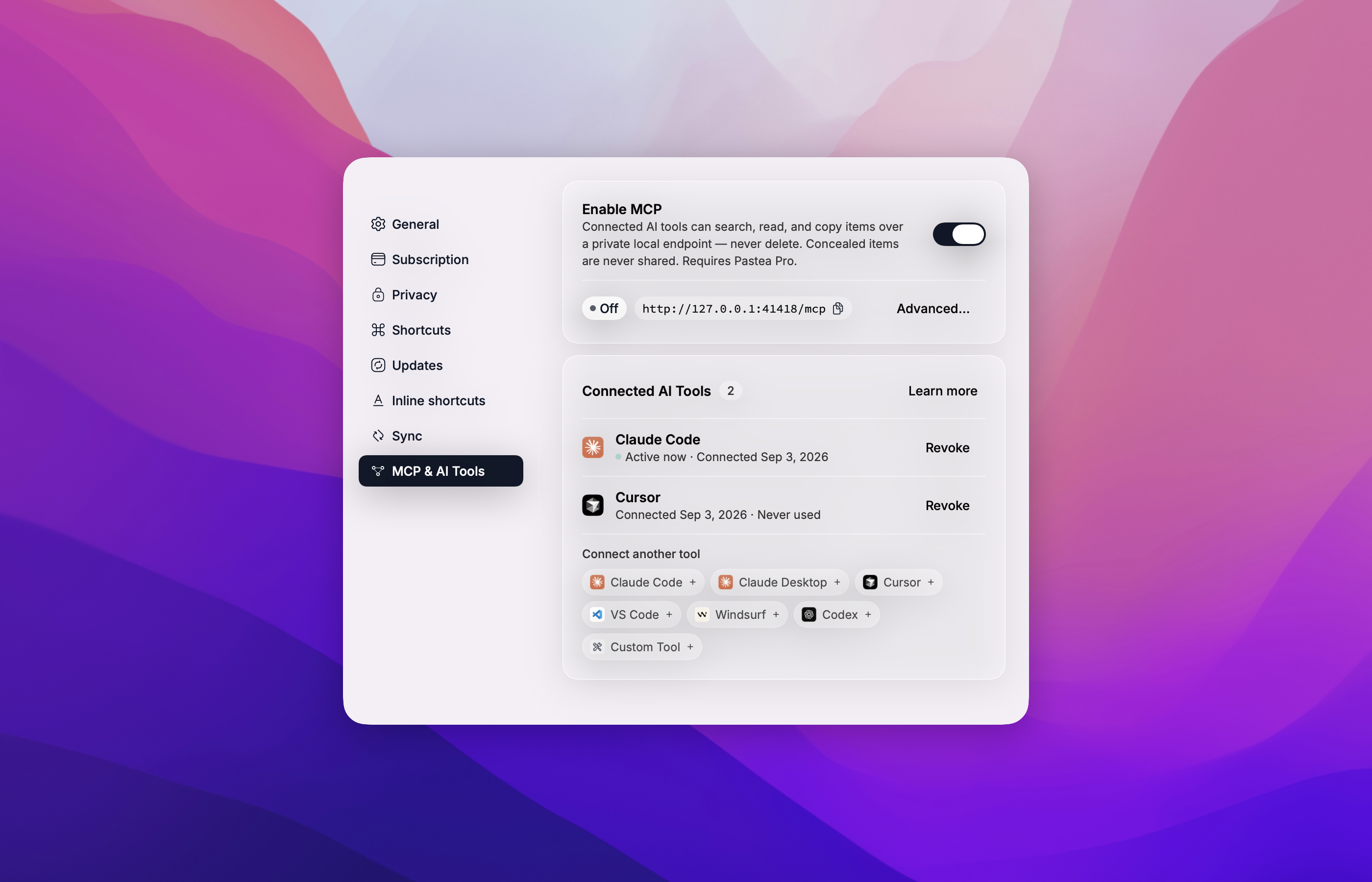
What your assistant can do
| Tool | What it does |
|---|---|
search_clips |
Search your clipboard history and lists — text, links, file names, and text recognized in screenshots. |
get_clip |
Read one clip in full, with a thumbnail for pictures. |
list_collections |
List your history and the lists you made, with counts. |
copy_clip |
Put a clip back on the system clipboard, exactly as copied. You paste it yourself with ⌘V. |
pastea_status |
Says whether Pastea is reachable and connected, and what to do if not. |
An AI tool can never delete a clip, never pastes into another app, and never sees items Pastea conceals (from password managers).
How pairing works
The bridge ships with no credentials. On first use it asks Pastea for access and Pastea shows
"Allow Claude Desktop to use your clipboard history?" (or Cursor, Codex, …). Click Allow
and the tools appear a moment later; click Don't Allow and nothing is granted — the assistant
gets a pastea_status tool that explains the situation.
Connections are listed in Pastea → Settings → MCP & AI Tools → Connected AI Tools, where you can Revoke each one. Pastea then asks again only if you ask the assistant to reconnect.
Requirements
- macOS 15 or later
- Pastea 1.3+ with Pastea Pro, and Enable MCP turned on in Settings → MCP & AI Tools
- For
npxinstalls: Node.js 20+ (Claude Desktop needs nothing — it ships its own)
Privacy Policy
Pastea MCP runs locally on your Mac.
- It connects only to Pastea on
127.0.0.1and to nothing else. It makes no network requests to Nexo Labs or any third party, and carries no analytics or telemetry. - It moves clipboard data only between Pastea and the AI app that runs it, and only after you clicked Allow in Pastea. What that AI app does with clips it reads is governed by that app's own privacy policy.
- It stores one thing: the access token Pastea issued when you clicked Allow, in
~/Library/Application Support/Pastea/MCP Bridge/tokens.json, readable by your user account only. Revoking the connection in Pastea invalidates it immediately; uninstalling Pastea removes the file. - Concealed clips are never available to it, and it cannot delete anything.
Full policy — what data Pastea processes, how it is stored, sharing, retention, and contact: https://pastea.app/privacy.
Troubleshooting
"Pastea isn't running, or its MCP endpoint is turned off."
Open Pastea and turn on Enable MCP in Settings → MCP & AI Tools, then ask the assistant to
call pastea_status.
"Pastea Pro is required."
MCP access is a Pro feature. Subscribe in Pastea's Settings, then call pastea_status.
"Pastea is asking the user to allow this connection." Look for the Pastea window — it may be behind the AI app — and click Allow.
The tools vanished.
The connection was revoked in Pastea, or Pastea was reset. Ask the assistant to call
pastea_status to pair again.
Tools don't show up after connecting. Fully quit and reopen the AI app so it relaunches the bridge.
Changed Pastea's port? The bridge reads it from Pastea's preferences on every launch; restart the AI app.
Logs for Claude Desktop: ~/Library/Logs/Claude/mcp-server-Pastea.log. The bridge never logs
the token.
Development
npm install
npm test            # node --test, no network
npm run build       # tsc → dist/
scripts/pack.sh     # validate + pack → build/pastea-mcp-<version>.mcpb + SHA256SUMS
Run it against a development Pastea by hand:
PASTEA_MCP_URL=http://127.0.0.1:41418/mcp node dist/index.js
then type JSON-RPC lines on stdin (initialize, notifications/initialized, tools/list).
Releases are cut by tagging v<version> (matching package.json, manifest.json,
server.json and src/version.ts); the workflow packs the bundle and publishes it.
Contributing
Issues and pull requests welcome — see the issue tracker.
License
Pastea MCPのよくある質問
Pastea MCPをClaude Codeに追加するには
ターミナルでclaude mcp add pastea-mcp -- npx -y @pastea/mcpを実行します。すべてのプロジェクトで利用するには--scope userを追加します。
Pastea MCPをCursorに追加するには
~/.cursor/mcp.jsonを開き、上記のインストールセクションに示すCursor設定を使ってmcpServersの下にサーバーを追加します。
Pasteaを使うと、AIアシスタントは何ができますか?
クリップボード履歴(スクリーンショット内のテキストを含む)の検索、サムネイル付きのクリップ全文の読み取り、コレクションのリスト表示、およびクリップをシステムのクリップボードに書き戻すことが可能です。
クリップボードのデータはクラウドに送信されますか?
いいえ、サーバーはMac上でローカルに動作し、127.0.0.1上のPasteaにのみ接続するため、外部ネットワークへのリクエストは発生しません。
Pasteaの無料版でも利用できますか?
いいえ、MCPへのアクセスにはPastea Proのサブスクリプションが必要です。
AIがクリップボード履歴を削除することはありますか?
いいえ、AIアシスタントはクリップの削除や、パスワードマネージャーによって隠されているアイテムへのアクセスは制限されています。