
Ermöglicht es AI-Clients, E-Mails zu versenden, IP-Lookups durchzuführen und lokale Dokumente in Markdown zu konvertieren.
Auch bekannt als sendsoon/mcp, @sendsoon/mcp, sendsoon-mcp
- Stars
- 6
- Tools
- —
- Downloads, 30 Tage
- 136
- Neueste Version
- 0.3.8
- Letzter Commit
- 12. Okt. 2026
- Lizenz
- MIT
Was ist SendSoon MCP?
Ermöglicht es AI-Clients, E-Mails zu versenden, IP-Lookups durchzuführen und lokale Dokumente in Markdown zu konvertieren.
Zusammenfassung generiert aus dem README des Projekts
Über SendSoon MCP server
Der SendSoon MCP bietet eine Brücke für AI-Clients, um mit spezifischen Utility-Funktionen zu interagieren, darunter E-Mail-Versand, IP-Intelligence und Dokumentenverarbeitung. Er ist für Nutzer von Codex, Claude Desktop und WorkBuddy konzipiert und ermöglicht es diesen Agenten, Aufgaben über natürliche Sprachbefehle auszuführen. Der Server läuft lokal via npx und erfordert eine Konfiguration innerhalb der spezifischen Settings oder Config-Dateien deines gewählten AI-Clients.
Nutzer haben Zugriff auf drei primäre Tools: send_email zum Versenden von Nachrichten, ip_lookup zum Abrufen von Informationen über öffentliche IPs und markitdown_convert zum Umwandeln lokaler Dateien in das Markdown-Format. Während ein anonymer Testlauf verfügbar ist, beschränkt dieser die Nutzung auf drei kostenlose Test-E-Mails pro Tag für eine öffentliche IP. Für den vollen Funktionsumfang musst du einen SENDSOON_API_KEY in deiner Umgebungskonfiguration bereitstellen. Dieses Setup ermöglicht es einem Agenten, Datei-Konvertierungen und Netzwerk-Lookups ohne manuelles Eingreifen zu erledigen.
Was du damit machen kannst
- 1Automatisierte E-Mails versendenBitte deinen AI-Agenten, eine spezifische E-Mail mit Betreff und Inhalt an einen Empfänger zu senden.
- 2Öffentliche IP-Details abrufenFordere Informationen über den Standort und den Service Provider einer bestimmten IP-Adresse an.
- 3Dokumente in Markdown konvertierenWeise den Client an, eine lokale PDF-Datei in das Markdown-Format umzuwandeln, um die Weiterverarbeitung zu erleichtern.
Geschrieben aus dem README des Projekts. Jeder Use Case wurde gegen ein Zitat daraus geprüft.
So installierst du SendSoon MCP
Formate geprüft am 10. Nov. 2026Zu Cursor hinzufügenZu Goose hinzufügenSendSoon MCP in Claude Code installieren
$ claude mcp add --env 'SENDSOON_API_KEY=<YOUR_SENDSOON_API_KEY>' mcp -- npx -y @sendsoon/mcpSendSoon MCP in Cursor installieren
~/.cursor/mcp.json
{
  "mcpServers": {
    "mcp": {
      "command": "npx",
      "args": [
        "-y",
        "@sendsoon/mcp"
      ],
      "env": {
        "SENDSOON_API_KEY": "<YOUR_SENDSOON_API_KEY>"
      }
    }
  }
}SendSoon MCP in VS Code installieren
.vscode/mcp.json
{
  "servers": {
    "mcp": {
      "type": "stdio",
      "command": "npx",
      "args": [
        "-y",
        "@sendsoon/mcp"
      ],
      "env": {
        "SENDSOON_API_KEY": "<YOUR_SENDSOON_API_KEY>"
      }
    }
  }
}SendSoon MCP in VS Code CLI installieren
$ code --add-mcp '{"name":"mcp","type":"stdio","command":"npx","args":["-y","@sendsoon/mcp"],"env":{"SENDSOON_API_KEY":"<YOUR_SENDSOON_API_KEY>"}}'SendSoon MCP in Claude Desktop installieren
claude_desktop_config.json
{
  "mcpServers": {
    "mcp": {
      "command": "npx",
      "args": [
        "-y",
        "@sendsoon/mcp"
      ],
      "env": {
        "SENDSOON_API_KEY": "<YOUR_SENDSOON_API_KEY>"
      }
    }
  }
}SendSoon MCP in Codex installieren
$ codex mcp add mcp --env 'SENDSOON_API_KEY=<YOUR_SENDSOON_API_KEY>' --env 'SENDSOON_API_KEY=<YOUR_SENDSOON_API_KEY>' -- npx -y @sendsoon/mcpSendSoon MCP in Codex config.toml installieren
~/.codex/config.toml
[mcp_servers.mcp]
command = "npx"
args = ["-y", "@sendsoon/mcp"]

[mcp_servers.mcp.env]
SENDSOON_API_KEY = "<YOUR_SENDSOON_API_KEY>"
SendSoon MCP in Gemini CLI installieren
$ gemini mcp add -s user -e 'SENDSOON_API_KEY=<YOUR_SENDSOON_API_KEY>' -e 'SENDSOON_API_KEY=<YOUR_SENDSOON_API_KEY>' mcp npx -- -y @sendsoon/mcpSendSoon MCP in Gemini settings.json installieren
~/.gemini/settings.json
{
  "mcpServers": {
    "mcp": {
      "command": "npx",
      "args": [
        "-y",
        "@sendsoon/mcp"
      ],
      "env": {
        "SENDSOON_API_KEY": "<YOUR_SENDSOON_API_KEY>"
      }
    }
  }
}Konfiguration
SENDSOON_API_KEYSecretSendSoon API Key (ssk_live_...). Leave empty for the anonymous trial of three sends per public IP per day.
SENDSOON_API_KEYSecretSendSoon API Key (ssk_live_...). Leave empty for the anonymous trial of three sends per public IP per day.
| Name | Beschreibung | Typ |
|---|---|---|
| SENDSOON_API_KEY | SendSoon API Key (ssk_live_...). Leave empty for the anonymous trial of three sends per public IP per day. | Secret |
| SENDSOON_API_KEY | SendSoon API Key (ssk_live_...). Leave empty for the anonymous trial of three sends per public IP per day. | Secret |
Automatisierte Checks
Geluften am 14. Nov. 2026Vollständiger Bericht →Unsere automatisierten Checks bestanden. Das ist kein Security-Audit: Lies den Code und gib dem Server nur den minimal notwendigen Zugriff. Wie die Checks funktionieren

- Source Repository verknüpft und erreichbarsendsoon/mcp is public and reachablegithub.com/sendsoon/mcp ↗Bestanden
- Paket nennt dieses Repository als Quelle@sendsoon/mcp, sendsoon-mcp name sendsoon/mcp as sourcenpmjs.com/package/@sendsoon/mcp ↗Bestanden
- Build-Provenienz (Sigstore-Attestierung)Sigstore attestation for @sendsoon/mcp, sendsoon-mcpnpmjs.com/package/@sendsoon/mcp/v/0.3.8#provenance ↗Bestanden
- Open Source Lizenz (OSI)MITspdx.org/licenses/MIT.html ↗Bestanden
- Commit oder Release im letzten JahrLast commit or release 2026-10-12github.com/sendsoon/mcp ↗Bestanden
- OpenSSF ScorecardNicht geprüft
- Package-Name ähnelt keinem populären PackageNo popular package one edit away from @sendsoon/mcp, sendsoon-mcpBestanden
- Keine kritischen Advisories im Paket oder seinen Abhängigkeiten99 resolved dependencies checked; no critical advisoryosv.dev ↗Bestanden
- Keine versteckten Anweisungen an das Modell0 tool descriptions and the README read; no override phrases, credential paths or hidden charactersBestanden
- Destruktive Tools sind markiertNicht geprüft
- Remote-Endpoint beantwortet den MCP-HandshakeNicht geprüft
README
Auf GitHub ansehenSendSoon AI MCP
SendSoon MCP is a Model Context Protocol (MCP) server that lets Codex, Claude, and WorkBuddy use SendSoon capabilities: send email, look up public IPs, and convert local documents to Markdown.
Configure it once, then describe tasks in natural language. You usually do not need to mention SendSoon in every prompt.
What you can do
| Tool | Purpose | Example |
|---|---|---|
send_email |
Send a single email | “Send me a test email” |
ip_lookup |
Look up public IP information | “Look up the location of 8.8.8.8” |
markitdown_convert |
Convert a local document to Markdown | “Convert this PDF to Markdown” |
Everyday examples
Send an email to user@example.com with the subject “Meeting reminder” and the body “The meeting starts at 3 PM today.”
Look up the location and ISP for 8.8.8.8.
Convert /path/to/report.pdf to Markdown and summarize the key points.
If the agent does not select a tool automatically, say:
Use the sendsoon MCP to complete this task.
Install in your AI client
The instructions below cover Codex, Claude Desktop, and WorkBuddy.
Codex
Config file: user-level ~/.codex/config.toml (macOS / Linux) or %USERPROFILE%\.codex\config.toml (Windows).
[mcp_servers.sendsoon]
command = "npx"
args = ["-y", "@sendsoon/mcp"]

[mcp_servers.sendsoon.env]
SENDSOON_API_KEY = ""
Verify: Save the file, restart Codex, and run /mcp in a chat. You should see sendsoon connected. In the desktop app, also check Settings > MCP servers.
First use: Start a new conversation and ask for a simple task (e.g. “Look up 8.8.8.8”). Approve the tool if Codex asks for permission.
Claude Desktop
Config file:
| OS | Path |
|---|---|
| macOS | ~/Library/Application Support/Claude/claude_desktop_config.json |
| Windows | %APPDATA%\Claude\claude_desktop_config.json |
You can also open Settings > Developer > Edit Config inside Claude Desktop.
{
  "mcpServers": {
    "sendsoon": {
      "command": "npx",
      "args": ["-y", "@sendsoon/mcp"],
      "env": {
        "SENDSOON_API_KEY": ""
      }
    }
  }
}
Verify: Save the file, fully quit Claude Desktop (including the system tray), then relaunch. Start a new chat and confirm sendsoon tools appear in the tools menu or settings.
First use: Claude may ask to approve tool access on the first invocation; allow it to continue.
WorkBuddy
WorkBuddy can add SendSoon by pasting the connector JSON directly in MCP Server Management.
Config file: %USERPROFILE%\.workbuddy-ai\mcp.json (Windows) or ~/.workbuddy-ai/mcp.json (macOS / Linux).
- Open WorkBuddy and go to MCP Server Management.
- Click Add MCP.
- Paste the JSON below into the editor. Fill in
SENDSOON_API_KEYif you have a Key; leave it empty for the anonymous trial. - Click Save.
{
  "mcpServers": {
    "sendsoon": {
      "command": "npx",
      "args": [
        "-y",
        "@sendsoon/mcp"
      ],
      "env": {
        "SENDSOON_API_KEY": ""
      }
    }
  }
}
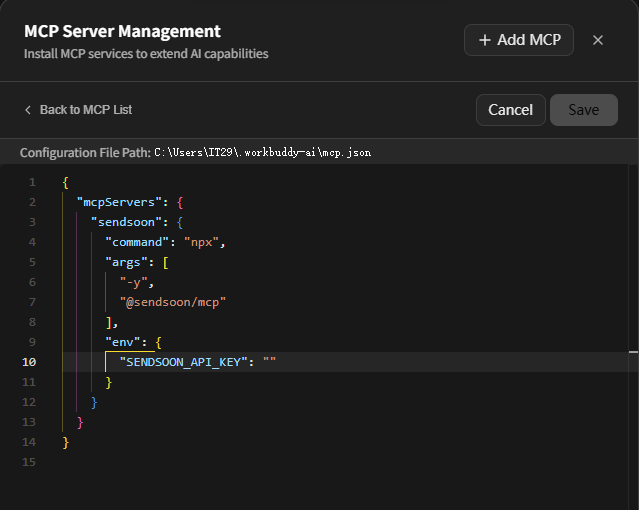
The screenshot shows the WorkBuddy connector editor: the configuration file path is at the top, and the sendsoon JSON is pasted into the editor. After saving, return to the MCP list and confirm sendsoon is connected.
Verify: Start a new conversation and ask for a simple task (e.g. “Look up 8.8.8.8”). Approve the tool if WorkBuddy asks for permission.
Prepare the configuration
Optional environment variable:
| Setting | Required | What to enter |
|---|---|---|
SENDSOON_API_KEY |
No | Leave empty for an unregistered trial. One public IP can send up to three free test emails per day. Enter your generated Key for continued use |
Never commit a real Key to Git or share it with anyone.
Get an API Key
- Sign up or sign in on the SendSoon registration page.
- Open Profile and generate a Key in the API Key section.
- Copy the one-time
ssk_live_...Key immediately and enter it asSENDSOON_API_KEYin your MCP configuration. - Save the configuration and restart your MCP client. Requests with a valid Key do not use the anonymous IP daily quota.
If the anonymous quota is exhausted, send_email will tell you to register and configure a Key. An invalid or revoked Key is rejected and does not fall back to the anonymous quota.
Try it in Google Colab
Skip local setup and try ip_lookup, markitdown_convert, and send_email in the browser.

The notebook calls the same SendSoon HTTP APIs used by these MCP tools.
Visual local testing (MCP Inspector)
To see all three tools in a browser and click through them manually before installing into an AI client, use the MCP Inspector.
Requires Node.js 20+. Run the command below in a terminal; Inspector opens a web UI automatically:
npx @modelcontextprotocol/inspector npx -y @sendsoon/mcp
How to test
- Wait for
MCP Inspector Web is up and runningin the terminal. If the browser does not open, paste thehttp://127.0.0.1:6274?...URL from the terminal. - Confirm the page header shows Connected.
- Open the Tools tab in the top-right area of the page.
- Select a tool from the list on the left, fill in the parameters, and click Execute Tool.
- Read the response in the Results panel on the right. On failure, inspect
error.codeanderror.message.
License
See LICENSE.
SendSoon MCP Fragen
Wie füge ich SendSoon MCP zu Claude Code hinzu?
Führe claude mcp add --env 'SENDSOON_API_KEY=<YOUR_SENDSOON_API_KEY>' mcp -- npx -y @sendsoon/mcp in deinem Terminal aus. Füge --scope user hinzu, damit der Server in jedem Projekt verfügbar ist.
Wie füge ich SendSoon MCP zu Cursor hinzu?
Öffne ~/.cursor/mcp.json und füge den Server unter mcpServers hinzu, mit der Cursor-Config aus dem Installationsabschnitt oben.
Benötige ich einen API-Key, um SendSoon zu nutzen?
Nein, ein API-Key ist für einen nicht registrierten Testlauf optional. Du kannst bis zu drei kostenlose Test-E-Mails pro Tag über eine öffentliche IP versenden, solltest aber für die dauerhafte Nutzung einen Key generieren.
Wie kann ich die Tools testen, bevor ich sie in einem AI-Client installiere?
Du kannst den MCP Inspector nutzen, um alle drei Tools in einem Webbrowser anzuzeigen und manuell auszuführen.