
MagicInterview MCP server
Commit 12. Nov. 2026Ermöglicht es einem AI-Client, sich auf Interviews und Meetings vorzubereiten, indem er auf deinen Lebenslauf, Stellenbeschreibungen und Notion-Notizen zugreift, um kontextbasierte Vorschläge zu liefern.
Auch bekannt als samihalawa/magicinterview-plugin, magicinterview-plugin
- Stars
- 0
- Tools
- —
- Downloads, 30 Tage
- —
- Neueste Version
- 1.4.5
- Letzter Commit
- 12. Nov. 2026
- Lizenz
- MIT
Was ist MagicInterview MCP?
MagicInterview ist ein MCP server. Ermöglicht es einem AI-Client, sich auf Interviews und Meetings vorzubereiten, indem er auf deinen Lebenslauf, Stellenbeschreibungen und Notion-Notizen zugreift, um kontextbasierte Vorschläge zu liefern.
Zusammenfassung generiert aus dem README des Projekts
Über MagicInterview MCP server
MagicInterview ermöglicht die Vorbereitung auf wichtige Interviews und Kundentermine, indem es die Antworten der KI auf deinen persönlichen beruflichen Kontext stützt. Nutzer können ihren AI-Assistenten mit einem dedizierten Workspace verbinden, der Lebensläufe, Stellenbeschreibungen, Kundenbriefings und Notion-Notizen enthält. Dieses Setup erlaubt es einem AI-Client, kontextbezogene Antworten vorzuschlagen und Gesprächsleitfäden basierend auf den von dir hochgeladenen Dokumenten zu erstellen.
Um diesen Server zu nutzen, installierst du das Plugin und verbindest dich via OAuth über den Browser deines Assistenten, um dich in dein MagicInterview-Konto einzuloggen. Während der Workspace, das Konto und die Verbindung kostenlos sind, erfordern fortgeschrittenes Cloud Coaching und spezifische AI Tools ein Pro-Abonnement. Der Server bietet spezifische Actions wie magicinterview-get-started und magicinterview-prepare-meeting, um deine Projekte zu verwalten. Für eine Live-Audio-Unterstützung während eines Calls musst du das Gespräch in der vollständigen MagicInterview-App auf deinem Computer oder Smartphone öffnen, da die MCP-Verbindung selbst Text und Kontext verarbeitet und kein Live-Audio des Meetings aufnimmt.
Was du damit machen kannst
- 1Umgang mit Kundenwidersprüchen in EchtzeitFordere Vorschläge an, wie du auf einen Widerspruch eines Kunden reagieren kannst, indem du deine vorhandenen Meeting-Briefings nutzt.
- 2Synchronisierung von beruflichen Notizen aus NotionImportiere deine geteilten Notion-Seiten, um sie als wiederverwendbare Quellen für deine Meeting-Vorbereitungen zu nutzen.
- 3Verwaltung von Meeting-Historie und Follow-upsNutze den Assistenten, um ein Recap oder eine Follow-up-Nachricht basierend auf deinem gespeicherten Gesprächskontext zu entwerfen.
Geschrieben aus dem README des Projekts. Jeder Use Case wurde gegen ein Zitat daraus geprüft.
So installierst du MagicInterview MCP
Formate geprüft am 10. Nov. 2026Zu Cursor hinzufügenZu Goose hinzufügenMagicInterview MCP in Claude Code installieren
$ claude mcp add --transport http magicinterview-plugin https://magicinterview.ai/mcpMagicInterview MCP in Cursor installieren
~/.cursor/mcp.json
{
  "mcpServers": {
    "magicinterview-plugin": {
      "url": "https://magicinterview.ai/mcp"
    }
  }
}MagicInterview MCP in VS Code installieren
.vscode/mcp.json
{
  "servers": {
    "magicinterview-plugin": {
      "type": "http",
      "url": "https://magicinterview.ai/mcp"
    }
  }
}MagicInterview MCP in VS Code CLI installieren
$ code --add-mcp '{"name":"magicinterview-plugin","type":"http","url":"https://magicinterview.ai/mcp"}'MagicInterview MCP in Codex installieren
$ codex mcp add magicinterview-plugin --url https://magicinterview.ai/mcpMagicInterview MCP in Codex config.toml installieren
~/.codex/config.toml
[mcp_servers.magicinterview-plugin]
url = "https://magicinterview.ai/mcp"
MagicInterview MCP in Gemini CLI installieren
$ gemini mcp add -s user --transport http magicinterview-plugin https://magicinterview.ai/mcpMagicInterview MCP in Gemini settings.json installieren
~/.gemini/settings.json
{
  "mcpServers": {
    "magicinterview-plugin": {
      "url": "https://magicinterview.ai/mcp",
      "type": "http"
    }
  }
}Automatisierte Checks
Geluften am 15. Nov. 2026Vollständiger Bericht →Noch nicht verifiziert. Ein Server benötigt einen Score von 80, keine kritischen Befunde und genug Daten für unsere Prüfung. Wie die Checks funktionieren · Was du für mehr Punkte verbessern kannst

- Source Repository verknüpft und erreichbarsamihalawa/magicinterview-plugin is public and reachablegithub.com/samihalawa/magicinterview-plugin ↗Bestanden
- Paket nennt dieses Repository als QuelleNicht geprüft
- Build-Provenienz (Sigstore-Attestierung)Nicht geprüft
- Open Source Lizenz (OSI)MITspdx.org/licenses/MIT.html ↗Bestanden
- Commit oder Release im letzten JahrLast commit or release 2026-11-12github.com/samihalawa/magicinterview-plugin ↗Bestanden
- OpenSSF ScorecardNicht geprüft
- Package-Name ähnelt keinem populären PackageNicht geprüft
- Keine kritischen Advisories im Paket oder seinen AbhängigkeitenNicht geprüft
- Keine versteckten Anweisungen an das Modell0 tool descriptions and the README read; no override phrases, credential paths or hidden charactersBestanden
- Destruktive Tools sind markiertNicht geprüft
- Remote-Endpoint beantwortet den MCP-HandshakeHTTPS endpoint answered 401 (sign-in required)Bestanden
README
Auf GitHub ansehenMagicInterview — know what to say next, live

MagicInterview helps you know what to say next in interviews and meetings. In the full MagicInterview app, start live listening to receive suggested responses as the conversation happens. Through the connected AI workspace, add your CV, job description, client brief and notes, then get context-grounded answers and prepare the conversation.
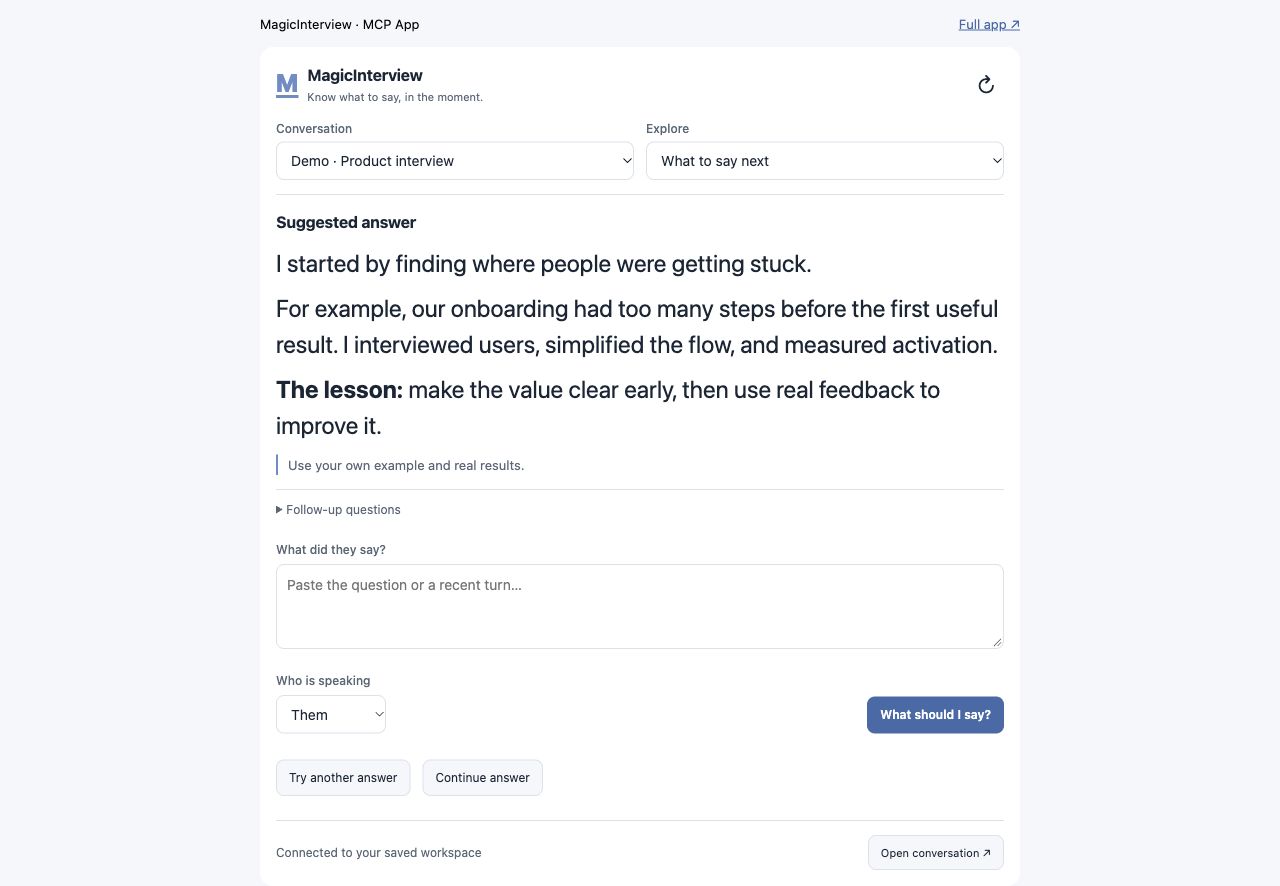
Espacio del asistente · contenido ficticio de demostración. El audio en directo se abre en la app completa. / Assistant workspace · fictional demo content. Live audio opens in the full app.
Empieza aquí · Start here
¿Es tu primera vez? MagicInterview te ayuda a saber qué decir en una entrevista o reunión. Puedes probar una preparación antes de crear una cuenta. La cuenta, la conexión con tu asistente y el espacio donde guardas tu CV, ofertas y notas son gratuitos. El coaching en la nube y las herramientas de IA requieren Pro.
flowchart TD
    A["1 · Prueba una preparación (opcional)<br/>Sin cuenta"] --> B["2 · Crea tu cuenta gratis<br/>Guarda CV, oferta y notas"]
    B --> C["3 · Conecta tu asistente<br/>Autoriza y vuelve al chat"]
    C --> D["4 · Prepara tu conversación<br/>Reutiliza tu contexto"]
    D --> E["¿Quieres coaching de IA?<br/>Consulta Pro y vuelve a tu pregunta"]
    D --> F["¿Quieres ayuda con audio en directo?<br/>Abre la misma conversación en la app"]
| Tu siguiente paso | Qué hacer | Qué obtienes |
|---|---|---|
| 1. Pruébalo (opcional) | Prueba gratuita sin cuenta | Una muestra de preparación antes de registrarte. |
| 2. Guarda tu contexto | Crea una cuenta gratis | Un espacio propio para CV, ofertas, notas y conversaciones. Sin tarjeta. |
| 3. Conecta tu asistente | Instala este plugin o añade el servidor; pulsa conectar e inicia sesión en el navegador. | Autoriza el acceso a tu cuenta y vuelve al mismo asistente. Los clientes compatibles usan OAuth, sin copiar tokens. |
| 4. Prepara y continúa | Pide: «Es mi primera vez. Ayúdame a preparar una entrevista con mi CV y la oferta, sin solicitar coaching de IA todavía». | Tu conversación y su contexto guardados. Cuando quieras coaching, consulta Pro y vuelve a tu pregunta. |
Para escuchar una llamada: abre la conversación en la app de MagicInterview y activa la escucha allí. El plugin usa texto y contexto guardado; no captura el audio de tu reunión desde el chat. Cómo funciona.
New to MagicInterview? You can try a preparation preview without an account, then create a free account to save your CV, job details and notes. Install this plugin, connect through your assistant's browser sign-in, approve access and return to the assistant. Ask it to prepare your first conversation using that context. Your account, connection and saved workspace are free; cloud coaching and AI tools require Pro. No card is required for a free account. Open the same conversation in the full app for live audio capture.
Branded skills and actions
The plugin provides magicinterview-get-started for first use and magicinterview-prepare-meeting for interview or meeting preparation. In supported assistants, ask MagicInterview to prepare the conversation using your CV, meeting brief or Notion notes. The magicinterview_prepare_meeting action saves a meeting or interview conversation and returns its direct link; live audio opens in the full app.
Live help when the conversation matters
Interviewing for your next job? Add your CV and the job description. Get live suggestions that connect your experience to the role when the interviewer asks a question.
Finally meeting that potential client? Bring your client brief, offer, and past notes. Get help answering questions, responding to objections, and explaining the value of your offer as the call unfolds.
Keep your next answer in view. Open MagicInterview on your phone beside your computer, or use it on the same computer as your call. Start listening in MagicInterview and follow the suggestions as the conversation happens.
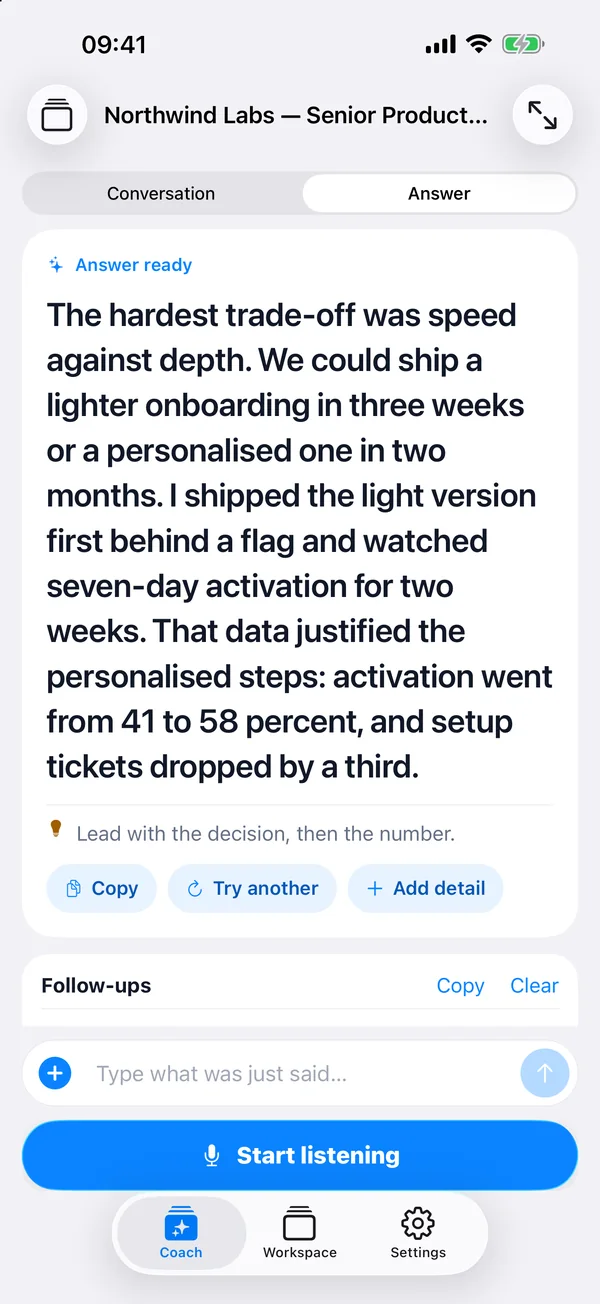
What the plugin connects
This plugin connects your AI assistant to your MagicInterview workspace so it can:
- Find, create, and update projects and conversations, then open the exact meeting in MagicInterview.
- Add relevant CVs, job descriptions, client briefs, and documents to your conversations.
- Keep shared project sources consistent across related meetings while preserving individual notes and history.
- Help set up today's professional meetings in time order. When your assistant has calendar or CRM access, it can use that context too.
- Request coaching and review saved guidance for a conversation.
Your assistant sets up the context and opens the right conversation. Start listening in the MagicInterview app when you are ready for live suggestions.
Notion notes and meeting sync: Connect Notion from Workspace → Notion on the web to import shared pages as reusable sources, or enable optional meeting sync. With meeting sync enabled, keep your brief in Notion and bring transcripts and saved coaching back to your notes. Set up Notion. Setup and sync management use the web app; saved sources stay available across signed-in devices.
A compact workspace inside your assistant
In compatible MCP App hosts, ask to open MagicInterview. The interactive workspace uses your connected account's real projects, conversations, sources, preferences, and saved history—not a separate copy.
One compact feature menu covers:
- What to say next and coding help: submit a question, get a context-aware answer, and read formatted prose or code.
- Transcript & speakers: inspect saved turns, add transcript text, and correct speaker labels.
- Context & files and projects & conversations: preview Markdown and original files, attach relevant sources, and manage shared project context and individual conversation notes.
- Research & CRM and recap & follow-up: ask your assistant to use its connected services and current sources, refresh relevant context, or draft a recap and follow-up without sending it.
- Languages & models and account settings: manage preferences and inspect connection status.
- Audio/text/screenshots, focus/reading, and voice practice: paste text in the workspace or open the same conversation in the full app for device-based audio, screenshots, focus controls, and voice practice.
Live listening does not start remotely through MCP. Use the web app on your computer or phone, or the Mac and Android apps. On iPhone, add MagicInterview to your Home Screen for quick access. Links preserve the selected conversation.
Source
The canonical plugin source lives in the MagicInterview monorepo under plugins/magicinterview (Claude and Codex marketplaces at the repository root). The public repository samihalawa/magicinterview-plugin is an automatic read-only mirror of that folder, and its releases stay downloadable. Every published listing is indexed in listings/README.md.
Install in Claude Code:
/plugin install magicinterview --marketplace samihalawa/2026-CODEX-MagicInterview
Release downloads
| Use | Download or connect |
|---|---|
| ChatGPT / OpenAI release archive | OpenAI package 1.4.5 — archived release package. For a new directory upload, run python3 scripts/package_openai.py /path/to/magicinterview-openai.zip from this directory. |
| Standard plugin files for local installation or development | Plugin source 1.4.5 — extract the archive, then use your client's supported local-plugin installation flow. Includes Claude and Codex manifests, skills and the standard MCP configuration. |
| Remote MCP clients, including Cursor and VS Code | Connect to https://magicinterview.ai/mcp using your client's remote MCP setup. No ZIP is required. Connection guides. |
Choose the package for your client. Marketplace installations follow that marketplace's update process; downloading a release does not publish or update a marketplace listing. Release source is pinned by the versioned release tag.
Connect through your assistant
Install the plugin and choose Connect in your AI assistant. When the browser opens, create a free MagicInterview account or sign in, approve the connection, and return to your assistant. OAuth-capable clients handle authorization without copying an API key. If your client only supports a bearer token, use the optional manual setup in connection settings; keep that token private.
Technical MCP endpoint
For clients configured manually, the remote Streamable HTTP endpoint is:
https://magicinterview.ai/mcp
For the public ChatGPT directory, use https://magicinterview.ai/mcp?toolset=directory to expose each supported operation directly. The default endpoint uses a compact operation catalog for other clients.
Suggested prompts
-
I am new to MagicInterview. Help me save my CV and job details and prepare my first conversation before requesting AI coaching.
-
Help me answer this interview question now. Use my CV and job description to suggest a clear response I can say aloud.
-
A client just raised an objection. Use my meeting brief to suggest what to say next and one useful follow-up question.
-
Open my MagicInterview workspace and prepare my next meeting with a concise brief and context for live answers.
If you get stuck
| What you see | What to do next |
|---|---|
| No account or a sign-in request | Create a free account in the connection window, approve access and return to your assistant. An installed plugin still needs an authorized connection. |
| An empty workspace | Ask your assistant to create your first conversation using the CV, job details or brief you supply. No prior projects are required. |
| “Pro required” | Follow the upgrade link returned by MagicInterview if you want cloud coaching. Keep the question and retry after upgrading; workspace preparation remains free. |
| A pending payment | Check the order status in Settings. Opening or returning from checkout does not confirm payment or Pro access. |
| A connection or conversation error | Ask your assistant to check the affected conversation and relevant saved debug information. Never paste tokens or passwords into the chat. |
Links
License
MIT
MagicInterview MCP Fragen
Wie füge ich MagicInterview MCP zu Claude Code hinzu?
Führe claude mcp add --transport http magicinterview-plugin https://magicinterview.ai/mcp in deinem Terminal aus. Füge --scope user hinzu, damit der Server in jedem Projekt verfügbar ist.
Wie füge ich MagicInterview MCP zu Cursor hinzu?
Öffne ~/.cursor/mcp.json und füge den Server unter mcpServers hinzu, mit der Cursor-Config aus dem Installationsabschnitt oben.
Benötige ich ein kostenpflichtiges Abonnement, um mich auf ein Interview vorzubereiten?
Nein, das Erstellen eines Kontos und die Nutzung des Workspace zum Speichern deines Lebenslaufs, von Jobangeboten und Notizen ist kostenlos; nur Cloud Coaching und AI Tools erfordern ein Pro-Abonnement.
Wie verbinde ich meine Notion-Notizen mit MagicInterview?
Du kannst Notion über den Workspace-Bereich im Web verbinden, um geteilte Seiten als wiederverwendbare Quellen zu importieren.
Wie funktioniert die Authentifizierung mit diesem Plugin?
Kompatible Clients nutzen OAuth, um den Zugriff über einen Browser-Login zu autorisieren, ohne dass du API-Tokens kopieren musst.