
セルレベルのスクリーンモデルを使用して、AIエージェントがインタラクティブなターミナルプログラムの操作、認識、描画を行うことを可能にします。
別名 dwgx/SmartCLI, smartcli, smartcli-toolkit
- スター
- 5
- ツール
- —
- ダウンロード数(30日間)
- 211
- 最新バージョン
- 0.3.5
- 最終コミット
- 2026年10月11日
- ライセンス
- MIT
SmartCLI MCPとは
SmartCLIはMCPサーバーです。 セルレベルのスクリーンモデルを使用して、AIエージェントがインタラクティブなターミナルプログラムの操作、認識、描画を行うことを可能にします。.
プロジェクトのREADMEから生成された概要
SmartCLI MCP server について
SmartCLIは、AIエージェントがターミナルユーザーインターフェース(TUI)を操作できるように設計されたローカルのPythonツールキットです。単純なバイトストリームやスクリーンショットに依存するツールとは異なり、このMCP serverはpyteセルモデルを使用してターミナルを詳細なレベルで認識します。これにより、エージェントは単なる生のテキスト出力の読み取りではなく、現在どのメニュー行がハイライトされているかといった具体的なインターフェースの詳細を理解できます。
開発者は、スタンドアロンのCLIとして使用するか、smartcli-mcp stdio serverを介してClaude Code、Cursor、VS CodeなどのMCPクライアントに接続して使用できます。このツールキットは、lazygitやvimのようなインタラクティブなプログラムの操作、画面状態の認識、視覚効果の描画という3つのコアSKILLを提供します。Windowsユーザー向けのpywinptyを含む、プラグ可能なPTYバックエンドを利用することで、Windows、Linux、macOSで動作します。
wait-regexやsend-lineなどのコマンドを使用することで、エージェントは実際のターミナルアプリケーションをエンドツーエンドで操作できます。これにより、エージェントが次のアクションに進む前に、入力されたキー操作が対象のプログラムによって確実に処理されることが保証され、複雑なTUI環境におけるタイミングの問題によるエラーを防ぎます。
できること
- 1インタラクティブなターミナルアプリケーションの操作AIエージェントは、矢印キーを使用してlazygitなどのツール内のパネルを移動できます。
- 2正規表現によるターミナル状態の検証エージェントは、次のコマンドを送信する前に、画面上に特定のプロンプトやテキストパターンが表示されるのを待機できます。
- 3ターミナルの視覚効果の描画開発者は、ターミナル内でデジタルレインや太陽系のようなASCIIアニメーションをトリガーできます。
- 4セル単位で正確なUIテストの実行エージェントは、テーブルやダッシュボードなどの構造化されたウィジェットと対話し、それらが正しく描画されているかを確認できます。
プロジェクトの README から作成されています。すべてのユースケースは、その引用と照らし合わせて確認されています。
SmartCLI MCPのインストール方法
フォーマット検証日 2026年11月10日Cursor に追加Gooseに追加Claude CodeにSmartCLI MCPをインストール
$ claude mcp add smartcli -- uvx smartcli-toolkitCursorにSmartCLI MCPをインストール
~/.cursor/mcp.json
{
  "mcpServers": {
    "smartcli": {
      "command": "uvx",
      "args": [
        "smartcli-toolkit"
      ]
    }
  }
}VS CodeにSmartCLI MCPをインストール
.vscode/mcp.json
{
  "servers": {
    "smartcli": {
      "type": "stdio",
      "command": "uvx",
      "args": [
        "smartcli-toolkit"
      ]
    }
  }
}VS Code CLIにSmartCLI MCPをインストール
$ code --add-mcp '{"name":"smartcli","type":"stdio","command":"uvx","args":["smartcli-toolkit"]}'Claude DesktopにSmartCLI MCPをインストール
claude_desktop_config.json
{
  "mcpServers": {
    "smartcli": {
      "command": "uvx",
      "args": [
        "smartcli-toolkit"
      ]
    }
  }
}CodexにSmartCLI MCPをインストール
$ codex mcp add smartcli -- uvx smartcli-toolkitCodex config.tomlにSmartCLI MCPをインストール
~/.codex/config.toml
[mcp_servers.smartcli]
command = "uvx"
args = ["smartcli-toolkit"]
Gemini CLIにSmartCLI MCPをインストール
$ gemini mcp add -s user smartcli uvx -- smartcli-toolkitGemini settings.jsonにSmartCLI MCPをインストール
~/.gemini/settings.json
{
  "mcpServers": {
    "smartcli": {
      "command": "uvx",
      "args": [
        "smartcli-toolkit"
      ]
    }
  }
}自動チェック
実行日 2026年11月14日完全なレポート →自動チェックに合格しました。これはセキュリティ監査ではありません。コードを読み、サーバーに必要最小限のアクセス権を与えてください。 チェックの仕組み

- ソースリポジトリがリンクされており、アクセス可能dwgx/smartcli is public and reachablegithub.com/dwgx/smartcli ↗合格
- パッケージがこのリポジトリをソースとして指定smartcli-toolkit names dwgx/smartcli as sourcepypi.org/project/smartcli-toolkit/ ↗合格
- ビルドの来歴 (Sigstore 証明)Sigstore attestation for smartcli-toolkitpypi.org/project/smartcli-toolkit/ ↗合格
- オープンソースライセンス (OSI)MITspdx.org/licenses/MIT.html ↗合格
- 過去1年以内にコミットまたはリリースありLast commit or release 2026-10-11github.com/dwgx/smartcli ↗合格
- OpenSSF Scorecard未チェック
- パッケージ名が有名なパッケージに酷似していないNo popular package one edit away from smartcli-toolkit合格
- パッケージおよびその依存関係に重大な勧告なし32 resolved dependencies checked; no critical advisoryosv.dev ↗合格
- モデルへの隠れた指示がない0 tool descriptions and the README read; no override phrases, credential paths or hidden characters合格
- 破壊的なツールがラベル付けされている未チェック
- リモートエンドポイントが MCP ハンドシェイクに応答未チェック
README
GitHubで見るPython · MIT · ★4
SmartCLI
Read this in: English · 简体中文 · 繁體中文 · 日本語 · 한국어
A local Python toolkit for driving, perceiving, and rendering the terminal — three agent skills over one pluggable PTY + pyte core.



Let an AI drive, perceive, and render real terminal programs. SmartCLI reads
the actual screen with a pyte cell model — not a byte pipe — so it knows which
menu row is highlighted, presses the right keys, and waits for the screen to
settle. Below: it drives the real lazygit TUI end-to-end (arrow-key
navigation, opening a commit diff, highlighting a branch) — no script, no mock.
pip install smartcli-toolkit
Requires Python 3.10 or newer. The install includes the shared Python library, the persistent TUI driver, and the stdio MCP server.
Drive something in 30 seconds
Copy-paste this. It starts a real Python REPL under a PTY, waits for the prompt
(never a blind sleep), types into it, and reads the screen back:
pip install smartcli-toolkit
SID=$(smartcli-tui start --cmd "python3 -i -q" --cols 80 --rows 24 --json | python3 -c "import json,sys;print(json.load(sys.stdin)['sid'])")
smartcli-tui wait-regex --id $SID ">>> " --timeout-ms 15000
smartcli-tui send-line --id $SID "print(6*7)"
smartcli-tui wait-regex --id $SID "42"          # prints the cell grid it sees
smartcli-tui close --id $SID
On Windows use --cmd "py -i -q". Swap the command for vim, htop or
lazygit and the same five verbs drive those too — that is the whole point:
wait-regex and friends react to what the screen actually shows, so an agent
never guesses whether its keystroke landed.
Want the same thing against a real editor, end to end and verifiable?
examples/drive_vim.py drives the actual vim binary —
opens a file, appends a line, saves, and then checks the filesystem, not the
screen:
python examples/drive_vim.py
#   [OK ] vim painted its screen
#   [OK ] file contents visible on screen
#   [OK ] alternate screen is active
#   [OK ] vim entered insert mode (so G and o both landed)
#   [OK ] typed text appears on screen
#   [OK ] vim restored the main screen on exit
#   [OK ] file on disk really changed
Note the fourth step. It is there because the example itself once sent five
keystrokes back to back with nothing between them, and under load vim had not
processed G by the time o arrived, so nothing was inserted and the run failed
with no useful diagnosis. Confirming insert mode proves both keys landed — the
same discipline the tool exists to provide, applied to its own demo.
Run the same file against smartcli-toolkit==0.1.8 and two steps fail — and the
file is never saved, because a driver that cannot see the alternate screen
mistimes the :wq. That is why the emulation work below matters: a wrong screen
model does not error, it silently succeeds at nothing.
Already running an MCP client (Claude Code, Cursor, VS Code)? The same verbs are MCP tools, with the per-session token attached for you:
smartcli-mcp # stdio MCP server; or `uvx --from smartcli-toolkit smartcli-mcp`
What & why
SmartCLI is a workspace for terminal work that agents and humans both do: driving
interactive terminal programs, perceiving what a screen actually shows, and
rendering visuals and layouts back out. It is built on one shared, pluggable PTY
backend plus a pyte screen model — chosen over screenshot/vision so a single
structured screen model feeds both perception (read the screen) and rendering
(draw the screen). The PTY layer is intentionally not tmux-bound: local dev runs
on Windows via ConPTY (pywinpty), while target programs can run under POSIX ptys
or tmux elsewhere. Three skills sit on that core, each a self-contained tool you run
in place from the checkout.
Driving a real TUI
The demo above is SmartCLI driving lazygit — a real full-screen curses app —
through its perceive → act → confirm loop: it reads the pyte cell grid (which
row is selected, the alt-screen diff), moves with arrow keys, opens a commit's
diff, and highlights a branch. Captured by driving the actual program in a Linux
container, not scripted or mocked. A byte-stream matcher like pexpect can't
perceive "which row is highlighted"; a screen model can.
How we know the perception is right. A screen model is only useful if it
matches what a real terminal shows, so we measure that instead of asserting it:
identical bytes go to a real tmux pane and to our model, and the two cell
grids are diffed. Three suites do it — 34 curated cases, a three-way check that
only trusts a behaviour when tmux and GNU screen agree, and a generative
fuzz over random VT sequences. That campaign found and fixed 12 emulation bugs,
including the alternate screen buffer (pyte implements none of modes
1049/1047/47, so a full-screen program's output used to be painted over the main
screen and never restored). Scope and remaining edges:
LIMITATIONS.md.
Live effects
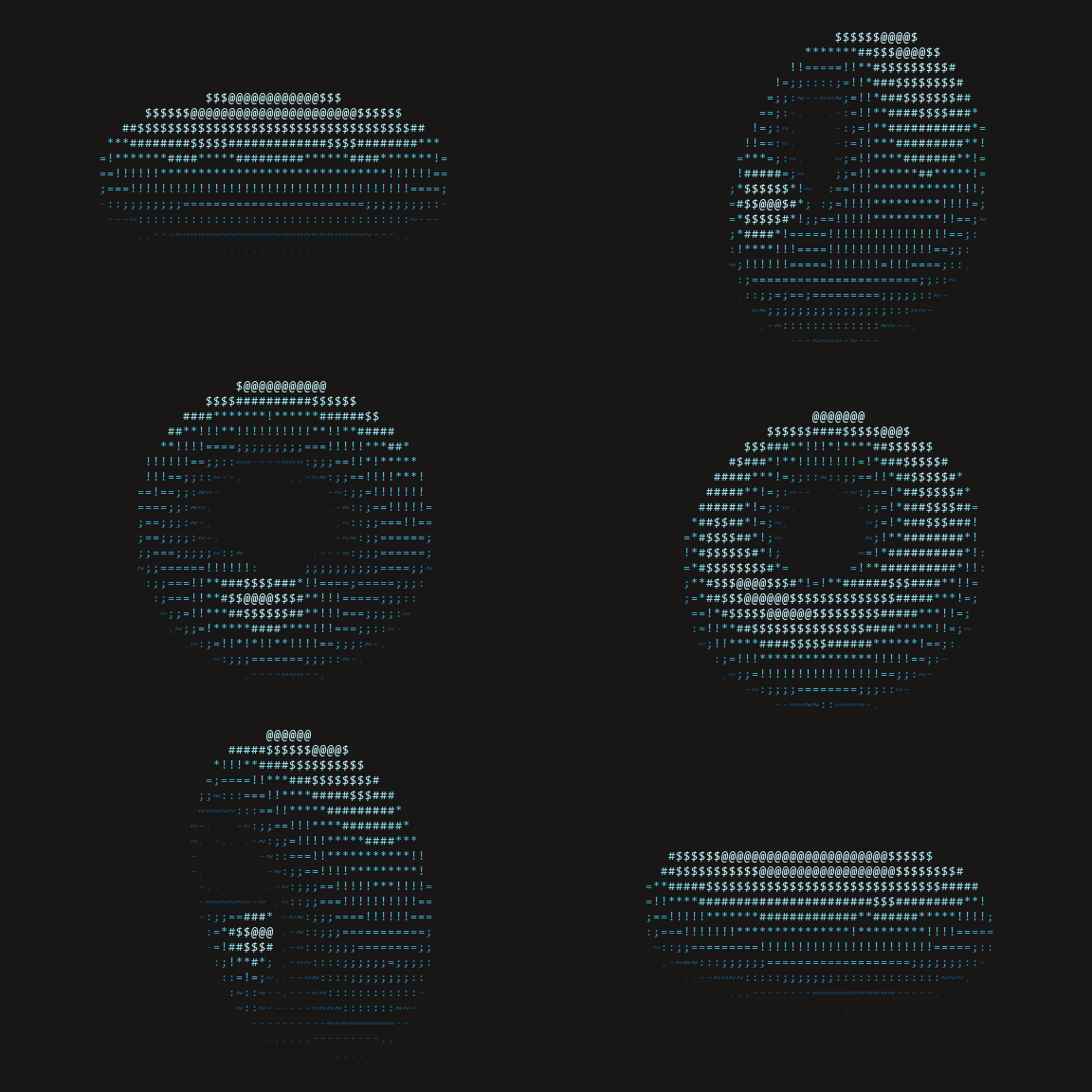
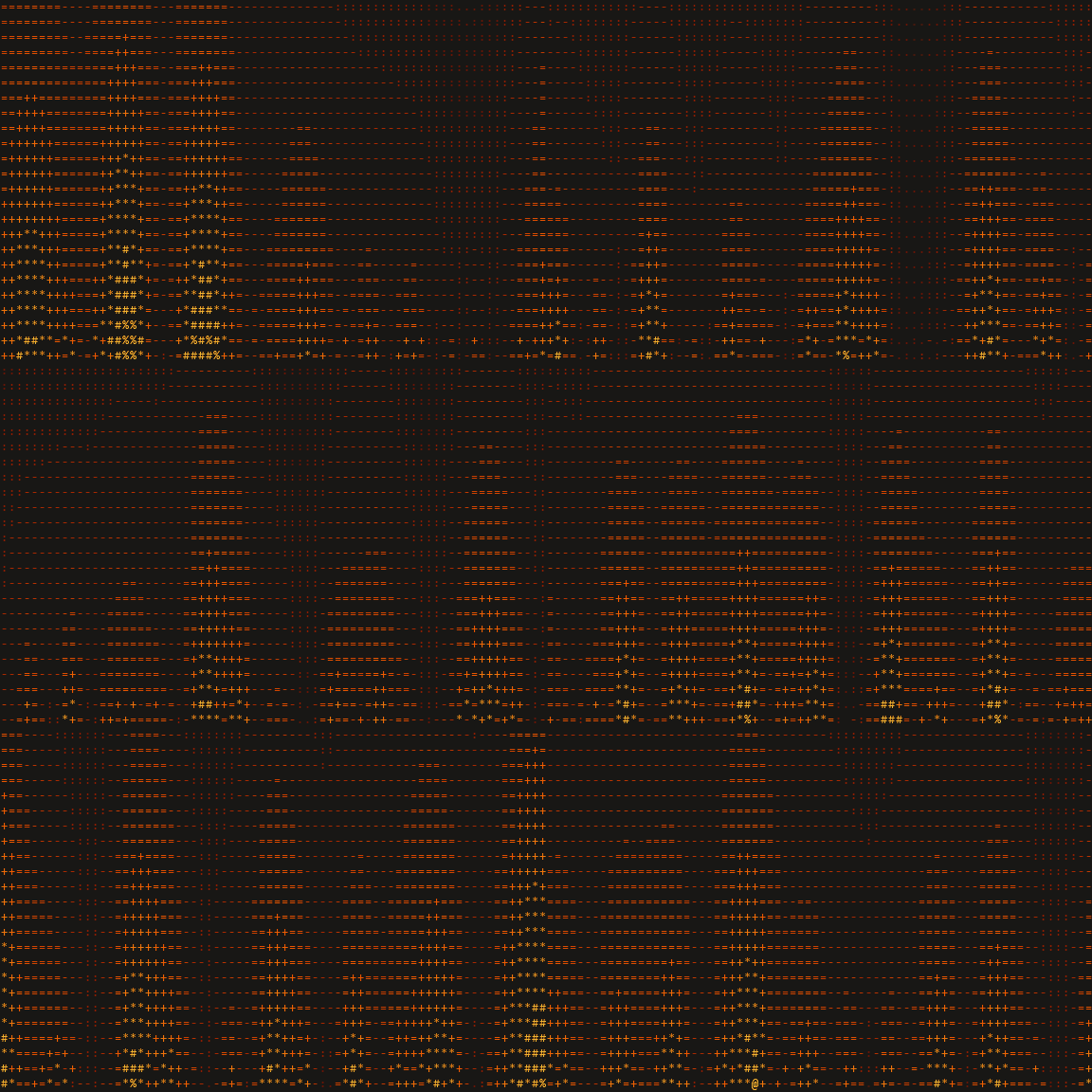
Real captures of the cmd-art fx engine — each GIF is the actual effect
rendered frame-by-frame through the project's own pipeline (no screen recorder).
Reproduce any with python -m fx play <name> (see Quickstart).
 |
 |
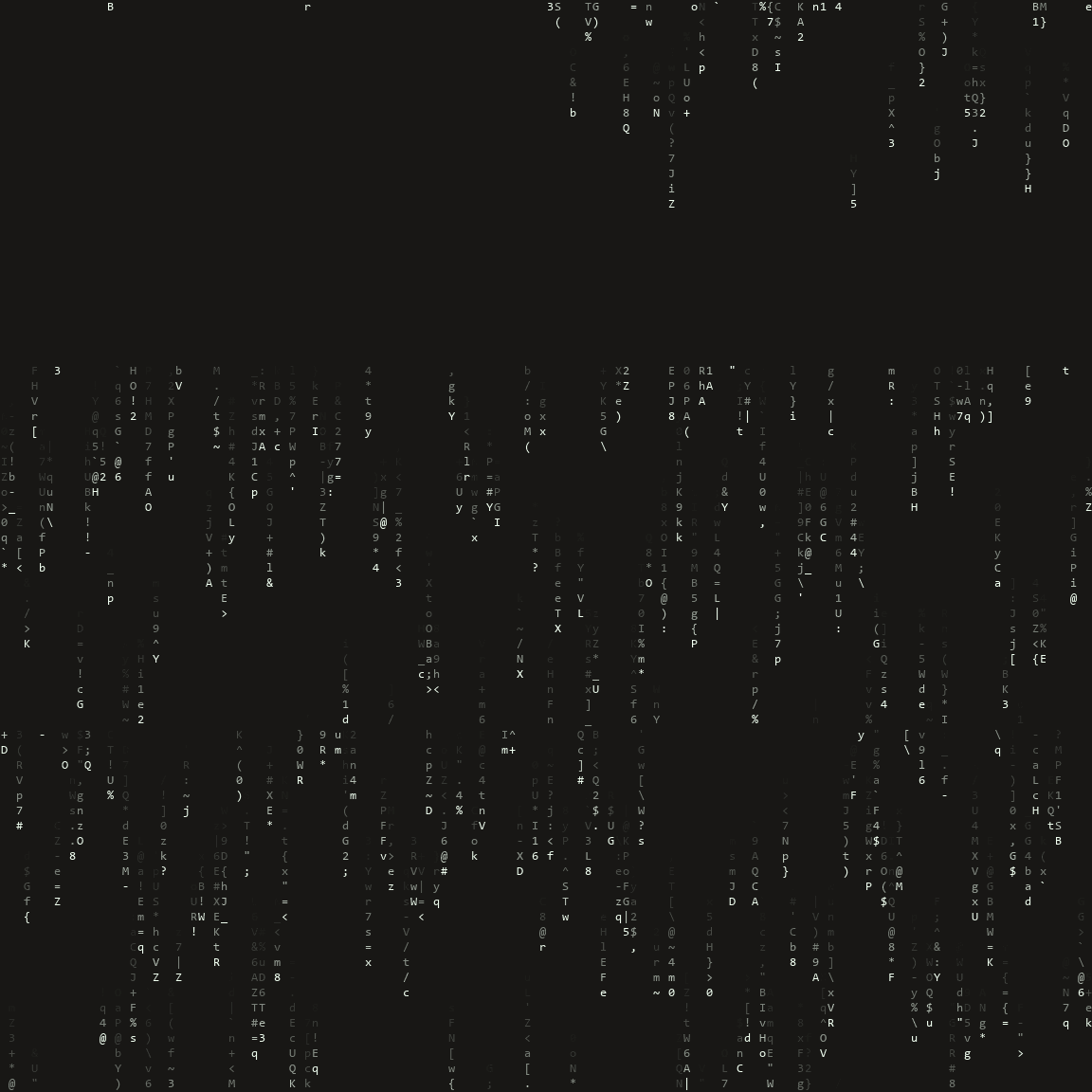 |
| donut — the classic ASCII torus | fire — demoscene heat field | rain — Matrix digital rain |
🌐 Explore the live showcase → — play with the effect engine, drive a menu with arrow keys, and poke the widgets, right in your browser.
Install
Just want the three Claude Code skills? Download one zip, unzip it, done — no git, no pip, no marketplace:
curl -LO https://github.com/dwgx/SmartCLI/releases/latest/download/smartcli-skills.zip
unzip smartcli-skills.zip -d ~/.claude/skills/
That gives you cmd-art, drive-tui and tui-ui (309 KiB total). cmd-art and
tui-ui then work with nothing but CPython 3.10+ — verified on a bare virtualenv,
all 30 effects and all 17 widgets load. drive-tui additionally needs pyte, which
the PyPI install below provides. Or install all three via the plugin marketplace:
/plugin marketplace add dwgx/SmartCLI.
Primary — from PyPI (the library, the CLI, and the MCP server):
pip install smartcli-toolkit
Distribution vs import name: the PyPI distribution is
smartcli-toolkit(the namessmartcli/smart-cliwere taken or blocked), but the importable package issmartcli_core. So afterpip install smartcli-toolkityou still writefrom smartcli_core import PtySession.
Alternative — reproduce the full dev environment from a source checkout:
git clone https://github.com/dwgx/SmartCLI SmartCLI
cd SmartCLI
python -m pip install -r requirements.txt
requirements.txt installs pyte, the MCP SDK, and pywinpty on Windows only
(POSIX uses the stdlib pty backend). pip install . installs smartcli_core
plus the smartcli-tui, smartcli-mcp, and smartcli-toolkit commands. The
visual cmd-art and tui-ui skills still run in place from a checkout via
python -m fx and python -m ui.
Optional extras (real FIGlet fonts, raster images, authoritative cell widths — all degrade gracefully to stdlib fallbacks when absent):
python -m pip install -r requirements-optional.txt
# or, from the checkout, via pyproject extras:
pip install ".[all]"        # pyfiglet + Pillow + wcwidth
pip install ".[art]"        # pyfiglet only
pip install ".[image]"      # Pillow only  (also: the PNG screenshot harness needs it)
pip install ".[width]"      # wcwidth only
Windows note: set UTF-8 output before running any skill so box-drawing and CJK glyphs encode cleanly (the CLIs also auto-reconfigure stdout, but set this to be safe):
set PYTHONIOENCODING=utf-8
Verified dep versions on the dev box (Windows 11, CPython 3.14.6): pyte 0.8.2,
pywinpty 3.0.5, pyfiglet 1.0.4, Pillow 12.2.0, wcwidth 0.8.1.
Diagnostics. python -m smartcli_core prints your OS, Python, terminal, PTY
backend, and dependency versions. smartcli-tui doctor reports where the core
was loaded from and whether drive dependencies are present. Include both outputs
when filing a terminal-sensitive bug.
Quickstart
cmd-art — terminal visual effects
cd skills/cmd-art
python -m fx list                          # list all 30 effects
python -m fx play donut --seconds 5        # play one effect (bounded)
python -m fx gallery                       # one frame of each effect
python -m fx show --seq "donut:fire:3,plasma::3"
tui-ui — cell-accurate terminal UI
cd skills/tui-ui
python -m ui widgets                       # list all 17 widgets
python -m ui gallery --width 100 --height 30
python -m ui demo table --width 80 --height 12 --theme dashboard
drive-tui — perceive & drive interactive programs
Persistent-session CLI (state survives across shell calls):
smartcli-tui start --cmd "python3 -i -q" --cols 80 --rows 24
smartcli-tui wait-regex --id <SID> ">>> " --timeout-ms 15000
smartcli-tui send-line --id <SID> "print(6*7)"
smartcli-tui snapshot --id <SID>
smartcli-tui close --id <SID>
On Windows use py -i -q as the child command. From a source checkout, replace
smartcli-tui with python skills/drive-tui/scripts/tui.py.
Or drive from any MCP client — the same verbs as MCP tools, with the per-session token attached automatically:
pip install smartcli-toolkit
smartcli-mcp     # stdio MCP server; smartcli-toolkit is an equivalent alias
As a library
The shared core is importable directly:
import sys
from smartcli_core import PtySession

s = PtySession()
s.start([sys.executable, "-q"])
s.wait_for(r">>> ")            # readiness sync, never a blind sleep
print(s.snapshot().to_text())  # pyte-backed structured screen
s.close()
For the full command reference, the screenshot/AGENTCLI harnesses, and the regression
suite, see README-USAGE.md.
Features
cmd-art (skills/cmd-art) — a "living-template" effect engine: an Effect ABC +
@register decorator + auto-discovery. 30 effects (donut, solarsystem, fire, plasma,
rain, starfield, tunnel, text3d, cube, sphere, boids, life, fireworks, sparkle, decrypt,
gradient_text, banner_scroll, image2ascii, typewriter, julia, mandelbrot, perlin, flames, water, nebula, text_flyin, text_converge, text_decrypt, spectrum_bars, cbonsai) across 8 themes (mono, fire,
ocean, synthwave, viridis, pastel, matrix-green, rainbow). Effects are pure frame
producers; play is bounded by default and always restores the terminal.
tui-ui (skills/tui-ui) — a web-like terminal layout engine emitting tmux-safe
ANSI frames (SGR color runs + newlines only; no cursor moves, no alt-screen). 17
widgets (badge, banner, braille_chart, card, fuzzy_filter_list, gradient_rule, kv,
meter, panel, preview_pane, progress, radial_glow, rule, slider_track, table, tabs,
tree) over an engine of two modules the render path actually calls — field.py
(shader compositors) and raster.py (sub-cell half/quad/braille pixels). Two
further helpers, box_junction.py and color_model.py, shipped unwired through
0.3.2 and were removed in 0.3.3: nothing imported them, and tui-ui has no
auto-discovery over ui/, so no caller could ever reach them.
Display-cell accurate for CJK/emoji/ZWJ so columns never desync.
drive-tui (skills/drive-tui) — drives interactive terminal programs (REPLs,
menus, pagers, y/N prompts, wizards) through a PTY via a
perceive → decide → act → wait → confirm loop, never a blind sleep. A thin CLI
(scripts/tui.py) offers a persistent detached session and a one-shot run mode, with
an importable pattern library of 8 recipes (repl, menu_select, pager, search_filter,
confirm, form, progress, wizard) that classify() a screen and drive() it.
Where the wait capabilities live. The wait family can end when the child
process dies rather than sitting out the remaining timeout — a program that
crashes on your first input then costs one poll cycle instead of the whole
ceiling. It is opt-in and off by default: start --detect-child-exit /
run --detect-child-exit, or detect_child_exit on the MCP start tool. Off
is exactly the previous behaviour. On, every wait reply carries exited, and
wait reports reason=EXITED. Three other core capabilities — the
screen-revision wait baseline, the terminal-mode registry, and the session event
log — are library-only: they are importable from smartcli_core and are
deliberately not on the CLI or MCP surface. See
CHANGELOG.md (Unreleased) for the reasoning per capability.
Shared core (smartcli_core) — the pluggable PTY backend + pyte screen model +
semantic snapshot + readiness sync (pty_backend / screen_model / snapshot / readiness / session). The reusable, importable foundation under all three skills. Since 0.3.0 a
budgeted read path and an io block travel with every observation, so a caller can tell
quiet from not read yet (local_cut, byte watermarks, pending facts — unknown values are
null, never 0), STABLE requires a drained observation, and close reports
closed_confirmed or close_unconfirmed with the last progress instead of assuming a
returned native call means the child is gone.
Knowledge graph (knowledge/) — a wiki-link graph (140+ .md files) of exact
rendering formulas, ANSI sequences, and measured constants, each note carrying a
source and cross-links. See knowledge/INDEX.md.
Project layout
SmartCLI/
  smartcli_core/           shared PTY + pyte engine (importable package)
  skills/cmd-art/          fx effect package and CLI (30 effects, 8 themes)
  skills/drive-tui/        TUI pattern library and PTY driver CLI (8 recipes)
  skills/tui-ui/           terminal UI layout engine and widgets (17 widgets)
  tools/screenshot/        pyte -> PNG smoke-test harness
  tools/agentcli/          agent-CLI control validation harness
  knowledge/               wiki-link knowledge graph, 140+ .md files (see knowledge/INDEX.md)
  showcase/                rendered effect PNGs + demo GIFs (shown above)
  tests/                   direct script-style regressions
  research/                archived first-pass research notes
Documentation
README-USAGE.md— the full usage cheat-sheet: every skill, the screenshot and AGENTCLI harnesses, and the regression commands.knowledge/INDEX.md— the knowledge graph (140+.mdfiles).AGENTCLI-VALIDATION.md— agent-CLI control test matrix.CHANGELOG.md— release history.- Verification evidence tree — archived 2026-10-01. The former
verification/directory (receipts, probes, historical harness revisions) is no longer part of this repository, and is not distributed with the package. It was moved byte-for-byte, so nothing was deleted. It was pulled out because it held 8 stale copies ofsmartcli_core/screen_model.pytaken before three bug fixes, so a repo-wide search returned pre-fix code. The sha256 pins inside it still resolve — they name files that stayed in the repository.
License
MIT — see LICENSE.
SmartCLI MCPのよくある質問
SmartCLI MCPをClaude Codeに追加するには
ターミナルでclaude mcp add smartcli -- uvx smartcli-toolkitを実行します。すべてのプロジェクトで利用するには--scope userを追加します。
SmartCLI MCPをCursorに追加するには
~/.cursor/mcp.jsonを開き、上記のインストールセクションに示すCursor設定を使ってmcpServersの下にサーバーを追加します。
SmartCLIはどのようにターミナル画面を認識しますか?
単純なバイトパイプではなく、pyteセルモデルを使用して実際の画面を読み取るため、どのメニュー行がハイライトされているかなどを把握できます。