
音声、映像、パフォーマンスデータをキャプチャして分析することで、AIコーディングアシスタントにライブWebアプリケーションへの直接的な感覚アクセスを提供します。
別名 asume21/webear
- スター
- 1
- ツール
- —
- ダウンロード数(30日間)
- —
- 最新バージョン
- 1.2.4
- 最終コミット
- 2026年10月28日
- ライセンス
- MIT
webear MCPとは
webearはMCPサーバーです。 音声、映像、パフォーマンスデータをキャプチャして分析することで、AIコーディングアシスタントにライブWebアプリケーションへの直接的な感覚アクセスを提供します。.
プロジェクトのREADMEから生成された概要
webear MCP server について
Webear は、Web Audio API を活用することで、AIコーディングアシスタントにライブWebアプリケーションへの直接的な感覚アクセスを提供します。これにより、AI は部屋の音響やマイクハードウェアの干渉を受けることなく、ブラウザタブのデジタル出力を聴くことができます。開発者は、ローカル開発サーバー上の Express ミドルウェアを使用するか、SSE を介してホストされたリレーに接続することで、この機能をワークフローに統合できます。サーバーは、stdio を使用して Claude Code、Cursor、または Windsurf などの IDE 内で動作します。
ユーザーは、capture_audio、analyze_audio、describe_audio、diff_audio といった特定のツールを通じてアプリケーションを操作できます。音量やクリッピングなどの基本的な分析は ffmpeg を使用してローカルで実行できますが、スペクトル重心、BPM、タイミングジッターなどの高度な機能には CodedSwitch API キーが必要です。このシステムは、AIアシスタントを通じて複雑なオーディオグラフ、シンセサイザー、またはミキシングの問題を直接デバッグする必要があるWebオーディオ開発者、ゲームクリエイター、音楽アプリ開発者向けに設計されています。
できること
- 1オーディオミキシング問題のデバッグAI にライブオーディオストリームを分析させ、特定の周波数帯域がなぜ濁って聞こえるのかを特定させます。
- 2オーディオのデグレ(退行)検知異なるコードバージョンからのオーディオキャプチャを比較して、音量や音色の変化を見つけるためにツールを使用します。
- 3信号クリッピングの監視Webアプリケーションが最大ピークレベルを超えるオーディオを生成していないか確認します。
- 4リズムの一貫性の分析Webベースの音楽アプリケーションのタイミングジッターや BPM を評価します。
プロジェクトの README から作成されています。すべてのユースケースは、その引用と照らし合わせて確認されています。
webear MCPのインストール方法
フォーマット検証日 2026年11月10日Cursor に追加Gooseに追加Claude Codeにwebear MCPをインストール
$ claude mcp add --env 'CODEDSWITCH_API_KEY=<YOUR_CODEDSWITCH_API_KEY>' webear -- npx -y webearCursorにwebear MCPをインストール
~/.cursor/mcp.json
{
  "mcpServers": {
    "webear": {
      "command": "npx",
      "args": [
        "-y",
        "webear"
      ],
      "env": {
        "CODEDSWITCH_API_KEY": "<YOUR_CODEDSWITCH_API_KEY>"
      }
    }
  }
}VS Codeにwebear MCPをインストール
.vscode/mcp.json
{
  "servers": {
    "webear": {
      "type": "stdio",
      "command": "npx",
      "args": [
        "-y",
        "webear"
      ],
      "env": {
        "CODEDSWITCH_API_KEY": "<YOUR_CODEDSWITCH_API_KEY>"
      }
    }
  }
}VS Code CLIにwebear MCPをインストール
$ code --add-mcp '{"name":"webear","type":"stdio","command":"npx","args":["-y","webear"],"env":{"CODEDSWITCH_API_KEY":"<YOUR_CODEDSWITCH_API_KEY>"}}'Claude Desktopにwebear MCPをインストール
claude_desktop_config.json
{
  "mcpServers": {
    "webear": {
      "command": "npx",
      "args": [
        "-y",
        "webear"
      ],
      "env": {
        "CODEDSWITCH_API_KEY": "<YOUR_CODEDSWITCH_API_KEY>"
      }
    }
  }
}Codexにwebear MCPをインストール
$ codex mcp add webear --env 'CODEDSWITCH_API_KEY=<YOUR_CODEDSWITCH_API_KEY>' -- npx -y webearCodex config.tomlにwebear MCPをインストール
~/.codex/config.toml
[mcp_servers.webear]
command = "npx"
args = ["-y", "webear"]

[mcp_servers.webear.env]
CODEDSWITCH_API_KEY = "<YOUR_CODEDSWITCH_API_KEY>"
Gemini CLIにwebear MCPをインストール
$ gemini mcp add -s user -e 'CODEDSWITCH_API_KEY=<YOUR_CODEDSWITCH_API_KEY>' webear npx -- -y webearGemini settings.jsonにwebear MCPをインストール
~/.gemini/settings.json
{
  "mcpServers": {
    "webear": {
      "command": "npx",
      "args": [
        "-y",
        "webear"
      ],
      "env": {
        "CODEDSWITCH_API_KEY": "<YOUR_CODEDSWITCH_API_KEY>"
      }
    }
  }
}設定
CODEDSWITCH_API_KEY必須シークレットAPI key from codedswitch.com for audio analysis
WEBEAR_BASE_URLURL of your dev server where WebEar middleware is mounted
| 名前 | 説明 | 種類 |
|---|---|---|
| CODEDSWITCH_API_KEY | API key from codedswitch.com for audio analysis | 必須シークレット |
| WEBEAR_BASE_URL | URL of your dev server where WebEar middleware is mounted |
自動チェック
実行日 2026年11月13日完全なレポート →自動チェックに合格しました。これはセキュリティ監査ではありません。コードを読み、サーバーに必要最小限のアクセス権を与えてください。 チェックの仕組み

- ソースリポジトリがリンクされており、アクセス可能asume21/webear is public and reachablegithub.com/asume21/webear ↗合格
- パッケージがこのリポジトリをソースとして指定webear names asume21/webear as sourcenpmjs.com/package/webear ↗合格
- ビルドの来歴 (Sigstore 証明)No build attestation published for this release未チェック
- オープンソースライセンス (OSI)MITspdx.org/licenses/MIT.html ↗合格
- 過去1年以内にコミットまたはリリースありLast commit or release 2026-10-28github.com/asume21/webear ↗合格
- OpenSSF Scorecard未チェック
- パッケージ名が有名なパッケージに酷似していないNo popular package one edit away from webear合格
- パッケージおよびその依存関係に重大な勧告なし99 resolved dependencies checked; no critical advisoryosv.dev ↗合格
- モデルへの隠れた指示がない0 tool descriptions and the README read; no override phrases, credential paths or hidden characters合格
- 破壊的なツールがラベル付けされている未チェック
- リモートエンドポイントが MCP ハンドシェイクに応答未チェック
README
GitHubで見るwebear


Give your AI real senses — hear, see, and feel any web app.
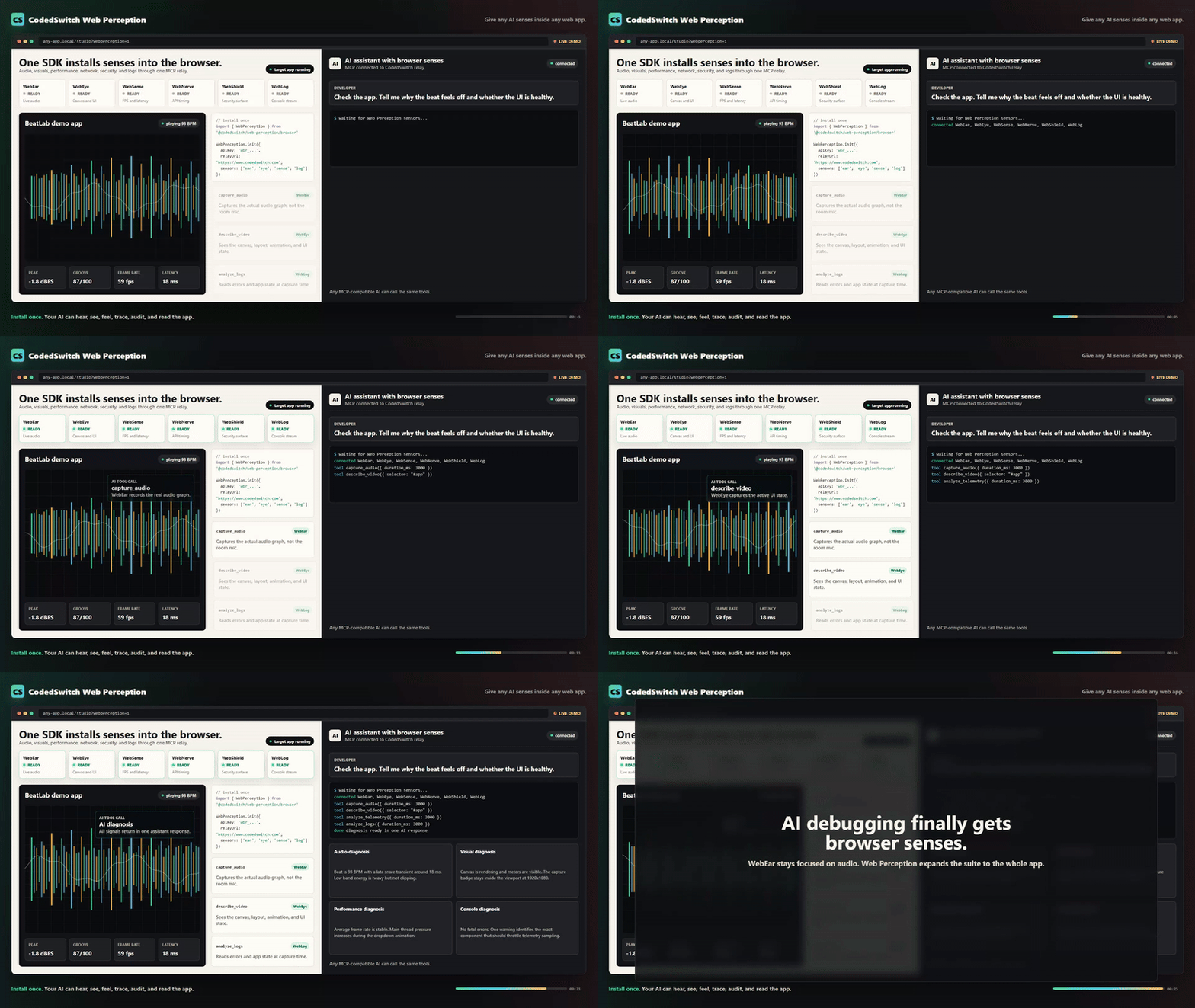
An MCP server + browser SDK that gives AI coding assistants direct sensory access to a live web application. Audio, visuals, performance, network, security, and console — captured from the browser, analyzed in real time, delivered via MCP.
"The beat sounds muddy" → your AI captures 3 seconds, measures the spectral centroid at 580 Hz with 45% energy below 250 Hz, and tells you exactly why.
What It Does
| Tool | Description |
|---|---|
capture_audio |
Record a short clip (500ms–30s) of what your web app is outputting right now |
analyze_audio |
Signal analysis: RMS, peak dB, clipping, spectral centroid, frequency bands, BPM, timing jitter |
describe_audio |
Plain-English AI description — "the kick is boomy with heavy sub buildup around 80 Hz" |
diff_audio |
Compare two captures and flag what changed — loudness, tone, timing, clipping |
How It Works
Browser (Web Audio API)
    ↓ MediaRecorder taps the AudioContext output node
    ↓ Uploads WebM blob via HTTP POST
Express Middleware (your dev server)
    ↓ Stores captures in memory, dispatches commands via SSE
MCP Server (stdio — runs inside your IDE)
    ↓ Retrieves captures, sends to CodedSwitch analysis API
AI Coding Assistant
    → "Your bass band is 42% of the mix (high), spectral centroid
       is 580 Hz (muddy), and timing jitter is 23ms — the scheduler
       is drifting under load."
The key difference from every other audio MCP: this taps the Web Audio graph directly, bypassing room acoustics, microphone hardware, and the need to export files.
Quick Start
1. Install
npm install webear
2. Add the Express middleware to your dev server
import express from 'express'
import { webearMiddleware } from 'webear/middleware'

const app = express()
app.use(express.json())

// Mount the audio debug bridge (automatically disabled in production)
app.use('/api/webear', webearMiddleware())

app.listen(5000)
3. Add the client snippet to your web app
Option A — auto-detect everything (Tone.js or raw Web Audio)
import WebEar from 'webear/client'
WebEar.init()
Option B — explicit AudioContext
const ctx = new AudioContext()
const masterGain = ctx.createGain()
masterGain.connect(ctx.destination)

WebEar.init({ audioContext: ctx, outputNode: masterGain })
Option C — Tone.js project
import * as Tone from 'tone'
WebEar.init({ toneJs: true })
Option D — Three.js WebGL Game
import * as THREE from 'three'
const listener = new THREE.AudioListener()
camera.add(listener)
WebEar.init({ tapNode: listener.getInput() })
Option E — plain script tag
<script src="node_modules/webear/client-snippet.js"></script>
<script>WebEar.init()</script>
4. Configure your IDE
Claude Code (.mcp.json in project root):
{
  "mcpServers": {
    "webear": {
      "command": "npx",
      "args": ["webear"],
      "env": {
        "WEBEAR_BASE_URL": "http://localhost:5000",
        "CODEDSWITCH_API_KEY": "your-key-here"
      }
    }
  }
}
Cursor (.cursor/mcp.json):
{
  "mcpServers": {
    "webear": {
      "command": "npx",
      "args": ["webear"],
      "env": {
        "WEBEAR_BASE_URL": "http://localhost:5000",
        "CODEDSWITCH_API_KEY": "your-key-here"
      }
    }
  }
}
Windsurf (mcp_config.json):
{
  "webear": {
    "command": "npx",
    "args": ["webear"],
    "disabled": false,
    "env": {
      "WEBEAR_BASE_URL": "http://localhost:5000",
      "CODEDSWITCH_API_KEY": "your-key-here"
    }
  }
}
5. Get an API key — optional, and not to start
analyze_audio works with no key and no account. If ffmpeg is on your PATH,
it decodes and analyzes the capture on your machine and returns a basic report:
duration, loudness, peak level and whether the audio is clipping. Nothing is
uploaded. Try the tool before you sign up for anything.
A key unlocks the parts that need more than arithmetic:
| No key | With key | |
|---|---|---|
capture_audio |
✓ | ✓ |
analyze_audio |
Basic — duration, loudness, peak, clipping (local) | Full — spectral centroid, band energy, crest factor, BPM, timing jitter |
describe_audio — what it SOUNDS like |
— | ✓ |
mix_coach — measured + heard |
— | ✓ |
diff_audio — before/after |
— | ✓ |
To get one:
- Create a free account at codedswitch.com.
- Go to codedswitch.com/developer (also in the account menu as Developer API).
- Click Generate API Key — that value is your
CODEDSWITCH_API_KEY. Keys start withwbr_.
Free tier: 50 analyses/day. No credit card required.
6. Start your dev server, open your app, play audio, then ask your AI:
"Capture 3 seconds and tell me why the bass sounds muddy."
"Compare the audio before and after my last commit."
"Is there any clipping in the high-frequency range?"
Example Output
analyze_audio
── Audio Analysis Report ──────────────────────────────
Duration:          3.02s

── Loudness ─────────────────────────────────────────
RMS:               -12.4 dBFS
Peak:              -1.2 dBFS
Dynamic range:     11.2 dB
Crest factor:      3.63
Clipping:          none

── Tone ──────────────────────────────────────────────
Spectral centroid: 2847 Hz
DC offset:         0.00012 (ok)

── Frequency Bands ───────────────────────────────────
Sub  (20-80 Hz):   8.2%
Bass (80-250 Hz):  22.1%
Mid  (250-2k Hz):  38.4%
Hi-mid (2-6k Hz):  21.8%
High (6k+ Hz):     9.5%

── Rhythm ────────────────────────────────────────────
Estimated BPM:     92
Onset count:       12
Timing jitter:     4.2 ms std dev

── Summary ───────────────────────────────────────────
Loudness: -12.4 dBFS RMS, peak -1.2 dBFS. Tone: balanced (centroid 2847 Hz).
Band mix — sub: 8% | bass: 22% | mid: 38% | hi-mid: 22% | high: 10%.
Rhythm: estimated 92 BPM, 12 onsets detected. Timing: very tight (< 5 ms jitter).
diff_audio
── Audio Diff: a1b2c3d4… → e5f6g7h8… ──

── Loudness ──────────────────────────────────────────
  RMS: -14.2 dBFS → -12.4 dBFS  (+1.8 dBFS)
⚠ Peak: -3.1 dBFS → -0.2 dBFS  (+2.9 dBFS)
⚠ CLIPPING INTRODUCED — gain staging regression

── Tone ──────────────────────────────────────────────
⚠ Spectral centroid: 2847.0 Hz → 1920.0 Hz  (-927.0 Hz)

── Interpretation ────────────────────────────────────
A gain bug was introduced that causes clipping.
Tonal character changed noticeably — EQ or filter behaviour may have shifted.
Configuration
Environment Variables
| Variable | Default | Description |
|---|---|---|
WEBEAR_BASE_URL |
http://localhost:4000 |
URL of your dev server (where middleware is mounted) |
CODEDSWITCH_API_KEY |
— | API key from codedswitch.com — required for analyze_audio and describe_audio |
MCP_API_URL |
https://www.codedswitch.com |
Override the analysis API base (advanced / self-hosted) |
Middleware Options
webearMiddleware({
  maxCaptures: 50,       // Max captures in memory (default: 50)
  maxAgeMins: 10,        // Auto-evict after N minutes (default: 10)
  maxUploadBytes: 50e6,  // Max upload size (default: 50MB)
  devOnly: true,         // Disable in production (default: true)
})
Client Options
WebEar.init({
  audioContext: myCtx,             // Your AudioContext instance
  outputNode: myGainNode,          // The node to tap (defaults to destination)
  toneJs: true,                    // Auto-detect Tone.js context
  bridgeBase: '/api/webear',  // Override API path
  devOnly: true,                   // Only init outside of production (default: true)
})
Requirements
- Node.js >= 18
- A browser that supports
MediaRecorder(Chrome, Firefox, Edge, Safari 14+) - A
CODEDSWITCH_API_KEYfor analysis (free at codedswitch.com)
Who Is This For?
- Web Audio / Tone.js developers — debug beats, synths, effects, and mixing without leaving your IDE
- Game audio developers — verify sound effects, spatial audio, and mixing in real-time
- Music app builders — catch regressions between code changes with
diff_audio - Podcast / streaming apps — validate audio quality, levels, and encoding
- Anyone whose app makes sound — if it has a Web Audio graph, your AI can now hear it
Why Not Just Use the Microphone?
Microphone MCPs capture room sound — your fan noise, chair creaks, and room reverb are all in the recording. webear taps the Web Audio API before it hits the DAC, giving you a clean digital signal with no room artifacts.
Web Perception — Full Sensor Suite
WebEar started as audio-only. Web Perception expands it to 6 senses:
| Sensor | What it perceives |
|---|---|
| WebEar | Audio — mix quality, rhythm, instruments, clipping |
| WebEye | Visual — canvas, UI layout, animations, screenshots |
| WebSense | Performance — frame rate, memory, audio latency |
| WebNerve | Network — API latencies, connection quality, storage |
| WebShield | Security — cookies, storage exposure, CSP, framing |
| WebLog | Console — logs, warnings, errors, uncaught exceptions |
Install the full browser SDK
import { WebPerception } from 'webear/perception'

WebPerception.init({
  apiKey: 'wbr_YOUR_API_KEY',
  relayUrl: 'https://www.codedswitch.com',
  sensors: ['ear', 'eye', 'sense', 'nerve', 'shield', 'log'],
})
Or use a single sensor:
import { WebEar } from 'webear/perception'

WebEar.init({
  apiKey: 'wbr_YOUR_API_KEY',
  ear: { audioContext: myCtx, audioNode: masterGain },
})
Connect via MCP (hosted relay — no local server required)
{
  "mcpServers": {
    "webear": {
      "url": "https://www.codedswitch.com/api/webear/mcp/sse",
      "headers": {
        "Authorization": "Bearer wbr_YOUR_API_KEY"
      }
    }
  }
}
Available MCP Tools
| Sensor | Tool | Credits | Description |
|---|---|---|---|
| Ear | capture_audio |
Free | Record live tab audio |
| Ear | analyze_audio |
1 | BPM, loudness, frequency bands, clipping, dynamic range |
| Ear | describe_audio |
2 | AI plain-English description — instruments, genre, mood, mix notes |
| Ear | diff_audio |
1 | Compare two captures — loudness, tone, timing deltas |
| Ear | groove_score |
2 | Grid alignment, swing factor, consistency (0–100%) |
| Ear | capture_and_analyze |
1 | Capture + analysis in one call |
| Ear | mix_coach |
3 | Structured mixing feedback |
| Eye | capture_video |
Free | Record canvas/video from the tab |
| Eye | describe_video |
2 | AI visual description — layout, colors, bugs |
| Eye | diff_visuals |
2 | Compare two visual captures |
| Sense | capture_telemetry |
Free | FPS, memory, layout shifts, audio latency |
| Sense | analyze_telemetry |
1 | Frame drops, memory pressure, audio underruns |
| Nerve | capture_nerve |
Free | API timings, connection quality, storage size |
| Nerve | analyze_nerve |
1 | Slow APIs, connection quality, storage bloat |
| Shield | capture_shield |
Free | Cookies, CSP, storage exposure, framing |
| Shield | analyze_shield |
1 | CORS issues, non-HttpOnly cookies, missing CSP |
| Log | capture_logs |
Free | Console output + uncaught exceptions |
| Log | analyze_logs |
1 | Error patterns, stack traces, repeated warnings |
Get an API Key
- Create a free account at codedswitch.com.
- Open codedswitch.com/developer — also linked as Developer API in the account menu.
- Click Generate API Key and copy it. Keys start with
wbr_.
Free tier: 50 analyses/day, no credit card required.
Changelog
2.0.1
- Fixed the getting-started path for API keys. The previous instruction ("Settings → WebEar") was wrong — there is no WebEar section under Settings. Keys live at codedswitch.com/developer (linked as Developer API in the account menu). Both the Quick Start and the Web Perception sections now point to the correct place.
- The SDK's "missing API key" console error now links straight to the key page.
Contributing
See CONTRIBUTING.md.
License
MIT — see LICENSE
Author
Built by @asume21 — CodedSwitch
webear MCPのよくある質問
webear MCPをClaude Codeに追加するには
ターミナルでclaude mcp add --env 'CODEDSWITCH_API_KEY=<YOUR_CODEDSWITCH_API_KEY>' webear -- npx -y webearを実行します。すべてのプロジェクトで利用するには--scope userを追加します。
webear MCPをCursorに追加するには
~/.cursor/mcp.jsonを開き、上記のインストールセクションに示すCursor設定を使ってmcpServersの下にサーバーを追加します。
analyze_audio に API キーは必要ですか?
ffmpeg がインストールされていれば、再生時間、音量、ピークレベル、クリッピングを含む基本的な分析は、キーなしでローカルで実行可能です。スペクトル重心や BPM などの高度なメトリクスには、CodedSwitch API キーが必要です。