
client-cli MCPサーバー
LLMプロンプトの実行や互換性のあるMCP serverとの対話を行う、MCP clientとして機能するコマンドラインインターフェースです。
別名 adhikasp/mcp-client-cli
- スター
- 675
- ツール
- —
- ダウンロード数(30日間)
- —
- 最新バージョン
- —
- 最終コミット
- 2025年12月2日
- ライセンス
- MIT
client-cli MCPとは
client-cliはMCPサーバーです。 LLMプロンプトの実行や互換性のあるMCP serverとの対話を行う、MCP clientとして機能するコマンドラインインターフェースです。.
プロジェクトのREADMEから生成された概要
client-cli MCP server について
このコマンドラインインターフェースは、ターミナルから直接LLMプロンプトを実行し、Model Context Protocol serverと対話することを可能にします。Claude Desktopに代わる柔軟な選択肢として機能し、開発者はあらゆる互換性のあるMCP serverに接続できます。ユーザーはJSONファイルを通じて環境を設定し、OpenAI、Groq、またはllama.cppで動作するローカルモデルなどのLLMプロバイダーを指定できます。
このツールは、コマンドの出力や画像ファイルをプロンプトに直接パイプして解析するなど、幅広いワークフローをサポートしています。Windows、macOS、Linuxにおけるクリップボード内容への組み込みサポートを備えており、コピーしたテキストやスクリーンショットを素早く処理できます。開発者は、確認プロンプトを通じてツールの実行を管理するか、自動化スクリプト用に特定のフラグを使用して確認をスキップすることができます。
単純なクエリだけでなく、このclientにはgitの変更履歴のレビューやYouTube動画の要約といった一般的なタスクのためのプロンプトテンプレートが含まれています。また、会話の状態を保持するため、簡単なプレフィックスを使用するだけで以前の対話を継続できます。この構成により、brave-searchやfetchなどの外部ツールをターミナルベースのAIワークフローに統合する、高度にカスタマイズ可能な方法を提供します。
できること
- 1クリップボードデータの即時処理システムクリップボードに保持されているテキストや画像を、そのままLLMに送って処理できます。
プロジェクトの README から作成されています。すべてのユースケースは、その引用と照らし合わせて確認されています。
設定
BRAVE_API_KEY
| 名前 | 説明 | 種類 |
|---|---|---|
| BRAVE_API_KEY | — |
自動チェック
実行日 2026年11月15日完全なレポート →まだ検証されていません。サーバーには80点のスコア、重大な問題がないこと、および検証に必要な十分なデータが必要です。 チェックの仕組み · 点数を上げるための改善点

- ソースリポジトリがリンクされており、アクセス可能adhikasp/mcp-client-cli is public and reachablegithub.com/adhikasp/mcp-client-cli ↗合格
- パッケージがこのリポジトリをソースとして指定未チェック
- ビルドの来歴 (Sigstore 証明)未チェック
- オープンソースライセンス (OSI)MITspdx.org/licenses/MIT.html ↗合格
- 過去1年以内にコミットまたはリリースありLast commit or release 2025-12-02github.com/adhikasp/mcp-client-cli ↗合格
- OpenSSF Scorecard未チェック
- パッケージ名が有名なパッケージに酷似していない未チェック
- パッケージおよびその依存関係に重大な勧告なし未チェック
- モデルへの隠れた指示がない0 tool descriptions and the README read; no override phrases, credential paths or hidden characters合格
- 破壊的なツールがラベル付けされている未チェック
- リモートエンドポイントが MCP ハンドシェイクに応答未チェック
README
GitHubで見るMCP CLI client
A simple CLI program to run LLM prompt and implement Model Context Protocol (MCP) client.
You can use any MCP-compatible servers from the convenience of your terminal.
This act as alternative client beside Claude Desktop. Additionally you can use any LLM provider like OpenAI, Groq, or local LLM model via llama.
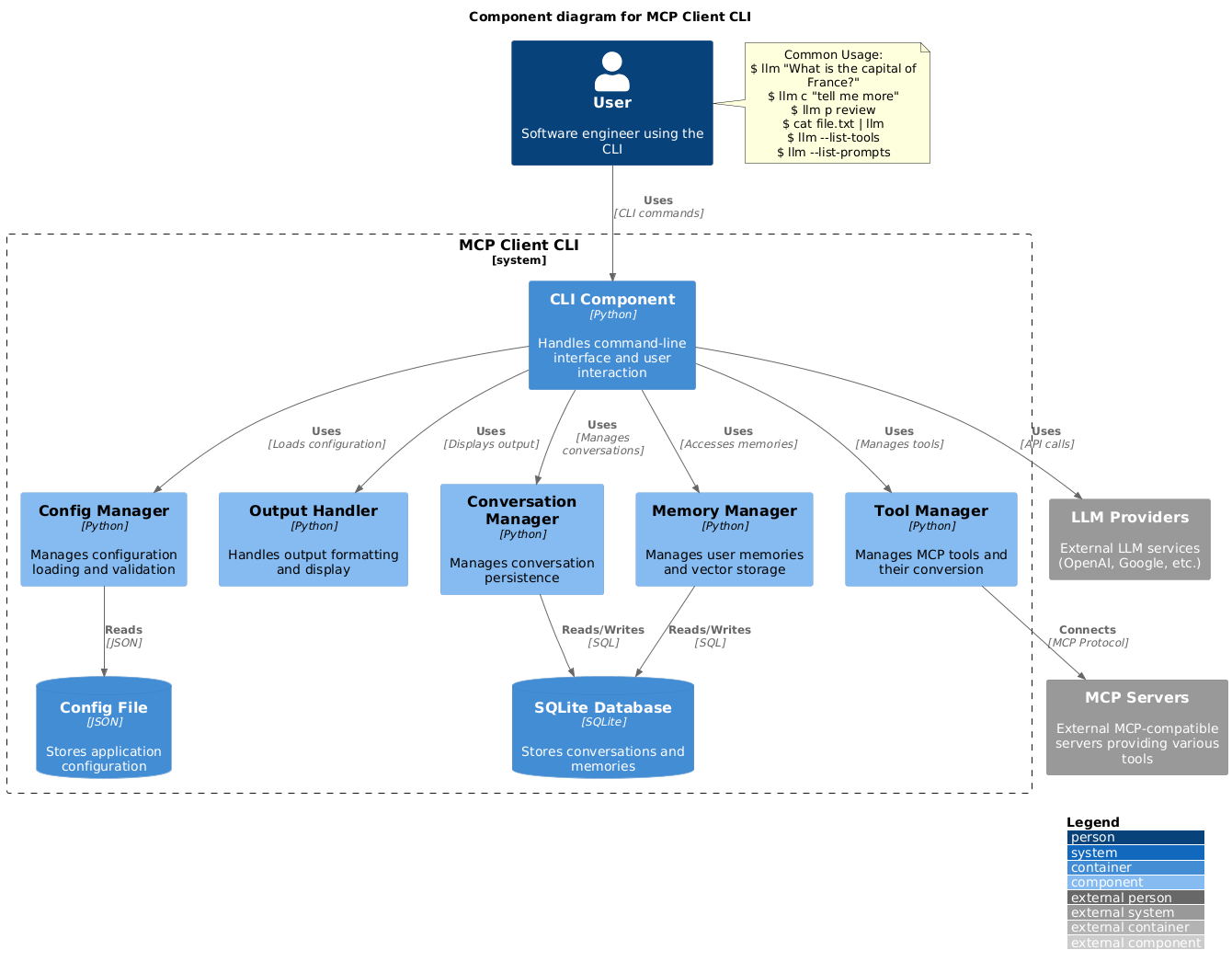
Setup
-
Install via pip:
pip install mcp-client-cli -
Create a
~/.llm/config.jsonfile to configure your LLM and MCP servers:{ "systemPrompt": "You are an AI assistant helping a software engineer...", "llm": { "provider": "openai", "model": "gpt-4", "api_key": "your-openai-api-key", "temperature": 0.7, "base_url": "https://api.openai.com/v1" // Optional, for OpenRouter or other providers }, "mcpServers": { "fetch": { "command": "uvx", "args": ["mcp-server-fetch"], "requires_confirmation": ["fetch"], "enabled": true, // Optional, defaults to true "exclude_tools": [] // Optional, list of tool names to exclude }, "brave-search": { "command": "npx", "args": ["-y", "@modelcontextprotocol/server-brave-search"], "env": { "BRAVE_API_KEY": "your-brave-api-key" }, "requires_confirmation": ["brave_web_search"] }, "youtube": { "command": "uvx", "args": ["--from", "git+https://github.com/adhikasp/mcp-youtube", "mcp-youtube"] } } }Note:
- See CONFIG.md for complete documentation of the configuration format
- Use
requires_confirmationto specify which tools need user confirmation before execution - The LLM API key can also be set via environment variables
LLM_API_KEYorOPENAI_API_KEY - The config file can be placed in either
~/.llm/config.jsonor$PWD/.llm/config.json - You can comment the JSON config file with
//if you like to switch around the configuration
-
Run the CLI:
llm "What is the capital city of North Sumatra?"
Usage
Basic Usage
$ llm What is the capital city of North Sumatra?
The capital city of North Sumatra is Medan.
You can omit the quotes, but be careful with bash special characters like &, |, ; that might be interpreted by your shell.
You can also pipe input from other commands or files:
$ echo "What is the capital city of North Sumatra?" | llm
The capital city of North Sumatra is Medan.

$ echo "Given a location, tell me its capital city." > instructions.txt
$ cat instruction.txt | llm "West Java"
The capital city of West Java is Bandung.
Image Input
You can pipe image files to analyze them with multimodal LLMs:
$ cat image.jpg | llm "What do you see in this image?"
[LLM will analyze and describe the image]

$ cat screenshot.png | llm "Is there any error in this screenshot?"
[LLM will analyze the screenshot and point out any errors]
Using Prompt Templates
You can use predefined prompt templates by using the p prefix followed by the template name and its arguments:
# List available prompt templates
$ llm --list-prompts

# Use a template
$ llm p review  # Review git changes
$ llm p commit  # Generate commit message
$ llm p yt url=https://youtube.com/...  # Summarize YouTube video
Triggering a tool
$ llm What is the top article on hackernews today?

================================== Ai Message ==================================
Tool Calls:
  brave_web_search (call_eXmFQizLUp8TKBgPtgFo71et)
 Call ID: call_eXmFQizLUp8TKBgPtgFo71et
  Args:
    query: site:news.ycombinator.com
    count: 1
Brave Search MCP Server running on stdio

# If the tool requires confirmation, you'll be prompted:
Confirm tool call? [y/n]: y

================================== Ai Message ==================================
Tool Calls:
  fetch (call_xH32S0QKqMfudgN1ZGV6vH1P)
 Call ID: call_xH32S0QKqMfudgN1ZGV6vH1P
  Args:
    url: https://news.ycombinator.com/
================================= Tool Message =================================
Name: fetch

[TextContent(type='text', text='Contents [REDACTED]]
================================== Ai Message ==================================

The top article on Hacker News today is:

### [Why pipes sometimes get "stuck": buffering](https://jvns.ca)
- **Points:** 31
- **Posted by:** tanelpoder
- **Posted:** 1 hour ago

You can view the full list of articles on [Hacker News](https://news.ycombinator.com/)
To bypass tool confirmation requirements, use the --no-confirmations flag:
$ llm --no-confirmations "What is the top article on hackernews today?"
To use in bash scripts, add the --no-intermediates, so it doesn't print intermediate messages, only the concluding end message.
$ llm --no-intermediates "What is the time in Tokyo right now?"
Continuation
Add a c prefix to your message to continue the last conversation.
$ llm asldkfjasdfkl
It seems like your message might have been a typo or an error. Could you please clarify or provide more details about what you need help with?
$ llm c what did i say previously?
You previously typed "asldkfjasdfkl," which appears to be a random string of characters. If you meant to ask something specific or if you have a question, please let me know!
Clipboard Support
You can use content from your clipboard using the cb command:
# After copying text to clipboard
$ llm cb
[LLM will process the clipboard text]

$ llm cb "What language is this code written in?"
[LLM will analyze the clipboard text with your question]

# After copying an image to clipboard
$ llm cb "What do you see in this image?"
[LLM will analyze the clipboard image]

# You can combine it with continuation
$ llm cb c "Tell me more about what you see"
[LLM will continue the conversation about the clipboard content]
The clipboard feature works in:
- Native Windows/macOS/Linux environments
- Windows: Uses PowerShell
- macOS: Uses
pbpastefor text,pngpastefor images (optional) - Linux: Uses
xclip(required for clipboard support)
- Windows Subsystem for Linux (WSL)
- Accesses the Windows clipboard through PowerShell
- Works with both text and images
- Make sure you have access to
powershell.exefrom WSL
Required tools for clipboard support:
- Windows: PowerShell (built-in)
- macOS:
pbpaste(built-in) for textpngpaste(optional) for images:brew install pngpaste
- Linux:
xclip:sudo apt install xclipor equivalent
The CLI automatically detects if the clipboard content is text or image and handles it appropriately.
Additional Options
$ llm --list-tools                # List all available tools
$ llm --list-prompts              # List available prompt templates
$ llm --no-tools                  # Run without any tools
$ llm --force-refresh             # Force refresh tool capabilities cache
$ llm --text-only                 # Output raw text without markdown formatting
$ llm --show-memories             # Show user memories
$ llm --model gpt-4               # Override the model specified in config
Contributing
Feel free to submit issues and pull requests for improvements or bug fixes.
client-cli MCPのよくある質問
このclientでローカルLLMを使用できますか?
はい、llama.cppを介してローカルLLMモデルを使用できます。
ツールの実行確認プロンプトをスキップする方法はありますか?
--no-confirmationsフラグを使用すると、ツール実行前のユーザー確認をスキップできます。
画像入力には対応していますか?
はい、画像ファイルをCLIにパイプすることで、マルチモーダルLLMによる解析が可能です。
クリップボードの内容を使用できますか?
はい、cbコマンドを使用することで、クリップボード内のテキストや画像を直接処理できます。