
Bündelt git, GitHub, GitLab, Bitbucket und Jira Actions, damit ein AI Client Repos, Work Items, Commits, Issues und Pull Requests verwalten kann.
Auch bekannt als gitkraken/gk-cli, @gitkraken/gk
- Stars
- 465
- Tools
- —
- Downloads, 30 Tage
- 304.568
- Neueste Version
- 3.1.77
- Letzter Commit
- 12. Nov. 2026
- Lizenz
- —
Was ist GitKraken MCP?
GitKraken ist ein MCP server. Bündelt git, GitHub, GitLab, Bitbucket und Jira Actions, damit ein AI Client Repos, Work Items, Commits, Issues und Pull Requests verwalten kann.
Zusammenfassung generiert aus dem README des Projekts
Über GitKraken MCP server
Mit dem gk-cli kannst du mehrere Repositories und Entwicklungsaufgaben direkt über einen AI Client verwalten. Dieser lokale MCP server fungiert als Brücke zwischen deinem LLM und deinem Development Workflow, indem er git, GitHub, GitLab, Bitbucket und Jira Actions bündelt. Er ermöglicht es Entwicklern, Work Items, Issues und Pull Requests über eine einheitliche Schnittstelle zu handhaben, selbst wenn sie gleichzeitig an mehreren verschiedenen Repositories arbeiten.
Nutzer interagieren mit dem Server, indem sie ihn auf macOS, Windows oder Unix-Systemen konfigurieren. Das Setup erfordert eine Authentifizierung bei der GitKraken Plattform über den auth command sowie das Hinzufügen von Provider Tokens für deine spezifischen Hosting-Services. Sobald er konfiguriert ist, stellt der Server Tools für die AI-gestützte Generierung von Commit Messages und die automatisierte Erstellung von Pull Requests bereit. Er unterstützt zudem den Standard-git-Command-Passthrough, sodass die AI Befehle wie status oder remote direkt über die Schnittstelle ausführen kann.
Was du damit machen kannst
- 1Automatisierte Commit- und PR-GenerierungEin AI Client kann den Server nutzen, um mithilfe von künstlicher Intelligenz Commit Messages zu schreiben und Pull Requests zu erstellen.
- 2Multi-Repository Task ManagementEntwickler können verschiedene Repositories in einem einzigen Work Item gruppieren, um komplexe Features über eine Codebase hinweg zu verwalten.
- 3Issue- und Work Item TrackingDu kannst eine AI anweisen, dein Development Backlog zu verwalten und spezifische Issues über die integrierten Provider Actions zu tracken.
Geschrieben aus dem README des Projekts. Jeder Use Case wurde gegen ein Zitat daraus geprüft.
So installierst du GitKraken MCP
Formate geprüft am 10. Nov. 2026GitKraken MCP in Claude Code installieren
$ claude mcp add gk-cli -- npx -y @gitkraken/gkGitKraken MCP in Cursor installieren
~/.cursor/mcp.json
{
  "mcpServers": {
    "gk-cli": {
      "command": "npx",
      "args": [
        "-y",
        "@gitkraken/gk"
      ]
    }
  }
}GitKraken MCP in VS Code installieren
.vscode/mcp.json
{
  "servers": {
    "gk-cli": {
      "type": "stdio",
      "command": "npx",
      "args": [
        "-y",
        "@gitkraken/gk"
      ]
    }
  }
}GitKraken MCP in Claude Desktop installieren
claude_desktop_config.json
{
  "mcpServers": {
    "gk-cli": {
      "command": "npx",
      "args": [
        "-y",
        "@gitkraken/gk"
      ]
    }
  }
}GitKraken MCP in Codex installieren
~/.codex/config.toml
[mcp_servers.gk-cli]
command = "npx"
args = ["-y", "@gitkraken/gk"]
GitKraken MCP in Gemini CLI installieren
~/.gemini/settings.json
{
  "mcpServers": {
    "gk-cli": {
      "command": "npx",
      "args": [
        "-y",
        "@gitkraken/gk"
      ]
    }
  }
}Automatisierte Checks
Geluften am 12. Nov. 2026Vollständiger Bericht →Unsere automatisierten Checks bestanden. Das ist kein Security-Audit: Lies den Code und gib dem Server nur den minimal notwendigen Zugriff. Wie die Checks funktionieren

- Source Repository verknüpft und erreichbarBestanden
- Open Source Lizenz (OSI)No licenseBefund
- Commit oder Release im letzten JahrBestanden
- Package-Name ähnelt keinem populären PackageBestanden
- Remote Endpoint nutzt HTTPSNicht geprüft
- Destruktive Tools sind markiertNicht geprüft
- Keine versteckten Anweisungen an das ModellBestanden
- Kein kritischer Hinweis im Paket oder seinen AbhängigkeitenBestanden
README
Auf GitHub ansehen🚀 GitKraken CLI
gk is GitKraken on the command line. The core functionality is focused on "Work Items" which can be thought of as the feature or issue you are trying to tackle. This allows you to work with multiple repos at once and get the same UX as if you were in a monorepo. We also provide robust AI-powered commit messages and Pull Request generation. It also provides an MCP server that streamlines working with git and your Issue and git hosting providers.
GitKraken CLI is available on macOS, Windows, and Unix systems.

Table of Contents
MCP Server
The GitKraken MCP server is a local MCP server that is powerful and easy to use. It wraps git, GitHub, Jira MCP actions as well as provides tools to LLMs that work with GitKraken APIs and functionality. You can find specific installation instructions based on your chosen AI application in the Help Center.
If you want to read more about the MCP server, you can check out the introduction blog post
Documentation
gk help is going to be your best source for exploring the CLI. But also see the workflows below.
Welcome to GitKraken CLI, a premium CLI experience for managing multiple repositories with familiar GIT CLI commands

Usage:
  gk [flags]
  gk [command]

AUTHENTICATING
  auth         Authenticate with the GitKraken platform
  provider     Add or remove provider tokens

CORE COMMANDS
  graph        Display commit graph in current repository
  issue        Manage your issues
  organization Manage your Gitkraken organizations
  work         Interact with your work.
  workspace    Interact with your workspaces. Alias: 'ws'

Additional Commands:
  help         Help about any command
  setup        Display information about your current system configuration
  version      Print the version number of GK CLI

Flags:
  -h, --help   help for gk

Use "gk [command] --help" for more information about a command.
Workflows
Start with a single repo. You can add more later.
In general, your process will look like this:
# Authenticate
gk auth login

# Navigate to a git repo directory on your filesystem
cd ./path/to/repo

# Then create a Work Item and the current directory
# will be automatically added to the Work Item
gk work create "My new work item"

# Edit files...
# ...

# Commit your changes using AI
gk work commit --ai

# Push your changes
gk work push

# Create a Pull Request
gk work pr create --ai
Once you have familiarized yourself with using a single repo, try out creating work items and generating commits and PRs for multiple repos at a time by just adding multiple repos to a new Work Item.
# Add a repo to the current work item
gk work add ./path/to/repo # path could be as simple as "." if you are in the directory already
git Command Passthrough
You can also use gk to pass through any git command. eg:
gk status
gk remote -v
# etc
Installation
macOS
gk is available from Homebrew with the following command:
Homebrew:
brew install gitkraken-cli
Or download it from the releases page and add it to your binaries folder:
mv ~/Downloads/gk /usr/local/bin/gk
Unix / Ubuntu

gk is available as a downloadable binary from the releases page. Once you have it, add it to your binaries folder:
mv ~/Downloads/gk /usr/local/bin/gk
Or create a new directory, move the binary and add it to $PATH:
mkdir "$HOME/cli"
mv ~/Downloads/gk "$HOME/cli"
export PATH="$HOME/gk:$PATH"
You can also [download][releases page] your corresponding package (.deb, .rpm) and install it with:
sudo apt install ./gk.deb
or
sudo rpm -i ./gk.rpm
Windows
gk is available from [Winget][winget] with the following command:
winget install gitkraken.cli
⚙️ Configuration
Nerd Fonts
The GitKraken CLI supports Nerd Fonts to display icons for some commands. To ensure correct icon rendering, please obtain and install a Nerd Font available at https://www.nerdfonts.com/. After installation, set the selected Nerd Font as the default font for your terminal.
Troubleshooting
gk login freezes after authenticating in browser
This problem is due to the browser. Currently we know that Safari and Brave do not allow to respond to localhost through port 1314. To fix this, change your default browser or copy the URL before the redirect and open it in another browser.
gk from Oh-My-Zsh
Oh-My-Zsh has gitk aliased as gk and that can create some problems. To fix this, type in your terminal:
unalias gk
Manual macOS Installation
If you install the CLI manually from the releases page on macOS, you will likely run into a security error that looks like this:
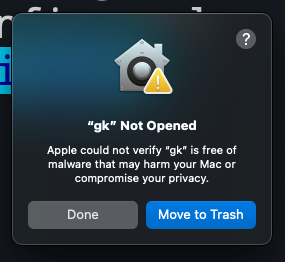
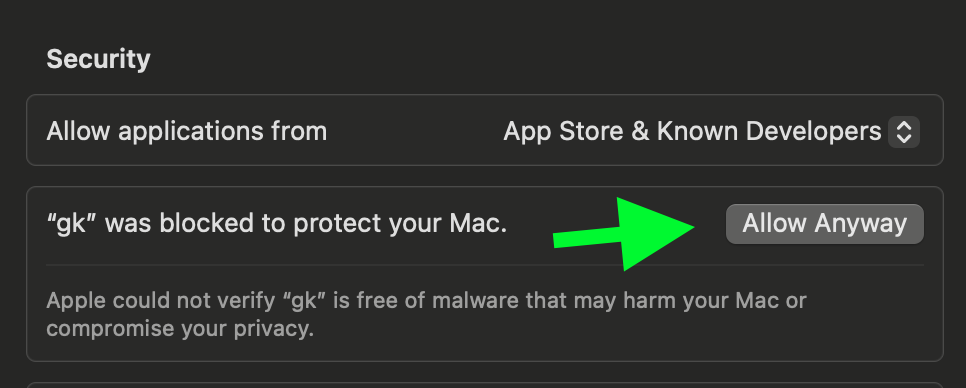
To fix this, go to Settings > Security & Privacy > General and click "Allow Anyway".
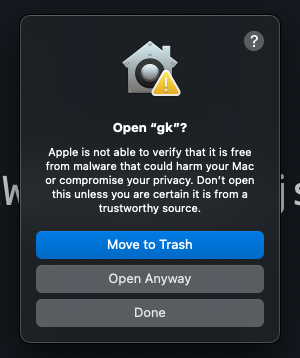
Try running gk setup again and then click "Open Anyway" to continue.
GitKraken MCP Fragen
Wie füge ich GitKraken MCP zu Claude Code hinzu?
Führe claude mcp add gk-cli -- npx -y @gitkraken/gk in deinem Terminal aus. Füge --scope user hinzu, damit der Server in jedem Projekt verfügbar ist.
Wie füge ich GitKraken MCP zu Cursor hinzu?
Öffne ~/.cursor/mcp.json und füge den Server unter mcpServers hinzu, mit der Cursor-Config aus dem Installationsabschnitt oben.
Was macht der GitKraken MCP server?
Er ist ein lokaler MCP server, der git, GitHub und Jira Actions bündelt und Tools bereitstellt, damit LLMs mit den GitKraken APIs und Funktionen arbeiten können.
Wie authentifiziere ich das GitKraken CLI?
Führe gk auth login aus, um dich bei der GitKraken Plattform zu authentifizieren; Provider Tokens für Hosting-Services können mit gk provider hinzugefügt werden.
Kann GitKraken Commit Messages und Pull Requests mit AI generieren?
Ja, gk work commit --ai erstellt AI-gestützte Commit Messages und gk work pr create --ai generiert Pull Requests.
Unterstützt das GitKraken CLI mehrere Repositories gleichzeitig?
Ja, Work Items können mehrere Repos enthalten, sodass du eine Monorepo-ähnliche UX über alle Repos hinweg erhältst.