
unity MCP server
Commit 11. Okt. 2026Verbindet KI-Assistenten mit dem Unity Editor, um Scenes zu manipulieren, GameObjects zu verwalten, Packages zu installieren und Tests auszuführen.
Auch bekannt als CoderGamester/mcp-unity
- Stars
- 2.017
- Tools
- 33
- Downloads, 30 Tage
- —
- Neueste Version
- —
- Letzter Commit
- 11. Okt. 2026
- Lizenz
- MIT
Was ist unity MCP?
unity ist ein MCP server. Verbindet KI-Assistenten mit dem Unity Editor, um Scenes zu manipulieren, GameObjects zu verwalten, Packages zu installieren und Tests auszuführen. Er stellt 33 Tools bereit, etwa execute_menu_item, select_gameobject, update_gameobject.
Zusammenfassung generiert aus dem README des Projekts
Über unity MCP server
Die Verbindung von KI-Assistenten mit dem Unity Editor ist das, was mcp-unity für Game Developer ermöglicht. Dieser MCP server fungiert als Brücke zwischen der Unity Engine und einem Node.js Server, wodurch KI-Agenten wie Cursor, Windsurf, Claude Code und GitHub Copilot direkt mit deinem Projekt interagieren können. Er funktioniert über eine Suite von Tools, mit denen Scenes manipuliert, GameObjects verwaltet und die Editor-Umgebung gesteuert werden kann.
User können komplexe Aufgaben erledigen, wie das Installieren von Packages über den Package Manager, das Ausführen von Tests über den Unity Test Runner sowie das Verwalten von Materials oder Assets. Der Server integriert sich zudem in IDEs, indem er den Unity Library/PackedCache-Ordner zum Workspace hinzufügt, um die Code-Intelligenz und Autocompletion zu verbessern. Developer können spezifische Tools nutzen, um Objekte zu bewegen, zu rotieren oder zu skalieren, Prefabs zu erstellen und sogar den Play-Mode-Status zu steuern, zum Beispiel durch Pausieren oder das Durchlaufen einzelner Frames.
Was du damit machen kannst
- 1Automatisierte Scene-ManipulationEin KI-Agent kann Scenes erstellen, laden oder löschen und die Hierarchy der GameObjects verwalten.
- 2Component- und Property-ManagementDu kannst einen Assistenten anweisen, Components zu Objekten hinzuzufügen oder spezifische Serialized Fields zu aktualisieren.
- 3Projekt-Wartung und TestingDeveloper können den Assistenten nutzen, um neue Packages zu installieren oder Projekttests auszuführen.
- 4Debugging und Console-MonitoringEine KI kann Error-Logs aus der Unity Console abrufen, um bei der Fehlersuche zu helfen.
Geschrieben aus dem README des Projekts. Jeder Use Case wurde gegen ein Zitat daraus geprüft.
unity MCP tools 33
Erkannt aus dem READMEexecute_menu_itemselect_gameobjectupdate_gameobjectupdate_componentadd_packagerun_testssend_console_logadd_asset_to_scenecreate_prefabcreate_sceneload_scenedelete_scene
| execute_menu_item | — | |
| select_gameobject | — | |
| update_gameobject | — | |
| update_component | — | |
| add_package | — | |
| run_tests | — | |
| send_console_log | — | |
| add_asset_to_scene | — | |
| create_prefab | — | |
| create_scene | — | |
| load_scene | — | |
| delete_scene | — |
Alle 33 Tools anzeigenWeniger Tools anzeigen
get_gameobjectget_console_logsrecompile_scriptssave_sceneget_scene_infounload_sceneduplicate_gameobjectdelete_gameobjectreparent_gameobjectmove_gameobjectrotate_gameobjectscale_gameobjectset_transformcreate_materialassign_materialmodify_materialget_material_infobatch_executeshow_unity_dashboardget_play_mode_statusset_play_mode_status
| get_gameobject | — | |
| get_console_logs | — | |
| recompile_scripts | — | |
| save_scene | — | |
| get_scene_info | — | |
| unload_scene | — | |
| duplicate_gameobject | — | |
| delete_gameobject | — | |
| reparent_gameobject | — | |
| move_gameobject | — | |
| rotate_gameobject | — | |
| scale_gameobject | — | |
| set_transform | — | |
| create_material | — | |
| assign_material | — | |
| modify_material | — | |
| get_material_info | — | |
| batch_execute | — | |
| show_unity_dashboard | — | |
| get_play_mode_status | — | |
| set_play_mode_status | — |
Konfiguration
MCP_UNITY_ALLOW_BATCH_MODEUNITY_HOST
| Name | Beschreibung | Typ |
|---|---|---|
| MCP_UNITY_ALLOW_BATCH_MODE | — | |
| UNITY_HOST | — |
Automatisierte Checks
Geluften am 13. Nov. 2026Vollständiger Bericht →Noch nicht verifiziert. Ein Server benötigt einen Score von 80, keine kritischen Befunde und genug Daten für unsere Prüfung. Wie die Checks funktionieren · Was du für mehr Punkte verbessern kannst

- Source Repository verknüpft und erreichbarBestanden
- Open Source Lizenz (OSI)Bestanden
- Commit oder Release im letzten JahrBestanden
- Package-Name ähnelt keinem populären PackageNicht geprüft
- Remote Endpoint nutzt HTTPSNicht geprüft
- Destruktive Tools sind markiertNicht geprüft
- Keine versteckten Anweisungen an das ModellBestanden
- Keine kritischen Advisories im Paket oder seinen AbhängigkeitenNicht geprüft
README
Auf GitHub ansehenMCP Unity Editor (Game Engine)




| 🇺🇸English | 🇨🇳简体中文 | 🇯🇵日本語 |
|---|
                              ,/(/.   *(/,
                          */(((((/.   *((((((*.
                     .*((((((((((/.   *((((((((((/.
                 ./((((((((((((((/    *((((((((((((((/,

             ,/(((((((((((((/*.           */(((((((((((((/*.
            ,%%#((/((((((*                    ,/(((((/(#&@@(
            ,%%##%%##((((((/*.             ,/((((/(#&@@@@@@(
            ,%%######%%##((/(((/*.    .*/(((//(%@@@@@@@@@@@(
            ,%%####%#(%%#%%##((/((((((((//#&@@@@@@&@@@@@@@@(
            ,%%####%(    /#%#%%%##(//(#@@@@@@@%,   #@@@@@@@(
            ,%%####%(        *#%###%@@@@@@(        #@@@@@@@(
            ,%%####%(           #%#%@@@@,          #@@@@@@@(
            ,%%##%%%(           #%#%@@@@,          #@@@@@@@(
            ,%%%#*              #%#%@@@@,             *%@@@(
            .,      ,/##*.      #%#%@@@@,     ./&@#*      *`
                ,/#%#####%%#/,  #%#%@@@@, ,/&@@@@@@@@@&\.
                 `*#########%%%%###%@@@@@@@@@@@@@@@@@@&*´
                    `*%%###########%@@@@@@@@@@@@@@&*´
                        `*%%%######%@@@@@@@@@@&*´
                            `*#%%##%@@@@@&*´
                               `*%#%@&*´

     ███╗   ███╗ ██████╗██████╗         ██╗   ██╗███╗   ██╗██╗████████╗██╗   ██╗
     ████╗ ████║██╔════╝██╔══██╗        ██║   ██║████╗  ██║██║╚══██╔══╝╚██╗ ██╔╝
     ██╔████╔██║██║     ██████╔╝        ██║   ██║██╔██╗ ██║██║   ██║    ╚████╔╝
     ██║╚██╔╝██║██║     ██╔═══╝         ██║   ██║██║╚██╗██║██║   ██║     ╚██╔╝
     ██║ ╚═╝ ██║╚██████╗██║             ╚██████╔╝██║ ╚████║██║   ██║      ██║
     ╚═╝     ╚═╝ ╚═════╝╚═╝              ╚═════╝ ╚═╝  ╚═══╝╚═╝   ╚═╝      ╚═╝
MCP Unity is an implementation of the Model Context Protocol for Unity Editor, allowing AI assistants to interact with your Unity projects. This package provides a bridge between Unity and a Node.js server that implements the MCP protocol, enabling AI agents like Cursor, Windsurf, Claude Code, Codex CLI, GitHub Copilot, Google Antigravity, and OpenCode to execute operations within the Unity Editor.
Features
IDE Integration - Package Cache Access
MCP Unity provides automatic integration with VSCode-like IDEs (Visual Studio Code, Cursor, Windsurf, Google Antigravity) by adding the Unity Library/PackedCache folder to your workspace. This feature:
- Improves code intelligence for Unity packages
- Enables better autocompletion and type information for Unity packages
- Helps AI coding assistants understand your project's dependencies
MCP Server Tools
The following tools are available for manipulating and querying Unity scenes and GameObjects via MCP:
-
execute_menu_item: Executes Unity menu items (functions tagged with the MenuItem attribute)Example prompt: "Execute the menu item 'GameObject/Create Empty' to create a new empty GameObject"
-
select_gameobject: Selects game objects in the Unity hierarchy by path or instance IDExample prompt: "Select the Main Camera object in my scene"
-
update_gameobject: Updates a GameObject's core properties (name, tag, layer, active/static state), or creates the GameObject if it does not existExample prompt: "Set the Player object's tag to 'Enemy' and make it inactive"
-
update_component: Updates component fields on a GameObject or adds it to the GameObject if it does not contain the componentExample prompt: "Add a Rigidbody component to the Player object and set its mass to 5"
-
add_package: Installs new packages in the Unity Package ManagerExample prompt: "Add the TextMeshPro package to my project"
-
run_tests: Runs tests using the Unity Test RunnerExample prompt: "Run all the EditMode tests in my project"
-
send_console_log: Send a console log to UnityExample prompt: "Send a console log to Unity Editor"
-
add_asset_to_scene: Adds an asset from the AssetDatabase to the Unity sceneExample prompt: "Add the Player prefab from my project to the current scene"
-
create_prefab: Creates a prefab with optional MonoBehaviour script and serialized field valuesExample prompt: "Create a prefab named 'Player' from the 'PlayerController' script"
-
create_scene: Creates a new scene and saves it to the specified pathExample prompt: "Create a new scene called 'Level1' in the Scenes folder"
-
load_scene: Loads a scene by path or name, with optional additive loadingExample prompt: "Load the MainMenu scene"
-
delete_scene: Deletes a scene by path or name and removes it from Build SettingsExample prompt: "Delete the old TestScene from my project"
-
get_gameobject: Gets detailed information about a specific GameObject including all componentsExample prompt: "Get the details of the Player GameObject"
-
get_console_logs: Retrieves logs from the Unity console with pagination supportExample prompt: "Show me the last 20 error logs from the Unity console"
-
recompile_scripts: Recompiles all scripts in the Unity projectExample prompt: "Recompile scripts in my Unity project"
-
save_scene: Saves the current active scene, with optional Save As to a new pathExample prompt: "Save the current scene" or "Save the scene as 'Assets/Scenes/Level2.unity'"
-
get_scene_info: Gets information about the active scene including name, path, dirty state, and all loaded scenesExample prompt: "What scenes are currently loaded in my project?"
-
unload_scene: Unloads a scene from the hierarchy (does not delete the scene asset)Example prompt: "Unload the UI scene from the hierarchy"
-
duplicate_gameobject: Duplicates a GameObject in the scene with optional renaming and reparentingExample prompt: "Duplicate the Enemy prefab 5 times and rename them Enemy_1 through Enemy_5"
-
delete_gameobject: Deletes a GameObject from the sceneExample prompt: "Delete the old Player object from the scene"
-
reparent_gameobject: Changes the parent of a GameObject in the hierarchyExample prompt: "Move the HealthBar object to be a child of the UI Canvas"
-
move_gameobject: Moves a GameObject to a new position (local or world space)Example prompt: "Move the Player object to position (10, 0, 5) in world space"
-
rotate_gameobject: Rotates a GameObject to a new rotation (local or world space, Euler angles or quaternion)Example prompt: "Rotate the Camera 45 degrees on the Y axis"
-
scale_gameobject: Scales a GameObject to a new local scaleExample prompt: "Scale the Enemy object to twice its size"
-
set_transform: Sets position, rotation, and scale of a GameObject in a single operationExample prompt: "Set the Cube's position to (0, 5, 0), rotation to (0, 90, 0), and scale to (2, 2, 2)"
-
create_material: Creates a new material with specified shader and saves it to the projectExample prompt: "Create a red material called 'EnemyMaterial' using the URP Lit shader"
-
assign_material: Assigns a material to a GameObject's Renderer componentExample prompt: "Assign the 'EnemyMaterial' to the Enemy GameObject"
-
modify_material: Modifies properties of an existing material (colors, floats, textures)Example prompt: "Change the color of 'EnemyMaterial' to blue and set metallic to 0.8"
-
get_material_info: Gets detailed information about a material including shader and all propertiesExample prompt: "Show me all the properties of the 'PlayerMaterial'"
-
batch_execute: Executes multiple tool operations in a single batch request, reducing round-trips and enabling atomic operations with optional rollback on failureExample prompt: "Create 10 empty GameObjects named Enemy_1 through Enemy_10 in a single batch operation"
MCP App tools
-
show_unity_dashboard: Opens the Unity dashboard MCP App in VS Code (requires VS Code 1.109+)Example prompt: "Open the Unity dashboard app"
-
get_play_mode_status: Gets Unity play mode status (isPlaying, isPaused)Example prompt: "Is Unity in play mode?"
-
set_play_mode_status: Controls Unity play mode with actions: 'play' (start or unpause), 'pause' (toggle pause), 'stop' (exit play mode), 'step' (advance one frame)Example prompt: "Start Unity play mode" or "Pause the game" or "Step forward one frame"
MCP Server Resources
-
unity://menu-items: Retrieves a list of all available menu items in the Unity Editor to facilitateexecute_menu_itemtoolExample prompt: "Show me all available menu items related to GameObject creation"
-
unity://scenes-hierarchy: Retrieves a list of all game objects in the current Unity scene hierarchyExample prompt: "Show me the current scenes hierarchy structure"
-
unity://gameobject/{id}: Retrieves detailed information about a specific GameObject by instance ID or object path in the scene hierarchy, including all GameObject components with it's serialized properties and fieldsExample prompt: "Get me detailed information about the Player GameObject"
-
unity://logs: Retrieves a list of all logs from the Unity consoleExample prompt: "Show me the recent error messages from the Unity console"
-
unity://packages: Retrieves information about installed and available packages from the Unity Package ManagerExample prompt: "List all the packages currently installed in my Unity project"
-
unity://assets: Retrieves information about assets in the Unity Asset DatabaseExample prompt: "Find all texture assets in my project"
-
unity://tests/{testMode}: Retrieves information about tests in the Unity Test RunnerExample prompt: "List all available tests in my Unity project"
-
ui://unity-dashboard: Unity dashboard MCP App UIExample prompt: "Open the Unity dashboard app"
MCP Server Prompts
Prompts are pre-configured templates that provide guided workflows for common Unity tasks. They help AI assistants understand the proper sequence of operations and available tools for specific scenarios.
-
unity_dashboard: Opens the Unity dashboard MCP app with contextual information about its featuresUsage: In your AI assistant, use the prompt "unity_dashboard" to get guided access to the Unity dashboard
-
gameobject_handling_strategy: Provides a structured workflow for working with GameObjects, including which tools and resources to useUsage: In your AI assistant, use the prompt "gameobject_handling_strategy" with a GameObject ID, name, or path to get step-by-step guidance
Requirements
- Unity 6 or later - to install the server
- Node.js 18 or later - to start the server
- npm 9 or later - to debug the server
[!NOTE] Project Paths with Spaces
MCP Unity supports project paths containing spaces. However, if you experience connection issues, try moving your project to a path without spaces as a troubleshooting step.
Examples:
- ✅ Recommended:
C:\Users\YourUser\Documents\UnityProjects\MyAwesomeGame- ✅ Supported:
C:\Users\Your User\Documents\Unity Projects\My Awesome Game
Installation
Installing this MCP Unity Server is a multi-step process:
Step 1: Install Node.js
To run MCP Unity server, you'll need to have Node.js 18 or later installed on your computer:
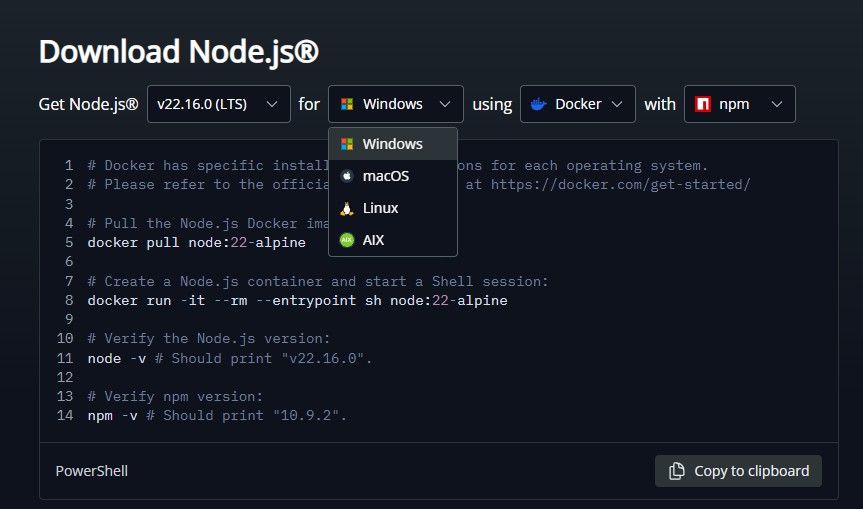
- Visit the Node.js download page
- Download the Windows Installer (.msi) for the LTS version (recommended)
- Run the installer and follow the installation wizard
- Verify the installation by opening PowerShell and running:
node --version
- Visit the Node.js download page
- Download the macOS Installer (.pkg) for the LTS version (recommended)
- Run the installer and follow the installation wizard
- Alternatively, if you have Homebrew installed, you can run:
brew install node@18 - Verify the installation by opening Terminal and running:
node --version
Step 2: Install Unity MCP Server package via Unity Package Manager
- Open the Unity Package Manager (Window > Package Manager)
- Click the "+" button in the top-left corner
- Select "Add package from git URL..."
- Enter:
https://github.com/CoderGamester/mcp-unity.git - Click "Add"
Step 3: Configure AI LLM Client
- Open the Unity Editor
- Navigate to Tools > MCP Unity > Server Window
- Click on the "Configure" button for your AI LLM client as shown in the image below
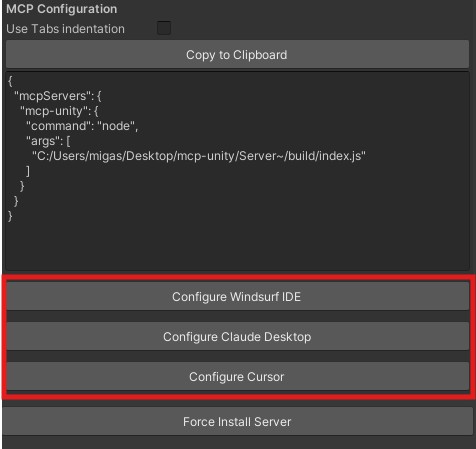
Global vs. Project configuration:
- Configure [Client] — writes to your global user config file (e.g.
~/.claude.json). Uses an absolute path. Applies to all projects on your machine. Best for personal, single-developer setups.- Configure [Client] (Project) — writes to a
.mcp.jsonfile (or equivalent) in the Unity project root. Uses a relative path, so it works across machines. Intended to be committed to git and shared with the team. Best for collaborative projects or when you want the config to travel with the project.If in doubt, prefer the (Project) variant — the relative path is more portable and won't break if you move your project folder.
- Confirm the configuration installation with the given popup
Open the MCP configuration file of your AI client and add the MCP Unity server configuration:
Replace
ABSOLUTE/PATH/TOwith the absolute path to your MCP Unity installation or just copy the text from the Unity Editor MCP Server window (Tools > MCP Unity > Server Window).For configs that live inside the Unity project tree and get committed to git (e.g.
<project>/.vscode/mcp.json,<project>/opencode.json,<project>/.cursor/mcp.json,<project>/.mcp.json,<project>/.codex/config.toml), prefer a project-relative path so the same file works across machines. Toggle "Use relative path" in the Server Window to switch the copy-paste snippet between absolute and project-relative forms. The Configure GitHub Copilot, Configure OpenCode, Configure Cursor (Project), Configure Claude Code (Project), and Configure Codex CLI (Project) buttons already emit relative paths automatically.Project-local buttons (Cursor / Claude Code / Codex CLI) write the MCP server entry into the Unity project directory instead of your global user config, so other (non-Unity) projects don't see MCP connection-failure warnings. For Codex CLI (Project) specifically, you must approve the project trust prompt the first time you run
codexfrom the project root, otherwise Codex ignores<project>/.codex/config.toml.
For JSON-based clients (Cursor, Windsurf, Claude Code, GitHub Copilot, etc.):
{
   "mcpServers": {
       "mcp-unity": {
          "command": "node",
          "args": [
             "ABSOLUTE/PATH/TO/mcp-unity/Server~/build/index.js"
          ]
       }
   }
}
For workspace-scoped VS Code / GitHub Copilot (.vscode/mcp.json), use ${workspaceFolder} so the path is portable across machines:
{
   "mcpServers": {
       "mcp-unity": {
          "command": "node",
          "args": [
             "${workspaceFolder}/Library/PackageCache/com.gamelovers.mcp-unity@<hash>/Server~/build/index.js"
          ]
       }
   }
}
For Codex CLI (~/.codex/config.toml):
[mcp_servers.mcp-unity]
command = "node"
args = ["ABSOLUTE/PATH/TO/mcp-unity/Server~/build/index.js"]
For Cursor — project-local (.cursor/mcp.json in the Unity project root, project-relative path):
{
   "mcpServers": {
       "mcp-unity": {
          "command": "node",
          "args": [
             "Library/PackageCache/com.gamelovers.mcp-unity@<hash>/Server~/build/index.js"
          ]
       }
   }
}
For Claude Code — project-local (.mcp.json in the Unity project root, project-relative path — Claude Code's team-shared MCP config):
{
   "mcpServers": {
       "mcp-unity": {
          "command": "node",
          "args": [
             "Library/PackageCache/com.gamelovers.mcp-unity@<hash>/Server~/build/index.js"
          ]
       }
   }
}
For Codex CLI — project-local (.codex/config.toml in the Unity project root, project-relative path):
[mcp_servers.mcp-unity]
command = "node"
args = ["Library/PackageCache/com.gamelovers.mcp-unity@<hash>/Server~/build/index.js"]
Codex layers this file over the global
~/.codex/config.toml, but only when the project is marked trusted. The first time youcdinto the project and runcodex, approve the trust prompt — otherwise Codex ignores.codex/config.toml.
For OpenCode (opencode.json in the Unity project root):
{
  "$schema": "https://opencode.ai/config.json",
  "mcp": {
    "mcp-unity": {
      "type": "local",
      "enabled": true,
      "command": ["node", "Library/PackageCache/com.gamelovers.mcp-unity@<hash>/Server~/build/index.js"],
      "environment": {}
    }
  }
}
Note: the
@<hash>segment in the UPM package cache path changes when the package is updated. If you update MCP Unity, re-run the Configure button (or update the path manually) so the snippet points at the new cache directory.
Start Unity Editor MCP Server
- Open the Unity Editor
- Navigate to Tools > MCP Unity > Server Window
- Click "Start Server" to start the WebSocket server
- Open your AI Coding IDE (e.g. Cursor, Windsurf, Claude Code, Codex CLI, GitHub Copilot, Google Antigravity, OpenCode, etc.) and start executing Unity tools
When the AI client connects to the WebSocket server, it will automatically show in the green box in the window
Optional: Set WebSocket Port
By default, the WebSocket server runs on port '8090'. To change it:
- Open the Unity Editor
- Navigate to Tools > MCP Unity > Server Window
- Change the "Connection Port" value to your desired port number
- Unity persists the value in
ProjectSettings/McpUnitySettings.json - Restart the Node.js server
The Node bridge discovers that project settings file from its installed package path, so it does not depend on the MCP client's working directory. To override it for one Node process, set UNITY_PORT, for example: UNITY_PORT=9001 node build/index.js.
Optional: Set Timeout
By default, the timeout between the MCP server and the WebSocket is 10 seconds. To change it:
- Open the Unity Editor
- Navigate to Tools > MCP Unity > Server Window
- Change the "Request Timeout (seconds)" value to your desired timeout seconds
- Unity persists the value in
ProjectSettings/McpUnitySettings.json - Restart the Node.js server
To override it for one Node process, set UNITY_REQUEST_TIMEOUT (in seconds), for example: UNITY_REQUEST_TIMEOUT=30 node build/index.js.
[!TIP]
The timeout between your AI Coding IDE (e.g., Claude Desktop, Cursor IDE, Windsurf IDE) and the MCP Server depends on the IDE.
Optional: Run a Persistent Headless MCP Host
MCP Unity remains disabled in -batchmode by default so CI and cloud builds do not start a bridge or run npm. To run a long-lived headless Editor as an MCP host, opt in before launching Unity by either enabling Allow Batch Mode Server in the Server Window or setting MCP_UNITY_ALLOW_BATCH_MODE=true:
MCP_UNITY_ALLOW_BATCH_MODE=true Unity -batchmode -nographics -projectPath /path/to/project -logFile /path/to/unity.log
The Unity-side WebSocket server starts normally when opted in, but it never runs npm install or npm run build in batch mode. Ensure the Node bridge is already built and available to the MCP client.
Bridge Configuration Resolution
The Node bridge resolves each connection value in this order: its environment variable (UNITY_PORT, UNITY_HOST, or UNITY_REQUEST_TIMEOUT), MCP_UNITY_SETTINGS_PATH, the ProjectSettings/McpUnitySettings.json file found above the installed package, then a file found above its working directory, and finally the defaults. Generated MCP configurations set MCP_UNITY_SETTINGS_PATH and MCP_UNITY_AUTH_TOKEN_PATH explicitly. The bridge logs the value source and warns before falling back to defaults.
Bridge Security and Package Installation
MCP Unity creates a per-project 256-bit authentication token at Library/McpUnity/bridge-token. Token resolution is strict: MCP_UNITY_AUTH_TOKEN takes precedence, followed by MCP_UNITY_AUTH_TOKEN_PATH, followed by the token beside the discovered Unity project. Explicit missing or malformed values fail without fallback. Generated configurations use the token-file path and never copy the secret into ProjectSettings.
The Unity endpoint requires HTTP Basic credentials with username mcp-unity, and rejects every WebSocket handshake that supplies an Origin header. Direct WebSocket integrations must authenticate and omit Origin. Use the Server Window to copy or regenerate the token; after rotation, restart all MCP client processes.
The add_package tool is disabled by default because Unity packages can execute Editor code when they compile. Enable Allow Package Installation in Tools > MCP Unity > Server Window, or set AllowPackageInstallation to true in ProjectSettings/McpUnitySettings.json, only when package sources and MCP clients are trusted.
Version 1.5.0 intentionally rejects 1.4.x Node bridges. Upgrade both the Unity and Node package components, run the Unity Configure action again if the package-cache path changed, and restart MCP clients.
unity MCP Fragen
Welche Tools bietet unity MCP?
Er stellt 33 Tools bereit, darunter execute_menu_item, select_gameobject, update_gameobject, update_component, add_package.
Was kann die KI innerhalb des Unity Editors tun?
Die KI kann Menüpunkte ausführen, GameObjects auswählen und aktualisieren, Components hinzufügen, Packages installieren, Tests ausführen und Scenes verwalten.
Wie verbessert das die Code-Intelligenz in IDEs?
Es fügt den Unity Library/PackedCache-Ordner automatisch deinem Workspace hinzu, was die Autocompletion und Typ-Informationen für Unity Packages verbessert.