
Ermöglicht KI-Coding-Assistenten direkten sensorischen Zugriff auf Live-Webanwendungen durch das Erfassen und Analysieren von Audio, visuellen Daten und Performance-Daten.
Auch bekannt als asume21/webear
- Stars
- 1
- Tools
- —
- Downloads, 30 Tage
- —
- Neueste Version
- 1.2.4
- Letzter Commit
- 28. Okt. 2026
- Lizenz
- MIT
Was ist webear MCP?
webear ist ein MCP server. Ermöglicht KI-Coding-Assistenten direkten sensorischen Zugriff auf Live-Webanwendungen durch das Erfassen und Analysieren von Audio, visuellen Daten und Performance-Daten.
Zusammenfassung generiert aus dem README des Projekts
Über webear MCP server
Webear gibt KI-Coding-Assistenten direkten sensorischen Zugriff auf Live-Webanwendungen, indem es die Web Audio API nutzt. Dies ermöglicht es einer KI, den digitalen Output eines Browser-Tabs zu hören, ohne dass Raumakustik oder Mikrofon-Hardware stören. Entwickler können dies in ihren Workflow integrieren, indem sie eine Express-Middleware auf einem lokalen Dev-Server nutzen oder sich über SSE mit einem gehosteten Relay verbinden. Der Server läuft innerhalb einer IDE wie Claude Code, Cursor oder Windsurf via stdio.
Nutzer können mit der Anwendung über spezifische Tools wie capture_audio, analyze_audio, describe_audio und diff_audio interagieren. Während Basis-Analysen wie Lautstärke und Clipping lokal mit ffmpeg durchgeführt werden können, erfordern fortgeschrittene Features wie Spectral Centroid, BPM und Timing Jitter einen CodedSwitch API-Key. Das System ist für Web-Audio-Entwickler, Game-Creator und Ersteller von Musik-Apps konzipiert, die komplexe Audio-Graphs, Synths oder Mixing-Probleme direkt über ihren KI-Assistenten debuggen müssen.
Was du damit machen kannst
- 1Audio-Mixing-Probleme debuggenLass deine KI einen Live-Audio-Stream analysieren, um herauszufinden, warum ein bestimmtes Frequenzband dumpf klingt.
- 2Audio-Regressionen erkennenNutze das Tool, um Audio-Captures aus verschiedenen Code-Versionen zu vergleichen und Änderungen bei Lautstärke oder Klangfarbe zu finden.
- 3Signal Clipping überwachenPrüfe, ob deine Webanwendung Audio erzeugt, das die maximalen Peak-Level überschreitet.
- 4Rhythmische Konsistenz analysierenEvaluiere den Timing Jitter und den BPM einer webbasierten Musik-App.
Geschrieben aus dem README des Projekts. Jeder Use Case wurde gegen ein Zitat daraus geprüft.
So installierst du webear MCP
Formate geprüft am 10. Nov. 2026Zu Cursor hinzufügenZu Goose hinzufügenwebear MCP in Claude Code installieren
$ claude mcp add --env 'CODEDSWITCH_API_KEY=<YOUR_CODEDSWITCH_API_KEY>' webear -- npx -y webearwebear MCP in Cursor installieren
~/.cursor/mcp.json
{
  "mcpServers": {
    "webear": {
      "command": "npx",
      "args": [
        "-y",
        "webear"
      ],
      "env": {
        "CODEDSWITCH_API_KEY": "<YOUR_CODEDSWITCH_API_KEY>"
      }
    }
  }
}webear MCP in VS Code installieren
.vscode/mcp.json
{
  "servers": {
    "webear": {
      "type": "stdio",
      "command": "npx",
      "args": [
        "-y",
        "webear"
      ],
      "env": {
        "CODEDSWITCH_API_KEY": "<YOUR_CODEDSWITCH_API_KEY>"
      }
    }
  }
}webear MCP in VS Code CLI installieren
$ code --add-mcp '{"name":"webear","type":"stdio","command":"npx","args":["-y","webear"],"env":{"CODEDSWITCH_API_KEY":"<YOUR_CODEDSWITCH_API_KEY>"}}'webear MCP in Claude Desktop installieren
claude_desktop_config.json
{
  "mcpServers": {
    "webear": {
      "command": "npx",
      "args": [
        "-y",
        "webear"
      ],
      "env": {
        "CODEDSWITCH_API_KEY": "<YOUR_CODEDSWITCH_API_KEY>"
      }
    }
  }
}webear MCP in Codex installieren
$ codex mcp add webear --env 'CODEDSWITCH_API_KEY=<YOUR_CODEDSWITCH_API_KEY>' -- npx -y webearwebear MCP in Codex config.toml installieren
~/.codex/config.toml
[mcp_servers.webear]
command = "npx"
args = ["-y", "webear"]

[mcp_servers.webear.env]
CODEDSWITCH_API_KEY = "<YOUR_CODEDSWITCH_API_KEY>"
webear MCP in Gemini CLI installieren
$ gemini mcp add -s user -e 'CODEDSWITCH_API_KEY=<YOUR_CODEDSWITCH_API_KEY>' webear npx -- -y webearwebear MCP in Gemini settings.json installieren
~/.gemini/settings.json
{
  "mcpServers": {
    "webear": {
      "command": "npx",
      "args": [
        "-y",
        "webear"
      ],
      "env": {
        "CODEDSWITCH_API_KEY": "<YOUR_CODEDSWITCH_API_KEY>"
      }
    }
  }
}Konfiguration
CODEDSWITCH_API_KEYErforderlichSecretAPI key from codedswitch.com for audio analysis
WEBEAR_BASE_URLURL of your dev server where WebEar middleware is mounted
| Name | Beschreibung | Typ |
|---|---|---|
| CODEDSWITCH_API_KEY | API key from codedswitch.com for audio analysis | ErforderlichSecret |
| WEBEAR_BASE_URL | URL of your dev server where WebEar middleware is mounted |
Automatisierte Checks
Geluften am 13. Nov. 2026Vollständiger Bericht →Unsere automatisierten Checks bestanden. Das ist kein Security-Audit: Lies den Code und gib dem Server nur den minimal notwendigen Zugriff. Wie die Checks funktionieren

- Source Repository verknüpft und erreichbarasume21/webear is public and reachablegithub.com/asume21/webear ↗Bestanden
- Paket nennt dieses Repository als Quellewebear names asume21/webear as sourcenpmjs.com/package/webear ↗Bestanden
- Build-Provenienz (Sigstore-Attestierung)No build attestation published for this releaseNicht geprüft
- Open Source Lizenz (OSI)MITspdx.org/licenses/MIT.html ↗Bestanden
- Commit oder Release im letzten JahrLast commit or release 2026-10-28github.com/asume21/webear ↗Bestanden
- OpenSSF ScorecardNicht geprüft
- Package-Name ähnelt keinem populären PackageNo popular package one edit away from webearBestanden
- Keine kritischen Advisories im Paket oder seinen Abhängigkeiten99 resolved dependencies checked; no critical advisoryosv.dev ↗Bestanden
- Keine versteckten Anweisungen an das Modell0 tool descriptions and the README read; no override phrases, credential paths or hidden charactersBestanden
- Destruktive Tools sind markiertNicht geprüft
- Remote-Endpoint beantwortet den MCP-HandshakeNicht geprüft
README
Auf GitHub ansehenwebear


Give your AI real senses — hear, see, and feel any web app.
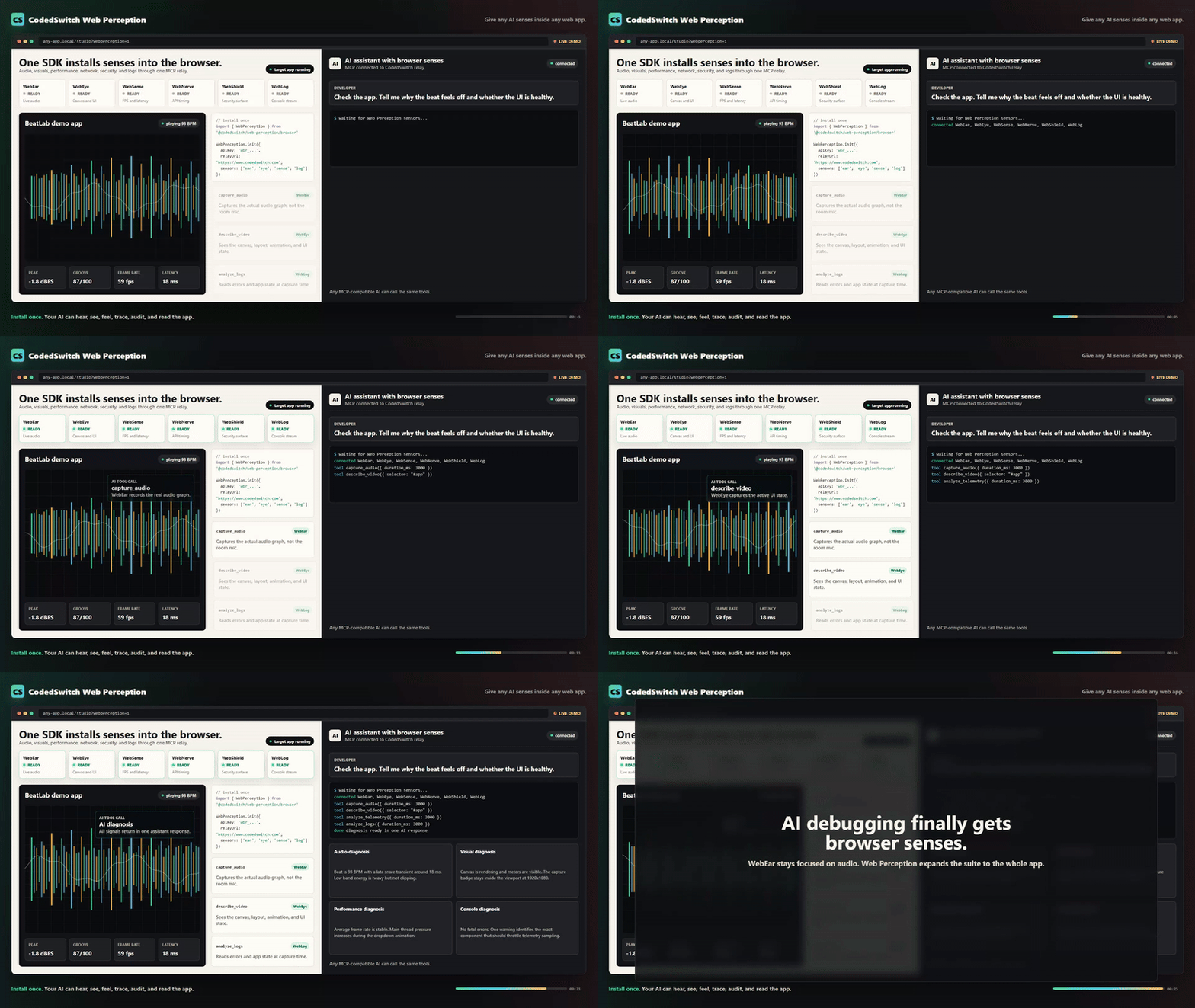
An MCP server + browser SDK that gives AI coding assistants direct sensory access to a live web application. Audio, visuals, performance, network, security, and console — captured from the browser, analyzed in real time, delivered via MCP.
"The beat sounds muddy" → your AI captures 3 seconds, measures the spectral centroid at 580 Hz with 45% energy below 250 Hz, and tells you exactly why.
What It Does
| Tool | Description |
|---|---|
capture_audio |
Record a short clip (500ms–30s) of what your web app is outputting right now |
analyze_audio |
Signal analysis: RMS, peak dB, clipping, spectral centroid, frequency bands, BPM, timing jitter |
describe_audio |
Plain-English AI description — "the kick is boomy with heavy sub buildup around 80 Hz" |
diff_audio |
Compare two captures and flag what changed — loudness, tone, timing, clipping |
How It Works
Browser (Web Audio API)
    ↓ MediaRecorder taps the AudioContext output node
    ↓ Uploads WebM blob via HTTP POST
Express Middleware (your dev server)
    ↓ Stores captures in memory, dispatches commands via SSE
MCP Server (stdio — runs inside your IDE)
    ↓ Retrieves captures, sends to CodedSwitch analysis API
AI Coding Assistant
    → "Your bass band is 42% of the mix (high), spectral centroid
       is 580 Hz (muddy), and timing jitter is 23ms — the scheduler
       is drifting under load."
The key difference from every other audio MCP: this taps the Web Audio graph directly, bypassing room acoustics, microphone hardware, and the need to export files.
Quick Start
1. Install
npm install webear
2. Add the Express middleware to your dev server
import express from 'express'
import { webearMiddleware } from 'webear/middleware'

const app = express()
app.use(express.json())

// Mount the audio debug bridge (automatically disabled in production)
app.use('/api/webear', webearMiddleware())

app.listen(5000)
3. Add the client snippet to your web app
Option A — auto-detect everything (Tone.js or raw Web Audio)
import WebEar from 'webear/client'
WebEar.init()
Option B — explicit AudioContext
const ctx = new AudioContext()
const masterGain = ctx.createGain()
masterGain.connect(ctx.destination)

WebEar.init({ audioContext: ctx, outputNode: masterGain })
Option C — Tone.js project
import * as Tone from 'tone'
WebEar.init({ toneJs: true })
Option D — Three.js WebGL Game
import * as THREE from 'three'
const listener = new THREE.AudioListener()
camera.add(listener)
WebEar.init({ tapNode: listener.getInput() })
Option E — plain script tag
<script src="node_modules/webear/client-snippet.js"></script>
<script>WebEar.init()</script>
4. Configure your IDE
Claude Code (.mcp.json in project root):
{
  "mcpServers": {
    "webear": {
      "command": "npx",
      "args": ["webear"],
      "env": {
        "WEBEAR_BASE_URL": "http://localhost:5000",
        "CODEDSWITCH_API_KEY": "your-key-here"
      }
    }
  }
}
Cursor (.cursor/mcp.json):
{
  "mcpServers": {
    "webear": {
      "command": "npx",
      "args": ["webear"],
      "env": {
        "WEBEAR_BASE_URL": "http://localhost:5000",
        "CODEDSWITCH_API_KEY": "your-key-here"
      }
    }
  }
}
Windsurf (mcp_config.json):
{
  "webear": {
    "command": "npx",
    "args": ["webear"],
    "disabled": false,
    "env": {
      "WEBEAR_BASE_URL": "http://localhost:5000",
      "CODEDSWITCH_API_KEY": "your-key-here"
    }
  }
}
5. Get an API key — optional, and not to start
analyze_audio works with no key and no account. If ffmpeg is on your PATH,
it decodes and analyzes the capture on your machine and returns a basic report:
duration, loudness, peak level and whether the audio is clipping. Nothing is
uploaded. Try the tool before you sign up for anything.
A key unlocks the parts that need more than arithmetic:
| No key | With key | |
|---|---|---|
capture_audio |
✓ | ✓ |
analyze_audio |
Basic — duration, loudness, peak, clipping (local) | Full — spectral centroid, band energy, crest factor, BPM, timing jitter |
describe_audio — what it SOUNDS like |
— | ✓ |
mix_coach — measured + heard |
— | ✓ |
diff_audio — before/after |
— | ✓ |
To get one:
- Create a free account at codedswitch.com.
- Go to codedswitch.com/developer (also in the account menu as Developer API).
- Click Generate API Key — that value is your
CODEDSWITCH_API_KEY. Keys start withwbr_.
Free tier: 50 analyses/day. No credit card required.
6. Start your dev server, open your app, play audio, then ask your AI:
"Capture 3 seconds and tell me why the bass sounds muddy."
"Compare the audio before and after my last commit."
"Is there any clipping in the high-frequency range?"
Example Output
analyze_audio
── Audio Analysis Report ──────────────────────────────
Duration:          3.02s

── Loudness ─────────────────────────────────────────
RMS:               -12.4 dBFS
Peak:              -1.2 dBFS
Dynamic range:     11.2 dB
Crest factor:      3.63
Clipping:          none

── Tone ──────────────────────────────────────────────
Spectral centroid: 2847 Hz
DC offset:         0.00012 (ok)

── Frequency Bands ───────────────────────────────────
Sub  (20-80 Hz):   8.2%
Bass (80-250 Hz):  22.1%
Mid  (250-2k Hz):  38.4%
Hi-mid (2-6k Hz):  21.8%
High (6k+ Hz):     9.5%

── Rhythm ────────────────────────────────────────────
Estimated BPM:     92
Onset count:       12
Timing jitter:     4.2 ms std dev

── Summary ───────────────────────────────────────────
Loudness: -12.4 dBFS RMS, peak -1.2 dBFS. Tone: balanced (centroid 2847 Hz).
Band mix — sub: 8% | bass: 22% | mid: 38% | hi-mid: 22% | high: 10%.
Rhythm: estimated 92 BPM, 12 onsets detected. Timing: very tight (< 5 ms jitter).
diff_audio
── Audio Diff: a1b2c3d4… → e5f6g7h8… ──

── Loudness ──────────────────────────────────────────
  RMS: -14.2 dBFS → -12.4 dBFS  (+1.8 dBFS)
⚠ Peak: -3.1 dBFS → -0.2 dBFS  (+2.9 dBFS)
⚠ CLIPPING INTRODUCED — gain staging regression

── Tone ──────────────────────────────────────────────
⚠ Spectral centroid: 2847.0 Hz → 1920.0 Hz  (-927.0 Hz)

── Interpretation ────────────────────────────────────
A gain bug was introduced that causes clipping.
Tonal character changed noticeably — EQ or filter behaviour may have shifted.
Configuration
Environment Variables
| Variable | Default | Description |
|---|---|---|
WEBEAR_BASE_URL |
http://localhost:4000 |
URL of your dev server (where middleware is mounted) |
CODEDSWITCH_API_KEY |
— | API key from codedswitch.com — required for analyze_audio and describe_audio |
MCP_API_URL |
https://www.codedswitch.com |
Override the analysis API base (advanced / self-hosted) |
Middleware Options
webearMiddleware({
  maxCaptures: 50,       // Max captures in memory (default: 50)
  maxAgeMins: 10,        // Auto-evict after N minutes (default: 10)
  maxUploadBytes: 50e6,  // Max upload size (default: 50MB)
  devOnly: true,         // Disable in production (default: true)
})
Client Options
WebEar.init({
  audioContext: myCtx,             // Your AudioContext instance
  outputNode: myGainNode,          // The node to tap (defaults to destination)
  toneJs: true,                    // Auto-detect Tone.js context
  bridgeBase: '/api/webear',  // Override API path
  devOnly: true,                   // Only init outside of production (default: true)
})
Requirements
- Node.js >= 18
- A browser that supports
MediaRecorder(Chrome, Firefox, Edge, Safari 14+) - A
CODEDSWITCH_API_KEYfor analysis (free at codedswitch.com)
Who Is This For?
- Web Audio / Tone.js developers — debug beats, synths, effects, and mixing without leaving your IDE
- Game audio developers — verify sound effects, spatial audio, and mixing in real-time
- Music app builders — catch regressions between code changes with
diff_audio - Podcast / streaming apps — validate audio quality, levels, and encoding
- Anyone whose app makes sound — if it has a Web Audio graph, your AI can now hear it
Why Not Just Use the Microphone?
Microphone MCPs capture room sound — your fan noise, chair creaks, and room reverb are all in the recording. webear taps the Web Audio API before it hits the DAC, giving you a clean digital signal with no room artifacts.
Web Perception — Full Sensor Suite
WebEar started as audio-only. Web Perception expands it to 6 senses:
| Sensor | What it perceives |
|---|---|
| WebEar | Audio — mix quality, rhythm, instruments, clipping |
| WebEye | Visual — canvas, UI layout, animations, screenshots |
| WebSense | Performance — frame rate, memory, audio latency |
| WebNerve | Network — API latencies, connection quality, storage |
| WebShield | Security — cookies, storage exposure, CSP, framing |
| WebLog | Console — logs, warnings, errors, uncaught exceptions |
Install the full browser SDK
import { WebPerception } from 'webear/perception'

WebPerception.init({
  apiKey: 'wbr_YOUR_API_KEY',
  relayUrl: 'https://www.codedswitch.com',
  sensors: ['ear', 'eye', 'sense', 'nerve', 'shield', 'log'],
})
Or use a single sensor:
import { WebEar } from 'webear/perception'

WebEar.init({
  apiKey: 'wbr_YOUR_API_KEY',
  ear: { audioContext: myCtx, audioNode: masterGain },
})
Connect via MCP (hosted relay — no local server required)
{
  "mcpServers": {
    "webear": {
      "url": "https://www.codedswitch.com/api/webear/mcp/sse",
      "headers": {
        "Authorization": "Bearer wbr_YOUR_API_KEY"
      }
    }
  }
}
Available MCP Tools
| Sensor | Tool | Credits | Description |
|---|---|---|---|
| Ear | capture_audio |
Free | Record live tab audio |
| Ear | analyze_audio |
1 | BPM, loudness, frequency bands, clipping, dynamic range |
| Ear | describe_audio |
2 | AI plain-English description — instruments, genre, mood, mix notes |
| Ear | diff_audio |
1 | Compare two captures — loudness, tone, timing deltas |
| Ear | groove_score |
2 | Grid alignment, swing factor, consistency (0–100%) |
| Ear | capture_and_analyze |
1 | Capture + analysis in one call |
| Ear | mix_coach |
3 | Structured mixing feedback |
| Eye | capture_video |
Free | Record canvas/video from the tab |
| Eye | describe_video |
2 | AI visual description — layout, colors, bugs |
| Eye | diff_visuals |
2 | Compare two visual captures |
| Sense | capture_telemetry |
Free | FPS, memory, layout shifts, audio latency |
| Sense | analyze_telemetry |
1 | Frame drops, memory pressure, audio underruns |
| Nerve | capture_nerve |
Free | API timings, connection quality, storage size |
| Nerve | analyze_nerve |
1 | Slow APIs, connection quality, storage bloat |
| Shield | capture_shield |
Free | Cookies, CSP, storage exposure, framing |
| Shield | analyze_shield |
1 | CORS issues, non-HttpOnly cookies, missing CSP |
| Log | capture_logs |
Free | Console output + uncaught exceptions |
| Log | analyze_logs |
1 | Error patterns, stack traces, repeated warnings |
Get an API Key
- Create a free account at codedswitch.com.
- Open codedswitch.com/developer — also linked as Developer API in the account menu.
- Click Generate API Key and copy it. Keys start with
wbr_.
Free tier: 50 analyses/day, no credit card required.
Changelog
2.0.1
- Fixed the getting-started path for API keys. The previous instruction ("Settings → WebEar") was wrong — there is no WebEar section under Settings. Keys live at codedswitch.com/developer (linked as Developer API in the account menu). Both the Quick Start and the Web Perception sections now point to the correct place.
- The SDK's "missing API key" console error now links straight to the key page.
Contributing
See CONTRIBUTING.md.
License
MIT — see LICENSE
Author
Built by @asume21 — CodedSwitch
webear MCP Fragen
Wie füge ich webear MCP zu Claude Code hinzu?
Führe claude mcp add --env 'CODEDSWITCH_API_KEY=<YOUR_CODEDSWITCH_API_KEY>' webear -- npx -y webear in deinem Terminal aus. Füge --scope user hinzu, damit der Server in jedem Projekt verfügbar ist.
Wie füge ich webear MCP zu Cursor hinzu?
Öffne ~/.cursor/mcp.json und füge den Server unter mcpServers hinzu, mit der Cursor-Config aus dem Installationsabschnitt oben.
Benötigt analyze_audio einen API-Key?
Die Basis-Analyse, einschließlich Dauer, Lautstärke, Peak-Level und Clipping, funktioniert lokal ohne Key, sofern ffmpeg installiert ist. Erweiterte Metriken wie Spectral Centroid und BPM erfordern einen CodedSwitch API-Key.