
AI istemcilerinin e-posta göndermesine, genel IP sorgulamaları yapmasına ve yerel belgeleri Markdown formatına dönüştürmesine olanak tanır.
Ayrıca bilinen adı sendsoon/ai, @sendsoon/ai
- Yıldızlar
- 6
- Araçlar
- —
- İndirmeler, 30 gün
- —
- En son sürüm
- 0.1.2
- Son commit
- 12 Eki 2026
- Lisans
- MIT
SendSoon MCP nedir?
SendSoon bir MCP sunucusudur. AI istemcilerinin e-posta göndermesine, genel IP sorgulamaları yapmasına ve yerel belgeleri Markdown formatına dönüştürmesine olanak tanır.
Özet, projenin README dosyasından oluşturuldu
SendSoon MCP sunucusu hakkında
SendSoon MCP; Claude Desktop, Codex ve WorkBuddy gibi AI istemcilerinin harici servislerle etkileşime girmesi için bir köprü sağlar. Bu ajanların e-posta göndermek, genel IP bilgilerini almak ve yerel dosyaları Markdown formatına dönüştürmek gibi belirli görevleri yerine getirmesine imkan tanır. Kullanıcılar, gerekli komut ve ortam değişkenlerini içeren bir JSON veya TOML dosyasını yapılandırarak bu sunucuyu mevcut iş akışlarına entegre edebilirler.
Kurulum, belirli kısıtlamaları aşmak için SendSoon'dan bir API anahtarı gerektirir. Anonim bir deneme sürümü mevcut olsa da, bu sürüm kullanıcıları tek bir genel IP üzerinden günde üç ücretsiz test e-postası göndermekle sınırlandırır. Tam işlevsellik için geliştiricilerin SendSoon web sitesi üzerinden bir anahtar oluşturmaları ve bunu yapılandırmalarına eklemeleri gerekir. Sunucu, @sendsoon/mcp paketini çalıştırmak için npx kullanır, bu da farklı işletim sistemlerinde kurulumu kolaylaştırır.
Neler yapabilirsiniz
- 1Otomatik E-posta GönderimiAI ajanınızdan belirli bir konuya sahip bir mesajı bir alıcıya göndermesini isteyin.
- 2Ağ Bilgisi GetirmeBelirli bir IP adresiyle ilişkili konum veya servis sağlayıcı hakkında ayrıntılar talep edin.
- 3Belge Format DönüştürmeAI'ya, daha kolay işleme yapılabilmesi için yerel bir PDF dosyasını Markdown formatına dönüştürmesi talimatını verin.
Projenin README dosyasından alınmıştır. Her kullanım durumu, oradaki bir alıntı ile kontrol edilir.
SendSoon MCP nasıl yüklenir
Biçimler 10 Kas 2026 tarihinde doğrulandıCursor'a ekleGoose'a ekleSendSoon MCP'yi Claude Code içine yükleyin
$ claude mcp add --env 'SENDSOON_EMAIL_RECIPIENT=<SENDSOON_EMAIL_RECIPIENT>' --env 'SENDSOON_API_KEY=<YOUR_SENDSOON_API_KEY>' ai -- npx -y @sendsoon/aiSendSoon MCP'yi Cursor içine yükleyin
~/.cursor/mcp.json
{
  "mcpServers": {
    "ai": {
      "command": "npx",
      "args": [
        "-y",
        "@sendsoon/ai"
      ],
      "env": {
        "SENDSOON_EMAIL_RECIPIENT": "<SENDSOON_EMAIL_RECIPIENT>",
        "SENDSOON_API_KEY": "<YOUR_SENDSOON_API_KEY>"
      }
    }
  }
}SendSoon MCP'yi VS Code içine yükleyin
.vscode/mcp.json
{
  "servers": {
    "ai": {
      "type": "stdio",
      "command": "npx",
      "args": [
        "-y",
        "@sendsoon/ai"
      ],
      "env": {
        "SENDSOON_EMAIL_RECIPIENT": "<SENDSOON_EMAIL_RECIPIENT>",
        "SENDSOON_API_KEY": "<YOUR_SENDSOON_API_KEY>"
      }
    }
  }
}SendSoon MCP'yi VS Code CLI içine yükleyin
$ code --add-mcp '{"name":"ai","type":"stdio","command":"npx","args":["-y","@sendsoon/ai"],"env":{"SENDSOON_EMAIL_RECIPIENT":"<SENDSOON_EMAIL_RECIPIENT>","SENDSOON_API_KEY":"<YOUR_SENDSOON_API_KEY>"}}'SendSoon MCP'yi Claude Desktop içine yükleyin
claude_desktop_config.json
{
  "mcpServers": {
    "ai": {
      "command": "npx",
      "args": [
        "-y",
        "@sendsoon/ai"
      ],
      "env": {
        "SENDSOON_EMAIL_RECIPIENT": "<SENDSOON_EMAIL_RECIPIENT>",
        "SENDSOON_API_KEY": "<YOUR_SENDSOON_API_KEY>"
      }
    }
  }
}SendSoon MCP'yi Codex içine yükleyin
$ codex mcp add ai --env 'SENDSOON_EMAIL_RECIPIENT=<SENDSOON_EMAIL_RECIPIENT>' --env 'SENDSOON_API_KEY=<YOUR_SENDSOON_API_KEY>' -- npx -y @sendsoon/aiSendSoon MCP'yi Codex config.toml içine yükleyin
~/.codex/config.toml
[mcp_servers.ai]
command = "npx"
args = ["-y", "@sendsoon/ai"]

[mcp_servers.ai.env]
SENDSOON_EMAIL_RECIPIENT = "<SENDSOON_EMAIL_RECIPIENT>"
SENDSOON_API_KEY = "<YOUR_SENDSOON_API_KEY>"
SendSoon MCP'yi Gemini CLI içine yükleyin
$ gemini mcp add -s user -e 'SENDSOON_EMAIL_RECIPIENT=<SENDSOON_EMAIL_RECIPIENT>' -e 'SENDSOON_API_KEY=<YOUR_SENDSOON_API_KEY>' ai npx -- -y @sendsoon/aiSendSoon MCP'yi Gemini settings.json içine yükleyin
~/.gemini/settings.json
{
  "mcpServers": {
    "ai": {
      "command": "npx",
      "args": [
        "-y",
        "@sendsoon/ai"
      ],
      "env": {
        "SENDSOON_EMAIL_RECIPIENT": "<SENDSOON_EMAIL_RECIPIENT>",
        "SENDSOON_API_KEY": "<YOUR_SENDSOON_API_KEY>"
      }
    }
  }
}Yapılandırma
SENDSOON_EMAIL_RECIPIENTGerekliRecipient address allowed for test sends.
SENDSOON_API_KEYGizliSendSoon API Key (ssk_live_...). Leave empty for the anonymous trial of three sends per public IP per day.
SENDSOON_API_BASE_URLOverride the SendSoon API base URL. Defaults to https://www.sendsoonai.com.
| Ad | Açıklama | Sunucu |
|---|---|---|
| SENDSOON_EMAIL_RECIPIENT | Recipient address allowed for test sends. | Gerekli |
| SENDSOON_API_KEY | SendSoon API Key (ssk_live_...). Leave empty for the anonymous trial of three sends per public IP per day. | Gizli |
| SENDSOON_API_BASE_URL | Override the SendSoon API base URL. Defaults to https://www.sendsoonai.com. |
Otomatik kontroller
Çalıştırıldı 14 Kas 2026Tam rapor →Otomatik kontrollerimizden geçti. Bu bir güvenlik denetimi değildir: kodu okuyun ve sunucuya ihtiyaç duyduğu en dar erişimi verin. Kontroller nasıl çalışır

- Kaynak deposu bağlantılı ve erişilebilirsendsoon/ai is public and reachablegithub.com/sendsoon/ai ↗Geçti
- Paket, bu depoyu kaynağı olarak gösteriyor@sendsoon/ai names sendsoon/ai as sourcenpmjs.com/package/@sendsoon/ai ↗Geçti
- Derleme kökeni (Sigstore onayı)No build attestation published for this releaseKontrol edilmedi
- Açık kaynak lisansı (OSI)MITspdx.org/licenses/MIT.html ↗Geçti
- Son bir yıl içinde commit veya sürüm mevcutLast commit or release 2026-10-12github.com/sendsoon/ai ↗Geçti
- OpenSSF ScorecardKontrol edilmedi
- Paket adı popüler bir pakete yakın değilNo popular package one edit away from @sendsoon/aiGeçti
- Pakette veya bağımlılıklarında kritik uyarı yok99 resolved dependencies checked; no critical advisoryosv.dev ↗Geçti
- Modele yönelik gizli talimat yok0 tool descriptions and the README read; no override phrases, credential paths or hidden charactersGeçti
- Yıkıcı araçlar etiketlenmişKontrol edilmedi
- Uzak uç nokta MCP el sıkışmasına yanıt veriyorKontrol edilmedi
SendSoon AI MCP
SendSoon MCP is a Model Context Protocol (MCP) server that lets Codex, Claude, and WorkBuddy use SendSoon capabilities: send email, look up public IPs, and convert local documents to Markdown.
Configure it once, then describe tasks in natural language. You usually do not need to mention SendSoon in every prompt.
What you can do
| Tool | Purpose | Example |
|---|---|---|
send_email |
Send a single email | “Send me a test email” |
ip_lookup |
Look up public IP information | “Look up the location of 8.8.8.8” |
markitdown_convert |
Convert a local document to Markdown | “Convert this PDF to Markdown” |
Everyday examples
Send an email to user@example.com with the subject “Meeting reminder” and the body “The meeting starts at 3 PM today.”
Look up the location and ISP for 8.8.8.8.
Convert /path/to/report.pdf to Markdown and summarize the key points.
If the agent does not select a tool automatically, say:
Use the sendsoon MCP to complete this task.
Install in your AI client
The instructions below cover Codex, Claude Desktop, and WorkBuddy.
Codex
Config file: user-level ~/.codex/config.toml (macOS / Linux) or %USERPROFILE%\.codex\config.toml (Windows).
[mcp_servers.sendsoon]
command = "npx"
args = ["-y", "@sendsoon/mcp"]

[mcp_servers.sendsoon.env]
SENDSOON_API_KEY = ""
Verify: Save the file, restart Codex, and run /mcp in a chat. You should see sendsoon connected. In the desktop app, also check Settings > MCP servers.
First use: Start a new conversation and ask for a simple task (e.g. “Look up 8.8.8.8”). Approve the tool if Codex asks for permission.
Claude Desktop
Config file:
| OS | Path |
|---|---|
| macOS | ~/Library/Application Support/Claude/claude_desktop_config.json |
| Windows | %APPDATA%\Claude\claude_desktop_config.json |
You can also open Settings > Developer > Edit Config inside Claude Desktop.
{
  "mcpServers": {
    "sendsoon": {
      "command": "npx",
      "args": ["-y", "@sendsoon/mcp"],
      "env": {
        "SENDSOON_API_KEY": ""
      }
    }
  }
}
Verify: Save the file, fully quit Claude Desktop (including the system tray), then relaunch. Start a new chat and confirm sendsoon tools appear in the tools menu or settings.
First use: Claude may ask to approve tool access on the first invocation; allow it to continue.
WorkBuddy
WorkBuddy can add SendSoon by pasting the connector JSON directly in MCP Server Management.
Config file: %USERPROFILE%\.workbuddy-ai\mcp.json (Windows) or ~/.workbuddy-ai/mcp.json (macOS / Linux).
- Open WorkBuddy and go to MCP Server Management.
- Click Add MCP.
- Paste the JSON below into the editor. Fill in
SENDSOON_API_KEYif you have a Key; leave it empty for the anonymous trial. - Click Save.
{
  "mcpServers": {
    "sendsoon": {
      "command": "npx",
      "args": [
        "-y",
        "@sendsoon/mcp"
      ],
      "env": {
        "SENDSOON_API_KEY": ""
      }
    }
  }
}
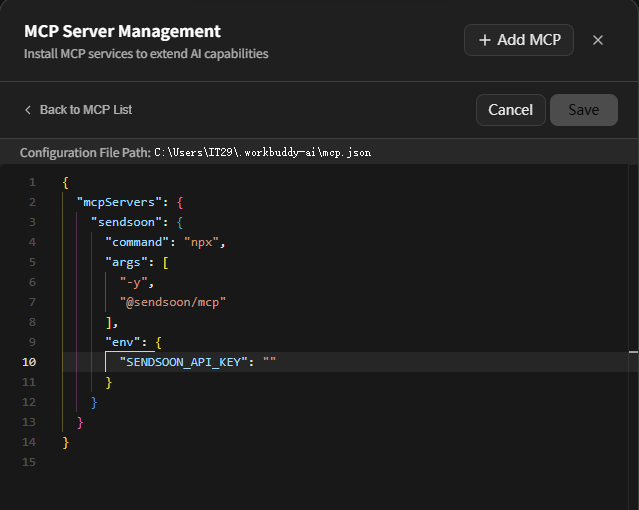
The screenshot shows the WorkBuddy connector editor: the configuration file path is at the top, and the sendsoon JSON is pasted into the editor. After saving, return to the MCP list and confirm sendsoon is connected.
Verify: Start a new conversation and ask for a simple task (e.g. “Look up 8.8.8.8”). Approve the tool if WorkBuddy asks for permission.
Prepare the configuration
Optional environment variable:
| Setting | Required | What to enter |
|---|---|---|
SENDSOON_API_KEY |
No | Leave empty for an unregistered trial. One public IP can send up to three free test emails per day. Enter your generated Key for continued use |
Never commit a real Key to Git or share it with anyone.
Get an API Key
- Sign up or sign in on the SendSoon registration page.
- Open Profile and generate a Key in the API Key section.
- Copy the one-time
ssk_live_...Key immediately and enter it asSENDSOON_API_KEYin your MCP configuration. - Save the configuration and restart your MCP client. Requests with a valid Key do not use the anonymous IP daily quota.
If the anonymous quota is exhausted, send_email will tell you to register and configure a Key. An invalid or revoked Key is rejected and does not fall back to the anonymous quota.
Try it in Google Colab
Skip local setup and try ip_lookup, markitdown_convert, and send_email in the browser.

The notebook calls the same SendSoon HTTP APIs used by these MCP tools.
Visual local testing (MCP Inspector)
To see all three tools in a browser and click through them manually before installing into an AI client, use the MCP Inspector.
Requires Node.js 20+. Run the command below in a terminal; Inspector opens a web UI automatically:
npx @modelcontextprotocol/inspector npx -y @sendsoon/mcp
How to test
- Wait for
MCP Inspector Web is up and runningin the terminal. If the browser does not open, paste thehttp://127.0.0.1:6274?...URL from the terminal. - Confirm the page header shows Connected.
- Open the Tools tab in the top-right area of the page.
- Select a tool from the list on the left, fill in the parameters, and click Execute Tool.
- Read the response in the Results panel on the right. On failure, inspect
error.codeanderror.message.
License
See LICENSE.
SendSoon MCP soruları
SendSoon MCP'yi Claude Code'a nasıl eklerim?
Terminalinizde claude mcp add --env 'SENDSOON_EMAIL_RECIPIENT=<SENDSOON_EMAIL_RECIPIENT>' --env 'SENDSOON_API_KEY=<YOUR_SENDSOON_API_KEY>' ai -- npx -y @sendsoon/ai komutunu çalıştırın. Her projede kullanılabilir olması için --scope user ekleyin.
SendSoon MCP'yi Cursor'a nasıl eklerim?
~/.cursor/mcp.json dosyasını açın ve yukarıdaki yükleme bölümünde gösterilen Cursor yapılandırmasını kullanarak sunucuyu mcpServers altına ekleyin.
SendSoon kullanmak için bir API anahtarına ihtiyacım var mı?
Hayır, kayıt olmayan deneme sürümleri için API anahtarı isteğe bağlıdır. Günde üç adede kadar ücretsiz test e-postası göndermenize izin veren anonim bir deneme sürümü kullanabilirsiniz.
Araçları yüklemeden önce tarayıcıda nasıl test edebilirim?
Üç aracın tamamını tarayıcıda görmek ve bunları manuel olarak çalıştırmak için MCP Inspector kullanabilirsiniz.