
Bir AI agent veya terminal üzerinden iOS ve Android cihazlardaki gösterim panolarına gerçek zamanlı güncellemeler ve biçimlendirilmiş içerikler gönderir.
Ayrıca bilinen adı pushtodisplay/cli, pushtodisplay
- Yıldızlar
- 2
- Araçlar
- 8
- İndirmeler, 30 gün
- —
- En son sürüm
- 0.1.14
- Son commit
- 8 Kas 2026
- Lisans
- MIT
PushToDisplay MCP nedir?
PushToDisplay bir MCP sunucusudur. Bir AI agent veya terminal üzerinden iOS ve Android cihazlardaki gösterim panolarına gerçek zamanlı güncellemeler ve biçimlendirilmiş içerikler gönderir. 8 araç sunar; örneğin pushtodisplay_send_update, pushtodisplay_list_boards, pushtodisplay_get_board.
Özet, projenin README dosyasından oluşturuldu
PushToDisplay MCP sunucusu hakkında
Bu MCP server, bir AI agent üzerinden mobil gösterim panolarına gerçek zamanlı güncellemeler ve biçimlendirilmiş içerikler iletmenize olanak tanır. Geliştiricilerin ve otomatize sistemlerin; terminalden veya Claude, Cursor ya da VS Code Copilot gibi bir AI istemcisinden doğrudan metin ve görsel güncellemeler göndererek iOS ve Android cihazlarını canlı durum panolarına (status dashboard) dönüştürmesini sağlar.
Kullanıcılar ekranlarını çeşitli özel araçlarla yönetebilirler; mesaj yayınlamak için pushtodisplay_send_update, mevcut kurulumları görüntülemek için pushtodisplay_list_boards ve yeni düzenler oluşturmak için pushtodisplay_create_board kullanılabilir. Server, kimlik doğrulama işlemini mevcut CLI oturumundan devralır; bu oturum bir tarayıcı girişiyle veya SSH ya da container gibi headless ortamlar için bir cihaz koduyla oluşturulabilir. Otomatize CI/CD süreçleri için kimlik doğrulama, pt_ önekiyle başlayan bir API key kullanılarak yönetilebilir.
Bu server, bilgilerin ekranda nasıl görüneceği üzerinde hassas bir kontrol sağlar. Metin boyutu, font kalınlığı, hex renkleri ve arka plan renklerini belirleyebilir veya çoklu panel düzenleri içindeki belirli panelleri hedefleyebilirsiniz. JSON blokları aracılığıyla karmaşık biçimlendirmeleri destekler ve bilgilerin mobil cihazda net bir şekilde sunulmasını sağlamak için yatay veya dikey hizalamaya olanak tanır.
Neler yapabilirsiniz
- 1Dağıtım durumu güncellemelerini yayınlayınBir AI agent, bir yazılım dağıtımı başarılı olduğunda veya başarısız olduğunda belirli bir panoya bildirim gönderebilir.
- 2Altyapı sağlığını görsel olarak izleyinGeliştiriciler, renk kodlu çalışma süresi (uptime) veya API sağlık metriklerini bir mobil panele iletmek için bu server'ı kullanabilirler.
- 3Gösterim panosu konfigürasyonlarını yönetinBir AI asistanı, çeşitli izleme görevlerini organize etmek için farklı gösterim panoları oluşturabilir, listeleyebilir veya silebilir.
- 4CI/CD süreçlerinde durum ekranlarını otomatize edinOtomatize scriptler, etkileşimli giriş yapmaya gerek kalmadan gerçek zamanlı logları veya derleme sonuçlarını bir mobil ekrana göndermek için API key kullanabilir.
Projenin README dosyasından alınmıştır. Her kullanım durumu, oradaki bir alıntı ile kontrol edilir.
PushToDisplay MCP nasıl yüklenir
Biçimler 10 Kas 2026 tarihinde doğrulandıCursor'a ekleGoose'a eklePushToDisplay MCP'yi Claude Code içine yükleyin
$ claude mcp add cli -- npx -y pushtodisplayPushToDisplay MCP'yi Cursor içine yükleyin
~/.cursor/mcp.json
{
  "mcpServers": {
    "cli": {
      "command": "npx",
      "args": [
        "-y",
        "pushtodisplay"
      ]
    }
  }
}PushToDisplay MCP'yi VS Code içine yükleyin
.vscode/mcp.json
{
  "servers": {
    "cli": {
      "type": "stdio",
      "command": "npx",
      "args": [
        "-y",
        "pushtodisplay"
      ]
    }
  }
}PushToDisplay MCP'yi VS Code CLI içine yükleyin
$ code --add-mcp '{"name":"cli","type":"stdio","command":"npx","args":["-y","pushtodisplay"]}'PushToDisplay MCP'yi Claude Desktop içine yükleyin
claude_desktop_config.json
{
  "mcpServers": {
    "cli": {
      "command": "npx",
      "args": [
        "-y",
        "pushtodisplay"
      ]
    }
  }
}PushToDisplay MCP'yi Codex içine yükleyin
$ codex mcp add cli -- npx -y pushtodisplayPushToDisplay MCP'yi Codex config.toml içine yükleyin
~/.codex/config.toml
[mcp_servers.cli]
command = "npx"
args = ["-y", "pushtodisplay"]
PushToDisplay MCP'yi Gemini CLI içine yükleyin
$ gemini mcp add -s user cli npx -- -y pushtodisplayPushToDisplay MCP'yi Gemini settings.json içine yükleyin
~/.gemini/settings.json
{
  "mcpServers": {
    "cli": {
      "command": "npx",
      "args": [
        "-y",
        "pushtodisplay"
      ]
    }
  }
}PushToDisplay MCP araçları 8
README dosyasından algılandıpushtodisplay_send_updatepushtodisplay_list_boardspushtodisplay_get_boardpushtodisplay_create_boardpushtodisplay_update_boardpushtodisplay_set_default_boardpushtodisplay_delete_boardpushtodisplay_list_devices
| pushtodisplay_send_update | — | |
| pushtodisplay_list_boards | — | |
| pushtodisplay_get_board | — | |
| pushtodisplay_create_board | — | |
| pushtodisplay_update_board | — | |
| pushtodisplay_set_default_board | — | |
| pushtodisplay_delete_board | — | |
| pushtodisplay_list_devices | — |
Yapılandırma
PTD_API_KEY
| Ad | Açıklama | Sunucu |
|---|---|---|
| PTD_API_KEY | — |
Otomatik kontroller
Çalıştırıldı 12 Kas 2026Tam rapor →Otomatik kontrollerimizden geçti. Bu bir güvenlik denetimi değildir: kodu okuyun ve sunucuya ihtiyaç duyduğu en dar erişimi verin. Kontroller nasıl çalışır

- Kaynak deposu bağlantılı ve erişilebilirGeçti
- Açık kaynak lisansı (OSI)Geçti
- Son bir yıl içinde commit veya sürüm mevcutGeçti
- Paket adı popüler bir pakete yakın değilGeçti
- Uzak uç nokta HTTPS kullanıyorKontrol edilmedi
- Yıkıcı araçlar etiketlenmişGeçti
- Modele yönelik gizli talimat yokGeçti
- Pakette veya bağımlılıklarında kritik uyarı yokGeçti
pushtodisplay
Command-line interface and MCP server for Push To Display — send real-time updates to display boards from your terminal or AI agents.
Get the app
Turn any screen into a live display board — get Push to Display on iOS and Android.


Install
Run directly with npx (no install needed):
npx pushtodisplay --help
Or install globally:
npm install -g pushtodisplay
Requires Node.js 18+. See the PushToDisplay documentation for guides, use cases, and API details.
Quick start
# Log in (opens browser)
pushtodisplay auth login

# Send an update (uses your default board)
pushtodisplay send "Hello, Display!"

# Send to a specific board
pushtodisplay send -b <board-id> "Deploy completed"

# List your boards
pushtodisplay boards list
Authentication
Log in with your Push To Display account — the same account you use in the mobile app.
Browser login (default)
pushtodisplay auth login
Opens your browser. Sign in and the CLI receives your credentials automatically.
Device code login (headless)
For machines without a browser — SSH sessions, containers, or remote servers:
pushtodisplay auth login --device-code
The CLI prints a URL and a one-time code. Open the URL on any device, enter the code, and approve the login.
Credentials are stored in your OS keychain (macOS Keychain, Linux libsecret, Windows Credential Manager). Falls back to ~/.config/pushtodisplay/ if the keychain is unavailable.
# Check auth status
pushtodisplay auth status

# Machine-readable status for scripts/agents (exit 0 = authenticated)
pushtodisplay auth status --json

# Log out (clear stored credentials)
pushtodisplay auth logout
auth status reports effective auth: an expired access token is still
reported as authenticated when a valid refresh token can renew it transparently
(a will refresh automatically note is shown instead of the raw token expiry).
It exits 0 when authenticated and 1 when not, so it is safe to gate
scripts on it.
{
  "authenticated": true,
  "method": "oauth",
  "accessTokenExpired": true,
  "canRefresh": true,
  "sessionExpiresAt": "2026-06-01T00:00:00.000Z"
}
Commands
send
Send a display update to a board.
# Simple text
pushtodisplay send -b my-board-id "Deploy succeeded"

# Styled text
pushtodisplay send -b my-board-id "Status" --size large --weight bold --color "#00FF00"

# Multiple inline runs — they stay on ONE line
pushtodisplay send -b my-board-id "Build:" "passing" --color "#22C55E"

# Panel targeting with layout options
pushtodisplay send -b my-board-id --panel 2 "Right panel content"
pushtodisplay send -b my-board-id --panel 1 --full-panel --density compact --align-x center "Alert"

# Per-run styling with JSON (repeatable)
pushtodisplay send -b my-board-id \
  --block '{"text": "API Health", "size": "large", "weight": "bold"}' \
  --block '{"text": "Uptime: 99.97%", "color": "#22C55E"}'

# Pipe a full JSON payload from stdin
echo '{"boardId":"my-board-id","blocks":[{"text":"From pipe"}]}' | pushtodisplay send --stdin
If no -b flag is provided, the server uses your default board.
How text renders
Blocks are inline runs, not lines. Think of <span>, not <p>. The blocks
of one message flow onto a single line in order, and wrap like a paragraph when
they run out of width:
pushtodisplay send -b my-board-id "Build:" "passing" --color "#22C55E"
renders as one line:
Build: passing
not as two lines. Each run keeps its own size, weight, colour, and background, so a message is one paragraph with styled runs inside it.
To put content on separate lines, send separate messages. Every send is its own entry in the panel's scrollable history, so multiple lines are multiple messages. Newlines inside a single message are not a layout mechanism.
--density sets the line height used when that paragraph wraps — it is not
the spacing between messages.
Note: in
--full-panelmode blocks are currently stacked on separate lines. That legacy behaviour is being removed so full-panel matches the inline model above.
Style flags
| Flag | Values | Description |
|---|---|---|
-s, --size |
small, medium, large |
Text size |
-w, --weight |
regular, semibold, bold |
Font weight |
-c, --color |
Hex color (#RRGGBB) |
Text color |
--background |
Hex color (#RRGGBB) |
Background color |
Panel flags
| Flag | Values | Description |
|---|---|---|
-p, --panel |
1–4 |
Target panel number |
--full-panel |
— | Enlarge to the whole board |
--density |
compact, standard, spacious |
Line height when text wraps |
--align-x |
start, center, end |
Horizontal alignment |
--align-y |
start, center, end |
Vertical alignment |
Other flags
| Flag | Description |
|---|---|
-b, --board |
Board ID |
--block <json> |
Inline styled run as JSON (repeatable) |
--stdin |
Read full JSON request from stdin |
boards
pushtodisplay boards list              # List all boards
pushtodisplay boards get <id>          # Get board details
pushtodisplay boards create -n "Name"  # Create a board
pushtodisplay boards create -n "Dash" -l 4  # Create with a layout
pushtodisplay boards delete <id>       # Delete a board
Create options:
| Flag | Description |
|---|---|
-n, --name |
Board name (required) |
-d, --description |
Board description |
-l, --layout |
Layout ID |
devices
pushtodisplay devices list # List active device-board streams
config
pushtodisplay config              # Show current configuration
pushtodisplay config show         # Same as above
JSON output
Add --json to any command for machine-readable output:
pushtodisplay boards list --json
pushtodisplay send -b my-board "test" --json
Configuration
Configuration is resolved in order: environment variables → config file → defaults.
| Env var | Description | Default |
|---|---|---|
PTD_API_URL |
API endpoint | https://api.pushtodisplay.com |
PTD_SERVICE_URL |
Service endpoint | https://services.pushtodisplay.com |
PTD_IDP_URL |
Identity provider | https://idp.pushtodisplay.com |
PTD_CONFIG_DIR |
Config directory | ~/.config/pushtodisplay |
MCP server
The CLI includes a built-in Model Context Protocol server, giving AI agents (Claude, Cursor, VS Code Copilot, and others) direct access to your display boards.
The MCP server inherits your CLI session — if you've run pushtodisplay auth login, it authenticates automatically.
Setup
Claude Code
claude mcp add pushtodisplay -- npx pushtodisplay mcp
Claude Desktop
Add to ~/Library/Application Support/Claude/claude_desktop_config.json (macOS) or %APPDATA%\Claude\claude_desktop_config.json (Windows):
{
  "mcpServers": {
    "pushtodisplay": {
      "command": "npx",
      "args": ["pushtodisplay", "mcp"]
    }
  }
}
Cursor
Open Settings → MCP Servers → Add Server, or edit .cursor/mcp.json:
{
  "mcpServers": {
    "pushtodisplay": {
      "command": "npx",
      "args": ["pushtodisplay", "mcp"]
    }
  }
}
VS Code (GitHub Copilot)
Add to .vscode/mcp.json:
{
  "servers": {
    "pushtodisplay": {
      "command": "npx",
      "args": ["pushtodisplay", "mcp"]
    }
  }
}
Other MCP clients
Any MCP client that supports stdio transport can use Push To Display. The server command is:
npx pushtodisplay mcp
Available MCP tools
| Tool | Description |
|---|---|
pushtodisplay_send_update |
Send content to a board |
pushtodisplay_list_boards |
List all boards |
pushtodisplay_get_board |
Get details of a board |
pushtodisplay_create_board |
Create a new board |
pushtodisplay_update_board |
Update a board's name, description, or layout |
pushtodisplay_set_default_board |
Set a board as your default |
pushtodisplay_delete_board |
Delete a board permanently |
pushtodisplay_list_devices |
List active device connections |
Commands at a glance
| Command | Description |
|---|---|
auth login |
Log in (browser or device code) |
auth logout |
Remove stored credentials |
auth status |
Show current auth status |
send [text...] |
Send a display update |
boards list |
List your boards |
boards get <id> |
Get board details |
boards create |
Create a new board |
boards delete <id> |
Delete a board |
devices list |
List active device connections |
config |
Show current configuration |
mcp |
Start the MCP server |
API key authentication
For CI/CD pipelines and scripts where interactive login isn't available, you can authenticate with an API key. Create one from the mobile app or the web portal. API keys start with pt_.
# Via environment variable
export PTD_API_KEY=pt_your_key_here
pushtodisplay send "From CI"

# Or store in keychain
pushtodisplay auth login --api-key pt_your_key_here
Note: API key auth only supports the
sendcommand. Useauth loginfor full access to boards, devices, and config management.
Screenshots
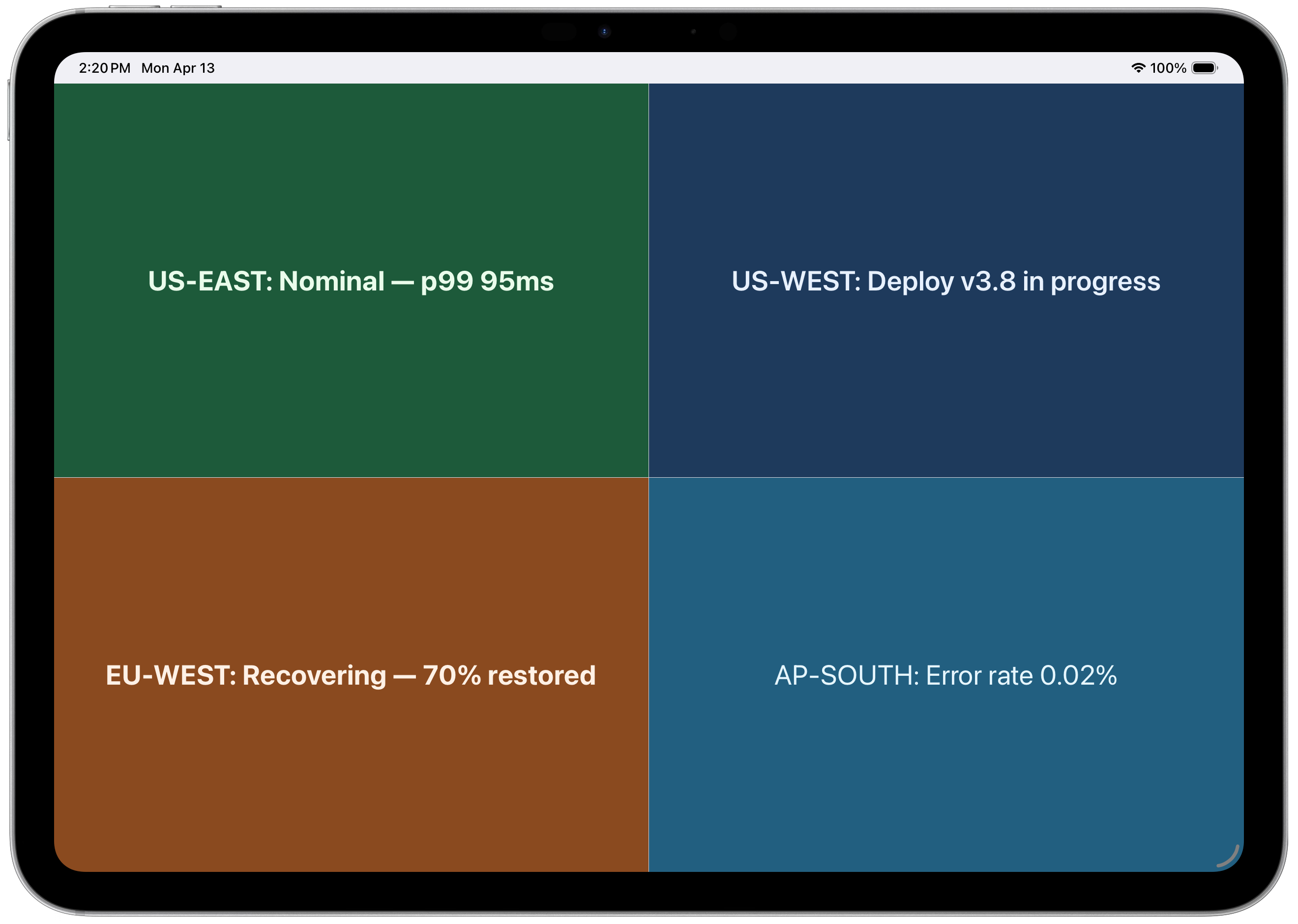
4-panel layout — regional status at a glance
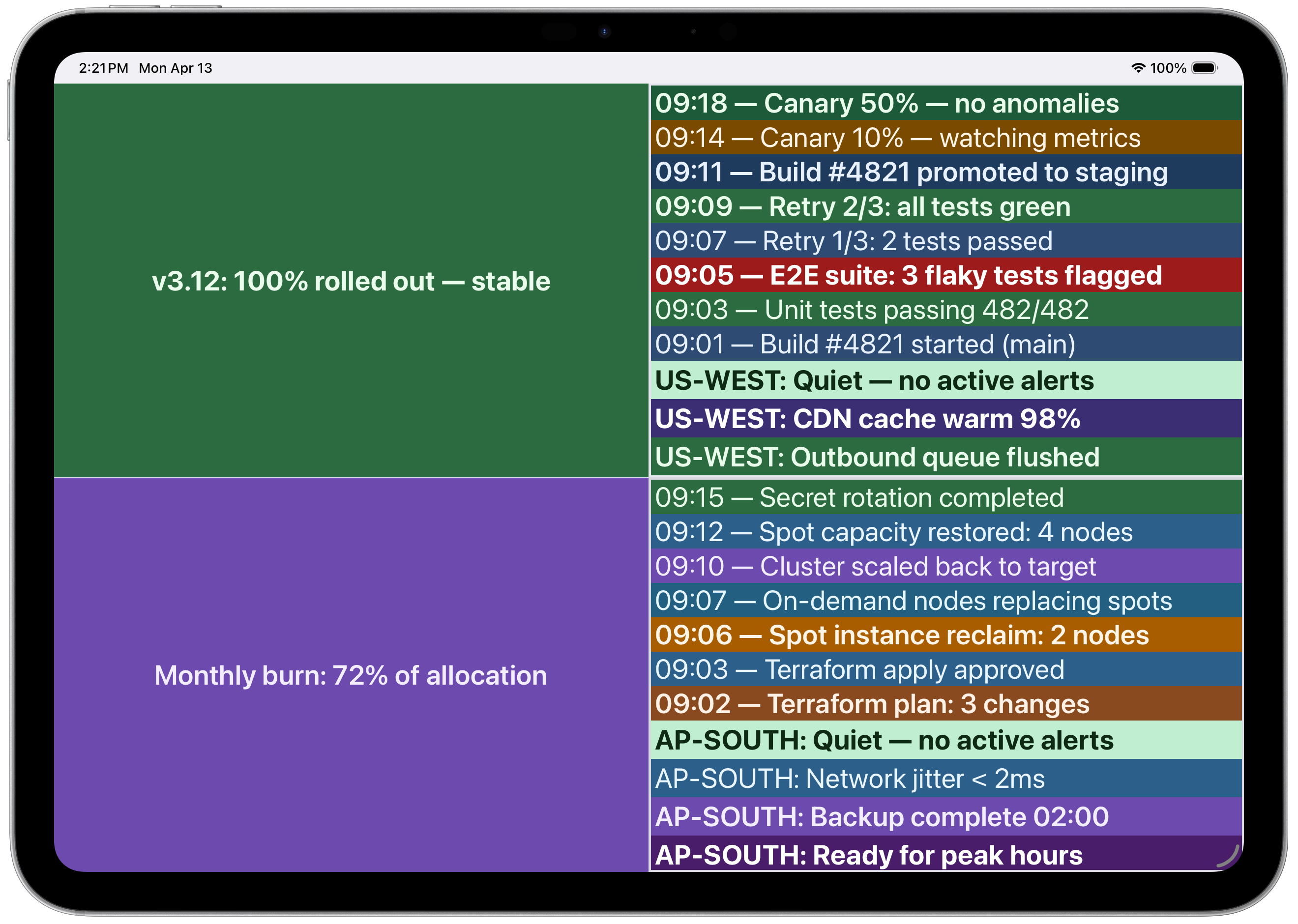 Multi-panel with CI/CD pipeline and infrastructure logs
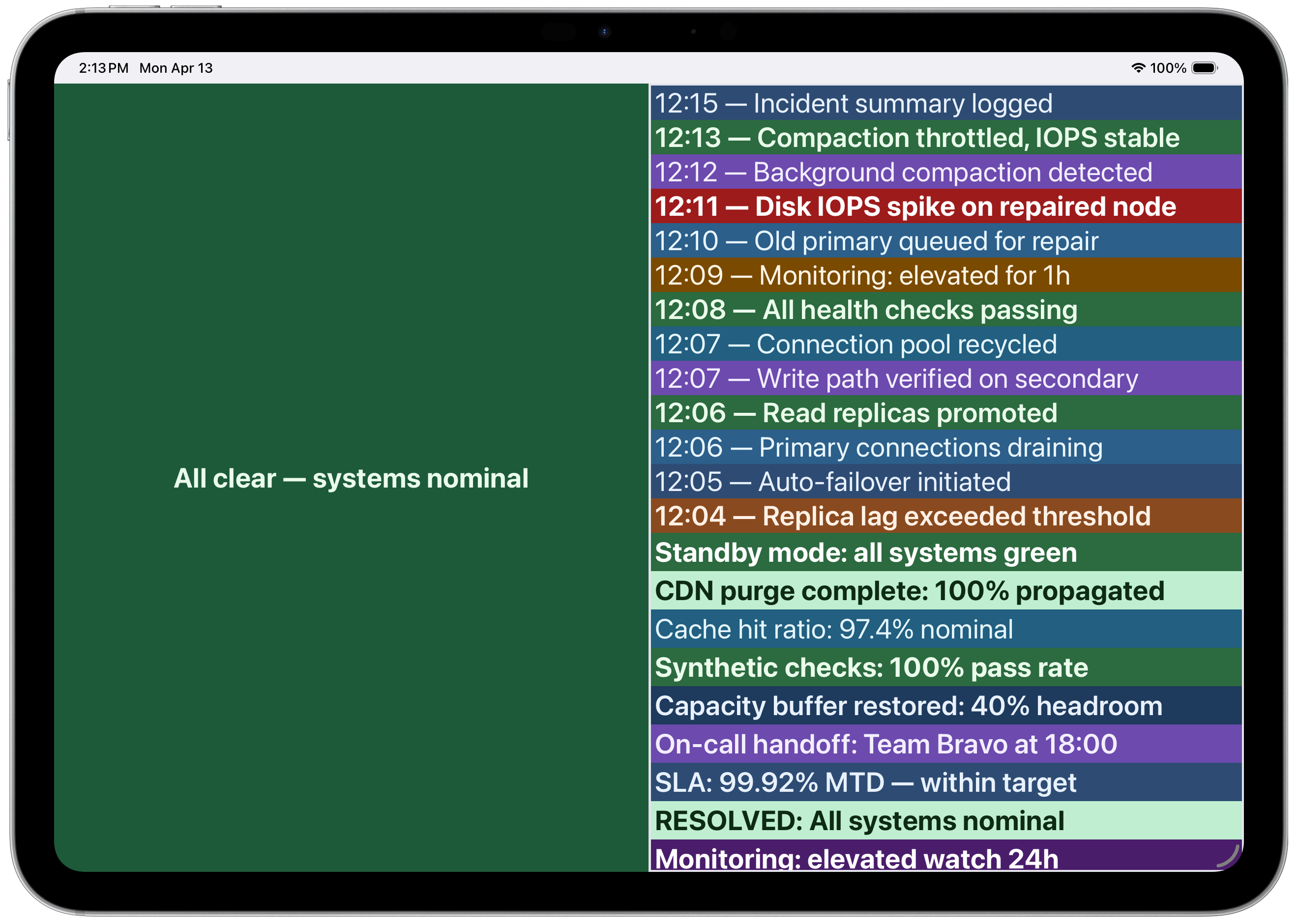 Incident timeline with color-coded severity
License
PushToDisplay MCP soruları
PushToDisplay MCP'yi Claude Code'a nasıl eklerim?
Terminalinizde claude mcp add cli -- npx -y pushtodisplay komutunu çalıştırın. Her projede kullanılabilir olması için --scope user ekleyin.
PushToDisplay MCP'yi Cursor'a nasıl eklerim?
~/.cursor/mcp.json dosyasını açın ve yukarıdaki yükleme bölümünde gösterilen Cursor yapılandırmasını kullanarak sunucuyu mcpServers altına ekleyin.
PushToDisplay MCP hangi araçları sunar?
8 araç sunar; bunlar arasında pushtodisplay_send_update, pushtodisplay_list_boards, pushtodisplay_get_board, pushtodisplay_create_board, pushtodisplay_update_board yer alır.
CI/CD süreçleri için API key kullanabilir miyim?
Evet, 'pt_' ile başlayan bir API key kullanarak bir ortam değişkeni veya CLI üzerinden kimlik doğrulaması yapabilirsiniz; ancak API key ile kimlik doğrulama yalnızca send komutunu destekler.
MCP server kimlik doğrulama işlemini nasıl yönetiyor?
MCP server mevcut CLI oturumunuzu devralır; eğer CLI üzerinden halihazırda giriş yaptıysanız, otomatik olarak kimlik doğrulanır.