
AI istemcilerinin Mac pano geçmişinizi ve ekran görüntüsü metinlerini yerel olarak aramasını, okumasını ve tekrar kopyalamasını sağlar.
Ayrıca bilinen adı pastea-app/pastea-mcp, pastea-mcp, @pastea/mcp
- Yıldızlar
- 0
- Araçlar
- —
- İndirmeler, 30 gün
- —
- En son sürüm
- 1.0.4
- Son commit
- 3 Eyl 2026
- Lisans
- MIT
Pastea MCP nedir?
Pastea bir MCP sunucusudur. AI istemcilerinin Mac pano geçmişinizi ve ekran görüntüsü metinlerini yerel olarak aramasını, okumasını ve tekrar kopyalamasını sağlar.
Özet, projenin README dosyasından oluşturuldu
Pastea MCP sunucusu hakkında
Pastea, macOS pano geçmişini AI asistanlarına bağlayan yerel bir köprü sağlar. Bu sunucu; Claude Desktop, Cursor, VS Code ve Codex gibi araçların, ekran görüntülerinde tanınan metinler de dahil olmak üzere kopyaladığınız öğelerle etkileşime girmesine olanak tanır. Sunucu 127.0.0.1 üzerinde çalıştığı için verileriniz Mac'inizde kalır ve üçüncü taraf sunuculara gönderilmez.
Kullanıcılar sunucuyu npx komutlarını veya özel kurulum dosyalarını kullanarak entegre edebilirler. Bağlantı kurulduktan sonra asistan; klipler arasında arama yapmak, görsel küçük resimleriyle birlikte tam içeriği okumak, koleksiyonları listelemek ve öğeleri sistem panosuna tekrar kopyalamak için belirli araçları kullanabilir. Bu kurulumun çalışması için macOS 15 veya üzeri bir sürüm ile Pastea Pro aboneliği gereklidir.
Güvenlik, manuel bir izin süreciyle yönetilir. Bir AI uygulaması ilk kez bağlanmaya çalıştığında, Pastea uygulamasında bir yetkilendirme istemi görünür. Herhangi bir özel araç için erişimi Pastea ayarlar menüsü üzerinden istediğiniz zaman iptal edebilirsiniz. Asistanın klipleri silmesi veya parola yöneticileri tarafından gizlenen öğelere erişmesi kısıtlanmıştır.
Neler yapabilirsiniz
- 1Ekran görüntülerinden metin çıkarmaAI asistanınızdan, daha önce kopyalanmış bir resmin içindeki metni bulmasını ve okumasını isteyin.
- 2Pano geçmişinde arama yapmaAI'ya, son pano aktivitelerinizden belirli bir bağlantıyı veya dosya adını bulması talimatını verin.
- 3Klipleri panoya geri yüklemeAI asistanının, belirli bir geçmiş klibi anında yapıştırabilmeniz için panonuza geri getirmesini sağlayın.
- 4Pano koleksiyonlarını yönetmeAI'dan Pastea'da düzenlediğiniz farklı koleksiyonları ve geçmiş sayılarını listelemesini isteyin.
Projenin README dosyasından alınmıştır. Her kullanım durumu, oradaki bir alıntı ile kontrol edilir.
Pastea MCP nasıl yüklenir
Biçimler 10 Kas 2026 tarihinde doğrulandıCursor'a ekleGoose'a eklePastea MCP'yi Claude Code içine yükleyin
$ claude mcp add pastea-mcp -- npx -y @pastea/mcpPastea MCP'yi Cursor içine yükleyin
~/.cursor/mcp.json
{
  "mcpServers": {
    "pastea-mcp": {
      "command": "npx",
      "args": [
        "-y",
        "@pastea/mcp"
      ]
    }
  }
}Pastea MCP'yi VS Code içine yükleyin
.vscode/mcp.json
{
  "servers": {
    "pastea-mcp": {
      "type": "stdio",
      "command": "npx",
      "args": [
        "-y",
        "@pastea/mcp"
      ]
    }
  }
}Pastea MCP'yi VS Code CLI içine yükleyin
$ code --add-mcp '{"name":"pastea-mcp","type":"stdio","command":"npx","args":["-y","@pastea/mcp"]}'Pastea MCP'yi Claude Desktop içine yükleyin
claude_desktop_config.json
{
  "mcpServers": {
    "pastea-mcp": {
      "command": "npx",
      "args": [
        "-y",
        "@pastea/mcp"
      ]
    }
  }
}Pastea MCP'yi Codex içine yükleyin
$ codex mcp add pastea-mcp -- npx -y @pastea/mcpPastea MCP'yi Codex config.toml içine yükleyin
~/.codex/config.toml
[mcp_servers.pastea-mcp]
command = "npx"
args = ["-y", "@pastea/mcp"]
Pastea MCP'yi Gemini CLI içine yükleyin
$ gemini mcp add -s user pastea-mcp npx -- -y @pastea/mcpPastea MCP'yi Gemini settings.json içine yükleyin
~/.gemini/settings.json
{
  "mcpServers": {
    "pastea-mcp": {
      "command": "npx",
      "args": [
        "-y",
        "@pastea/mcp"
      ]
    }
  }
}Yapılandırma
PASTEA_MCP_URL
| Ad | Açıklama | Sunucu |
|---|---|---|
| PASTEA_MCP_URL | — |
Otomatik kontroller
Çalıştırıldı 14 Kas 2026Tam rapor →Otomatik kontrollerimizden geçti. Bu bir güvenlik denetimi değildir: kodu okuyun ve sunucuya ihtiyaç duyduğu en dar erişimi verin. Kontroller nasıl çalışır

- Kaynak deposu bağlantılı ve erişilebilirpastea-app/pastea-mcp is public and reachablegithub.com/pastea-app/pastea-mcp ↗Geçti
- Paket, bu depoyu kaynağı olarak gösteriyor@pastea/mcp names pastea-app/pastea-mcp as sourcenpmjs.com/package/@pastea/mcp ↗Geçti
- Derleme kökeni (Sigstore onayı)Sigstore attestation for @pastea/mcpnpmjs.com/package/@pastea/mcp/v/1.0.4#provenance ↗Geçti
- Açık kaynak lisansı (OSI)MITspdx.org/licenses/MIT.html ↗Geçti
- Son bir yıl içinde commit veya sürüm mevcutLast commit or release 2026-09-03github.com/pastea-app/pastea-mcp ↗Geçti
- OpenSSF ScorecardKontrol edilmedi
- Paket adı popüler bir pakete yakın değilNo popular package one edit away from @pastea/mcpGeçti
- Pakette veya bağımlılıklarında kritik uyarı yok1 resolved dependencies checked; no critical advisoryosv.dev ↗Geçti
- Modele yönelik gizli talimat yok0 tool descriptions and the README read; no override phrases, credential paths or hidden charactersGeçti
- Yıkıcı araçlar etiketlenmişKontrol edilmedi
- Uzak uç nokta MCP el sıkışmasına yanıt veriyorKontrol edilmedi
Pastea MCP


Local MCP server for Pastea. Give Claude, Cursor, Codex, VS Code and other AI tools access to your Mac's clipboard history — without anything leaving your Mac.
Your assistant can search what you copied, pull a clip into context (including the text Pastea reads inside your screenshots), and put a clip back on the clipboard for you to paste.
Pastea runs the MCP server itself, on 127.0.0.1 only. This package is the thin,
dependency-free bridge that AI apps launch: it finds Pastea, asks it for access once —
you click Allow in Pastea — and relays messages over stdio.
Install
Claude Desktop
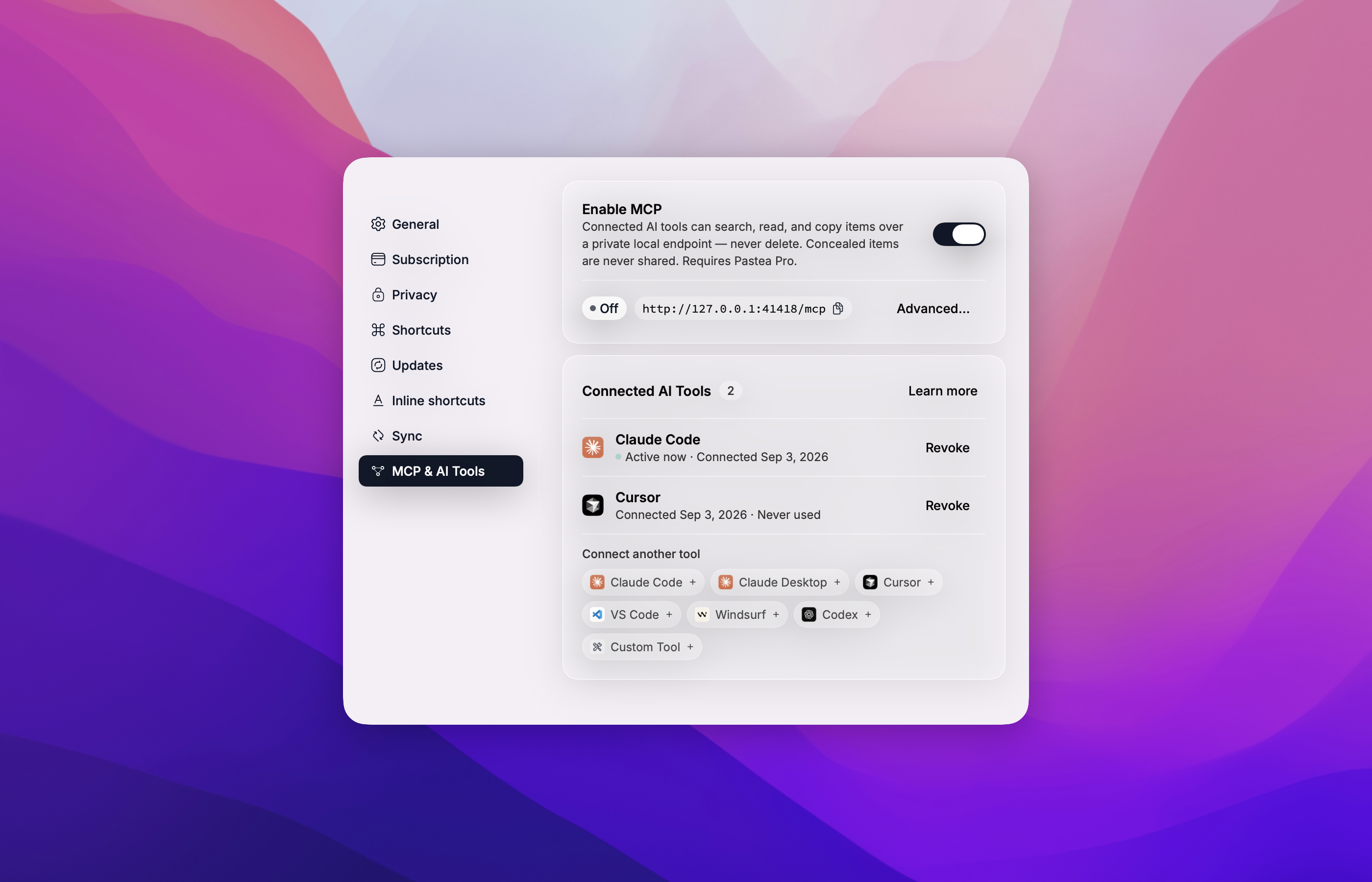
One click from Pastea: open Settings → MCP & AI Tools, turn on Enable MCP, and click Claude Desktop. Claude Desktop opens with the Pastea extension ready to install.
Or find Pastea in Claude Desktop under Settings → Extensions → Browse extensions, or
download pastea-mcp-<version>.mcpb from the
latest release and double-click it.
The first time Claude uses it, Pastea asks you to allow the connection.
Every other AI app
Use add-mcp to connect Pastea to all your installed
AI apps at once:
npx add-mcp @pastea/mcp
Or connect each app yourself:
Claude Code
claude mcp add pastea -- npx -y @pastea/mcp
Codex
codex mcp add pastea -- npx -y @pastea/mcp
Cursor

VS Code

Anything else that runs stdio MCP servers:
{ "mcpServers": { "pastea": { "command": "npx", "args": ["-y", "@pastea/mcp"] } } }
The first time an app uses Pastea, Pastea shows "Allow <app> to use your clipboard history?" — click Allow and the tools appear.
Connect from Pastea
Every app above can also be connected from inside Pastea — Settings → MCP & AI Tools, click the app's chip. Cursor and VS Code open an install prompt; Claude Code, Windsurf and Codex get the exact command or config to paste, already carrying an access token, so no pairing prompt is needed.
What your assistant can do
| Tool | What it does |
|---|---|
search_clips |
Search your clipboard history and lists — text, links, file names, and text recognized in screenshots. |
get_clip |
Read one clip in full, with a thumbnail for pictures. |
list_collections |
List your history and the lists you made, with counts. |
copy_clip |
Put a clip back on the system clipboard, exactly as copied. You paste it yourself with ⌘V. |
pastea_status |
Says whether Pastea is reachable and connected, and what to do if not. |
An AI tool can never delete a clip, never pastes into another app, and never sees items Pastea conceals (from password managers).
How pairing works
The bridge ships with no credentials. On first use it asks Pastea for access and Pastea shows
"Allow Claude Desktop to use your clipboard history?" (or Cursor, Codex, …). Click Allow
and the tools appear a moment later; click Don't Allow and nothing is granted — the assistant
gets a pastea_status tool that explains the situation.
Connections are listed in Pastea → Settings → MCP & AI Tools → Connected AI Tools, where you can Revoke each one. Pastea then asks again only if you ask the assistant to reconnect.
Requirements
- macOS 15 or later
- Pastea 1.3+ with Pastea Pro, and Enable MCP turned on in Settings → MCP & AI Tools
- For
npxinstalls: Node.js 20+ (Claude Desktop needs nothing — it ships its own)
Privacy Policy
Pastea MCP runs locally on your Mac.
- It connects only to Pastea on
127.0.0.1and to nothing else. It makes no network requests to Nexo Labs or any third party, and carries no analytics or telemetry. - It moves clipboard data only between Pastea and the AI app that runs it, and only after you clicked Allow in Pastea. What that AI app does with clips it reads is governed by that app's own privacy policy.
- It stores one thing: the access token Pastea issued when you clicked Allow, in
~/Library/Application Support/Pastea/MCP Bridge/tokens.json, readable by your user account only. Revoking the connection in Pastea invalidates it immediately; uninstalling Pastea removes the file. - Concealed clips are never available to it, and it cannot delete anything.
Full policy — what data Pastea processes, how it is stored, sharing, retention, and contact: https://pastea.app/privacy.
Troubleshooting
"Pastea isn't running, or its MCP endpoint is turned off."
Open Pastea and turn on Enable MCP in Settings → MCP & AI Tools, then ask the assistant to
call pastea_status.
"Pastea Pro is required."
MCP access is a Pro feature. Subscribe in Pastea's Settings, then call pastea_status.
"Pastea is asking the user to allow this connection." Look for the Pastea window — it may be behind the AI app — and click Allow.
The tools vanished.
The connection was revoked in Pastea, or Pastea was reset. Ask the assistant to call
pastea_status to pair again.
Tools don't show up after connecting. Fully quit and reopen the AI app so it relaunches the bridge.
Changed Pastea's port? The bridge reads it from Pastea's preferences on every launch; restart the AI app.
Logs for Claude Desktop: ~/Library/Logs/Claude/mcp-server-Pastea.log. The bridge never logs
the token.
Development
npm install
npm test            # node --test, no network
npm run build       # tsc → dist/
scripts/pack.sh     # validate + pack → build/pastea-mcp-<version>.mcpb + SHA256SUMS
Run it against a development Pastea by hand:
PASTEA_MCP_URL=http://127.0.0.1:41418/mcp node dist/index.js
then type JSON-RPC lines on stdin (initialize, notifications/initialized, tools/list).
Releases are cut by tagging v<version> (matching package.json, manifest.json,
server.json and src/version.ts); the workflow packs the bundle and publishes it.
Contributing
Issues and pull requests welcome — see the issue tracker.
License
Pastea MCP soruları
Pastea MCP'yi Claude Code'a nasıl eklerim?
Terminalinizde claude mcp add pastea-mcp -- npx -y @pastea/mcp komutunu çalıştırın. Her projede kullanılabilir olması için --scope user ekleyin.
Pastea MCP'yi Cursor'a nasıl eklerim?
~/.cursor/mcp.json dosyasını açın ve yukarıdaki yükleme bölümünde gösterilen Cursor yapılandırmasını kullanarak sunucuyu mcpServers altına ekleyin.
AI asistanım Pastea ile neler yapabilir?
Asistanınız pano geçmişinde arama yapabilir (ekran görüntülerindeki metinler dahil), küçük resimlerle birlikte tam klipleri okuyabilir, koleksiyonları listeleyebilir ve klipleri sistem panonuza geri yükleyebilir.
Pano verilerim buluta gönderiliyor mu?
Hayır, sunucu Mac'inizde yerel olarak çalışır ve yalnızca 127.0.0.1 üzerinden Pastea'ya bağlanır; hiçbir harici ağ isteği gerçekleştirmez.
Bu özellik Pastea'nın ücretsiz sürümleriyle çalışıyor mu?
Hayır, MCP erişimi için Pastea Pro aboneliği gereklidir.
AI pano geçmişimi silebilir mi?
Hayır, AI asistanının klipleri silmesi veya parola yöneticileri tarafından gizlenen öğeleri görmesi engellenmiştir.