
tmux 기반 인터페이스에서 실시간 상태 확인 및 diff 리뷰를 통해 여러 AI 코딩 에이전트를 나란히 실행할 수 있는 터미널 멀티플렉서입니다.
다른 이름 wainmann/agent-manager
- 스타
- 697
- Tools
- —
- 다운로드, 30일
- —
- 최신 버전
- —
- 마지막 커밋
- 2026년 11월 15일
- 라이선스
- Apache-2.0
agent-manager MCP란?
tmux 기반 인터페이스에서 실시간 상태 확인 및 diff 리뷰를 통해 여러 AI 코딩 에이전트를 나란히 실행할 수 있는 터미널 멀티플렉서입니다.
프로젝트 README에서 생성된 요약
agent-manager MCP server 정보
agent-manager는 개발자가 단일 터미널 인터페이스에서 여러 AI 코딩 에이전트를 동시에 실행할 수 있도록 지원합니다. 이 로컬 터미널 애플리케이션은 tmux를 사용하는 멀티플렉서로 동작하며 Claude Code, Gemini CLI, Cursor CLI, Codex와 같은 다양한 CLI 도구를 관리합니다. 실시간 상태 업데이트와 프로젝트 트리 그룹화 기능이 포함된 통합 목록을 통해 여러 활성 세션을 동시에 모니터링할 수 있습니다.
개별 터미널 탭을 따로 관리할 필요 없이 한 곳에서 모든 에이전트와 상호작용할 수 있습니다. 이 도구는 표준 터미널에서 작동하는 방식과 동일하게 기존 구독, 설정 및 MCP server에 연결됩니다. 특정 세션에 프롬프트를 보내거나, 중단된 세션을 복구하거나, 대화를 새로운 이름의 세션으로 포크(fork)할 수 있습니다. 또한 특화된 diff 리뷰 시스템을 포함하고 있어, 코드 변경 사항에 댓글을 남기면 해당 내용이 리뷰 프롬프트로서 에이전트에게 다시 전달됩니다.
활용 사례
- 1여러 에이전트 동시 모니터링개발자는 개별 터미널 탭을 일일이 찾아다닐 필요 없이 여러 AI 코딩 도구의 진행 상황을 한 번에 추적할 수 있습니다.
- 2에이전트 코드 변경 사항 리뷰에이전트가 수정한 파일에 대해 구문 강조가 적용된 diff 리뷰를 수행하고 에이전트에게 직접 피드백을 제공할 수 있습니다.
- 3포크를 이용한 에이전트 워크플로우 관리기존 대화를 별도의 이름이 지정된 포크로 가져가서 서로 다른 코딩 방향을 탐색하며 대화를 이어갈 수 있습니다.
- 4에이전트와 함께 터미널 명령 실행특정 에이전트 그룹 내에서 셸을 열어 빌드, Git 명령 또는 기타 일회성 작업을 실행할 수 있습니다.
프로젝트의 README를 바탕으로 작성되었습니다. 모든 활용 사례는 해당 내용의 인용문과 대조하여 확인합니다.
자동 검사
2026년 11월 13일에 실행됨전체 보고서 →아직 인증되지 않았습니다. 서버는 80점 이상의 점수, 심각한 결함 없음, 그리고 검사에 충분한 데이터를 갖추어야 합니다. 검사 방식 · 점수를 높이기 위해 수정할 항목

- 소스 저장소 연결 및 접근 가능통과
- 오픈 소스 라이선스 (OSI)통과
- 최근 1년 내 커밋 또는 릴리스통과
- 패키지 이름이 인기 패키지와 유사하지 않음검사되지 않음
- 원격 엔드포인트가 HTTPS 사용검사되지 않음
- 파괴적인 도구에 라벨 표시됨검사되지 않음
- 모델에 대한 숨겨진 지침 없음통과
- 패키지 및 해당 종속성에 중요한 보안 권고 없음검사되지 않음
README
GitHub에서 보기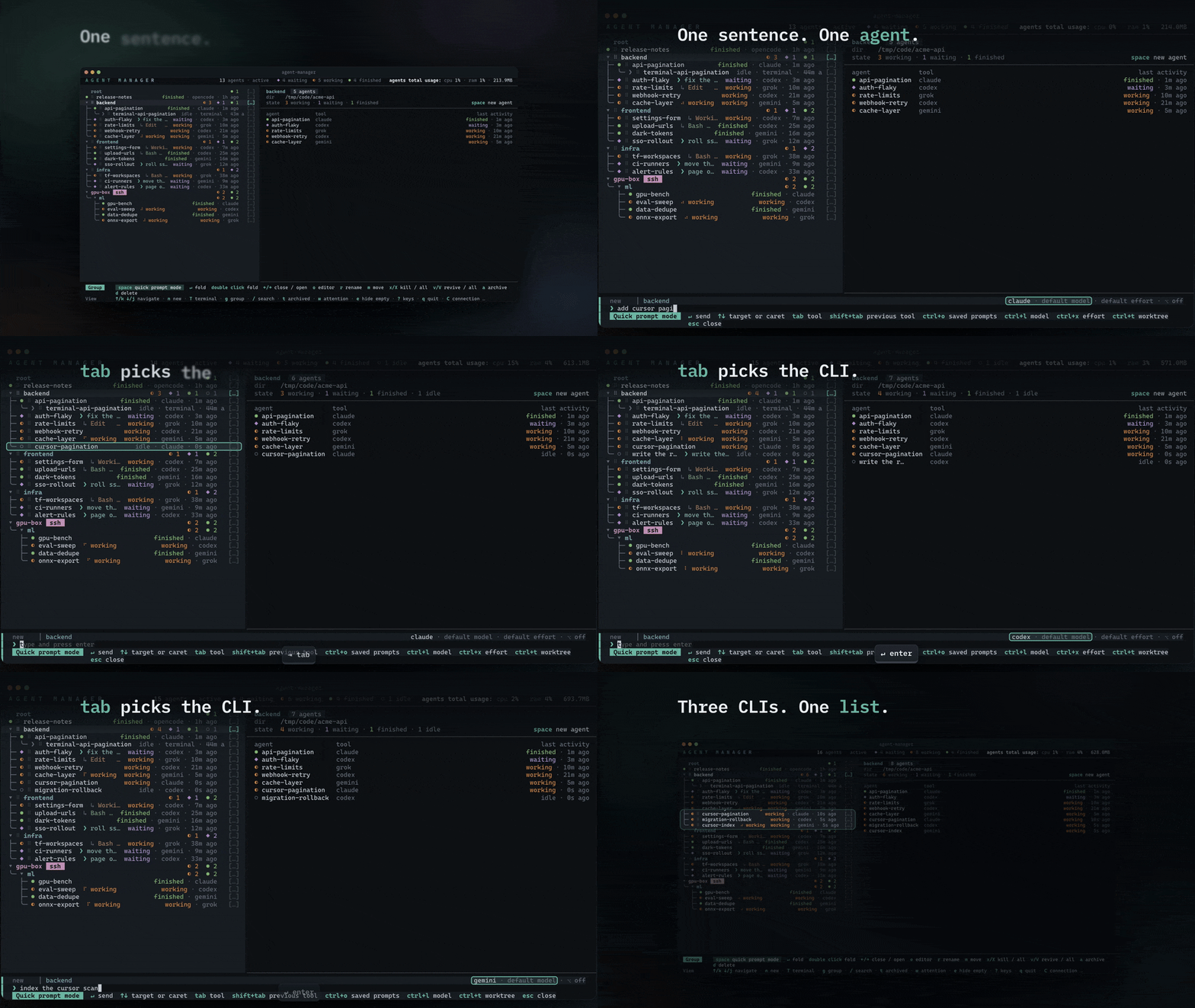
Claude Code, Codex, OpenCode, Grok, Gemini CLI, Antigravity CLI, Pi, Command Code, Hermes Agent, Muse Code, Oh My Pi, Cursor CLI, and Kiro CLI run side by side. Each tool runs in its own persistent tmux session.
agent-manager is a thin layer over the CLIs you already have. Each session launches your own installed tool as-is: your login, your subscription, your config files, your MCP servers, and every feature the tool ships all carry over, exactly as they behave in a plain terminal.
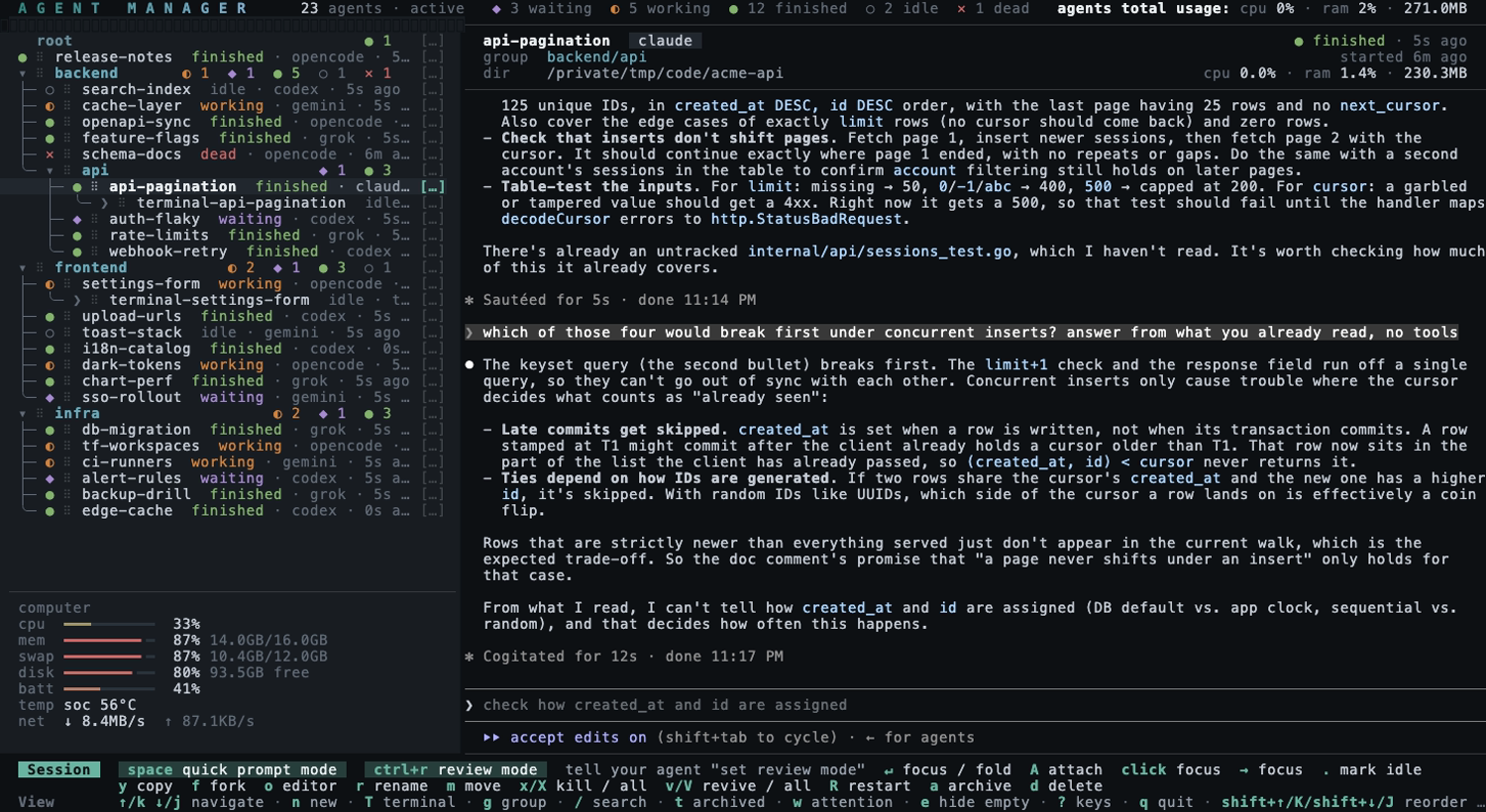
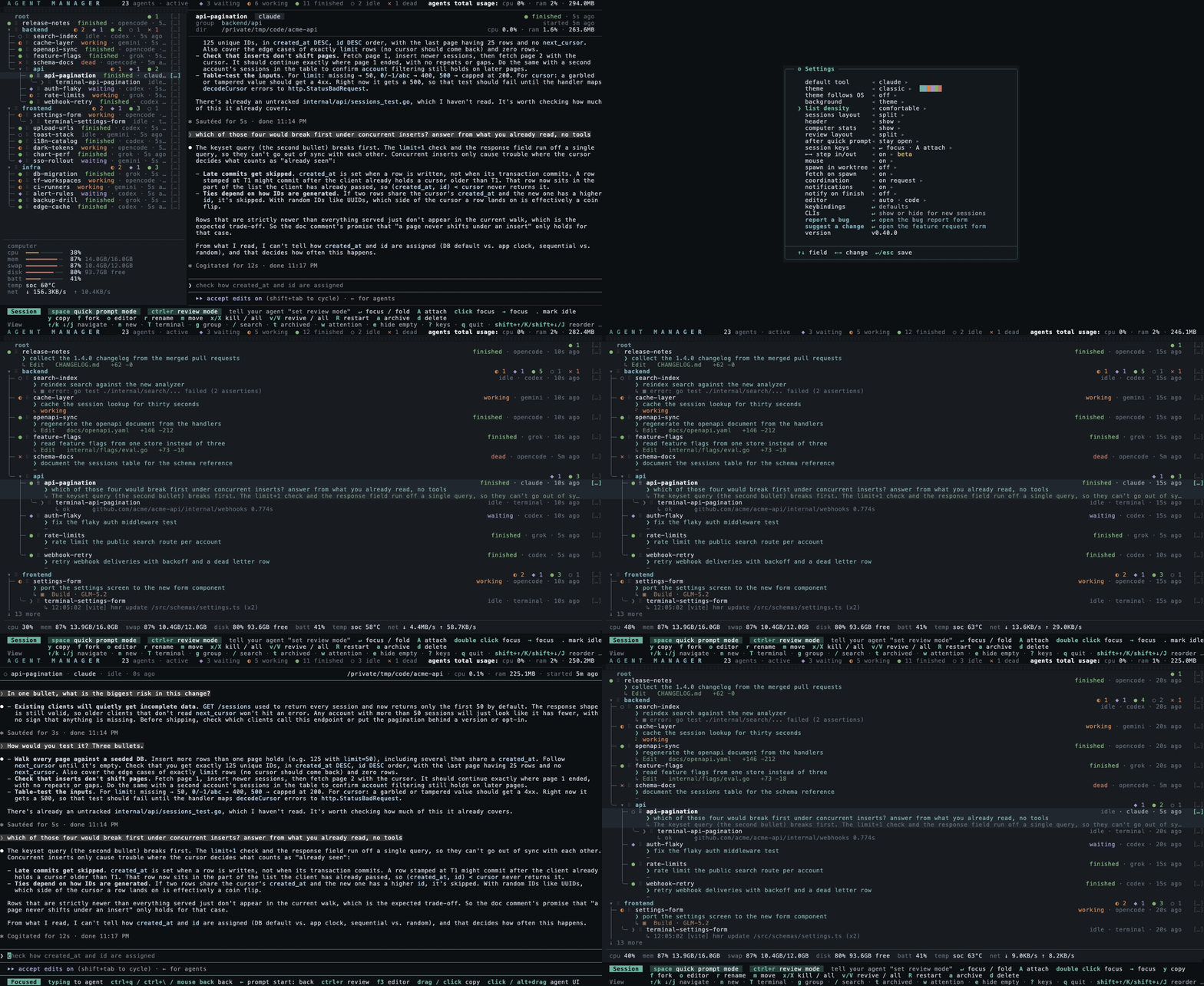
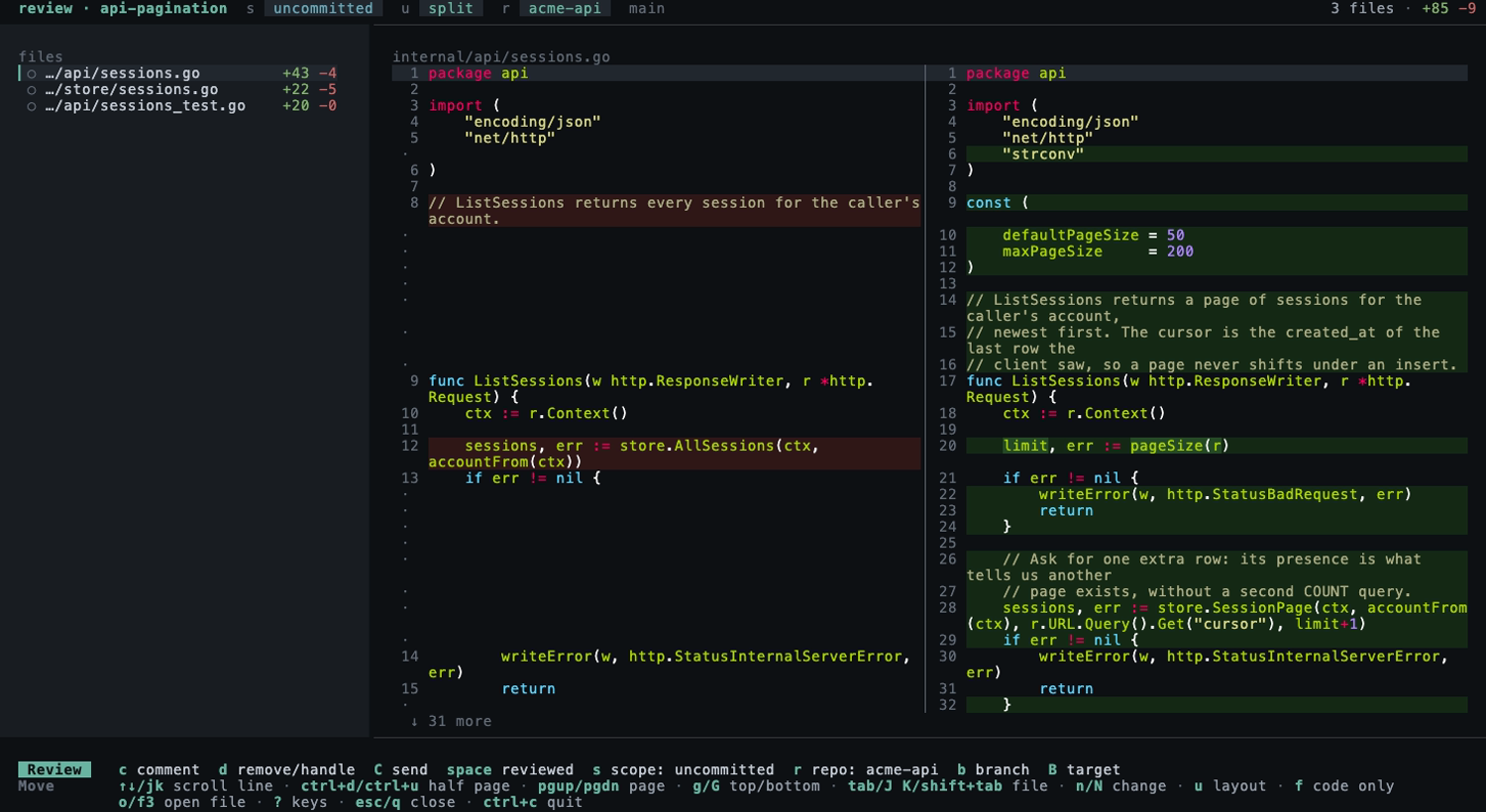
Instead of hunting through terminal tabs to see which agent is done and which is stuck, every session shows up in one list with live status, grouped into a project tree you can fold and reorder. You answer any of them without attaching: space sends a prompt straight into a session's pane, or spawns a new agent in the selected group. A dead session revives on its own conversation with v. And ctrl+r opens a full-file diff of what an agent changed, syntax-highlighted, where the comments you leave on lines go back to the agent's pane as one review prompt when you press C.
Press f on a session to continue its conversation in a separate named fork.
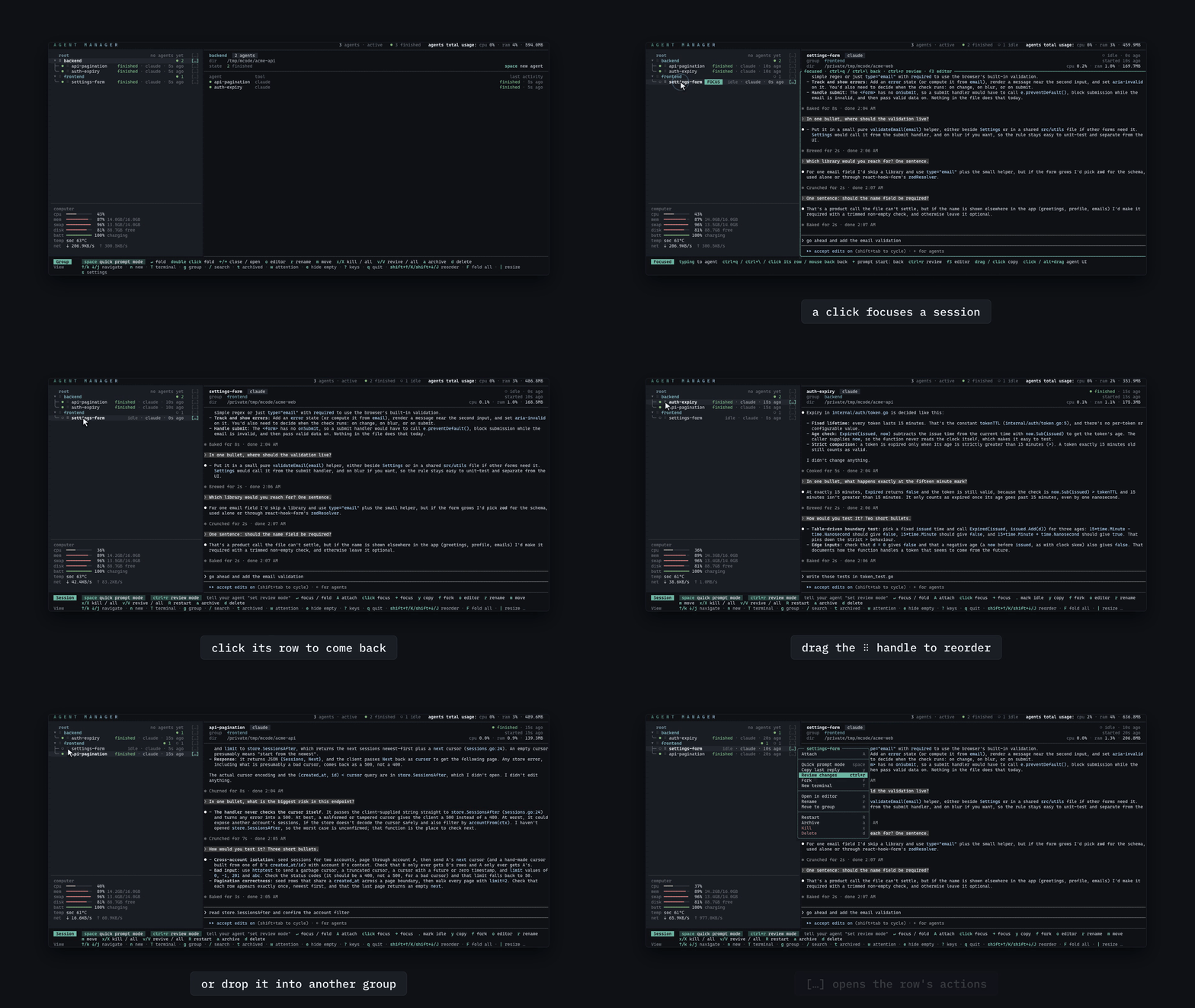
The mouse works across the whole manager. The wheel moves the cursor, a click on a session focuses it, and a click on its row or the mouse back button brings you back. Drag a row by its handle (⠿ in Advanced, = in Compatible) to reorder it or move it into another group, and the […] at the end of every row opens its actions. The divider between the list and the preview drags, and while any message is left, a click on messages in the key legend opens it. In a focused pane a drag selects and copies text, and a click on a link opens it in your browser. Settings has a mouse toggle for terminals where you want native selection back. Settings → symbols switches between Advanced geometric marks (the default) and Compatible ASCII marks, with a live preview.
The tools you use alongside agents live in the same list: T opens a shell under the selected agent, or in the selected group, for builds, Git, and one-off commands. An agent can spawn another, send it a message, and wait until it is done: every MCP-capable session carries those tools on launch.
Save named instructions in Settings and reuse them from the New Session form, the quick prompt, a focused session, spawn --saved, send --saved, or create_session. See Saved prompts.
Not here yet: cost tracking.
Jump to: Install · Usage · Keys · Diff review · Configuration · Docs site
Supported tools
Status detection supports Claude Code, OpenCode, Codex, Grok Build, Gemini CLI, Antigravity CLI, Pi, Command Code, Hermes Agent, Muse Code, Oh My Pi, Cursor CLI, and Kiro CLI. Each one's launch, revive, fork, and status rules ship in the binary (Hermes, Antigravity, Oh My Pi, Cursor CLI, and Kiro CLI have no fork), so an upgrade brings the current version of all of them (see Configuration). A CLI that is not on the list is a feature request.
Install
Runs on macOS and Linux, natively on Windows with psmux, and inside WSL2.
Homebrew (macOS / Linux)
brew install agent-manager
Installs tmux with it if missing, and Homebrew runs on git, so both dependencies are covered. This is the homebrew-core formula, which builds from source. For the prebuilt binary, brew install --cask yoanwai/tap/agent-manager.
Scoop (Windows)
scoop bucket add yoanwai https://github.com/YoanWai/scoop-bucket
scoop install yoanwai/agent-manager
Installs the version published in that bucket, and Scoop installs psmux with it. The bucket is updated on its own, so it can lag the latest release. To update, close agent-manager and run scoop update, then scoop update agent-manager. A global install adds --global to the second command, in an elevated PowerShell. The in-app updater shows those instructions instead of replacing Scoop's binary.
Install script (macOS / Linux)
Download the script, read it, then run it. sh install.sh runs only after that download succeeds.
curl -fsSL -o install.sh https://raw.githubusercontent.com/wainmann/agent-manager/main/install.sh &&
sh install.sh
That copy is the script on main. It is not in checksums.txt. The release that first attaches install.sh lists that file in checksums.txt. Once it does, download the attached file and, when gh is logged in, verify it before the script runs:
curl -fsSL -o install.sh https://github.com/wainmann/agent-manager/releases/latest/download/install.sh &&
gh attestation verify install.sh --repo wainmann/agent-manager &&
sh install.sh
The release URL above has no file until that tag exists, so the first command is the one that works until then. Older releases verify with --owner YoanWai --signer-repo YoanWai/agent-manager in place of --repo wainmann/agent-manager.
Downloads the latest release for your platform, verifies it against the published checksums, and installs it to ~/.local/bin. Then it checks for tmux 3.1+ and git. On macOS it offers Homebrew, and offers to install Homebrew first when that is missing. On Linux it offers apt, dnf, pacman, zypper, apk, or Homebrew, and on a desktop it also offers the clipboard and notification packages. It prints the command when you decline. A run with no terminal skips the prompt and still installs the binary. Set AGENT_MANAGER_INSTALL_DIR for another directory, AGENT_MANAGER_VERSION to pin a version, and AGENT_MANAGER_INSTALL_DEPS=1 to answer the dependency prompt up front (=0 to skip it). AGENT_MANAGER_VERIFY_ATTESTATION=1 refuses the install unless gh attestation verify accepts the downloaded archive. When that check fails, the script tries again with --owner YoanWai --signer-repo YoanWai/agent-manager, which older releases need, and stops only if both fail. Leave it unset to install on a machine without gh. gh uses one exit status for a rejected attestation, a missing login, and a network error, so the script does not try to tell those apart.
Running it without a file to read first:
curl -fsSL https://raw.githubusercontent.com/wainmann/agent-manager/main/install.sh | sh
Verified zip (Windows)
Download the Windows zip for your architecture and checksums.txt from the same release. Compare its SHA-256 with the matching line in checksums.txt before extracting it. The manual Windows install gives the PowerShell commands, optional provenance verification, and dependency setup.
Install script (Windows)
Download the script, read it, then run it. The installer runs only after that download succeeds. Windows PowerShell 5.1 has no &&, so the guard is if ($?). Until the release attaches install.ps1, the file to read is the copy on main. That copy is not in checksums.txt.
irm https://raw.githubusercontent.com/wainmann/agent-manager/main/install.ps1 -OutFile install.ps1
if ($?) {
    Get-Content .\install.ps1
    Unblock-File .\install.ps1
    powershell -NoProfile -ExecutionPolicy Bypass -File .\install.ps1
}
Once the release attaches install.ps1 and lists it in checksums.txt, download that file instead. Logged in to gh, verify it after the download and before the installer. Older releases verify with --owner YoanWai --signer-repo YoanWai/agent-manager in place of --repo wainmann/agent-manager. A missing gh stops the example: PowerShell would otherwise keep the previous $LASTEXITCODE, and a 0 from an earlier command would look like a successful verify. That release URL has no file until that tag exists.
irm https://github.com/wainmann/agent-manager/releases/latest/download/install.ps1 -OutFile install.ps1
if ($?) {
    Get-Command gh -ErrorAction Stop | Out-Null
    if ($?) {
        gh attestation verify .\install.ps1 --repo wainmann/agent-manager
        if ($LASTEXITCODE -ne 0) { throw 'attestation verification failed' }
        if ($LASTEXITCODE -eq 0) {
            Get-Content .\install.ps1
            Unblock-File .\install.ps1
            powershell -NoProfile -ExecutionPolicy Bypass -File .\install.ps1
        }
    }
}
On a Windows client with no execution policy set, the effective policy is Restricted, so every .ps1 is refused. -ExecutionPolicy Bypass applies to that process only, after you have read the file. Where the policy is already RemoteSigned, Unblock-File then .\install.ps1 is enough. RemoteSigned refuses an unsigned script that still has the Mark of the Web. A browser download sets that mark. irm -OutFile does not (Microsoft documents Invoke-WebRequest as not marking the Internet zone). Unblock-File does nothing in that case.
Installs the latest release to %LOCALAPPDATA%\Programs\agent-manager, adds it to your user Path, and offers to install psmux, git, or PowerShell 7 when one is missing. AGENT_MANAGER_INSTALL_DEPS=1 answers yes. AGENT_MANAGER_INSTALL_DEPS=0 skips the prompt. With no terminal it skips the prompt and still leaves the binary installed. AGENT_MANAGER_VERIFY_ATTESTATION behaves as it does on the shell script.
Arch Linux, mise, go install, prebuilt binaries, Windows (native and WSL2), dependencies, updating, and uninstalling: docs/install.md.
Usage
agent-manager
Sessions run inside tmux (am_* namespace), so they survive the manager quitting. Inside a session, Ctrl+Q detaches back to the manager when your terminal and tmux leave it available; Ctrl+\ is an alternate under the same rule. Ctrl+C reaches the agent as its cancel key while a session is focused, so an interrupted prompt leaves the manager running. Ctrl+R opens the session's diff review and F3 opens its directory in your editor; the keybindings row in Settings (s) moves any of them, or hands one back to the agent, and moves or turns off any action of the manager's own list, with esc and ctrl+c staying as they are (see Key bindings). In a full-screen attach, the session footer also shows an inner tmux prefix followed by d when configured. When nested inside another tmux, send the inner prefix shown in the footer, then press d. If both tmux servers use the same prefix, invoke the outer tmux's send-prefix binding; if the outer tmux otherwise captures the inner prefix, configure it to forward that key. agent-manager --version prints the version.
Agent sessions live on a private tmux server named agentmgr, so they never mix with the tmux you run yourself and a kill-server on your own socket leaves them alone. To reach one from a plain shell, name that server: tmux -L agentmgr ls, then tmux -L agentmgr attach -t am_<id>.
The full reference, every key, quick prompt mode, killing and reviving, diff review, groups, status detection, stats, and themes, lives in docs/usage.md. Tell your agent what you want to review in Agent Manager, and your agent will set it up for you to view in the review panel. You can also tell your agent to manage sessions and terminals in Agent Manager. The short version:
| Key | Action |
|---|---|
n |
New session (name, tool, the model, effort and profile the tool reports, environment profile, directory, optional starting prompt, group) |
space |
Quick prompt mode: answer the selected session, or spawn an agent in the selected group |
enter |
Focus the session in place; keys go to the agent while the list stays |
| click / double click | Focus a session from its row or its preview / fold or unfold a group. The full-screen layout selects on a click and focuses on a double click |
drag ⠿ / = |
Reorder a row, drop it into another group, or nest a terminal under an agent |
[…] / right click |
The row's actions: attach, prompt, review, fork, rename, move, archive, kill, delete and more |
| click the list / mouse back | Focused: back to the list. A click on another row focuses that one |
→ / ← |
Step in and out: → focuses the session or opens the group, ← closes the group and, at the start of a focused agent's prompt, comes back to the list. Settings can turn the pair off |
ctrl+r |
Review the session's changes as full-file diffs; c comments a line, C sends a numbered review round, and sent comments stay visible as open or handled |
x / v |
Kill a session to free its RAM / revive it on its own conversation |
R |
Restart a session on an empty context: same name, group, directory and tool, fresh conversation |
s |
Settings (default tool, theme or follow the OS light/dark mode, list density, mouse, review layout, desktop notifications, editor, keybindings) |
? |
The key map for the current screen; review shows only review bindings |
A session can spawn into its own git worktree (<repo>-worktrees/<name>, branch am/<name>), toggled on the n form, with ctrl+t in quick prompt mode, or by default in Settings.
A session can start on a model, reasoning effort and profile of its own, picked on the n form, with ctrl+l, ctrl+x and ctrl+y in quick prompt mode, or with spawn --model --effort --profile. The lists come from each CLI at runtime, so a new model shows up the day the CLI ships it, and restart, revive and fork keep the choice (see Model, effort and profile).
A session can also launch under an environment profile, a named set of environment variables such as a second CLAUDE_CONFIG_DIR, defined with agent-manager env set and picked per session or as a group's default (see Environment profiles).
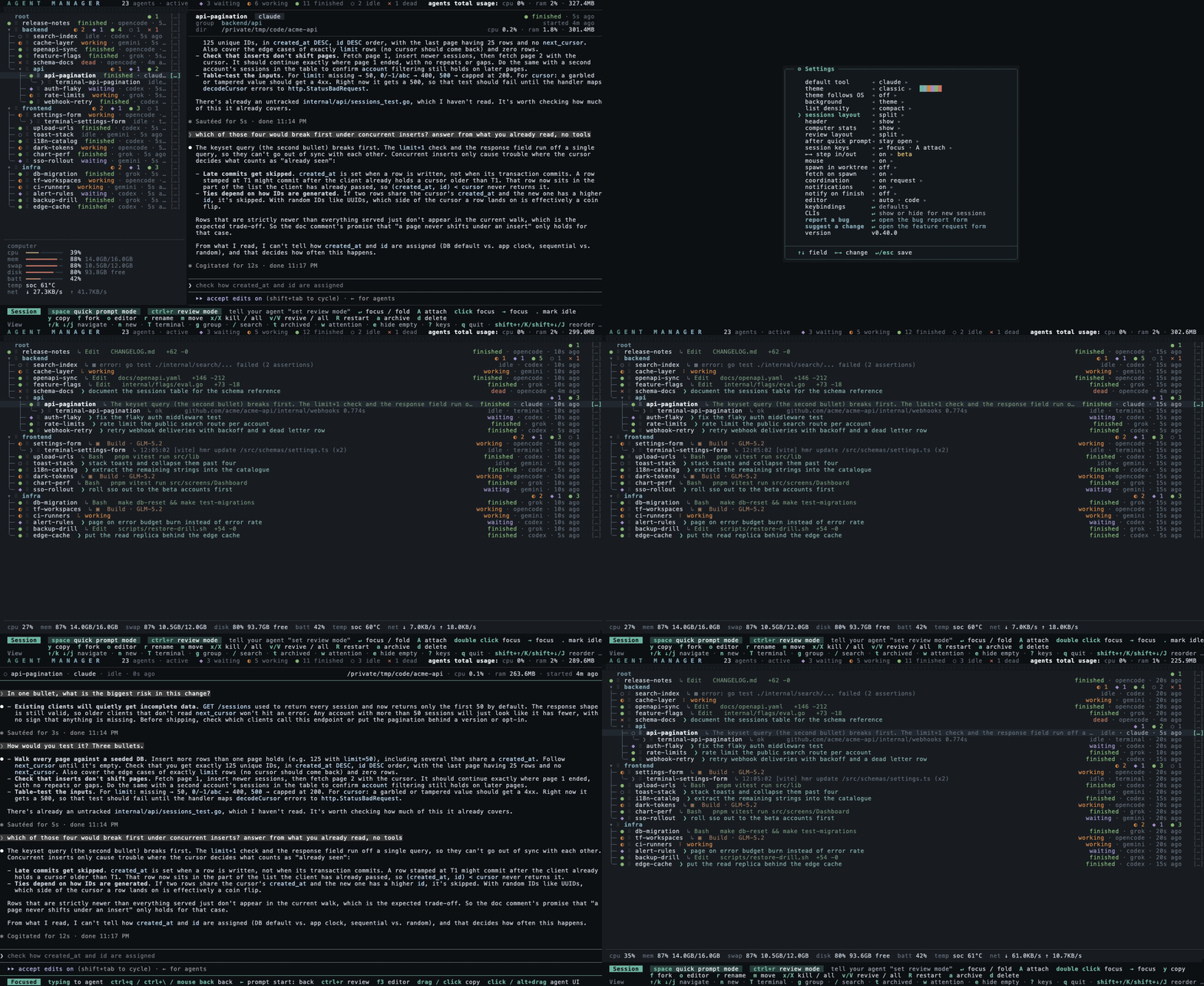
Configuration (Settings, the editor o opens, and the key tables) is in docs/configuration.md.
Development
go run .
mkdir -p /tmp/amtest && env -u TMUX TMUX_TMPDIR=/tmp/amtest SHELL=/bin/sh go test -race ./...   # end-to-end tests drive a real tmux server
See CONTRIBUTING.md for the checks CI runs, and AGENTS.md if you point a coding agent at this repo.
Community
Join the Agent Manager Community on Discord. Ask questions and get setup help in #help, share your setup in #workflows, and talk about contributing in #dev. Bugs and feature requests go in GitHub issues.
Contributing
Contributors and collaborators wanted. agent-manager is actively looking for people to help build it. Unassigned issues are free to take, comment on one to claim it, and regular contributors get invited as collaborators. Say hi in #dev on Discord.
Bug reports, feature ideas, and pull requests are welcome. See CONTRIBUTING.md for setup and the checks CI runs. Project roles and how decisions are made are in GOVERNANCE.md, with the current roster in MAINTAINERS.md. Questions and setups worth sharing go in Discussions. Security reports go through a private advisory; see SECURITY.md.
Contributors
Sponsors
License
agent-manager MCP 질문
기존 구독 및 설정을 그대로 사용할 수 있나요?
네, 기존 CLI 상단에서 가벼운 레이어 역할을 수행하므로 로그인 정보, 구독, 설정 파일 및 MCP server를 그대로 유지합니다.
에이전트가 수정한 코드를 리뷰할 수 있나요?
네, ctrl+r 단축키를 사용하여 에이전트가 변경한 내용을 구문 강조(syntax highlighting)가 적용된 전체 파일 diff로 확인할 수 있습니다.