
PC-Control MCP server
2026년 10월 14일 커밋AI 클라이언트가 포커스를 뺏거나 마우스를 움직이고 키보드를 사용하지 않고도 Windows 애플리케이션을 보고 조작할 수 있게 합니다.
다른 이름 VortexJer/PC-Control
- 스타
- 18
- Tools
- 12
- 다운로드, 30일
- —
- 최신 버전
- —
- 마지막 커밋
- 2026년 10월 14일
- 라이선스
- MIT
PC-Control MCP란?
PC-Control은(는) MCP server입니다. AI 클라이언트가 포커스를 뺏거나 마우스를 움직이고 키보드를 사용하지 않고도 Windows 애플리케이션을 보고 조작할 수 있게 합니다. 12개 도구를 제공합니다. 예: windows, look, click.
프로젝트 README에서 생성된 요약
PC-Control MCP server 정보
PC-Control을 사용하면 컴퓨터 제어권을 잃지 않고 AI 클라이언트를 통해 Windows 애플리케이션을 조작할 수 있습니다. 이 MCP server는 Claude Code 및 기타 호환 클라이언트가 창 포커스를 뺏거나 물리적 마우스를 움직이거나 키보드를 입력하지 않고도 Microsoft Word 또는 다양한 터미널과 같은 소프트웨어를 보고 상호작용할 수 있도록 합니다. Windows 10 및 11 환경에서 Python 3.10 이상을 사용하여 로컬에서 작동합니다.
사용자는 look, type, read와 같은 도구를 통해 문서를 스크롤하거나 특정 요소를 찾거나 키보드 단축키를 실행하는 등의 복잡한 작업을 수행할 수 있습니다. 이 서버는 토큰 효율성에 따라 UI-tree 텍스트, OCR 또는 이미지 중에서 선택하여 비용 효율적으로 작동하도록 설계되었습니다. 또한 엄격한 모드부터 우회 모드까지 포함하는 권한 모드와 모든 도구 실행을 즉시 중단할 수 있는 킬 스위치와 같은 안전 기능을 포함합니다. 새 애플리케이션을 열 때 서버는 애플리케이션을 최소화된 상태로 시작하므로 사용자는 방해받지 않고 AI의 진행 상황을 모니터링할 수 있습니다.
활용 사례
- 1백그라운드 애플리케이션 상호작용현재 작업에 방해를 받지 않고 Word와 같은 특정 창의 내용을 확인하도록 AI에게 요청합니다.
- 2대용량 문서의 효율적인 읽기AI에게 문서의 전체 텍스트를 추출하거나 페이지 내에서 특정 줄을 찾도록 요청합니다.
- 3애플리케이션 가시성 관리AI가 새 프로그램을 최소화된 상태로 실행하여 작업에 방해가 되지 않도록 합니다.
프로젝트의 README를 바탕으로 작성되었습니다. 모든 활용 사례는 해당 내용의 인용문과 대조하여 확인합니다.
PC-Control MCP 도구 12
README에서 감지됨windowslookclicktypedragkeyscrollreadshowwait_forstepsopen_app
| windows | — | |
| look | — | |
| click | — | |
| type | — | |
| drag | — | |
| key | — | |
| scroll | — | |
| read | — | |
| show | — | |
| wait_for | — | |
| steps | — | |
| open_app | — |
자동 검사
2026년 11월 14일에 실행됨전체 보고서 →아직 인증되지 않았습니다. 서버는 80점 이상의 점수, 심각한 결함 없음, 그리고 검사에 충분한 데이터를 갖추어야 합니다. 검사 방식 · 점수를 높이기 위해 수정할 항목

- 소스 저장소 연결 및 접근 가능vortexjer/pc-control is public and reachablegithub.com/vortexjer/pc-control ↗통과
- 패키지가 이 저장소를 소스로 명시검사되지 않음
- 빌드 출처(Sigstore 증명)검사되지 않음
- 오픈 소스 라이선스 (OSI)MITspdx.org/licenses/MIT.html ↗통과
- 최근 1년 내 커밋 또는 릴리스Last commit or release 2026-10-14github.com/vortexjer/pc-control ↗통과
- OpenSSF Scorecard검사되지 않음
- 패키지 이름이 인기 패키지와 유사하지 않음검사되지 않음
- 패키지 및 해당 종속성에 중요한 보안 권고 없음검사되지 않음
- 모델에 대한 숨겨진 지침 없음12 tool descriptions and the README read; no override phrases, credential paths or hidden characters통과
- 파괴적인 도구에 라벨 표시됨No tool named like delete, drop or exec통과
- 원격 엔드포인트가 MCP 핸드셰이크에 응답검사되지 않음
README
GitHub에서 보기PC-Control
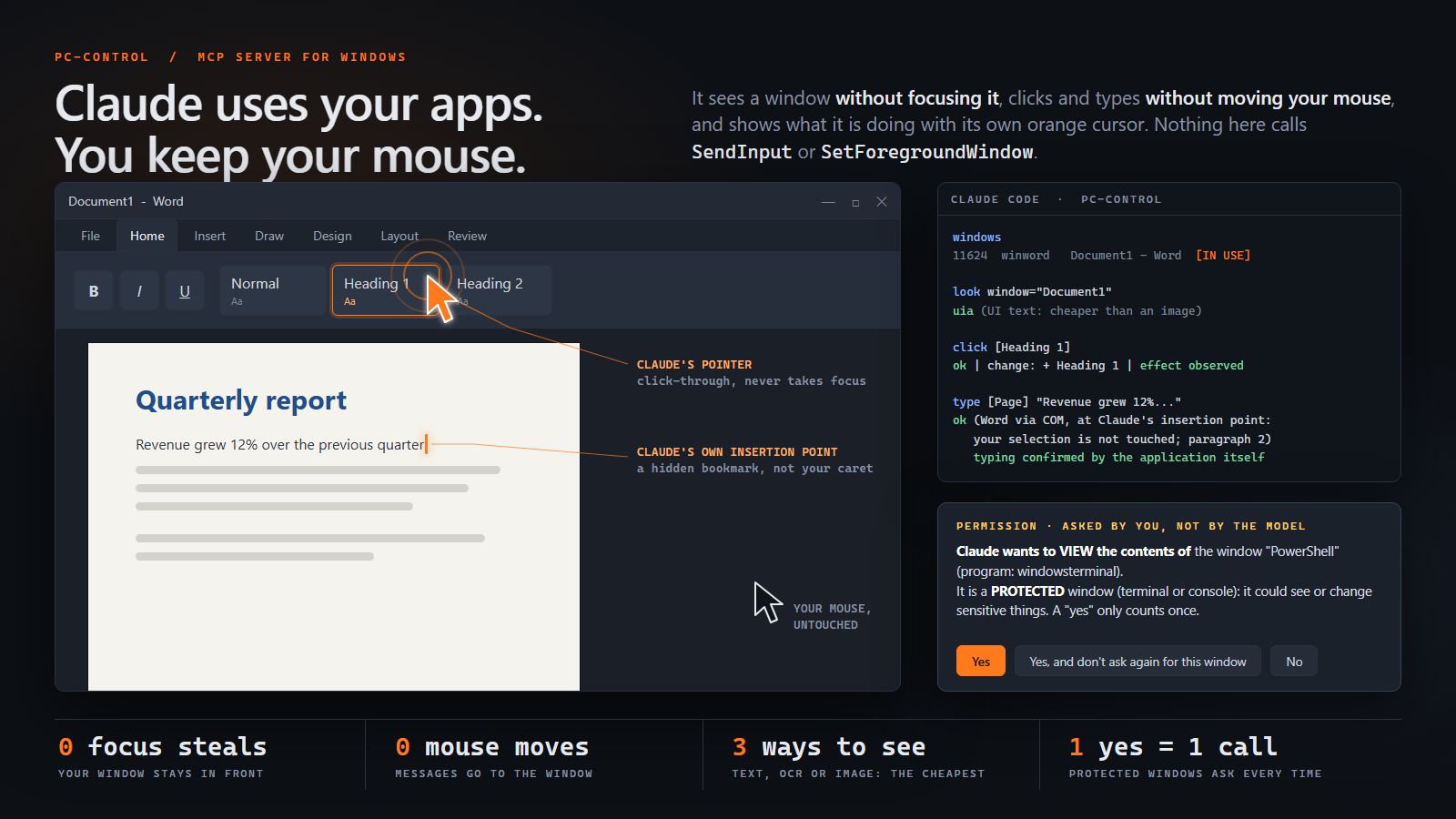
Let an AI see and operate Windows apps cheaply, without stealing focus, moving your mouse or typing on your keyboard. An MCP server for Claude Code (and any MCP client). Early version: it works, but expect rough edges.
Quick start
Windows 10/11, Python 3.10+ and Claude Code. In PowerShell:
Install
pip install claude-pc-control
pc-control install
Update (from any earlier version, including installs made before the package was renamed)
pc-control update
Uninstall (everything it added, then the package)
pc-control uninstall
pip uninstall -y claude-pc-control pc-control     # whichever of the two names is installed
Then open a new Claude Code session and ask, for example, "what do I have open in Word?". Details in Install, Update and Uninstall.
- Sees a window without focusing it.
lookpicks the cheapest of: UI-tree text, OCR text, or an image with numbered marks. It never sends empty text, text that costs more than the image, or text that does not cover the window. - Acts on a window without focusing it. Clicks and typing go straight to the control (
BM_CLICK,EM_REPLACESEL, UI Automation patterns...). Nothing in the package callsSetForegroundWindow,SendInput,keybd_eventorSetCursorPos(a test scans the code for them). - Answers with only what changed after each action, not the whole screen again, and says whether the action had a visible effect.
- Does what people ask for, still without focus. Scroll, read a whole document or page, keyboard shortcuts, drop-downs, find an element (even scrolled out of view) and wait for something to appear.
- Opens apps out of your way, but where you can watch.
open_appstarts the app minimized with its button in the taskbar (no focus taken): open it whenever you want to see Claude work. Its windows are marked opened by Claude, so the model never mistakes yours for its own. - Lets you keep working. You and Claude can use the same app at the same time (see You and Claude in the same app).
Windows 10/11 only. Python 3.10+.
Install
git clone https://github.com/VortexJer/PC-Control.git
cd PC-Control
.\install.ps1                 # installs the package and runs `pc-control install` (options: -Mode ask|auto|strict|bypass, -AllowReads, -Editable)
Or by hand, without cloning:
pip install claude-pc-control                                                       # from PyPI
pip install https://github.com/VortexJer/PC-Control/archive/refs/heads/main.zip     # or the latest code from GitHub (no git needed)
pc-control install
The package is called claude-pc-control (before 0.6 it was pc-control; the commands pc-control and pc-control-mcp and the pc_control
code did not change). If you have an older install, do not pip-install over it: run pc-control update or .\install.ps1, which remove the old
package first (both install the same files, so removing the old one afterwards would delete the new code).
All the commands:
| Command | What it does |
|---|---|
pc-control install [--mode ...] [--scope ...] [--allow-reads] |
Registers PC-Control in Claude Code (see the table below). |
pc-control update |
Gets the latest code (git pull for a checkout, otherwise GitHub), then reinstall. |
pc-control reinstall |
install again with the mode, scope and options recorded by the previous install. |
pc-control uninstall [--keep-data] |
Undoes everything install added. |
pc-control status |
Shows whether it is registered, connected, which mode, and whether it is paused. |
pc-control pause / pc-control resume |
The kill switch: every tool refuses while paused. |
pc-control serve |
Starts the MCP server (what Claude Code runs; you normally never call it). |
What pc-control install does (and nothing else):
| Step | Where |
|---|---|
Registers the MCP server as PC-Control (mcp__PC-Control__*). It runs the pc-control-mcp launcher (full path; a program with its own name, so policy tools can recognize it, unlike python -m ...); without a launcher it falls back to python -m pc_control.server. An update re-registers it, so old installs switch by themselves |
claude mcp add (scope user by default) |
| Writes the usage skill | ~/.claude/skills/pc-control/SKILL.md |
| Adds a short managed block pointing to the skill | ~/.claude/CLAUDE.md (between <!-- pc-control:begin ... --> and <!-- pc-control:end -->) |
Registers the permission hooks (PreToolUse, PermissionRequest) |
~/.claude/settings.json |
| Keeps a record of all of the above | ~/.claude/pc-control-install.json |
| Backs up your settings before editing them (once) | ~/.claude/settings.json.pc-control-bak |
Options: --mode follow|auto|ask|strict|bypass (default follow, see Permission modes),
--scope user|project|local, --allow-reads (let windows and look run without asking).
Then open a new Claude Code session; the tools appear as PC-Control.
pc-control status shows whether it is installed, connected and paused. pc-control pause / pc-control resume is the kill switch.
Update
From any earlier version (including the first one, then called pcsight):
pc-control update # or .\update.ps1
It pulls the source if you installed from a git checkout, otherwise installs the latest code from GitHub (first removing the package
under its old name pc-control, if you have one: it is claude-pc-control since 0.6), then runs
pc-control install again with the same mode, scope and options, which also registers the current launcher. On the way it removes whatever an earlier version left behind
(the old pcsight server, skill, CLAUDE.md block, hooks, install record and package, and old ask rules for PC-Control's tools,
which would force a dialog on every call), and only that: your own skills, hooks, rules and notes are kept. Then open a new
Claude Code session.
Uninstall
pc-control uninstall           # removes everything install added, and the ~/.pc-control data folder
pip uninstall claude-pc-control   # removes the package itself (pc-control if you installed before 0.6)
or, from the checkout, .\uninstall.ps1 (does both; add -KeepData to keep ~/.pc-control, -KeepPackage to keep the package).
pc-control uninstall is exact: it uses the record written by install, so it removes the MCP registration, the skill folder, the
managed block in CLAUDE.md (the file itself is deleted only if install created it and nothing else is in it), our hooks, any
read permissions it added, the settings backup and the data folder. Skills, hooks, permissions and notes that are not ours are left untouched.
Cost
The tool definitions Claude gets on every request are about 1280 tokens for the 10 tools (the title that the schema generator adds to every
parameter, 16 % of it, is stripped). With PC_CONTROL_TRACE=1 each action's answer ends with where its time went (guards 4ms, cursor 270ms, settle 250ms, changes 380ms). Most of an action is the UI Automation walk that tells it what changed; it depends on how fast the app answers
accessibility queries.
look chooses by cost: it estimates what the text would cost and what an image of the window would cost (about ceil(width/28) * ceil(height/28)
tokens at the size it would send, which adapts to your monitor) and sends the cheaper one, never empty text and never text that does not
cover the window. The text estimate was fitted on real windows against a BPE tokenizer (within about 10 %). After an action it sends
only what changed. In one measured Word window, the UI-tree text cost 713 tokens against 851 for the screenshot; a minimized window is
read as text only. read gives a whole document in one call, and read(find=...) or look(find=...) only the lines or elements you need.
Permission modes
Pick one with pc-control install --mode ... or the PC_CONTROL_MODE environment variable.
| Mode | What it does |
|---|---|
follow (default) |
Follows Claude Code's own permission mode, as cautious as you chose to be: bypassPermissions -> bypass, auto -> auto, default / acceptEdits / plan -> ask. |
auto |
Filters apps by category, no list to maintain: password managers and authenticators, terminals, system administration tools, remote access, crypto wallets, the AI client itself, mail and messaging apps, VPN/security tools, signing/identity apps, developer tools with credentials, and any window whose title is about banking, payments or passwords are protected: PC-Control asks you before Claude can use them. Delicate actions (pay, delete, send, install, sign out...) are asked every time. It never types into a password field. |
ask |
The lowest-risk mode: every window asks. A plain Yes is for that call only; Yes, and don't ask again remembers that one window for the session. Protected windows ask too. |
strict |
auto plus: acting only on apps listed in PC_CONTROL_ALLOW=app1,app2 or ~/.pc-control/allow.txt. |
bypass |
Like --dangerously-skip-permissions: no filters, no confirmations. Use it when you trust the session. |
In every mode: creating ~/.pc-control/PAUSE (or PC_CONTROL_PAUSE=1) makes every tool refuse, and type needs an element id from look (no blind typing).
Terminals
A terminal is not a window where mouse messages or WM_CHAR work (Windows Terminal draws its own text), but every shell reads its keys from a console input
buffer, and that buffer can be written to directly. So type, key, read and look talk to the console of the shell itself: no keyboard, no mouse, no
focus, nothing of yours is touched, and the answer shows what the console says afterwards (the typing is confirmed, not assumed). It works with classic
console windows and with the tabs of Windows Terminal, including terminals you already had open.
typewrites the text; a line break in it presses Enter (it runs).keysends enter, tab, esc, arrows, home, end, pgup, pgdn, backspace, delete, ctrl+c.- Windows Terminal is ONE process for all its windows and tabs. The tab is found through who owns each console, and picked by the window's title; if that is not unique the answer lists the candidates instead of guessing, because typing into the wrong shell is worse than not typing.
- The terminal Claude Code itself runs in is never a target (it would type into its own prompt).
- What you type in a terminal runs as you, so these windows stay protected: you are asked, and the question shows the full command, also inside
steps. - A program running as administrator cannot be reached from a normal process; the answer says so.
How the questions reach you
Protected windows are not blocked; you decide, not the model. The model has no confirm flag it could set.
- Claude Code: Claude Code itself shows you its permission dialog (1. Yes / 2. Yes, and don't ask again / 3. No), and Claude
cannot answer it. The
PreToolUsehook (python -m pc_control.hook) adds one short sentence, in the language of your Windows, as the first parameter of the call (for example question: "Claude wants to read the whole text of «Terminal» (protected window: terminal or console)."). In Claude Code's normal mode that is all; in its other modes (auto...), where Claude Code might decide by itself, the hook answersaskso the question is always shown (the dialog then also carries a "Hook ... requires confirmation" line). A plain "yes" counts once. If you pick Claude Code's "Yes, and don't ask again", PC-Control narrows it to that one window for the rest of the session (Claude Code saves a per-tool rule; the hook turns it into a per-window approval and removes the rule). - The
PermissionRequesthook answers by itself when you do not need to be bothered (a normal window outside the filter, bypass). It also tells the server that a dialog really is about to be shown: once Claude Code has done that at least once, the server refuses to run a protected action whose dialog was skipped (for example by a "don't ask again" rule), instead of trusting the question. - Other MCP clients (without these hooks): a protected action simply does not run.
What you see: Claude's cursor
When Claude clicks, an orange pointer glides to the element and rings it; when it types, a steady orange I-beam slides to the
insertion point. Only one is shown at a time (the one for the last action; each stays at least a moment so a quick action is visible), and it
moves with its window. Both are transparent click-through windows that never take focus. They fade in when Claude starts and stay visible,
idle at their last position, after it finishes (PC_CONTROL_CURSOR=always default; user: only while you are in that window; off).
Their colour adapts to what is behind them and they scale with the screen DPI.
The cursor is isolated to the app it acts on: it is an owned window of the target, so it follows that window's place in the stacking order. Closing the app removes them for good; minimizing it only hides them and they come back when you restore the window. When Claude Code closes, the PC-Control server exits with it and takes the cursor away.
What is re-verified when Claude acts
An element id comes from a look(), but the window is alive: between look() and the action an id can start pointing at something else
(a Buy / Sell toggle that changed its label, a recycled row of a virtual list, a dialog that reused a control). So nothing is trusted from
the snapshot; every action re-checks, in this order, and refuses with a clear message (NOT EXECUTED: look again) when a step fails:
| Step | What is checked, live |
|---|---|
| Handle | The window handle still belongs to the same program that was looked at (handles are reused after a window closes). |
| Exists / where | The control is still there; its position is re-read. After a resize, the only replacement accepted is one namesake in the same container with the same id and not far away: two "OK" buttons are never guessed between. |
| Identity | Its live type and name equal the ones that were looked at (case, spaces and invisible direction marks ignored). Nameless controls compare their id; text fields compare type and id, so typing does not trip it. |
| Window policy | The window's protection category is evaluated again right before dispatching (and after the cursor's trip), and so are the dialogs it opened: a title that became a login or a payment, or a sign-in dialog that popped up, aborts the action so you are asked again. |
| Action policy | "Delicate action" (pay, delete, send...) and "secret field" are judged on the live name, id, help text and password flag, not on the snapshot. |
Also guarded, because they act without naming what they act on: clicking by x,y (the element of the last look under that point is judged
and must still be itself), key alt+f4 and the title-bar X on a window Claude did not open (you could lose your work), the clipboard keys
ctrl+c/x/v (the clipboard may hold a copied password), and enter / space in a dialog that offers a delicate button (they press the
default button unseen). Fields that look like secrets (password, PIN, API key, card number, by name, id or help text) are neither typed
into nor read, and open_app asks before running interpreters and system tools (python, curl, certutil, reg...) or a script / installer
handed to a launcher. The text read returns is marked as data: instructions found in a window or web page are not yours.
Limits that remain: a click by x,y with no earlier look() of that window knows nothing about what is under the point (use ids);
OCR text has no control behind it, so it can only be checked by position; the checks protect against the model misusing PC-Control's tools,
not against a model that can run arbitrary commands as you (it could forge the small approval marks under ~/.pc-control/perm: keep
Claude Code's own permission for shell and file writes switched on).
Keeps working when you move or resize the window
Positions are resolved when Claude acts, not when it looked. Moving the window changes nothing (positions are relative to it); resizing re-lays-out the controls, so each target is re-asked to its live control (or found again by name and type). A click with coordinates from an old image is refused with a clear message instead of landing somewhere else.
Some changes cannot be absorbed: shrink a window enough and its ribbon collapses, so the button Claude was about to press no longer exists. Then PC-Control does not guess: it shows a notice on that very window ("If you touch this application, Claude will not be able to act on it. ..."), waits for you to put it back, and carries on by itself. If a button merely moved, PC-Control finds it again, clicks it and says so in the answer.
You and Claude in the same app
You can keep working in the app while Claude works in it, as long as you do not hide or move its window:
- Word: Claude has its own insertion point (a hidden bookmark that follows the text if you edit before it). It writes there through COM
and the answer says in which paragraph and after which words. The formatting buttons (bold, italic, alignment...) apply to what Claude
writes, never to your selection. The Styles gallery (Heading 1, Normal, Strong...) works the same way: a style is Claude's own and is applied only to the new paragraph it starts (never to a paragraph of yours; if the text lands in one of yours, the answer says so). In Word
keyonly offersenter,spaceandbackspace, acting at Claude's own insertion point. - Your mouse: if you are holding a mouse button (dragging, selecting), Claude waits for you to release it instead of breaking your gesture.
- Your keyboard: a key press waits until you stop typing, so it never lands in the middle of your word.
- Right click opens the app's real context menu, which closes with any click of yours, so Claude only opens it when you have been idle for a few seconds and no menu is open. Menu entries are pressed through UI Automation patterns (by id, like any button).
Tools
| Tool | What it does |
|---|---|
windows |
Lists windows, most recent first (filter="word" lists only the matching ones: 12 tokens instead of ~150); marks [IN USE] (where you work now), [LAST USED], [PROTECTED: ...] / [ASKS], (minimized), (hidden) and [mine] (opened by Claude). A Store app is listed once. A title that matches several windows is never guessed: the answer lists them with their number. |
look |
Sees a window: UI-tree text, OCR text or an image with numbered marks, whichever is cheapest that works. Text fields show what they contain (never password fields). `find="Save |
click |
Clicks an element by id or by its exact name (several with that name: the ids are listed instead of guessing), or x,y of the last image; right and double supported. Ids stay valid between looks. Title-bar buttons (minimize, maximize, close) and elements of apps that ignore mouse messages are pressed through UI Automation. |
type |
Types into an element id (append, or replace) and reads the field back to confirm the text is really there. On a drop-down or list (classic, WinForms, web <select>) it picks the entry with that text, and the app's change event fires. In Excel the target can be a cell address (B3, Sheet2!A1): numbers stay numbers, =... is a formula, and the answer says what the cell now shows. |
drag |
Holds the button and drags through points (freehand, line, rectangle, ellipse) using mouse messages: no real mouse, no focus. Apps with modern canvases may ignore it. |
key |
A key (enter, tab, esc, arrows, f1-f12...) or a shortcut (ctrl+s, ctrl+shift+n, alt+f4). Shortcuts never press real keys: PC-Control runs the app's own menu command that shows that shortcut, the element declaring it, or the text-box command (ctrl+a/c/x/v/z). If the app has no such command, the answer lists the shortcuts it does have (they depend on its language: in Spanish Notepad, Save is Ctrl+G). |
scroll |
Scrolls the window or an element by pages, or to the top/bottom, through UI Automation, scroll-bar messages or wheel messages: no focus, no mouse. Says the position before and after. |
read |
The whole text of a document, web page, editor or field, also what is scrolled out of view, in pieces (start, length), or only the lines that match (`find="a |
show |
Shows you where something is: an orange outline that follows the element's shape (a circle for small icons and check boxes, a rounded rectangle for the rest; by id, name or x,y) with an optional label, above its window, never clicking. It goes away when you click there, when that spot changes (you did it), or after a few seconds. For "where do I click to...?". |
wait_for |
Same circle as show, but waits until you click it (or the spot changes) and then answers clicked, changed or timeout, so Claude can walk you through several steps one after another without guessing when you are done. |
steps |
Runs up to 12 actions (click, type, key, scroll, read, look, wait) on one window in a single call, much faster than one call each. It stops at the first step that fails, has no visible effect or needs your permission; sensitive steps still ask you one by one. |
open_app |
Launches an app minimized with its taskbar button, so you can open it and watch, in its own folder (as a shortcut does). If the window belongs to a process the launcher starts (Windows Media Player, Git GUI) or to a Store app, it is found and minimized too, and if it grabbed the focus it is handed back to you. Browsers (Edge, Chrome, Brave...) open behind your windows instead, not minimized, because a minimized browser hides its page from accessibility; the focus is never taken. hidden=true uses an invisible desktop, only when you ask for it. behind=true opens it NOT minimized but behind every window of yours, for apps that do not work minimized (browsers, some Store and Chromium apps): the window is sent to the very back the instant Windows creates it, so it is not drawn over what you are doing (0 ms on most apps, a few frames on some) and, on most apps, it does not take the keyboard focus. It returns in about half a second; if an app takes the focus anyway the answer says so. |
Adapts to your PC
- Cursor and caret scale with the DPI of the window they point at (100-300 %, per monitor).
- Screenshots adapt to the monitor the window is on (about 55 % of its long edge, between 768 and 1344 px, never upscaled).
- OCR uses your Windows languages (falls back to English/Spanish, and to images if there is none).
- Delicate-action and sensitive-window detection knows English, Spanish, French, German, Italian and Portuguese; protected app categories are matched by process name, which is language independent.
- Multi-monitor setups and negative coordinates are handled.
PC-Control MCP 질문
PC-Control MCP는 어떤 도구를 제공하나요?
12개 도구를 제공합니다. 예: windows, look, click, type, drag.
이 서버가 제 마우스를 움직이거나 현재 창의 포커스를 가져가나요?
아니요, 포커스를 뺏거나 마우스를 움직이거나 키보드를 입력하지 않고도 Windows 앱을 조작합니다.
서버가 화면에 무엇이 있는지 어떻게 '보나요'?
'look' 도구는 UI-tree 텍스트, OCR 텍스트 또는 번호가 매겨진 마크가 포함된 이미지 등 사용 가능한 가장 비용 효율적인 방법을 사용합니다.
AI와 동시에 동일한 애플리케이션을 사용할 수 있나요?
네, 사용자와 AI가 동일한 애플리케이션을 동시에 사용할 수 있습니다.
지원되는 운영 체제는 무엇인가요?
이 서버는 Windows 10 및 Windows 11 전용으로 설계되었습니다.