
Bear Notes MCP server
✓ 인증됨관련성 순위 기반 검색, 태그 관리, 파일 첨부 기능을 통해 Mac 로컬 환경에서 Bear 노트를 검색, 읽기, 생성 및 편집할 수 있습니다.
다른 이름 vasylenko/bear-notes-mcp
- 스타
- 206
- Tools
- 13
- 다운로드, 30일
- —
- 최신 버전
- —
- 마지막 커밋
- 2026년 7월 9일
- 라이선스
- Apache-2.0
Bear Notes MCP란?
관련성 순위 기반 검색, 태그 관리, 파일 첨부 기능을 통해 Mac 로컬 환경에서 Bear 노트를 검색, 읽기, 생성 및 편집할 수 있습니다. 13개 도구를 제공합니다. 예: bear-open-note, bear-create-note, bear-search-notes.
프로젝트 README에서 생성된 요약
Bear Notes MCP server 정보
이 도구는 macOS 사용자가 AI 어시스턴트 내부에서 방대한 개인 지식 베이스를 관리할 수 있게 해줍니다. 제목, 본문, 계층형 태그를 아우르는 관련성 순위 기반 검색을 통해 Bear 노트를 검색, 읽기, 생성 및 편집할 수 있습니다. Bear SQLite 데이터베이스를 직접 읽기 때문에 Bear 애플리케이션이 실행 중이지 않을 때도 쿼리를 수행할 수 있습니다.
사용자는 Claude Desktop, Claude Code, Cursor 또는 Gemini와 같은 다양한 MCP 클라이언트를 통해 노트와 상호작용할 수 있습니다. 서버는 Mac 로컬에서 작동하며 네트워크 호출이나 텔레메트리가 없어 프라이버시를 보장합니다. 실수로 인한 변경을 방지하기 위해 기본적으로 읽기 전용 상태로 작동하며, bear-create-note, bear-add-text, bear-archive-note와 같은 쓰기 도구를 사용하려면 Edit Mode를 수동으로 활성화해야 합니다.
단순한 텍스트 편집을 넘어, 이 서버는 최대 25 MB 크기의 PDF 및 이미지와 같은 파일 첨부를 지원합니다. 또한 고급 태그 관리 기능을 제공하여 전체 라이브러리에 걸쳐 태그 이름을 변경하거나 삭제할 수 있습니다. 이는 자연어 명령을 통해 복잡한 정보를 정리해야 하는 개발자와 연구자에게 특화된 선택지입니다.
활용 사례
- 1관련성 기반 특정 정보 찾기정확한 키워드 일치 대신 서술적인 문구를 사용하여 AI에게 특정 심층 분석 노트를 찾아달라고 요청하세요.
- 2기존 문서 업데이트기존 노트의 특정 섹션에 새로운 결정 사항이나 정보를 추가하도록 어시스턴트에게 지시하세요.
- 3연구 컬렉션 정리AI에게 특정 계층형 태그 아래의 모든 노트를 수집하여 새로운 개요를 작성하도록 요청하세요.
- 4대량 태그 관리어시스턴트를 사용하여 전체 노트 라이브러리에 있는 태그를 한 번에 변경하거나 삭제하세요.
프로젝트의 README를 바탕으로 작성되었습니다. 모든 활용 사례는 해당 내용의 인용문과 대조하여 확인합니다.
Bear Notes MCP 설치 방법
형식 확인: 2026년 11월 10일Cursor에 추가Goose에 추가Claude Code에 Bear Notes MCP 설치
$ claude mcp add bear-notes-mcp -- npx -y bear-notes-mcpCursor에 Bear Notes MCP 설치
~/.cursor/mcp.json
{
  "mcpServers": {
    "bear-notes-mcp": {
      "command": "npx",
      "args": [
        "-y",
        "bear-notes-mcp"
      ]
    }
  }
}VS Code에 Bear Notes MCP 설치
.vscode/mcp.json
{
  "servers": {
    "bear-notes-mcp": {
      "type": "stdio",
      "command": "npx",
      "args": [
        "-y",
        "bear-notes-mcp"
      ]
    }
  }
}VS Code CLI에 Bear Notes MCP 설치
$ code --add-mcp '{"name":"bear-notes-mcp","type":"stdio","command":"npx","args":["-y","bear-notes-mcp"]}'Claude Desktop에 Bear Notes MCP 설치
claude_desktop_config.json
{
  "mcpServers": {
    "bear-notes-mcp": {
      "command": "npx",
      "args": [
        "-y",
        "bear-notes-mcp"
      ]
    }
  }
}Codex에 Bear Notes MCP 설치
$ codex mcp add bear-notes-mcp -- npx -y bear-notes-mcpCodex config.toml에 Bear Notes MCP 설치
~/.codex/config.toml
[mcp_servers.bear-notes-mcp]
command = "npx"
args = ["-y", "bear-notes-mcp"]
Gemini CLI에 Bear Notes MCP 설치
$ gemini mcp add -s user bear-notes-mcp npx -- -y bear-notes-mcpGemini settings.json에 Bear Notes MCP 설치
~/.gemini/settings.json
{
  "mcpServers": {
    "bear-notes-mcp": {
      "command": "npx",
      "args": [
        "-y",
        "bear-notes-mcp"
      ]
    }
  }
}Bear Notes MCP 도구 13
README에서 감지됨bear-open-notebear-create-notebear-search-notesbear-add-textbear-replace-textbear-add-filebear-list-tagsbear-find-untagged-notesbear-add-tagbear-archive-notebear-rename-tagbear-delete-tag
| bear-open-note | — | |
| bear-create-note | — | |
| bear-search-notes | — | |
| bear-add-text | — | |
| bear-replace-text | — | |
| bear-add-file | — | |
| bear-list-tags | — | |
| bear-find-untagged-notes | — | |
| bear-add-tag | — | |
| bear-archive-note | — | |
| bear-rename-tag | — | |
| bear-delete-tag | — |
도구 13개 모두 보기도구 수 줄이기
bear-capabilities
| bear-capabilities | — |
구성
UI_ENABLE_CONTENT_REPLACEMENTUI_ENABLE_NEW_NOTE_CONVENTION
| 이름 | 설명 | 유형 |
|---|---|---|
| UI_ENABLE_CONTENT_REPLACEMENT | — | |
| UI_ENABLE_NEW_NOTE_CONVENTION | — |
자동 검사
2026년 11월 13일에 실행됨전체 보고서 →자동 검사를 통과했습니다. 이는 보안 감사가 아닙니다. 코드를 직접 읽고 서버에 필요한 최소한의 권한만 부여하십시오. 검사 방식

- 소스 저장소 연결 및 접근 가능통과
- 오픈 소스 라이선스 (OSI)통과
- 최근 1년 내 커밋 또는 릴리스통과
- 패키지 이름이 인기 패키지와 유사하지 않음통과
- 원격 엔드포인트가 HTTPS 사용검사되지 않음
- 파괴적인 도구에 라벨 표시됨통과
- 모델에 대한 숨겨진 지침 없음통과
- 패키지 및 해당 종속성에 중요한 보안 권고 없음검사되지 않음
README
GitHub에서 보기



Bear Notes MCP Server
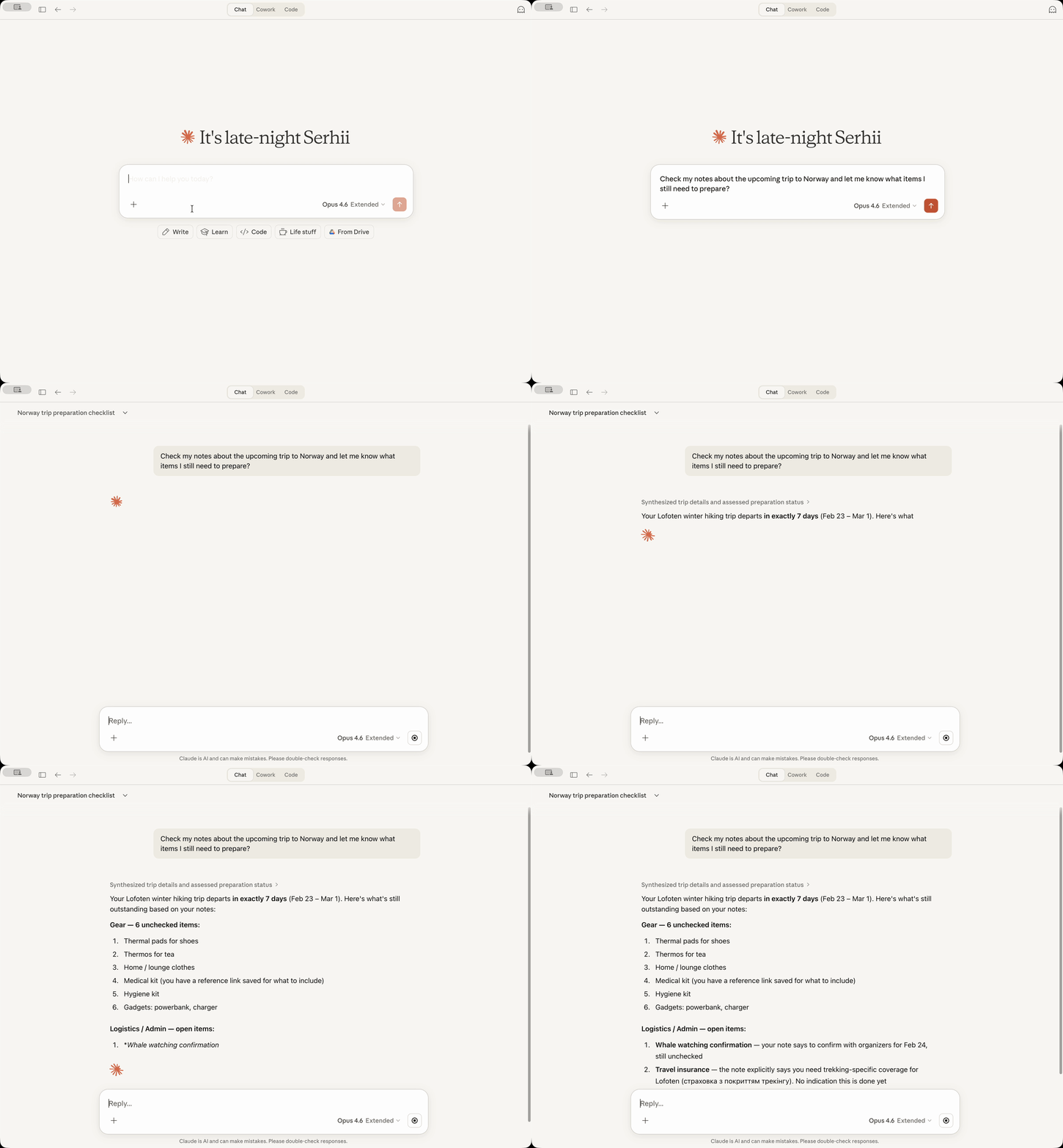
An unofficial, opinionated MCP server for Bear Notes — built around relevance-ranked search instead of substring matching. Results come ranked across titles, bodies, and hierarchical tags, with snippets and combinable filters (tag, date, pinned). Reads run direct against Bear's SQLite database — no Bear app required for queries.
Writes route through Bear's own URL handler — atomic and validated by Bear. Offline-first: no network calls, no telemetry, all processing on your Mac. Works with any MCP client — Claude Desktop, Claude Code, Codex, Gemini, Cursor. Ships as a one-click .mcpb extension or a standalone npm package.
Example prompts:
Find the deep-dive I wrote on export pipelines, somewhere under #engineering/
Append today's decisions to the 'Decisions' section of my Weekly Ops note
Pull every note under #research/llm-evals into a survey outline
Find my notes tagged #blog/drafts and draft this week's post outline
✨ Key Features
- Read-only by default — flip Edit Mode for writes. 4 tools always on (search, open, find untagged, list tags); 8 more in Edit Mode for create, edit, attach, tag, archive
- Relevance-ranked search across titles, bodies, and tags — finds the right note, not just the ones that contained your literal words
- Date-based search with relative dates ("yesterday", "last week", "start of last month")
- Hierarchical tag management — view tags as a tree with note counts; rename or delete a tag across the whole library
- Surgical writes — append at a specific heading or replace a section without rewriting the whole note
- File attachments — attach images, PDFs, and documents up to 25 MB; symlinks rejected for safety
- New note convention (opt-in) — place tags right after the title instead of at the bottom
- Local-first — direct read-only SQLite reads, native
node:sqlite, no network calls, no telemetry
[!NOTE] Complete privacy (except the data you send to your AI provider when using an AI assistant, of course): this server makes no external connections. All processing happens locally on your Mac using Bear's own database and API. There is no extra telemetry, usage statistics or anything like that.
👤 Who is this for
This is an unofficial, opinionated alternative to the native Bear MCP. It fits when:
-
You have years of notes and substring search isn't enough. Search ranks results by relevance — titles, bodies, and tag matches across the whole library — so the right note rises to the top, even when your phrasing has drifted.
-
You bounce between MCP clients. Stdio transport works with Claude Desktop, Claude Code, Codex CLI, Gemini, Cursor, Windsurf — anything that speaks MCP. No per-client glue code, no lock-in.
-
You want to query without pulling Bear forward. Reads run straight against Bear's SQLite database. No need to keep Bear open — or even running — for a quick lookup mid-conversation. (Writes still route through Bear, atomically.)
-
You manage tags across the whole library. Rename or delete a tag everywhere it appears, atomically. Hierarchical tag matching in search rolls up subtags automatically — work that's tedious through Bear's UI alone.
-
You care about supply-chain hygiene. Native
node:sqlite— no unsigned third-party binaries, no Gatekeeper hassles. Network-free server: no remote-fetch tools, no prompt-injection surface.
If you have a small library and just want a quick notes integration, you may not need this yet.
📦 Installation
Claude Desktop Extension
Prerequisites: Bear app must be installed and Claude Desktop must be installed.
-
Download the latest
bear-notes-mcpb-*.mcpbextension file from Releases -
Make sure your Claude Desktop is running (start if not)
-
Doubleclick on the extension file – Claude Desktop should show you the installation prompt
If doubleclick does not work for some reason, then open Claude -> Settings -> Extensions -> Advanced Settings -> click "Install Extension".
-
DONE!
Ask Claude to search your Bear notes with a query like "Search my Bear notes for 'meeting'" - you should see your notes appear in the response!
Standalone MCP Server
Want to use this Bear Notes MCP server with Claude Code, Cursor, Codex, or other AI assistants?
Requirements: Node.js 24.13.0+
Claude Code (one command)
claude mcp add -s user bear-notes -- npx -y bear-notes-mcp@latest
Other AI Assistants
Add to your MCP configuration file:
{
  "mcpServers": {
    "bear-notes": {
      "command": "npx",
      "args": ["-y", "bear-notes-mcp@latest"]
    }
  }
}
More installation options and local development setup — NPM.md
🛠️ Tools
bear-open-note- Read the full text content of a Bear note by its ID or title, including OCR'd text from attached images and PDFsbear-create-note- Create a new note in your Bear library with optional title, content, and tagsbear-search-notes- Find notes by relevance across titles, body, and OCR-extracted text from attached images and PDFs. Use a phrase or a few keywords describing what you're looking for; results are ranked by relevance and each includes a context snippet. Also supports tag, date-range, and pinned-only filters — combine with a search term or use them on their own to browse.bear-add-text- Insert text at the beginning or end of a Bear note, or within a specific section identified by its header. Requires the note's current revision token (theRevision: Nline from your last response that referenced it); writes against a stale revision are rejected with an instruction to re-read with bear-open-note before retrying.bear-replace-text- Replace content in an existing Bear note — either the full body or a specific section. Requires the note's current revision token (theRevision: Nline from your last response that referenced it); writes against a stale revision are rejected with an instruction to re-read with bear-open-note before retrying.bear-add-file- Attach a local file (image, PDF, document) to an existing Bear note by its ID or title. Bear extracts text from images and PDFs via OCR, making attachment content searchable. Requires the note's current revision token (theRevision: Nline from your last response that referenced it); writes against a stale revision are rejected with an instruction to re-read with bear-open-note before retrying.bear-list-tags- List all tags in your Bear library as a hierarchical tree with note countsbear-find-untagged-notes- Find notes in your Bear library that have no tags assignedbear-add-tag- Add one or more tags to an existing Bear note. Requires the note's current revision token (theRevision: Nline from your last response that referenced it); writes against a stale revision are rejected with an instruction to re-read with bear-open-note before retrying.bear-archive-note- Archive a Bear note to remove it from active lists without deleting itbear-rename-tag- Rename a tag across all notes in your Bear librarybear-delete-tag- Delete a tag from all notes in your Bear library without affecting the notesbear-capabilities- Report the current server mode (read-only or Edit Mode) and how to unlock additional capabilities
⚙️ Configuration
Debug Logging
Enable verbose logging for troubleshooting.
- Claude Desktop: Settings → Extensions → Configure (next to Bear Notes) → toggle "Debug Logging" → Save → Restart Claude
- Standalone MCP server: set environment variable
UI_DEBUG_TOGGLE=true
New Note Convention
By default, Bear places tags at the bottom of a note when created via API. Enable this option to place tags right after the title instead, separated by a horizontal rule.
┌──────────────────────────────┐
│ # Meeting Notes              │  ← Note title
│ #work #meetings              │  ← Tags right after title
│                              │
│ ---                          │  ← Separator
│                              │
│ Lorem Ipsum...               │  ← Note body
└──────────────────────────────┘
[!TIP] This convention is disabled by default — it's opt-in so existing behavior is preserved.
- Claude Desktop: Settings → Extensions → Configure (next to Bear Notes) → toggle "New Note Convention" → Save → Restart Claude
- Standalone MCP server: set environment variable
UI_ENABLE_NEW_NOTE_CONVENTION=true
Example standalone configuration with the convention enabled:
{
  "mcpServers": {
    "bear-notes": {
      "command": "npx",
      "args": ["-y", "bear-notes-mcp@latest"],
      "env": {
        "UI_ENABLE_NEW_NOTE_CONVENTION": "true"
      }
    }
  }
}
Edit Mode
Edit Mode unlocks all 8 write tools: create notes, add or replace text (full body or by section header), attach files, manage tags, archive. When off, the server is fully read-only — tools/list returns the 4 read tools (bear-open-note, bear-search-notes, bear-find-untagged-notes, bear-list-tags) plus bear-capabilities (a discovery tool that surfaces this unlock guidance for clients that drop the MCP instructions field). The LLM cannot mutate your library by mistake.
[!TIP] Edit Mode is off by default so the server is provably read-only out of the box. Turn it on when you're ready for writes — and only when.
- Claude Desktop: Settings → Extensions → Configure (next to Bear Notes) → toggle "Edit Mode" → Save → Restart Claude
- Standalone MCP server: set environment variable
UI_ENABLE_CONTENT_REPLACEMENT=true
Example standalone configuration with Edit Mode enabled:
{
  "mcpServers": {
    "bear-notes": {
      "command": "npx",
      "args": ["-y", "bear-notes-mcp@latest"],
      "env": {
        "UI_ENABLE_CONTENT_REPLACEMENT": "true"
      }
    }
  }
}
Technical Details
This server reads your Bear Notes SQLite database directly for search/read operations and uses Bear's X-callback-URL API for write operations. All data processing happens locally on your machine with no external network calls.
Platforms Supported
macOS only because Bear desktop works only on macOS.
Logs
Claude Desktop:
- MCP server logs go into
~/Library/Logs/Claude/main.log, look forbear-notes-mcp - MCP transport logs go to
~/Library/Logs/Claude/mcp-server-Bear\ Notes.log
Standalone MCP server:
- Logs are written to stderr; enable debug logging with
UI_DEBUG_TOGGLE=true
FAQ
Could this steal my data?
No. The server only reads Bear's local database (same data Bear app shows you) and uses Bear's native API to add text to the notes. No network transmission, no external servers.
Why SQLite and not just a native Bear app's x-callback-url API?
For read operations (search/open), the x-callback-url API returns the note data in x-success response: that would require a server or custom binary to handle x-success responses - both risky and fragile. Direct SQLite read-only access is simpler and more reliable for searching and reading notes.
Why native Node.js SQLite instead of third-party packages?
This avoids shipping an SQLite binary from third-party node packages, which poses supply chain risks and blocks the Claude Desktop extension from running on macOS.
Anthropic does not sign third-party SQLite binaries (obviously), causing macOS security systems to flag that the Claude process from a binary signed by Anthropic is trying to run another binary signed by a third party. As a result, Claude Desktop cannot run the extension.
When I install the extension, I see a red warning: "Installing will grant access to everything on your computer." - what does this mean?
This is how Claude for Desktop reacts to the fact that this extension needs access to the Bear SQLite database on your Mac.
Claude warning system does not distinguish between the need to access only one file (what the extension does) versus the need to access all files (this is NOT what the extension does).
One of the ways to validate this is asking your Claude to analyze the codebase (it is pretty small) before installing the extension and tell you.
How can I report a bug or contribute?
Use issues or discussions! I'd be glad to see your feedback or suggestions, or your help to make this project better! ❤️
Staying Up To Date
Consider subscribing to release announcements to know when a new version is released:

I also post to reddit.com/r/bearapp/ when there's a new release.
Bear Notes MCP 질문
Bear Notes MCP를 Claude Code에 추가하려면 어떻게 하나요?
터미널에서 claude mcp add bear-notes-mcp -- npx -y bear-notes-mcp를 실행합니다. 모든 프로젝트에서 사용할 수 있게 하려면 --scope user를 추가합니다.
Bear Notes MCP를 Cursor에 추가하려면 어떻게 하나요?
~/.cursor/mcp.json를 열고 mcpServers 아래에 서버를 추가합니다. 위 설치 섹션에 표시된 Cursor 구성을 사용합니다.
Bear Notes MCP는 어떤 도구를 제공하나요?
13개 도구를 제공합니다. 예: bear-open-note, bear-create-note, bear-search-notes, bear-add-text, bear-replace-text.
Bear Notes MCP를 사용하려면 Bear 앱이 실행 중이어야 하나요?
조회 시에는 필요하지 않습니다. Bear의 SQLite 데이터베이스를 직접 읽기 때문에 Bear 앱이 열려 있지 않아도 됩니다. 다만, 쓰기 작업은 Bear의 URL handler를 통해 전달되므로 앱이 실행 중이어야 합니다.
AI 클라이언트가 실수로 제 Bear 노트를 수정할 수 있나요?
기본적으로는 불가능합니다. 서버는 4개의 읽기 전용 도구와 함께 읽기 전용 모드로 시작하며, Edit Mode를 활성화했을 때만 쓰기 도구가 나타납니다.
Bear Notes MCP 서버가 제 데이터를 외부로 전송하나요?
아니요. 로컬 Bear 데이터베이스를 읽고 Bear의 네이티브 API를 사용하며, 네트워크 호출이나 텔레메트리를 수행하지 않습니다.
어떤 플랫폼에서 Bear Notes MCP 서버를 지원하나요?
Bear 데스크톱 앱이 macOS 전용이므로 macOS만 지원합니다.
서버를 통해 Bear 노트에 파일을 첨부할 수 있나요?
네, Edit Mode에서 최대 25 MB 크기의 이미지, PDF 및 문서를 첨부할 수 있습니다. Bear의 OCR 기능을 통해 첨부된 파일의 텍스트도 검색이 가능합니다.