
MagicInterview MCP server
2026년 11월 12일 커밋AI 클라이언트가 사용자의 CV, 채용 공고, Notion 메모에 접근하여 문맥에 기반한 제안을 제공함으로써 인터뷰와 회의 준비를 돕습니다.
다른 이름 samihalawa/magicinterview-plugin, magicinterview-plugin
- 스타
- 0
- Tools
- —
- 다운로드, 30일
- —
- 최신 버전
- 1.4.5
- 마지막 커밋
- 2026년 11월 12일
- 라이선스
- MIT
MagicInterview MCP란?
AI 클라이언트가 사용자의 CV, 채용 공고, Notion 메모에 접근하여 문맥에 기반한 제안을 제공함으로써 인터뷰와 회의 준비를 돕습니다.
프로젝트 README에서 생성된 요약
MagicInterview MCP server 정보
MagicInterview는 AI 응답을 사용자의 개인적인 전문적 문맥에 기반하도록 설정하여 중요한 인터뷰와 클라이언트 미팅 준비를 지원합니다. 사용자는 AI 어시스턴트를 CV, 채용 공고, 클라이언트 브리프, Notion 메모가 포함된 전용 워크스페이스에 연결할 수 있습니다. 이 설정을 통해 AI 클라이언트는 사용자가 업로드한 특정 문서를 바탕으로 문맥을 인식한 답변을 제안하고 대화 브리프를 준비할 수 있습니다.
이 서버를 사용하려면 플러그인을 설치하고 어시스턴트의 브라우저를 통해 OAuth로 연결하여 MagicInterview 계정에 로그인하면 됩니다. 워크스페이스, 계정 및 연결은 무료이지만, 고급 클라우드 코칭과 특정 AI 도구는 Pro 구독이 필요합니다. 서버는 프로젝트 관리를 위해 magicinterview-get-started 및 magicinterview-prepare-meeting과 같은 특정 액션을 제공합니다. 통화 중 실시간 오디오 지원을 받으려면 컴퓨터나 휴대폰에서 MagicInterview 전체 앱을 통해 대화를 열어야 합니다. MCP 연결 자체는 실시간 미팅 오디오를 캡처하는 것이 아니라 텍스트와 문맥을 처리하기 때문입니다.
활용 사례
- 1실시간 클라이언트 이의 제기 대응기존 미팅 브리프를 사용하여 클라이언트의 이의 제기에 어떻게 대응할지에 대한 제안을 요청합니다.
- 2Notion의 전문 메모 동기화공유된 Notion 페이지를 가져와 미팅 준비를 위한 재사용 가능한 소스로 사용합니다.
- 3미팅 기록 및 후속 조치 관리저장된 대화 문맥을 바탕으로 요약본이나 후속 메시지 초안을 작성하는 데 어시스턴트를 활용합니다.
프로젝트의 README를 바탕으로 작성되었습니다. 모든 활용 사례는 해당 내용의 인용문과 대조하여 확인합니다.
MagicInterview MCP 설치 방법
형식 확인: 2026년 11월 10일Cursor에 추가Goose에 추가Claude Code에 MagicInterview MCP 설치
$ claude mcp add --transport http magicinterview-plugin https://magicinterview.ai/mcpCursor에 MagicInterview MCP 설치
~/.cursor/mcp.json
{
  "mcpServers": {
    "magicinterview-plugin": {
      "url": "https://magicinterview.ai/mcp"
    }
  }
}VS Code에 MagicInterview MCP 설치
.vscode/mcp.json
{
  "servers": {
    "magicinterview-plugin": {
      "type": "http",
      "url": "https://magicinterview.ai/mcp"
    }
  }
}VS Code CLI에 MagicInterview MCP 설치
$ code --add-mcp '{"name":"magicinterview-plugin","type":"http","url":"https://magicinterview.ai/mcp"}'Codex에 MagicInterview MCP 설치
$ codex mcp add magicinterview-plugin --url https://magicinterview.ai/mcpCodex config.toml에 MagicInterview MCP 설치
~/.codex/config.toml
[mcp_servers.magicinterview-plugin]
url = "https://magicinterview.ai/mcp"
Gemini CLI에 MagicInterview MCP 설치
$ gemini mcp add -s user --transport http magicinterview-plugin https://magicinterview.ai/mcpGemini settings.json에 MagicInterview MCP 설치
~/.gemini/settings.json
{
  "mcpServers": {
    "magicinterview-plugin": {
      "url": "https://magicinterview.ai/mcp",
      "type": "http"
    }
  }
}자동 검사
2026년 11월 15일에 실행됨전체 보고서 →아직 인증되지 않았습니다. 서버는 80점 이상의 점수, 심각한 결함 없음, 그리고 검사에 충분한 데이터를 갖추어야 합니다. 검사 방식 · 점수를 높이기 위해 수정할 항목

- 소스 저장소 연결 및 접근 가능samihalawa/magicinterview-plugin is public and reachablegithub.com/samihalawa/magicinterview-plugin ↗통과
- 패키지가 이 저장소를 소스로 명시검사되지 않음
- 빌드 출처(Sigstore 증명)검사되지 않음
- 오픈 소스 라이선스 (OSI)MITspdx.org/licenses/MIT.html ↗통과
- 최근 1년 내 커밋 또는 릴리스Last commit or release 2026-11-12github.com/samihalawa/magicinterview-plugin ↗통과
- OpenSSF Scorecard검사되지 않음
- 패키지 이름이 인기 패키지와 유사하지 않음검사되지 않음
- 패키지 및 해당 종속성에 중요한 보안 권고 없음검사되지 않음
- 모델에 대한 숨겨진 지침 없음0 tool descriptions and the README read; no override phrases, credential paths or hidden characters통과
- 파괴적인 도구에 라벨 표시됨검사되지 않음
- 원격 엔드포인트가 MCP 핸드셰이크에 응답HTTPS endpoint answered 401 (sign-in required)통과
README
GitHub에서 보기MagicInterview — know what to say next, live

MagicInterview helps you know what to say next in interviews and meetings. In the full MagicInterview app, start live listening to receive suggested responses as the conversation happens. Through the connected AI workspace, add your CV, job description, client brief and notes, then get context-grounded answers and prepare the conversation.
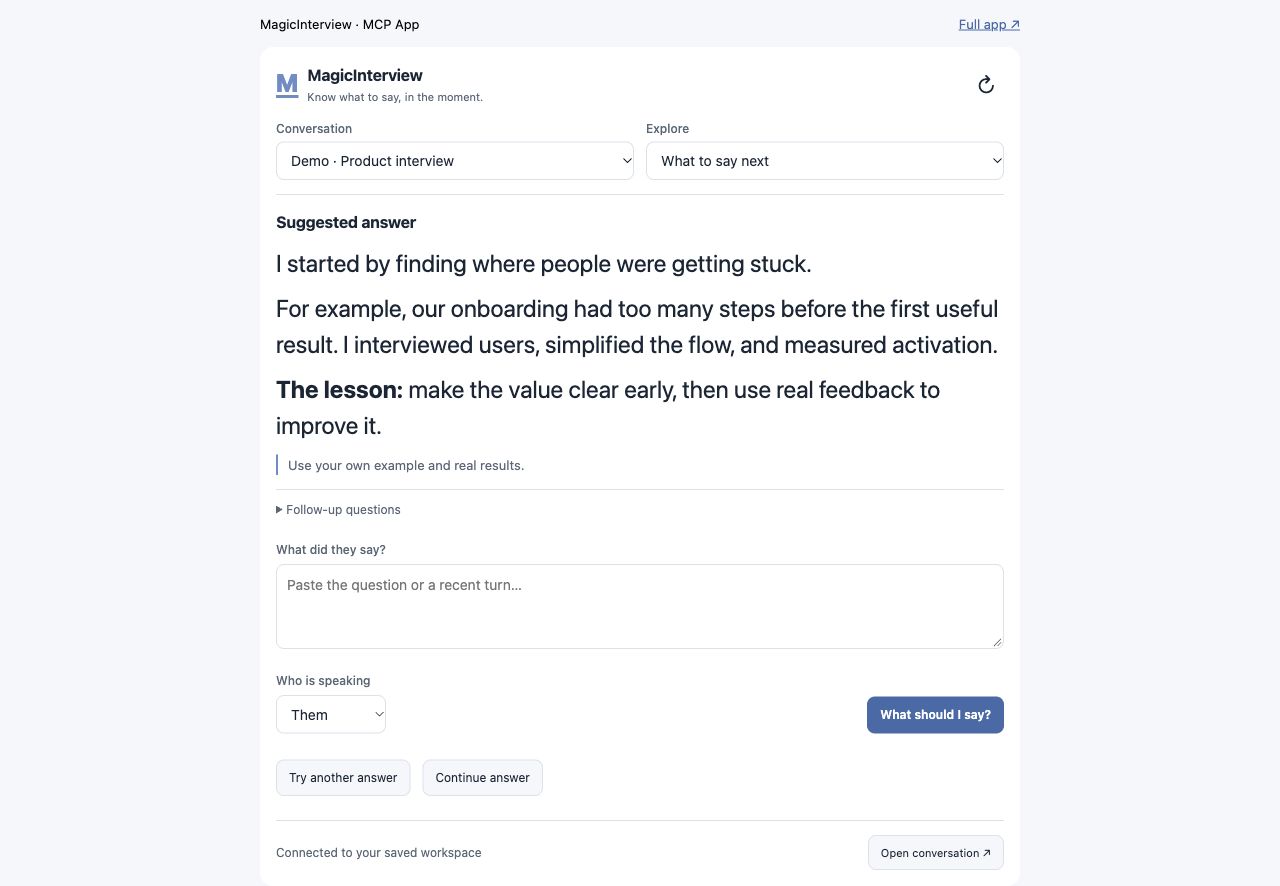
Espacio del asistente · contenido ficticio de demostración. El audio en directo se abre en la app completa. / Assistant workspace · fictional demo content. Live audio opens in the full app.
Empieza aquí · Start here
¿Es tu primera vez? MagicInterview te ayuda a saber qué decir en una entrevista o reunión. Puedes probar una preparación antes de crear una cuenta. La cuenta, la conexión con tu asistente y el espacio donde guardas tu CV, ofertas y notas son gratuitos. El coaching en la nube y las herramientas de IA requieren Pro.
flowchart TD
    A["1 · Prueba una preparación (opcional)<br/>Sin cuenta"] --> B["2 · Crea tu cuenta gratis<br/>Guarda CV, oferta y notas"]
    B --> C["3 · Conecta tu asistente<br/>Autoriza y vuelve al chat"]
    C --> D["4 · Prepara tu conversación<br/>Reutiliza tu contexto"]
    D --> E["¿Quieres coaching de IA?<br/>Consulta Pro y vuelve a tu pregunta"]
    D --> F["¿Quieres ayuda con audio en directo?<br/>Abre la misma conversación en la app"]
| Tu siguiente paso | Qué hacer | Qué obtienes |
|---|---|---|
| 1. Pruébalo (opcional) | Prueba gratuita sin cuenta | Una muestra de preparación antes de registrarte. |
| 2. Guarda tu contexto | Crea una cuenta gratis | Un espacio propio para CV, ofertas, notas y conversaciones. Sin tarjeta. |
| 3. Conecta tu asistente | Instala este plugin o añade el servidor; pulsa conectar e inicia sesión en el navegador. | Autoriza el acceso a tu cuenta y vuelve al mismo asistente. Los clientes compatibles usan OAuth, sin copiar tokens. |
| 4. Prepara y continúa | Pide: «Es mi primera vez. Ayúdame a preparar una entrevista con mi CV y la oferta, sin solicitar coaching de IA todavía». | Tu conversación y su contexto guardados. Cuando quieras coaching, consulta Pro y vuelve a tu pregunta. |
Para escuchar una llamada: abre la conversación en la app de MagicInterview y activa la escucha allí. El plugin usa texto y contexto guardado; no captura el audio de tu reunión desde el chat. Cómo funciona.
New to MagicInterview? You can try a preparation preview without an account, then create a free account to save your CV, job details and notes. Install this plugin, connect through your assistant's browser sign-in, approve access and return to the assistant. Ask it to prepare your first conversation using that context. Your account, connection and saved workspace are free; cloud coaching and AI tools require Pro. No card is required for a free account. Open the same conversation in the full app for live audio capture.
Branded skills and actions
The plugin provides magicinterview-get-started for first use and magicinterview-prepare-meeting for interview or meeting preparation. In supported assistants, ask MagicInterview to prepare the conversation using your CV, meeting brief or Notion notes. The magicinterview_prepare_meeting action saves a meeting or interview conversation and returns its direct link; live audio opens in the full app.
Live help when the conversation matters
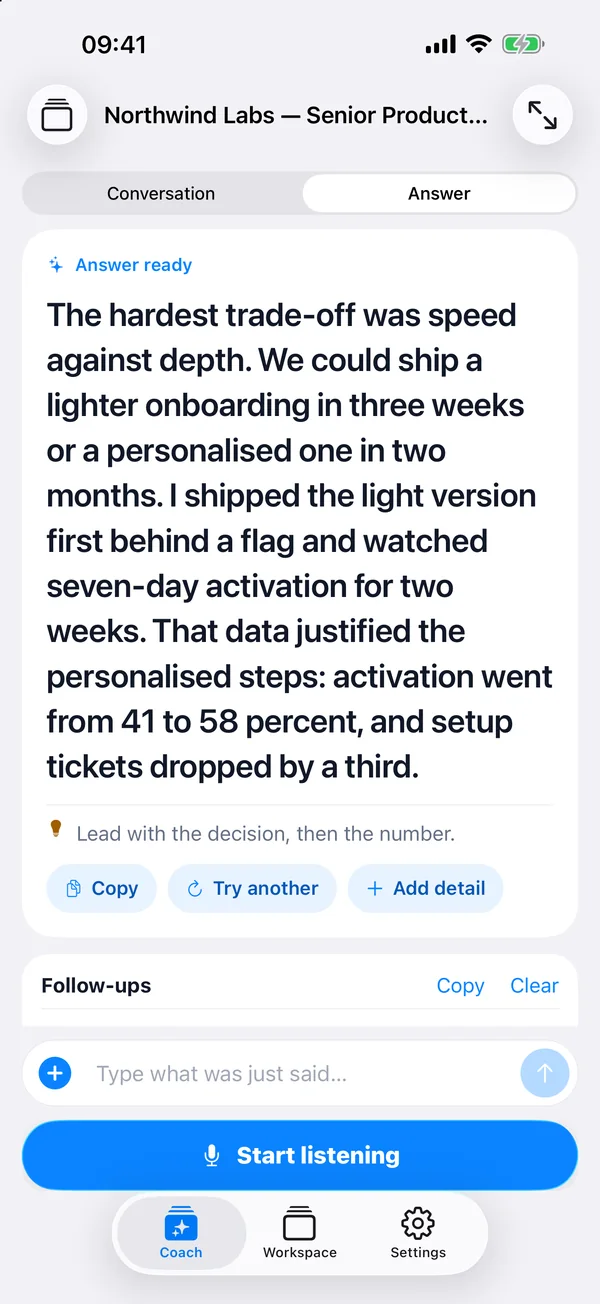
Interviewing for your next job? Add your CV and the job description. Get live suggestions that connect your experience to the role when the interviewer asks a question.
Finally meeting that potential client? Bring your client brief, offer, and past notes. Get help answering questions, responding to objections, and explaining the value of your offer as the call unfolds.
Keep your next answer in view. Open MagicInterview on your phone beside your computer, or use it on the same computer as your call. Start listening in MagicInterview and follow the suggestions as the conversation happens.
What the plugin connects
This plugin connects your AI assistant to your MagicInterview workspace so it can:
- Find, create, and update projects and conversations, then open the exact meeting in MagicInterview.
- Add relevant CVs, job descriptions, client briefs, and documents to your conversations.
- Keep shared project sources consistent across related meetings while preserving individual notes and history.
- Help set up today's professional meetings in time order. When your assistant has calendar or CRM access, it can use that context too.
- Request coaching and review saved guidance for a conversation.
Your assistant sets up the context and opens the right conversation. Start listening in the MagicInterview app when you are ready for live suggestions.
Notion notes and meeting sync: Connect Notion from Workspace → Notion on the web to import shared pages as reusable sources, or enable optional meeting sync. With meeting sync enabled, keep your brief in Notion and bring transcripts and saved coaching back to your notes. Set up Notion. Setup and sync management use the web app; saved sources stay available across signed-in devices.
A compact workspace inside your assistant
In compatible MCP App hosts, ask to open MagicInterview. The interactive workspace uses your connected account's real projects, conversations, sources, preferences, and saved history—not a separate copy.
One compact feature menu covers:
- What to say next and coding help: submit a question, get a context-aware answer, and read formatted prose or code.
- Transcript & speakers: inspect saved turns, add transcript text, and correct speaker labels.
- Context & files and projects & conversations: preview Markdown and original files, attach relevant sources, and manage shared project context and individual conversation notes.
- Research & CRM and recap & follow-up: ask your assistant to use its connected services and current sources, refresh relevant context, or draft a recap and follow-up without sending it.
- Languages & models and account settings: manage preferences and inspect connection status.
- Audio/text/screenshots, focus/reading, and voice practice: paste text in the workspace or open the same conversation in the full app for device-based audio, screenshots, focus controls, and voice practice.
Live listening does not start remotely through MCP. Use the web app on your computer or phone, or the Mac and Android apps. On iPhone, add MagicInterview to your Home Screen for quick access. Links preserve the selected conversation.
Source
The canonical plugin source lives in the MagicInterview monorepo under plugins/magicinterview (Claude and Codex marketplaces at the repository root). The public repository samihalawa/magicinterview-plugin is an automatic read-only mirror of that folder, and its releases stay downloadable. Every published listing is indexed in listings/README.md.
Install in Claude Code:
/plugin install magicinterview --marketplace samihalawa/2026-CODEX-MagicInterview
Release downloads
| Use | Download or connect |
|---|---|
| ChatGPT / OpenAI release archive | OpenAI package 1.4.5 — archived release package. For a new directory upload, run python3 scripts/package_openai.py /path/to/magicinterview-openai.zip from this directory. |
| Standard plugin files for local installation or development | Plugin source 1.4.5 — extract the archive, then use your client's supported local-plugin installation flow. Includes Claude and Codex manifests, skills and the standard MCP configuration. |
| Remote MCP clients, including Cursor and VS Code | Connect to https://magicinterview.ai/mcp using your client's remote MCP setup. No ZIP is required. Connection guides. |
Choose the package for your client. Marketplace installations follow that marketplace's update process; downloading a release does not publish or update a marketplace listing. Release source is pinned by the versioned release tag.
Connect through your assistant
Install the plugin and choose Connect in your AI assistant. When the browser opens, create a free MagicInterview account or sign in, approve the connection, and return to your assistant. OAuth-capable clients handle authorization without copying an API key. If your client only supports a bearer token, use the optional manual setup in connection settings; keep that token private.
Technical MCP endpoint
For clients configured manually, the remote Streamable HTTP endpoint is:
https://magicinterview.ai/mcp
For the public ChatGPT directory, use https://magicinterview.ai/mcp?toolset=directory to expose each supported operation directly. The default endpoint uses a compact operation catalog for other clients.
Suggested prompts
-
I am new to MagicInterview. Help me save my CV and job details and prepare my first conversation before requesting AI coaching.
-
Help me answer this interview question now. Use my CV and job description to suggest a clear response I can say aloud.
-
A client just raised an objection. Use my meeting brief to suggest what to say next and one useful follow-up question.
-
Open my MagicInterview workspace and prepare my next meeting with a concise brief and context for live answers.
If you get stuck
| What you see | What to do next |
|---|---|
| No account or a sign-in request | Create a free account in the connection window, approve access and return to your assistant. An installed plugin still needs an authorized connection. |
| An empty workspace | Ask your assistant to create your first conversation using the CV, job details or brief you supply. No prior projects are required. |
| “Pro required” | Follow the upgrade link returned by MagicInterview if you want cloud coaching. Keep the question and retry after upgrading; workspace preparation remains free. |
| A pending payment | Check the order status in Settings. Opening or returning from checkout does not confirm payment or Pro access. |
| A connection or conversation error | Ask your assistant to check the affected conversation and relevant saved debug information. Never paste tokens or passwords into the chat. |
Links
License
MIT
MagicInterview MCP 질문
MagicInterview MCP를 Claude Code에 추가하려면 어떻게 하나요?
터미널에서 claude mcp add --transport http magicinterview-plugin https://magicinterview.ai/mcp를 실행합니다. 모든 프로젝트에서 사용할 수 있게 하려면 --scope user를 추가합니다.
MagicInterview MCP를 Cursor에 추가하려면 어떻게 하나요?
~/.cursor/mcp.json를 열고 mcpServers 아래에 서버를 추가합니다. 위 설치 섹션에 표시된 Cursor 구성을 사용합니다.
인터뷰 준비를 위해 유료 구독이 필요한가요?
아니요, 계정을 생성하고 워크스페이스에 CV, 채용 공고, 메모를 저장하는 것은 무료입니다. 클라우드 코칭 및 AI 도구만 Pro 구독이 필요합니다.
Notion 메모를 MagicInterview에 어떻게 연결하나요?
웹의 Workspace 섹션에서 Notion을 연결하여 공유된 페이지를 재사용 가능한 소스로 가져올 수 있습니다.
이 플러그인의 인증 방식은 어떻게 되나요?
호환되는 클라이언트는 OAuth를 사용하여 브라우저 로그인으로 액세스 권한을 부여하므로 API 토큰을 복사할 필요가 없습니다.