
AI agent 또는 터미널에서 iOS 및 Android 기기의 디스플레이 보드로 실시간 업데이트와 스타일링된 콘텐츠를 전송합니다.
다른 이름 pushtodisplay/cli, pushtodisplay
- 스타
- 2
- Tools
- 8
- 다운로드, 30일
- —
- 최신 버전
- 0.1.14
- 마지막 커밋
- 2026년 11월 8일
- 라이선스
- MIT
PushToDisplay MCP란?
PushToDisplay은(는) MCP server입니다. AI agent 또는 터미널에서 iOS 및 Android 기기의 디스플레이 보드로 실시간 업데이트와 스타일링된 콘텐츠를 전송합니다. 8개 도구를 제공합니다. 예: pushtodisplay_send_update, pushtodisplay_list_boards, pushtodisplay_get_board.
프로젝트 README에서 생성된 요약
PushToDisplay MCP server 정보
이 MCP server를 사용하면 AI agent에서 모바일 디스플레이 보드로 실시간 업데이트와 스타일링된 콘텐츠를 푸시할 수 있습니다. 개발자와 자동화 시스템은 터미널이나 Claude, Cursor, VS Code Copilot과 같은 AI 클라이언트에서 텍스트 및 시각적 업데이트를 직접 전송하여 iOS 및 Android 기기를 실시간 상태 대시보드로 변환할 수 있습니다.
사용자는 메시지 브로드캐스트를 위한 pushtodisplay_send_update, 기존 설정을 확인하는 pushtodisplay_list_boards, 새로운 레이아웃을 만드는 pushtodisplay_create_board 등 다양한 전문 도구를 통해 디스플레이를 관리할 수 있습니다. 서버는 기존 CLI 세션의 인증을 상속하며, 브라우저 로그인이나 SSH 및 컨테이너와 같은 헤드리스 환경을 위한 디바이스 코드를 통해 인증을 설정할 수 있습니다. 자동화된 CI/CD 파이프라인의 경우 pt_ 접두사로 시작하는 API key를 사용하여 인증을 처리할 수 있습니다.
이 서버는 화면에 정보가 표시되는 방식을 세밀하게 제어할 수 있는 기능을 제공합니다. 텍스트 크기, 글꼴 두께, hex 색상, 배경색을 지정하거나 멀티 패널 레이아웃 내의 특정 패널을 대상으로 지정할 수 있습니다. JSON 블록을 통해 복잡한 스타일링을 지원하며, 모바일 기기에 정보가 명확하게 표시되도록 가로 또는 세로 정렬을 설정할 수 있습니다.
활용 사례
- 1배포 상태 업데이트 브로드캐스트AI agent가 소프트웨어 배포 성공 또는 실패 시 특정 보드로 알림을 보낼 수 있습니다.
- 2인프라 상태 시각적 모니터링개발자는 이 서버를 사용하여 색상별로 구분된 가동 시간 또는 API 상태 지표를 모바일 대시보드로 푸시할 수 있습니다.
- 3디스플레이 보드 구성 관리AI assistant가 다양한 모니터링 작업을 정리하기 위해 서로 다른 디스플레이 보드를 생성, 목록 확인 또는 삭제할 수 있습니다.
- 4CI/CD 상태 표시 자동화자동화된 스크립트가 API key를 사용하여 대화형 로그인 없이 실시간 로그나 빌드 결과를 모바일 화면으로 전송할 수 있습니다.
프로젝트의 README를 바탕으로 작성되었습니다. 모든 활용 사례는 해당 내용의 인용문과 대조하여 확인합니다.
PushToDisplay MCP 설치 방법
형식 확인: 2026년 11월 10일Cursor에 추가Goose에 추가Claude Code에 PushToDisplay MCP 설치
$ claude mcp add cli -- npx -y pushtodisplayCursor에 PushToDisplay MCP 설치
~/.cursor/mcp.json
{
  "mcpServers": {
    "cli": {
      "command": "npx",
      "args": [
        "-y",
        "pushtodisplay"
      ]
    }
  }
}VS Code에 PushToDisplay MCP 설치
.vscode/mcp.json
{
  "servers": {
    "cli": {
      "type": "stdio",
      "command": "npx",
      "args": [
        "-y",
        "pushtodisplay"
      ]
    }
  }
}VS Code CLI에 PushToDisplay MCP 설치
$ code --add-mcp '{"name":"cli","type":"stdio","command":"npx","args":["-y","pushtodisplay"]}'Claude Desktop에 PushToDisplay MCP 설치
claude_desktop_config.json
{
  "mcpServers": {
    "cli": {
      "command": "npx",
      "args": [
        "-y",
        "pushtodisplay"
      ]
    }
  }
}Codex에 PushToDisplay MCP 설치
$ codex mcp add cli -- npx -y pushtodisplayCodex config.toml에 PushToDisplay MCP 설치
~/.codex/config.toml
[mcp_servers.cli]
command = "npx"
args = ["-y", "pushtodisplay"]
Gemini CLI에 PushToDisplay MCP 설치
$ gemini mcp add -s user cli npx -- -y pushtodisplayGemini settings.json에 PushToDisplay MCP 설치
~/.gemini/settings.json
{
  "mcpServers": {
    "cli": {
      "command": "npx",
      "args": [
        "-y",
        "pushtodisplay"
      ]
    }
  }
}PushToDisplay MCP 도구 8
README에서 감지됨pushtodisplay_send_updatepushtodisplay_list_boardspushtodisplay_get_boardpushtodisplay_create_boardpushtodisplay_update_boardpushtodisplay_set_default_boardpushtodisplay_delete_boardpushtodisplay_list_devices
| pushtodisplay_send_update | — | |
| pushtodisplay_list_boards | — | |
| pushtodisplay_get_board | — | |
| pushtodisplay_create_board | — | |
| pushtodisplay_update_board | — | |
| pushtodisplay_set_default_board | — | |
| pushtodisplay_delete_board | — | |
| pushtodisplay_list_devices | — |
구성
PTD_API_KEY
| 이름 | 설명 | 유형 |
|---|---|---|
| PTD_API_KEY | — |
자동 검사
2026년 11월 12일에 실행됨전체 보고서 →자동 검사를 통과했습니다. 이는 보안 감사가 아닙니다. 코드를 직접 읽고 서버에 필요한 최소한의 권한만 부여하십시오. 검사 방식

- 소스 저장소 연결 및 접근 가능통과
- 오픈 소스 라이선스 (OSI)통과
- 최근 1년 내 커밋 또는 릴리스통과
- 패키지 이름이 인기 패키지와 유사하지 않음통과
- 원격 엔드포인트가 HTTPS 사용검사되지 않음
- 파괴적인 도구에 라벨 표시됨통과
- 모델에 대한 숨겨진 지침 없음통과
- 패키지 및 해당 종속성에 중요한 보안 권고 없음통과
README
GitHub에서 보기pushtodisplay
Command-line interface and MCP server for Push To Display — send real-time updates to display boards from your terminal or AI agents.
Get the app
Turn any screen into a live display board — get Push to Display on iOS and Android.


Install
Run directly with npx (no install needed):
npx pushtodisplay --help
Or install globally:
npm install -g pushtodisplay
Requires Node.js 18+. See the PushToDisplay documentation for guides, use cases, and API details.
Quick start
# Log in (opens browser)
pushtodisplay auth login

# Send an update (uses your default board)
pushtodisplay send "Hello, Display!"

# Send to a specific board
pushtodisplay send -b <board-id> "Deploy completed"

# List your boards
pushtodisplay boards list
Authentication
Log in with your Push To Display account — the same account you use in the mobile app.
Browser login (default)
pushtodisplay auth login
Opens your browser. Sign in and the CLI receives your credentials automatically.
Device code login (headless)
For machines without a browser — SSH sessions, containers, or remote servers:
pushtodisplay auth login --device-code
The CLI prints a URL and a one-time code. Open the URL on any device, enter the code, and approve the login.
Credentials are stored in your OS keychain (macOS Keychain, Linux libsecret, Windows Credential Manager). Falls back to ~/.config/pushtodisplay/ if the keychain is unavailable.
# Check auth status
pushtodisplay auth status

# Machine-readable status for scripts/agents (exit 0 = authenticated)
pushtodisplay auth status --json

# Log out (clear stored credentials)
pushtodisplay auth logout
auth status reports effective auth: an expired access token is still
reported as authenticated when a valid refresh token can renew it transparently
(a will refresh automatically note is shown instead of the raw token expiry).
It exits 0 when authenticated and 1 when not, so it is safe to gate
scripts on it.
{
  "authenticated": true,
  "method": "oauth",
  "accessTokenExpired": true,
  "canRefresh": true,
  "sessionExpiresAt": "2026-06-01T00:00:00.000Z"
}
Commands
send
Send a display update to a board.
# Simple text
pushtodisplay send -b my-board-id "Deploy succeeded"

# Styled text
pushtodisplay send -b my-board-id "Status" --size large --weight bold --color "#00FF00"

# Multiple inline runs — they stay on ONE line
pushtodisplay send -b my-board-id "Build:" "passing" --color "#22C55E"

# Panel targeting with layout options
pushtodisplay send -b my-board-id --panel 2 "Right panel content"
pushtodisplay send -b my-board-id --panel 1 --full-panel --density compact --align-x center "Alert"

# Per-run styling with JSON (repeatable)
pushtodisplay send -b my-board-id \
  --block '{"text": "API Health", "size": "large", "weight": "bold"}' \
  --block '{"text": "Uptime: 99.97%", "color": "#22C55E"}'

# Pipe a full JSON payload from stdin
echo '{"boardId":"my-board-id","blocks":[{"text":"From pipe"}]}' | pushtodisplay send --stdin
If no -b flag is provided, the server uses your default board.
How text renders
Blocks are inline runs, not lines. Think of <span>, not <p>. The blocks
of one message flow onto a single line in order, and wrap like a paragraph when
they run out of width:
pushtodisplay send -b my-board-id "Build:" "passing" --color "#22C55E"
renders as one line:
Build: passing
not as two lines. Each run keeps its own size, weight, colour, and background, so a message is one paragraph with styled runs inside it.
To put content on separate lines, send separate messages. Every send is its own entry in the panel's scrollable history, so multiple lines are multiple messages. Newlines inside a single message are not a layout mechanism.
--density sets the line height used when that paragraph wraps — it is not
the spacing between messages.
Note: in
--full-panelmode blocks are currently stacked on separate lines. That legacy behaviour is being removed so full-panel matches the inline model above.
Style flags
| Flag | Values | Description |
|---|---|---|
-s, --size |
small, medium, large |
Text size |
-w, --weight |
regular, semibold, bold |
Font weight |
-c, --color |
Hex color (#RRGGBB) |
Text color |
--background |
Hex color (#RRGGBB) |
Background color |
Panel flags
| Flag | Values | Description |
|---|---|---|
-p, --panel |
1–4 |
Target panel number |
--full-panel |
— | Enlarge to the whole board |
--density |
compact, standard, spacious |
Line height when text wraps |
--align-x |
start, center, end |
Horizontal alignment |
--align-y |
start, center, end |
Vertical alignment |
Other flags
| Flag | Description |
|---|---|
-b, --board |
Board ID |
--block <json> |
Inline styled run as JSON (repeatable) |
--stdin |
Read full JSON request from stdin |
boards
pushtodisplay boards list              # List all boards
pushtodisplay boards get <id>          # Get board details
pushtodisplay boards create -n "Name"  # Create a board
pushtodisplay boards create -n "Dash" -l 4  # Create with a layout
pushtodisplay boards delete <id>       # Delete a board
Create options:
| Flag | Description |
|---|---|
-n, --name |
Board name (required) |
-d, --description |
Board description |
-l, --layout |
Layout ID |
devices
pushtodisplay devices list # List active device-board streams
config
pushtodisplay config              # Show current configuration
pushtodisplay config show         # Same as above
JSON output
Add --json to any command for machine-readable output:
pushtodisplay boards list --json
pushtodisplay send -b my-board "test" --json
Configuration
Configuration is resolved in order: environment variables → config file → defaults.
| Env var | Description | Default |
|---|---|---|
PTD_API_URL |
API endpoint | https://api.pushtodisplay.com |
PTD_SERVICE_URL |
Service endpoint | https://services.pushtodisplay.com |
PTD_IDP_URL |
Identity provider | https://idp.pushtodisplay.com |
PTD_CONFIG_DIR |
Config directory | ~/.config/pushtodisplay |
MCP server
The CLI includes a built-in Model Context Protocol server, giving AI agents (Claude, Cursor, VS Code Copilot, and others) direct access to your display boards.
The MCP server inherits your CLI session — if you've run pushtodisplay auth login, it authenticates automatically.
Setup
Claude Code
claude mcp add pushtodisplay -- npx pushtodisplay mcp
Claude Desktop
Add to ~/Library/Application Support/Claude/claude_desktop_config.json (macOS) or %APPDATA%\Claude\claude_desktop_config.json (Windows):
{
  "mcpServers": {
    "pushtodisplay": {
      "command": "npx",
      "args": ["pushtodisplay", "mcp"]
    }
  }
}
Cursor
Open Settings → MCP Servers → Add Server, or edit .cursor/mcp.json:
{
  "mcpServers": {
    "pushtodisplay": {
      "command": "npx",
      "args": ["pushtodisplay", "mcp"]
    }
  }
}
VS Code (GitHub Copilot)
Add to .vscode/mcp.json:
{
  "servers": {
    "pushtodisplay": {
      "command": "npx",
      "args": ["pushtodisplay", "mcp"]
    }
  }
}
Other MCP clients
Any MCP client that supports stdio transport can use Push To Display. The server command is:
npx pushtodisplay mcp
Available MCP tools
| Tool | Description |
|---|---|
pushtodisplay_send_update |
Send content to a board |
pushtodisplay_list_boards |
List all boards |
pushtodisplay_get_board |
Get details of a board |
pushtodisplay_create_board |
Create a new board |
pushtodisplay_update_board |
Update a board's name, description, or layout |
pushtodisplay_set_default_board |
Set a board as your default |
pushtodisplay_delete_board |
Delete a board permanently |
pushtodisplay_list_devices |
List active device connections |
Commands at a glance
| Command | Description |
|---|---|
auth login |
Log in (browser or device code) |
auth logout |
Remove stored credentials |
auth status |
Show current auth status |
send [text...] |
Send a display update |
boards list |
List your boards |
boards get <id> |
Get board details |
boards create |
Create a new board |
boards delete <id> |
Delete a board |
devices list |
List active device connections |
config |
Show current configuration |
mcp |
Start the MCP server |
API key authentication
For CI/CD pipelines and scripts where interactive login isn't available, you can authenticate with an API key. Create one from the mobile app or the web portal. API keys start with pt_.
# Via environment variable
export PTD_API_KEY=pt_your_key_here
pushtodisplay send "From CI"

# Or store in keychain
pushtodisplay auth login --api-key pt_your_key_here
Note: API key auth only supports the
sendcommand. Useauth loginfor full access to boards, devices, and config management.
Screenshots
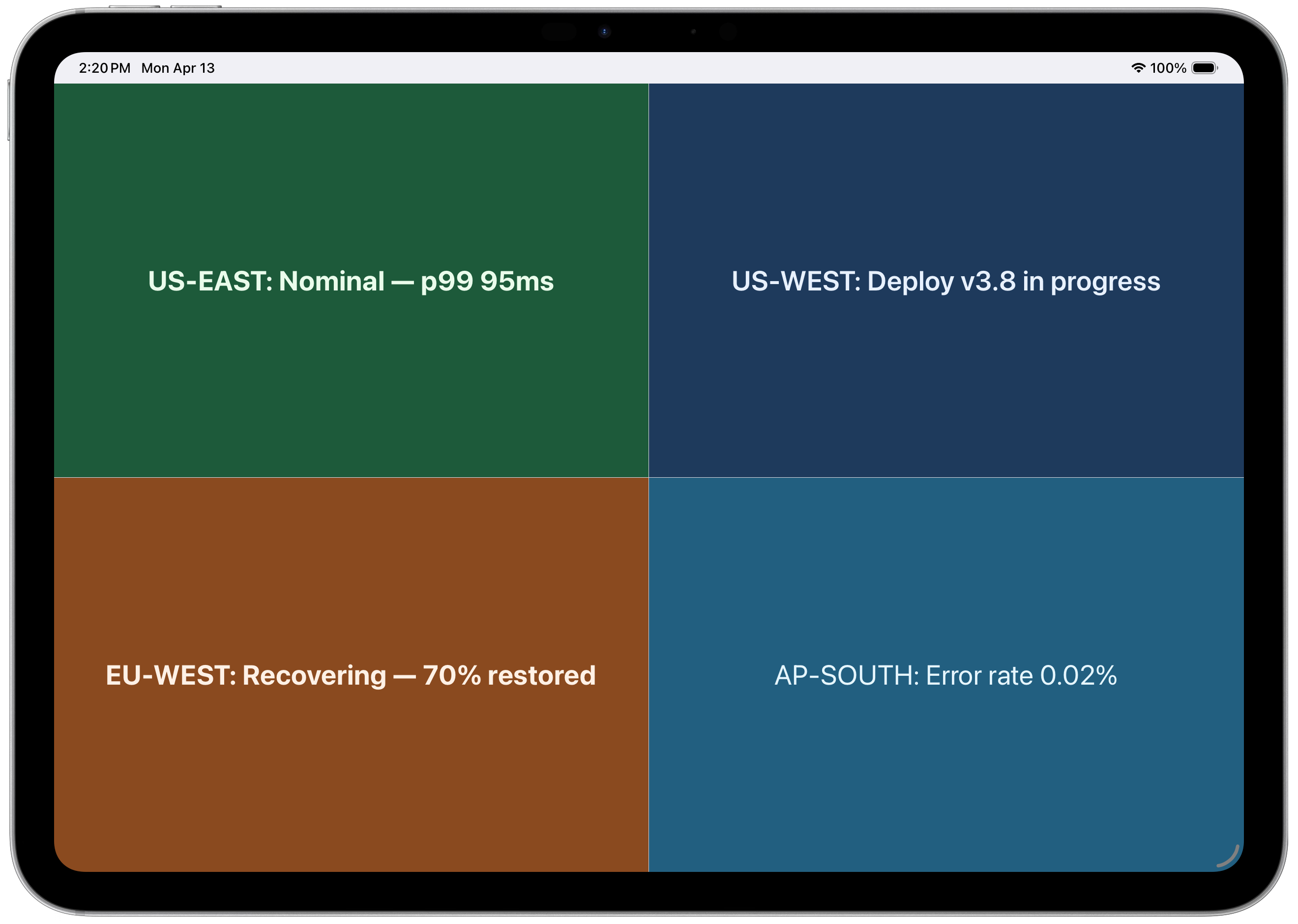
4-panel layout — regional status at a glance
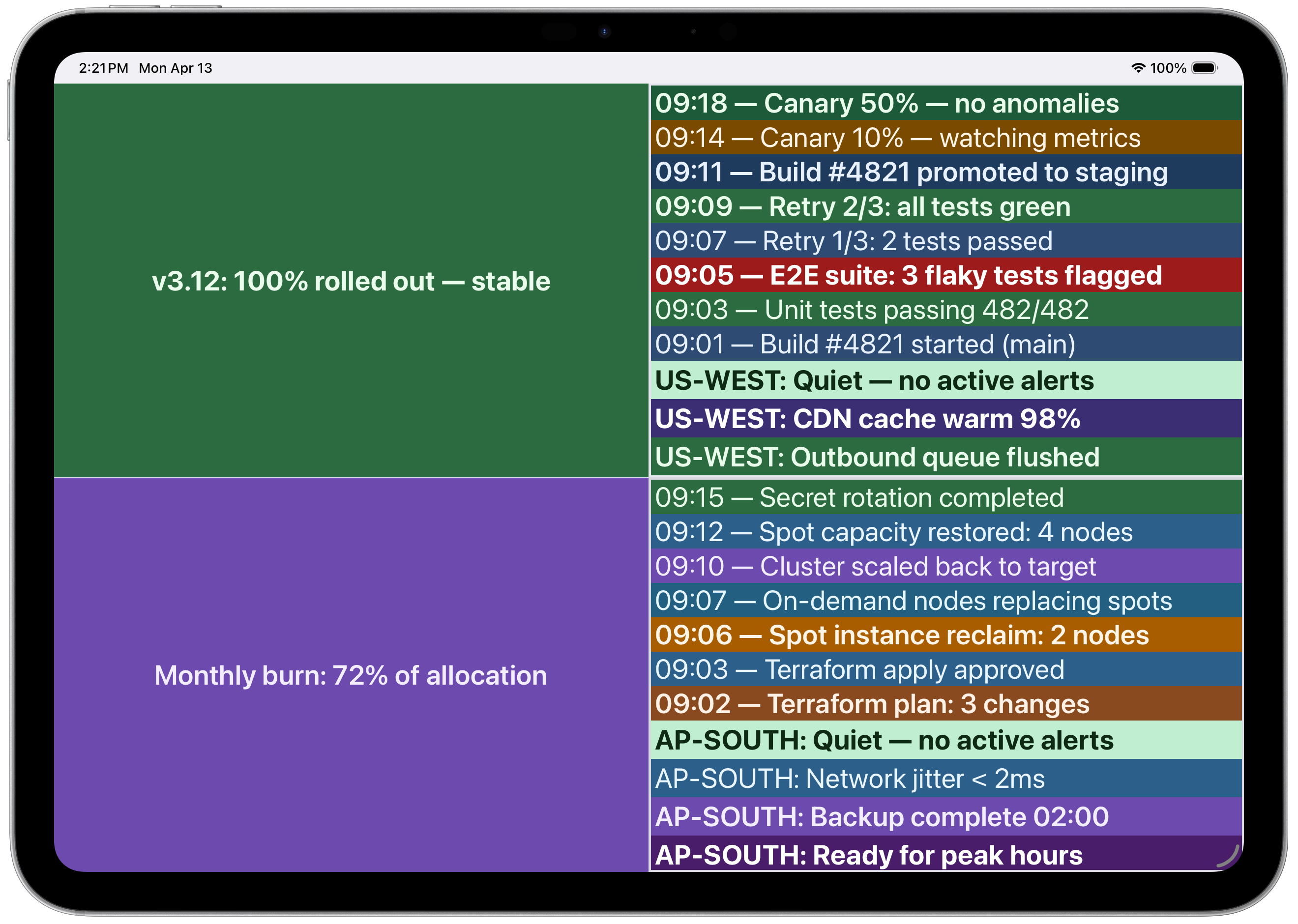 Multi-panel with CI/CD pipeline and infrastructure logs
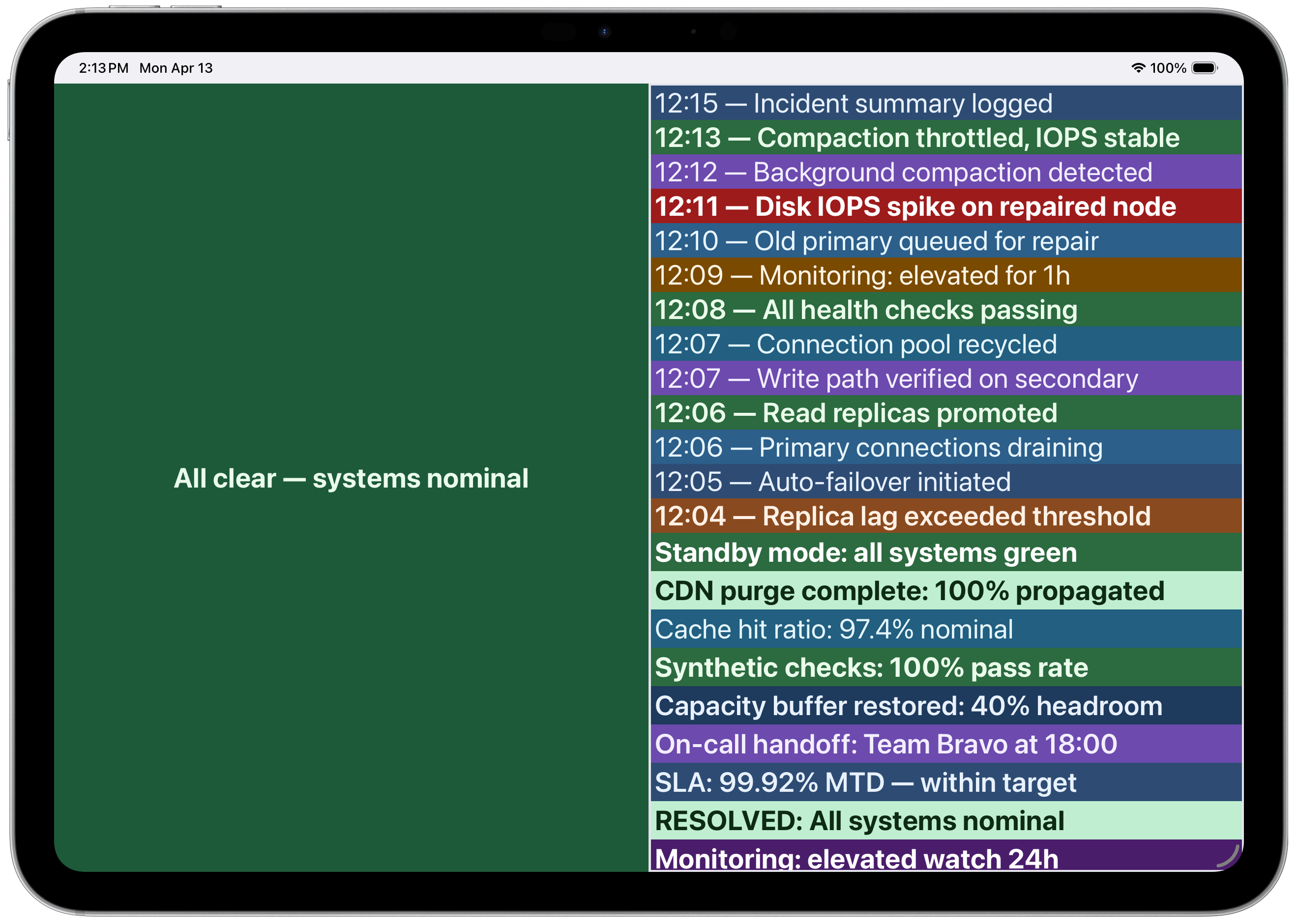 Incident timeline with color-coded severity
License
PushToDisplay MCP 질문
PushToDisplay MCP를 Claude Code에 추가하려면 어떻게 하나요?
터미널에서 claude mcp add cli -- npx -y pushtodisplay를 실행합니다. 모든 프로젝트에서 사용할 수 있게 하려면 --scope user를 추가합니다.
PushToDisplay MCP를 Cursor에 추가하려면 어떻게 하나요?
~/.cursor/mcp.json를 열고 mcpServers 아래에 서버를 추가합니다. 위 설치 섹션에 표시된 Cursor 구성을 사용합니다.
PushToDisplay MCP는 어떤 도구를 제공하나요?
8개 도구를 제공합니다. 예: pushtodisplay_send_update, pushtodisplay_list_boards, pushtodisplay_get_board, pushtodisplay_create_board, pushtodisplay_update_board.
CI/CD 파이프라인에서 API key를 사용할 수 있나요?
네, 환경 변수나 CLI를 통해 'pt_'로 시작하는 API key로 인증할 수 있습니다. 다만 API key 인증은 send 명령만 지원합니다.
MCP server는 인증을 어떻게 처리하나요?
MCP server는 기존 CLI 세션을 상속합니다. CLI를 통해 이미 로그인되어 있다면 자동으로 인증됩니다.