
AI 클라이언트가 Mac의 클립보드 기록과 스크린샷 텍스트를 로컬에서 검색, 읽기 및 다시 복사할 수 있도록 지원합니다.
다른 이름 pastea-app/pastea-mcp, pastea-mcp, @pastea/mcp
- 스타
- 0
- Tools
- —
- 다운로드, 30일
- —
- 최신 버전
- 1.0.4
- 마지막 커밋
- 2026년 9월 3일
- 라이선스
- MIT
Pastea MCP란?
Pastea은(는) MCP server입니다. AI 클라이언트가 Mac의 클립보드 기록과 스크린샷 텍스트를 로컬에서 검색, 읽기 및 다시 복사할 수 있도록 지원합니다.
프로젝트 README에서 생성된 요약
Pastea MCP server 정보
Pastea는 macOS 클립보드 기록을 AI 어시스턴트에 연결하는 로컬 브릿지를 제공합니다. 이 MCP server를 통해 Claude Desktop, Cursor, VS Code, Codex와 같은 도구들이 스크린샷에서 인식된 텍스트를 포함하여 복사된 항목들과 상호작용할 수 있습니다. 서버가 127.0.0.1에서 실행되므로 데이터는 Mac에 머물며 제3자 서버로 전송되지 않습니다.
사용자는 npx 명령어나 전용 설치 파일을 사용하여 서버를 통합할 수 있습니다. 연결이 완료되면 어시스턴트는 특정 도구를 사용하여 클립을 검색하고, 이미지 썸네일과 함께 전체 내용을 읽으며, 컬렉션을 나열하고, 항목을 시스템 클립보드에 다시 복사할 수 있습니다. 이 설정을 사용하려면 macOS 15 이상 및 Pastea Pro 구독이 필요합니다.
보안은 수동 권한 부여 프로세스를 통해 관리됩니다. AI 애플리케이션이 처음 연결을 시도하면 Pastea 앱에 승인을 요청하는 프롬프트가 나타납니다. Pastea 설정 메뉴를 통해 언제든지 특정 도구의 액세스 권한을 취소할 수 있습니다. 어시스턴트는 클립을 삭제하거나 비밀번호 관리자에 의해 숨겨진 항목에 접근하는 것이 제한됩니다.
활용 사례
- 1스크린샷에서 텍스트 추출이전에 복사한 이미지 내에 포함된 텍텍스트를 찾아 읽도록 AI 어시스턴트에게 요청합니다.
- 2클립보드 기록 검색최근 클립보드 활동에서 특정 링크나 파일 이름을 찾도록 AI에게 지시합니다.
- 3클립보드로 클립 복원AI 어시스턴트가 특정 과거 클립을 시스템 클립보드에 다시 배치하여 즉시 붙여넣을 수 있게 합니다.
- 4클립보드 컬렉션 관리Pastea에 정리된 다양한 컬렉션과 기록 개수를 나열하도록 AI에게 요청합니다.
프로젝트의 README를 바탕으로 작성되었습니다. 모든 활용 사례는 해당 내용의 인용문과 대조하여 확인합니다.
Pastea MCP 설치 방법
형식 확인: 2026년 11월 10일Cursor에 추가Goose에 추가Claude Code에 Pastea MCP 설치
$ claude mcp add pastea-mcp -- npx -y @pastea/mcpCursor에 Pastea MCP 설치
~/.cursor/mcp.json
{
  "mcpServers": {
    "pastea-mcp": {
      "command": "npx",
      "args": [
        "-y",
        "@pastea/mcp"
      ]
    }
  }
}VS Code에 Pastea MCP 설치
.vscode/mcp.json
{
  "servers": {
    "pastea-mcp": {
      "type": "stdio",
      "command": "npx",
      "args": [
        "-y",
        "@pastea/mcp"
      ]
    }
  }
}VS Code CLI에 Pastea MCP 설치
$ code --add-mcp '{"name":"pastea-mcp","type":"stdio","command":"npx","args":["-y","@pastea/mcp"]}'Claude Desktop에 Pastea MCP 설치
claude_desktop_config.json
{
  "mcpServers": {
    "pastea-mcp": {
      "command": "npx",
      "args": [
        "-y",
        "@pastea/mcp"
      ]
    }
  }
}Codex에 Pastea MCP 설치
$ codex mcp add pastea-mcp -- npx -y @pastea/mcpCodex config.toml에 Pastea MCP 설치
~/.codex/config.toml
[mcp_servers.pastea-mcp]
command = "npx"
args = ["-y", "@pastea/mcp"]
Gemini CLI에 Pastea MCP 설치
$ gemini mcp add -s user pastea-mcp npx -- -y @pastea/mcpGemini settings.json에 Pastea MCP 설치
~/.gemini/settings.json
{
  "mcpServers": {
    "pastea-mcp": {
      "command": "npx",
      "args": [
        "-y",
        "@pastea/mcp"
      ]
    }
  }
}구성
PASTEA_MCP_URL
| 이름 | 설명 | 유형 |
|---|---|---|
| PASTEA_MCP_URL | — |
자동 검사
2026년 11월 14일에 실행됨전체 보고서 →자동 검사를 통과했습니다. 이는 보안 감사가 아닙니다. 코드를 직접 읽고 서버에 필요한 최소한의 권한만 부여하십시오. 검사 방식

- 소스 저장소 연결 및 접근 가능pastea-app/pastea-mcp is public and reachablegithub.com/pastea-app/pastea-mcp ↗통과
- 패키지가 이 저장소를 소스로 명시@pastea/mcp names pastea-app/pastea-mcp as sourcenpmjs.com/package/@pastea/mcp ↗통과
- 빌드 출처(Sigstore 증명)Sigstore attestation for @pastea/mcpnpmjs.com/package/@pastea/mcp/v/1.0.4#provenance ↗통과
- 오픈 소스 라이선스 (OSI)MITspdx.org/licenses/MIT.html ↗통과
- 최근 1년 내 커밋 또는 릴리스Last commit or release 2026-09-03github.com/pastea-app/pastea-mcp ↗통과
- OpenSSF Scorecard검사되지 않음
- 패키지 이름이 인기 패키지와 유사하지 않음No popular package one edit away from @pastea/mcp통과
- 패키지 및 해당 종속성에 중요한 보안 권고 없음1 resolved dependencies checked; no critical advisoryosv.dev ↗통과
- 모델에 대한 숨겨진 지침 없음0 tool descriptions and the README read; no override phrases, credential paths or hidden characters통과
- 파괴적인 도구에 라벨 표시됨검사되지 않음
- 원격 엔드포인트가 MCP 핸드셰이크에 응답검사되지 않음
README
GitHub에서 보기Pastea MCP


Local MCP server for Pastea. Give Claude, Cursor, Codex, VS Code and other AI tools access to your Mac's clipboard history — without anything leaving your Mac.
Your assistant can search what you copied, pull a clip into context (including the text Pastea reads inside your screenshots), and put a clip back on the clipboard for you to paste.
Pastea runs the MCP server itself, on 127.0.0.1 only. This package is the thin,
dependency-free bridge that AI apps launch: it finds Pastea, asks it for access once —
you click Allow in Pastea — and relays messages over stdio.
Install
Claude Desktop
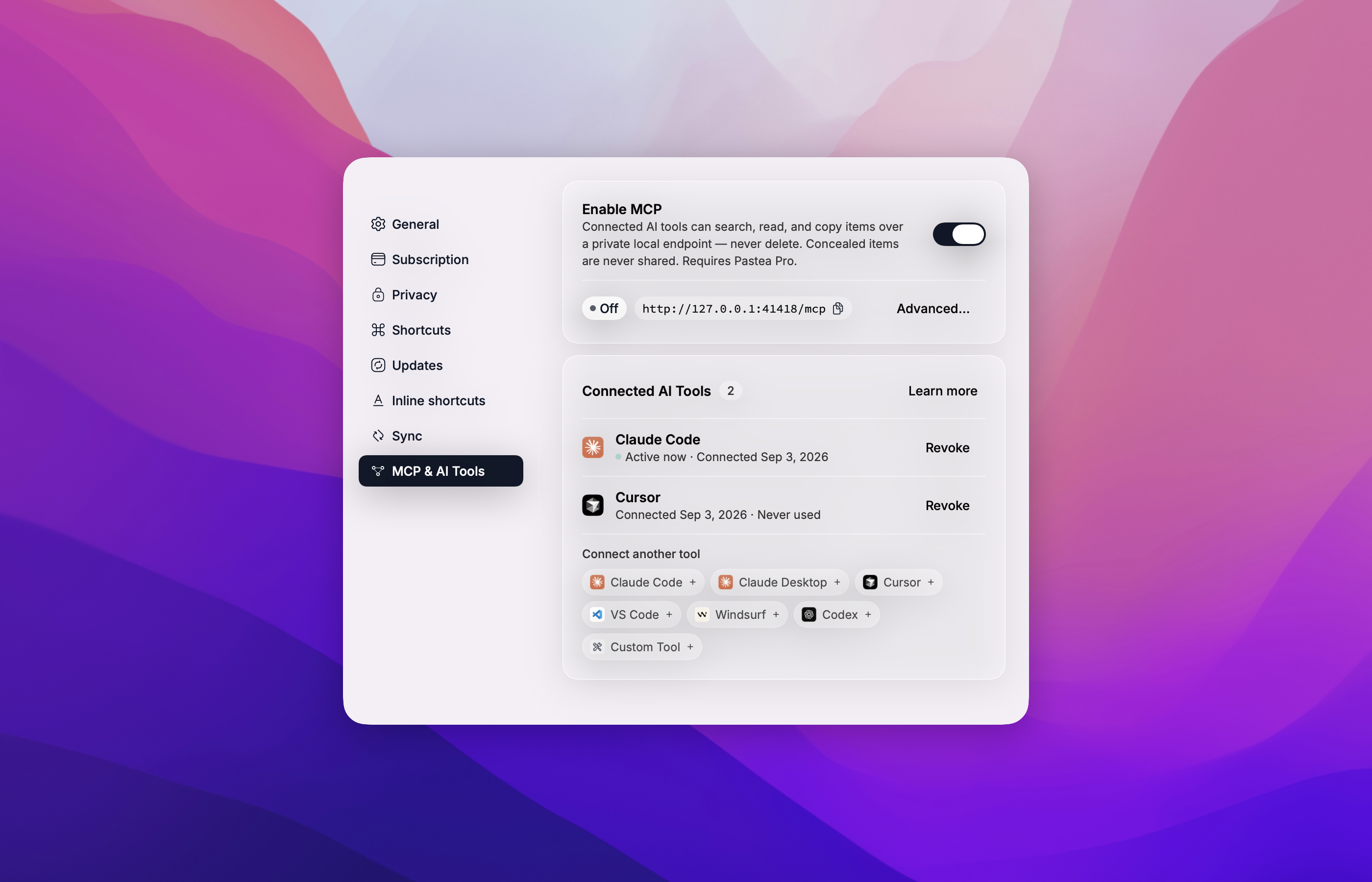
One click from Pastea: open Settings → MCP & AI Tools, turn on Enable MCP, and click Claude Desktop. Claude Desktop opens with the Pastea extension ready to install.
Or find Pastea in Claude Desktop under Settings → Extensions → Browse extensions, or
download pastea-mcp-<version>.mcpb from the
latest release and double-click it.
The first time Claude uses it, Pastea asks you to allow the connection.
Every other AI app
Use add-mcp to connect Pastea to all your installed
AI apps at once:
npx add-mcp @pastea/mcp
Or connect each app yourself:
Claude Code
claude mcp add pastea -- npx -y @pastea/mcp
Codex
codex mcp add pastea -- npx -y @pastea/mcp
Cursor

VS Code

Anything else that runs stdio MCP servers:
{ "mcpServers": { "pastea": { "command": "npx", "args": ["-y", "@pastea/mcp"] } } }
The first time an app uses Pastea, Pastea shows "Allow <app> to use your clipboard history?" — click Allow and the tools appear.
Connect from Pastea
Every app above can also be connected from inside Pastea — Settings → MCP & AI Tools, click the app's chip. Cursor and VS Code open an install prompt; Claude Code, Windsurf and Codex get the exact command or config to paste, already carrying an access token, so no pairing prompt is needed.
What your assistant can do
| Tool | What it does |
|---|---|
search_clips |
Search your clipboard history and lists — text, links, file names, and text recognized in screenshots. |
get_clip |
Read one clip in full, with a thumbnail for pictures. |
list_collections |
List your history and the lists you made, with counts. |
copy_clip |
Put a clip back on the system clipboard, exactly as copied. You paste it yourself with ⌘V. |
pastea_status |
Says whether Pastea is reachable and connected, and what to do if not. |
An AI tool can never delete a clip, never pastes into another app, and never sees items Pastea conceals (from password managers).
How pairing works
The bridge ships with no credentials. On first use it asks Pastea for access and Pastea shows
"Allow Claude Desktop to use your clipboard history?" (or Cursor, Codex, …). Click Allow
and the tools appear a moment later; click Don't Allow and nothing is granted — the assistant
gets a pastea_status tool that explains the situation.
Connections are listed in Pastea → Settings → MCP & AI Tools → Connected AI Tools, where you can Revoke each one. Pastea then asks again only if you ask the assistant to reconnect.
Requirements
- macOS 15 or later
- Pastea 1.3+ with Pastea Pro, and Enable MCP turned on in Settings → MCP & AI Tools
- For
npxinstalls: Node.js 20+ (Claude Desktop needs nothing — it ships its own)
Privacy Policy
Pastea MCP runs locally on your Mac.
- It connects only to Pastea on
127.0.0.1and to nothing else. It makes no network requests to Nexo Labs or any third party, and carries no analytics or telemetry. - It moves clipboard data only between Pastea and the AI app that runs it, and only after you clicked Allow in Pastea. What that AI app does with clips it reads is governed by that app's own privacy policy.
- It stores one thing: the access token Pastea issued when you clicked Allow, in
~/Library/Application Support/Pastea/MCP Bridge/tokens.json, readable by your user account only. Revoking the connection in Pastea invalidates it immediately; uninstalling Pastea removes the file. - Concealed clips are never available to it, and it cannot delete anything.
Full policy — what data Pastea processes, how it is stored, sharing, retention, and contact: https://pastea.app/privacy.
Troubleshooting
"Pastea isn't running, or its MCP endpoint is turned off."
Open Pastea and turn on Enable MCP in Settings → MCP & AI Tools, then ask the assistant to
call pastea_status.
"Pastea Pro is required."
MCP access is a Pro feature. Subscribe in Pastea's Settings, then call pastea_status.
"Pastea is asking the user to allow this connection." Look for the Pastea window — it may be behind the AI app — and click Allow.
The tools vanished.
The connection was revoked in Pastea, or Pastea was reset. Ask the assistant to call
pastea_status to pair again.
Tools don't show up after connecting. Fully quit and reopen the AI app so it relaunches the bridge.
Changed Pastea's port? The bridge reads it from Pastea's preferences on every launch; restart the AI app.
Logs for Claude Desktop: ~/Library/Logs/Claude/mcp-server-Pastea.log. The bridge never logs
the token.
Development
npm install
npm test            # node --test, no network
npm run build       # tsc → dist/
scripts/pack.sh     # validate + pack → build/pastea-mcp-<version>.mcpb + SHA256SUMS
Run it against a development Pastea by hand:
PASTEA_MCP_URL=http://127.0.0.1:41418/mcp node dist/index.js
then type JSON-RPC lines on stdin (initialize, notifications/initialized, tools/list).
Releases are cut by tagging v<version> (matching package.json, manifest.json,
server.json and src/version.ts); the workflow packs the bundle and publishes it.
Contributing
Issues and pull requests welcome — see the issue tracker.
License
Pastea MCP 질문
Pastea MCP를 Claude Code에 추가하려면 어떻게 하나요?
터미널에서 claude mcp add pastea-mcp -- npx -y @pastea/mcp를 실행합니다. 모든 프로젝트에서 사용할 수 있게 하려면 --scope user를 추가합니다.
Pastea MCP를 Cursor에 추가하려면 어떻게 하나요?
~/.cursor/mcp.json를 열고 mcpServers 아래에 서버를 추가합니다. 위 설치 섹션에 표시된 Cursor 구성을 사용합니다.
Pastea를 통해 AI 어시스턴트가 무엇을 할 수 있나요?
어시스턴트는 클립보드 기록(스크린샷 내 텍스트 포함)을 검색하고, 썸네일과 함께 전체 클립을 읽으며, 컬렉션을 나열하거나 클립을 시스템 클립보드에 다시 복사할 수 있습니다.
클립보드 데이터가 클라우드로 전송되나요?
아니요, 서버는 Mac에서 로컬로 실행되며 127.0.0.1을 통해 Pastea에만 연결되므로 외부 네트워크 요청을 수행하지 않습니다.
Pastea 무료 버전에서도 작동하나요?
아니요, MCP 액세스를 위해서는 Pastea Pro 구독이 필요합니다.
AI가 클립보드 기록을 삭제할 수 있나요?
아니요, AI 어시스턴트는 클립을 삭제하거나 비밀번호 관리자에서 숨겨진 항목을 보는 것이 제한됩니다.