
AI 클라이언트가 입력된 JSON을 기반으로 아키텍처 다이어그램을 생성 및 편집하고, 이를 SVG, PNG, ASCII, GIF 또는 MP4로 내보낼 수 있습니다.
다른 이름 hudsonkit/arc, @hudsonkit/arc-mcp
- 스타
- 17
- Tools
- —
- 다운로드, 30일
- 509
- 최신 버전
- —
- 마지막 커밋
- 2026년 11월 14일
- 라이선스
- MIT
Arc MCP란?
Arc은(는) MCP server입니다. AI 클라이언트가 입력된 JSON을 기반으로 아키텍처 다이어그램을 생성 및 편집하고, 이를 SVG, PNG, ASCII, GIF 또는 MP4로 내보낼 수 있습니다.
프로젝트 README에서 생성된 요약
Arc MCP server 정보
Arc는 AI 에이전트를 사용하는 개발자가 타입 지정된 JSON 또는 TypeScript를 통해 아키텍처 다이어그램을 생성하고 편집할 수 있게 해줍니다. 이 툴킷을 사용하면 애플리케이션 코드와 함께 버전 관리가 가능하고 편집할 수 있는 복잡한 시스템, 워크플로 또는 일러스트레이션을 정의할 수 있습니다. MCP server를 제공함으로써 AI 클라이언트는 노드, 연결 및 공간 레이어를 조작하여 시각적 설명을 동적으로 구축할 수 있습니다.
사용자는 이러한 선언적 정의를 SVG, PNG, ASCII, GIF, MP4를 포함한 다양한 형식으로 변환할 수 있습니다. 애니메이션화된 흐름 경로 또는 비디오 내보내기를 위해서는 Chrome/Chromium과 ffmpeg가 필요합니다. 또한 이 서버는 Mermaid 소스 가져오기를 지원하여 사용자가 순서도, 상태 다이어그램 또는 시퀀스 다이어그램을 대화형 Arc 다이어그램으로 변환할 수 있도록 합니다. 이를 통해 요청 경로를 애니메이션으로 구현하거나 메시지 단위로 시퀀스를 단계별로 보여주는 등 시스템 동작을 문서화하는 데 유용한 도구로 활용할 수 있습니다.
활용 사례
- 1텍스트로 아키텍처 다이어그램 생성AI 에이전트가 시스템 설명을 받아 구조화된 JSON 또는 TypeScript 다이어그램 정의로 변환할 수 있습니다.
- 2Mermaid 다이어그램을 대화형 비주얼로 변환개발자는 기존 Mermaid 순서도나 시퀀스 다이어그램을 가져와 Arc의 레이아웃 및 재생 기능을 사용할 수 있습니다.
- 3문서화를 위한 다이어그램 내보내기디지털 다이어그램을 정적 이미지나 애니메이션 비디오로 변환하여 README 파일이나 발표 자료에 사용할 수 있습니다.
- 4시스템 요청 경로 애니메이션화데이터가 다양한 서비스와 큐를 통해 어떻게 이동하는지 보여주는 가이드 워크스루를 생성하는 데 이 도구를 사용합니다.
프로젝트의 README를 바탕으로 작성되었습니다. 모든 활용 사례는 해당 내용의 인용문과 대조하여 확인합니다.
Arc MCP 설치 방법
형식 확인: 2026년 11월 10일Cursor에 추가Goose에 추가Claude Code에 Arc MCP 설치
$ claude mcp add arc -- npx -y @hudsonkit/arc-mcpCursor에 Arc MCP 설치
~/.cursor/mcp.json
{
  "mcpServers": {
    "arc": {
      "command": "npx",
      "args": [
        "-y",
        "@hudsonkit/arc-mcp"
      ]
    }
  }
}VS Code에 Arc MCP 설치
.vscode/mcp.json
{
  "servers": {
    "arc": {
      "type": "stdio",
      "command": "npx",
      "args": [
        "-y",
        "@hudsonkit/arc-mcp"
      ]
    }
  }
}VS Code CLI에 Arc MCP 설치
$ code --add-mcp '{"name":"arc","type":"stdio","command":"npx","args":["-y","@hudsonkit/arc-mcp"]}'Claude Desktop에 Arc MCP 설치
claude_desktop_config.json
{
  "mcpServers": {
    "arc": {
      "command": "npx",
      "args": [
        "-y",
        "@hudsonkit/arc-mcp"
      ]
    }
  }
}Codex에 Arc MCP 설치
$ codex mcp add arc -- npx -y @hudsonkit/arc-mcpCodex config.toml에 Arc MCP 설치
~/.codex/config.toml
[mcp_servers.arc]
command = "npx"
args = ["-y", "@hudsonkit/arc-mcp"]
Gemini CLI에 Arc MCP 설치
$ gemini mcp add -s user arc npx -- -y @hudsonkit/arc-mcpGemini settings.json에 Arc MCP 설치
~/.gemini/settings.json
{
  "mcpServers": {
    "arc": {
      "command": "npx",
      "args": [
        "-y",
        "@hudsonkit/arc-mcp"
      ]
    }
  }
}자동 검사
2026년 11월 14일에 실행됨전체 보고서 →자동 검사를 통과했습니다. 이는 보안 감사가 아닙니다. 코드를 직접 읽고 서버에 필요한 최소한의 권한만 부여하십시오. 검사 방식

- 소스 저장소 연결 및 접근 가능hudsonkit/arc is public and reachablegithub.com/hudsonkit/arc ↗통과
- 패키지가 이 저장소를 소스로 명시@hudsonkit/arc-mcp names hudsonkit/arc as sourcenpmjs.com/package/@hudsonkit/arc-mcp ↗통과
- 빌드 출처(Sigstore 증명)Sigstore attestation for @hudsonkit/arc-mcpnpmjs.com/package/@hudsonkit/arc-mcp/v/0.14.1#provenance ↗통과
- 오픈 소스 라이선스 (OSI)MITspdx.org/licenses/MIT.html ↗통과
- 최근 1년 내 커밋 또는 릴리스Last commit or release 2026-11-09github.com/hudsonkit/arc ↗통과
- OpenSSF Scorecard검사되지 않음
- 패키지 이름이 인기 패키지와 유사하지 않음No popular package one edit away from @hudsonkit/arc-mcp통과
- 패키지 및 해당 종속성에 중요한 보안 권고 없음검사되지 않음
- 모델에 대한 숨겨진 지침 없음0 tool descriptions and the README read; no override phrases, credential paths or hidden characters통과
- 파괴적인 도구에 라벨 표시됨검사되지 않음
- 원격 엔드포인트가 MCP 핸드셰이크에 응답검사되지 않음
README
GitHub에서 보기Arc is a declarative diagram toolkit for creating, presenting, and refining visual explanations with AI agents. Define an architecture, workflow, or illustration in JSON or TypeScript. Turn that source into an interactive walkthrough, an embedded viewer, or a finished figure for your docs.
Author the source yourself, work in the visual studio, or give an agent the Arc skill and MCP tools. The diagram stays editable, typed, and ready to version alongside your code. The live review preview builds on that same format: watch an agent develop the explanation while you review the changes.
Supported Mermaid source can also become an Arc diagram or a playable sequence.
Get started · Live review preview · Examples · Documentation · Open the studio



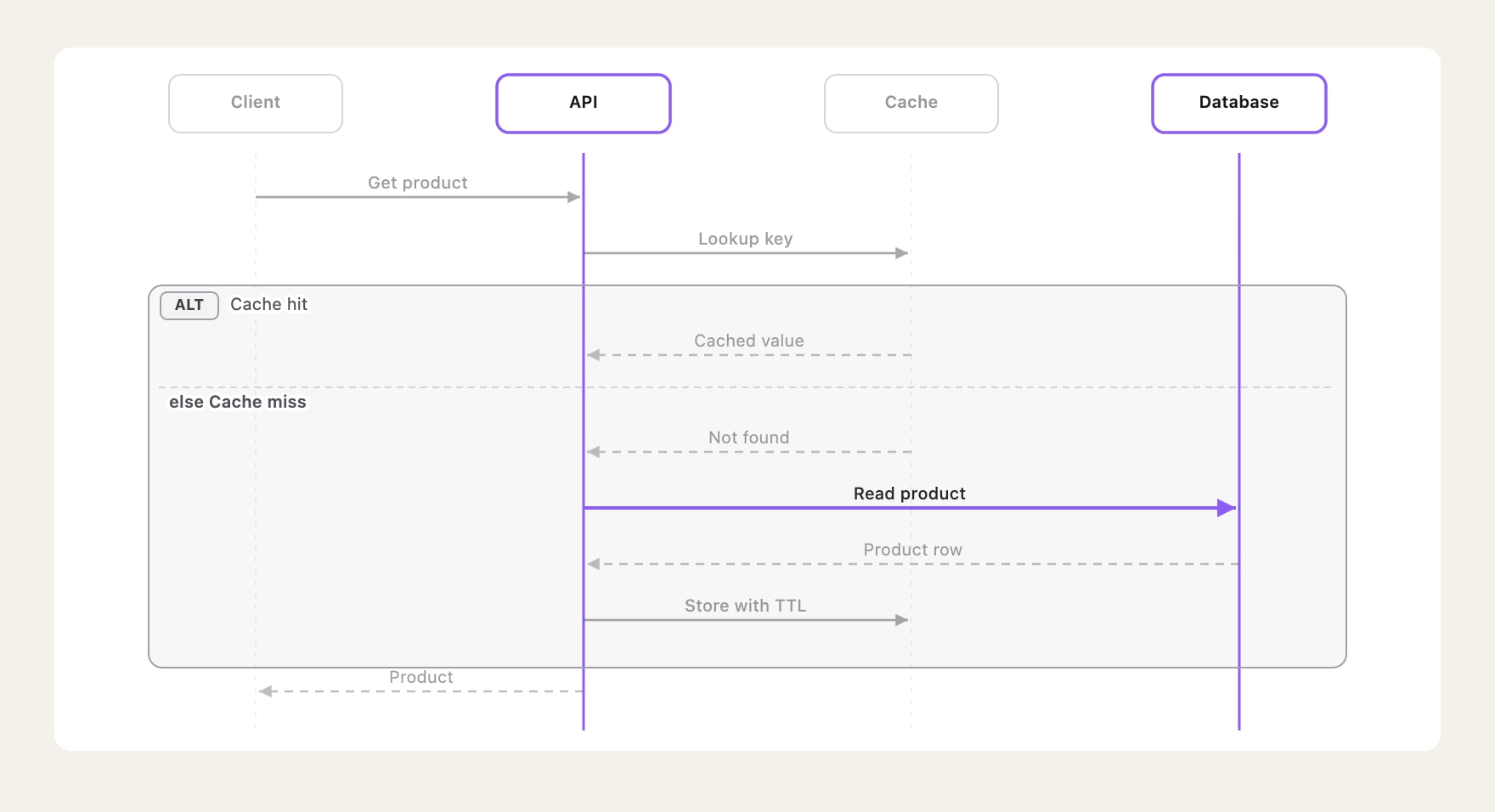
A cache miss, step by step: play the sequence, inspect its Mermaid source, and switch between light and dark.
▶ Watch the 24-second video · Try the interactive demo
- Explain the structure. Use components, connections, groups, and spatial layers to show how a system fits together.
- Explain the behavior. Add guided chapters, animate a request, or step through a Mermaid sequence one message at a time.
- Use the result. Embed a React viewer, edit in the studio, or export an image or flow animation. Keep the source for the next change.
Review the diagram as your agent works
Private preview. Bring the diagram into a live architecture review in the Hudson Kit studio. An agent adds and moves nodes through MCP while you watch the canvas update. A marked work region shows where the agent is working. Nodes and connections transition smoothly as the view fits the changing diagram.
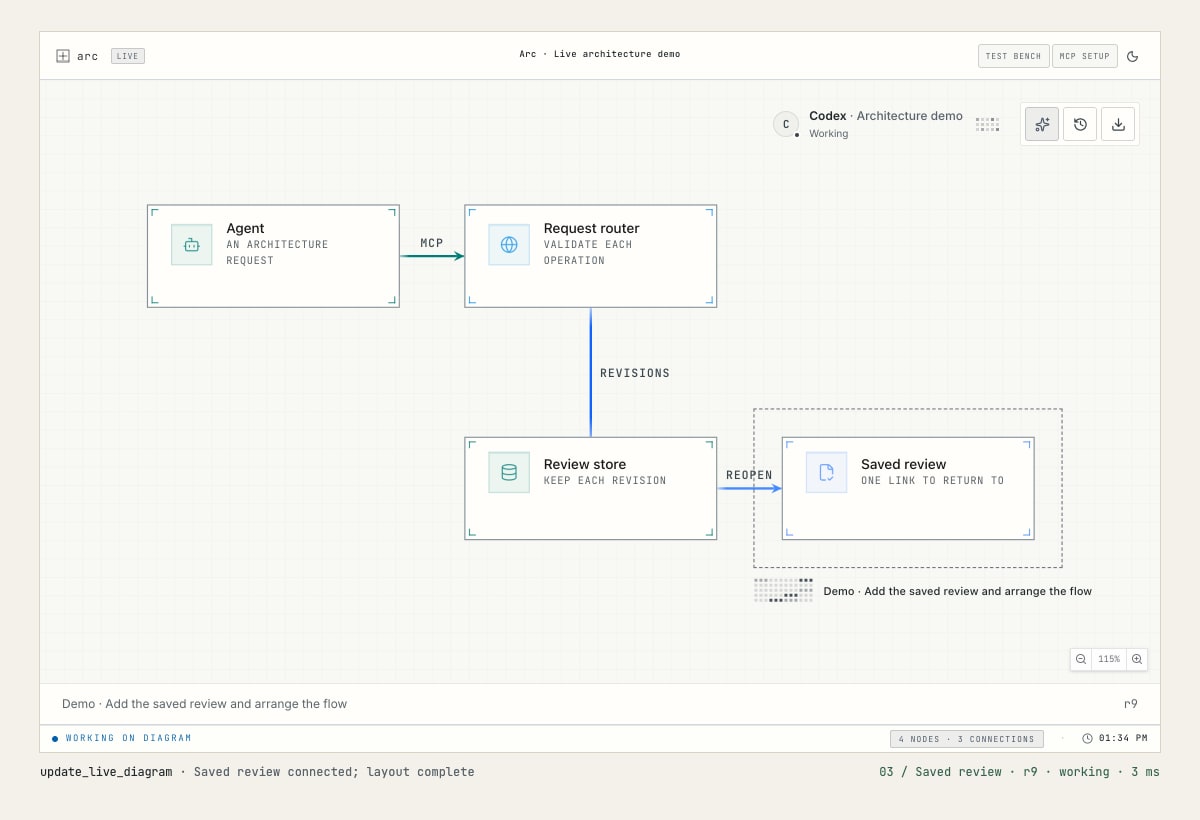
Watch the 22-second demo · Open the 60 fps video
- See work in progress. Presence shows the agent's harness and name when provided. Activity appears over the declared work region and settles when work ends.
- Review together. One agent writes to a review; multiple people can follow it through a private, read-only viewer link.
- Return to the review. Saved architecture reviews retain the baseline, revisions, findings, and decisions. Reopen them on the same private host.
- Keep the source. Live changes use the same declarative Arc data as the renderers. Refine the definition, present it, and produce your final output.
The video shows the private preview, which is not yet included in the published MCP package. The setup below covers the released diagram tools.
Bring your source. Choose your output.
| Start with | What Arc supports |
|---|---|
| Arc JSON / TypeScript | Architecture diagrams, guided views, animated flow routes, and isometric views. |
| Mermaid flowcharts and state diagrams | Import into editable Arc architecture data with importMermaid() from @hudsonkit/arc-viewer. |
| Mermaid sequence diagrams | Native rendering and step-by-step playback with ArcMermaidPlayer from @hudsonkit/arc-viewer. |
| Mermaid source used with Pele or Beautiful Mermaid | Reuse the supported flowchart, state, and sequence syntax through those same Arc APIs. |
Pele and Beautiful Mermaid are Mermaid renderers. Bring the original Mermaid text to Arc; Arc applies its own layout, themes, and interactions. Their rendered SVGs, theme settings, and full diagram catalogs are not imported. Check the import coverage and sequence guide for supported syntax and diagnostics.
| Output | Use it for |
|---|---|
| PNG | Still images for documents, chat, and social posts. |
| SVG | Scalable vector drawings, including animated flow routes. |
| GIF | Looping flow animations for READMEs and demos. |
| MP4 | Flow videos for presentations and announcements. |
| React / HTML | Interactive components, iframe embeds, or a standalone SVG page. |
| ASCII / Unicode | Diagrams in terminals and plain text. |
| JSON / TypeScript | Editable source to version, review, and reuse. |
The file exports above use Arc architecture data. GIF and MP4 render authored flow routes through the CLI or MCP; they require Chrome/Chromium and ffmpeg. Native Mermaid sequence playback is available through the React viewer. Choose an export and see the commands →
Turn the map into a walkthrough
Start with services, databases, queues, and the connections between them. Arc provides semantic node kinds, icons, groups, relationship styles, and automatic layout to give the system a clear structure. Then make that structure explorable.
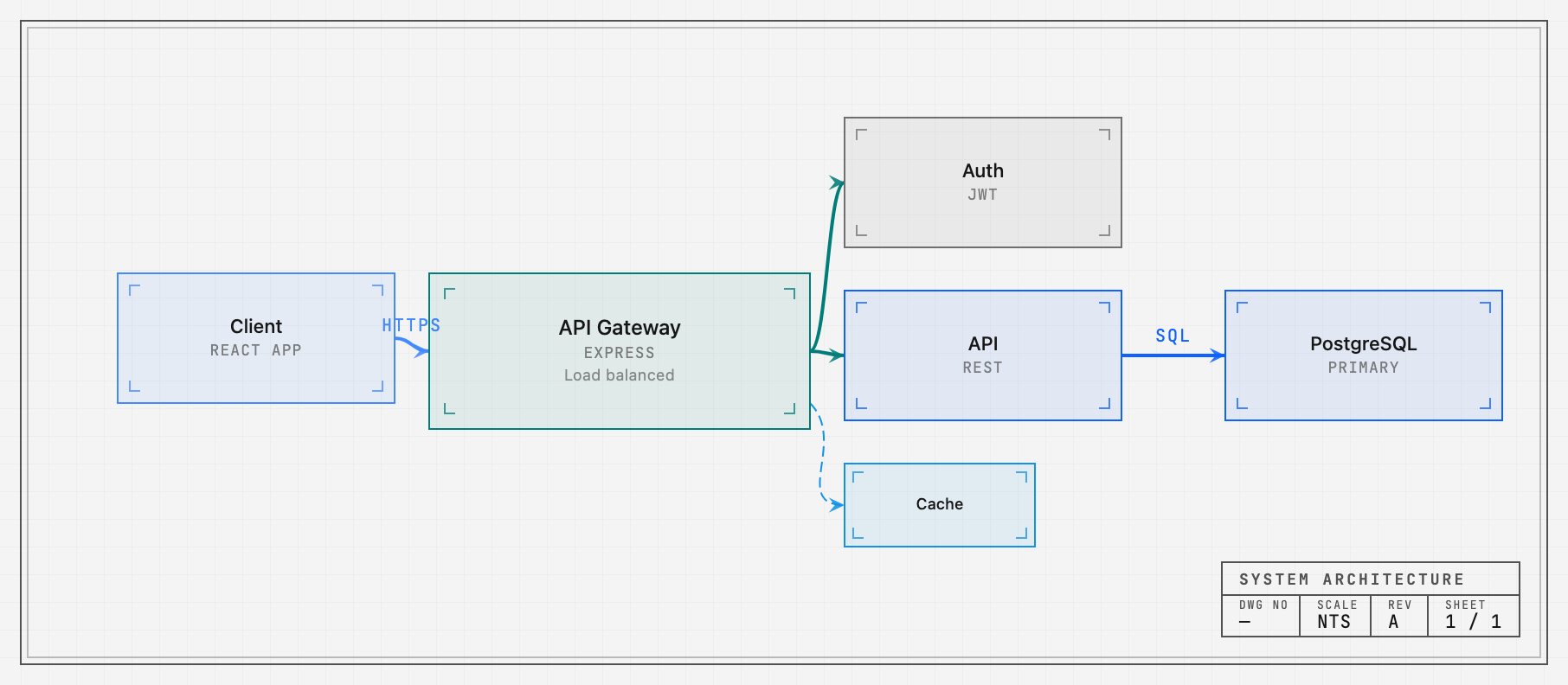
- Focus on the path that matters. Hover or select a component to reveal its relationships. Author a focus story with a caption and steps to explain a whole request path, boundary, or workflow.
- Guide the reader through chapters. Named views frame the relevant region and highlight its nodes and connections. Readers can step through the story or leave it to explore on their own.
- Put requests in motion. Send packets along multi-step routes, pause at a
service, follow the return path, and show trails. Set timing and repeats, or
control the exact instant with
flowTime.
Pan, zoom, fit, minimaps, and legends keep the system navigable. Chapters, focus stories, and animated routes are authored data that can be edited and reviewed alongside the drawing.
Guided views · Focus stories · Flow API · Source for the image
Play the conversation
Arc's native Mermaid sequence player makes an exchange something you can follow one message at a time. Actors, lifelines, self-calls, notes, branches, and loops retain their place in the story. Play the sequence, step backward or forward, focus a participant, or open it fullscreen.
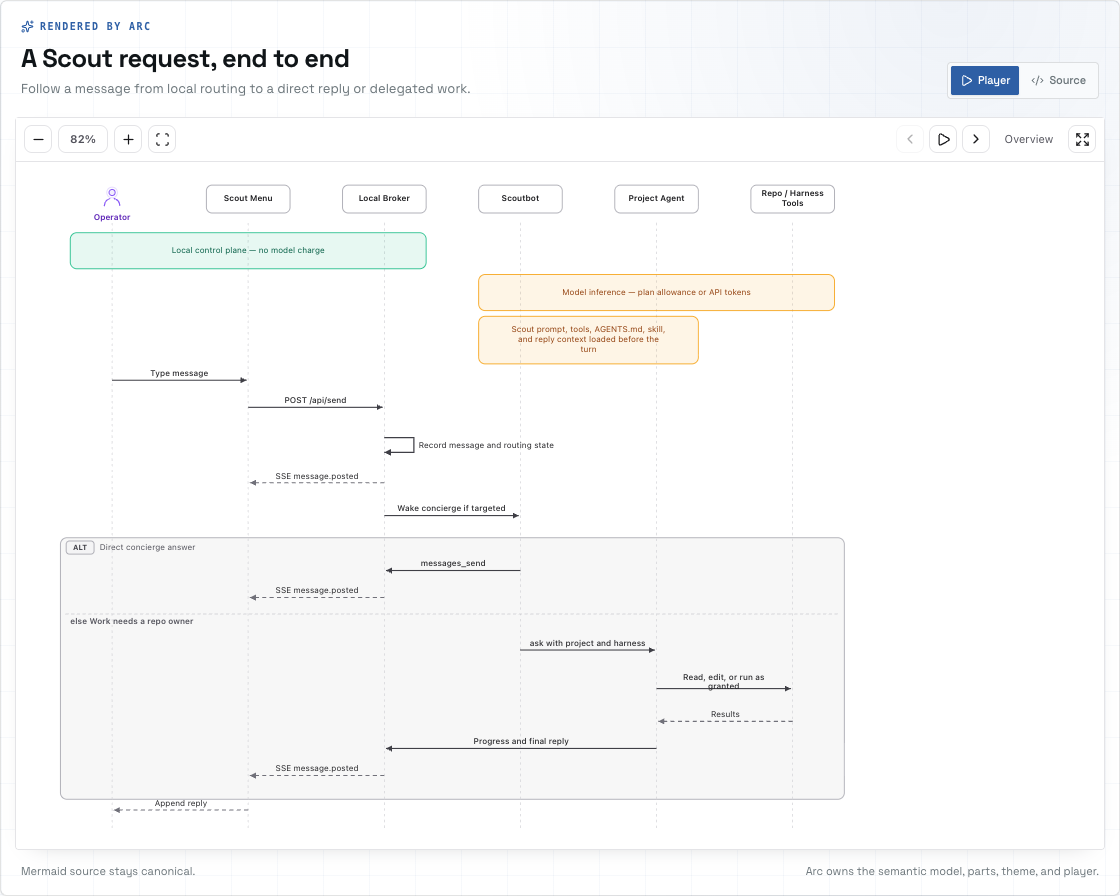
Mermaid text stays the source. Arc owns the typed sequence model, layout, SVG rendering, and playback. You can customize theme tokens and replace individual visual parts to fit your application. Mermaid.js is not required at runtime.
Existing Mermaid flowcharts and state diagrams have a separate import path into Arc's architecture format.
Native sequence guide · Supported Mermaid imports
Give the system depth
Use isometric views to make layers, boundaries, and hierarchy visible. Project an architecture into spatial blocks, or compose a tiered scene with elevated floors, staggered layers, translucent components, and pillars. Hover a layer to lift it out of the stack; use node and layer callbacks to connect the view to your application.
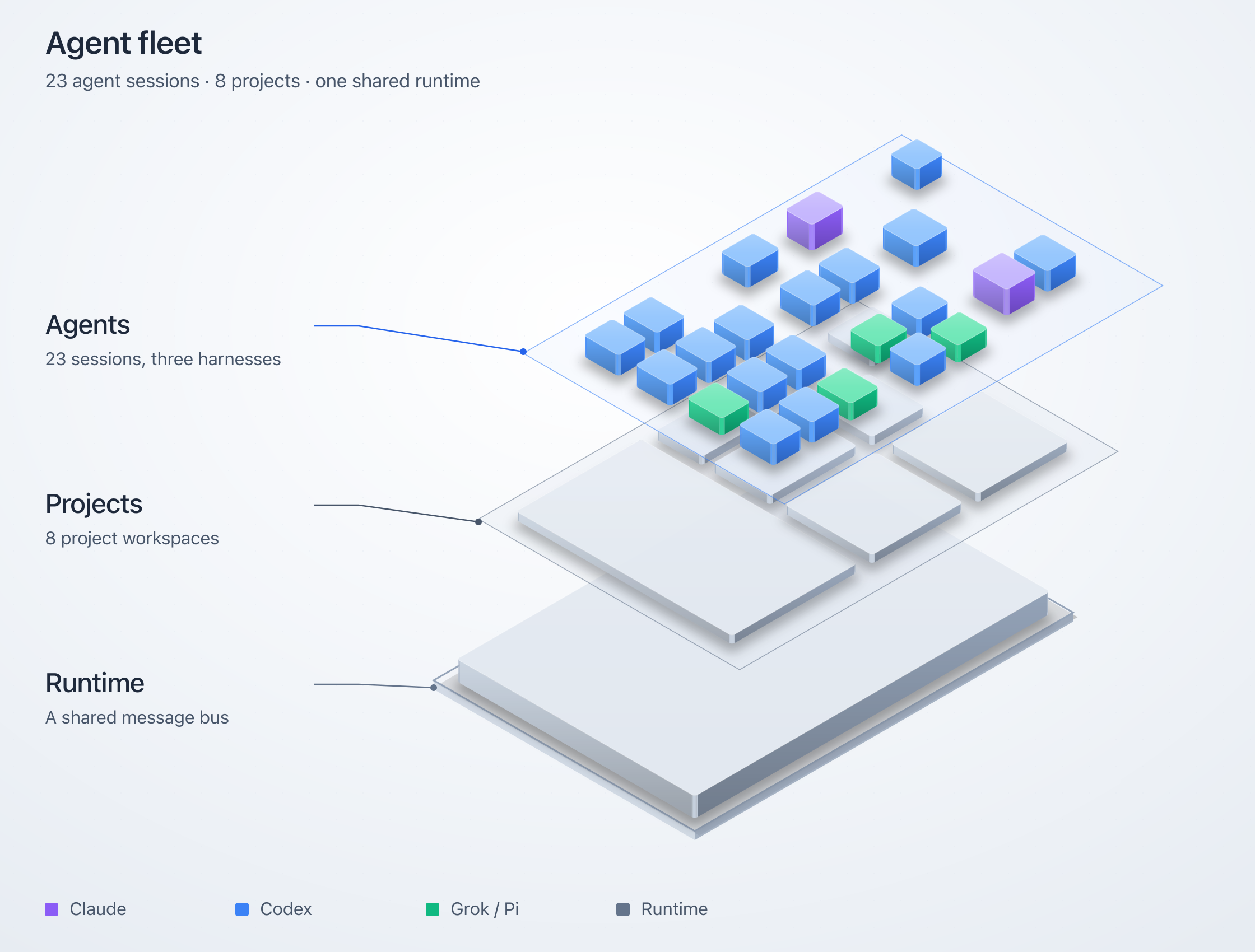
Choose shaded solids, hatched blueprint linework, cyanotype plates, or a retro-print material with mineral inks and deterministic stipple. The tiered renderer has React and static SVG APIs, including a vanilla JavaScript embed.
Isometric types and options · Example fleet composition
Let readers operate the explanation
Turn up demand in the connection-pool explainer. All four database connections fill, and requests start waiting. Step through a handoff to see which request gets the next connection. Stop arrivals and watch the queue drain.
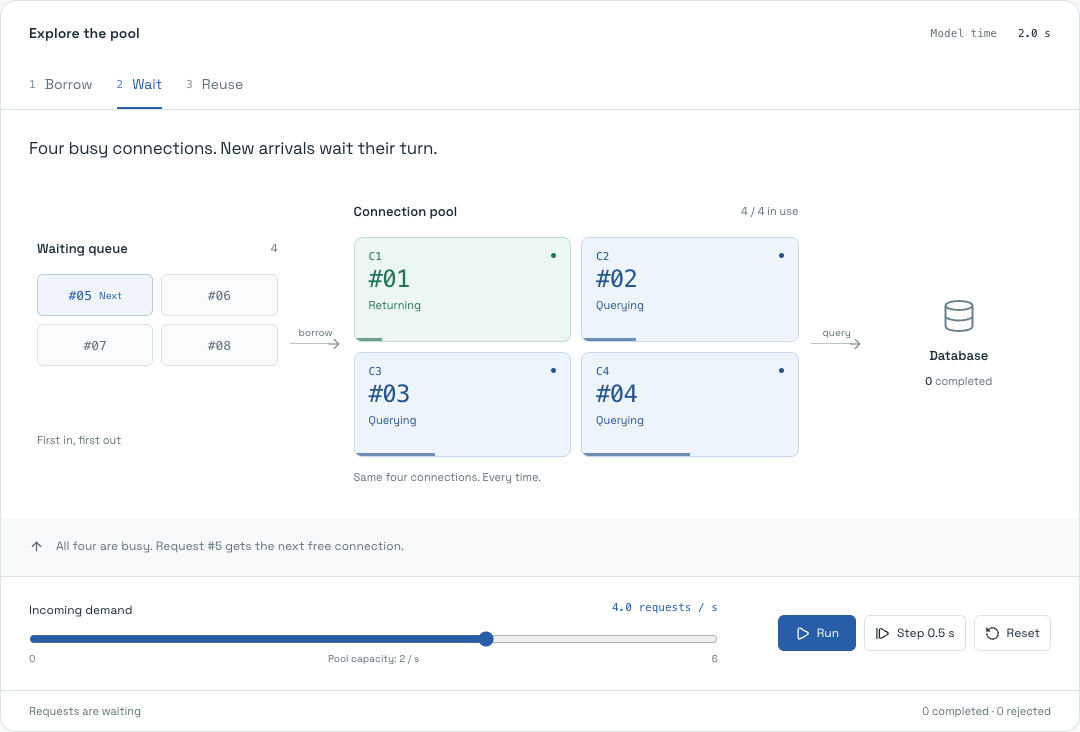
The queue, leases, counts, and handoffs come from the same deterministic model. This working example combines a custom mechanism view with an Arc diagram projection. It shows how to build an explanation that responds to the reader's actions and makes cause and effect visible.
Operate the pool · Read the model · See the Arc projection
Create on the canvas. Refine in code.
The studio puts the drawing and its source side by side. Drag components into place, connect their anchors, shape groups, and refine the result in the inspector. Edit the JSON and the canvas updates. Move a node and the source updates with it.
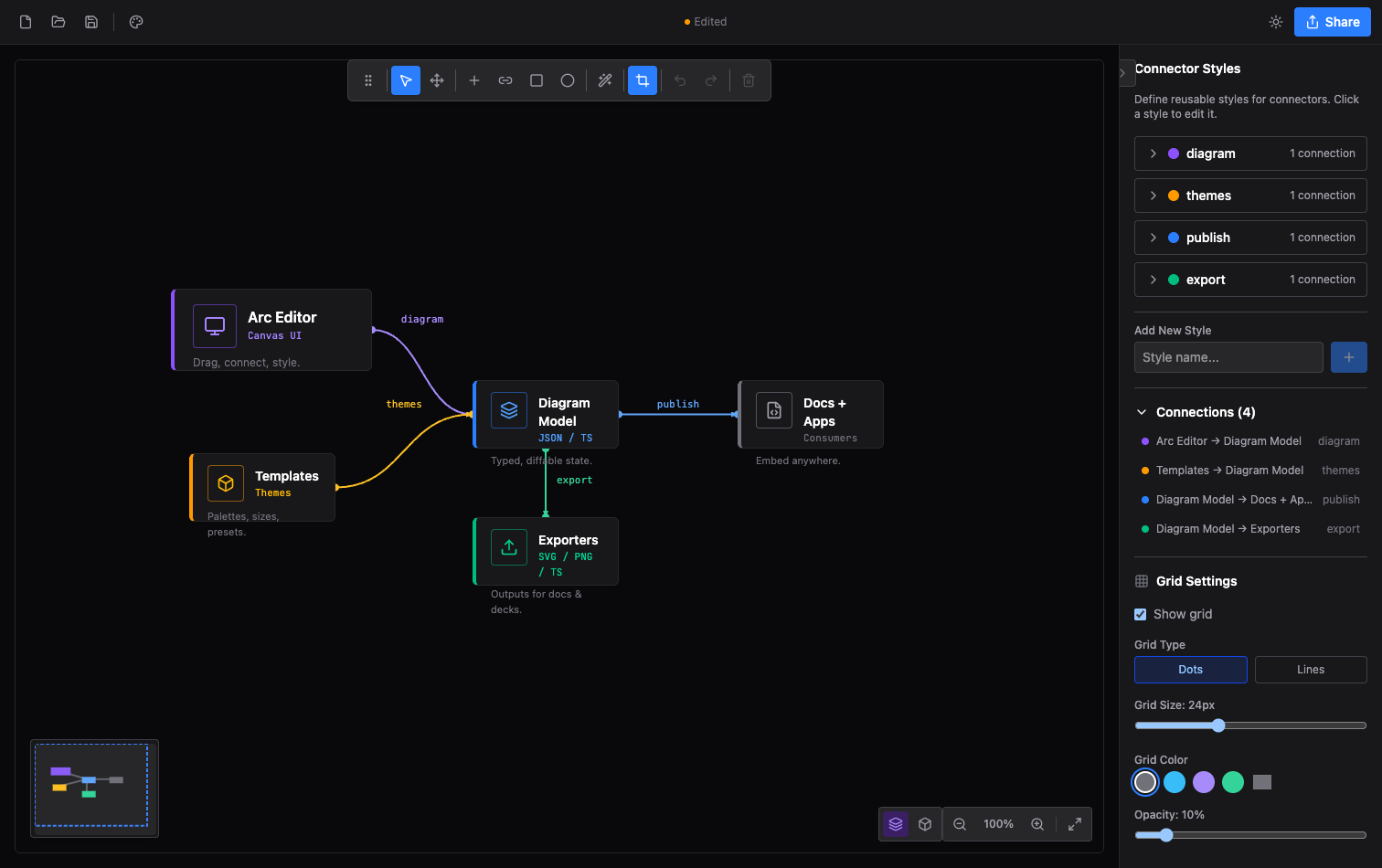
Multi-selection, keyboard shortcuts, undo/redo, templates, image layers, custom dimensions, connector routing, and export crops give you control over the finished composition. Switch between 2D and isometric editing. Save to a file, restore a local browser session, or copy a typed module into your app.
The editor's React components, context, and hooks are available for embedding. The player showcase lets you tune a viewer's appearance and controls, then copy the matching JSX.
Open the studio from Arc, or run it locally.
Give the drawing a visual identity
Eleven themes shape typography, node silhouettes, grids, frames, decoration, and title blocks as well as color. Choose an engineering plate, a quiet workbench, a tactical map, or a mission console. Every theme has light and dark modes; individual nodes and relationships can carry their own styling.
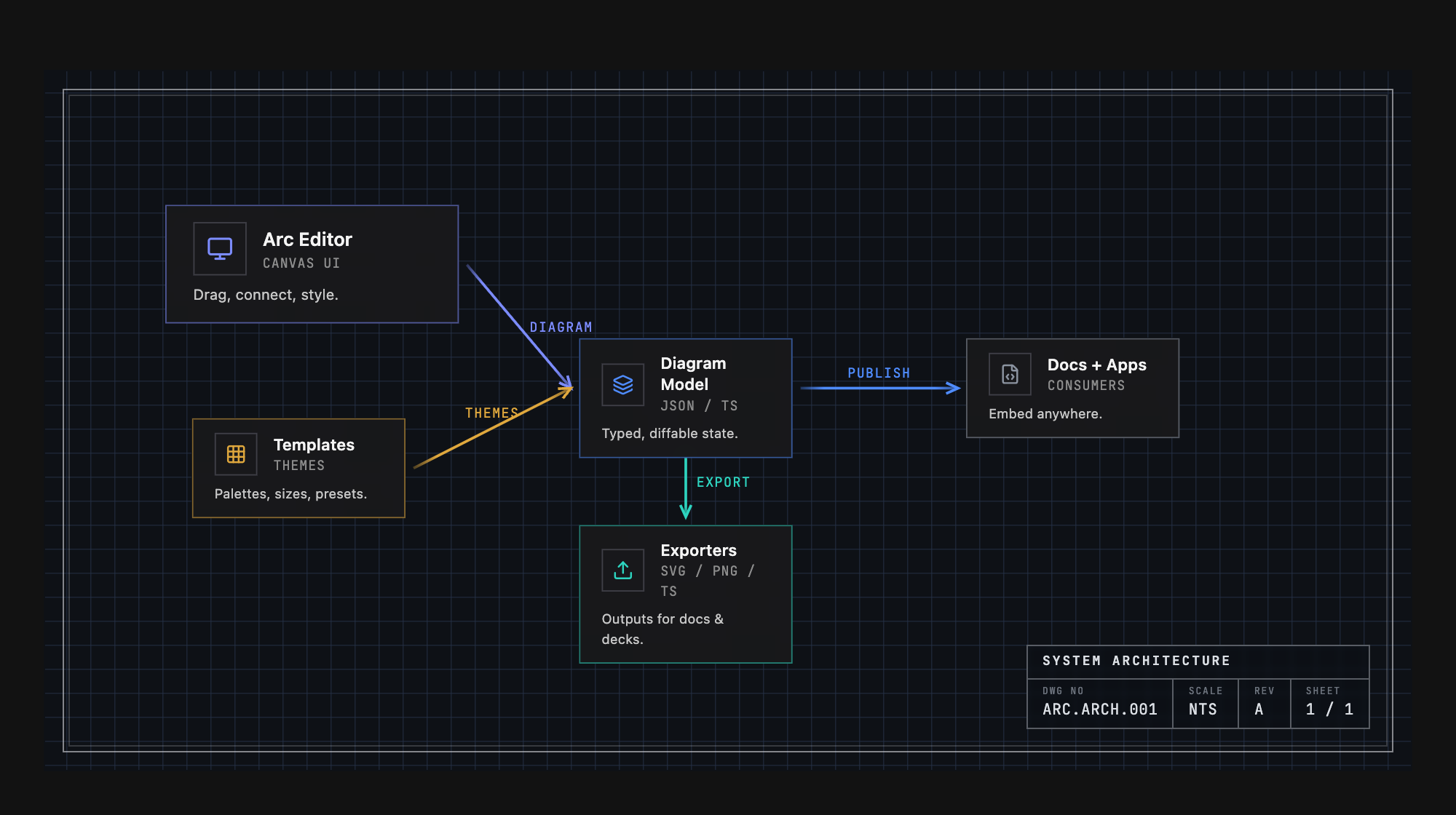
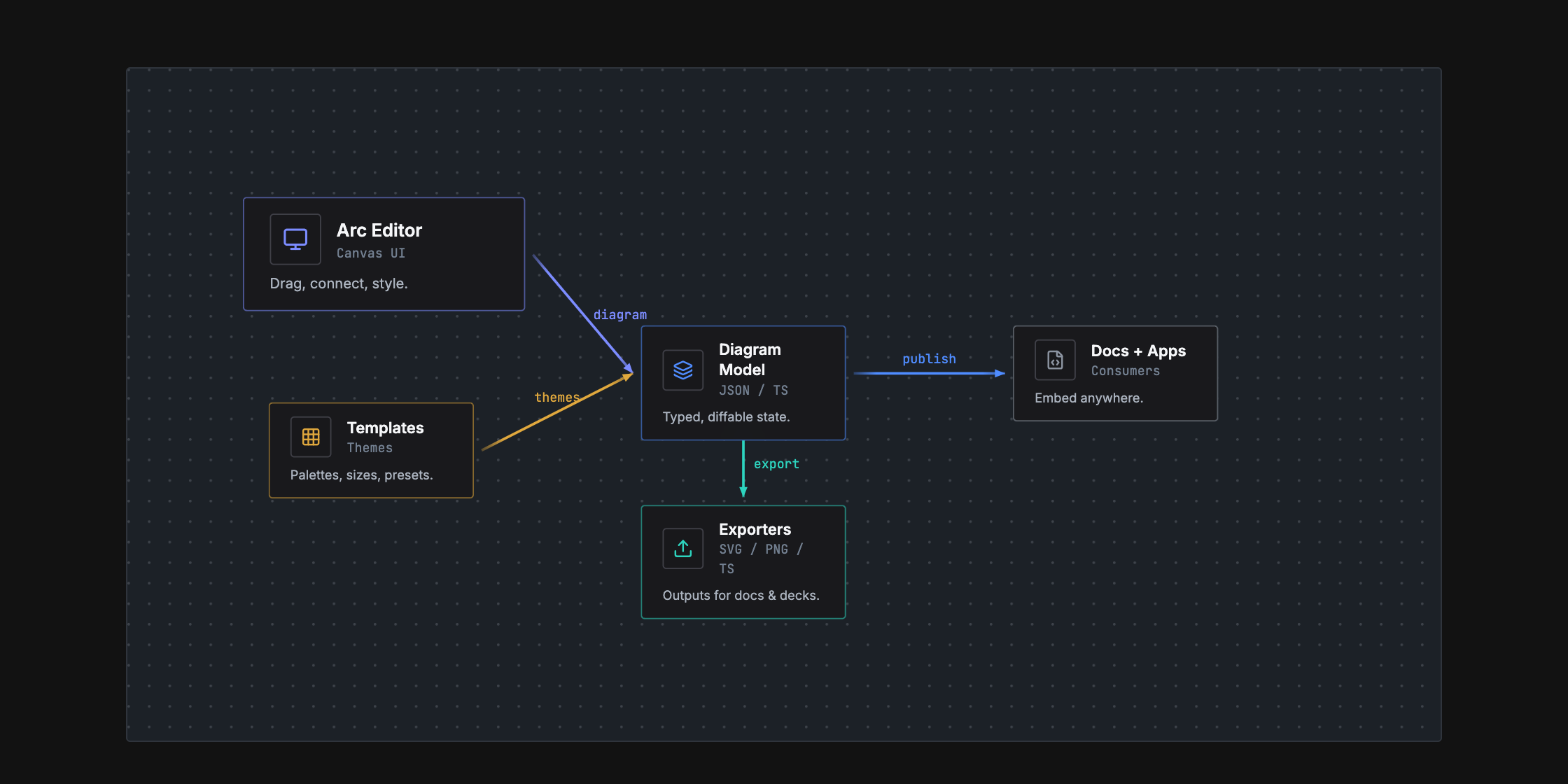
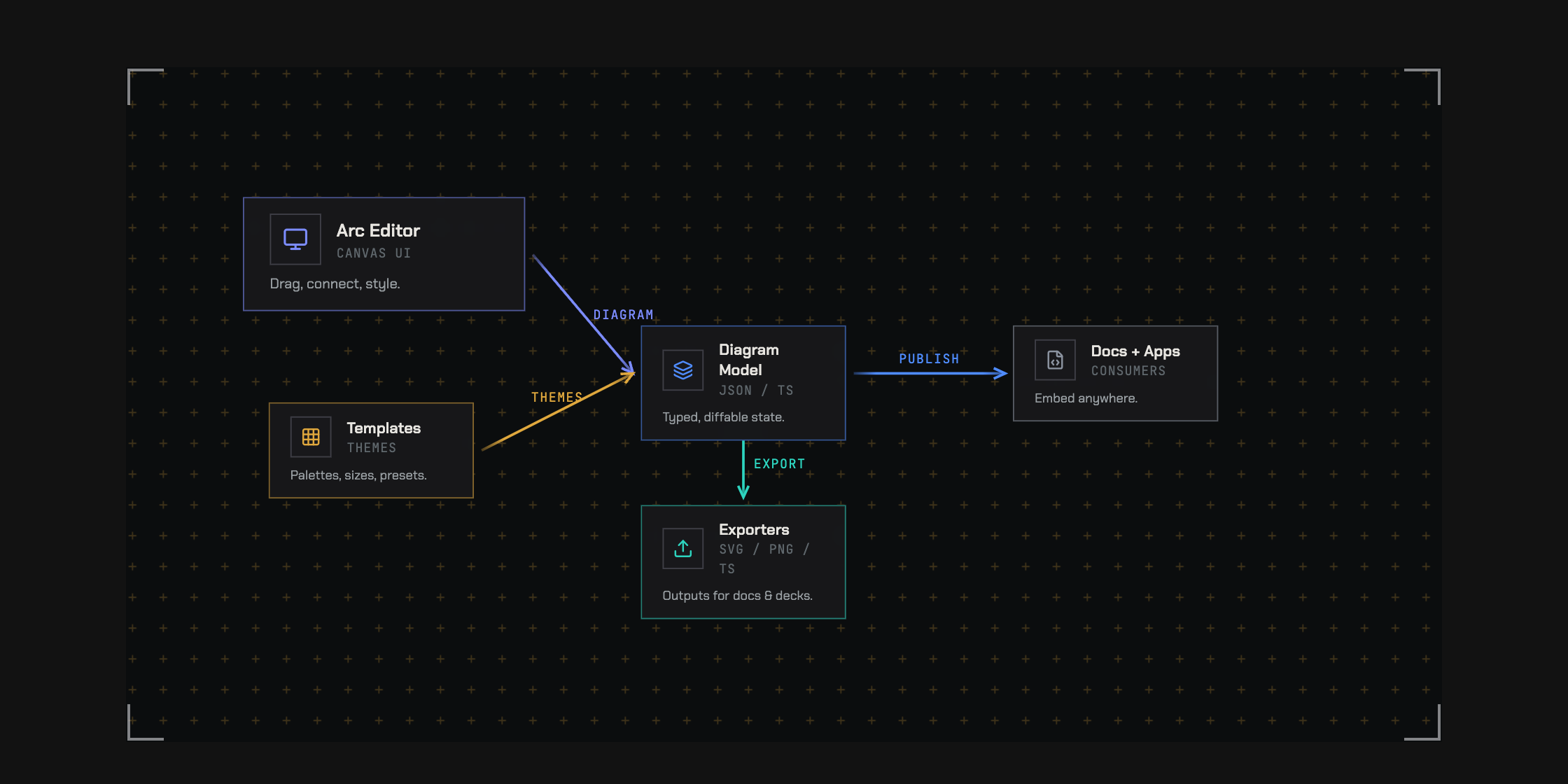
The themes are default, warm, cool, mono, engineering, workbench,
tactical, command, spacex, claude, and codex. Studio shell skins and
interface density are configurable independently of the diagram.
Build with agents. Review with people.
Arc gives agents a concrete authoring loop: write the document, arrange it, check it, render it, and revise it. Typed data and a closed JSON Schema define the format. Coded diagnostics identify problems such as dangling connections, overlaps, and invalid routes, with suggested fixes an agent can act on.
Together, the CLI and MCP server provide validation, automatic layout, rendering, diffs, and a handoff into the visual studio. A person can inspect the result and refine the drawing directly.
The arc-diagrams skill adds composition patterns for request paths, boundaries,
comparisons, and layered illustrations, with editable examples and a render-and-review
loop that checks the result at its intended reading size.
npx skills add hudsonkit/arc --skill arc-diagrams
Attach repository paths, line ranges, and commits to the nodes they describe. Review structural changes on the diagram itself: highlight additions, ghost removed elements, and show where components moved.
import { ArcDiagram, diffDiagram } from '@hudsonkit/arc'

<ArcDiagram data={head} delta={diffDiagram(base, head)} />
That gives a code review both the changed source and a visual explanation of the changed structure.
Structural diffs · Agent guide · Authoring benchmarks
Take the explanation where it belongs
| Destination | What you can use |
|---|---|
| Your product or documentation | Interactive React diagrams, sequence players, and editor components. |
| A design review | Guided views, source references, and structural diff overlays. |
| A page, document, or deck | SVG, PNG, or standalone HTML with the rendered drawing. |
| A demo or announcement | Animated SVG, GIF, or MP4 from authored flow routes. |
| A terminal or Markdown file | ASCII and Unicode diagrams. |
| An agent's workspace | CLI, MCP, schema, authoring skill, and machine-readable diagnostics. |
Flow timing is deterministic. Display an exact instant, export it as a still, or render a repeatable sequence of frames. The studio also copies source and creates URLs carrying diagram data; browser session links reopen work stored in that browser.
Get started
Try the experience: open Arc or operate the connection pool.
Build with React: install the main package in a React 18 or 19 project.
npm install @hudsonkit/arc
Import the stylesheet once and give the diagram a container with a height. This complete example renders a request traveling from an app through an API to a database:
import { ArcDiagram, type ArcDiagramData } from '@hudsonkit/arc'
import '@hudsonkit/arc/arc.css'

const diagram: ArcDiagramData = {
  layout: { width: 640, height: 240 },
  nodes: {
    app: { x: 40, y: 80, size: 'm' },
    api: { x: 250, y: 80, size: 'm' },
    db:  { x: 460, y: 80, size: 'm' },
  },
  nodeData: {
    app: { name: 'Web app', kind: 'frontend' },
    api: { name: 'API', kind: 'service' },
    db:  { name: 'Database', kind: 'database' },
  },
  connectors: [
    { id: 'request', from: 'app', to: 'api', fromAnchor: 'right', toAnchor: 'left', style: 'data' },
    { id: 'query', from: 'api', to: 'db', fromAnchor: 'right', toAnchor: 'left', style: 'data' },
  ],
  connectorStyles: {
    data: { color: 'blue', strokeWidth: 2 },
  },
  flows: [
    { id: 'load', legs: [{ id: 'request' }, { id: 'query' }], duration: 2, marker: 'packet' },
  ],
}

export function Architecture() {
  return (
    <div style={{ height: 360 }}>
      <ArcDiagram data={diagram} theme="engineering" mode="dark" defaultZoom="fit" />
    </div>
  )
}
Arc bundles its other runtime code and CSS. No Tailwind configuration is
required. Use flowTime={1.25} to inspect a specific instant, or add views
and showViews to turn the diagram into a guided walkthrough.
Start with a Mermaid sequence
Install @hudsonkit/arc-viewer for the native sequence player:
npm install @hudsonkit/arc-viewer
import { ArcMermaidPlayer } from '@hudsonkit/arc-viewer'

const source = `sequenceDiagram
  participant App
  participant API
  App->>API: Load architecture
  API-->>App: Typed diagram`

export function RequestStory() {
  return <ArcMermaidPlayer source={source} mode="light" />
}
Connect an agent
Add the MCP server to a client that supports stdio:
{
  "mcpServers": {
    "arc": {
      "command": "npx",
      "args": ["-y", "@hudsonkit/arc-mcp"]
    }
  }
}
The published MCP server provides validation, structural diff, automatic
layout, ASCII/SVG/PNG/animation/HTML rendering, TypeScript generation, and editor
handoff. It also serves the schema, authoring skill, and LLM guide as resources.
Use bun run mcp to run the server from a source checkout. The live review
workflow shown above is a separate private preview.
Use the terminal
The CLI requires Node.js 22 or newer. Run these commands in a project with
@hudsonkit/arc installed:
npx arc check diagram.json --json --strict
npx arc diff base.json head.json --summary
npx arc render diagram.json --out diagram.svg
npx arc render diagram.json --out flow.mp4 --duration 4 --fps 12
npx arc schema
npx arc-ascii diagram.json --charset ascii --max-width 80
arc check reports format, semantic, and composition problems. --strict also
fails on warnings. Render receipts include source and output hashes.
CLI PNG rendering needs Chrome or Chromium; GIF and MP4 also need ffmpeg.
Use ARC_CHROME and ARC_FFMPEG to select executables.
Choose your package
| Package | What it provides |
|---|---|
@hudsonkit/arc |
Main React renderer and editor components, themes, layout, validation, structural diffs, flow helpers, ASCII rendering, and the arc CLI. |
@hudsonkit/arc-viewer |
Lightweight architecture viewer, native Mermaid sequence renderer/player, and Mermaid import. |
@hudsonkit/arc-iso |
Tiered isometric rendering with React and vanilla JavaScript/static SVG APIs. |
@hudsonkit/arc-mcp |
Diagram tools and resources for MCP clients. |
Architecture uses ArcDiagramData; native sequences use ArcSequenceDocument;
tiered isometric scenes use DiagramConfig. Each model preserves the structure
its renderer needs. Animated flow markers, guided camera framing, and visual
delta overlays currently render in 2D. The sequence guide
and import guide document supported Mermaid syntax.
Explore the API
| Area | Reference |
|---|---|
| Nodes, relationships, groups, player controls, and flow timing | Component and CLI API |
| Ordered walkthroughs and node-triggered explanations | Views · Focus stories |
| Automatic placement and group layout | Group layout |
| Native sequence playback and Mermaid migration | Sequences · Import |
| Tiered scenes, materials, and spatial interaction | Isometric API |
| Visual identity and output formats | Themes · Exports |
| Source references, diagnostics, and change review | Schema · Diffs |
| Agent authoring and verification | MCP · Benchmarks |
Where we're going
We want the agents changing a system to maintain its visual explanation in the same workflow. Arc already provides the format, source references, validation, rendering, and structural review. Automatic impact discovery and drift notifications are the next part of that loop.
The agent workflow and roadmap
Example output
The source of the microservices diagram in the walkthrough section:
const diagram: ArcDiagramData = {
  layout: { width: 850, height: 340 },
  nodes: {
    client:  { x: 40,  y: 130, size: 'm' },
    gateway: { x: 220, y: 130, size: 'l' },
    auth:    { x: 460, y: 40,  size: 'm' },
    api:     { x: 460, y: 140, size: 'm' },
    cache:   { x: 460, y: 240, size: 's' },
    db:      { x: 680, y: 140, size: 'm' },
  },
  nodeData: {
    client:  { icon: 'Monitor',  name: 'Client',      subtitle: 'React App', color: 'violet' },
    gateway: { icon: 'Server',   name: 'API Gateway', subtitle: 'Express', description: 'Load balanced', color: 'emerald' },
    auth:    { icon: 'Shield',   name: 'Auth',        subtitle: 'JWT', color: 'amber' },
    api:     { icon: 'Code',     name: 'API',         subtitle: 'REST', color: 'blue' },
    cache:   { icon: 'Zap',      name: 'Cache',       color: 'sky' },
    db:      { icon: 'Database', name: 'PostgreSQL',  subtitle: 'Primary', color: 'blue' },
  },
  connectors: [
    { from: 'client',  to: 'gateway', fromAnchor: 'right',       toAnchor: 'left', style: 'https' },
    { from: 'gateway', to: 'auth',    fromAnchor: 'right',       toAnchor: 'left', style: 'internal' },
    { from: 'gateway', to: 'api',     fromAnchor: 'right',       toAnchor: 'left', style: 'internal' },
    { from: 'gateway', to: 'cache',   fromAnchor: 'bottomRight', toAnchor: 'left', style: 'cache' },
    { from: 'api',     to: 'db',      fromAnchor: 'right',       toAnchor: 'left', style: 'sql' },
  ],
  connectorStyles: {
    https:    { color: 'violet',  strokeWidth: 2, label: 'HTTPS' },
    internal: { color: 'emerald', strokeWidth: 2 },
    cache:    { color: 'sky',     strokeWidth: 1, dashed: true },
    sql:      { color: 'blue',    strokeWidth: 2, label: 'SQL' },
  },
}
Arc MCP 질문
Arc MCP를 Claude Code에 추가하려면 어떻게 하나요?
터미널에서 claude mcp add arc -- npx -y @hudsonkit/arc-mcp를 실행합니다. 모든 프로젝트에서 사용할 수 있게 하려면 --scope user를 추가합니다.
Arc MCP를 Cursor에 추가하려면 어떻게 하나요?
~/.cursor/mcp.json를 열고 mcpServers 아래에 서버를 추가합니다. 위 설치 섹션에 표시된 Cursor 구성을 사용합니다.
Arc에서 가져올 수 있는 다이어그램 형식은 무엇인가요?
Arc는 Mermaid 순서도와 상태 다이어그램을 편집 가능한 아키텍처 데이터로 가져오며, Mermaid 시퀀스 다이어그램은 자체적으로 렌더링하고 재생합니다.
Arc가 지원하는 내보내기 형식은 무엇인가요?
Arc는 PNG, SVG, GIF, MP4, React 또는 HTML, ASCII/Unicode, 그리고 편집 가능한 JSON 또는 TypeScript를 지원합니다.
Arc 실행 시 Mermaid.js가 필요한가요?
아니요. Arc는 자체적인 타입 지정 시퀀스 모델, 레이아웃, SVG 렌더링 및 재생 기능을 갖추고 있어 Mermaid.js가 필요하지 않습니다.
코드가 아닌 시각적인 방식으로 다이어그램을 편집할 수 있나요?
네, Arc 스튜디오는 드로잉과 소스 코드를 나란히 보여줍니다. 따라서 노드를 드래그하면 JSON이 업데이트되고, JSON을 편집하면 캔버스가 업데이트됩니다.
제가 보는 동안 AI 에이전트가 다이어그램 작업을 수행할 수 있나요?
프라이빗 프리뷰를 통해 에이전트가 MCP를 사용하여 노드를 추가하거나 이동할 수 있으며, 실시간 아키텍처 리뷰 중에 캔버스가 업데이트되는 것을 확인할 수 있습니다.