
Connect an AI client to an Obsidian trading journal to analyze trades, draft reviews, and preview journal edits.
다른 이름 Cursivez/journalit
- 스타
- 257
- Tools
- —
- 다운로드, 30일
- —
- 최신 버전
- 1.10.1
- 마지막 커밋
- 2026년 11월 12일
- 라이선스
- —
Journalit MCP란?
Journalit은(는) MCP server입니다. Connect an AI client to an Obsidian trading journal to analyze trades, draft reviews, and preview journal edits.
프로젝트 README에서 생성된 요약
Journalit MCP server 정보
Analyzing trading performance and drafting reviews from within an AI client is what Journalit enables for traders using Obsidian. By connecting compatible AI applications like Claude, ChatGPT, or Grok Bot via the Model Context Protocol, users can interact with their local-first trading journal without manually copying notes into a chat interface. This connection allows the AI to examine trade data, suggest weekly reviews, and update specific journal fields directly.
To use this service, you must install the Journalit plugin in Obsidian, enable MCP access in the settings, and add the provided remote server address to your AI application. The setup requires signing into a Journalit account and selecting your specific vault. While the core journaling remains local to your Obsidian vault, the MCP connection shares requested journal data with your chosen AI provider to facilitate analysis and updates.
활용 사례
- 1Analyze trading performanceAsk an AI client to examine your recent trades to identify patterns or performance metrics.
- 2Draft periodic reviewsHave an AI assistant write a weekly or daily review based on your recorded journal entries.
- 3Update journal dataUse natural language to modify or update specific fields within your trading journal.
프로젝트의 README를 바탕으로 작성되었습니다. 모든 활용 사례는 해당 내용의 인용문과 대조하여 확인합니다.
Journalit MCP 설치 방법
형식 확인: 2026년 11월 10일Claude Code에 Journalit MCP 설치
$ claude mcp add --transport http journalit https://api.journalit.co/mcpCursor에 Journalit MCP 설치
~/.cursor/mcp.json
{
  "mcpServers": {
    "journalit": {
      "url": "https://api.journalit.co/mcp"
    }
  }
}VS Code에 Journalit MCP 설치
.vscode/mcp.json
{
  "servers": {
    "journalit": {
      "type": "http",
      "url": "https://api.journalit.co/mcp"
    }
  }
}Codex에 Journalit MCP 설치
~/.codex/config.toml
[mcp_servers.journalit]
url = "https://api.journalit.co/mcp"
Gemini CLI에 Journalit MCP 설치
~/.gemini/settings.json
{
  "mcpServers": {
    "journalit": {
      "httpUrl": "https://api.journalit.co/mcp"
    }
  }
}자동 검사
2026년 11월 13일에 실행됨전체 보고서 →자동 검사를 통과했습니다. 이는 보안 감사가 아닙니다. 코드를 직접 읽고 서버에 필요한 최소한의 권한만 부여하십시오. 검사 방식

- 소스 저장소 연결 및 접근 가능통과
- 오픈 소스 라이선스 (OSI)No license결함 발견
- 최근 1년 내 커밋 또는 릴리스통과
- 패키지 이름이 인기 패키지와 유사하지 않음검사되지 않음
- 원격 엔드포인트가 HTTPS 사용통과
- 파괴적인 도구에 라벨 표시됨검사되지 않음
- 모델에 대한 숨겨진 지침 없음통과
- 패키지와 의존성에 심각한 보안 권고 없음검사되지 않음
README
GitHub에서 보기Local-first trading journal for Obsidian.



Installation · AI apps (MCP) · Supported brokers · Privacy
Installation
Install Journalit from Obsidian Community Plugins:
- Open Settings → Community Plugins → Browse
- Search for
Journalit - Click Install, then Enable
Community page: https://community.obsidian.md/plugins/journalit
Highlights
- Local-first: core journaling stays inside your Obsidian vault.
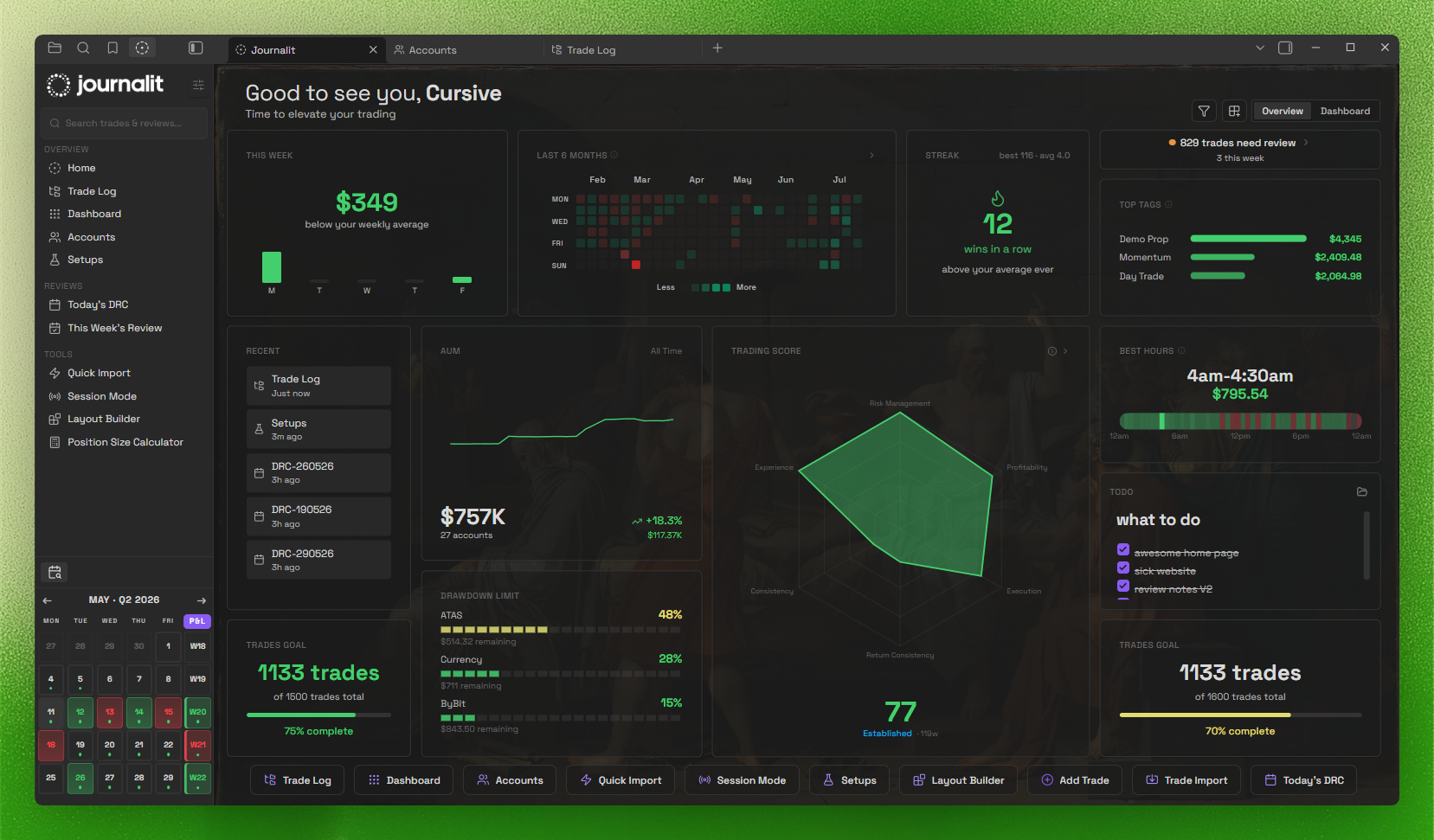
- Home View dashboard: draggable widgets + trading heatmap.
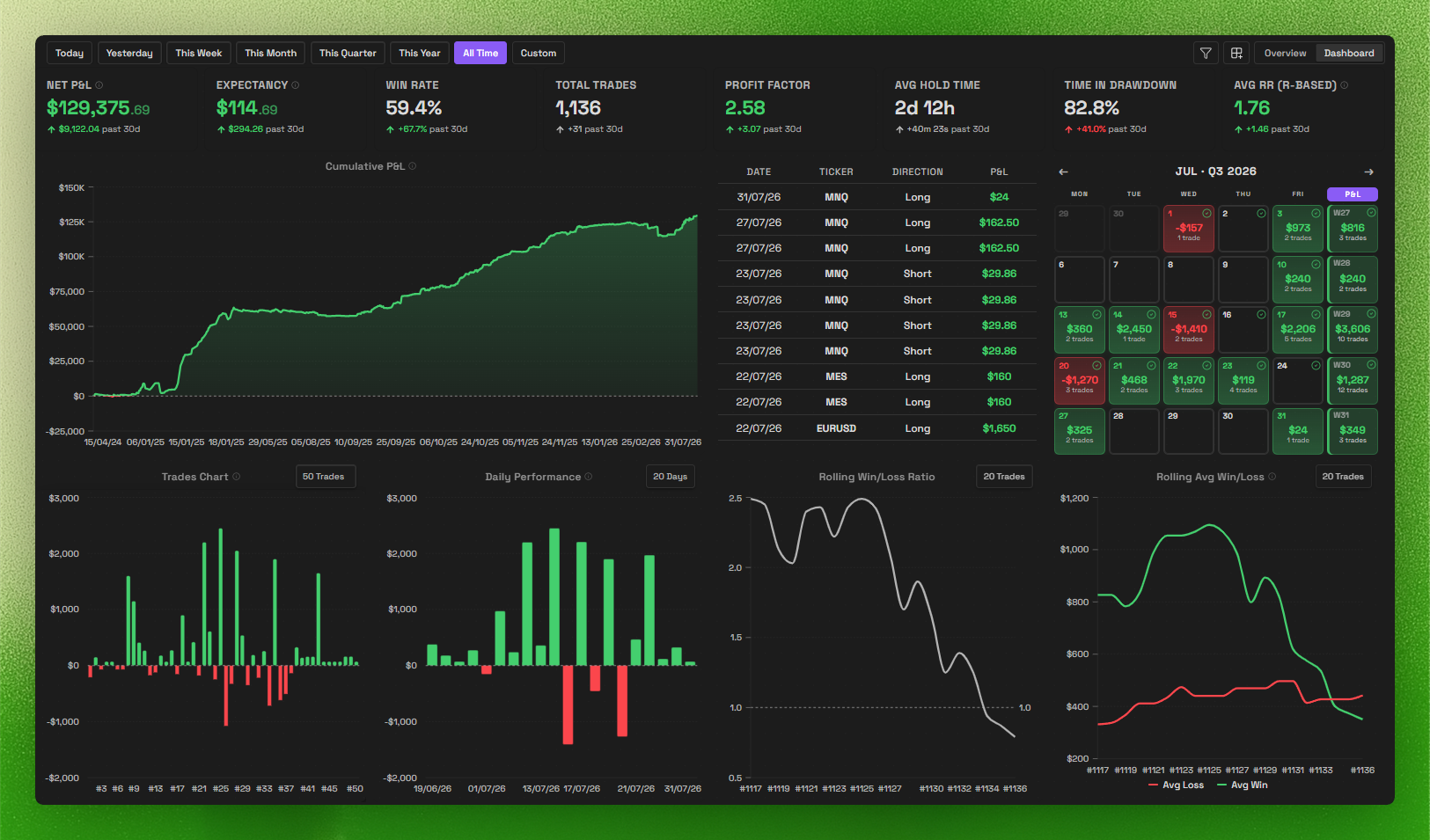
- Trading dashboard: track performance and patterns at a glance.
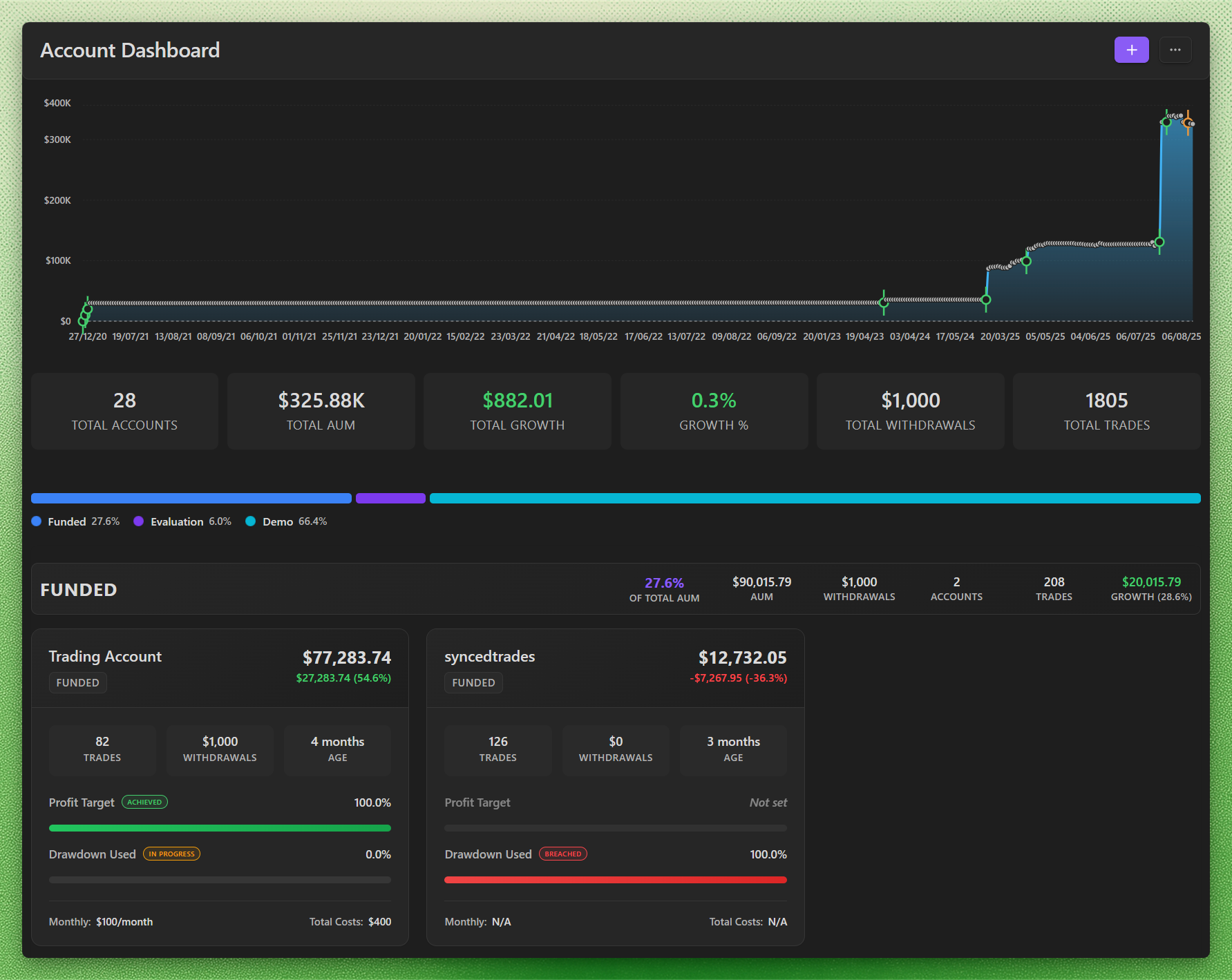
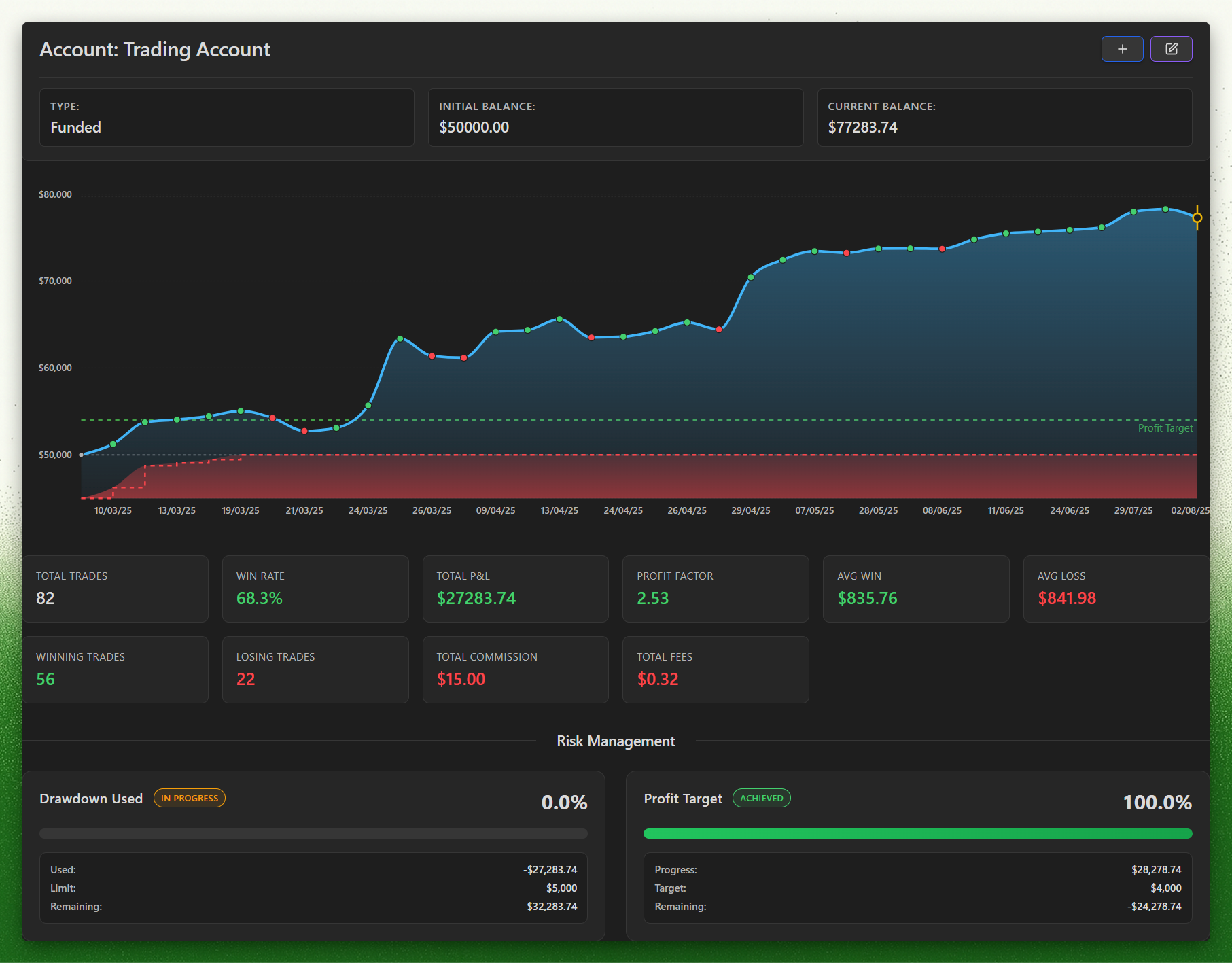
- Prop challenges: track evaluation and funded phases, drawdown, daily loss, profit targets, and payout rules, with firm profiles to set them up.
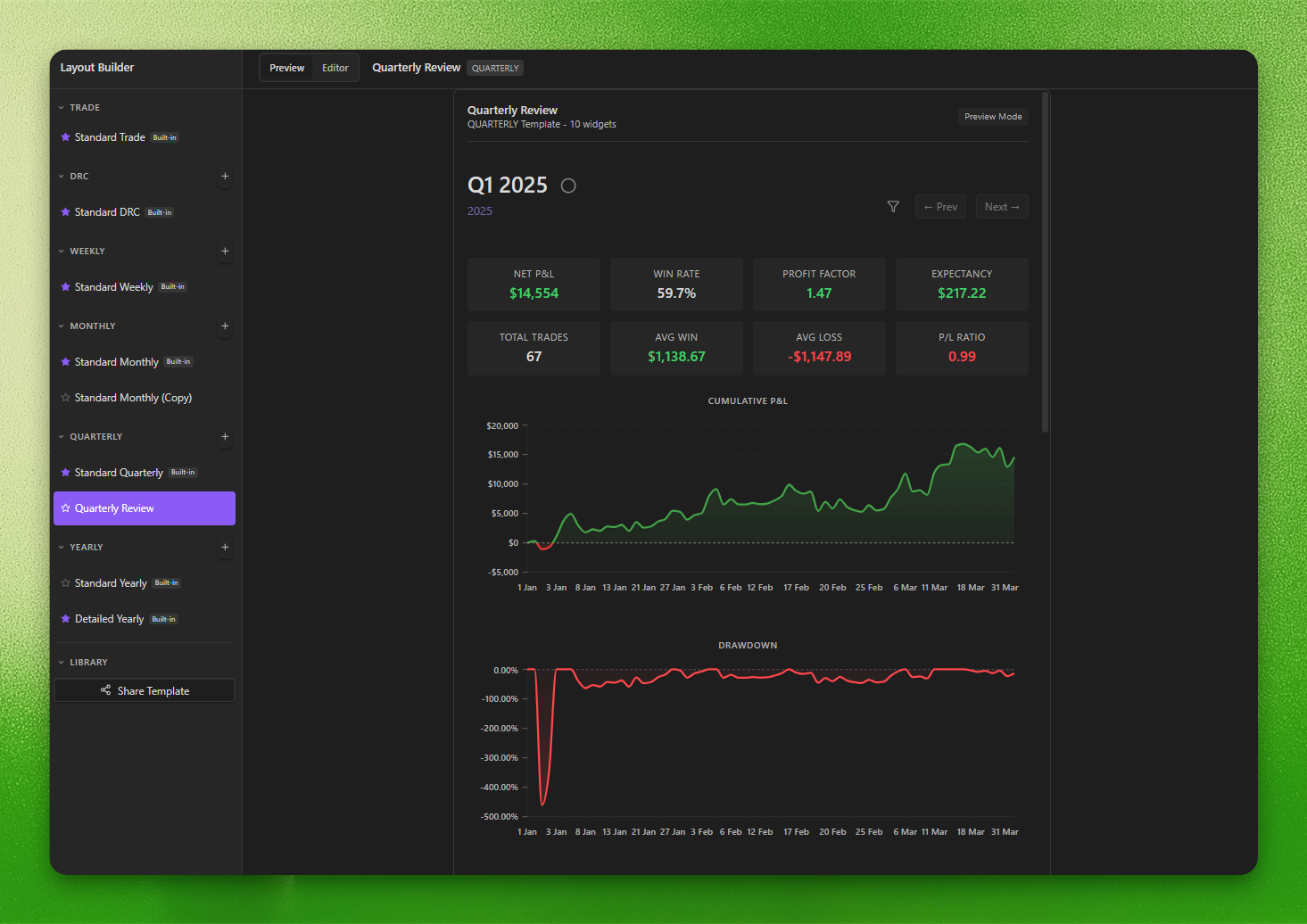
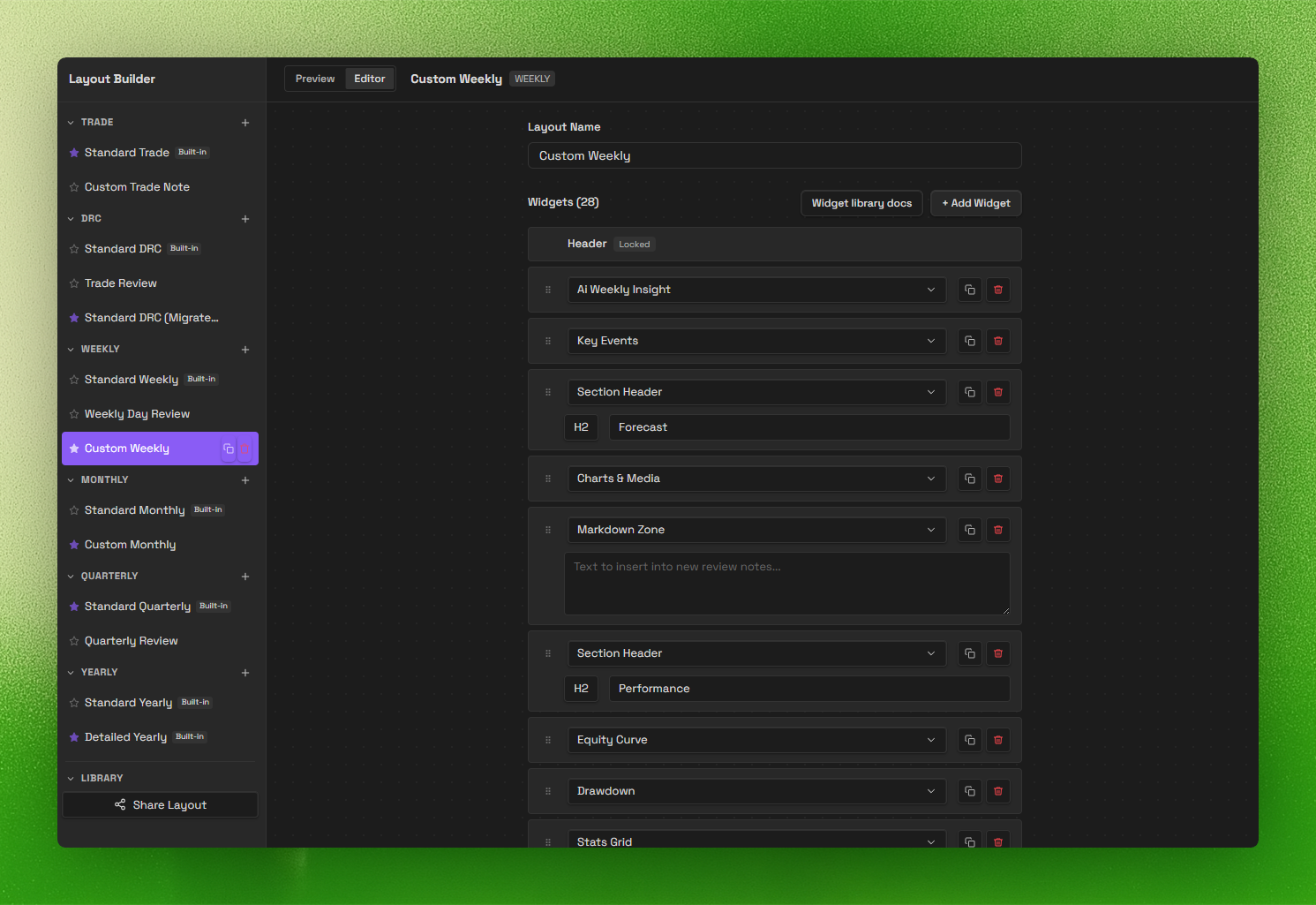
- Review system (V2): daily → yearly templates with a layout builder.
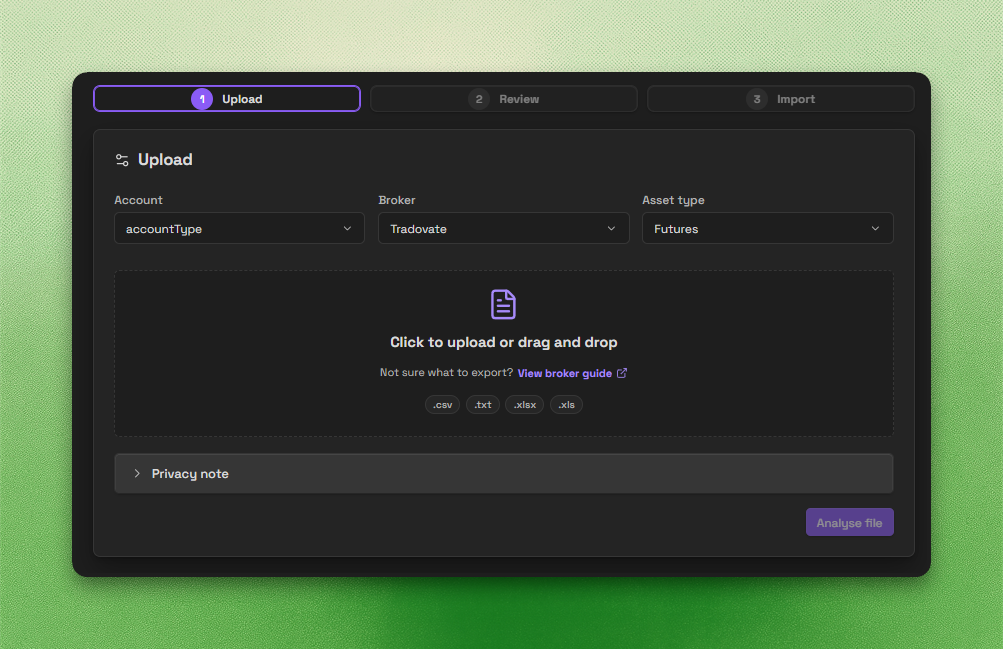
- Trade Import: backend-powered imports for CSV, spreadsheets, HTML, and broker statements.
- Trade Sync: automatic trade sync for supported brokers.
- AI apps (MCP): connect your AI app to analyse trades, draft reviews and update your journal.
Screenshots
Trading Dashboard
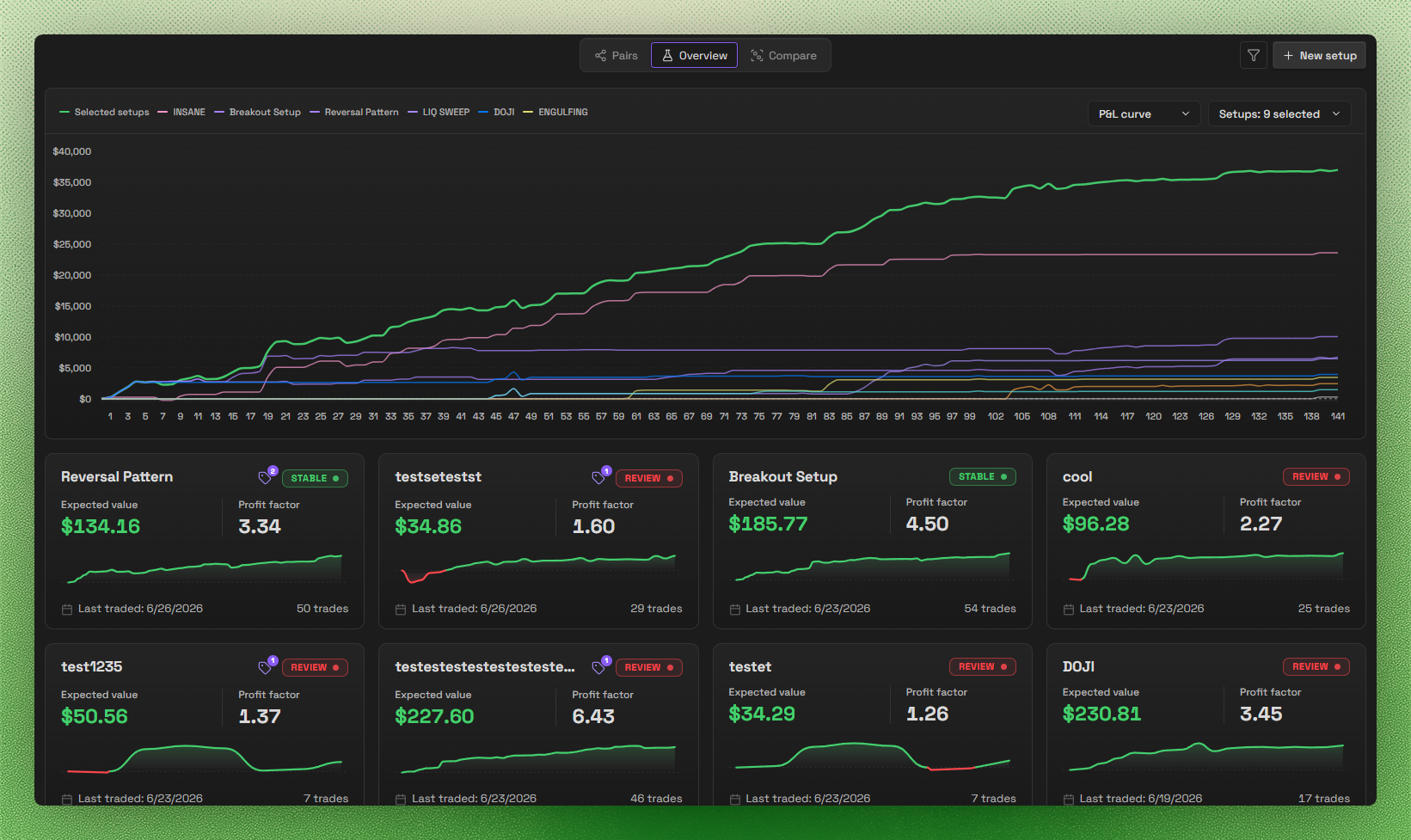
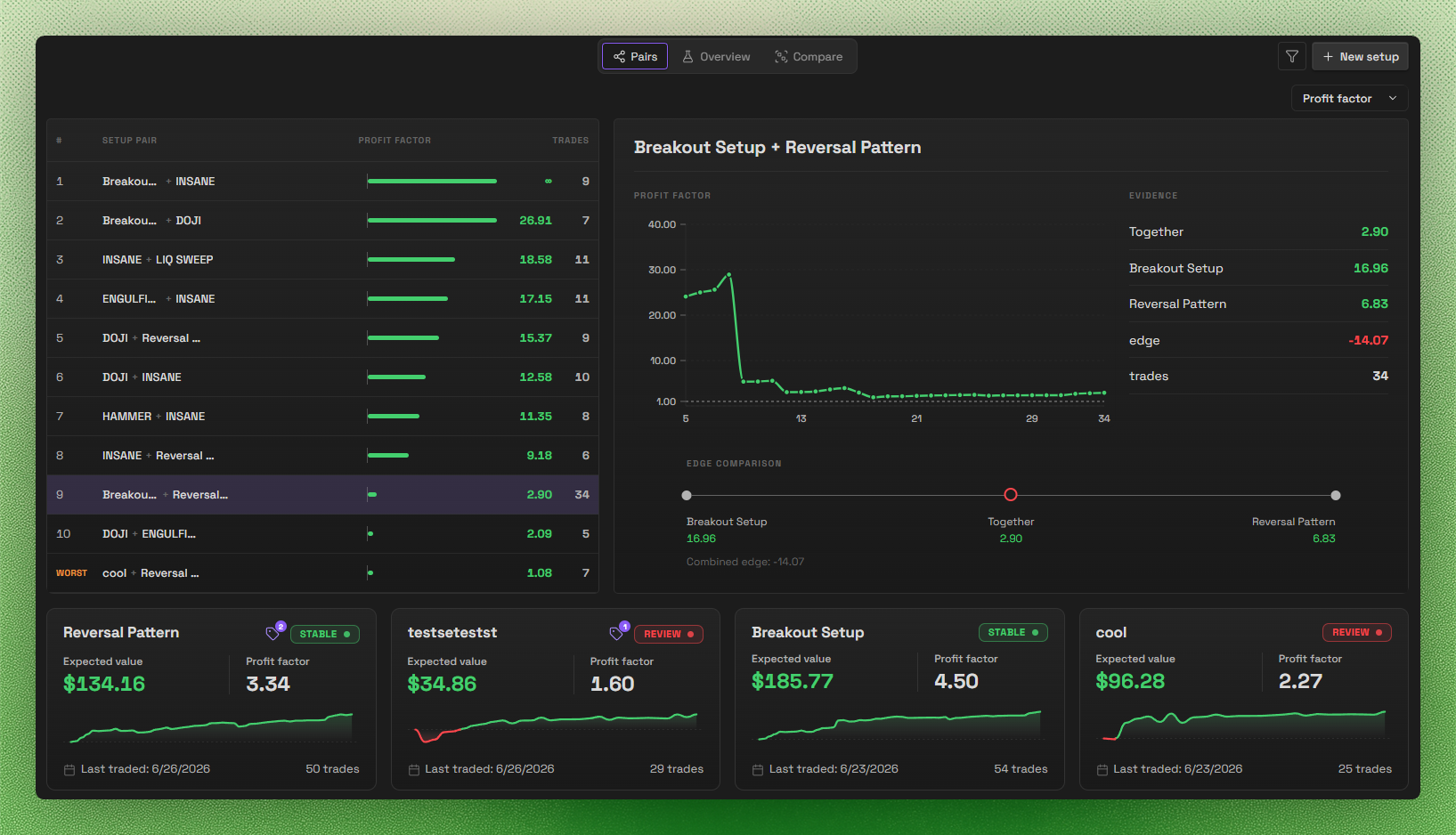
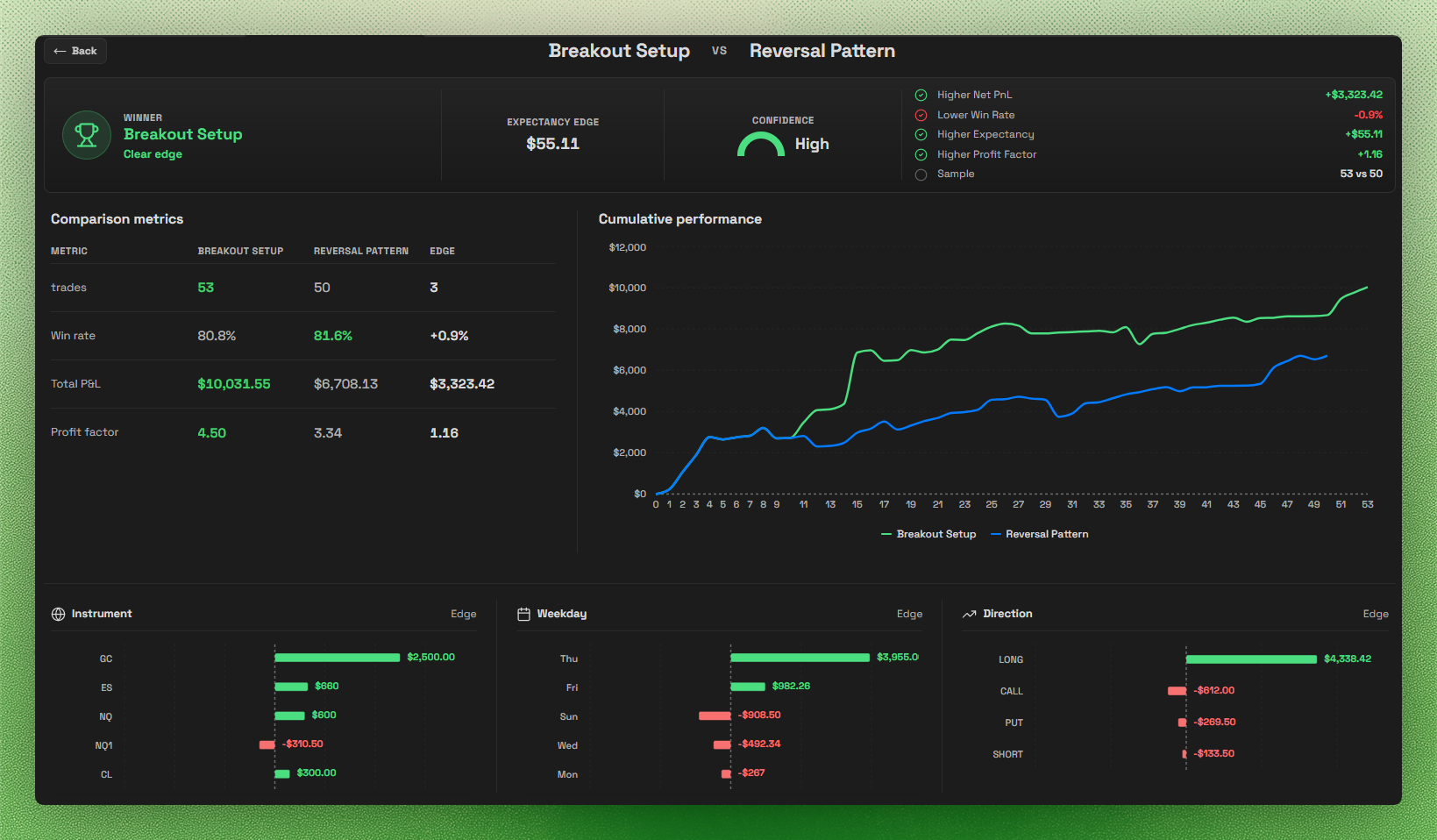
Setups
Accounts & Prop Challenges
Layout Builder
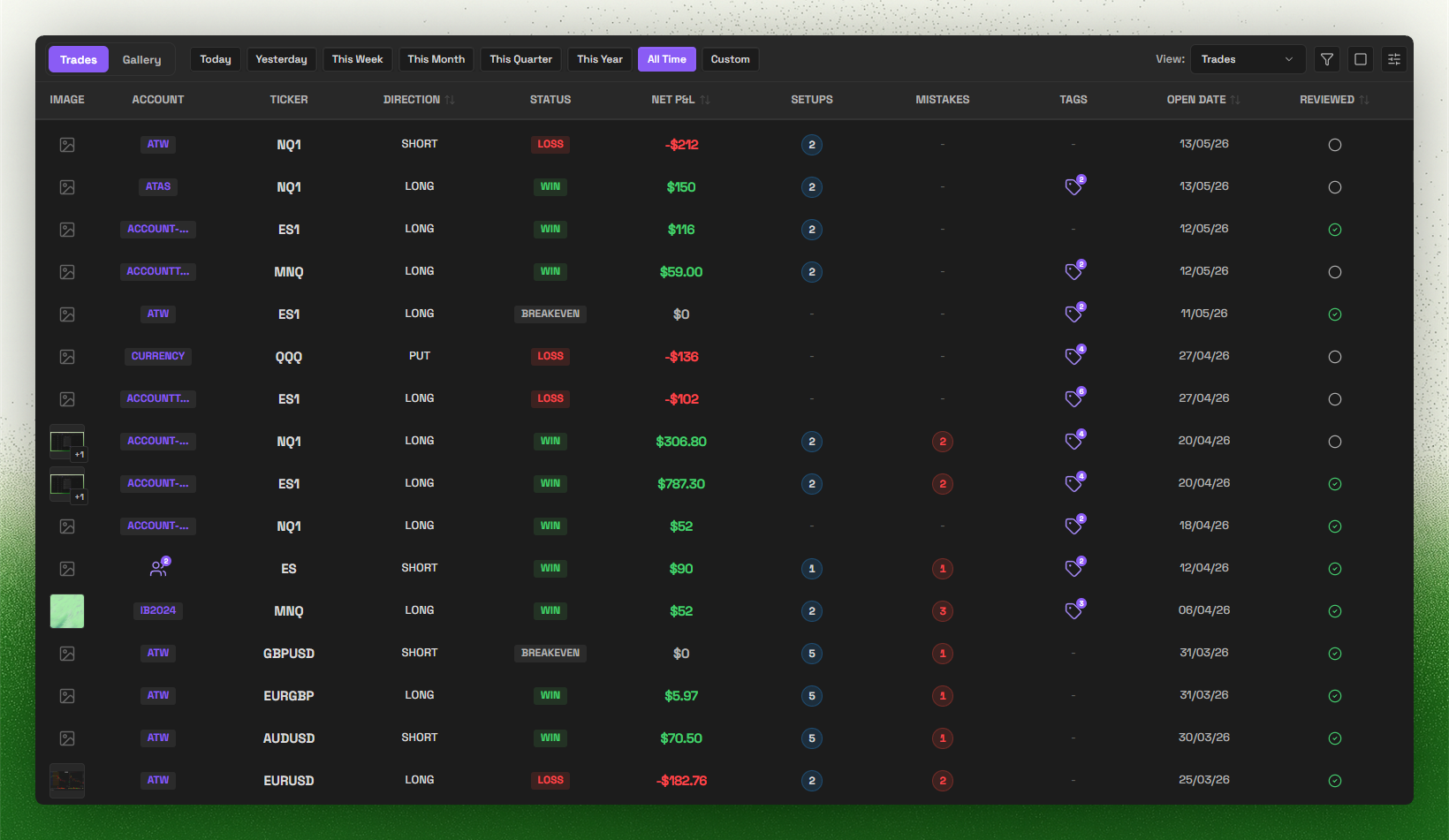
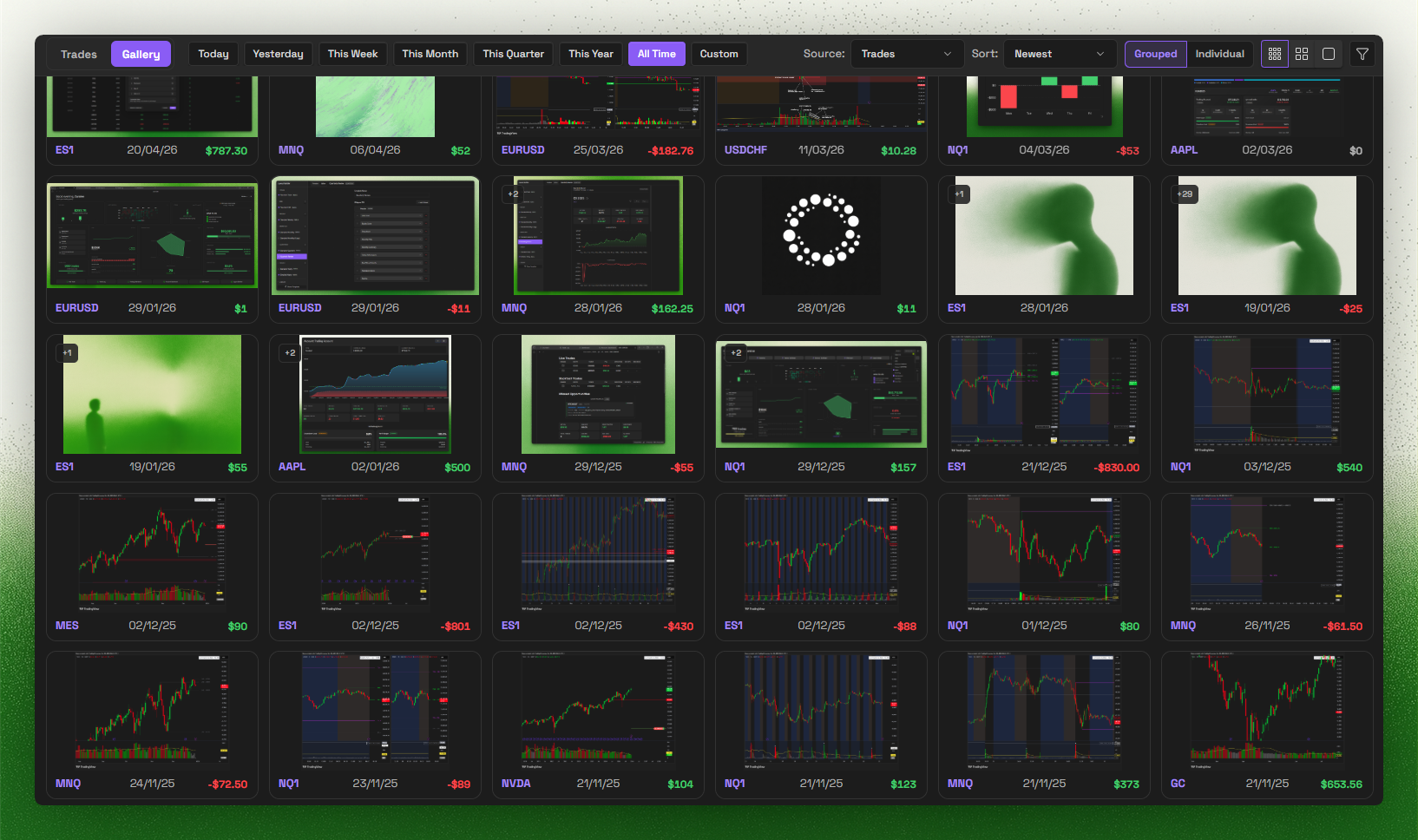
Trade Log & Gallery
Trade Import
AI apps (MCP)
Connect Claude, Claude Code, ChatGPT, Codex, Hermes, Grok Bot or another compatible AI app to your journal using MCP (Model Context Protocol). Ask it to analyse your trades, draft a weekly review or update journal fields without copying notes into a chat.
- Sign in to Journalit in Obsidian. Open Settings → Journalit → AI apps (MCP) and turn on Enable MCP access.
- Add
https://api.journalit.co/mcpas a remote MCP server in your AI app. - Sign in to Journalit when prompted, choose your vault, review the requested permissions and approve the connection.
Keep Obsidian open with Journalit running. Deletions, merges and large changes need your approval by default.
See the AI apps setup guide for client-specific steps, permissions, undo and monthly usage limits.
Supported brokers
Trade Sync creates an ongoing connection. Trade Import reads exported files. Support for one does not imply support for the other.
Automatic Trade Sync
- MetaTrader 4
- Tradovate
- cTrader
- Hyperliquid: watch-only USDC perpetuals
Rithmic Trade Sync is a preview for approved testers only. MetaTrader 5 statements use Trade Import, not FTP-based Trade Sync.
File-based Trade Import
Supported export sources and formats:
- IBKR
- Tradovate
- TopStepX
- TradeZero
- TradingView: Paper Trading order history and Strategy Tester List of Trades (backtests)
- Bybit
- BloFin
- Hyperliquid
- Sierra Chart
- MotiveWave
- FX Replay
- ATAS
- Trading Technologies (TT)
- Rithmic
- MetaTrader 4/5
- DeepCharts: Strategy Report Trade List
- Breakout Terminal:
trades.csv - Merrill Edge: account activity CSV
- PropReports: Executions report for stocks
Use Manual Mapping for other compatible files. See the Trade Import overview and each source's guide for the required export.
Missing your broker? Join Discord and tell us what you want next.
Keywords: obsidian trading journal, trading plugin, trade tracker, obsidian trading template, trading analytics, Trade Import, Trade Sync, prop firm, prop firms, funded account, profit target, trailing drawdown, max drawdown, prop challenge, evaluation, funded phase, payout rules, daily loss limit
AI: MCP, Model Context Protocol, Obsidian MCP, AI trading journal, AI-assisted journaling, Claude, Claude Code, ChatGPT, Codex, Hermes, Grok Bot
Brokers and platforms: MetaTrader, MetaTrader 4, MT4 sync, MetaTrader 5 imports, IBKR, Interactive Brokers, Tradovate, cTrader, Hyperliquid, Rithmic, TopStepX, TradeZero, TradingView, TradingView Strategy Tester, Bybit, BloFin, Sierra Chart, MotiveWave, FX Replay, ATAS, Trading Technologies, DeepCharts, Breakout Terminal, Merrill Edge, PropReports
- How it works (local-first)
- Trade Import overview
- MetaTrader sync overview
- Compare with other journals
- Prop challenges guide
Important disclosures
- Local-first core: core journaling works offline and stores your notes and trades inside your Obsidian vault.
- Account required for full access: a Journalit account is required for authentication-backed and subscription-gated features.
- Paid features: a paid Pro subscription is required for Trade Sync, committing Trade Imports, the Economic Calendar, and prefilled prop-firm profiles. Signed-in free users can analyse and preview Trade Import files.
- Network use: Journalit checks public GitHub release metadata for updates by default without sending vault or account data. Signed-in features may use Journalit services; MT4 sync uses managed FTP, and currency conversion may use a third-party exchange-rate service. See PRIVACY.md.
- Optional AI access: when you enable MCP and authorise an AI app, requested journal data is shared through Journalit services with that app. The AI provider's privacy terms apply to anything it reads. You can disconnect the app or turn off MCP access at any time.
- Trade Import processing: analyse/preview sends your selected file and import options to Journalit. Server-side encrypted diagnostic captures expire after one day for free accounts or 14 days for Pro accounts; stored previews expire after seven days. Compatibility guidance is returned in those responses and displayed locally, with no separate client failure-report upload. See PRIVACY.md.
- Other network diagnostics: existing Tradovate Sync code sends client synchronization diagnostic events as disclosed in PRIVACY.md; this is separate from Trade Import. Upgrade buttons open journalit.co only when clicked, carrying fixed campaign parameters (no identifiers) for server-side attribution.
- Source available, proprietary license: the plugin is proprietary software with reviewable source.
- Privacy details: see PRIVACY.md for data handling, retention, and infrastructure details.
License
This plugin is source-available proprietary software. Source is published for Obsidian review and user inspection, but it is not licensed as open source. See LICENSE for permitted use.
Journalit MCP 질문
Journalit MCP를 Claude Code에 추가하려면 어떻게 하나요?
터미널에서 claude mcp add --transport http journalit https://api.journalit.co/mcp를 실행합니다. 모든 프로젝트에서 사용할 수 있게 하려면 --scope user를 추가합니다.
Journalit MCP를 Cursor에 추가하려면 어떻게 하나요?
~/.cursor/mcp.json를 열고 mcpServers 아래에 서버를 추가합니다. 위 설치 섹션에 표시된 Cursor 구성을 사용합니다.
What can an AI app do with my Journalit journal?
It can analyze your trades, draft a weekly review, and update journal fields without copying notes into a chat.
Do I need to approve changes made by the AI?
Deletions, merges and large changes require your approval by default, and edits are previewed first.
Does Obsidian need to be open for MCP access?
Yes, keep Obsidian open with Journalit running so the AI app can reach your vault.
Is Journalit free to use with MCP?
A Journalit account is required for authentication-backed features, and some features like Trade Sync need a paid Pro subscription.