
client-cli MCP server
LLM 프롬프트를 실행하고 호환되는 MCP server와 상호작용하는 MCP client 역할을 수행하는 command-line interface입니다.
다른 이름 adhikasp/mcp-client-cli
- 스타
- 675
- Tools
- —
- 다운로드, 30일
- —
- 최신 버전
- —
- 마지막 커밋
- 2025년 12월 2일
- 라이선스
- MIT
client-cli MCP란?
client-cli은(는) MCP server입니다. LLM 프롬프트를 실행하고 호환되는 MCP server와 상호작용하는 MCP client 역할을 수행하는 command-line interface입니다.
프로젝트 README에서 생성된 요약
client-cli MCP server 정보
이 command-line interface를 사용하면 터미널에서 직접 LLM 프롬프트를 실행하고 Model Context Protocol server와 상호작용할 수 있습니다. Claude Desktop의 유연한 대안으로서 개발자가 호환되는 모든 MCP server에 연결할 수 있도록 지원합니다. 사용자는 JSON 파일을 통해 환경을 설정하여 OpenAI, Groq 또는 llama.cpp로 실행 중인 로컬 모델과 같은 LLM provider를 지정할 수 있습니다.
이 도구는 명령 출력이나 이미지 파일을 프롬프트로 직접 파이프하여 분석하는 등 폭넓은 워크플로우를 지원합니다. Windows, macOS, Linux에서 클립보드 콘텐츠를 기본적으로 지원하여 복사한 텍스트나 스크린샷을 빠르게 처리할 수 있습니다. 개발자는 확인 프롬프트를 통해 도구 실행을 관리하거나, 자동화 스크립트를 위해 특정 플래그를 사용하여 이를 건너뛸 수 있습니다.
단순한 질의를 넘어, 이 client는 git 변경 사항 검토나 YouTube 영상 요약과 같은 일반적인 작업을 위한 프롬프트 템플릿을 포함하고 있습니다. 또한 대화 상태를 유지하므로 간단한 접두사만으로 이전 대화를 이어갈 수 있습니다. 이러한 구성은 brave-search나 fetch와 같은 외부 도구를 터미널 기반 AI 워크플로우에 통합하는 매우 커스텀 가능한 방법을 제공합니다.
활용 사례
- 1클립보드 데이터 즉시 처리시스템 클립보드에 있는 텍스트나 이미지를 LLM으로 직접 전송하여 처리합니다.
프로젝트의 README를 바탕으로 작성되었습니다. 모든 활용 사례는 해당 내용의 인용문과 대조하여 확인합니다.
구성
BRAVE_API_KEY
| 이름 | 설명 | 유형 |
|---|---|---|
| BRAVE_API_KEY | — |
자동 검사
2026년 11월 15일에 실행됨전체 보고서 →아직 인증되지 않았습니다. 서버는 80점 이상의 점수, 심각한 결함 없음, 그리고 검사에 충분한 데이터를 갖추어야 합니다. 검사 방식 · 점수를 높이기 위해 수정할 항목

- 소스 저장소 연결 및 접근 가능adhikasp/mcp-client-cli is public and reachablegithub.com/adhikasp/mcp-client-cli ↗통과
- 패키지가 이 저장소를 소스로 명시검사되지 않음
- 빌드 출처(Sigstore 증명)검사되지 않음
- 오픈 소스 라이선스 (OSI)MITspdx.org/licenses/MIT.html ↗통과
- 최근 1년 내 커밋 또는 릴리스Last commit or release 2025-12-02github.com/adhikasp/mcp-client-cli ↗통과
- OpenSSF Scorecard검사되지 않음
- 패키지 이름이 인기 패키지와 유사하지 않음검사되지 않음
- 패키지 및 해당 종속성에 중요한 보안 권고 없음검사되지 않음
- 모델에 대한 숨겨진 지침 없음0 tool descriptions and the README read; no override phrases, credential paths or hidden characters통과
- 파괴적인 도구에 라벨 표시됨검사되지 않음
- 원격 엔드포인트가 MCP 핸드셰이크에 응답검사되지 않음
README
GitHub에서 보기MCP CLI client
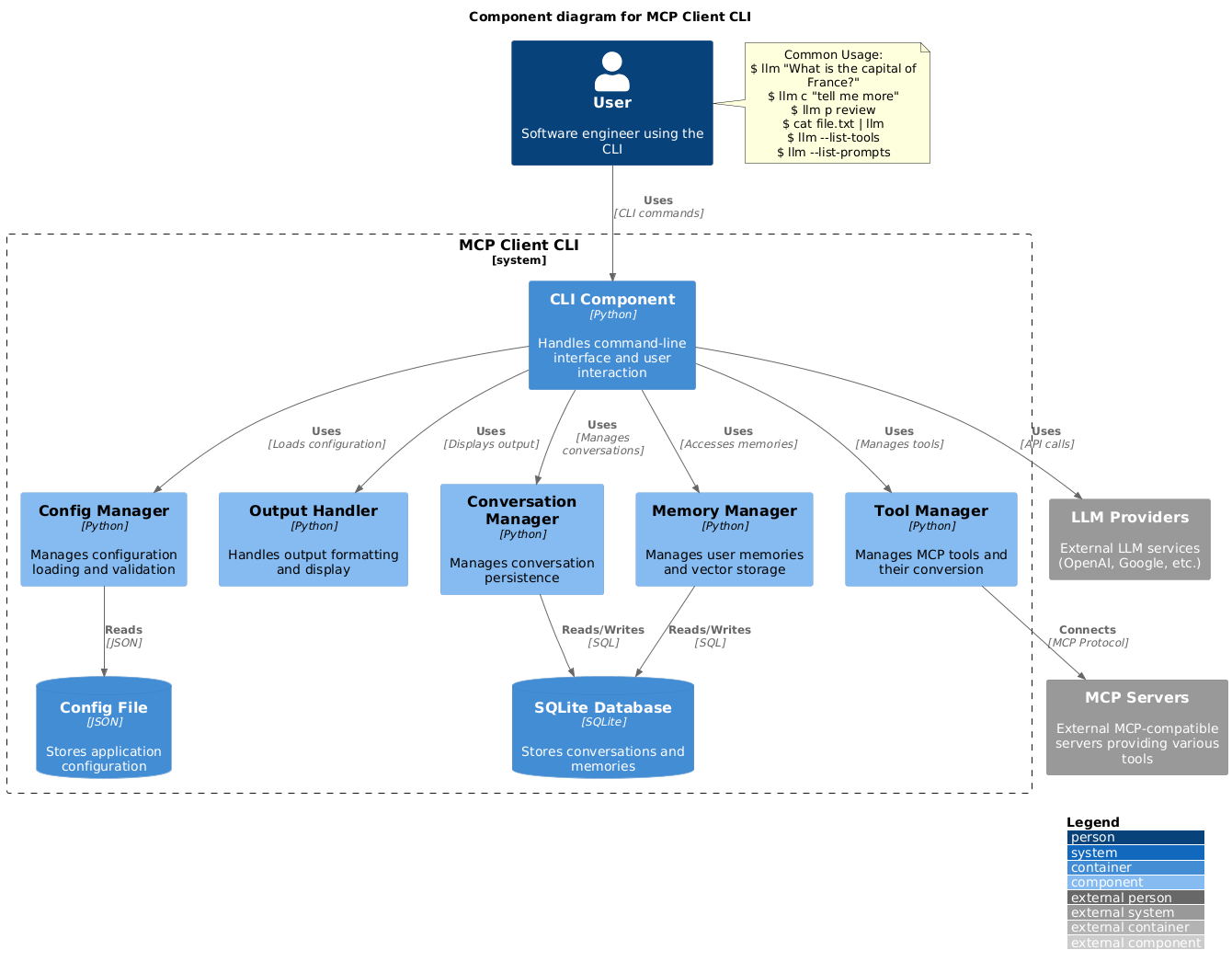
A simple CLI program to run LLM prompt and implement Model Context Protocol (MCP) client.
You can use any MCP-compatible servers from the convenience of your terminal.
This act as alternative client beside Claude Desktop. Additionally you can use any LLM provider like OpenAI, Groq, or local LLM model via llama.
Setup
-
Install via pip:
pip install mcp-client-cli -
Create a
~/.llm/config.jsonfile to configure your LLM and MCP servers:{ "systemPrompt": "You are an AI assistant helping a software engineer...", "llm": { "provider": "openai", "model": "gpt-4", "api_key": "your-openai-api-key", "temperature": 0.7, "base_url": "https://api.openai.com/v1" // Optional, for OpenRouter or other providers }, "mcpServers": { "fetch": { "command": "uvx", "args": ["mcp-server-fetch"], "requires_confirmation": ["fetch"], "enabled": true, // Optional, defaults to true "exclude_tools": [] // Optional, list of tool names to exclude }, "brave-search": { "command": "npx", "args": ["-y", "@modelcontextprotocol/server-brave-search"], "env": { "BRAVE_API_KEY": "your-brave-api-key" }, "requires_confirmation": ["brave_web_search"] }, "youtube": { "command": "uvx", "args": ["--from", "git+https://github.com/adhikasp/mcp-youtube", "mcp-youtube"] } } }Note:
- See CONFIG.md for complete documentation of the configuration format
- Use
requires_confirmationto specify which tools need user confirmation before execution - The LLM API key can also be set via environment variables
LLM_API_KEYorOPENAI_API_KEY - The config file can be placed in either
~/.llm/config.jsonor$PWD/.llm/config.json - You can comment the JSON config file with
//if you like to switch around the configuration
-
Run the CLI:
llm "What is the capital city of North Sumatra?"
Usage
Basic Usage
$ llm What is the capital city of North Sumatra?
The capital city of North Sumatra is Medan.
You can omit the quotes, but be careful with bash special characters like &, |, ; that might be interpreted by your shell.
You can also pipe input from other commands or files:
$ echo "What is the capital city of North Sumatra?" | llm
The capital city of North Sumatra is Medan.

$ echo "Given a location, tell me its capital city." > instructions.txt
$ cat instruction.txt | llm "West Java"
The capital city of West Java is Bandung.
Image Input
You can pipe image files to analyze them with multimodal LLMs:
$ cat image.jpg | llm "What do you see in this image?"
[LLM will analyze and describe the image]

$ cat screenshot.png | llm "Is there any error in this screenshot?"
[LLM will analyze the screenshot and point out any errors]
Using Prompt Templates
You can use predefined prompt templates by using the p prefix followed by the template name and its arguments:
# List available prompt templates
$ llm --list-prompts

# Use a template
$ llm p review  # Review git changes
$ llm p commit  # Generate commit message
$ llm p yt url=https://youtube.com/...  # Summarize YouTube video
Triggering a tool
$ llm What is the top article on hackernews today?

================================== Ai Message ==================================
Tool Calls:
  brave_web_search (call_eXmFQizLUp8TKBgPtgFo71et)
 Call ID: call_eXmFQizLUp8TKBgPtgFo71et
  Args:
    query: site:news.ycombinator.com
    count: 1
Brave Search MCP Server running on stdio

# If the tool requires confirmation, you'll be prompted:
Confirm tool call? [y/n]: y

================================== Ai Message ==================================
Tool Calls:
  fetch (call_xH32S0QKqMfudgN1ZGV6vH1P)
 Call ID: call_xH32S0QKqMfudgN1ZGV6vH1P
  Args:
    url: https://news.ycombinator.com/
================================= Tool Message =================================
Name: fetch

[TextContent(type='text', text='Contents [REDACTED]]
================================== Ai Message ==================================

The top article on Hacker News today is:

### [Why pipes sometimes get "stuck": buffering](https://jvns.ca)
- **Points:** 31
- **Posted by:** tanelpoder
- **Posted:** 1 hour ago

You can view the full list of articles on [Hacker News](https://news.ycombinator.com/)
To bypass tool confirmation requirements, use the --no-confirmations flag:
$ llm --no-confirmations "What is the top article on hackernews today?"
To use in bash scripts, add the --no-intermediates, so it doesn't print intermediate messages, only the concluding end message.
$ llm --no-intermediates "What is the time in Tokyo right now?"
Continuation
Add a c prefix to your message to continue the last conversation.
$ llm asldkfjasdfkl
It seems like your message might have been a typo or an error. Could you please clarify or provide more details about what you need help with?
$ llm c what did i say previously?
You previously typed "asldkfjasdfkl," which appears to be a random string of characters. If you meant to ask something specific or if you have a question, please let me know!
Clipboard Support
You can use content from your clipboard using the cb command:
# After copying text to clipboard
$ llm cb
[LLM will process the clipboard text]

$ llm cb "What language is this code written in?"
[LLM will analyze the clipboard text with your question]

# After copying an image to clipboard
$ llm cb "What do you see in this image?"
[LLM will analyze the clipboard image]

# You can combine it with continuation
$ llm cb c "Tell me more about what you see"
[LLM will continue the conversation about the clipboard content]
The clipboard feature works in:
- Native Windows/macOS/Linux environments
- Windows: Uses PowerShell
- macOS: Uses
pbpastefor text,pngpastefor images (optional) - Linux: Uses
xclip(required for clipboard support)
- Windows Subsystem for Linux (WSL)
- Accesses the Windows clipboard through PowerShell
- Works with both text and images
- Make sure you have access to
powershell.exefrom WSL
Required tools for clipboard support:
- Windows: PowerShell (built-in)
- macOS:
pbpaste(built-in) for textpngpaste(optional) for images:brew install pngpaste
- Linux:
xclip:sudo apt install xclipor equivalent
The CLI automatically detects if the clipboard content is text or image and handles it appropriately.
Additional Options
$ llm --list-tools                # List all available tools
$ llm --list-prompts              # List available prompt templates
$ llm --no-tools                  # Run without any tools
$ llm --force-refresh             # Force refresh tool capabilities cache
$ llm --text-only                 # Output raw text without markdown formatting
$ llm --show-memories             # Show user memories
$ llm --model gpt-4               # Override the model specified in config
Contributing
Feel free to submit issues and pull requests for improvements or bug fixes.
client-cli MCP 질문
이 client로 로컬 LLM을 사용할 수 있나요?
네, llama.cpp를 통해 로컬 LLM 모델을 사용할 수 있습니다.
도구 실행 확인 프롬프트를 건너뛸 수 있나요?
--no-confirmations 플래그를 사용하면 도구 실행 전 사용자의 확인 절차를 생략할 수 있습니다.
이미지 입력을 지원하나요?
네, 이미지 파일을 CLI로 파이프하여 멀티모달 LLM으로 분석할 수 있습니다.
클립보드 내용을 사용할 수 있나요?
네, cb 명령어를 사용하면 클립보드에 있는 텍스트나 이미지를 즉시 처리할 수 있습니다.