
Serveur MCP Context Forge
Commit 13 nov. 2026Gère des projets de développement complexes pilotés par l'IA en maintenant un état hiérarchique, les phases de la méthodologie et un contexte structuré pour les agents IA.
Aussi connu sous ecorkran/context-forge, @context-forge/context-forge, @context-forge/mcp
- Étoiles
- 5
- Outils
- —
- Téléchargements, 30 jours
- 6 849
- Dernière version
- —
- Dernier commit
- 13 nov. 2026
- Licence
- MIT
Qu'est-ce que Context Forge MCP ?
Context Forge est un serveur MCP. Gère des projets de développement complexes pilotés par l'IA en maintenant un état hiérarchique, les phases de la méthodologie et un contexte structuré pour les agents IA.
Résumé généré à partir du README du projet
À propos du MCP server Context Forge
Context Forge est un moteur de gestion conçu pour les développeurs travaillant sur des projets à grande échelle utilisant des agents IA. Il propose une méthodologie structurée pour passer des concepts initiaux à l'architecture et à la décomposition des tâches, jusqu'à l'implémentation. En maintenant un état de projet hiérarchique, il garantit que les assistants IA disposent toujours du contexte nécessaire concernant la phase méthodologique actuelle, les tranches verticales actives et les tâches en attente, sans nécessiter de sessions de mise à niveau manuelles.
Le système fonctionne via un CLI utilisant la commande cf et un MCP server qui peut être intégré dans des environnements tels que Claude, Cursor ou Windsurf. Il prend en charge diverses configurations d'IDE, y compris des configurations de règles spécifiques pour VS Code Copilot et OpenAI Codex. Les utilisateurs peuvent gérer plusieurs projets simultanément, chaque projet conservant son propre état et sa propre configuration de manière indépendante. Le serveur est conçu pour générer du JSON structuré, ce qui le rend hautement compatible avec les pipelines automatisés et les workflows multi-agents pilotés par des outils comme Squadron.
Ce que vous pouvez faire avec
- 1Initialiser un nouveau projetUn développeur peut configurer un nouvel environnement de développement avec tous les guides et les configurations d'IDE nécessaires en une seule commande.
- 2Fournir l'état du projet aux agents IAUn assistant IA peut utiliser les outils MCP pour comprendre l'avancement actuel et la prochaine étape logique du cycle de vie du développement.
- 3Configurer des règles IA spécifiques à l'IDELes développeurs peuvent générer automatiquement les fichiers de règles spécifiques requis pour différents éditeurs basés sur l'IA comme Cursor ou Copilot.
- 4Automatiser l'assemblage du contexte pour les agentsLe système peut regrouper tous les documents de projet et l'état pertinents dans un prompt structuré pour un agent IA.
Extrait du README du projet. Chaque cas d'utilisation est vérifié par rapport à une citation du document.
Comment installer Context Forge MCP
Formats vérifiés le 10 nov. 2026Ajouter à CursorAjouter à GooseInstaller Context Forge MCP dans Claude Code
$ claude mcp add context-forge -- npx -y @context-forge/context-forgeInstaller Context Forge MCP dans Cursor
~/.cursor/mcp.json
{
  "mcpServers": {
    "context-forge": {
      "command": "npx",
      "args": [
        "-y",
        "@context-forge/context-forge"
      ]
    }
  }
}Installer Context Forge MCP dans VS Code
.vscode/mcp.json
{
  "servers": {
    "context-forge": {
      "type": "stdio",
      "command": "npx",
      "args": [
        "-y",
        "@context-forge/context-forge"
      ]
    }
  }
}Installer Context Forge MCP dans VS Code CLI
$ code --add-mcp '{"name":"context-forge","type":"stdio","command":"npx","args":["-y","@context-forge/context-forge"]}'Installer Context Forge MCP dans Claude Desktop
claude_desktop_config.json
{
  "mcpServers": {
    "context-forge": {
      "command": "npx",
      "args": [
        "-y",
        "@context-forge/context-forge"
      ]
    }
  }
}Installer Context Forge MCP dans Codex
$ codex mcp add context-forge -- npx -y @context-forge/context-forgeInstaller Context Forge MCP dans Codex config.toml
~/.codex/config.toml
[mcp_servers.context-forge]
command = "npx"
args = ["-y", "@context-forge/context-forge"]
Installer Context Forge MCP dans Gemini CLI
$ gemini mcp add -s user context-forge npx -- -y @context-forge/context-forgeInstaller Context Forge MCP dans Gemini settings.json
~/.gemini/settings.json
{
  "mcpServers": {
    "context-forge": {
      "command": "npx",
      "args": [
        "-y",
        "@context-forge/context-forge"
      ]
    }
  }
}Vérifications automatisées
Exécuté le 14 nov. 2026Rapport complet →Pas encore vérifié. Un serveur nécessite un score de 80, aucune faille sérieuse et suffisamment de données pour que nous puissions effectuer les vérifications. Fonctionnement des vérifications · Ce qu'il faut corriger pour gagner des points

- Dépôt source lié et accessibleecorkran/context-forge is public and reachablegithub.com/ecorkran/context-forge ↗Réussi
- Le nom du package correspond au dépôt source@context-forge/context-forge, @context-forge/mcp name ecorkran/context-forge as sourcenpmjs.com/package/@context-forge/context-forge ↗Réussi
- Provenance du build (attestation Sigstore)No build attestation published for this releaseNon vérifié
- Licence open source (OSI)MITspdx.org/licenses/MIT.html ↗Réussi
- Commit ou version publiée au cours de l'année écouléeLast commit or release 2026-11-13github.com/ecorkran/context-forge ↗Réussi
- OpenSSF ScorecardNon vérifié
- Nom du package non proche d'un package populaireNo popular package one edit away from @context-forge/context-forge, @context-forge/mcpRéussi
- Aucun avis critique dans le package ou ses dépendancesNon vérifié
- Aucune instruction cachée destinée au modèle0 tool descriptions and the README read; no override phrases, credential paths or hidden charactersRéussi
- Les outils destructifs sont étiquetésNon vérifié
- Le point de terminaison distant répond à la poignée de main MCPNon vérifié
README
Voir sur GitHubContext Forge
Context Forge massively speeds the development of large projects with AI agents while maintaining high quality.
It multiplies your cognitive abilities and doesn't try to replace them. Not another "Hey AI, build me an app" framework, and it may be overkill for building simple gadgets. Development is managed through a structured process, starting with broad initiatives and breaking functionality into vertical slices and individual tasks. It maintains traceable, hierarchical project state so that every AI session starts with full awareness of where things stand and what's next.
It's designed to be easy for AIs as well. Every command can output structured JSON. Easily readable by AI, and usable in pipelines. The MCP server provides an agent_quickstart to simplify use by AIs.
What It Looks Like
CLI
Everything is discoverable under the cf command. Start with cf --help. Easily manage multiple projects. cf knows which one based on your current directory. cf init to start a new one. Ideally it will feel similar to git.

Obtain brief status with cf status, detailed with cf project get. Use the MCP or slash-commands if you prefer.

Your AI assistant sees this too — through MCP tools, through slash commands, through the CLI. It knows the project structure, the methodology phase, the active slice, and (very soon) exactly which task to work on next. No "let me catch you up." No re-reading CLAUDE.md. No guessing.
Visualizer
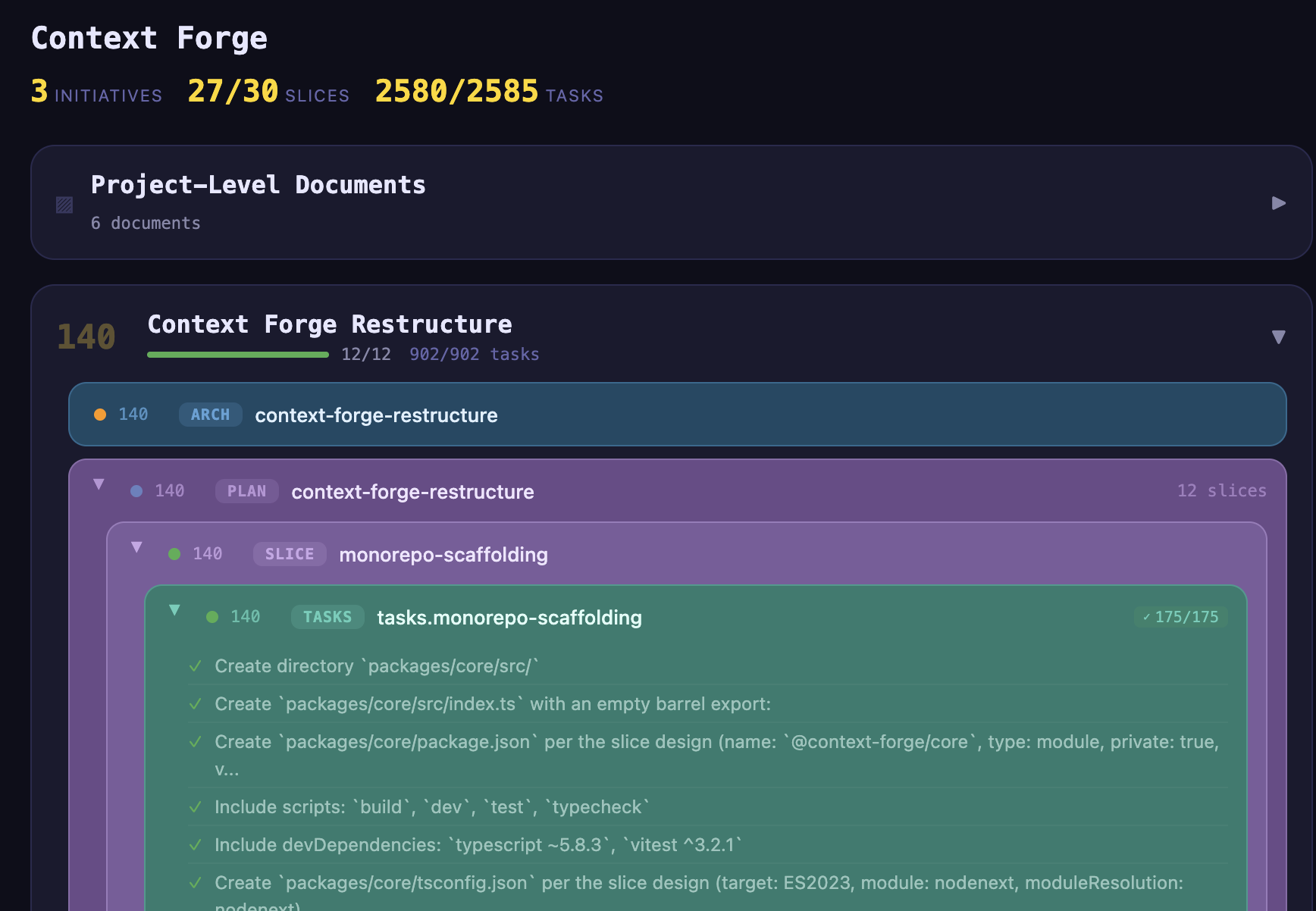
Context Forge builds big projects fast. Visualizer is a separate tool to help humans maintain an overview. Available at:
https://github.com/ecorkran/context-visualizer
Get Started
Most people should install Squadron and let it
set up Context Forge for them. Squadron drives multi-agent pipelines through cf, so it
installs and configures both. If you only want the methodology and context engine, the
standalone path below is fully supported.
Recommended: install via Squadron
uv tool install squadron-ai     # or: pipx install squadron-ai
sq setup                        # installs cf, /sq:* and /cf:* commands, checks providers
sq setup is interactive and idempotent, so it is safe to re-run. Then, inside each
project you want to work on:
cf init # creates the project, installs guides, configures your IDE
Context Forge on its own
# 1. Install globally (one package gets you everything)
npm install -g @context-forge/context-forge

# 2. Add the MCP server (strongly recommended)
claude mcp add --transport stdio context-forge -- npx @context-forge/mcp
# Codex CLI instead? Add to ~/.codex/config.toml — see the MCP config details below.

# 3. Set up your project — pick one:
cf init                   # CLI: creates project, installs guides, configures IDE, installs slash commands
cf init --ide copilot     # Same, but configured for VS Code Copilot instead of Claude Code
cf init --ide codex       # Same, but configured for OpenAI Codex (also: cursor, agents, openai)
# — or —
/cf:onboard               # Slash command: AI-guided setup — registers the project, then hands off to `cf build`
That's it. cf status works. Your AI assistant can call Context Forge tools. /cf:build assembles context. /cf:onboard sets up the project, then runs cf build and follows the prompt it returns. It needs ai-project-guide v0.22.11 or newer; on an older install cf build warns and cf guides update fixes it.
{
  "context-forge": {
    "command": "npx",
    "args": ["@context-forge/mcp"],
    "env": {}
  }
}
For OpenAI Codex CLI, add to ~/.codex/config.toml:
[mcp_servers.context-forge]
command = "npx"
args = ["@context-forge/mcp"]
cf guides install          # Install methodology guides into your project
cf setup-ide claude        # Install Claude rules and create CLAUDE.md
cf setup-ide copilot       # Install rules/skills for VS Code Copilot
cf setup-ide cursor        # Install scoped rules for Cursor, always-on rules in AGENTS.md
cf setup-ide codex         # Write AGENTS.md + skills for OpenAI Codex (aliases: openai, agents)
cf setup-ide claude --dry-run  # Preview what setup-ide would add/change/remove; writes nothing
cf setup-ide claude --write-lint  # Also write missing lint configs (eslint.config.mjs, ruff.toml, ...)
cf install-commands              # Install /cf:* slash commands for Claude Code (machine-level)
cf install-commands --ide codex  # Install $cf-* agent skills for Codex (machine-level)
cf install-commands --local      # Project-local install (either target)
Each target writes a different file layout:
cf setup-ide claude              # CLAUDE.md, .claude/{rules,agents,skills}/
cf setup-ide copilot             # AGENTS.md, .github/copilot-instructions.md,
                                  # .github/instructions/, .agents/skills/<name>/SKILL.md
cf setup-ide cursor              # AGENTS.md (always-on), .cursor/rules/*.mdc (scoped)
cf setup-ide codex|openai|agents # AGENTS.md, .agents/skills/<name>/SKILL.md
A guide rule can be limited to some agents with agents: [claude] in its frontmatter. Without the key, the rule goes everywhere. The audiences name output files, not targets:
claude: the CLAUDE.md block and.claude/rules/agents: the AGENTS.md block and its scoped-rule indexcopilot: the copilot-instructions.md block and.github/instructions/cursor:.cursor/rules/
A skipped scoped rule prints ⊘ Skipped <file> (agents: …), and a file an earlier run wrote for it is removed. An unknown value is ignored with a warning. Cursor reads its always-on rules from AGENTS.md, so an always-on rule meant for Cursor must list agents.
Requirements: Node.js 20.18+.
How It Works
Context Forge is built around a structured development methodology called ai-project-guide.
Projects progress through phases: Concept → Initiative Plan → Architecture → Slice Planning → Slice Design → Task Breakdown → Implementation → Integration
Each phase produces documents. Documents reference each other. Slices decompose into tasks. Tasks track completion. The whole thing is a hierarchy you can navigate, introspect, and hand off between humans and agents without losing state.
Context Forge is the engine that:
- Knows where you are — parses your project artifacts, reads completion states, understands methodology phase
- Knows what's next — workflow navigation recommends the next action with rationale
- Generates session context — assembles everything an AI agent needs into a structured prompt, automatically
- Tracks everything — persistent project state, two-tier configuration, artifact introspection across all your projects
It manages multiple projects simultaneously. Each one has its own slice plan, its own task state, its own methodology position.
For larger projects with parallel initiatives — running architecture and a feature slice at the same time, for example — worktrees let you run multiple AI sessions in separate git worktrees, each with its own phase/slice/task context, without conflicts.
Choosing a guide install strategy
cf guides install and cf init accept --strategy to control how the guide
lands in your project. The guide itself is identical either way; the strategies
differ in how it is tracked.
| Strategy | Trade-off |
|---|---|
tarball (default) |
plain files with no git wiring, simplest for teams |
submodule |
version-pinned and updatable, but teammates must run git submodule update |
clone |
a full working copy you can commit to, larger checkout |
Why tarball is the default. The guide lands as plain files in your repo — the
archive's own git files (.gitmodules, .gitignore) are dropped at extract
time — so once one person runs the install, everyone else gets the guide from
your repo like any other file. Nobody has to think about submodule checkout, CI
needs no submodules: true, and there is no second repository nested inside
yours. The install is committed for you (docs: install ai-project-guide <version>), touching only the guide directory and never pushing; if the project
is not a git repository, or gitignores the guide, the commit is skipped and the
output says so. cf guides update replaces the directory and commits the same
way, so a guide bump shows up as an ordinary reviewable diff.
The person running the install needs to reach github.com (to resolve the latest
tag) and api.github.com (to download the archive); the standard HTTPS_PROXY /
NO_PROXY variables are honored for both. The source must be a github.com
repository, and a guide.source config value is honored on both install and
update.
Pick submodule with --strategy submodule when you want the exact guide commit
pinned and reviewable in a diff, updates that go through git rather than the
GitHub API, or a working path for contributing improvements back upstream. A
teammate who clones without --recurse-submodules is covered: Context Forge
initializes the checkout automatically the first time a command reads guide
content, reporting what it did on stderr. cf guides info shows the checkout
state and never modifies it. A checkout sitting at a commit other than the one
your project pins is reported and left alone, since that is usually deliberate.
The strategy you pass is remembered. When --strategy names something other
than what the project's config already resolves to, it is written to
guide.git_strategy in the shared project config (.context-forge.toml), so a
later bare cf guides install, or a teammate's, uses the same strategy. Commit
that file.
Switching an existing submodule install to tarball:
cf guides uninstall                     # removes the submodule, its .git/modules data, and commits
cf guides install --strategy tarball    # installs as plain files and commits
git add .context-forge.toml && git commit -m "chore: set guide strategy to tarball"
Pick clone when you intend to edit the guide in place. The strategy name
manual is a deprecated alias for tarball; it still works and prints a
deprecation notice.
This directory is managed by cf and overwritten on
cf guides update. Put project-specific customizations underproject-documents/user/.
Previewing, pinning and local archives (tarball installs)
cf guides update downloads the new guide into a staging directory and shows
what would change before it touches anything:
Guide update: v0.20.2 → v0.21.0
  12 added, 3 removed, 41 changed
Continue? (y/N)
Answering anything but y leaves the guide and git untouched. --yes skips the
question (and the branch-guard question too). With no terminal to ask on, such as
a closed stdin, the answer is no, so unattended runs need --yes. When nothing
differs, it prints Guide is already up to date and changes nothing. The
guide_update MCP tool has no prompt: it applies the update and returns the same
counts as preview (unchanged: true when nothing differed); the swap is one
commit you can revert.
Two flags work on both cf guides install and cf guides update:
--version <tag>installs that release instead of the newest. It applies to that call only and is not remembered; a tag the remote does not have fails and names the newest one.--source <url|path.tgz>takes a GitHub URL or a local.tgz/.tar.gzarchive (relative paths resolve against the directory you runcfin; the MCP tools resolve against the project root). The archive needs a single top-level directory, like a GitHub tarball. A local install is recorded as versionlocal, socf guides infoshowslocaland reports an update as available; a later plaincf guides updatemoves to the newest release.--versioncannot be combined with a local archive.
Both are tarball-only: on a submodule or clone install they fail with an error instead of being ignored.
Leaving guide content out (guide.exclude)
Most projects use only a few of the guide's tool-guides/ and
framework-guides/. A tarball install can skip the rest:
cf config set guide.exclude "tool-guides/**,framework-guides"
cf guides update        # re-extracts at the same version without the excluded paths
- Each entry is a path relative to the guide root, matched as that file or
directory and everything under it. A trailing
/or/**means the same as the bare path; no other wildcards are supported. project-guidesandscriptsare protected: cf needs them, so an entry that equals, contains, or sits inside either one is refused. The one exception is a single language's lint config,project-guides/lint/<language>(for exampleproject-guides/lint/csharp);project-guides/lintitself is refused.- Tarball installs only. Submodule and clone installs ignore the key and say so.
- A change applies on the next
cf guides update(or a fresh install);cf guides infoshows the applied list and flags a pending change. The key lives in the shared.context-forge.toml; the update commit includes that file whenguide.excludeis its only uncommitted change. If you have other edits in it, the file is left out of the commit and cf says so. - Links from the remaining guide content into an excluded path will break.
Adopting an Existing Codebase
Adoption of an existing codebase is run by squadron's sq onboard, which calls Context Forge. Context Forge doesn't start or run an adoption on its own. It does notice an existing codebase: cf init, /cf:onboard and cf next print one line naming sq onboard and the opt-out, and onboarding stops before the concept conversation. cf build is unchanged by the codebase. To treat a project with existing code as new, run cf config set adoption.state declined. An adoption writes a concept, which squadron drafts and you confirm, then a derived architecture and an existing-state slice plan. Your assistant writes those from Context Forge's adoption prompt, recording the built work as completed history followed by your new work. An adopted project is then navigated like any other, so cf next points at the first new slice. The primitives squadron uses are described in Adoption Primitives.
When the project already has rule files (CLAUDE.md, AGENTS.md, .cursor/rules, ...), cf setup-ide keeps your text and appends the guide's rules below it. To settle any contradictions between the two, fetch the reconciliation prompt with cf prompt get conventions-reconciliation and give it to your assistant. It lists the conflicts, asks you to decide each one, and records the decisions with cf rules resolve. Run cf setup-ide <target> again to apply them. The prompt ships in ai-project-guide v0.22.6; on an older guide, the command fails with "No prompt found" and you record decisions by hand with cf rules resolve <guideRule> <projectSource> --statement "<text>" (see cf rules inventory --json for the valid names).
An adopted project's existing README, docs/ and ADRs stay where they are. cf docs map writes project-documents/user/architecture/050-docs-map.{project}.md, an index that links each of them in place, so the derived architecture and later designs can point at them. Re-run it to refresh the list; entries you add by hand outside the managed block are kept.
If detection gets it wrong, the opt-out is cf config set adoption.state declined; cf config get adoption.state describes the values. Commands are in the CLI reference, and Review Gating explains how the review gate treats the recorded history.
Consistency Checks and --fix
cf check finds mismatches between related documents: a slice whose tasks are
all done but whose plan entry is unchecked, a design whose status disagrees with
its tasks, and so on. cf check --fix applies the safe corrections (checkboxes
and frontmatter status fields). Without --slice it shows what it found and
asks before writing; --yes skips the question.
With worktrees, each fix is written only in the checkout that owns its subject, decided by the worktrees' index ranges. Documents no range claims belong to the main project checkout.
- Fixes in the checkout you run from stay uncommitted, as before.
- Fixes in another registered checkout are committed there, one commit per
checkout, containing only the fixed files:
docs: update project documents in response to cf check --fix. Nothing is pushed. - Some fixes are left alone and listed with a reason:
- another checkout's stale copy of a document
- a checkout that is missing, on a detached HEAD, or mid-merge/rebase
- a file with uncommitted edits
- a commit rejected by that checkout's hooks (the written files are restored)
- Running
--fixfrom a checkout that isn't a registered worktree is an error. Runcf worktree initthere, or run from a registered checkout.
--no-commit (MCP workflow_check: noCommit: true) writes the fixes in
every checkout and commits nothing, so you can fold them into your own commit.
The files written are listed per checkout (fixLog in --json output; with
worktrees each entry names its worktree). Fixes that would overwrite a file with
uncommitted edits are still left alone. Run the commit yourself in each
checkout listed.
cf config set workflow.auto_fix true makes every cf check a fixing run, with
no confirmation. With worktrees, that means a plain cf check can commit into
other checkouts. That includes the DEVLOG archiving below: with workflow.auto_fix
on, a plain cf check can archive and commit DEVLOG.md without a prompt.
Keeping DEVLOG.md small
DEVLOG.md grows without bound, and a very large one can overflow an agent's
tool-result buffer. When it passes devlog.max_bytes, cf check warns
(devlog-size), and cf devlog archive [--dry-run] or cf check --fix moves the
older day sections, cut from the bottom, into quarterly archives at
project-documents/user/archive/devlog/DEVLOG-YYYY-Qn.md. The newest sections
stay, up to devlog.target_bytes; a day section is never split. --dry-run
prints the plan and writes nothing, and cf devlog archive never commits. With
several checkouts, --fix archives only in the main checkout.
| Key | Default | Meaning |
|---|---|---|
devlog.max_bytes |
200000 |
Size above which cf check warns and archiving runs |
devlog.target_bytes |
100000 |
Size archiving keeps DEVLOG.md at or under; must be below devlog.max_bytes |
Review Gating
Optionally require a review artifact (with a clearing verdict) before Context Forge recommends advancing past a lifecycle boundary — deterministic, AI-free routing with zero behavior change unless you turn it on:
cf config set workflow.review_enabled true
Off by default. To exempt a single slice from its review requirement:
cf check --set-review-none <index> # writes review: none to that slice's design doc
See the Review Gating reference for the full config-key surface, decision matrix, and other escape hatches (grandfathering old work, exempting docs-only slices).
Design Philosophy
Context Forge resists the urge to be clever on your behalf.
We added compound commands — cf implement instead of cf set phase 6 && cf build. Then we cut them all. They bloated the command surface, cluttered the slash commands, and obscured what was actually happening. The low-level commands were better. They composed. They were transparent. So we went back.
This is a pattern, not an accident. The tool stays close to the metal:
- No magic. You can do everything through MCP if you want, but
cf set phase 6is a hundred times faster and you should just type it. The MCP tools exist so agents can operate autonomously, not so humans can burn tokens setting a property. - No opinions about your stack. Context Forge doesn't care if you're writing Python, TypeScript, C++, or all three. It manages project state and generates context. Your agents do the rest.
- No hand-holding. There's an onboarding flow if you want it (
/cf:onboard). There'scf nextif you want guidance. But the tool doesn't gate your progress or force you through ceremonies. You're the architect. Act like it.
Naming Things
Started as a simple Electron utility called Context Builder, and long since outgrew both the name and the Electron app. It stays Context Forge because the npm org carries four packages and seventy-odd releases, and renaming that costs every existing user more than a better name is worth. Naming things is hard. One of the only two hard things, together with cache invalidation and off-by-one errors.
Access Points
Three interfaces — use whichever fits your workflow:
MCP Server (@context-forge/mcp)
34 tools for project management, context generation, artifact introspection, workflow navigation, worktree management, guide management, and configuration. Works with Claude Code, Cursor, or any MCP-compatible client. This is what your AI assistant talks to.
| Category | Tools |
|---|---|
| Project | project_list, project_get, project_create, project_update, project_schema, project_structure |
| Context | context_build, context_summarize, template_preview, prompt_list, prompt_get |
| Workflow | workflow_status, workflow_next, workflow_check, workflow_future |
| Worktrees | worktree_list, worktree_get, worktree_init, worktree_update, worktree_rm |
| Introspection | introspection_documents, introspection_frontmatter, introspection_slice_plan, introspection_tasks, introspection_future_work |
| Configuration | config_get, config_set |
| Guides | guide_install, guide_status, guide_update |
| Storage | storage_backup |
| Meta | agent_onboard, agent_quickstart, server_version |
Questions sur Context Forge MCP
Comment ajouter Context Forge MCP à Claude Code ?
Exécutez claude mcp add context-forge -- npx -y @context-forge/context-forge dans votre terminal. Ajoutez --scope user pour le rendre disponible dans tous les projets.
Comment ajouter Context Forge MCP à Cursor ?
Ouvrez ~/.cursor/mcp.json et ajoutez le serveur sous mcpServers, avec la configuration Cursor indiquée dans la section d'installation ci-dessus.
Comment Context Forge aide-t-il les agents IA ?
Il fournit une sortie JSON structurée, un agent_quickstart via MCP et maintient un état de projet traçable afin que les agents aient une connaissance complète de l'avancement du projet.