
Offre aux assistants de codage IA un accès sensoriel direct aux applications web en direct en capturant et en analysant l'audio, le visuel et les données de performance.
Aussi connu sous asume21/webear
- Étoiles
- 1
- Outils
- —
- Téléchargements, 30 jours
- —
- Dernière version
- 1.2.4
- Dernier commit
- 28 oct. 2026
- Licence
- MIT
Qu'est-ce que webear MCP ?
webear est un serveur MCP. Offre aux assistants de codage IA un accès sensoriel direct aux applications web en direct en capturant et en analysant l'audio, le visuel et les données de performance.
Résumé généré à partir du README du projet
À propos du MCP server webear
Webear offre aux assistants de codage IA un accès sensoriel direct aux applications web en direct en exploitant la Web Audio API. Cela permet à une IA d'entendre la sortie numérique d'un onglet de navigateur sans l'interférence de l'acoustique de la pièce ou du matériel du microphone. Les développeurs peuvent intégrer cela à leur flux de travail en utilisant un middleware Express sur un serveur de développement local ou en se connectant à un relais hébergé via SSE. Le serveur s'exécute à l'intérieur d'un IDE comme Claude Code, Cursor ou Windsurf via stdio.
Les utilisateurs peuvent interagir avec l'application via des outils spécifiques tels que capture_audio, analyze_audio, describe_audio et diff_audio. Bien que l'analyse de base comme la puissance sonore et l'écrêtage puisse être effectuée localement avec ffmpeg, les fonctionnalités avancées comme le centroïde spectral, le BPM et le jitter temporel nécessitent une clé API CodedSwitch. Le système est conçu pour les développeurs audio web, les créateurs de jeux et les concepteurs d'applications musicales qui doivent déboguer des graphes audio complexes, des synthétiseurs ou des problèmes de mixage directement via leur assistant IA.
Ce que vous pouvez faire avec
- 1Déboguer des problèmes de mixage audioDemandez à votre IA d'analyser un flux audio en direct pour identifier pourquoi une bande de fréquences spécifique semble trouble.
- 2Détecter des régressions audioUtilisez l'outil pour comparer des captures audio provenant de différentes versions du code afin de trouver des changements de puissance sonore ou de tonalité.
- 3Surveiller l'écrêtage du signalVérifiez si votre application web produit un audio qui dépasse les niveaux de crête maximaux.
- 4Analyser la cohérence rythmiqueÉvaluez le jitter temporel et le BPM d'une application musicale basée sur le web.
Extrait du README du projet. Chaque cas d'utilisation est vérifié par rapport à une citation du document.
Comment installer webear MCP
Formats vérifiés le 10 nov. 2026Ajouter à CursorAjouter à GooseInstaller webear MCP dans Claude Code
$ claude mcp add --env 'CODEDSWITCH_API_KEY=<YOUR_CODEDSWITCH_API_KEY>' webear -- npx -y webearInstaller webear MCP dans Cursor
~/.cursor/mcp.json
{
  "mcpServers": {
    "webear": {
      "command": "npx",
      "args": [
        "-y",
        "webear"
      ],
      "env": {
        "CODEDSWITCH_API_KEY": "<YOUR_CODEDSWITCH_API_KEY>"
      }
    }
  }
}Installer webear MCP dans VS Code
.vscode/mcp.json
{
  "servers": {
    "webear": {
      "type": "stdio",
      "command": "npx",
      "args": [
        "-y",
        "webear"
      ],
      "env": {
        "CODEDSWITCH_API_KEY": "<YOUR_CODEDSWITCH_API_KEY>"
      }
    }
  }
}Installer webear MCP dans VS Code CLI
$ code --add-mcp '{"name":"webear","type":"stdio","command":"npx","args":["-y","webear"],"env":{"CODEDSWITCH_API_KEY":"<YOUR_CODEDSWITCH_API_KEY>"}}'Installer webear MCP dans Claude Desktop
claude_desktop_config.json
{
  "mcpServers": {
    "webear": {
      "command": "npx",
      "args": [
        "-y",
        "webear"
      ],
      "env": {
        "CODEDSWITCH_API_KEY": "<YOUR_CODEDSWITCH_API_KEY>"
      }
    }
  }
}Installer webear MCP dans Codex
$ codex mcp add webear --env 'CODEDSWITCH_API_KEY=<YOUR_CODEDSWITCH_API_KEY>' -- npx -y webearInstaller webear MCP dans Codex config.toml
~/.codex/config.toml
[mcp_servers.webear]
command = "npx"
args = ["-y", "webear"]

[mcp_servers.webear.env]
CODEDSWITCH_API_KEY = "<YOUR_CODEDSWITCH_API_KEY>"
Installer webear MCP dans Gemini CLI
$ gemini mcp add -s user -e 'CODEDSWITCH_API_KEY=<YOUR_CODEDSWITCH_API_KEY>' webear npx -- -y webearInstaller webear MCP dans Gemini settings.json
~/.gemini/settings.json
{
  "mcpServers": {
    "webear": {
      "command": "npx",
      "args": [
        "-y",
        "webear"
      ],
      "env": {
        "CODEDSWITCH_API_KEY": "<YOUR_CODEDSWITCH_API_KEY>"
      }
    }
  }
}Configuration
CODEDSWITCH_API_KEYRequisSecretAPI key from codedswitch.com for audio analysis
WEBEAR_BASE_URLURL of your dev server where WebEar middleware is mounted
| Nom | Description | Type |
|---|---|---|
| CODEDSWITCH_API_KEY | API key from codedswitch.com for audio analysis | RequisSecret |
| WEBEAR_BASE_URL | URL of your dev server where WebEar middleware is mounted |
Vérifications automatisées
Exécuté le 13 nov. 2026Rapport complet →A passé nos vérifications automatisées. Il ne s'agit pas d'un audit de sécurité : lisez le code et donnez au serveur l'accès le plus restreint dont il a besoin. Fonctionnement des vérifications

- Dépôt source lié et accessibleasume21/webear is public and reachablegithub.com/asume21/webear ↗Réussi
- Le nom du package correspond au dépôt sourcewebear names asume21/webear as sourcenpmjs.com/package/webear ↗Réussi
- Provenance du build (attestation Sigstore)No build attestation published for this releaseNon vérifié
- Licence open source (OSI)MITspdx.org/licenses/MIT.html ↗Réussi
- Commit ou version publiée au cours de l'année écouléeLast commit or release 2026-10-28github.com/asume21/webear ↗Réussi
- OpenSSF ScorecardNon vérifié
- Nom du package non proche d'un package populaireNo popular package one edit away from webearRéussi
- Aucun avis critique dans le package ou ses dépendances99 resolved dependencies checked; no critical advisoryosv.dev ↗Réussi
- Aucune instruction cachée destinée au modèle0 tool descriptions and the README read; no override phrases, credential paths or hidden charactersRéussi
- Les outils destructifs sont étiquetésNon vérifié
- Le point de terminaison distant répond à la poignée de main MCPNon vérifié
README
Voir sur GitHubwebear


Give your AI real senses — hear, see, and feel any web app.
An MCP server + browser SDK that gives AI coding assistants direct sensory access to a live web application. Audio, visuals, performance, network, security, and console — captured from the browser, analyzed in real time, delivered via MCP.
"The beat sounds muddy" → your AI captures 3 seconds, measures the spectral centroid at 580 Hz with 45% energy below 250 Hz, and tells you exactly why.
What It Does
| Tool | Description |
|---|---|
capture_audio |
Record a short clip (500ms–30s) of what your web app is outputting right now |
analyze_audio |
Signal analysis: RMS, peak dB, clipping, spectral centroid, frequency bands, BPM, timing jitter |
describe_audio |
Plain-English AI description — "the kick is boomy with heavy sub buildup around 80 Hz" |
diff_audio |
Compare two captures and flag what changed — loudness, tone, timing, clipping |
How It Works
Browser (Web Audio API)
    ↓ MediaRecorder taps the AudioContext output node
    ↓ Uploads WebM blob via HTTP POST
Express Middleware (your dev server)
    ↓ Stores captures in memory, dispatches commands via SSE
MCP Server (stdio — runs inside your IDE)
    ↓ Retrieves captures, sends to CodedSwitch analysis API
AI Coding Assistant
    → "Your bass band is 42% of the mix (high), spectral centroid
       is 580 Hz (muddy), and timing jitter is 23ms — the scheduler
       is drifting under load."
The key difference from every other audio MCP: this taps the Web Audio graph directly, bypassing room acoustics, microphone hardware, and the need to export files.
Quick Start
1. Install
npm install webear
2. Add the Express middleware to your dev server
import express from 'express'
import { webearMiddleware } from 'webear/middleware'

const app = express()
app.use(express.json())

// Mount the audio debug bridge (automatically disabled in production)
app.use('/api/webear', webearMiddleware())

app.listen(5000)
3. Add the client snippet to your web app
Option A — auto-detect everything (Tone.js or raw Web Audio)
import WebEar from 'webear/client'
WebEar.init()
Option B — explicit AudioContext
const ctx = new AudioContext()
const masterGain = ctx.createGain()
masterGain.connect(ctx.destination)

WebEar.init({ audioContext: ctx, outputNode: masterGain })
Option C — Tone.js project
import * as Tone from 'tone'
WebEar.init({ toneJs: true })
Option D — Three.js WebGL Game
import * as THREE from 'three'
const listener = new THREE.AudioListener()
camera.add(listener)
WebEar.init({ tapNode: listener.getInput() })
Option E — plain script tag
<script src="node_modules/webear/client-snippet.js"></script>
<script>WebEar.init()</script>
4. Configure your IDE
Claude Code (.mcp.json in project root):
{
  "mcpServers": {
    "webear": {
      "command": "npx",
      "args": ["webear"],
      "env": {
        "WEBEAR_BASE_URL": "http://localhost:5000",
        "CODEDSWITCH_API_KEY": "your-key-here"
      }
    }
  }
}
Cursor (.cursor/mcp.json):
{
  "mcpServers": {
    "webear": {
      "command": "npx",
      "args": ["webear"],
      "env": {
        "WEBEAR_BASE_URL": "http://localhost:5000",
        "CODEDSWITCH_API_KEY": "your-key-here"
      }
    }
  }
}
Windsurf (mcp_config.json):
{
  "webear": {
    "command": "npx",
    "args": ["webear"],
    "disabled": false,
    "env": {
      "WEBEAR_BASE_URL": "http://localhost:5000",
      "CODEDSWITCH_API_KEY": "your-key-here"
    }
  }
}
5. Get an API key — optional, and not to start
analyze_audio works with no key and no account. If ffmpeg is on your PATH,
it decodes and analyzes the capture on your machine and returns a basic report:
duration, loudness, peak level and whether the audio is clipping. Nothing is
uploaded. Try the tool before you sign up for anything.
A key unlocks the parts that need more than arithmetic:
| No key | With key | |
|---|---|---|
capture_audio |
✓ | ✓ |
analyze_audio |
Basic — duration, loudness, peak, clipping (local) | Full — spectral centroid, band energy, crest factor, BPM, timing jitter |
describe_audio — what it SOUNDS like |
— | ✓ |
mix_coach — measured + heard |
— | ✓ |
diff_audio — before/after |
— | ✓ |
To get one:
- Create a free account at codedswitch.com.
- Go to codedswitch.com/developer (also in the account menu as Developer API).
- Click Generate API Key — that value is your
CODEDSWITCH_API_KEY. Keys start withwbr_.
Free tier: 50 analyses/day. No credit card required.
6. Start your dev server, open your app, play audio, then ask your AI:
"Capture 3 seconds and tell me why the bass sounds muddy."
"Compare the audio before and after my last commit."
"Is there any clipping in the high-frequency range?"
Example Output
analyze_audio
── Audio Analysis Report ──────────────────────────────
Duration:          3.02s

── Loudness ─────────────────────────────────────────
RMS:               -12.4 dBFS
Peak:              -1.2 dBFS
Dynamic range:     11.2 dB
Crest factor:      3.63
Clipping:          none

── Tone ──────────────────────────────────────────────
Spectral centroid: 2847 Hz
DC offset:         0.00012 (ok)

── Frequency Bands ───────────────────────────────────
Sub  (20-80 Hz):   8.2%
Bass (80-250 Hz):  22.1%
Mid  (250-2k Hz):  38.4%
Hi-mid (2-6k Hz):  21.8%
High (6k+ Hz):     9.5%

── Rhythm ────────────────────────────────────────────
Estimated BPM:     92
Onset count:       12
Timing jitter:     4.2 ms std dev

── Summary ───────────────────────────────────────────
Loudness: -12.4 dBFS RMS, peak -1.2 dBFS. Tone: balanced (centroid 2847 Hz).
Band mix — sub: 8% | bass: 22% | mid: 38% | hi-mid: 22% | high: 10%.
Rhythm: estimated 92 BPM, 12 onsets detected. Timing: very tight (< 5 ms jitter).
diff_audio
── Audio Diff: a1b2c3d4… → e5f6g7h8… ──

── Loudness ──────────────────────────────────────────
  RMS: -14.2 dBFS → -12.4 dBFS  (+1.8 dBFS)
⚠ Peak: -3.1 dBFS → -0.2 dBFS  (+2.9 dBFS)
⚠ CLIPPING INTRODUCED — gain staging regression

── Tone ──────────────────────────────────────────────
⚠ Spectral centroid: 2847.0 Hz → 1920.0 Hz  (-927.0 Hz)

── Interpretation ────────────────────────────────────
A gain bug was introduced that causes clipping.
Tonal character changed noticeably — EQ or filter behaviour may have shifted.
Configuration
Environment Variables
| Variable | Default | Description |
|---|---|---|
WEBEAR_BASE_URL |
http://localhost:4000 |
URL of your dev server (where middleware is mounted) |
CODEDSWITCH_API_KEY |
— | API key from codedswitch.com — required for analyze_audio and describe_audio |
MCP_API_URL |
https://www.codedswitch.com |
Override the analysis API base (advanced / self-hosted) |
Middleware Options
webearMiddleware({
  maxCaptures: 50,       // Max captures in memory (default: 50)
  maxAgeMins: 10,        // Auto-evict after N minutes (default: 10)
  maxUploadBytes: 50e6,  // Max upload size (default: 50MB)
  devOnly: true,         // Disable in production (default: true)
})
Client Options
WebEar.init({
  audioContext: myCtx,             // Your AudioContext instance
  outputNode: myGainNode,          // The node to tap (defaults to destination)
  toneJs: true,                    // Auto-detect Tone.js context
  bridgeBase: '/api/webear',  // Override API path
  devOnly: true,                   // Only init outside of production (default: true)
})
Requirements
- Node.js >= 18
- A browser that supports
MediaRecorder(Chrome, Firefox, Edge, Safari 14+) - A
CODEDSWITCH_API_KEYfor analysis (free at codedswitch.com)
Who Is This For?
- Web Audio / Tone.js developers — debug beats, synths, effects, and mixing without leaving your IDE
- Game audio developers — verify sound effects, spatial audio, and mixing in real-time
- Music app builders — catch regressions between code changes with
diff_audio - Podcast / streaming apps — validate audio quality, levels, and encoding
- Anyone whose app makes sound — if it has a Web Audio graph, your AI can now hear it
Why Not Just Use the Microphone?
Microphone MCPs capture room sound — your fan noise, chair creaks, and room reverb are all in the recording. webear taps the Web Audio API before it hits the DAC, giving you a clean digital signal with no room artifacts.
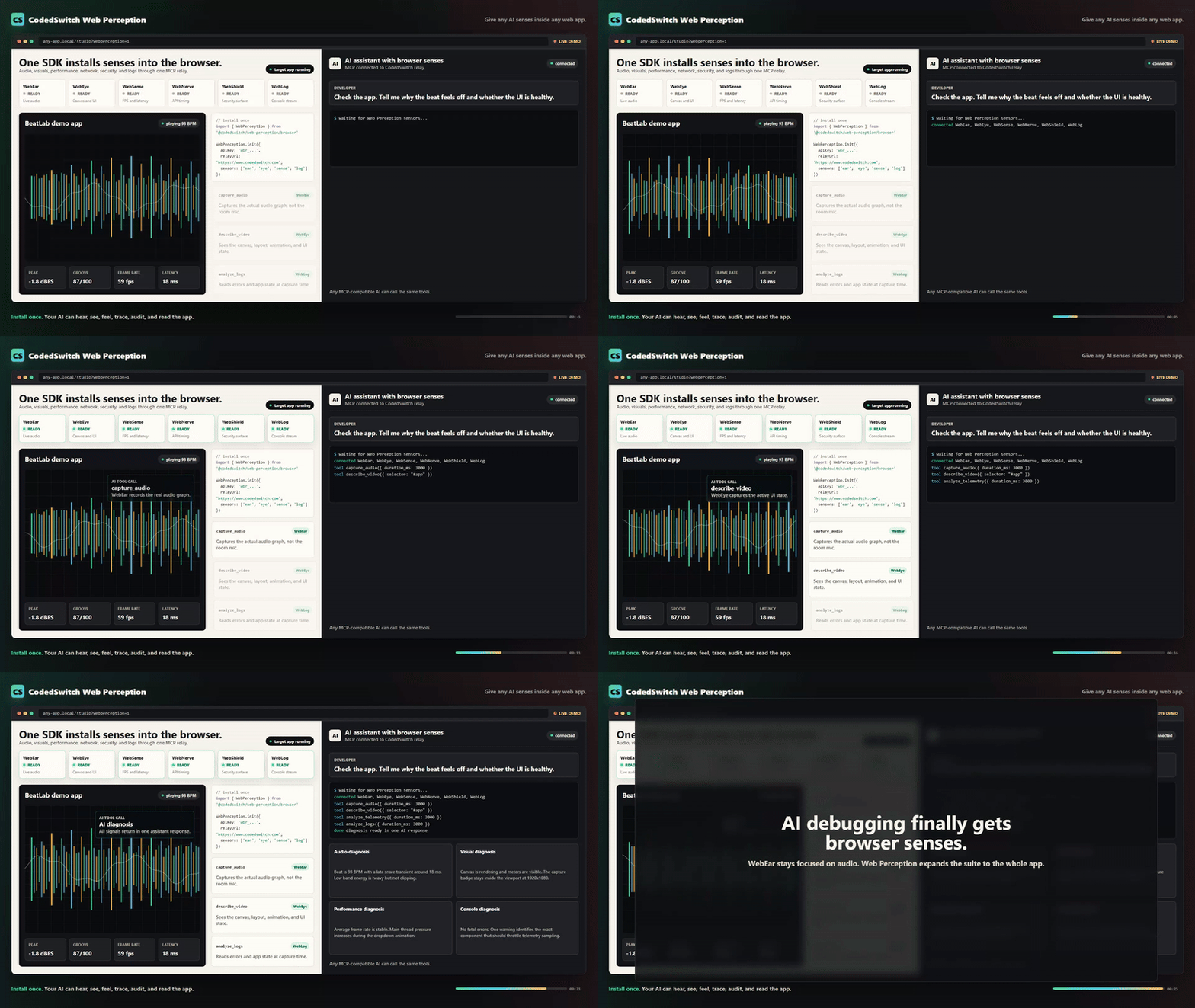
Web Perception — Full Sensor Suite
WebEar started as audio-only. Web Perception expands it to 6 senses:
| Sensor | What it perceives |
|---|---|
| WebEar | Audio — mix quality, rhythm, instruments, clipping |
| WebEye | Visual — canvas, UI layout, animations, screenshots |
| WebSense | Performance — frame rate, memory, audio latency |
| WebNerve | Network — API latencies, connection quality, storage |
| WebShield | Security — cookies, storage exposure, CSP, framing |
| WebLog | Console — logs, warnings, errors, uncaught exceptions |
Install the full browser SDK
import { WebPerception } from 'webear/perception'

WebPerception.init({
  apiKey: 'wbr_YOUR_API_KEY',
  relayUrl: 'https://www.codedswitch.com',
  sensors: ['ear', 'eye', 'sense', 'nerve', 'shield', 'log'],
})
Or use a single sensor:
import { WebEar } from 'webear/perception'

WebEar.init({
  apiKey: 'wbr_YOUR_API_KEY',
  ear: { audioContext: myCtx, audioNode: masterGain },
})
Connect via MCP (hosted relay — no local server required)
{
  "mcpServers": {
    "webear": {
      "url": "https://www.codedswitch.com/api/webear/mcp/sse",
      "headers": {
        "Authorization": "Bearer wbr_YOUR_API_KEY"
      }
    }
  }
}
Available MCP Tools
| Sensor | Tool | Credits | Description |
|---|---|---|---|
| Ear | capture_audio |
Free | Record live tab audio |
| Ear | analyze_audio |
1 | BPM, loudness, frequency bands, clipping, dynamic range |
| Ear | describe_audio |
2 | AI plain-English description — instruments, genre, mood, mix notes |
| Ear | diff_audio |
1 | Compare two captures — loudness, tone, timing deltas |
| Ear | groove_score |
2 | Grid alignment, swing factor, consistency (0–100%) |
| Ear | capture_and_analyze |
1 | Capture + analysis in one call |
| Ear | mix_coach |
3 | Structured mixing feedback |
| Eye | capture_video |
Free | Record canvas/video from the tab |
| Eye | describe_video |
2 | AI visual description — layout, colors, bugs |
| Eye | diff_visuals |
2 | Compare two visual captures |
| Sense | capture_telemetry |
Free | FPS, memory, layout shifts, audio latency |
| Sense | analyze_telemetry |
1 | Frame drops, memory pressure, audio underruns |
| Nerve | capture_nerve |
Free | API timings, connection quality, storage size |
| Nerve | analyze_nerve |
1 | Slow APIs, connection quality, storage bloat |
| Shield | capture_shield |
Free | Cookies, CSP, storage exposure, framing |
| Shield | analyze_shield |
1 | CORS issues, non-HttpOnly cookies, missing CSP |
| Log | capture_logs |
Free | Console output + uncaught exceptions |
| Log | analyze_logs |
1 | Error patterns, stack traces, repeated warnings |
Get an API Key
- Create a free account at codedswitch.com.
- Open codedswitch.com/developer — also linked as Developer API in the account menu.
- Click Generate API Key and copy it. Keys start with
wbr_.
Free tier: 50 analyses/day, no credit card required.
Changelog
2.0.1
- Fixed the getting-started path for API keys. The previous instruction ("Settings → WebEar") was wrong — there is no WebEar section under Settings. Keys live at codedswitch.com/developer (linked as Developer API in the account menu). Both the Quick Start and the Web Perception sections now point to the correct place.
- The SDK's "missing API key" console error now links straight to the key page.
Contributing
See CONTRIBUTING.md.
License
MIT — see LICENSE
Author
Built by @asume21 — CodedSwitch
Questions sur webear MCP
Comment ajouter webear MCP à Claude Code ?
Exécutez claude mcp add --env 'CODEDSWITCH_API_KEY=<YOUR_CODEDSWITCH_API_KEY>' webear -- npx -y webear dans votre terminal. Ajoutez --scope user pour le rendre disponible dans tous les projets.
Comment ajouter webear MCP à Cursor ?
Ouvrez ~/.cursor/mcp.json et ajoutez le serveur sous mcpServers, avec la configuration Cursor indiquée dans la section d'installation ci-dessus.
Est-ce que analyze_audio nécessite une clé API ?
L'analyse de base incluant la durée, la puissance sonore, le niveau de crête et l'écrêtage fonctionne localement sans clé si ffmpeg est installé. Les métriques avancées comme le centroïde spectral et le BPM nécessitent une clé API CodedSwitch.