
Отправляет обновления в реальном времени и стилизованный контент на информационные панели iOS и Android с помощью ИИ-агента или терминала.
Также известен как pushtodisplay/cli, pushtodisplay
- Звёзды
- 2
- Инструменты
- 8
- Загрузки, 30 дней
- —
- Последняя версия
- 0.1.14
- Последний коммит
- 8 нояб. 2026 г.
- Лицензия
- MIT
Что такое PushToDisplay MCP?
PushToDisplay — это MCP server. Отправляет обновления в реальном времени и стилизованный контент на информационные панели iOS и Android с помощью ИИ-агента или терминала. Он предоставляет 8 инструментов, например pushtodisplay_send_update, pushtodisplay_list_boards, pushtodisplay_get_board.
Сводка сгенерирована из README проекта
О PushToDisplay MCP server
Этот MCP server позволяет отправлять обновления в реальном времени и стилизованный контент на мобильные информационные панели напрямую из ИИ-агента. Он дает разработчикам и автоматизированным системам возможность превращать устройства на iOS и Android в живые дашборды статуса, отправляя текстовые и визуальные обновления прямо из терминала или ИИ-клиентов, таких как Claude, Cursor или VS Code Copilot.
Пользователи могут управлять своими панелями с помощью нескольких специализированных инструментов, включая pushtodisplay_send_update для рассылки сообщений, pushtodisplay_list_boards для просмотра существующих конфигураций и pushtodisplay_create_board для создания новых макетов. Сервер наследует аутентификацию из текущей сессии CLI, которую можно установить через вход в браузере или с помощью кода устройства для headless-сред, таких как SSH или контейнеры. Для автоматизированных CI/CD пайплайнов аутентификация может выполняться с помощью API key, начинающегося с префикса pt_.
Сервер обеспечивает детальный контроль над тем, как информация отображается на экране. Вы можете задавать размер текста, насыщенность шрифта, hex-цвета и цвета фона или выбирать конкретные панели в многопанельном макете. Он поддерживает сложное стилизованное оформление через JSON-блоки и позволяет настраивать горизонтальное или вертикальное выравнивание, чтобы информация на мобильном устройстве отображалась четко.
Что вы можете с ним делать
- 1Трансляция статуса развертыванияИИ-агент может отправить уведомление на определенную панель при успешном или неудачном развертывании программного обеспечения.
- 2Визуальный мониторинг состояния инфраструктурыРазработчики могут использовать сервер для отправки цветовой индикации аптайма или метрик состояния API на мобильный дашборд.
- 3Управление конфигурациями информационных панелейИИ-ассистент может создавать, перечислять или удалять различные панели для организации различных задач мониторинга.
- 4Автоматизация отображения статуса в CI/CDАвтоматизированные скрипты могут использовать API key для отправки логов в реальном времени или результатов сборки на мобильный экран без интерактивного входа в систему.
Взято из README проекта. Каждый вариант использования проверен на соответствие цитате из него.
Как установить PushToDisplay MCP
Форматы проверены 10 ноя 2026Добавить в CursorДобавить в GooseУстановка PushToDisplay MCP в Claude Code
$ claude mcp add cli -- npx -y pushtodisplayУстановка PushToDisplay MCP в Cursor
~/.cursor/mcp.json
{
  "mcpServers": {
    "cli": {
      "command": "npx",
      "args": [
        "-y",
        "pushtodisplay"
      ]
    }
  }
}Установка PushToDisplay MCP в VS Code
.vscode/mcp.json
{
  "servers": {
    "cli": {
      "type": "stdio",
      "command": "npx",
      "args": [
        "-y",
        "pushtodisplay"
      ]
    }
  }
}Установка PushToDisplay MCP в VS Code CLI
$ code --add-mcp '{"name":"cli","type":"stdio","command":"npx","args":["-y","pushtodisplay"]}'Установка PushToDisplay MCP в Claude Desktop
claude_desktop_config.json
{
  "mcpServers": {
    "cli": {
      "command": "npx",
      "args": [
        "-y",
        "pushtodisplay"
      ]
    }
  }
}Установка PushToDisplay MCP в Codex
$ codex mcp add cli -- npx -y pushtodisplayУстановка PushToDisplay MCP в Codex config.toml
~/.codex/config.toml
[mcp_servers.cli]
command = "npx"
args = ["-y", "pushtodisplay"]
Установка PushToDisplay MCP в Gemini CLI
$ gemini mcp add -s user cli npx -- -y pushtodisplayУстановка PushToDisplay MCP в Gemini settings.json
~/.gemini/settings.json
{
  "mcpServers": {
    "cli": {
      "command": "npx",
      "args": [
        "-y",
        "pushtodisplay"
      ]
    }
  }
}Инструменты PushToDisplay MCP 8
Определено из READMEpushtodisplay_send_updatepushtodisplay_list_boardspushtodisplay_get_boardpushtodisplay_create_boardpushtodisplay_update_boardpushtodisplay_set_default_boardpushtodisplay_delete_boardpushtodisplay_list_devices
| pushtodisplay_send_update | — | |
| pushtodisplay_list_boards | — | |
| pushtodisplay_get_board | — | |
| pushtodisplay_create_board | — | |
| pushtodisplay_update_board | — | |
| pushtodisplay_set_default_board | — | |
| pushtodisplay_delete_board | — | |
| pushtodisplay_list_devices | — |
Конфигурация
PTD_API_KEY
| Название | Описание | Тип |
|---|---|---|
| PTD_API_KEY | — |
Автоматические проверки
Запущено 12 нояб. 2026 г.Полный отчёт →Прошло наши автоматизированные проверки. Это не аудит безопасности: изучите код и предоставьте серверу минимально необходимый доступ. Как работают проверки

- Связанный и доступный исходный репозиторийПройдено
- Open source лицензия (OSI)Пройдено
- Коммит или релиз за последний годПройдено
- Имя пакета не похоже на популярный пакетПройдено
- Удаленная конечная точка использует HTTPSНе проверялось
- Деструктивные инструменты помеченыПройдено
- Нет скрытых инструкций для моделиПройдено
- Нет критических предупреждений в пакете или его зависимостяхПройдено
README
Открыть на GitHubpushtodisplay
Command-line interface and MCP server for Push To Display — send real-time updates to display boards from your terminal or AI agents.
Get the app
Turn any screen into a live display board — get Push to Display on iOS and Android.


Install
Run directly with npx (no install needed):
npx pushtodisplay --help
Or install globally:
npm install -g pushtodisplay
Requires Node.js 18+. See the PushToDisplay documentation for guides, use cases, and API details.
Quick start
# Log in (opens browser)
pushtodisplay auth login

# Send an update (uses your default board)
pushtodisplay send "Hello, Display!"

# Send to a specific board
pushtodisplay send -b <board-id> "Deploy completed"

# List your boards
pushtodisplay boards list
Authentication
Log in with your Push To Display account — the same account you use in the mobile app.
Browser login (default)
pushtodisplay auth login
Opens your browser. Sign in and the CLI receives your credentials automatically.
Device code login (headless)
For machines without a browser — SSH sessions, containers, or remote servers:
pushtodisplay auth login --device-code
The CLI prints a URL and a one-time code. Open the URL on any device, enter the code, and approve the login.
Credentials are stored in your OS keychain (macOS Keychain, Linux libsecret, Windows Credential Manager). Falls back to ~/.config/pushtodisplay/ if the keychain is unavailable.
# Check auth status
pushtodisplay auth status

# Machine-readable status for scripts/agents (exit 0 = authenticated)
pushtodisplay auth status --json

# Log out (clear stored credentials)
pushtodisplay auth logout
auth status reports effective auth: an expired access token is still
reported as authenticated when a valid refresh token can renew it transparently
(a will refresh automatically note is shown instead of the raw token expiry).
It exits 0 when authenticated and 1 when not, so it is safe to gate
scripts on it.
{
  "authenticated": true,
  "method": "oauth",
  "accessTokenExpired": true,
  "canRefresh": true,
  "sessionExpiresAt": "2026-06-01T00:00:00.000Z"
}
Commands
send
Send a display update to a board.
# Simple text
pushtodisplay send -b my-board-id "Deploy succeeded"

# Styled text
pushtodisplay send -b my-board-id "Status" --size large --weight bold --color "#00FF00"

# Multiple inline runs — they stay on ONE line
pushtodisplay send -b my-board-id "Build:" "passing" --color "#22C55E"

# Panel targeting with layout options
pushtodisplay send -b my-board-id --panel 2 "Right panel content"
pushtodisplay send -b my-board-id --panel 1 --full-panel --density compact --align-x center "Alert"

# Per-run styling with JSON (repeatable)
pushtodisplay send -b my-board-id \
  --block '{"text": "API Health", "size": "large", "weight": "bold"}' \
  --block '{"text": "Uptime: 99.97%", "color": "#22C55E"}'

# Pipe a full JSON payload from stdin
echo '{"boardId":"my-board-id","blocks":[{"text":"From pipe"}]}' | pushtodisplay send --stdin
If no -b flag is provided, the server uses your default board.
How text renders
Blocks are inline runs, not lines. Think of <span>, not <p>. The blocks
of one message flow onto a single line in order, and wrap like a paragraph when
they run out of width:
pushtodisplay send -b my-board-id "Build:" "passing" --color "#22C55E"
renders as one line:
Build: passing
not as two lines. Each run keeps its own size, weight, colour, and background, so a message is one paragraph with styled runs inside it.
To put content on separate lines, send separate messages. Every send is its own entry in the panel's scrollable history, so multiple lines are multiple messages. Newlines inside a single message are not a layout mechanism.
--density sets the line height used when that paragraph wraps — it is not
the spacing between messages.
Note: in
--full-panelmode blocks are currently stacked on separate lines. That legacy behaviour is being removed so full-panel matches the inline model above.
Style flags
| Flag | Values | Description |
|---|---|---|
-s, --size |
small, medium, large |
Text size |
-w, --weight |
regular, semibold, bold |
Font weight |
-c, --color |
Hex color (#RRGGBB) |
Text color |
--background |
Hex color (#RRGGBB) |
Background color |
Panel flags
| Flag | Values | Description |
|---|---|---|
-p, --panel |
1–4 |
Target panel number |
--full-panel |
— | Enlarge to the whole board |
--density |
compact, standard, spacious |
Line height when text wraps |
--align-x |
start, center, end |
Horizontal alignment |
--align-y |
start, center, end |
Vertical alignment |
Other flags
| Flag | Description |
|---|---|
-b, --board |
Board ID |
--block <json> |
Inline styled run as JSON (repeatable) |
--stdin |
Read full JSON request from stdin |
boards
pushtodisplay boards list              # List all boards
pushtodisplay boards get <id>          # Get board details
pushtodisplay boards create -n "Name"  # Create a board
pushtodisplay boards create -n "Dash" -l 4  # Create with a layout
pushtodisplay boards delete <id>       # Delete a board
Create options:
| Flag | Description |
|---|---|
-n, --name |
Board name (required) |
-d, --description |
Board description |
-l, --layout |
Layout ID |
devices
pushtodisplay devices list # List active device-board streams
config
pushtodisplay config              # Show current configuration
pushtodisplay config show         # Same as above
JSON output
Add --json to any command for machine-readable output:
pushtodisplay boards list --json
pushtodisplay send -b my-board "test" --json
Configuration
Configuration is resolved in order: environment variables → config file → defaults.
| Env var | Description | Default |
|---|---|---|
PTD_API_URL |
API endpoint | https://api.pushtodisplay.com |
PTD_SERVICE_URL |
Service endpoint | https://services.pushtodisplay.com |
PTD_IDP_URL |
Identity provider | https://idp.pushtodisplay.com |
PTD_CONFIG_DIR |
Config directory | ~/.config/pushtodisplay |
MCP server
The CLI includes a built-in Model Context Protocol server, giving AI agents (Claude, Cursor, VS Code Copilot, and others) direct access to your display boards.
The MCP server inherits your CLI session — if you've run pushtodisplay auth login, it authenticates automatically.
Setup
Claude Code
claude mcp add pushtodisplay -- npx pushtodisplay mcp
Claude Desktop
Add to ~/Library/Application Support/Claude/claude_desktop_config.json (macOS) or %APPDATA%\Claude\claude_desktop_config.json (Windows):
{
  "mcpServers": {
    "pushtodisplay": {
      "command": "npx",
      "args": ["pushtodisplay", "mcp"]
    }
  }
}
Cursor
Open Settings → MCP Servers → Add Server, or edit .cursor/mcp.json:
{
  "mcpServers": {
    "pushtodisplay": {
      "command": "npx",
      "args": ["pushtodisplay", "mcp"]
    }
  }
}
VS Code (GitHub Copilot)
Add to .vscode/mcp.json:
{
  "servers": {
    "pushtodisplay": {
      "command": "npx",
      "args": ["pushtodisplay", "mcp"]
    }
  }
}
Other MCP clients
Any MCP client that supports stdio transport can use Push To Display. The server command is:
npx pushtodisplay mcp
Available MCP tools
| Tool | Description |
|---|---|
pushtodisplay_send_update |
Send content to a board |
pushtodisplay_list_boards |
List all boards |
pushtodisplay_get_board |
Get details of a board |
pushtodisplay_create_board |
Create a new board |
pushtodisplay_update_board |
Update a board's name, description, or layout |
pushtodisplay_set_default_board |
Set a board as your default |
pushtodisplay_delete_board |
Delete a board permanently |
pushtodisplay_list_devices |
List active device connections |
Commands at a glance
| Command | Description |
|---|---|
auth login |
Log in (browser or device code) |
auth logout |
Remove stored credentials |
auth status |
Show current auth status |
send [text...] |
Send a display update |
boards list |
List your boards |
boards get <id> |
Get board details |
boards create |
Create a new board |
boards delete <id> |
Delete a board |
devices list |
List active device connections |
config |
Show current configuration |
mcp |
Start the MCP server |
API key authentication
For CI/CD pipelines and scripts where interactive login isn't available, you can authenticate with an API key. Create one from the mobile app or the web portal. API keys start with pt_.
# Via environment variable
export PTD_API_KEY=pt_your_key_here
pushtodisplay send "From CI"

# Or store in keychain
pushtodisplay auth login --api-key pt_your_key_here
Note: API key auth only supports the
sendcommand. Useauth loginfor full access to boards, devices, and config management.
Screenshots
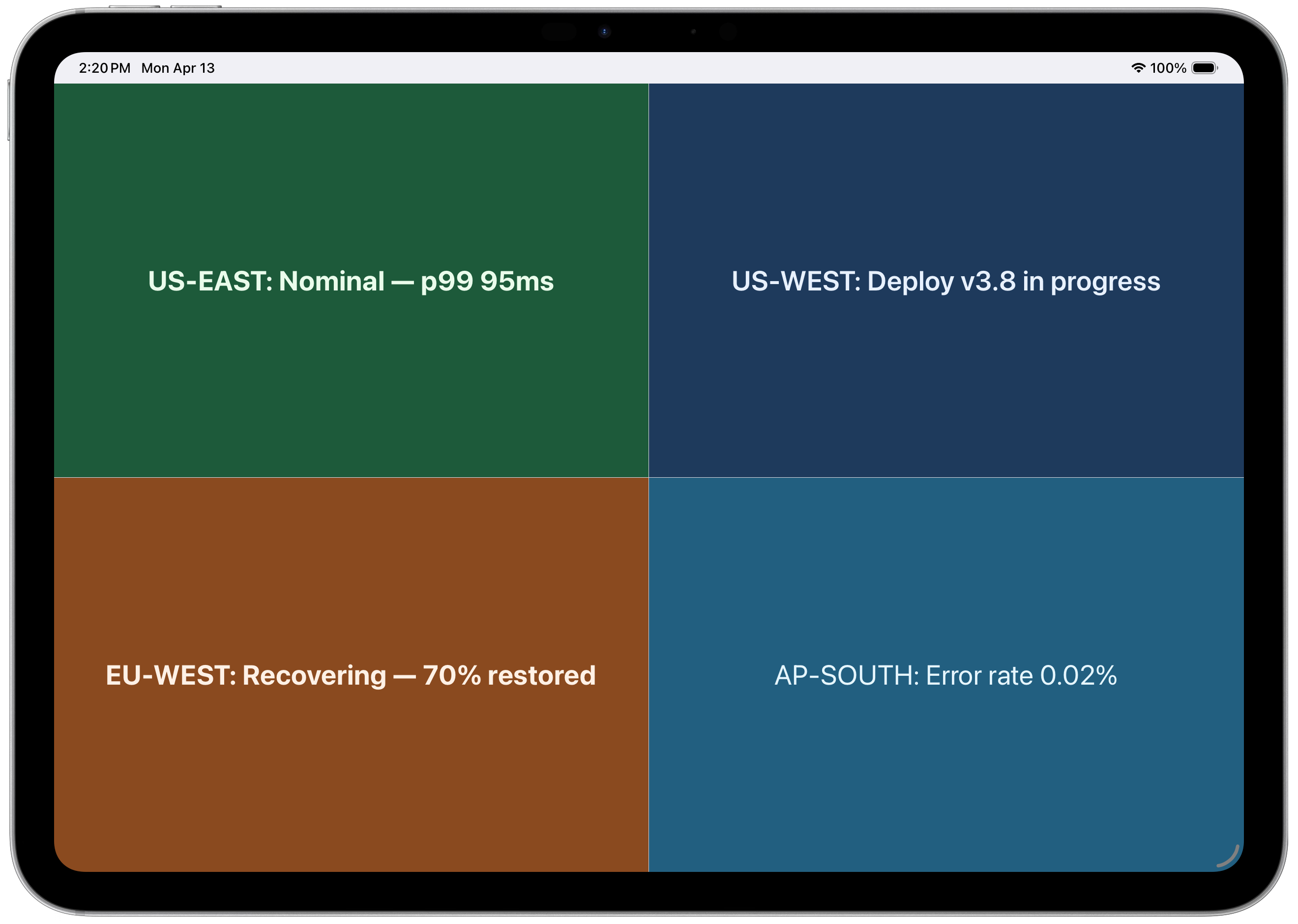
4-panel layout — regional status at a glance
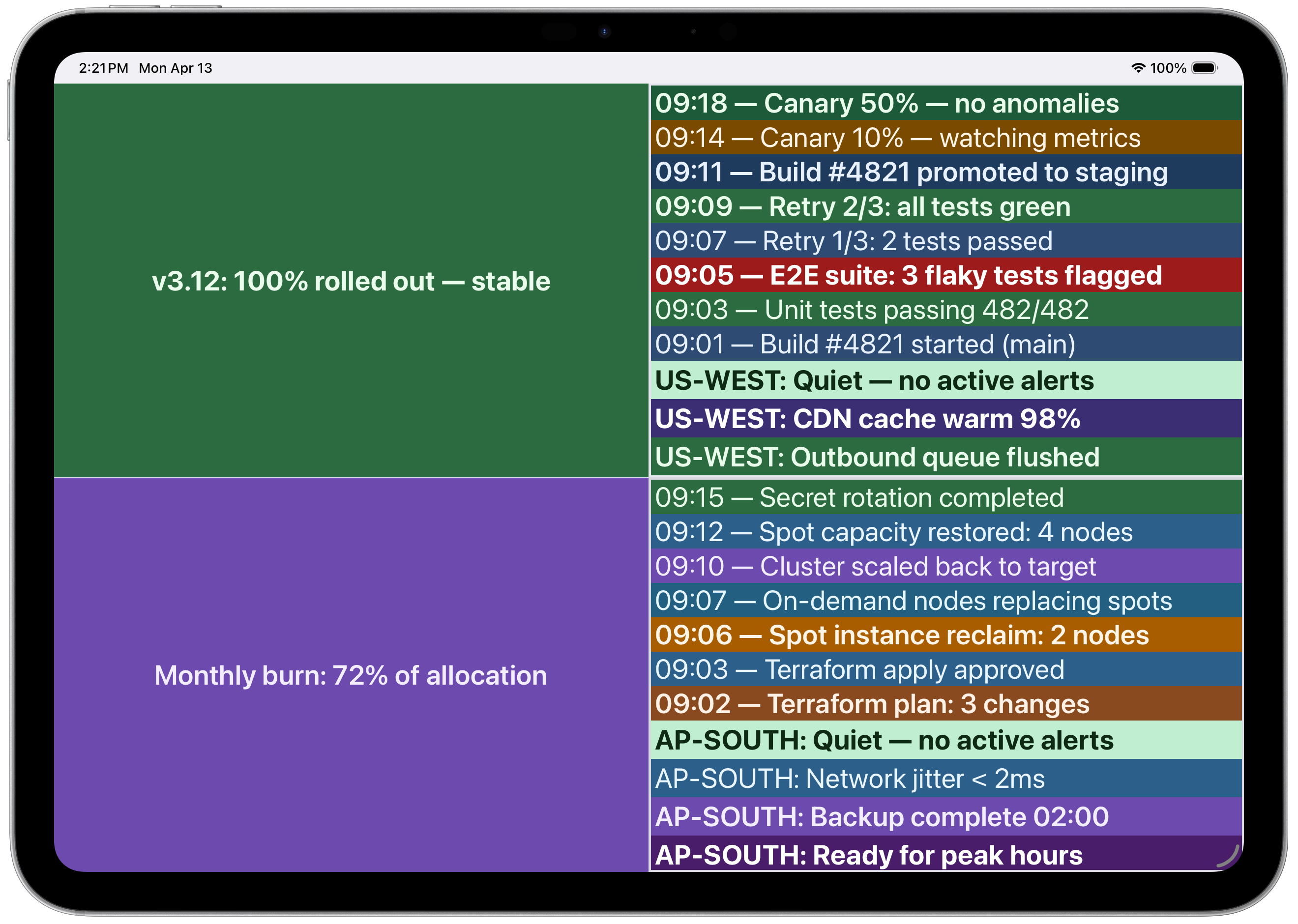 Multi-panel with CI/CD pipeline and infrastructure logs
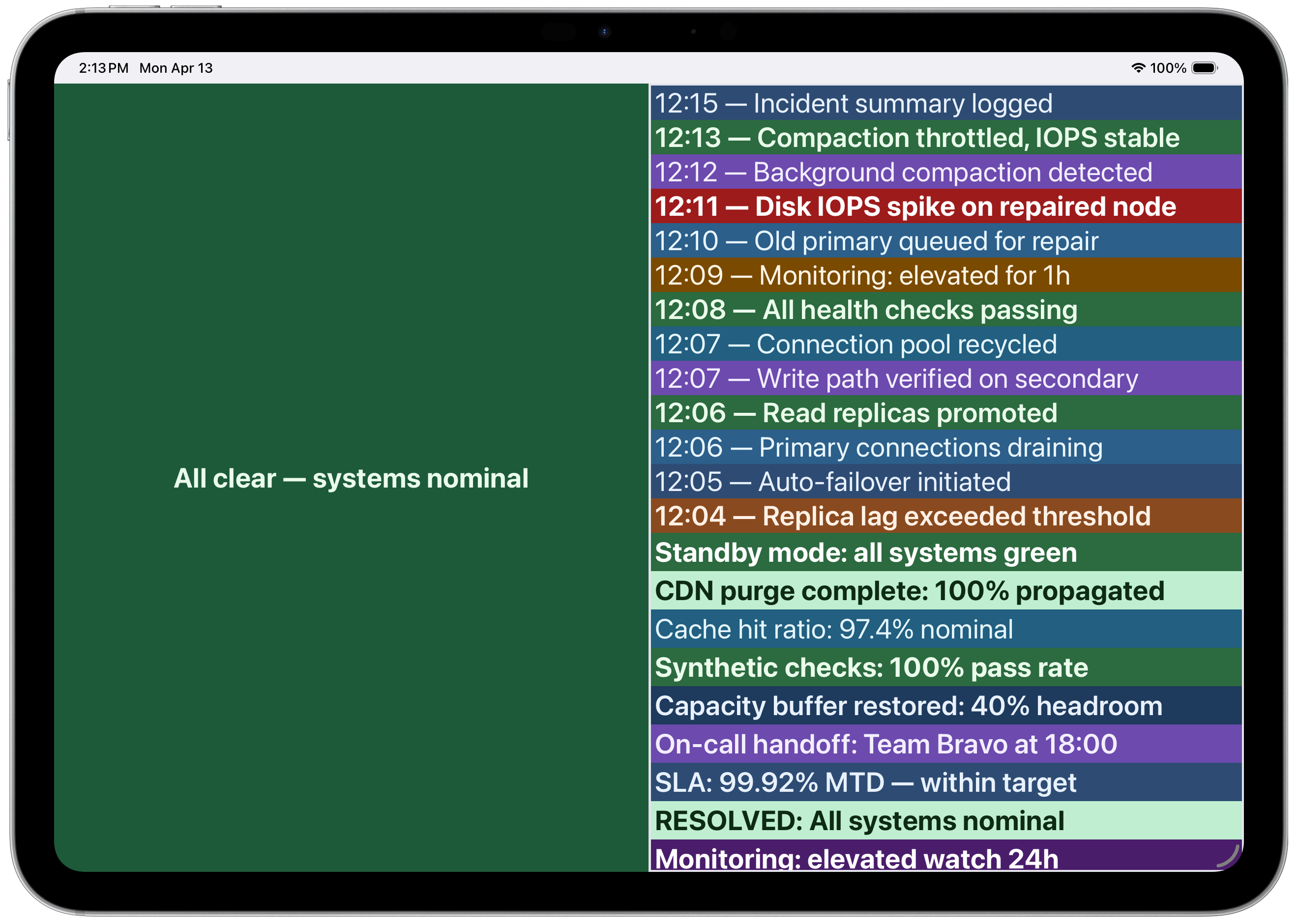 Incident timeline with color-coded severity
License
Вопросы о PushToDisplay MCP
Как добавить PushToDisplay MCP в Claude Code?
Выполните claude mcp add cli -- npx -y pushtodisplay в терминале. Добавьте --scope user, чтобы сервер был доступен во всех проектах.
Как добавить PushToDisplay MCP в Cursor?
Откройте ~/.cursor/mcp.json и добавьте сервер в mcpServers, используя конфигурацию Cursor из раздела установки выше.
Какие инструменты предоставляет PushToDisplay MCP?
Он предоставляет 8 инструментов, включая pushtodisplay_send_update, pushtodisplay_list_boards, pushtodisplay_get_board, pushtodisplay_create_board, pushtodisplay_update_board.
Могу ли я использовать API key для CI/CD пайплайнов?
Да, вы можете пройти аутентификацию с помощью API key, начинающегося с 'pt_', через переменную окружения или CLI, однако аутентификация через API key поддерживает только команду send.
Как MCP server обрабатывает аутентификацию?
MCP server наследует вашу текущую сессию CLI; если вы уже вошли в систему через CLI, аутентификация произойдет автоматически.