
Позволяет ИИ-клиентам искать, читать и повторно копировать историю буфера обмена Mac и текст со скриншотов локально.
Также известен как pastea-app/pastea-mcp, pastea-mcp, @pastea/mcp
- Звёзды
- 0
- Инструменты
- —
- Загрузки, 30 дней
- —
- Последняя версия
- 1.0.4
- Последний коммит
- 3 сент. 2026 г.
- Лицензия
- MIT
Что такое Pastea MCP?
Pastea — это MCP server. Позволяет ИИ-клиентам искать, читать и повторно копировать историю буфера обмена Mac и текст со скриншотов локально.
Сводка сгенерирована из README проекта
О Pastea MCP server
Pastea предоставляет локальный мост, который соединяет историю буфера обмена macOS с ИИ-ассистентами. Этот MCP server позволяет таким инструментам, как Claude Desktop, Cursor, VS Code и Codex, взаимодействовать с вашими скопированными элементами, включая текст, распознанный на скриншотах. Поскольку сервер работает на 127.0.0.1, ваши данные остаются на вашем Mac и не передаются на сторонние серверы.
Пользователи могут интегрировать сервер с помощью команд npx или специальных установочных файлов. После подключения ассистент может использовать определенные инструменты для поиска по фрагментам, чтения полного содержимого с миниатюрами изображений, просмотра списков коллекций и повторного копирования элементов в системный буфер обмена. Для работы требуется macOS 15 или более поздняя версия и подписка Pastea Pro.
Безопасность обеспечивается через процесс ручного подтверждения прав. Когда ИИ-приложение впервые пытается подключиться, в приложении Pastea появляется запрос на авторизацию. Вы можете в любое время отозвать доступ для любого конкретного инструмента через меню настроек Pastea. Ассистенту запрещено удалять фрагменты или получать доступ к элементам, скрытым менеджерами паролей.
Что вы можете с ним делать
- 1Извлечение текста из скриншотовПопросите своего ИИ-ассистента найти и прочитать текст, который был захвачен внутри ранее скопированного изображения.
- 2Поиск по истории буфера обменаДайте ИИ команду найти конкретную ссылку или имя файла из вашей недавней активности в буфере обмена.
- 3Восстановление фрагментов в буфере обменаПопросите ИИ-ассистента поместить конкретный старый фрагмент обратно в буфер обмена для немедленной вставки.
- 4Управление коллекциями буфера обменаПопросите ИИ вывести список различных коллекций и количество записей в истории, которые вы организовали в Pastea.
Взято из README проекта. Каждый вариант использования проверен на соответствие цитате из него.
Как установить Pastea MCP
Форматы проверены 10 ноя 2026Добавить в CursorДобавить в GooseУстановка Pastea MCP в Claude Code
$ claude mcp add pastea-mcp -- npx -y @pastea/mcpУстановка Pastea MCP в Cursor
~/.cursor/mcp.json
{
  "mcpServers": {
    "pastea-mcp": {
      "command": "npx",
      "args": [
        "-y",
        "@pastea/mcp"
      ]
    }
  }
}Установка Pastea MCP в VS Code
.vscode/mcp.json
{
  "servers": {
    "pastea-mcp": {
      "type": "stdio",
      "command": "npx",
      "args": [
        "-y",
        "@pastea/mcp"
      ]
    }
  }
}Установка Pastea MCP в VS Code CLI
$ code --add-mcp '{"name":"pastea-mcp","type":"stdio","command":"npx","args":["-y","@pastea/mcp"]}'Установка Pastea MCP в Claude Desktop
claude_desktop_config.json
{
  "mcpServers": {
    "pastea-mcp": {
      "command": "npx",
      "args": [
        "-y",
        "@pastea/mcp"
      ]
    }
  }
}Установка Pastea MCP в Codex
$ codex mcp add pastea-mcp -- npx -y @pastea/mcpУстановка Pastea MCP в Codex config.toml
~/.codex/config.toml
[mcp_servers.pastea-mcp]
command = "npx"
args = ["-y", "@pastea/mcp"]
Установка Pastea MCP в Gemini CLI
$ gemini mcp add -s user pastea-mcp npx -- -y @pastea/mcpУстановка Pastea MCP в Gemini settings.json
~/.gemini/settings.json
{
  "mcpServers": {
    "pastea-mcp": {
      "command": "npx",
      "args": [
        "-y",
        "@pastea/mcp"
      ]
    }
  }
}Конфигурация
PASTEA_MCP_URL
| Название | Описание | Тип |
|---|---|---|
| PASTEA_MCP_URL | — |
Автоматические проверки
Запущено 14 нояб. 2026 г.Полный отчёт →Прошло наши автоматизированные проверки. Это не аудит безопасности: изучите код и предоставьте серверу минимально необходимый доступ. Как работают проверки

- Связанный и доступный исходный репозиторийpastea-app/pastea-mcp is public and reachablegithub.com/pastea-app/pastea-mcp ↗Пройдено
- Пакет указывает этот репозиторий как источник@pastea/mcp names pastea-app/pastea-mcp as sourcenpmjs.com/package/@pastea/mcp ↗Пройдено
- Происхождение сборки (аттестация Sigstore)Sigstore attestation for @pastea/mcpnpmjs.com/package/@pastea/mcp/v/1.0.4#provenance ↗Пройдено
- Open source лицензия (OSI)MITspdx.org/licenses/MIT.html ↗Пройдено
- Коммит или релиз за последний годLast commit or release 2026-09-03github.com/pastea-app/pastea-mcp ↗Пройдено
- OpenSSF ScorecardНе проверялось
- Имя пакета не похоже на популярный пакетNo popular package one edit away from @pastea/mcpПройдено
- Нет критических предупреждений в пакете или его зависимостях1 resolved dependencies checked; no critical advisoryosv.dev ↗Пройдено
- Нет скрытых инструкций для модели0 tool descriptions and the README read; no override phrases, credential paths or hidden charactersПройдено
- Деструктивные инструменты помеченыНе проверялось
- Удалённая конечная точка отвечает на рукопожатие MCPНе проверялось
README
Открыть на GitHubPastea MCP


Local MCP server for Pastea. Give Claude, Cursor, Codex, VS Code and other AI tools access to your Mac's clipboard history — without anything leaving your Mac.
Your assistant can search what you copied, pull a clip into context (including the text Pastea reads inside your screenshots), and put a clip back on the clipboard for you to paste.
Pastea runs the MCP server itself, on 127.0.0.1 only. This package is the thin,
dependency-free bridge that AI apps launch: it finds Pastea, asks it for access once —
you click Allow in Pastea — and relays messages over stdio.
Install
Claude Desktop
One click from Pastea: open Settings → MCP & AI Tools, turn on Enable MCP, and click Claude Desktop. Claude Desktop opens with the Pastea extension ready to install.
Or find Pastea in Claude Desktop under Settings → Extensions → Browse extensions, or
download pastea-mcp-<version>.mcpb from the
latest release and double-click it.
The first time Claude uses it, Pastea asks you to allow the connection.
Every other AI app
Use add-mcp to connect Pastea to all your installed
AI apps at once:
npx add-mcp @pastea/mcp
Or connect each app yourself:
Claude Code
claude mcp add pastea -- npx -y @pastea/mcp
Codex
codex mcp add pastea -- npx -y @pastea/mcp
Cursor

VS Code

Anything else that runs stdio MCP servers:
{ "mcpServers": { "pastea": { "command": "npx", "args": ["-y", "@pastea/mcp"] } } }
The first time an app uses Pastea, Pastea shows "Allow <app> to use your clipboard history?" — click Allow and the tools appear.
Connect from Pastea
Every app above can also be connected from inside Pastea — Settings → MCP & AI Tools, click the app's chip. Cursor and VS Code open an install prompt; Claude Code, Windsurf and Codex get the exact command or config to paste, already carrying an access token, so no pairing prompt is needed.
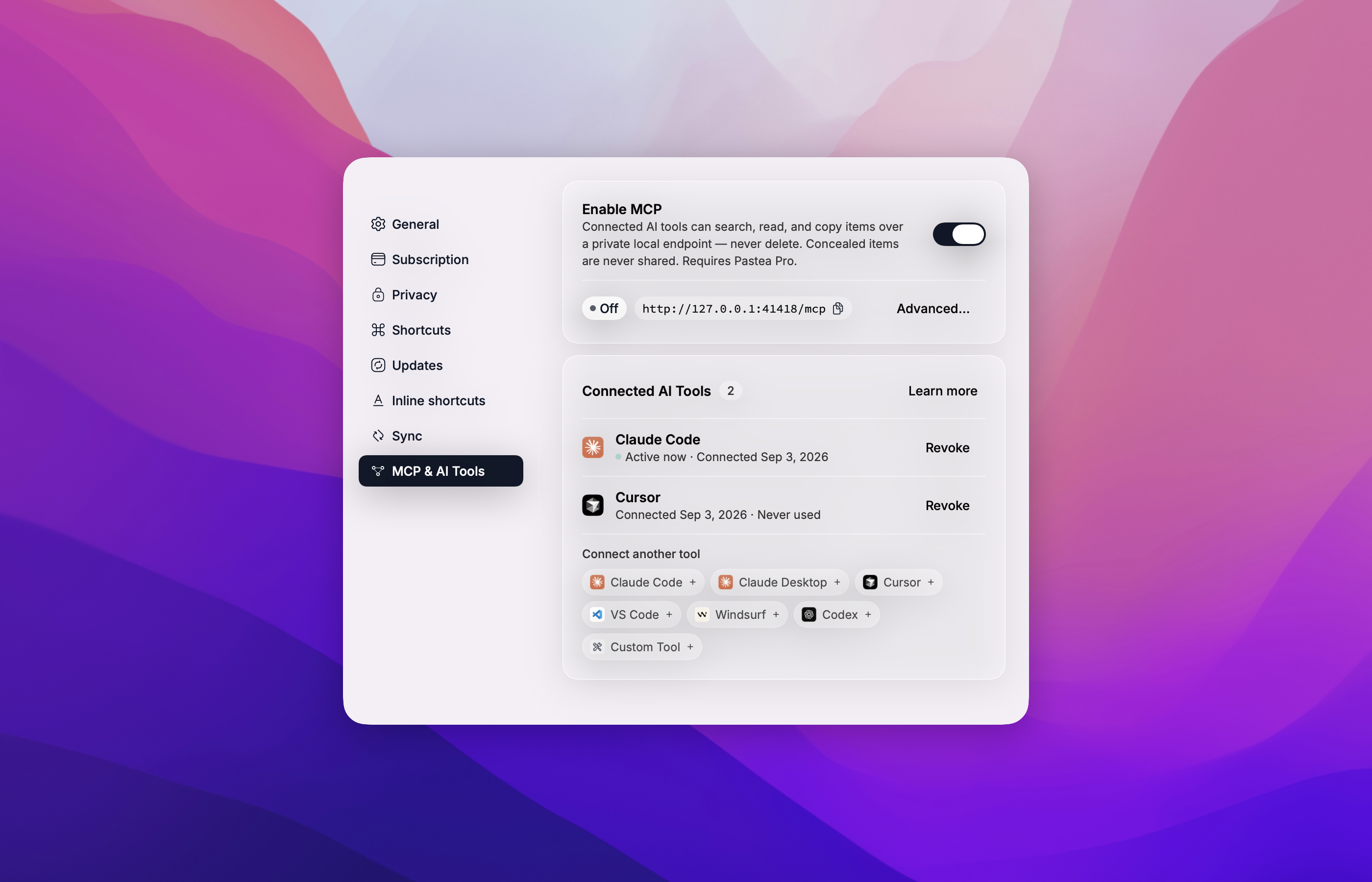
What your assistant can do
| Tool | What it does |
|---|---|
search_clips |
Search your clipboard history and lists — text, links, file names, and text recognized in screenshots. |
get_clip |
Read one clip in full, with a thumbnail for pictures. |
list_collections |
List your history and the lists you made, with counts. |
copy_clip |
Put a clip back on the system clipboard, exactly as copied. You paste it yourself with ⌘V. |
pastea_status |
Says whether Pastea is reachable and connected, and what to do if not. |
An AI tool can never delete a clip, never pastes into another app, and never sees items Pastea conceals (from password managers).
How pairing works
The bridge ships with no credentials. On first use it asks Pastea for access and Pastea shows
"Allow Claude Desktop to use your clipboard history?" (or Cursor, Codex, …). Click Allow
and the tools appear a moment later; click Don't Allow and nothing is granted — the assistant
gets a pastea_status tool that explains the situation.
Connections are listed in Pastea → Settings → MCP & AI Tools → Connected AI Tools, where you can Revoke each one. Pastea then asks again only if you ask the assistant to reconnect.
Requirements
- macOS 15 or later
- Pastea 1.3+ with Pastea Pro, and Enable MCP turned on in Settings → MCP & AI Tools
- For
npxinstalls: Node.js 20+ (Claude Desktop needs nothing — it ships its own)
Privacy Policy
Pastea MCP runs locally on your Mac.
- It connects only to Pastea on
127.0.0.1and to nothing else. It makes no network requests to Nexo Labs or any third party, and carries no analytics or telemetry. - It moves clipboard data only between Pastea and the AI app that runs it, and only after you clicked Allow in Pastea. What that AI app does with clips it reads is governed by that app's own privacy policy.
- It stores one thing: the access token Pastea issued when you clicked Allow, in
~/Library/Application Support/Pastea/MCP Bridge/tokens.json, readable by your user account only. Revoking the connection in Pastea invalidates it immediately; uninstalling Pastea removes the file. - Concealed clips are never available to it, and it cannot delete anything.
Full policy — what data Pastea processes, how it is stored, sharing, retention, and contact: https://pastea.app/privacy.
Troubleshooting
"Pastea isn't running, or its MCP endpoint is turned off."
Open Pastea and turn on Enable MCP in Settings → MCP & AI Tools, then ask the assistant to
call pastea_status.
"Pastea Pro is required."
MCP access is a Pro feature. Subscribe in Pastea's Settings, then call pastea_status.
"Pastea is asking the user to allow this connection." Look for the Pastea window — it may be behind the AI app — and click Allow.
The tools vanished.
The connection was revoked in Pastea, or Pastea was reset. Ask the assistant to call
pastea_status to pair again.
Tools don't show up after connecting. Fully quit and reopen the AI app so it relaunches the bridge.
Changed Pastea's port? The bridge reads it from Pastea's preferences on every launch; restart the AI app.
Logs for Claude Desktop: ~/Library/Logs/Claude/mcp-server-Pastea.log. The bridge never logs
the token.
Development
npm install
npm test            # node --test, no network
npm run build       # tsc → dist/
scripts/pack.sh     # validate + pack → build/pastea-mcp-<version>.mcpb + SHA256SUMS
Run it against a development Pastea by hand:
PASTEA_MCP_URL=http://127.0.0.1:41418/mcp node dist/index.js
then type JSON-RPC lines on stdin (initialize, notifications/initialized, tools/list).
Releases are cut by tagging v<version> (matching package.json, manifest.json,
server.json and src/version.ts); the workflow packs the bundle and publishes it.
Contributing
Issues and pull requests welcome — see the issue tracker.
License
Вопросы о Pastea MCP
Как добавить Pastea MCP в Claude Code?
Выполните claude mcp add pastea-mcp -- npx -y @pastea/mcp в терминале. Добавьте --scope user, чтобы сервер был доступен во всех проектах.
Как добавить Pastea MCP в Cursor?
Откройте ~/.cursor/mcp.json и добавьте сервер в mcpServers, используя конфигурацию Cursor из раздела установки выше.
Что мой ИИ-ассистент может делать с помощью Pastea?
Ваш ассистент может искать по истории буфера обмена (включая текст на скриншотах), читать полные фрагменты с миниатюрами, просматривать коллекции и возвращать фрагменты в системный буфер обмена.
Отправляются ли данные буфера обмена в облако?
Нет, сервер работает локально на вашем Mac и подключается только к Pastea по адресу 127.0.0.1, не выполняя внешних сетевых запросов.
Работает ли это с бесплатными версиями Pastea?
Нет, доступ к MCP требует подписки Pastea Pro.
Может ли ИИ удалить мою историю буфера обмена?
Нет, ИИ-ассистенту запрещено удалять фрагменты или видеть элементы, скрытые Pastea, например, данные из менеджеров паролей.