
Обертка для git, GitHub, GitLab, Bitbucket и Jira, позволяющая AI-клиенту управлять репозиториями, рабочими задачами, коммитами, issue и pull requests.
Также известен как gitkraken/gk-cli, @gitkraken/gk
- Звёзды
- 467
- Инструменты
- —
- Загрузки, 30 дней
- 304 568
- Последняя версия
- 3.1.77
- Последний коммит
- 12 нояб. 2026 г.
- Лицензия
- —
Что такое GitKraken MCP?
GitKraken — это MCP server. Обертка для git, GitHub, GitLab, Bitbucket и Jira, позволяющая AI-клиенту управлять репозиториями, рабочими задачами, коммитами, issue и pull requests.
Сводка сгенерирована из README проекта
О GitKraken MCP server
Инструмент gk-cli позволяет управлять множеством репозиториев и задачами разработки прямо из AI-клиента. Этот локальный MCP server служит связующим звеном между вашей LLM и рабочим процессом, оборачивая действия git, GitHub, GitLab, Bitbucket и Jira. Он позволяет разработчикам обрабатывать рабочие задачи, issue и pull requests через единый интерфейс, даже если приходится работать с несколькими разными репозиториями одновременно.
Пользователи взаимодействуют с сервером, настраивая его в macOS, Windows или Unix-системах. Для настройки требуется аутентификация на платформе GitKraken через команду auth и добавление токенов провайдеров для ваших конкретных хостинг-сервисов. После настройки сервер предоставляет инструменты для генерации сообщений коммитов на базе AI и автоматического создания pull requests. Он также поддерживает проброс стандартных команд git, позволяя AI выполнять такие команды, как status или remote, напрямую через интерфейс.
Что вы можете с ним делать
- 1Автоматическая генерация коммитов и PRAI-клиент может использовать сервер для написания сообщений коммитов и создания pull requests с помощью искусственного интеллекта.
- 2Управление задачами в нескольких репозиторияхРазработчики могут объединять различные репозитории в одну рабочую задачу для управления сложными фичами в рамках всей кодовой базы.
- 3Отслеживание issue и рабочих задачВы можете поручить AI управлять бэклогом разработки и отслеживать конкретные issue, используя интегрированные действия провайдеров.
Взято из README проекта. Каждый вариант использования проверен на соответствие цитате из него.
Как установить GitKraken MCP
Форматы проверены 10 ноя 2026Добавить в CursorДобавить в GooseУстановка GitKraken MCP в Claude Code
$ claude mcp add gk-cli -- npx -y @gitkraken/gkУстановка GitKraken MCP в Cursor
~/.cursor/mcp.json
{
  "mcpServers": {
    "gk-cli": {
      "command": "npx",
      "args": [
        "-y",
        "@gitkraken/gk"
      ]
    }
  }
}Установка GitKraken MCP в VS Code
.vscode/mcp.json
{
  "servers": {
    "gk-cli": {
      "type": "stdio",
      "command": "npx",
      "args": [
        "-y",
        "@gitkraken/gk"
      ]
    }
  }
}Установка GitKraken MCP в VS Code CLI
$ code --add-mcp '{"name":"gk-cli","type":"stdio","command":"npx","args":["-y","@gitkraken/gk"]}'Установка GitKraken MCP в Claude Desktop
claude_desktop_config.json
{
  "mcpServers": {
    "gk-cli": {
      "command": "npx",
      "args": [
        "-y",
        "@gitkraken/gk"
      ]
    }
  }
}Установка GitKraken MCP в Codex
$ codex mcp add gk-cli -- npx -y @gitkraken/gkУстановка GitKraken MCP в Codex config.toml
~/.codex/config.toml
[mcp_servers.gk-cli]
command = "npx"
args = ["-y", "@gitkraken/gk"]
Установка GitKraken MCP в Gemini CLI
$ gemini mcp add -s user gk-cli npx -- -y @gitkraken/gkУстановка GitKraken MCP в Gemini settings.json
~/.gemini/settings.json
{
  "mcpServers": {
    "gk-cli": {
      "command": "npx",
      "args": [
        "-y",
        "@gitkraken/gk"
      ]
    }
  }
}Автоматические проверки
Запущено 12 нояб. 2026 г.Полный отчёт →Прошло наши автоматизированные проверки. Это не аудит безопасности: изучите код и предоставьте серверу минимально необходимый доступ. Как работают проверки · Что исправить, чтобы получить больше баллов

- Связанный и доступный исходный репозиторийПройдено
- Open source лицензия (OSI)No licenseПроблема
- Коммит или релиз за последний годПройдено
- Имя пакета не похоже на популярный пакетПройдено
- Удаленная конечная точка использует HTTPSНе проверялось
- Деструктивные инструменты помеченыНе проверялось
- Нет скрытых инструкций для моделиПройдено
- Нет критических предупреждений в пакете или его зависимостяхПройдено
README
Открыть на GitHub🚀 GitKraken CLI
gk is GitKraken on the command line. The core functionality is focused on "Work Items" which can be thought of as the feature or issue you are trying to tackle. This allows you to work with multiple repos at once and get the same UX as if you were in a monorepo. We also provide robust AI-powered commit messages and Pull Request generation. It also provides an MCP server that streamlines working with git and your Issue and git hosting providers.
GitKraken CLI is available on macOS, Windows, and Unix systems.

Table of Contents
MCP Server
The GitKraken MCP server is a local MCP server that is powerful and easy to use. It wraps git, GitHub, Jira MCP actions as well as provides tools to LLMs that work with GitKraken APIs and functionality. You can find specific installation instructions based on your chosen AI application in the Help Center.
If you want to read more about the MCP server, you can check out the introduction blog post
Documentation
gk help is going to be your best source for exploring the CLI. But also see the workflows below.
Welcome to GitKraken CLI, a premium CLI experience for managing multiple repositories with familiar GIT CLI commands

Usage:
  gk [flags]
  gk [command]

AUTHENTICATING
  auth         Authenticate with the GitKraken platform
  provider     Add or remove provider tokens

CORE COMMANDS
  graph        Display commit graph in current repository
  issue        Manage your issues
  organization Manage your Gitkraken organizations
  work         Interact with your work.
  workspace    Interact with your workspaces. Alias: 'ws'

Additional Commands:
  help         Help about any command
  setup        Display information about your current system configuration
  version      Print the version number of GK CLI

Flags:
  -h, --help   help for gk

Use "gk [command] --help" for more information about a command.
Workflows
Start with a single repo. You can add more later.
In general, your process will look like this:
# Authenticate
gk auth login

# Navigate to a git repo directory on your filesystem
cd ./path/to/repo

# Then create a Work Item and the current directory
# will be automatically added to the Work Item
gk work create "My new work item"

# Edit files...
# ...

# Commit your changes using AI
gk work commit --ai

# Push your changes
gk work push

# Create a Pull Request
gk work pr create --ai
Once you have familiarized yourself with using a single repo, try out creating work items and generating commits and PRs for multiple repos at a time by just adding multiple repos to a new Work Item.
# Add a repo to the current work item
gk work add ./path/to/repo # path could be as simple as "." if you are in the directory already
git Command Passthrough
You can also use gk to pass through any git command. eg:
gk status
gk remote -v
# etc
Installation
macOS
gk is available from Homebrew with the following command:
Homebrew:
brew install gitkraken-cli
Or download it from the releases page and add it to your binaries folder:
mv ~/Downloads/gk /usr/local/bin/gk
Unix / Ubuntu

gk is available as a downloadable binary from the releases page. Once you have it, add it to your binaries folder:
mv ~/Downloads/gk /usr/local/bin/gk
Or create a new directory, move the binary and add it to $PATH:
mkdir "$HOME/cli"
mv ~/Downloads/gk "$HOME/cli"
export PATH="$HOME/gk:$PATH"
You can also [download][releases page] your corresponding package (.deb, .rpm) and install it with:
sudo apt install ./gk.deb
or
sudo rpm -i ./gk.rpm
Windows
gk is available from [Winget][winget] with the following command:
winget install gitkraken.cli
⚙️ Configuration
Nerd Fonts
The GitKraken CLI supports Nerd Fonts to display icons for some commands. To ensure correct icon rendering, please obtain and install a Nerd Font available at https://www.nerdfonts.com/. After installation, set the selected Nerd Font as the default font for your terminal.
Troubleshooting
gk login freezes after authenticating in browser
This problem is due to the browser. Currently we know that Safari and Brave do not allow to respond to localhost through port 1314. To fix this, change your default browser or copy the URL before the redirect and open it in another browser.
gk from Oh-My-Zsh
Oh-My-Zsh has gitk aliased as gk and that can create some problems. To fix this, type in your terminal:
unalias gk
Manual macOS Installation
If you install the CLI manually from the releases page on macOS, you will likely run into a security error that looks like this:
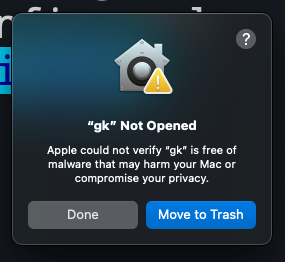
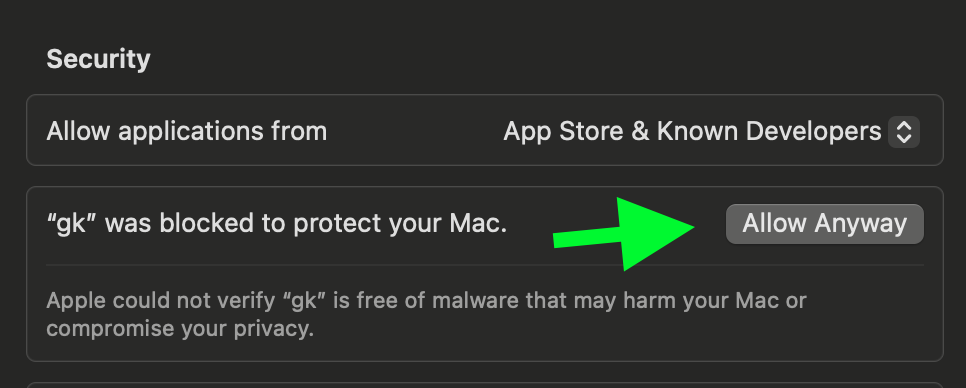
To fix this, go to Settings > Security & Privacy > General and click "Allow Anyway".
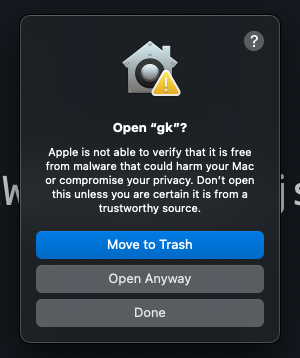
Try running gk setup again and then click "Open Anyway" to continue.
Вопросы о GitKraken MCP
Как добавить GitKraken MCP в Claude Code?
Выполните claude mcp add gk-cli -- npx -y @gitkraken/gk в терминале. Добавьте --scope user, чтобы сервер был доступен во всех проектах.
Как добавить GitKraken MCP в Cursor?
Откройте ~/.cursor/mcp.json и добавьте сервер в mcpServers, используя конфигурацию Cursor из раздела установки выше.
Что делает GitKraken MCP server?
Это локальный MCP server, который оборачивает действия git, GitHub и Jira, предоставляя LLM инструменты для работы с API и функционалом GitKraken.
Как аутентифицировать GitKraken CLI?
Выполните команду gk auth login для аутентификации на платформе GitKraken; токены провайдеров для хостинг-сервисов можно добавить через gk provider.
Может ли GitKraken генерировать сообщения коммитов и pull requests с помощью AI?
Да, команда gk work commit --ai создает сообщения коммитов с помощью AI, а gk work pr create --ai генерирует pull requests.
Поддерживает ли GitKraken CLI работу с несколькими репозиториями одновременно?
Да, рабочие задачи могут включать несколько репозиториев, что обеспечивает UX на уровне монорепозитория при работе с ними.