
Предоставляет ИИ-ассистентам для написания кода прямой сенсорный доступ к работающим веб-приложениям путем захвата и анализа аудио, визуальных данных и показателей производительности.
Также известен как asume21/webear
- Звёзды
- 1
- Инструменты
- —
- Загрузки, 30 дней
- —
- Последняя версия
- 1.2.4
- Последний коммит
- 28 окт. 2026 г.
- Лицензия
- MIT
Что такое webear MCP?
webear — это MCP server. Предоставляет ИИ-ассистентам для написания кода прямой сенсорный доступ к работающим веб-приложениям путем захвата и анализа аудио, визуальных данных и показателей производительности.
Сводка сгенерирована из README проекта
О webear MCP server
Webear предоставляет ИИ-ассистентам для написания кода прямой сенсорный доступ к работающим веб-приложениям через Web Audio API. Это позволяет ИИ слышать цифровой вывод вкладки браузера без влияния акустики помещения или аппаратного обеспечения микрофона. Разработчики могут интегрировать это в свой рабочий процесс, используя middleware на Express на локальном сервере разработки или подключаясь к хостинговому реле через SSE. Сервер запускается внутри таких IDE, как Claude Code, Cursor или Windsurf, используя stdio.
Пользователи могут взаимодействовать с приложением через специальные инструменты, такие как capture_audio, analyze_audio, describe_audio и diff_audio. В то время как базовый анализ, например громкость и клиппинг, может выполняться локально с помощью ffmpeg, расширенные функции, такие как спектральный центроид, BPM и джиттер тайминга, требуют API-ключ CodedSwitch. Система предназначена для веб-аудиоразработчиков, создателей игр и разработчиков музыкальных приложений, которым необходимо отлаживать сложные аудиографы, синтезаторы или проблемы микширования напрямую через своего ИИ-ассистента.
Что вы можете с ним делать
- 1Отладка проблем микширования аудиоПопросите ваш ИИ проанализировать живой аудиопоток, чтобы определить, почему определенный частотный диапазон звучит неразборчиво.
- 2Обнаружение регрессий аудиоИспользуйте инструмент для сравнения аудиозахватов из разных версий кода, чтобы найти изменения в громкости или тональности.
- 3Мониторинг клиппинга сигналаПроверьте, не создает ли ваше веб-приложение аудиосигнал, превышающий максимальные пиковые уровни.
- 4Анализ ритмической стабильностиОцените джиттер тайминга и BPM веб-музыкального приложения.
Взято из README проекта. Каждый вариант использования проверен на соответствие цитате из него.
Как установить webear MCP
Форматы проверены 10 ноя 2026Добавить в CursorДобавить в GooseУстановка webear MCP в Claude Code
$ claude mcp add --env 'CODEDSWITCH_API_KEY=<YOUR_CODEDSWITCH_API_KEY>' webear -- npx -y webearУстановка webear MCP в Cursor
~/.cursor/mcp.json
{
  "mcpServers": {
    "webear": {
      "command": "npx",
      "args": [
        "-y",
        "webear"
      ],
      "env": {
        "CODEDSWITCH_API_KEY": "<YOUR_CODEDSWITCH_API_KEY>"
      }
    }
  }
}Установка webear MCP в VS Code
.vscode/mcp.json
{
  "servers": {
    "webear": {
      "type": "stdio",
      "command": "npx",
      "args": [
        "-y",
        "webear"
      ],
      "env": {
        "CODEDSWITCH_API_KEY": "<YOUR_CODEDSWITCH_API_KEY>"
      }
    }
  }
}Установка webear MCP в VS Code CLI
$ code --add-mcp '{"name":"webear","type":"stdio","command":"npx","args":["-y","webear"],"env":{"CODEDSWITCH_API_KEY":"<YOUR_CODEDSWITCH_API_KEY>"}}'Установка webear MCP в Claude Desktop
claude_desktop_config.json
{
  "mcpServers": {
    "webear": {
      "command": "npx",
      "args": [
        "-y",
        "webear"
      ],
      "env": {
        "CODEDSWITCH_API_KEY": "<YOUR_CODEDSWITCH_API_KEY>"
      }
    }
  }
}Установка webear MCP в Codex
$ codex mcp add webear --env 'CODEDSWITCH_API_KEY=<YOUR_CODEDSWITCH_API_KEY>' -- npx -y webearУстановка webear MCP в Codex config.toml
~/.codex/config.toml
[mcp_servers.webear]
command = "npx"
args = ["-y", "webear"]

[mcp_servers.webear.env]
CODEDSWITCH_API_KEY = "<YOUR_CODEDSWITCH_API_KEY>"
Установка webear MCP в Gemini CLI
$ gemini mcp add -s user -e 'CODEDSWITCH_API_KEY=<YOUR_CODEDSWITCH_API_KEY>' webear npx -- -y webearУстановка webear MCP в Gemini settings.json
~/.gemini/settings.json
{
  "mcpServers": {
    "webear": {
      "command": "npx",
      "args": [
        "-y",
        "webear"
      ],
      "env": {
        "CODEDSWITCH_API_KEY": "<YOUR_CODEDSWITCH_API_KEY>"
      }
    }
  }
}Конфигурация
CODEDSWITCH_API_KEYОбязательноСекретAPI key from codedswitch.com for audio analysis
WEBEAR_BASE_URLURL of your dev server where WebEar middleware is mounted
| Название | Описание | Тип |
|---|---|---|
| CODEDSWITCH_API_KEY | API key from codedswitch.com for audio analysis | ОбязательноСекрет |
| WEBEAR_BASE_URL | URL of your dev server where WebEar middleware is mounted |
Автоматические проверки
Запущено 13 нояб. 2026 г.Полный отчёт →Прошло наши автоматизированные проверки. Это не аудит безопасности: изучите код и предоставьте серверу минимально необходимый доступ. Как работают проверки

- Связанный и доступный исходный репозиторийasume21/webear is public and reachablegithub.com/asume21/webear ↗Пройдено
- Пакет указывает этот репозиторий как источникwebear names asume21/webear as sourcenpmjs.com/package/webear ↗Пройдено
- Происхождение сборки (аттестация Sigstore)No build attestation published for this releaseНе проверялось
- Open source лицензия (OSI)MITspdx.org/licenses/MIT.html ↗Пройдено
- Коммит или релиз за последний годLast commit or release 2026-10-28github.com/asume21/webear ↗Пройдено
- OpenSSF ScorecardНе проверялось
- Имя пакета не похоже на популярный пакетNo popular package one edit away from webearПройдено
- Нет критических предупреждений в пакете или его зависимостях99 resolved dependencies checked; no critical advisoryosv.dev ↗Пройдено
- Нет скрытых инструкций для модели0 tool descriptions and the README read; no override phrases, credential paths or hidden charactersПройдено
- Деструктивные инструменты помеченыНе проверялось
- Удалённая конечная точка отвечает на рукопожатие MCPНе проверялось
README
Открыть на GitHubwebear


Give your AI real senses — hear, see, and feel any web app.
An MCP server + browser SDK that gives AI coding assistants direct sensory access to a live web application. Audio, visuals, performance, network, security, and console — captured from the browser, analyzed in real time, delivered via MCP.
"The beat sounds muddy" → your AI captures 3 seconds, measures the spectral centroid at 580 Hz with 45% energy below 250 Hz, and tells you exactly why.
What It Does
| Tool | Description |
|---|---|
capture_audio |
Record a short clip (500ms–30s) of what your web app is outputting right now |
analyze_audio |
Signal analysis: RMS, peak dB, clipping, spectral centroid, frequency bands, BPM, timing jitter |
describe_audio |
Plain-English AI description — "the kick is boomy with heavy sub buildup around 80 Hz" |
diff_audio |
Compare two captures and flag what changed — loudness, tone, timing, clipping |
How It Works
Browser (Web Audio API)
    ↓ MediaRecorder taps the AudioContext output node
    ↓ Uploads WebM blob via HTTP POST
Express Middleware (your dev server)
    ↓ Stores captures in memory, dispatches commands via SSE
MCP Server (stdio — runs inside your IDE)
    ↓ Retrieves captures, sends to CodedSwitch analysis API
AI Coding Assistant
    → "Your bass band is 42% of the mix (high), spectral centroid
       is 580 Hz (muddy), and timing jitter is 23ms — the scheduler
       is drifting under load."
The key difference from every other audio MCP: this taps the Web Audio graph directly, bypassing room acoustics, microphone hardware, and the need to export files.
Quick Start
1. Install
npm install webear
2. Add the Express middleware to your dev server
import express from 'express'
import { webearMiddleware } from 'webear/middleware'

const app = express()
app.use(express.json())

// Mount the audio debug bridge (automatically disabled in production)
app.use('/api/webear', webearMiddleware())

app.listen(5000)
3. Add the client snippet to your web app
Option A — auto-detect everything (Tone.js or raw Web Audio)
import WebEar from 'webear/client'
WebEar.init()
Option B — explicit AudioContext
const ctx = new AudioContext()
const masterGain = ctx.createGain()
masterGain.connect(ctx.destination)

WebEar.init({ audioContext: ctx, outputNode: masterGain })
Option C — Tone.js project
import * as Tone from 'tone'
WebEar.init({ toneJs: true })
Option D — Three.js WebGL Game
import * as THREE from 'three'
const listener = new THREE.AudioListener()
camera.add(listener)
WebEar.init({ tapNode: listener.getInput() })
Option E — plain script tag
<script src="node_modules/webear/client-snippet.js"></script>
<script>WebEar.init()</script>
4. Configure your IDE
Claude Code (.mcp.json in project root):
{
  "mcpServers": {
    "webear": {
      "command": "npx",
      "args": ["webear"],
      "env": {
        "WEBEAR_BASE_URL": "http://localhost:5000",
        "CODEDSWITCH_API_KEY": "your-key-here"
      }
    }
  }
}
Cursor (.cursor/mcp.json):
{
  "mcpServers": {
    "webear": {
      "command": "npx",
      "args": ["webear"],
      "env": {
        "WEBEAR_BASE_URL": "http://localhost:5000",
        "CODEDSWITCH_API_KEY": "your-key-here"
      }
    }
  }
}
Windsurf (mcp_config.json):
{
  "webear": {
    "command": "npx",
    "args": ["webear"],
    "disabled": false,
    "env": {
      "WEBEAR_BASE_URL": "http://localhost:5000",
      "CODEDSWITCH_API_KEY": "your-key-here"
    }
  }
}
5. Get an API key — optional, and not to start
analyze_audio works with no key and no account. If ffmpeg is on your PATH,
it decodes and analyzes the capture on your machine and returns a basic report:
duration, loudness, peak level and whether the audio is clipping. Nothing is
uploaded. Try the tool before you sign up for anything.
A key unlocks the parts that need more than arithmetic:
| No key | With key | |
|---|---|---|
capture_audio |
✓ | ✓ |
analyze_audio |
Basic — duration, loudness, peak, clipping (local) | Full — spectral centroid, band energy, crest factor, BPM, timing jitter |
describe_audio — what it SOUNDS like |
— | ✓ |
mix_coach — measured + heard |
— | ✓ |
diff_audio — before/after |
— | ✓ |
To get one:
- Create a free account at codedswitch.com.
- Go to codedswitch.com/developer (also in the account menu as Developer API).
- Click Generate API Key — that value is your
CODEDSWITCH_API_KEY. Keys start withwbr_.
Free tier: 50 analyses/day. No credit card required.
6. Start your dev server, open your app, play audio, then ask your AI:
"Capture 3 seconds and tell me why the bass sounds muddy."
"Compare the audio before and after my last commit."
"Is there any clipping in the high-frequency range?"
Example Output
analyze_audio
── Audio Analysis Report ──────────────────────────────
Duration:          3.02s

── Loudness ─────────────────────────────────────────
RMS:               -12.4 dBFS
Peak:              -1.2 dBFS
Dynamic range:     11.2 dB
Crest factor:      3.63
Clipping:          none

── Tone ──────────────────────────────────────────────
Spectral centroid: 2847 Hz
DC offset:         0.00012 (ok)

── Frequency Bands ───────────────────────────────────
Sub  (20-80 Hz):   8.2%
Bass (80-250 Hz):  22.1%
Mid  (250-2k Hz):  38.4%
Hi-mid (2-6k Hz):  21.8%
High (6k+ Hz):     9.5%

── Rhythm ────────────────────────────────────────────
Estimated BPM:     92
Onset count:       12
Timing jitter:     4.2 ms std dev

── Summary ───────────────────────────────────────────
Loudness: -12.4 dBFS RMS, peak -1.2 dBFS. Tone: balanced (centroid 2847 Hz).
Band mix — sub: 8% | bass: 22% | mid: 38% | hi-mid: 22% | high: 10%.
Rhythm: estimated 92 BPM, 12 onsets detected. Timing: very tight (< 5 ms jitter).
diff_audio
── Audio Diff: a1b2c3d4… → e5f6g7h8… ──

── Loudness ──────────────────────────────────────────
  RMS: -14.2 dBFS → -12.4 dBFS  (+1.8 dBFS)
⚠ Peak: -3.1 dBFS → -0.2 dBFS  (+2.9 dBFS)
⚠ CLIPPING INTRODUCED — gain staging regression

── Tone ──────────────────────────────────────────────
⚠ Spectral centroid: 2847.0 Hz → 1920.0 Hz  (-927.0 Hz)

── Interpretation ────────────────────────────────────
A gain bug was introduced that causes clipping.
Tonal character changed noticeably — EQ or filter behaviour may have shifted.
Configuration
Environment Variables
| Variable | Default | Description |
|---|---|---|
WEBEAR_BASE_URL |
http://localhost:4000 |
URL of your dev server (where middleware is mounted) |
CODEDSWITCH_API_KEY |
— | API key from codedswitch.com — required for analyze_audio and describe_audio |
MCP_API_URL |
https://www.codedswitch.com |
Override the analysis API base (advanced / self-hosted) |
Middleware Options
webearMiddleware({
  maxCaptures: 50,       // Max captures in memory (default: 50)
  maxAgeMins: 10,        // Auto-evict after N minutes (default: 10)
  maxUploadBytes: 50e6,  // Max upload size (default: 50MB)
  devOnly: true,         // Disable in production (default: true)
})
Client Options
WebEar.init({
  audioContext: myCtx,             // Your AudioContext instance
  outputNode: myGainNode,          // The node to tap (defaults to destination)
  toneJs: true,                    // Auto-detect Tone.js context
  bridgeBase: '/api/webear',  // Override API path
  devOnly: true,                   // Only init outside of production (default: true)
})
Requirements
- Node.js >= 18
- A browser that supports
MediaRecorder(Chrome, Firefox, Edge, Safari 14+) - A
CODEDSWITCH_API_KEYfor analysis (free at codedswitch.com)
Who Is This For?
- Web Audio / Tone.js developers — debug beats, synths, effects, and mixing without leaving your IDE
- Game audio developers — verify sound effects, spatial audio, and mixing in real-time
- Music app builders — catch regressions between code changes with
diff_audio - Podcast / streaming apps — validate audio quality, levels, and encoding
- Anyone whose app makes sound — if it has a Web Audio graph, your AI can now hear it
Why Not Just Use the Microphone?
Microphone MCPs capture room sound — your fan noise, chair creaks, and room reverb are all in the recording. webear taps the Web Audio API before it hits the DAC, giving you a clean digital signal with no room artifacts.
Web Perception — Full Sensor Suite
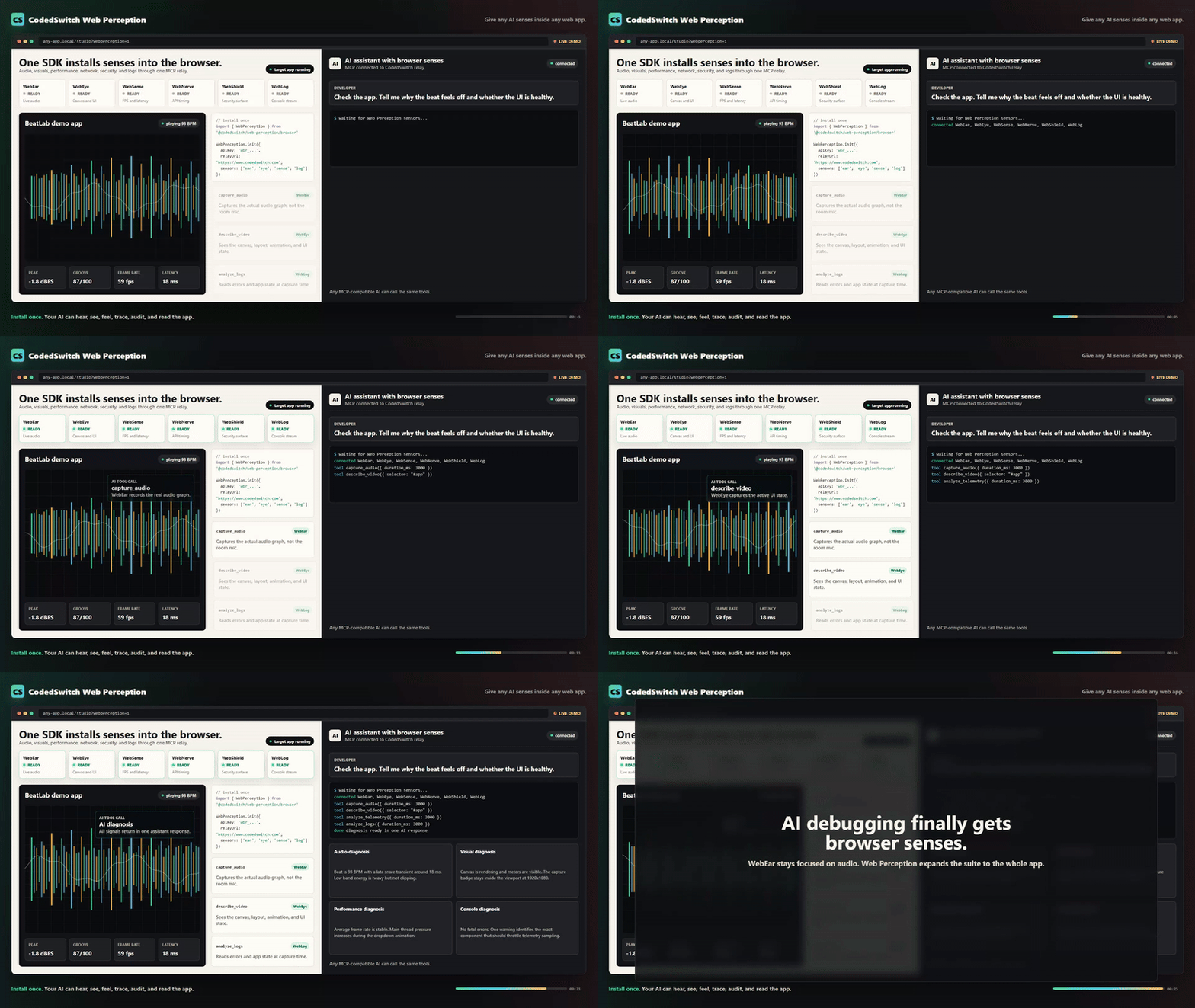
WebEar started as audio-only. Web Perception expands it to 6 senses:
| Sensor | What it perceives |
|---|---|
| WebEar | Audio — mix quality, rhythm, instruments, clipping |
| WebEye | Visual — canvas, UI layout, animations, screenshots |
| WebSense | Performance — frame rate, memory, audio latency |
| WebNerve | Network — API latencies, connection quality, storage |
| WebShield | Security — cookies, storage exposure, CSP, framing |
| WebLog | Console — logs, warnings, errors, uncaught exceptions |
Install the full browser SDK
import { WebPerception } from 'webear/perception'

WebPerception.init({
  apiKey: 'wbr_YOUR_API_KEY',
  relayUrl: 'https://www.codedswitch.com',
  sensors: ['ear', 'eye', 'sense', 'nerve', 'shield', 'log'],
})
Or use a single sensor:
import { WebEar } from 'webear/perception'

WebEar.init({
  apiKey: 'wbr_YOUR_API_KEY',
  ear: { audioContext: myCtx, audioNode: masterGain },
})
Connect via MCP (hosted relay — no local server required)
{
  "mcpServers": {
    "webear": {
      "url": "https://www.codedswitch.com/api/webear/mcp/sse",
      "headers": {
        "Authorization": "Bearer wbr_YOUR_API_KEY"
      }
    }
  }
}
Available MCP Tools
| Sensor | Tool | Credits | Description |
|---|---|---|---|
| Ear | capture_audio |
Free | Record live tab audio |
| Ear | analyze_audio |
1 | BPM, loudness, frequency bands, clipping, dynamic range |
| Ear | describe_audio |
2 | AI plain-English description — instruments, genre, mood, mix notes |
| Ear | diff_audio |
1 | Compare two captures — loudness, tone, timing deltas |
| Ear | groove_score |
2 | Grid alignment, swing factor, consistency (0–100%) |
| Ear | capture_and_analyze |
1 | Capture + analysis in one call |
| Ear | mix_coach |
3 | Structured mixing feedback |
| Eye | capture_video |
Free | Record canvas/video from the tab |
| Eye | describe_video |
2 | AI visual description — layout, colors, bugs |
| Eye | diff_visuals |
2 | Compare two visual captures |
| Sense | capture_telemetry |
Free | FPS, memory, layout shifts, audio latency |
| Sense | analyze_telemetry |
1 | Frame drops, memory pressure, audio underruns |
| Nerve | capture_nerve |
Free | API timings, connection quality, storage size |
| Nerve | analyze_nerve |
1 | Slow APIs, connection quality, storage bloat |
| Shield | capture_shield |
Free | Cookies, CSP, storage exposure, framing |
| Shield | analyze_shield |
1 | CORS issues, non-HttpOnly cookies, missing CSP |
| Log | capture_logs |
Free | Console output + uncaught exceptions |
| Log | analyze_logs |
1 | Error patterns, stack traces, repeated warnings |
Get an API Key
- Create a free account at codedswitch.com.
- Open codedswitch.com/developer — also linked as Developer API in the account menu.
- Click Generate API Key and copy it. Keys start with
wbr_.
Free tier: 50 analyses/day, no credit card required.
Changelog
2.0.1
- Fixed the getting-started path for API keys. The previous instruction ("Settings → WebEar") was wrong — there is no WebEar section under Settings. Keys live at codedswitch.com/developer (linked as Developer API in the account menu). Both the Quick Start and the Web Perception sections now point to the correct place.
- The SDK's "missing API key" console error now links straight to the key page.
Contributing
See CONTRIBUTING.md.
License
MIT — see LICENSE
Author
Built by @asume21 — CodedSwitch
Вопросы о webear MCP
Как добавить webear MCP в Claude Code?
Выполните claude mcp add --env 'CODEDSWITCH_API_KEY=<YOUR_CODEDSWITCH_API_KEY>' webear -- npx -y webear в терминале. Добавьте --scope user, чтобы сервер был доступен во всех проектах.
Как добавить webear MCP в Cursor?
Откройте ~/.cursor/mcp.json и добавьте сервер в mcpServers, используя конфигурацию Cursor из раздела установки выше.
Требуется ли API-ключ для analyze_audio?
Базовый анализ, включая длительность, громкость, пиковый уровень и клиппинг, выполняется локально без ключа при наличии установленного ffmpeg. Для расширенных метрик, таких как спектральный центроид и BPM, требуется API-ключ CodedSwitch.